Make It Bounce in Blender
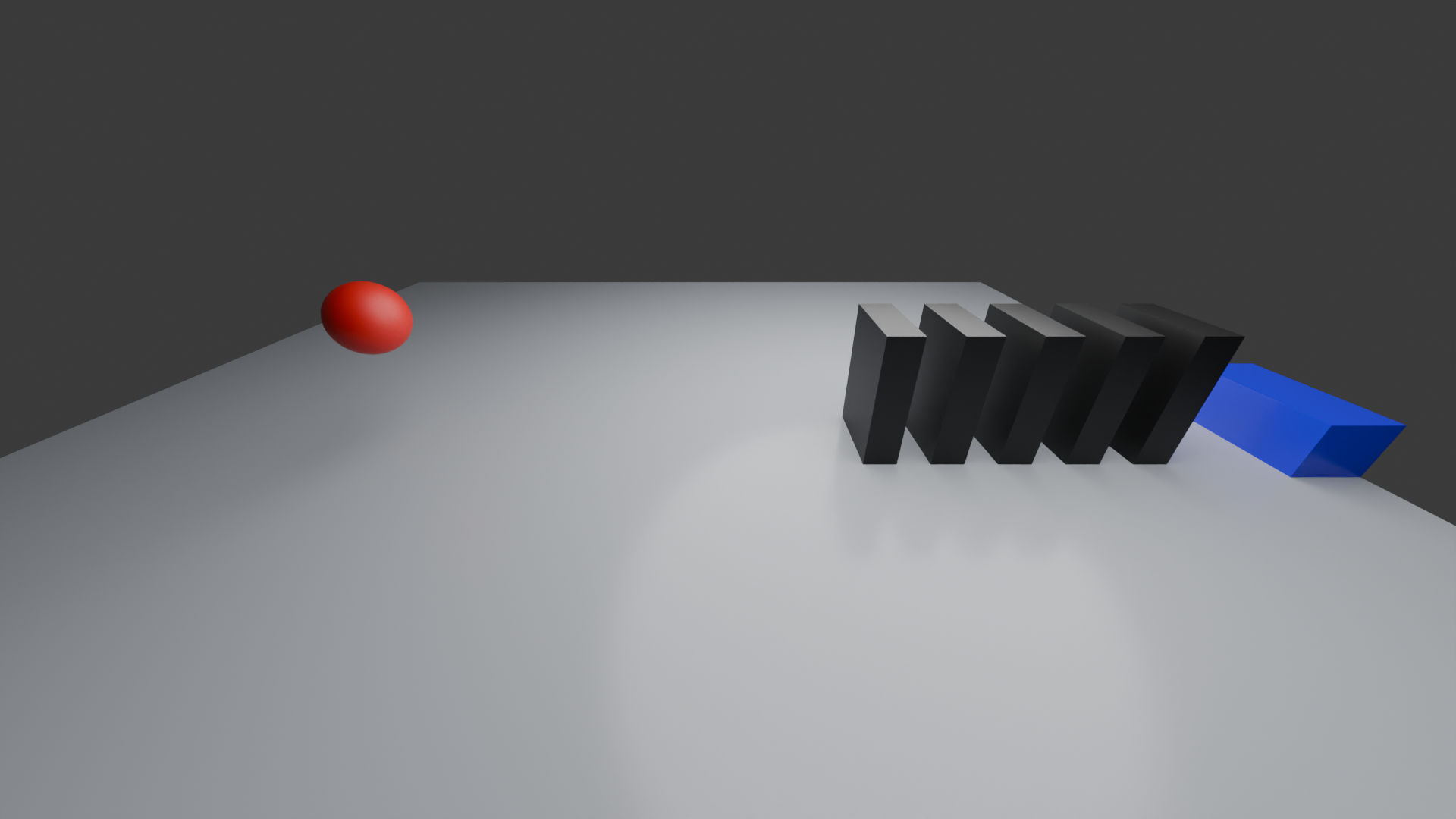
In this tutorial, I’ll show you how to create a bouncing ball scene in Blender using keyframes, arcs, squash and stretch, and simple rolling motion. The ball will bounce across a platform roll into dominoes, and trigger a satisfying ending.
Along the way, you’ll learn basic Blender tools, animation keyframes, materials, lighting, camera setup, and rendering. This project is beginner-friendly but still looks fun and polished.
Downloads
Supplies
For this project, I used Blender 5.1 on a Lenovo Legion 5 Pro.
That is all you need to build the scene and render the animation. A faster computer will make Blender run smoother, but a slower computer can still complete the project. The render may just take more time.
Starting

Open Blender 5.1.
When Blender asks what type of project to start, choose:
General
Use General because this project uses 3D objects, animation, lighting, camera, and materials.
Do not choose:
- 2D Animation
- Sculpting
- VFX
- Video Editing
After choosing General, you should see:
- a cube
- a camera
- a light
General Keybinds
These are the keybinds used in this tutorial
- X — delete selected object
- Shift + A — add object
- G — move object
- R — rotate object
- S — scale object
- G + X/Y/Z — move on one axis
- R + X/Y/Z — rotate on one axis
- S + X/Y/Z — scale on one axis
- Shift + D — duplicate object
- I — insert keyframe
- Spacebar — play animation
- Ctrl + Z — undo
- Ctrl + S — save
- Numpad 0 — camera view
Delete the Default Cube

- Click the cube.
- Press X.
- Click Delete.
Now the scene should only have the camera and light.
Add the Floor

- Press Shift + A.
- Choose Mesh > Plane.
- Press S.
- Type 10.
- Press Enter.
This makes a large floor.
Rename it: Floor
To rename it, select the plane and rename it in the top-right Outliner.
Add the Main Ball

- Press Shift + A.
- Choose Mesh > UV Sphere.
- Press S.
- Type 0.5.
- Press Enter.
Move the ball to the starting position:
- X: -4
- Y: 0
- Z: 2
You can move it using the G key, or you can type exact values in the side panel.
To open the side panel, press: N
Then go to the Item tab and type the Location values.
Rename the ball:
Main Ball
Set the Timeline

At the bottom of Blender, find the timeline.
Set:
- Start Frame: 1
- End Frame: 204
This gives enough time for the ball bounce and chain reaction.
Animate the Ball in an Arc

This is the most important part of the tutorial.
A bounce should look like a curved arc. The ball should move forward while going up and down.
We will create this by adding location keyframes.
Select the ball.
Frame 1:
Go to frame 1.
Set the ball location to:
- X: -4
- Y: 0
- Z: 2
Save the keyframe
Press: I
Choose: Location
This saves the ball position at frame 1.
Frame 20: First Ground Hit
Go to frame 20.
Set the ball location to:
- X: -3
- Y: 0
- Z: 0.5
Save the keyframe, using the steps before.
This is the first bounce impact.
Frame 40: Top of First Arc
Go to frame 40.
Set the ball location to:
- X: -2
- Y: 0
- Z: 2.6
Save the keyframe
This is the top of the arc.
Frame 60: Second Ground Hit
Go to frame 60.
Set the ball location to:
- X: -1
- Y: 0
- Z: 0.5
Save the keyframe
Frame 80: Top of Second Arc
Go to frame 80.
Set the ball location to:
- X: 0
- Y: 0
- Z: 2.2
Save the keyframe
This arc is slightly lower than the first one. That makes the bounce look more natural.
Frame 100: Third Ground Hit
Go to frame 100.
Set the ball location to:
- X: 1
- Y: 0
- Z: 0.5
Save the keyframe
Frame 120: Smaller Final Arc
Go to frame 120.
Set the ball location to:
- X: 2
- Y: 0
- Z: 1.4
Save the keyframe
Frame 133: Bounce Off Dominoes
Go to frame 133.
Set the ball location to:
- X: 2.55
- Y: 0
- Z: 0.7
Save the keyframe
Frame 148: Backwards
Go to frame 148.
Set the ball location to:
- X: 2.1
- Y: 0
- Z: 0.5
Save the keyframe
Frame 177: Backwards
Go to frame 177.
Set the ball location to:
- X: 0.5
- Y: 0
- Z: 0.5
Save the keyframe
Frame 196: Slow Down
Go to frame 196.
Set the ball location to:
- X: -1
- Y: 0
- Z: 0.5
Add Squash and Stretch
Squash and stretch makes the ball look more alive and cartoonish.
The ball should:
- squash when it hits the ground
- stretch when it launches upward
- return to normal at the top of the arc
Select the ball.
Frame 1: Normal Shape
Go to frame 1.
Set scale to:
- X: 0.5
- Y: 0.5
- Z: 0.5
Save the keyframe
Frame 20: Squash
Go to frame 20.
Set scale to:
- X: 0.55
- Y: 0.55
- Z: 0.45
Save the keyframe
This makes the ball flatten when it hits the ground.
Frame 25: Stretch
Go to frame 25.
Set scale to:
- X: 0.45
- Y: 0.45
- Z: 0.6
Save the keyframe
Repeat for the other frames:
At frame 1, the ball is normal. Set the scale to 0.50, 0.50, 0.50.
At frame 20, the ball squashes when it hits the ground. Set the scale to 0.55, 0.55, 0.45.
At frame 25, the ball stretches as it bounces upward. Set the scale to 0.45, 0.45, 0.55.
At frame 40, the ball returns to normal. Set the scale to 0.50, 0.50, 0.50.
At frame 60, the ball squashes again. Set the scale to 0.55, 0.55, 0.45.
At frame 65, the ball stretches upward. Set the scale to 0.45, 0.45, 0.55.
At frame 80, the ball returns to normal. Set the scale to 0.50, 0.50, 0.50.
At frame 100, the ball squashes again. Set the scale to 0.55, 0.55, 0.45.
At frame 105, the ball stretches upward. Set the scale to 0.45, 0.45, 0.55.
At frame 120, the ball returns to normal. Set the scale to 0.50, 0.50, 0.50.
At frame 133, the ball stretches slightly. Set the scale to 0.47, 0.47, 0.53.
At frame 140, the ball stretches more. Set the scale to 0.45, 0.45, 0.55.
At frame 148, the ball returns to normal. Set the scale to 0.50, 0.50, 0.50.
Add Ball Rolling Rotation
The ball should only roll when it is actually rolling on the ground or ramp.
Do not rotate the ball while it is bouncing through the air. A ball can spin in real life, but for this beginner animation it looks cleaner if the ball only visibly rolls during the rolling section.
In this project, the ball bounces first, then rolls into the dominoes.
So the rolling rotation starts after the final bounce.
When the Ball Should Roll
The ball should only roll after it lands and moves toward the dominoes.
- At frame 177, the ball finishes the final bounce. Set the Y Rotation to -180°.
- At frame 196, the ball stops rolling. Set the Y Rotation to 360°.
Add the Rolling Keyframes
Select the Main Ball.
The ball moves left to right along the X axis, so rotate it on the Y axis.
Frame 135: Hit Dominoes
Go to frame 1.
Set rotation to:
- X: 0°
- Y: 0°
- Z: 0°
Save the keyframe
This makes the ball roll forward on the ramp or ground.
Frame 145: Roll
Go to frame 145.
Set rotation to:
- X: 0°
- Y: 180°
- Z: 0°
Save the keyframe
Now the ball rolls only during the part where it is moving into the dominoes.
Add a Domino Stopper
Add a cube.
Scale:
- X: 0.5
- Y: 1
- Z: 0.433
Move it to:
- X: 9.5
- Y: 0
- Z: 0.433
Add a Domino
Add a cube.
Scale it like a domino:
- X: 0.25
- Y: 0.7
- Z: 1
Move it to:
- X: 3.15
- Y: 0
- Z: 0
Set the Origin
To make dominoes fall correctly, set origin to the edge of domino
Select Domino 1.
Press Tab to enter edit mode.
Press 2 to select edge.
Select the bottom edge closest to the next domino.
Press Shift + S.
Choose Cursor to Selected.
Return to Object Mode by pressing Tab.
Click the Object menu, and hover over Set Origin, and then choose Origin to 3D cursor.
Make More Dominoes
Duplicate it using:
Shift + D
Make 5 dominoes.
Each domino should be spaced by 1 meter apart.
Ex:
- 3.15
- 4.15
- 5.15
- 6.16
- 7.15
Animate the Dominoes Falling
We will animate the dominoes manually with rotation keyframes.
Select Domino 1.
Go to frame 133.
Make sure Domino 1 is standing straight.
Save the keyframe
Go to frame 143.
Rotate Domino 1 forward:
- Press R.
- Press Y.
- Type 60.
- Press Enter.
- Save the keyframe
Repeat for each domino, but delay each one.
- Domino 1 is standing at frame 133. At frame 167, rotate it so it falls.
- Domino 2 is standing at frame 143. At frame 166, rotate it so it falls.
- Domino 3 is standing at frame 147. At frame 168, rotate it so it falls.
- Domino 4 is standing at frame 152. At frame 169, rotate it so it falls.
- Domino 5 is standing at frame 155. At frame 171, rotate it so it falls.
Add Materials and Textures
Materials make the project look better.
Go to the Ball, click Object, and select Shade Smooth
Ball Material
Make the ball look like rubber.
- Select the ball.
- Go to Material Properties.
- Click New.
- Change the color to red or your preferred color.
- Set roughness around 0.35 if available.
Grey Platform
Make the platform a light gray.
- Select a platform.
- Go to Material Properties.
- Click New.
- Change the color to gray.
Domino Stopper
Make the domino stopper blue
- Select the domino stopper.
- Add a new material.
- Change the to blue.
Domino Material
Make the dominoes black.
- Select a domino.
- Add a new material.
- Change the color to black.
Add Camera
Move the camera so it can see the full animation.
A good camera position is:
- X: 1
- Y: -6
- Z: 4
A good camera rotation is:
- X: 60°
- Y: 0°
- Z: 0°
A good focal length rotation is:
- 11mm
Press:
Numpad 0
This shows the camera view.
Make sure the camera can see:
- the ball
- the platforms
- the ramp
- the dominoes
- the final text
Preview the Animation
Press:
Spacebar
Watch the full animation.
Check that:
- the ball moves in a forward arc
- the ball hits the platforms
- the ball squashes when it lands
- the ball stretches when it bounces upward
- the ball hits the dominoes
- the dominoes fall one by one
- the ending text appears
If the ball does not move, check that you added Location keyframes.
If the ball does not squash, check that you added Scale keyframes.
Render Settings
Go to Output in the Properties Manager
Set:
- Resolution: 1920 x 1080
- Frame Start: 1
- Frame End: 204
For video:
- File Format: FFmpeg Video
- Container: MPEG-4
- Video Codec: H.264
Then go to:
Render > Render Animation