Making Wood-Art Notebooks
by NuMellow in Craft > Books & Journals
3147 Views, 38 Favorites, 0 Comments
Making Wood-Art Notebooks


Hey there! Recently I've been making wood-covered notebooks after being inspired by some I saw at a local art fair. They can make for some great gifts, and are also just a joy to use.
In this instructable, I'll show you how I made a custom wood-art art book and how you can make your own.
Supplies

- An art piece to be the cover
- Wood
- Laser cutter/engraver
- Paper
- Varnish: water-based, clear polyurethane
- Sanding paper: 2500 - 3000 grit
- *Double loop wire binding
- *Hole punching machine
- Latex gloves
- Respiratory mask
*These can be optional if you have access to book binding services
Create Book Template


The first step is defining how big the book will be, and creating a template for the laser to use. The template will define the size of the book, as well as the perforations (since we can't hole-punch wood). We will also add our design to the template in the following step.
I decided to go with A6 size notebooks as I had some wood left over from making some A5 books. Whatever size you go with, make sure to check the size of your paper first. I had got some stock paper that I had assumed to be A6 in size (105 x 148 mm), but turned out to be slightly taller, and so I had to trim them down later manually with a crafting knife.
The other thing to be aware of is the size of the wire binding loops. They usually have what they call a pitch such as 3:1, 2:1 etc. This tells you how wide the spacing of the rings are. A 3:1 pitch means there are 3 rings per 1 inch, and so your template should have the same. This will also be specially important if you will use a book binding service. If you are, be sure to ask what size the binding rings will be so you can design accordingly.
That said, I have made an A5 and A6 size template with a 3:1 pitch that you can download and use.Designing your own is fairly straight forward too. I used Inkscape, which is a free vector image tool, but you can use other tools such as Adobe Illustrator, or Affinity designer.
Steps
Create cover
- Set size of the document:
- Create a rectangle and give it the length and width of the paper with about 2mm padding
- Round the corners of the rectangle
Create Perforations
First you'll need to determine the spacing between perforations. I find it easier to work with millimeters and will use that for this example, and use ring binding with a 3:1 pitch.
- 1 inch = 25.4mm
- Each perforation will be 4mm (the hole punch made 3mm holes and I add a 1mm for padding)
- so they will take up 12mm (4mm * 3)
- Remaining space: 25.4mm - 12mm = 13.4mm
- Space between perforations: 13.4mm / 3 = 4.47mm (We can round this up to 4.5mm)
- Create a square of size 4mm and place it in the top left corner of the cover. Give it a margin of 4mm from the top and left side.
- Copy and paste the square, placing it 4.5mm below the previous one.
- Repeat step 2 until the perforations are 4mm above the bottom of the page.
Adjust the line thickness of the cover
In order to tell the laser what needs to be cut vs engraved, we must set the line thickness to a specific value. I've only tried this with an epilog laser, but believe it should work with other brands as well. We shall be doing a test cut in a later step:
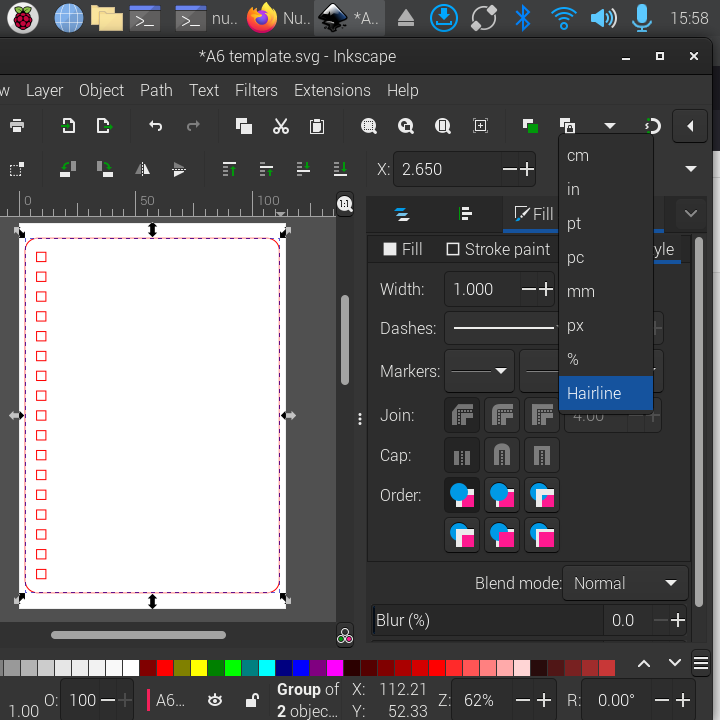
- Click and drag over the cover and the perforations to select all the rectangles one the page.
- Hover over one of the rectangles and right click. Select Fill and stroke from the menu.
- In the side bar select Stroke Style and on the width drop-down select Hairline or add a value of 0.001 inches/ 0.025mm


Designing the Covers
.png)



I wanted the art book to be of urban sketches of the city, parks and trails that I've been on and decided to have the cover be a sketch of a bus ride I took one autumn morning.
A thing to note when engraving images is that by default, the laser will use higher power on darker areas and less on the lighter areas, but the wood may not show that variance as well. generally high contrast images will work better but some other things that could help are:
- Type of wood matters
- Some wood won't show much of a difference between a light or stronger engraving, so you may lose detail in shadows.
- Two/Three-tone drawings
- If you're creating a drawing, it can be helpful to make it grayscale and limiting it to a few tones may help give you a sense of how the laser sees it
- May need to engrave people with different complexions separately
- If you're comfortable with photo manipulation or use tools like magic eraser, you can isolate different complexions. By doing so, you can make edits to bring out more details without over-exposing lighter skin tones, or under-exposing darker ones
Steps
If you want to make a similar design as I did, these are the steps I took in Inkscape:
Add image
- In the file menu, select import and select your image
- Click the resize button on the corner of the image, while pressing the ctrl key (on Windows) and drag to fit the image in the template
- If you want to center the image, you can click the Align and distribute button in the tool bar
- In the side bar, open the Relative to: drop-down and select page
- Click the Center on Vertical axis and Center on Horizontal axis buttons
Add text
- Press the T key to switch to the text tool
- Click on the page to add a text box and add your title. You can change the font and size in the tool bar at the top
Exporting the file for the laser
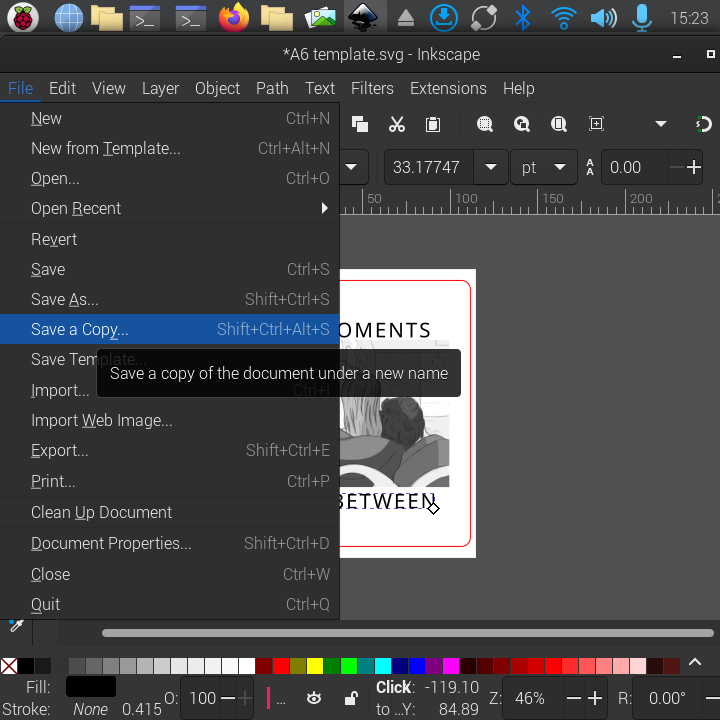
The laser I used expects a pdf file so I exported the document I was working on in inkscape as a .pdf. You may need to find out what type of file your laser needs, but from what I've seen, it may work with an .svg file. To do that in inkscape, just click on File and Save. You can also use Save a copy and save as a different format (like .pdf)
Choosing the Wood and Test Cuts


I'm not an expert on wood, but luckily, the makerspace I go to had different samples that I could do tests on. For the art-book I used Alder wood, and the others included hard maple, paduk, mahogany, and red oak. All the notebooks were made using 0.125 inch thick wood, which I found to be just right: not too thick, nor thin and flimsy.
Before committing to a type of wood its best to start with a small piece and see how well it engraves and cuts on the laser. I've added a file that cuts out a 1 inch square and engraves text and an image, that you could use, or you could also create a file yourself.
Because the laser you use will likely be different, I won't provide any specific settings/configurations.
Downloads

Sanding and Sealing
.jpg)
.jpg)
.jpg)
.jpg)
Once we have selected the wood we will use, we can varnish it. This step can also be done after cutting and engraving, but I found it easier to do this before there are holes or rough surfaces on the wood. Adding varnish will help protect the book from stains and collecting dirt. It can also make the wood pop a bit more.
I used a water-based, clear polyurethane varnish and applied 2 coats. I also used sandpaper with a 2500 - 3000 grit, as the wood was already fairly smooth. Remember to do this step in a well ventilated room, and use gloves and a respiratory mask.
- First sand down the wood and use a cloth or brush to dust it off
- Use a cloth or brush to apply the varnish evenly on the wood it and leave it to dry. This may take up to 30 minutes depending on the size of the wood and the ventilation.
- Once it's dried, sand it down lightly, and dust it off again.
- Apply a second coat evenly and let it dry once more.
- Repeat the process on the back-side
Cutting and Engraving


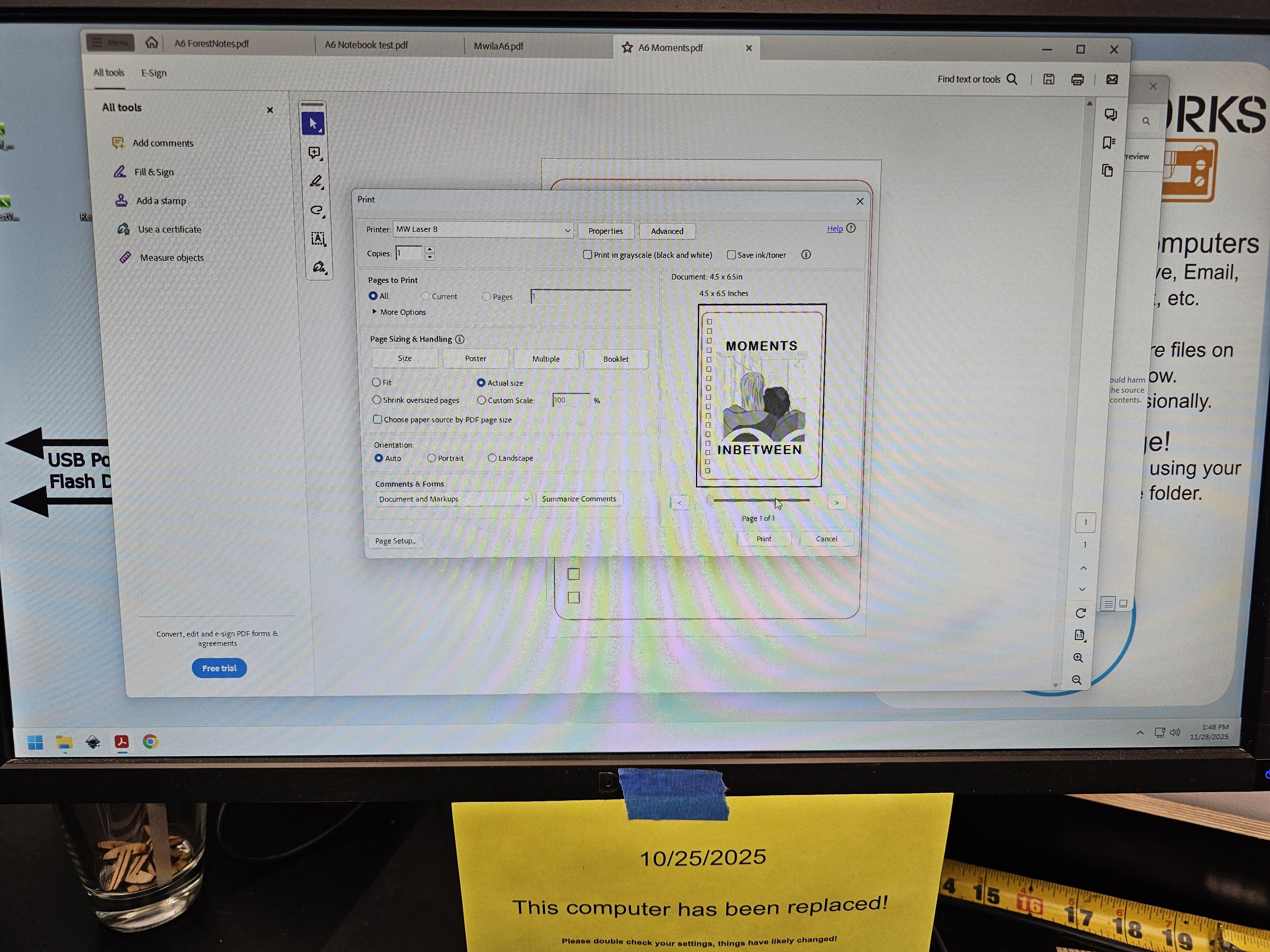


This step will depend on the laser you use, so I won't be too specific here. If you just so happen to use an epilog laser, I included a screenshot of my configuration, but I still recommend testing your own configurations, as they may have different power levels.
Once I was ready to cut out the cover, I got the pdf file I created in step 2, set it to run on the laser and just watched it go! :)
Bind the Book


Lastly I bound the book together. I used plain card-stock paper and a hole punch machine to make the perforations. I found that with the size of the binding wire I had and the paper thickness, I could fit not too more than 50 sheets of paper to keep the wood cover laying flat when placed down. This may differ for you, so test it out and see what works best.
- Pass the binding wire from the back of the book such that the loops point up
- Pass the front cover through the wire. It's face should face up
- Pass the back cover through the wire. It's face should face down
- Cut off any excess wire with flush cutters/scissors
- Close the bindings
Book Complete


.jpg)


I really like how the books came out, and now looking forward to filling them! I hope you've enjoyed reading along, and maybe even inspired to make your own. In any case, thanks for reading!