🗺️Map Your Neighborhood, 🎨Your Own Way
by Innocentlife in Design > Digital Graphics
272 Views, 1 Favorites, 0 Comments
🗺️Map Your Neighborhood, 🎨Your Own Way
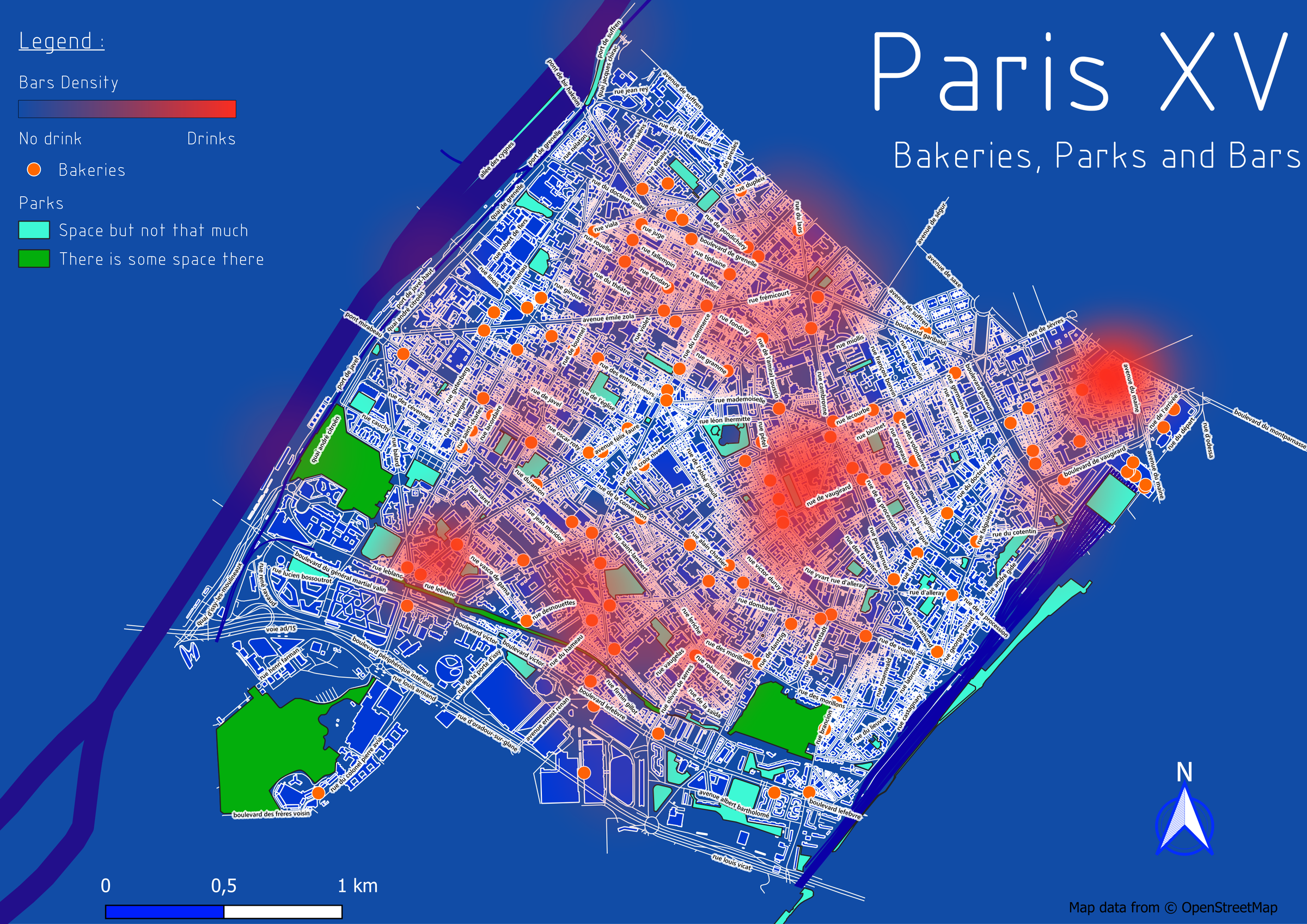


I plot and frame a map of my living district (Paris XV) choosing one by one what to represent, how and to what extend. This lead me to build this map, representing my neighborhood's living places in my own representation (and all of this thanks to free and open available data and software - that being said, don't forget to credit OSM as reported on their website).
I would like to share my experience with you, to show you that it is accessible.
Supplies
- QGCIS Software with QuickOSM plugin (see after)
- OpenStreetMap API (also mentioned as OSM)
- A printer
Introduction


As shown in above photography and reported by the exhibition in Paris recently,
"Maps usually outline the contours of known lands, but they also give shape to imaginary territories that extend, interpret, or personalize the real world.
Historically, beyond geographical boundaries, maps have incorporated mythical figures drawn from ancient and religious sources and passed down through medieval encyclopedias. These creatures inhabit the fringes of known lands and reflect the way the imagination projects itself onto territories yet to be discovered."
What about making our own personalization of the real world ?
Get Started With QGCIS and OpenStreetMap (OSM)


Start by opening QGCIS Software, then follow the following steps :
- New Project
- Layer Tab--> Add Layer
- Add XYZ layer --> Select OpenStreetMap as source of data
- Validate the configuration
- Zoom In/Out, pan, to navigate on the map
Alternatively in above step 3. you can use any tile provider as listed here by configuring the URL field.
You can also refer to OpenStreetMap documentation for further description of their work.
Add QuickOSM Plugin

QuickOSM allows you to work OSM data in QGIS thanks to Overpass API.
See it as a way to query OSM database and gets back the data that corresponds to the query. That's what we're trying to do, query the element we want to map one by one, to build up our own personalized map.
Run Your First Query

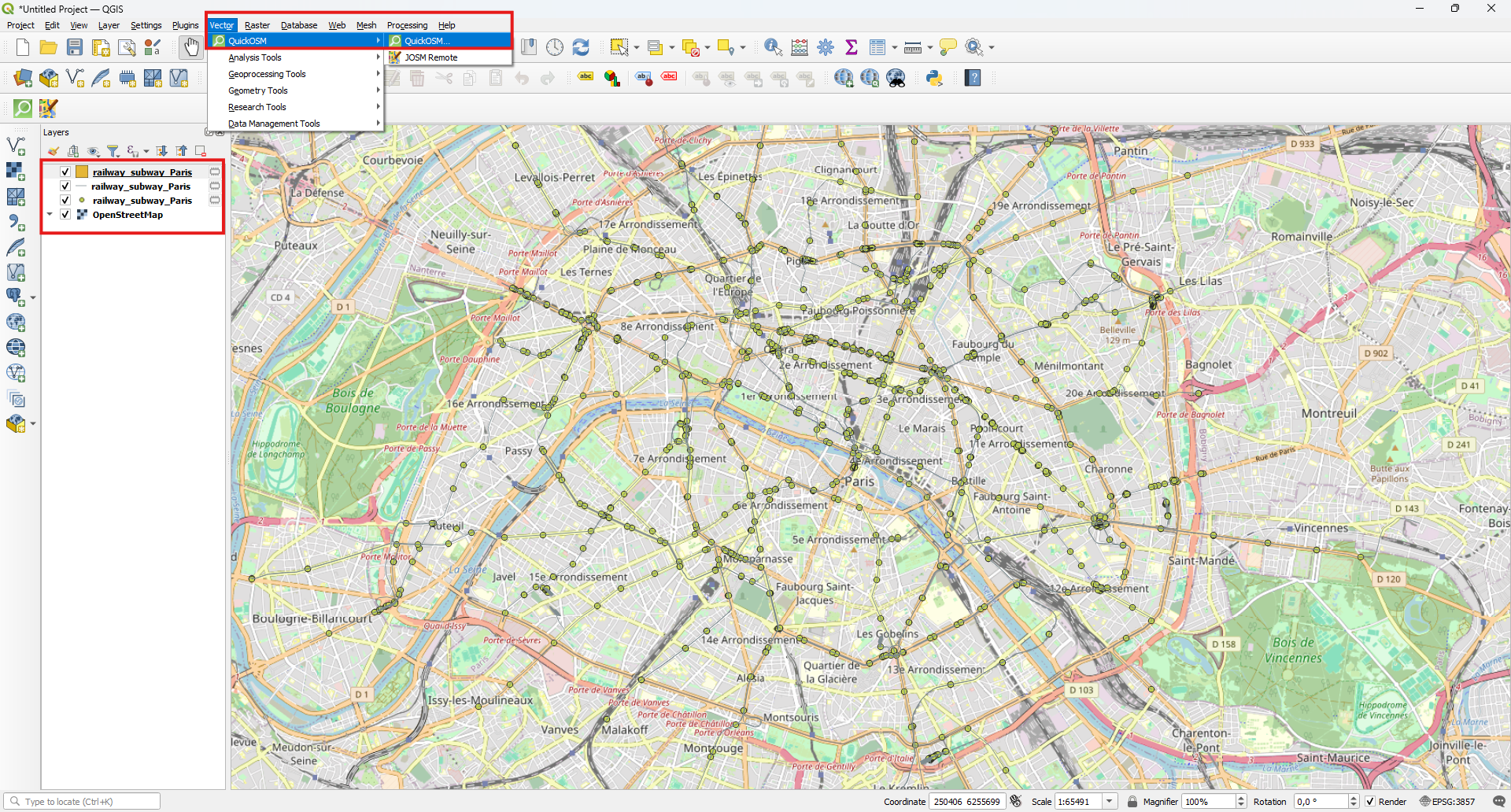
Let's say we want to plot the suburban network in Paris as an example :
- Click on tab Vector --> 🔎 QuickOSM (the plugin previoulsy installed)
- In the pop-up Window --> ⚡Quick Query tab
- In the Preset field, enter what you want to plot, in our case : Subway
- In the In field, enter the delimited area of the query : Paris
(Note that every data presented on a map is categorized, in our case, Subway is a subcategory of Transport : Transport/Railway/Subway), refer QuickOSM user guide for advanced query.
Once the server responds to the query, we get a map with 3 layers named "railway_subway_paris" on the left panel :
- One for the Metro station (dots)
- One for the Metro network (lines)
- One for the Metro platform (polygon)
The result is a map of Paris Metro, you can refer to the project OpenRailWay which go a step further in the above approach.
Repeat the Process With Your Neighborhood


Alternatively, it is possible to use 🔎 QuickOSM preset query, I recommend using the Urban preset, don't forget to fill the delimitation of the query. Once the request is done, you will end up with 2 layers and 3 sub-layers:
- Buildings
- Roads
- 1:25000
- 25k to 50k
- 50k +
The 3 sub-layers a. to c. are the layers that are selected dynamically depending on the current scale of the map. For example the style a. will be selected as long as the scale is under 1:25000, above that value the style b. or c. will be selected. You can understand the difference easily by zooming in and out on the map.
Double click on any layer to customize it (or use the dedicated left hand panel), you can change the line width, the police of the street name, the symbol, the color and so much more !
Customization and Be Ready to Print

Once ready to print, create the layout before export :
- Project Tab --> New Print Layout
- Add Item Tab --> Add Map
- Draw a rectangle that represent the map
- Add Item Tab --> Add Scale bar
- Draw a rectangle that represent the North Array
- Add Item Tab --> Add Label
- Draw a rectangle and enter the text
Useful Notes :
- Page properties is accessible by the right click, this allow you to select paper format and orientation/background, etc..
- With the "Move item Content" tool you can drag the map within its frame.
Bonus : Add Your Own GPX Trace to the Map
It is possible to add elements that are not within OSM database, for example a .gpx trace of your choice
Follow the following steps :
- Layer --> Add Layer
- Add Vector layer --> Select Vector Data source (the .gpx file of your choice)
The integrated layers are then accessible and can be customized as previously discussed.
Print & Frame


Once ready you can export the result :
- Layout Tab --> Export as .pdf
Use adequate resolution for printing, I recommend using 300dpi minimum, the resolution property is accessible as follow :
- Layout Tab --> Layout Properties
- Adjust the Export Settings on left hand panel
Make It Personal

It seems we can add some elements in there...
I wanted a map that represents the living places of my neighborhood, to achieve this, I choose to represent parks, bars and bakeries.
Bars are represented as a heatmap (you can select it when editing the symbol of the layer). I also decided to highlight the largest parks in my neighborhood.
And here it is 😊
Enjoy the result !
As always, if you enjoyed reading this article or felt inspired, please consider buying a coffee 😊