Minecraft PvP: Juiceboxes | Animation + Sound Effects
by Nesma Mavrakis in Design > Animation
90 Views, 1 Favorites, 0 Comments
Minecraft PvP: Juiceboxes | Animation + Sound Effects
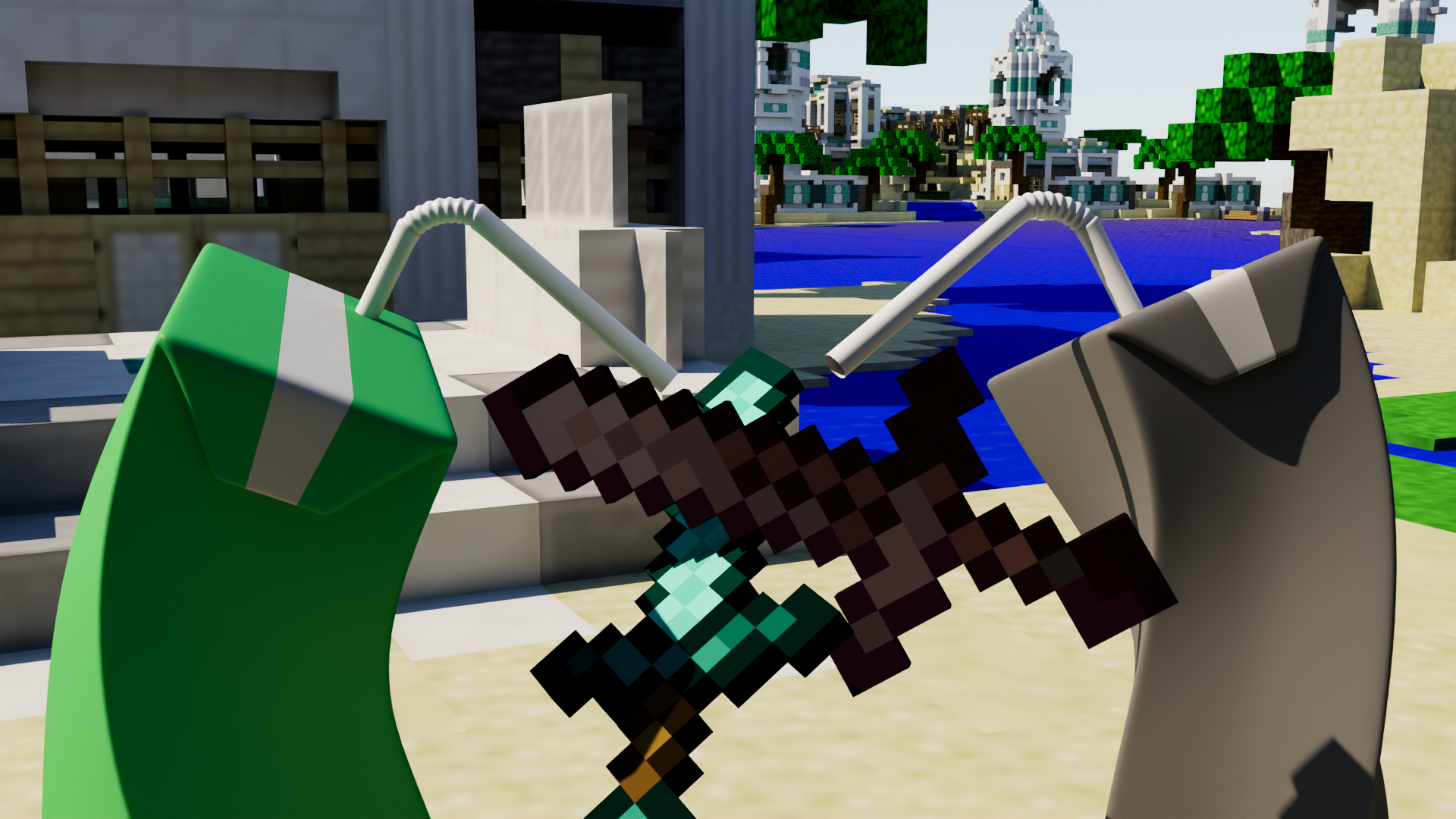
Hello, My name is Nesma Mavrakis and I have worked on projects in Autodesk Maya and various Adobe software for over a year now. Today I am going to walk you through the process of how I created this animation about juiceboxes batting like it's Minecraft PvP!
In this project, I will walk you through all the steps necessary to start your own juicebox animation in Maya, whether you are a beginner or experienced. I'll demonstrate how to create and follow through with your own animated story, some animating techniques for cartoony motions like bouncing, and post-production editing with sound effects. I'll talk about copyright for personal use, as well as crediting other's work in your final product.
Like many other people, I grew up with the well-loved sandbox game known as Minecraft. The game's influence on the internet and social media spread like wildfire, especially videos of online gameplay with friends. Personally, I grew up on the console version of Minecraft of which featured online mini-games. I spent a long time on the "Battle" game mode, the one with all that PvP, even though I wasn't very good at it. My childhood is the very thing that inspired me to create animations about Minecraft PvP later in my life.
I created an animation much like this back in my 3D animation beginners' class, and it was one of the greatest projects I had made in that class. The way I animated those juiceboxes, with the bouncing, and cartoony actions, gave me the brilliant idea for this particular project!
Supplies

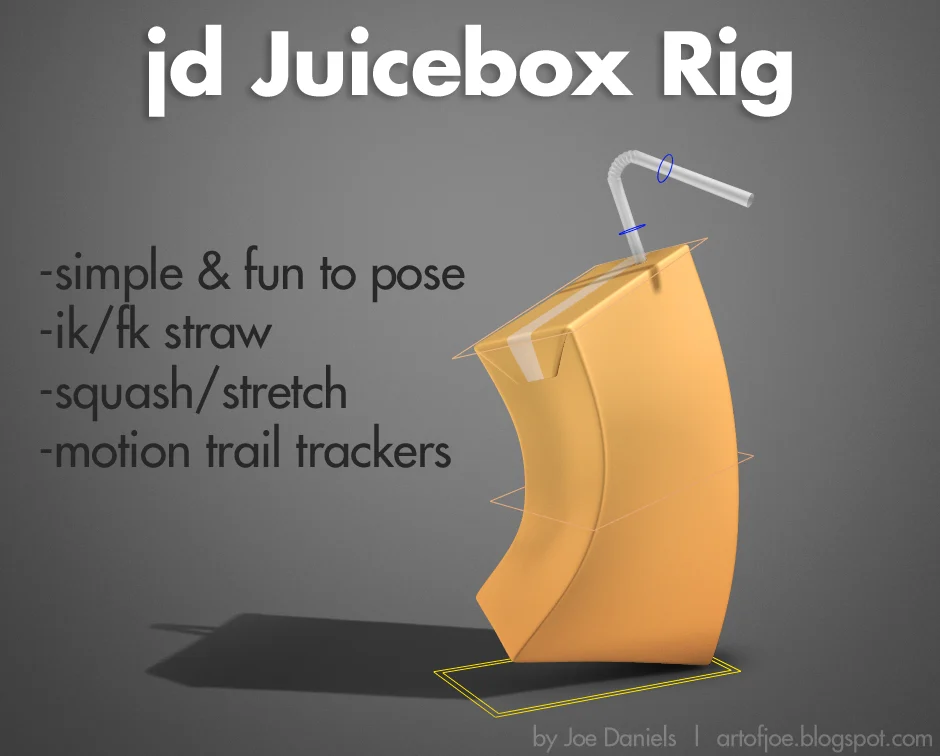


Autodesk Maya (2026)
Minecraft Item Props:
Adobe Fresco (or paper and pencil)
Premiere Pro (2026)
Pixabay
Creating the Story
.JPG)
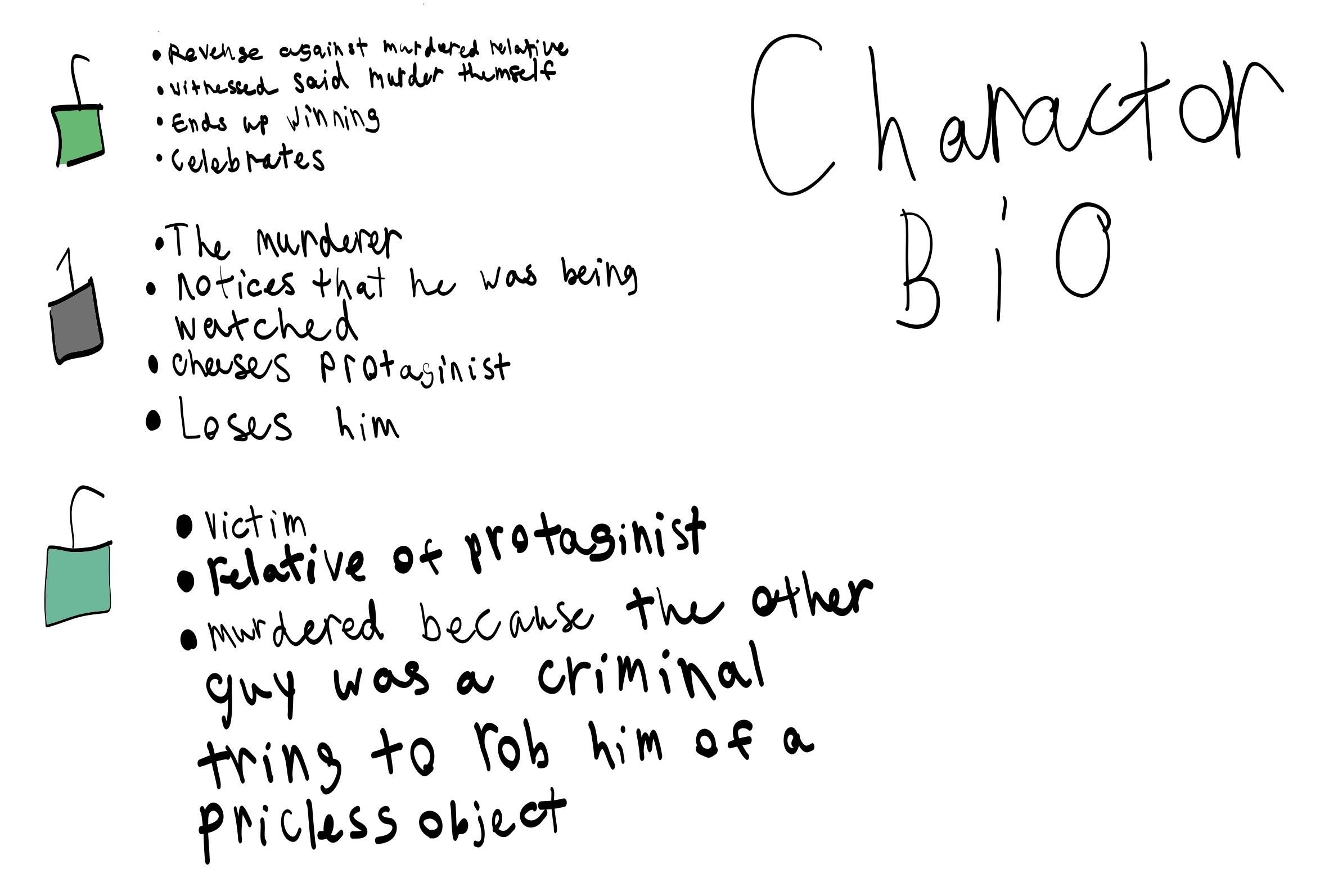
The very first thing you should do before making an animation is to plan the story. I was heavily inspired by multiple popular Minecraft PvP series on Youtube where they script out a story on an SMP server. They create character motives in their complex storylines and fight for power!
General Concept:
This is when I developed my general concept: The "grey one" robs the "teal one" and murders him. Then the "green one" seeks revenge on his brother."
Character Bio:
Then I created a little character bio to organize my thoughts and make short notes of the characters' main roles. In a way, this part did, in fact, help me develop the general concept.
Storyboard:
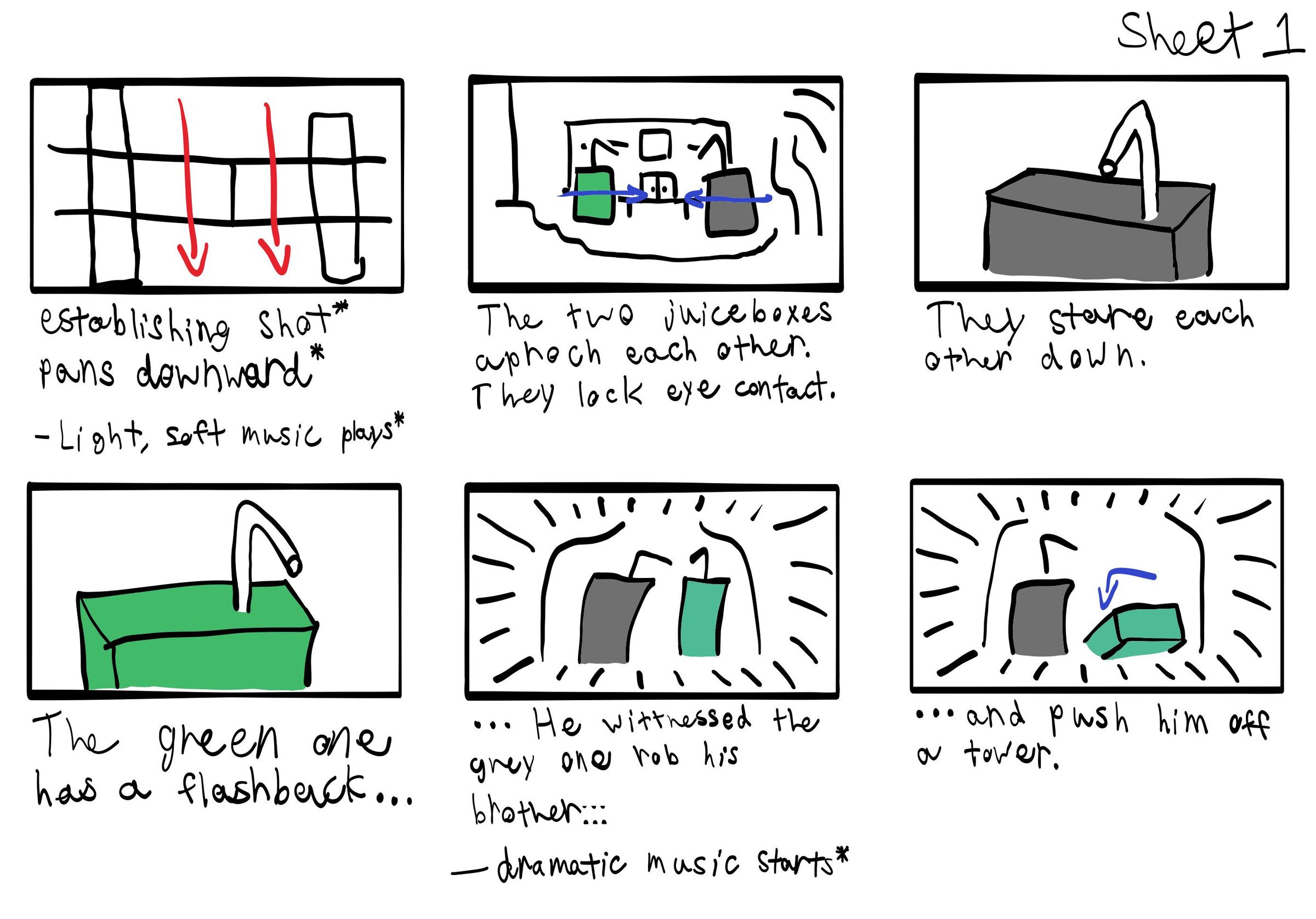
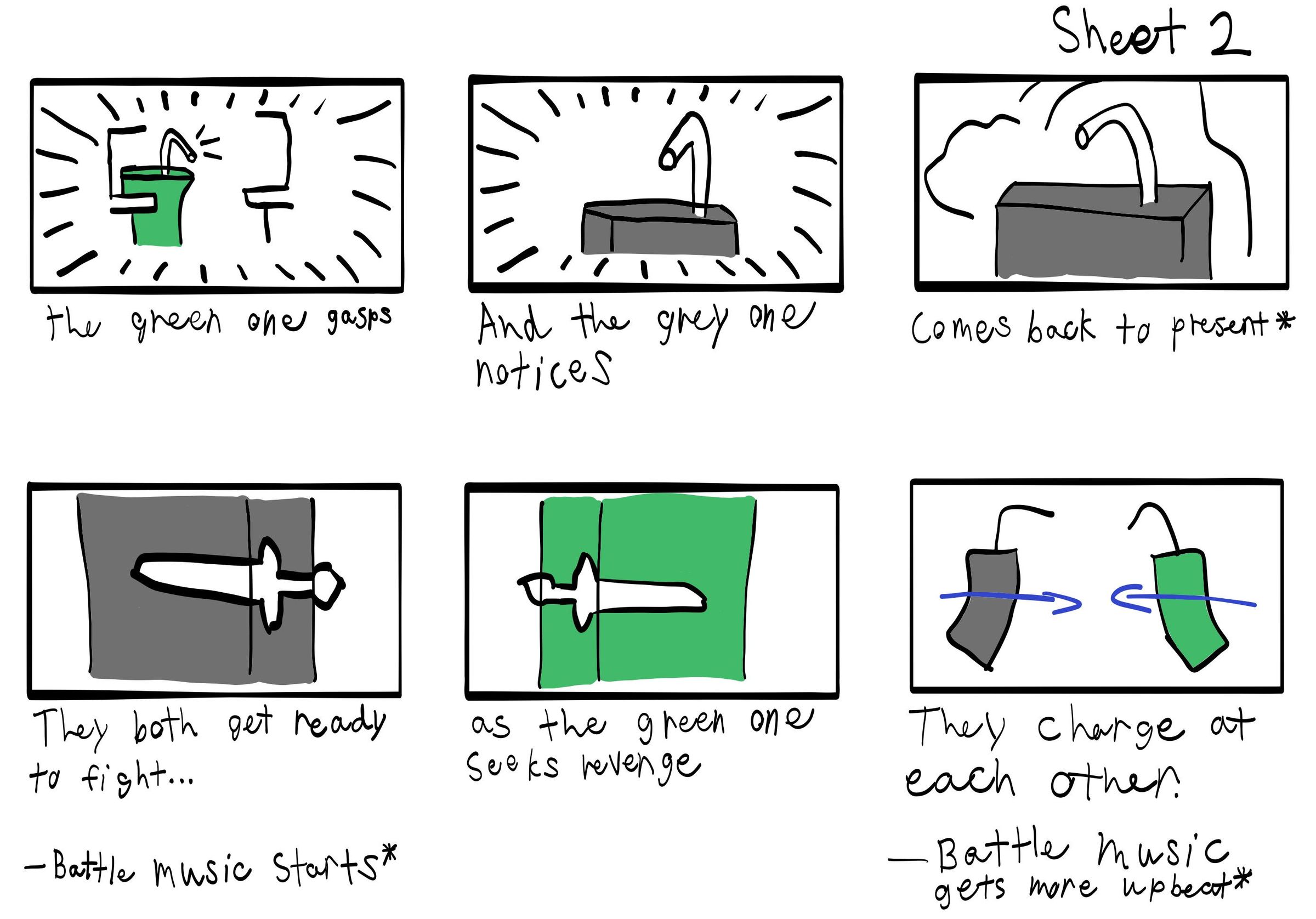
Now, to order when I want my scenes to take place, I created storyboards of my shots. I made notes below each panel of the action going on in that particular shot, as well as the type of music or sound effects that are meant to be played. I also made notes on camera movements with red arrows, and character movements with blue arrows.
Pro Tip:
You may pose the juicebox rig in Maya to make a reference while you draw them on your board. Additionally, if it helps, you may also create a written script of the events. This doesn't have to be a strict one step, then next step process. Go in an order that works best for you!
Feeling the Rig


To "feel the rig" means to become familiar with all its moving parts. Once you have downloaded your juicebox rig and imported it into Maya, click each individual moving part and rotate them in multiple directions. This will help you better understand how this rig will move when animated.
Base Control:
Like every other rig, the rectangular ring on the bottom is the Base Control, it controls where the whole juicebox will be moved. This is typically the "walking" control, as most other rigs use base controls like this to animate the base movement.
Squash and Stretch:
A cool feature about this rig is that it has controls for squeezing, and blowing the juicebox, as well as squashing and stretching. These are very useful tools for animating the physics to bouncing movement later on.
Front-Back, Left-Right:
In addition to squash and stretch controls, this rig can move its bottom part back and forth, or left to right. And when it does that, the rest of the juicebox leans a bit. This is useful for making exaggerated movements for running, jumping, or even dodging attacks.
Picking the Scene & Props


I searched Sketchfab for a Minecraft model environment that best fit what I planned for my story. Additionally I gathered up the necessary held items for my story.
Copyright:
On Sketchfab, there are filters that help you easily find models that are downloadable, and fit your copyright license. For example, I'm using this model to be part of a project that I will claim as my own work. So I need to pick a model that is free to use, or even free to use with credit to the artist.
Make sure you download the models as .OBJs with texture files in their folders, or they can't present well in Maya. You may download the ones I have picked already to replicate my project. But I'll let you have the creative freedom to pick some of your own if you choose to go by your own script!
Follow Your Story:
Be sure to reference what you storyboarded or wrote about your environment, as well as your characters. You might come up with some interesting ideas for props based of a character's motives and actions!
Piece Together the Scene


Now that you have downloaded your environment and your juicebox rig, it's time to import them both into one Maya file to set up your scene.
Fixing the Environment:
It's typical for these particular Minecraft models, downloaded from Sketchfab, to be imported as a bunch of individual pieces. On top of that, their default surface material is a "Phong", a transparent and super reflective material. It's not usually recommended to use them. Let's clean it up, shall we? I have figured out an easy way to put it all into one AiStandardSurface or Lambert material.
First, select all parts of your environment and make it a group by holding "Control" or "Command" (on iMac) and press "G". Now you have combined all the pieces of your environment! Second, for the textures, it's as simple as creating a new Lambert, and applying the original texture to it from the model's folder. Then, select the entire environment and apply the new Lambert to all the parts of the environment at once. If for some reason it is still transparent, view the Lambert material in your Hypershade window and right-click "Transparency" and click the "Break Connection" option. Now your environment should feel more solid!
Sometimes you might find that the environment is too small, or too big for the rigs. In this case, you scale up or down the environment, NOT THE RIGS. Most rigs won't allow you to scale them anyway. So just make sure that your environment is at a balanced scale to your juiceboxes. The way I scaled it was by making the environment big enough to make the juiceboxes look two Minecraft blocks tall; like in the real Minecraft game.
Held Items and Props:
Most of the models you'll find can and will be imported as Phongs as well. Because they are one piece, you can fix this by changing their Material Type directly. First select your object, then view it in your Attribute Editor to find its Surface Material. It should be a tab called "Phong", or the name of the texture file. In this tab, click the drop-down menu next to the word "Type" and find the Lambert Material. Now you have converted a Phong Material into a Lambert!
The Juiceboxes:
If you plan on using more than one juicebox for your animation, DO NOT DUPLICATE PRE-EXISTING RIGS! You must import the amount you want individually using the Maya Binary file for the rig. Now, for the appearance of these juicebox rigs, you can change their colors if you open up your Hypershade window, and find the material attached to your juicebox's geometry, it will likely have a name related to it. From there, you can change the color of that material, and thus change the color of the juicebox. You won't need to change the material itself like the environment however, because that one in particular has no issues.
Now make sure you place your juiceboxes where your animation will take place, along with their held item. We'll keep them with their respective juicebox characters to parent them to the rig.
Pro Tip:
Sometimes, through a camera, you might see the infinite void that is Maya. You don't really want to see this in your render because it seems strange to watch, like there's supposed to be something there. A way I found to work well is to select your environment group and duplicating it twice, one for each other side that exposes the void.
Parent Held Item


Here's where we will parent the held items to the juiceboxes to make them fallow their movements. Now, to do this right, you must do each step very carefully.
Parent and Child:
Select your character's held item and make it into a group by holding "Control" or "Command" (on iMac) and press "G" on your keyboard. You'll need to use the group to parent the item to the Base Control of the juicebox rig. Now, here's the important part. When parenting objects, you MUST select the "child" first, and the "parent" second. In this case, your child is the Base Control, and your parent is the item. Think of it as "the parent follows the child". Now when you animate the item movement later, you must ONLY animate with the geometry, DO NOT EVER MOVE THE GROUP ITSELF!
Pro Tip:
For one of my shots, I'll have my held items be invisible until the moment they need to appear for the fight. This acts as a "taking out your sword" effect that is very similarly to Minecraft!
Animation Layers


Time for the important part, the animation! Of course, this part would vary depending on your own unique story. This is the process of how I made mine!
Animation Layers:
Before I began animating my juiceboxes, I created some Animation Layers for each unique movement type. Open your Channel Box on the right and click the tab inside that's labeled "Anim", this is the Animation Layers tab. Here, I right-clicked the empty area and created three New Animation Layers; one for Left/Right, Front/Back, and Squash/Stretch, respectively.
Then I pared the respective control handle on the rig that had the particular feature to the layer. I selected the control handle, and then right-clicking the layer and then selected "Add Selected Objects". Now that layer is set for animating its own movement! For example, the Base Control goes with both the Front/Back and Left/Right layers, and the middle control goes with the Squash/Stretch layer. The Base Animation is used for the main action of the handle you select. By the way, I let the In/Out control be part of the Squash/Stretch layer for convenience. I would use them at the same time anyway for a better give to the squashing and stretching.
I highly recommend trying out Animation Layers if you haven't already! They are really useful for organizing what each keyframe is meant to be doing.
Pro Tip:
Something that I also like to do before I animate is to set up a camera. This way, I can get an idea as to what the final shot may look like, and reference what movement may look like from that perspective. One way I did this is by changing the perspective view to that set camera. Another way is to "Tear Off" a copy of that perspective view to have it on the side.
Animating the Jumping and Bouncing


Now that I have everything set up and organized, I am ready to start animating my characters!
Character Action:
First, I make a simple base movement with the Base Control, for example, the jumping towards each other in the beginning of the story. Then, at the parts before they are ment to jump or where they hit the ground, I made them squish. While they're in the air, however, I made them stretch when they were at their highest point. I followed this same rule with the back and forth handles, when the juicebox is high, the bottom pushes backward; to give the illusion of momentum. I used left and right movements as directional movements, like if they decide to sway or jump to the side. Note that the best traveling movement the juiceboxes can do is jumping around. So getting each jump to feel right is key to perfecting your animation!
I made sure to give the straw a bit of a lift when they jump, and a bounce when they fall, too. This makes the straw feel like it's light, and also make it feel more accurate to a cartoony head movement. I referenced cartoony actions from cartoons such as Tom and Jerry for their playful demeanor; as well as a lightsaber battle from Star Wars for the sword fight scene I made. I wanted to make sure I got the realism as accurate as possible.
Animating Props


Props in your animation help your audience see what the juiceboxes are doing by giving a form of a guide as to where their hands may be. Use this effect to your advantage to show an interesting and complex story!
Held Item Movement:
Since the juiceboxes don't have arms, it's important to show how their arms would move holding an item. The method I used to follow this rule is by using the handle of the sword. The placement of the handle can demonstrate where the juicebox's arm is because of the fact that the sword has to be held somehow. This means I would need to keep the handle part closest to the juicebox every time it moves. Almost like it's orbiting the juicebox like it is the pivot point. As for the diamonds, which don't have a handle, you just need to keep the lower part of them closest to the middle part of the juicebox. Almost like a hand of cards. These two methods work logically, as they take from real-world details.
I would recommend changing the pivot point of your held items to make them move in a more natural way. You can do this bro pressing "T" on your keyboard and moving the pivot point to your desired location. For the sword, you can move it to the handle; because when you move a sword, it would be from the handle area. Sometimes you may only need recenter the pivot point to the very middle of your geometry. Use the tool on the top bar called the "Center Pivot" to do this.
Animating the Camera


Make sure you follow the vision of your storyboard for each shot in your animation, and use the notes you made about the camera movement and angles. Interoperate how the arrows would translate into the 3D space, and also how still shots will frame.
Camera Views:
Animating your camera may involve seeing through the camera to get right. However, you can't see through the perspective of a camera and move it at the same time. So to do this you need to tear off a copy of the camera view and put it to the side. Now, when you have a moving camera, you must have it follow the action you want your audience to see first. For example, in my sword fight scene, my grey juicebox jumps and then attacks. I wanted to emphasize this part to my audience because it's very important. So I angled the camera to follow his jump and then follow the blow from his sword very smoothly.
Remember, you can always preserve a single frame as it's own still shot. This technique is helpful because you can edit the length of the still image later in Premiere Pro, instead of rendering a whole long clip of the same image.
Render Shots


Now that all my animation is done and my cameras are set, it's finally time to render! I am using multiple cameras for my animation, this helps me get the right camera positions I need for each shot. So I needed to repeat these following steps for each shot.
Lights:
I want my scene to have a "Minecraft with shaders" look to it. A light that will cast shadows very well is the AiPhysicalSkyDome; you can find this under "Arnold", then "Lights" on the top menu bar. I really like how this light makes my scene look very beautiful!
Render Settings:
First, change your Menu set to "Rendering" to show all of your tabs for rendering on the top. Click the "Render" tap and select "Render Settings". Here is where you will make the rendered frames into a file type of your choosing; as well as the Renderable Camera, Start and End Frames, Image Type, and Image Size. Adjust these as needed. Lastly, and this is the most important, is to change the Frame/Animation ext to name#.ext. This setting will allow you to render a full sequence of your animation.
Render Sequence:
To render the sequence, click "Render" on the very top menu again and then click the option box next to "Render Sequence". Here is where you will pick a location for these rendered frames to go, as well as the renderable camera again. I would recommend making a new folder for these for better organization. Do not move the folder to a new location until the rendering is complete! Otherwise Maya will loose track of it and ruin the rendering process.
Pro Tip:
I would recommend a higher image resolution for simple lighting like mine. Because of that lighting, the rendering time will be a bit shorter, so you won't have to worry about waiting so long for your animation to render.
Piece Together Shots


Once all of your frames are rendered, you can make them into a video!
Create a New Project:
Start by making a new Premiere Pro project and picking a designated location for it. Again, I would recommend making a new folder for this too. One that you can share with the folders of all your different shots with, as well as the sound effect and music files later on. Make sure you set the Template to "None". When to do this, the Timeline will change its settings on its own to match the first imported source, or in this case, the rendered frames.
A Frame for a Frame:
Select all frames from one shot and place them on the Timeline. Then select them all again and right click them to reveal the Speed/Duration option. This gives you a menu of options that let you set the duration of an image, and Ripple Edit those changes. The ripple editing clears the gaps between the images after you made them shorter. this is very useful for getting that part of the editing done faster. Set the duration of all those frames to exactly one frame long, or to 00;00;00;01 as shown in the images above.
Make Them a Video:
Then you need to Export that shot as a single video on its own, and save it to the folder. Do this with all of your shots, if you happen to have more than one for your animation. Some shots that I made were meant to be perfectly still, so instead of making them a video, I just kept them as a single image shot of it so I can edit its duration later.
Lay Shots In Order:
Now you need to put all these shots into a new Timeline, or you can just reuse the first one, like I did. Put them all in the order of the story. You may reference your storyboard if needed.
Visual FX


For my story, I'm going to have a flashback scene. So I want to make that part feel a bit dramatic by giving flashback effects to each of the clips.
Video Effects:
I first made a white, fading gradient I plan to use as a white border for my flashback. Then I searched Premiere Pro for an effect that can distort it slightly. In Premiere Pro, there are a lot of premade effects meant for you to add to your videos for efficient editing. I found an effect called "Roughen Edges". This effect can make the edges of something grainy and/or feathery. I adjusted the settings as shown in the image above to create an effect with a blend of these two things.
Video Transitions:
I like to use the "Cross Dissolve" Transition for my opening and ending shots. This makes for a smooth transition at the beginning and ending of your video. You can find this in the "Video Transitions" folder in your Effects panel. For the flashback scene, I used the transition called "Flash". I know it might sound too simple, but it sells the effect really well.
Animating Effects:
I recommend trying to use some keyframes for your effects as well, depending on the type of effect it is. That's what I did for my flashback scene and it came out looking more natural. The way to set keyframes is somewhat similar to Maya.
Drag your Playhead over the frame you want to start your animation, and place a key position using the clock and diamond shaped buttons in the Effect Controls panel. Move the Playhead to the end frame and adjust the effect to enough to make it change, and set another key position. Now your video effect has come to life!
Pro Tip:
If the playback of your effect looks choppy, I would recommend Rendering your Timeline In to Out. This just means that the playback will load everything in one go. On the very top window menu, click "Sequence" and then "Render In to Out".
Sound FX & Music


Now it's time for the most important part of any video, the sound effects and music! If you plan to publish and share your video on social media or on the Instructables website, it's important to use royalty-free music and sound effects. I used a website called Pixabay to download sound effects. And I used the old Minecraft Battle Mini Game OST for my music. Yes, the game music is free to use for freelance and professional work.
Sound Effects:
On Pixabay, in the sound effects section, I searched for sound effects that sounded like a specific movement or action. For example, I searched for "punches" for the first fight, "sword clash" for the second fight, "swoosh" for the jumping and dashing movements, and "big whoosh" for the flashback transition. Of course, this wasn't as easy as punch in whatever I want. I had to try a whole bunch of things to see what kind of sounds come up. It takes a little while to find the right effect you're thinking of. If it helps, you can reference your storyboard if needed.
Once you found a sound effect you believe sounds like what you envisioned, download it and save it to your Premiere Pro folder for better organization; and to prevent linking issues with the software later.
For the stepping effects, I used Minecraft sounds I found on YouTube for the sand and the stone blocks they step on in the animation. YouTube is also an excellent source for sound effects if you'd rather use that. You might even find some better sound effects than Pixabay! Just make sure it's all copyright free.
Music:
For my background music, I used the original Battle Mini Game music from Minecraft! I thought it would make the video feel a bit more authentic if I included the exact same music from my childhood! In the image above, you can see that I took it from a compilation of all the Mini Game music. I linked the video in the "Supplies" step so you can use whatever music you want! The piece I chose is called "Battlemode 2" for the fighting, however, I did use a tiny bit of the very first song "Battlemode 1" for the intro.
Pro Tip:
I recommend utilizing the fading transitions built into the imported audio files. You can find this by hovering over the audio and dragging the little square to the right or left. I also used the "Constant Power" audio transition to blend together the two parts of the Minecraft music. This gives my video a unique take on the music!
Audio Balance


Now, this is the most important part. You MUST NOT have your audio to be too loud, nor must it be too quiet.
Audio Clips:
First, change your Workspace to "Audio" on the top right and see how loud each of your clips are with you "Audio Clip Mixer" panel. Use those sliders to raise and lower the volume of the clip your Playhead is currently hovering over. Remember to keep the sound outside of the red, but not so quiet that you can't even hear it. If needed, while you're editing, you can mute any tracks you're not focused on with the "M" buttons on the left of the Timeline, or solo the track you are focused on with the "S" button.
Credits & Export


My video editing concludes with the rolling credits; and then exporting the video! I decided to make my credits look like the real Minecraft credits after the End with the dirt background and Minecraft fonts. I thought it would be cool to include a little theme to the credits for that appeal.
Rolling Credits:
For the Minecraft fonts, I just searched online for a website that had some to download for free. There was a website called "Fontbolt", and another called "Dafont", where I downloaded the title font and regular text fonts, respectively.
After I included every creator that made something in my video, I implemented some text formatting details to make the text look like it's directly from Minecraft. I did this by using "Shadow" in the properties panel using the settings shown above.
Now, for the black, fading edges of these credits, I used the same method I used to make the fading, white edges for the flashback. I laid this gradient over the text and background instead of just over the background alone.
Export:
It's finally time to export your masterpiece! But before you export, I would recommend making an In to Out range of the Timeline. Just place your Playhead on the very beginning frame and click "I" on your keyboard for the "In". Then place it at the very end of the video and click "O" for the "Out". The very end of your video could ether be the end of the credits, or when your music fades to quiet a little after the credits. You can reference my Timeline shown above!
This last step is as simple as clicking the Export tab on the top left to open the export window, then change the name of the video and pick a location for it. This could be that same folder you used for the video project, or your desktop so you can find and view it faster. Whichever way works for you! Make sure you toggle the "Range" from "Entire Source" to "Source In/Out" to export your selected In to Out.
Final Product
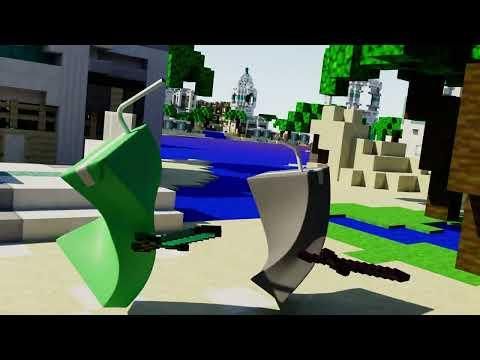
And BAM!
It's all complete, my take on animating bouncing objects to make a compelling story!
(If you have any questions feel free to comment bellow on this Instructable.)