Model and Animate a Bouncing Ball With Blender (New User Friendly)
by BlenderBro in Design > 3D Design
176 Views, 2 Favorites, 0 Comments
Model and Animate a Bouncing Ball With Blender (New User Friendly)

Blender is a very versatile tool that's worth knowing how to use. In this Instructable, we'll go over the basics of Blender modeling, material assignment, modifier use, animation keyframing, and rendering. This tutorial is built with the new user in mind, so no prior knowledge of Blender is necessary!
Additionally, I've written this in a way that allows the new user to become familiar with not only what each discussed tool does, but also how and why. Rather than giving you a long sequence of key presses for you to mindlessly follow, I'll make sure to explain what they do so you can apply that knowledge to your own personal projects in the future. I also won't be dumping a list of keybinds on you to learn; I'll introduce them gradually as they're needed.
While it'd be easy enough to use Blender's own physics engine by assigning the objects to a physics simulation and letting Blender figure out the rest, learning how to use keyframes is an extremely valuable skill if you plan to do any kind of animation in the future. With keyframes, you have significantly more control over your animation, and you won't need a beefy computer to run simulations on.
Supplies

All you'll need is a current version of Blender, which you can download here. I'm using version 4.5, but similar and newer versions should still work just fine.
You'll also need a mouse with middle-click functionality (allows you to press the scroll wheel down) .
Workspace Familiarization

Blender can be overwhelming to open for the first time, so here's a basic rundown of the sections on your screen. Don't worry about memorizing any of this; when it's time to use a tool in one of these sections, I'll provide clear instructions on how to access it. This is just a useful resource for your Blender usage in the future (make sure to click on it to see the entire image). From left to right, clockwise:
- The red box on the left is the tools panel. You can click here to change between tools (movement, scaling, rotation), but we'll be using the equivalent hotkeys throughout this tutorial since they're faster and more constant.
- The pink box on top is the workspace tabs. We'll stay in the 'Layout' tab for this entire project.
- The blue box on the right is called the hierarchy, which is essentially a list of all the objects in our scene.
- The green box under the hierarchy is the properties panel, which has many, many functions depending on what you're doing.
- The purple box on the bottom is the timeline, which we'll use when animating this scene later in the project.
Basic Navigation


When you first open Blender, you'll be greeted by a scene with three things: a camera, a light, and a cube. You'll want to know how to move around the scene, if you don't already.
- To select an object, left-click it.
- To orbit, or 'spin', around an object, middle-click and drag the mouse.
- To pan, or move 'sideways' past an object, hold the Shift key, then middle-click and drag.
- To zoom in and out, spin the scroll wheel.
- To undo, [Ctrl + Z] or [Cmd + Z]
- To save, [Ctrl + S] or [Cmd + S]
Try these a few times until you're comfortable moving on. We won't need the cube for our scene, so select it (left click) and press the 'X' key, then 'Delete' in the popup menu.
Adding a Mesh to Model With


First, we need a shape to model. In Blender, models are made from basic pre-made shapes, called 'primitives'. Press [Shift + A], then hover over the 'Mesh' option in the menu that pops up. In the new menu that appears, click the 'Cylinder' option but don't click anything else yet! You'll see a new menu that opens in the bottom left; select the text field next to 'Vertices' and change it from 32 to 100. This will ensure we have enough geometry to make it look smooth.
Now, let's enter a side view so we can overlay the reference image. In the top right, click either the red 'X' or green 'Y' to enter the isometric, or side, view (see second picture). Your screen should look like the third picture at this point. While in isometric mode, you can only pan and zoom (see the previous step for an explanation of movement), so you'll be holding the Shift key a lot. If you ever accidentally exit the isometric view, just click the same axis letter you did originally (the red 'X' or green 'Y').
Preparing to Model the Mesh


An excellent way to model items in Blender is to use a reference image. I've provided one above to help model the cup with, or you can use your own to make another object, as long as it's cylindrical. To add in the reference image, download it, then click and drag it from your file explorer into Blender (make sure you're still in the side/isometric view).
We'll need to know a few more keys before we can move on. After selecting an object:
- You can move it around by pressing 'G'
- You can scale it (make it bigger or smaller) by pressing 'S'
Select the reference image and use the move (G) and scale (S) keys to match the bottom of the cup in the reference image to the bottom of the cylinder mesh. See the animated GIF above to see this in action.
Now, we'll enter Edit Mode to edit the cylinder directly. Press the 'Tab' key to enter Edit Mode; you'll know you're there when many more tools get added to the left sidebar.
In Edit Mode, you can move individual vertices (points on a shape) to change the overall surface of the shape. We'll explore this new functionality in the next step. Don't forget to save your project so far!
Making the Cup in Edit Mode


Now that we're in Edit Mode, we need to be able to select all the vertices on top of the cylinder. Right now, we can only see one side of the cylinder, so if we tried to click and drag to select the top of the cylinder, we would only select the ones we can actually see. We need to be able to select them on all sides of the shape.
So, we'll enable x-ray mode so we can select vertices 'through' the shape. In the top right, there's a small button that looks like two squares (see first picture). Click it, and notice that the cylinder now becomes somewhat see-through.
Now, we can select all the vertices on the top of the cylinder. Do so by clicking and dragging to select, then press 'G' to start moving the vertices, then press 'Z' to lock the movement to the Z-axis (a blue line will appear). This will keep them moving straight up and down. Lower them all until they're the same height as the bottom of the cup (see the animated GIF above).
Making the Cup in Edit Mode (continued)


We'll make the cup by extending the cylinder upwards, while changing its diameter. We'll do this with the 'Extrude' tool, which you use by selecting the vertices you wish to extrude and pressing the 'E' key. We've already selected our top vertices, so go ahead and press the 'E' key.
Notice that a new cylinder is extended, or 'extruded', from the existing one. We, however, want that cylinder to be wider than the one below it, so right after pressing 'E', without clicking anything, press the 'S' key to scale it outwards. We want it to be about as wide as the cup above the base (see the first GIF above). Once it's about as wide as the next section, left click to apply the movement.
Now, without clicking anything else, press 'E' again to now extrude the cylinder upwards. Once it's about as tall as this section of the reference image, left click to apply the movement. Now, scale ('S' key) the top to fit it to the cup (see the second GIF).
Continue to extrude out > extrude up > scale out until you reach the top of the cup. And remember, if you make a mistake, you can always undo it with [Ctrl + Z] or [Cmd + Z]. Remember to save your project regularly!
Hollowing Out the Cup


Your cup should now look similar to the first picture (feel free to delete the reference image now, we won't need it anymore). It looks good, but it's not a cup until it's hollow inside! The best way to do that is with a Boolean modifier.
Booleans use shapes to modify other shapes. Think about a math equation; adding five and three makes eight. It's the same idea, but with meshes. Adding one shape to another shape makes a third shape. In this case, we'll subtract a shape from our cup to remove that shape from it, and make it hollow.
First, exit Edit Mode with the 'Tab' key. Now, select and copy [Ctrl + C] and paste [Ctrl + Z] the entire cup model onto itself. Click it again, so the dark orange outline becomes lighter orange, and scale it down until the distance between the two models is to your satisfaction; this will be the thickness of the cup's walls. Finally, select the top face of the inner cup and extrude it upwards (the 'E' key, remember?) until it's above the outer cup (this makes sure that the cup has an opening on top). Left click to apply the extrusion, then scale the top face out until the lip of the cup looks thin enough (the very last part of the above GIF).
See the animated GIF to put all this together.
Using the Boolean Modifier


Recall that using a Boolean is just math with shapes: our equation is (large cup - small cup = hollow cup). Now that we've got both our cup model and the model we'll be subtracting from it, we can execute the Boolean operation (much easier than it sounds, I promise). Before proceeding, first make sure you've selected the outer cup (not the inner cup).
Take a look at the sidebar on the right (the properties panel, if you remember from our little crash course at the beginning of this tutorial). You'll notice a button about midway down that looks like a blue wrench; go ahead and click it (see the first image if you're having trouble identifying it). You'll see nothing but a button that says 'Add Modifier'. Go ahead and click it, then click 'Search' in the popup menu, then type 'Boolean'. It should appear fairly quick; click on it when you see it.
We've now told Blender what the first object is in our equation, now we need to tell it what the second object is. Notice the eyedropper icon in the 'Object' field (see the second picture for identification). Click it, and your cursor will change to an eyedropper icon. Go ahead and click on the inner cup, the shape we want to remove. If all went well, you should see a much more defined border between the two shapes.
Feeling a little lost? No worries, check out the GIF above for a demonstration of all these steps.
Apply the Modifier


Modifiers are considered to be 'nondestructive', meaning that they don't actually make changes to the object until they're applied (think of what you're seeing now as a sort of preview). Now, we'll apply the modifier and take a look at our finished cup model!
In the modifiers panel, find the small down arrow near the top (see the picture above). Click it, then click 'Apply'. You can now select and delete the inner cup. Having done so, hold your middle-click and drag to exit the side view we've been working in. You can also turn off x-ray view with the same button we used in Step 5. Once complete, your view of the object should look similar to the second photo.
Modeling the Ball
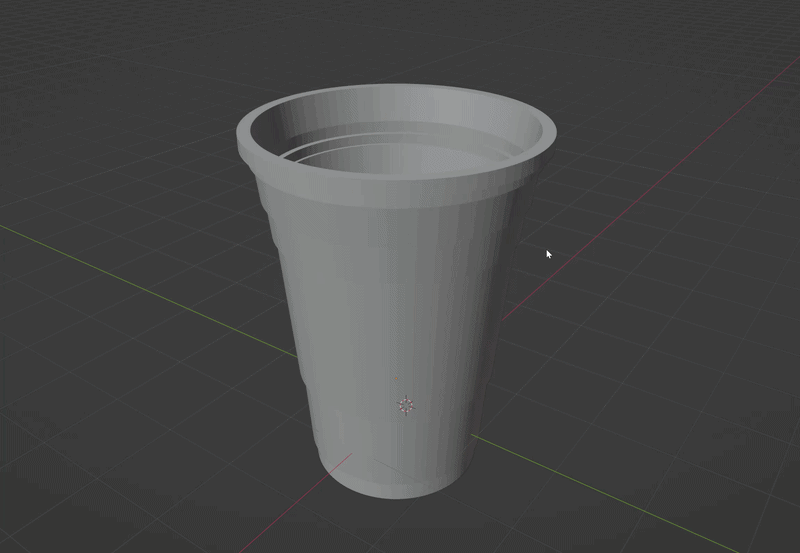
The hard part is over! Thankfully, modeling the ball will be much easier than modeling the cup. Open the Add menu with [Shift + A] like we did earlier to add the cylinder, but this time, choose 'UV Sphere' from the list. Scale it as desired (though make sure it's small enough to fit in the cup!).
Preparing to Add Materials to the Ball and Cup


Now it's time to give your cup some color. First, let's make the surface of the cup smooth so it looks more natural. Select the cup, right-click, and choose 'Shade Auto Smooth' from the menu (make sure you have Blender version 4.2 or newer to use this option). Do this for the ball model too.
Here's what we're going to do: we'll first make the entire cup white, which will end up being the color of the inside and lip of the cup. Next, we'll select the outside of the cup, and change it to be red. Before we add any color, though, we want to be able to see it (otherwise everything will continue to look grey). At the top right of the screen, there's a series of four circles in a line. Choose the one second from the left (check out the first picture). You'll notice that your models appear white now.
Adding a Base Material to the Cup


Now to add color! On the properties sidebar to the right, click the red 'beach ball' on the bottom (see first picture). We're now in the material properties, and as you can see, there's no materials currently assigned. Click on 'New'. A bunch of options will appear, but don't panic! There's only two we need to worry about here:
- Base Color is, as the name suggests, the color of your model.
- Roughness controls how 'shiny' your model appears. Values closer to 0 make it appear more glossy, like plastic, while values closer to 1 make it look less shiny and flat (matte).
We're modeling a cup that would be plastic in the real world, so go ahead and click on the Roughness field, then input '0' to give it a nice plastic-y sheen. We want the base color to be white, so we don't need to change that.
Adding Color to the Outside of the Cup


Now, we'll make the outside of the cup another color for contrast. I'm making mine red, but you can choose whatever color you'd like.
First, we need to add another material. Click on the plus icon on the top right of the material properties window, as seen in the first picture. Now, click 'New', just like we did with the first material. We still want the Roughness to be 0, so change that like we did for the other material, but now we'll change Base Color too. Click on the color sample (currently white) and choose whatever color you'd like from the popup window.
Notice that the cup doesn't change color- this is because the entire cup is set to be white. We'll need to enter Edit Mode (the 'Tab' key) to reassign some of the faces to be a different color. Once you've done so, we need to make sure we're selecting faces (entire squares), not vertices (the edges of the squares). Look at the upper left corner and choose the rightmost option (see the second picture). Now we're ready to start selecting faces; remember to save first!
Selecting the Faces

Once you're set to start selecting faces, it's time to use a different tool. We want to select multiple faces from multiple different angles. For that, we'll use the circle selection tool. Access it by pressing 'C' and note that your cursor now has a dotted line around it.
While you're in circle selection mode, you can't move around or click anything else. If you ever need to exit circle selection mode, click the 'Escape'/'Esc' key.
Enter circle selection mode, then click and drag with the mouse to select faces. Remember, we want to select faces on the outside of the model, except the 'lip' at the top (we want that to stay white). Select all the faces you can see, then exit circle selection mode ('Esc' key) so you can rotate (orbit) your view to the other side of the cup (middle-mouse and drag). If you accidentally select a face you don't want to, don't panic! Simply hold middle-mouse and drag over the incorrect faces to deselect them.
It's a lot going on at once, so take a look at the GIF above. Notice how I have to exit circle selection mode with the 'Esc' key in order to rotate around the model.
Assign the Exterior Color


Got all those faces selected? Then it's time to give them some color! Back at the material properties panel, notice that there's three buttons in a line on the top. Click 'Assign' (see first picture) and the exterior of the cup should now be the color you chose earlier. You can exit Edit Mode now ('Tab' key).
Feel free to repeat this process for the ball if you'd like. I want the ball to be white, so I won't be changing anything.
Adding Other Scene Elements

Right now, our ball and cup is just floating in space. We need something to rest everything on so we can animate the ball bounce. By now, you know that [Shift + A] brings up the Add menu, the 'G' key moves things around, and the 'S' key scales: go ahead and add in a cube to rest the cup on, then scale it up enough to make a nice large flat surface to bounce the ball on, and move it until it's level with the bottom of the cup.
You might find it useful to re-enter side/isometric view, which is what we used earlier in Step 3 to model the cup. As usual, check out the animated GIF above for a demonstration.
Introduction to Animation


Animation time! Animation is, essentially, telling an object where to be at a particular point in time. In Blender, we use 'keyframes' to keep an object in a location at a certain frame. Adding a keyframe stores that object's location, rotation, and scale data at a certain point in time. Remember the timeline at the bottom? We'll be using that now. You can add a keyframe by selecting the object and pressing the 'I' key. When you add the keyframe, a small yellow diamond will appear on the timeline.
Let's say I have a cube that I want to move up a certain amount in 30 frames (about one second). First, I select the cube and add a keyframe for the starting position. Next, I'll advance the timeline to frame 30, then move the cube to where I want it at that time. Finally, I'll add a keyframe for the final position. Playing back the animation with the spacebar now shows the cube moving from the first keyframe to the second. See the GIF above if you're having trouble visualizing this (click to expand it first so you can see when the yellow diamonds at the bottom appear).
We need the ball to move between more than two points, of course- you can think of intermediate keyframes as 'checkpoints'. The ball will end up in the cup, but it won't do so until it's passed through every one of the previous keyframed locations first.
There's one last thing to prepare before we start animating. The timeline, by default, runs to 250 frames before looping. We only need about 50 frames for our animation, so change the 'End' number on the bottom right of the timeline to '50' (see picture).
Lining Up and Preparing the Ball


If you haven't moved it, the ball should still be inside the cup (no worries if you did move it, though). Before we animate it, we should make sure it's in the same 'plane' as the cup (that is, in-line with it instead of in front or behind it). Enter isometric view like we have previously, but this time click the blue 'Z' axis instead of the others. Your screen will switch to a top-down view of the scene. Select the ball and center it inside the cup as best you can (it doesn't need to be perfect).
We want a realistic looking parabolic bounce of the ball into the cup. For that, I made a little template above to help, much like we used a reference image to model the cup. Make sure you enter side isometric view (recall Step 3) before dragging in the template, just like last time. Put the number 10 point inside the cup, and scale and readjust the template as needed until the ball containing the number 10 is about as wide as the cup model. Do make sure that the black line isn't touching the side of the cup so the ball goes in through the top, not by clipping through the sides. Take a look at the second helpful GIF if needed.
Animating the Ball

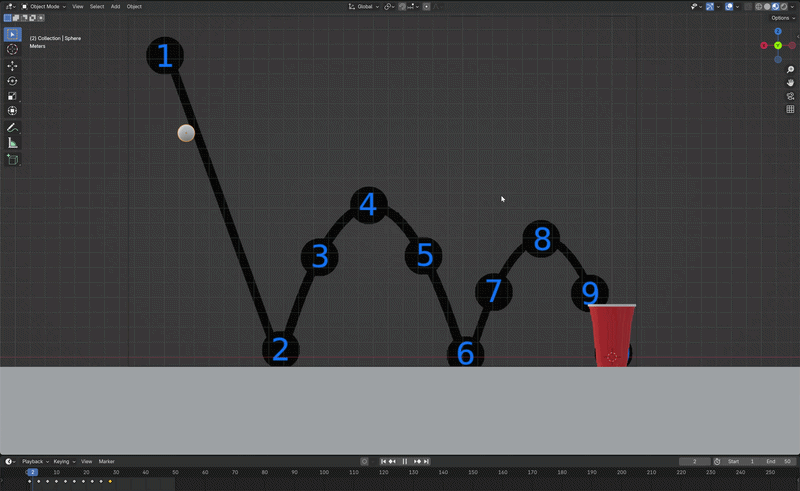
Once the template is all set, it's time to get keyframing (don't exit isometric mode!). You might want to enable x-ray (button from Step 5) briefly to grab the ball from inside the cup the first time.
I found that the following method works best so the bouncing looks smooth and natural:
- Move the ball model (from inside the cup) to point 1
- Add a keyframe with 'I'
- Advance the timeline by exactly three frames (click the left arrow key three times)
- Repeat with the next point until the ball's in the cup (at point 10)
It's very important that you advance the timeline before moving the ball model, since doing things the other way around will cause the ball to 'snap' back. You know the drill; check out the first GIF for a demonstration (click on it to expand it and pay special attention to my timeline cursor in the bottom left).
When you're done, press spacebar to play the animation. It should look similar to the second GIF above.
Line Up the Camera


Remember, the final video will be from the perspective of the camera- you certainly want it to make sure it's pointing at your scene! You could use the move tools to position it, but there's a much easier way.
First, take a look at the right side of the scene, just to the left of the hierarchy (see the first picture). There's a circular button with a camera icon; click it to enter camera view. However, you'll notice that trying to move around with the mouse controls just kicks you out of the scene. If we look back at the same sidebar we just clicked, though, notice that there's a new button just below the camera that looks like an unlocked lock (see second picture).
Go ahead and click that lock button, and now you can pan, orbit, and zoom in the scene to position the camera how you want it. I'd recommend playing your animation a couple times to make sure you capture all the ball bounces as well. Once you're happy with the framing, exit camera view with the same button we used to enter it.
Oh, and if you accidentally deleted the default camera earlier, don't worry- just add a new one in from the Add [Shift + A] menu (it's near the bottom).
Add Camera Movement (optional)

If you'd like, you can move the camera as the ball bounces to add some more visual interest. The steps are essentially the same, but make sure that you've selected the camera before adding any keyframes!
Once you've selected the camera, make sure the cursor is at the beginning of the timeline, then add a keyframe for the position you want it to be in. Move the cursor the point just before the ball lands in the cup, then move the camera to your desired position and add a keyframe.
Add Cup Shake (optional)

Another neat animation you can add is a slight shake to the cup when the ball lands in it, to make it look more realistic. The easiest way to do this is add a keyframe for the stationary, upright cup when the ball is just about to land in it, advance one or two frames, then rotate it slightly in any direction sideways, and finally add a keyframe for the new position. Advance a couple more frames, then rotate the cup the other direction and keyframe that. Finally, advance a couple more frames, return the cup to the upright position, and add your final keyframe. It should appear to shake slightly when the ball lands in it (check out the GIF above).
Have you been saving your work? Don't forget!
Configure Output Settings

Happy with your animation? Let's start preparing some settings to render it out with. On the right properties sidebar, click the 'Output' button (see the red box on the above picture). Take a look near the bottom of this panel (you might need to scroll down a little), and notice the box that (likely) says "/tmp\". This is telling you where the completed animation will be saved. We don't want to save it to your computer's temp directory, we want it to be readily accessible. Click the folder icon (blue box above) and choose somewhere like your personal downloads folder, or the desktop.
Now, we need to tell Blender how we want the animation to be made. Right now, rendering the animation will produce a bunch of individual pictures instead of a video... not ideal. Click on the 'File Format' dropdown menu (green box above) and change it to "FFmpeg video".
Check Render Engine
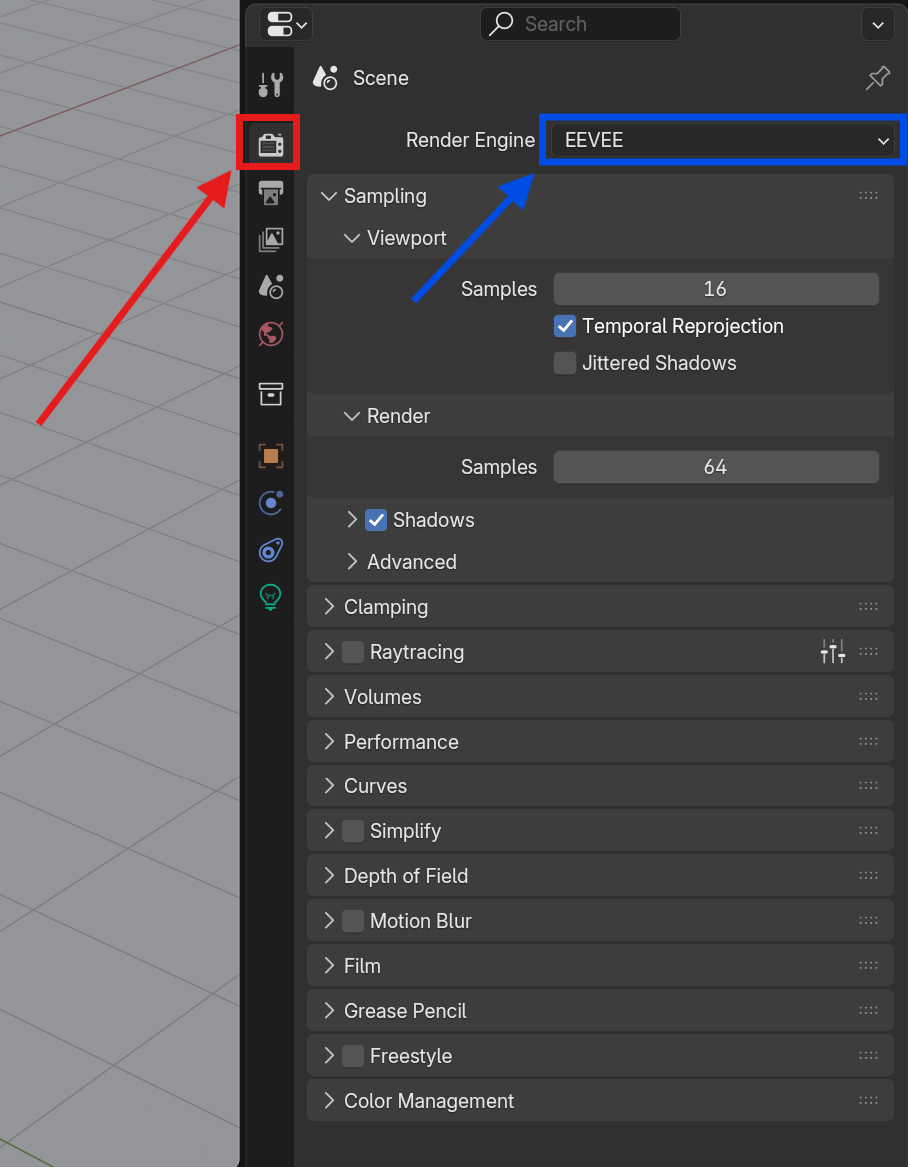
When you render something, your render engine is what's responsible for taking the 3D geometry of your scene and calculating how lighting, shapes, shadows, and more work together to make a flat (2D) picture. In Blender, you have two main render engines to choose from.
Using Cycles will result in a more realistic looking render, but will take a lot more time and computing power, while EEVEE doesn't produce as realistic looking renders, but it does render significantly faster than Cycles. We'll be using EEVEE to start, but feel free to re-render it out with Cycles later once you're happy with the composition.
Your default render engine should already be EEVEE, but let's go through how to change engines for your own knowledge. Back at the properties panel on the right, click the 'Render' button (red box on the picture above) and verify that the dropdown menu for 'Render Engine' (blue box above) says EEVEE. If you ever want to change this, just click it and choose another option.
Add Lighting


One last important thing before the rendering process. We've haven't been viewing how the scene looks with lighting yet, so let's do that now. First, make sure you have a light in your scene- check the hierarchy on the top right and see if there's anything with a lightbulb icon to the right of the name (it'd be named "Point" since it's a 'point light'). If so, select it and move it so it's above the cup. We'll move it more later, right now we just want to make sure it's not stuck inside a shape. If you accidentally deleted the default light in your scene, just add another with the Add menu and do the same.
Now, let's take a look at the lighting. Remember the button we used in Step 11 to be able to see the color of the cup? Back up on that row of buttons, we'll now choose the one furthest to the right (see the first picture).
You'll probably notice that the lighting is pretty harsh. Let's look at the light's properties; choose the green lightbulb button on the properties panel (see the second picture, make sure you've selected the light first). Now is where your personal tastes come into play. I liked the lighting I got with 'Power' set to 100,000 and 'Radius' set to 50 meters. I also moved the light between the cup and camera, but slightly offset so there's a nice shadow.
Start the Render

Before you go any further, save your work! Rendering is where a lot of crashes and hangs happen, and you don't want to lose anything if you have to restart Blender.
Now that we've configured everything, click 'Render' at the top toolbar and then 'Render Animation'. A new window will pop up while it's rendering. Depending on your computer's strength, this could take less than a minute or over an hour. You'll know it's finished when the picture on the popup window doesn't change anymore. Once it's done, navigate to where you saved the output (I recommend either your desktop or downloads folder) and take a look!
View and Refine Your Animation

After watching your completed video file, is there anything you want to add? More/less time before or after the bounce? More cups? Different colors? Another camera angle? Want to try rendering it in Cycles? Go for it!
For the animation above, I added a few more cups, made the bouncing surface shiny, and edited the meshes so the lips of the cup look rounder and more realistic. I also rendered it out in Cycles.
That's it! Hopefully this tutorial helped you not only make a fun little animation, but ultimately become more comfortable and knowledgeable with Blender.