Moon Light With Leds and Microbit
by salome_ in Circuits > Microsoft
878 Views, 0 Favorites, 0 Comments
Moon Light With Leds and Microbit
University of Turku – Degree Programme in Craft, Design and Technology Teacher Education
For this assignment, I created an interactive light installation using the BBC Micro:bit. The task required incorporating digital modelling and a minimum of 50 lines of code, with an emphasis on designing a functional smart product.
I chose to develop a small LED-based “lamp” inspired by natural light phenomena. The concept was to simulate the gentle, random movement of fireflies. The LEDs illuminate in irregular intervals and durations, creating a calm, organic effect. To enhance the visual theme, I designed the physical structure to resemble a moon, giving the piece both a functional and atmospheric presence.
This project combines programming, digital fabrication, and aesthetic design, reflecting the course’s focus on integrating craft with smart technology.
Supplies
Microbit and power source to it
Microbit breakout board
Leds as many as you are planning to do (I recommend getting at least couple extra just in case)
Laser plywood as much as you need
Jumper wires
Hook-up wire
(Transistors)
Power source (I used 9V battery)
Solder Wire
Machines:
Soldering station
Laser Cutter and the computer program that works with your laser cutter
Websites:
Idea
My concept was to create a moon-shaped light in which LEDs would either illuminate randomly or remain continuously on, depending on the selected mode. I chose to use a total of 36 LEDs powered by a 9V power supply. Because of the number of LEDs, I needed a breakout board to interface the Micro:bit with all the required connections.
To manage the circuit effectively, I arranged the LEDs into groups: three LEDs connected in series, with two parallel circuits controlled under the same program. This structure required the use of seven Micro:bit pins. By organizing the LEDs in this way, I was able to distribute power safely, manage the lighting patterns, and maintain stable control through the Micro:bit’s output capabilities.
Testing and Planning
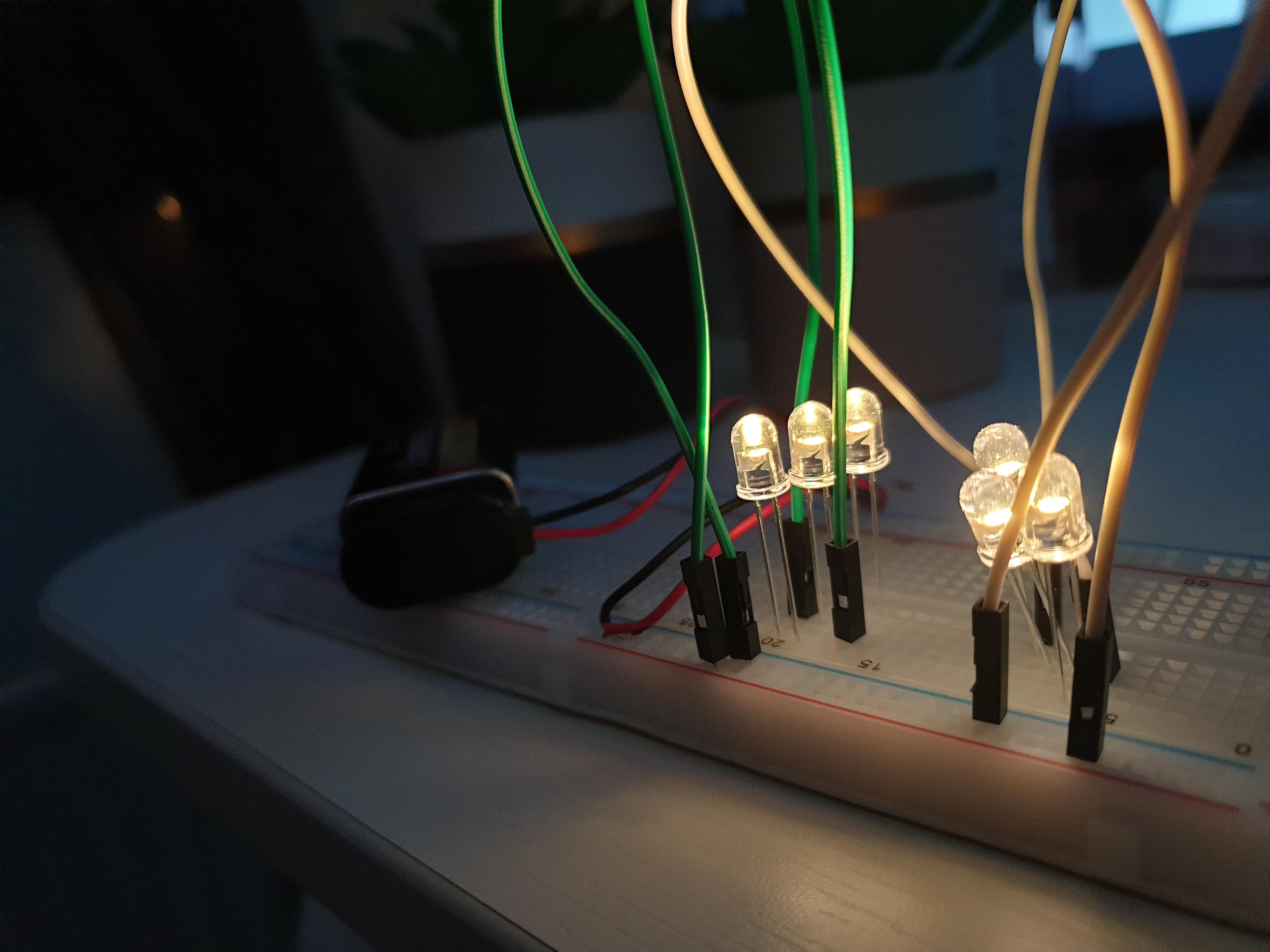
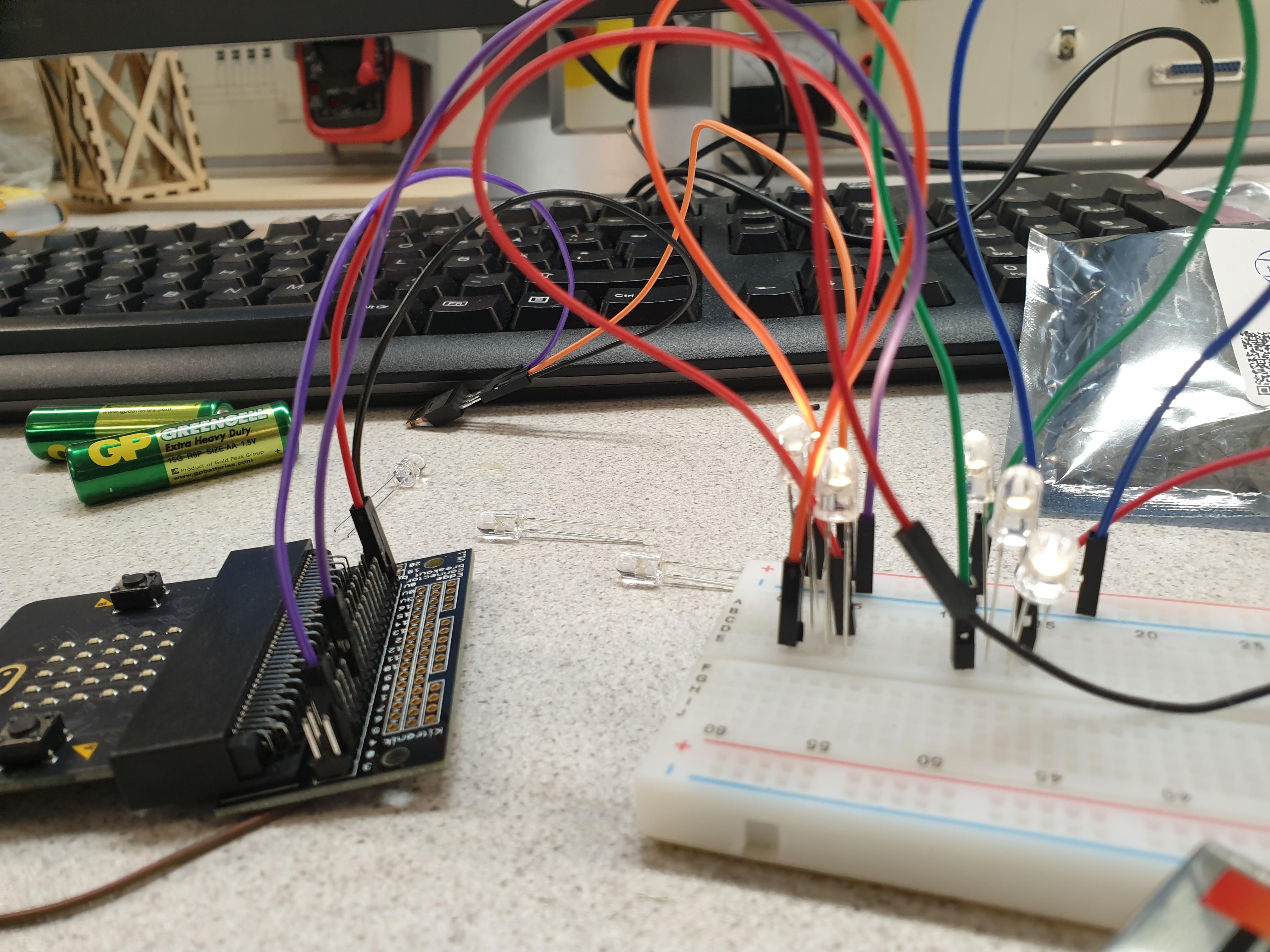
First, I tested each LED individually to ensure that all components were functioning correctly. This step is essential, especially when working with LEDs in a series circuit; a single faulty LED can prevent the entire series from operating.
After confirming the components were working, I began prototyping the circuit and exploring how my concept could be implemented. I tested the initial setup using simple Micro:bit example code. At this stage, I arranged three LEDs in series and connected them through a transistor to the Micro:bit.
My initial assumption was that I would need two separate Micro:bit pins: one to control the transistor (to allow current to pass) and another to control the LEDs themselves. This appeared to work when the Micro:bit was the only power source. However, in retrospect, I realized that the transistor likely did not affect the circuit as intended in that configuration; the Micro:bit was essentially driving the LEDs directly.
Making the Circuit to Work
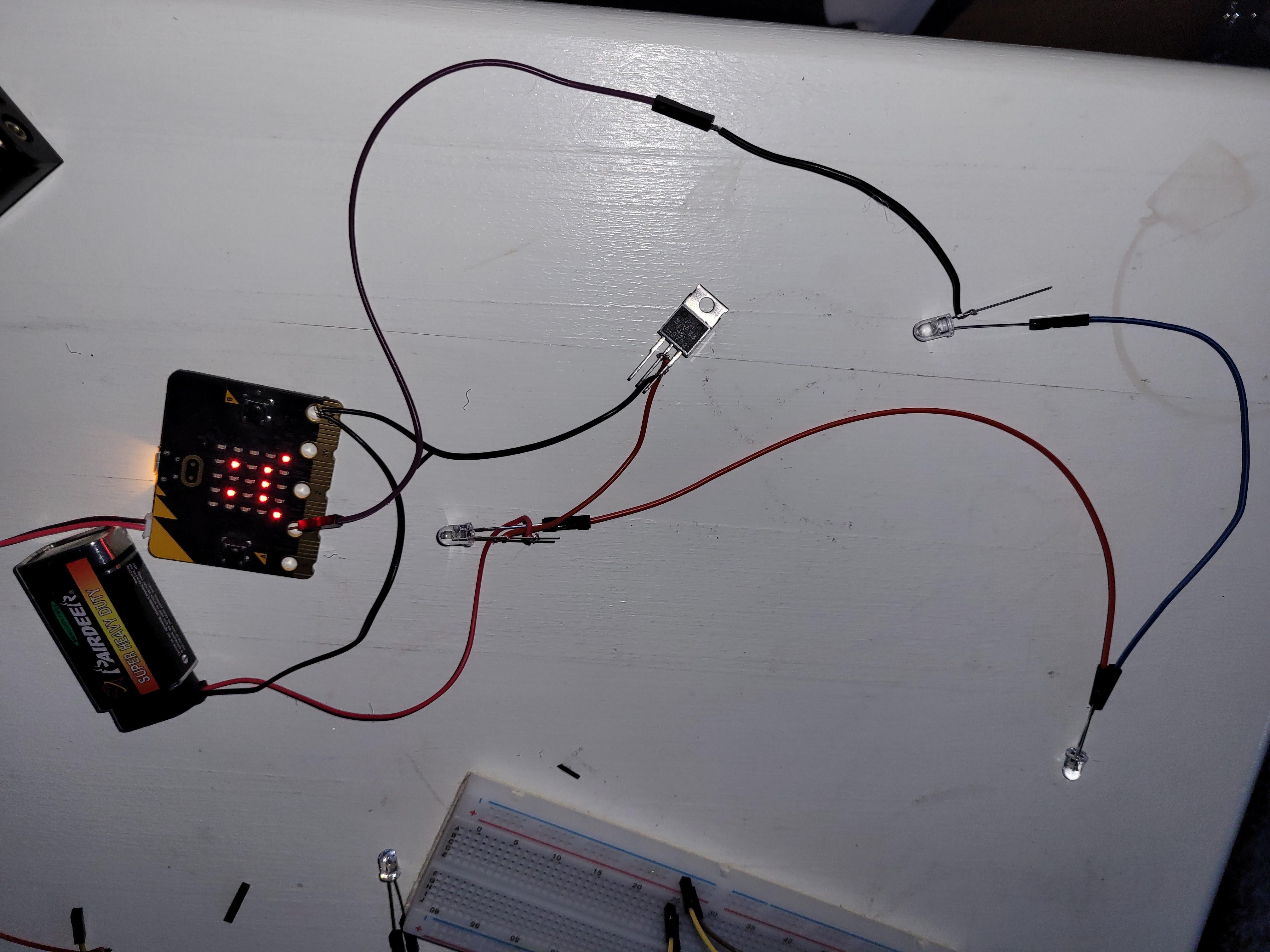
To understand how the electric current should flow in my design and what components were necessary for the circuit to function correctly, I spent a significant amount of time experimenting. This was the most challenging stage of the project, and it took me nearly a month to fully figure out the correct configuration. I dedicated many hours to testing different possibilities, researching online resources, and consulting classmates as well as a friend experienced in programming—yet most attempts still produced incorrect results.
In many of my early tests, the circuits behaved unexpectedly. For example, some LEDs would never turn off, or they would emit a faint glow constantly and only brighten slightly when the program was running. These issues made it difficult to diagnose the source of the problem. Because of this, I assumed that a transistor would be necessary to properly control the current flow. However, during testing, I accidentally left one of the jumper wires disconnected from the transistor—and unexpectedly, the circuit worked correctly. This led me to realize that the transistor was not needed in the configuration after all. Interestingly, the circuit also functioned when the transistor was connected only by its negative leg, which did not make sense to me from a theoretical standpoint.
Since troubleshooting this stage took so much time, I proceeded with laser cutting the physical structure of the lamp in between my testing sessions. This allowed me to continue making progress while still trying to understand the electrical behavior of the circuit.
Laser Cutter
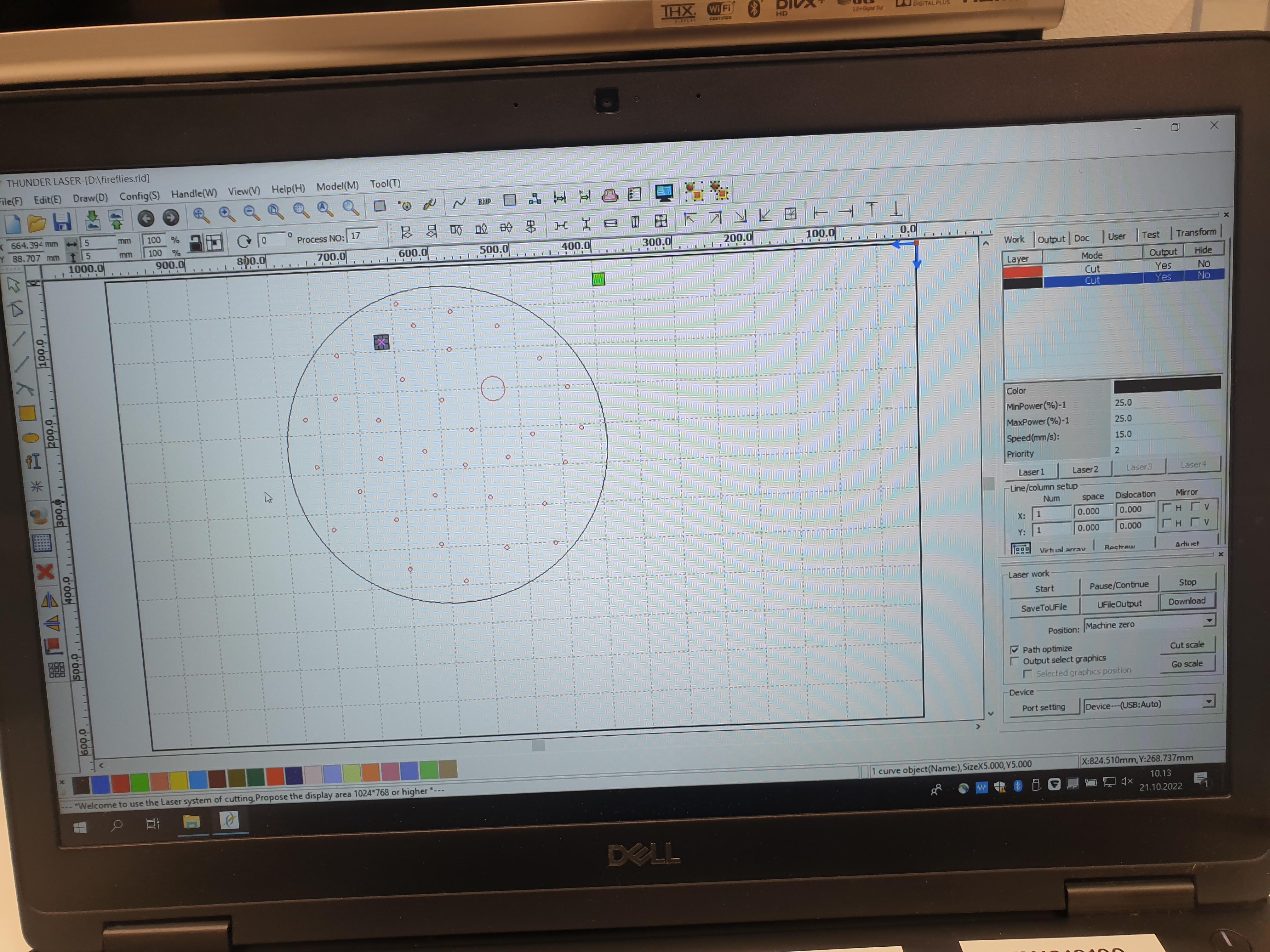
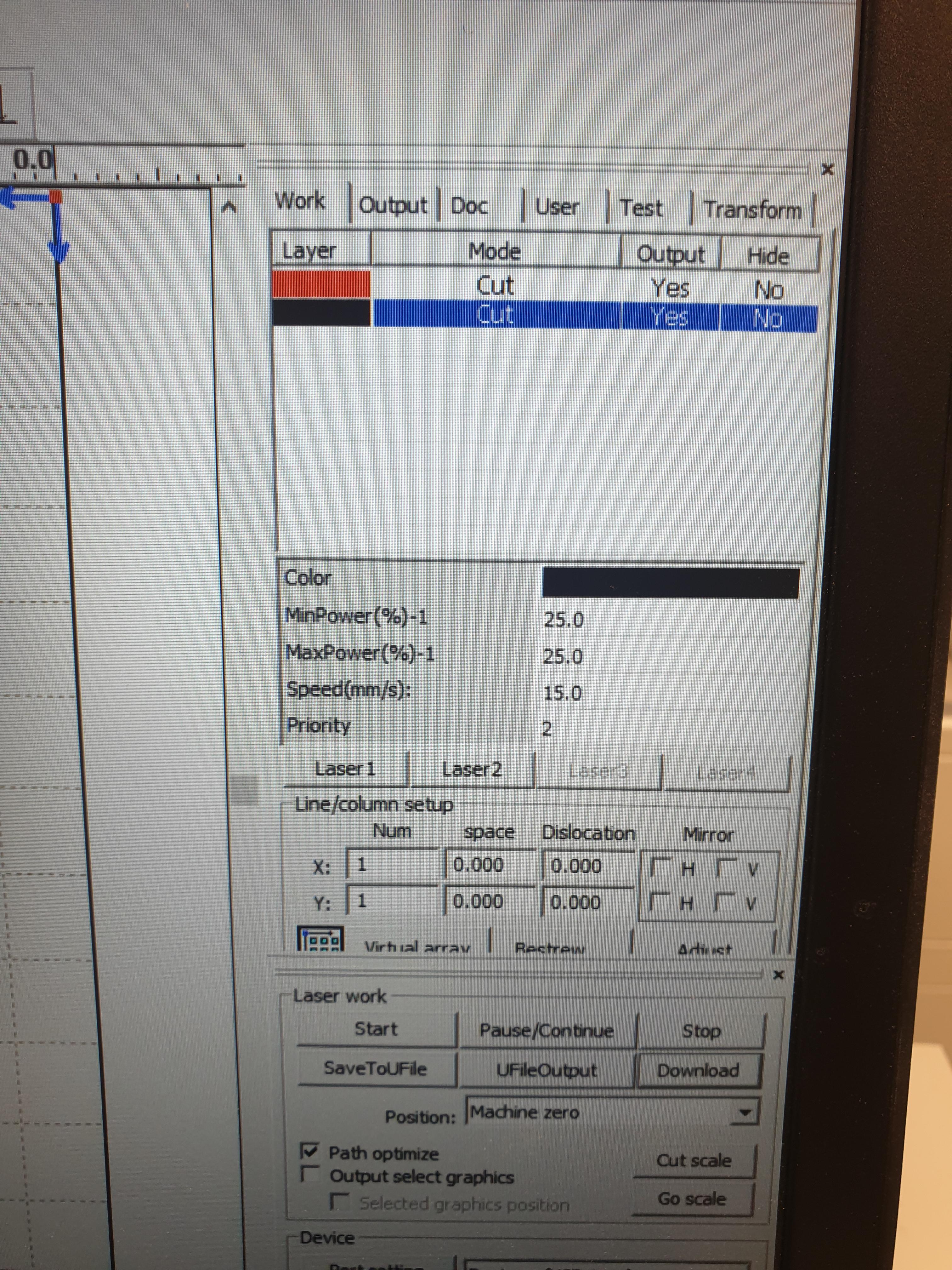
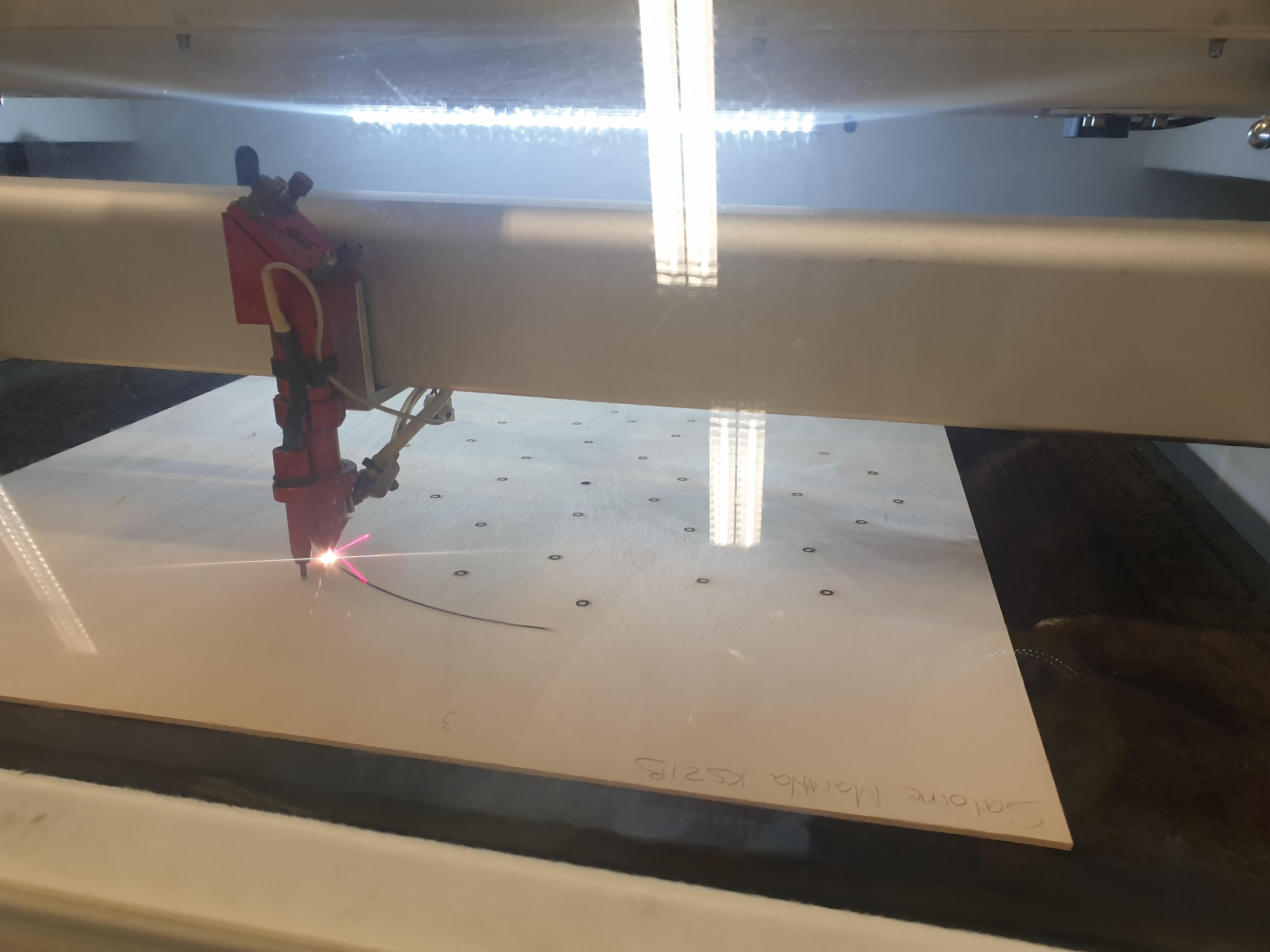
For the physical structure of the lamp, I designed a laser-cut wooden “moon.” I created the base using RDWorks, as the design was straightforward: one large circle containing multiple smaller circles for the LEDs. I began by drawing the outer circle to the required diameter, and then added 5 mm holes for each LED, arranging as many as I needed for the overall layout.
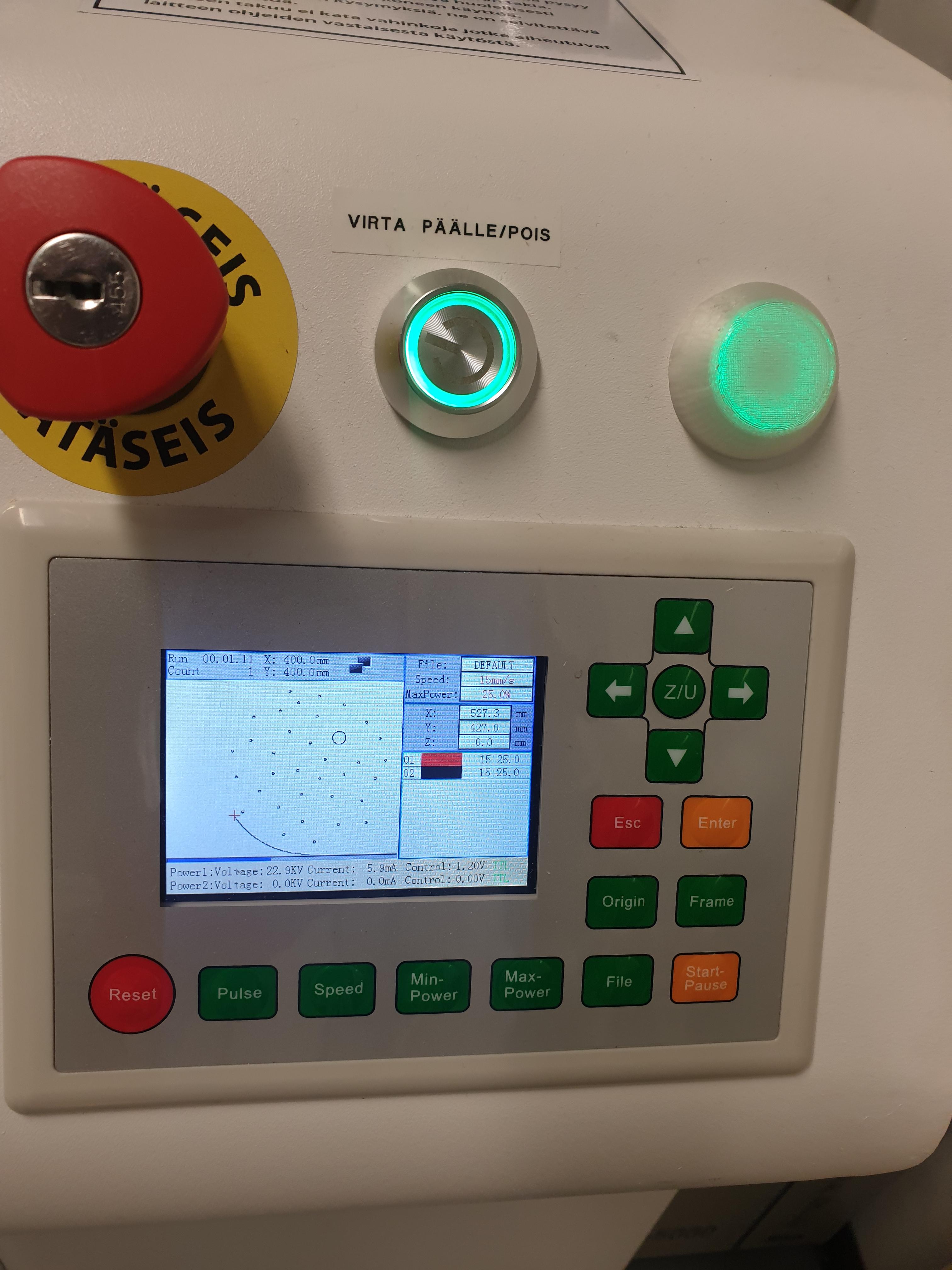
In RDWorks, I also defined the cutting order for the shapes, ensuring that the smaller holes would be cut before the outer circle for better stability during the process. My laser-cutting settings for 3 mm plywood were: power 25 and speed 15. After saving the file and transferring it to the laser cutter, I checked the material placement and calibration, and the machine completed the cutting process accordingly.
Making My Moon Look Like a Moon
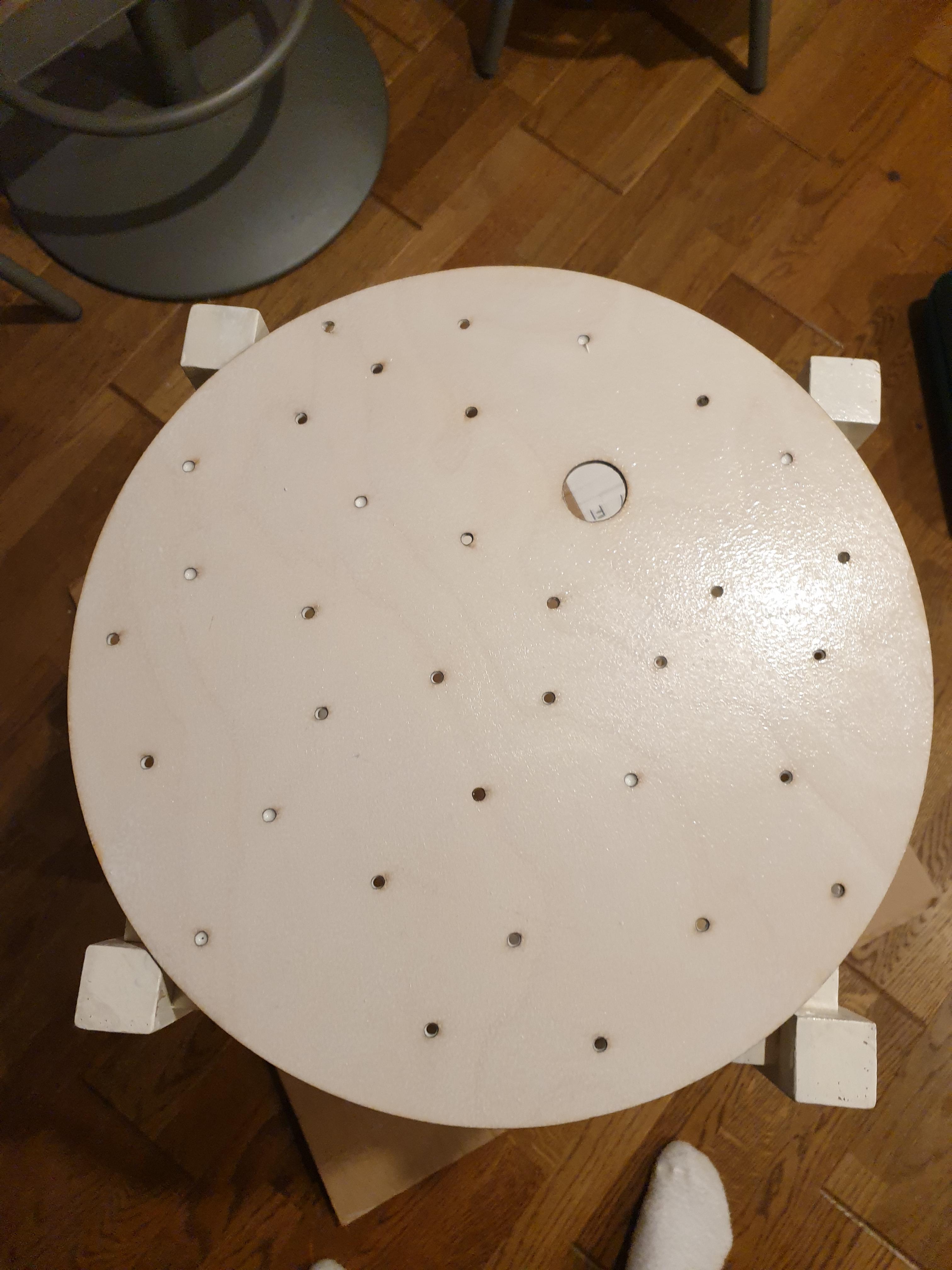
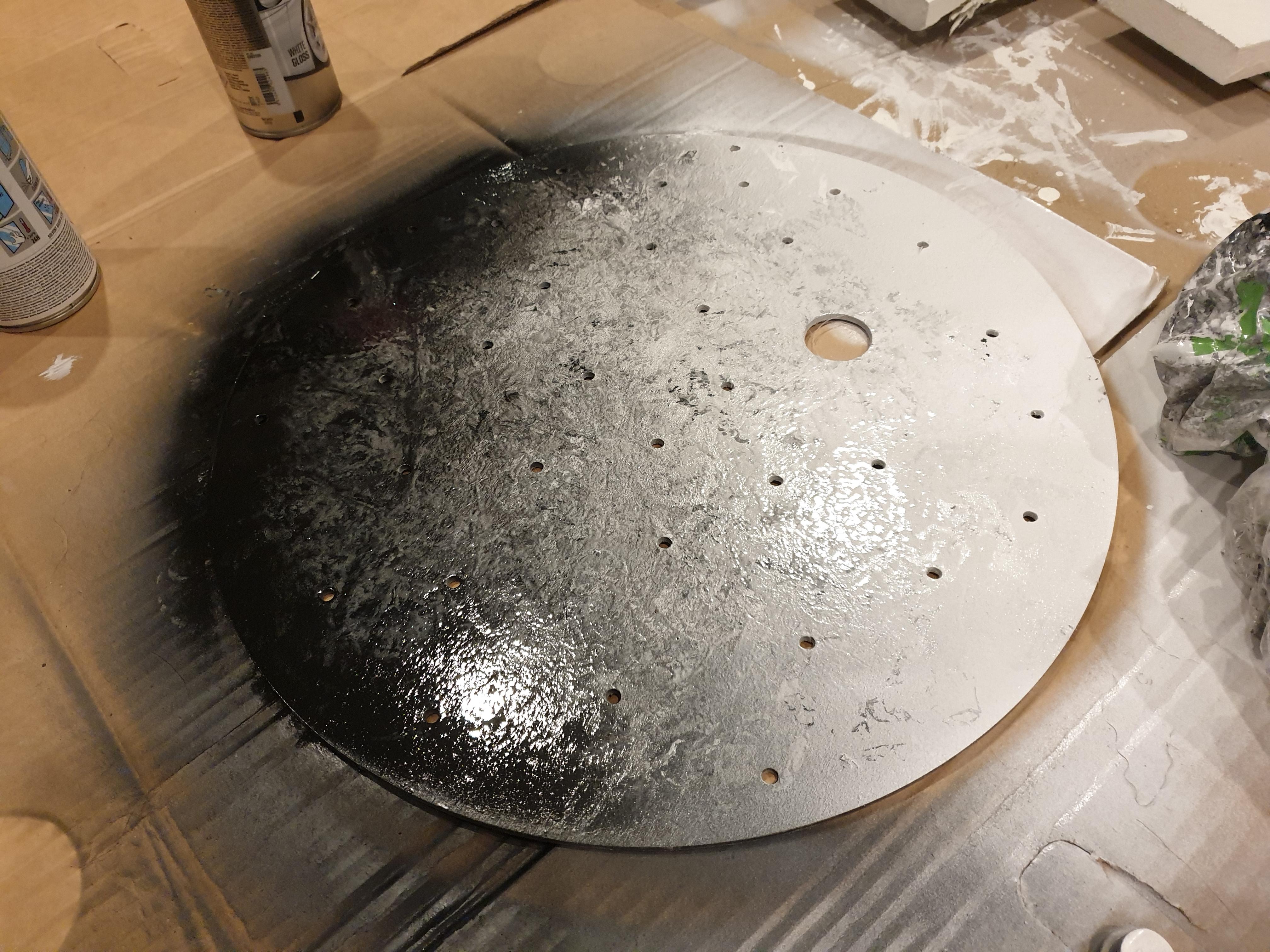
At this stage, I focused on the visual design of the lamp. Since I wanted the final product to resemble a moon, I used black and white spray paint to create a textured, three-dimensional effect. To prepare the surface, I first applied a layer of white furniture paint to the plywood. This step helps create a smoother base for the spray paint, although it is optional.
Once the base coat had dried, I applied black spray paint to one side of the circle and a lighter layer of white spray paint to the opposite side. This contrast helped establish the illusion of depth and shadow. To enhance the texture further, I pressed a plastic bag gently onto the wet paint. This technique created irregular patterns and highlights, adding dimension and giving the surface a more natural, moon-like appearance.
Planning and Soldering
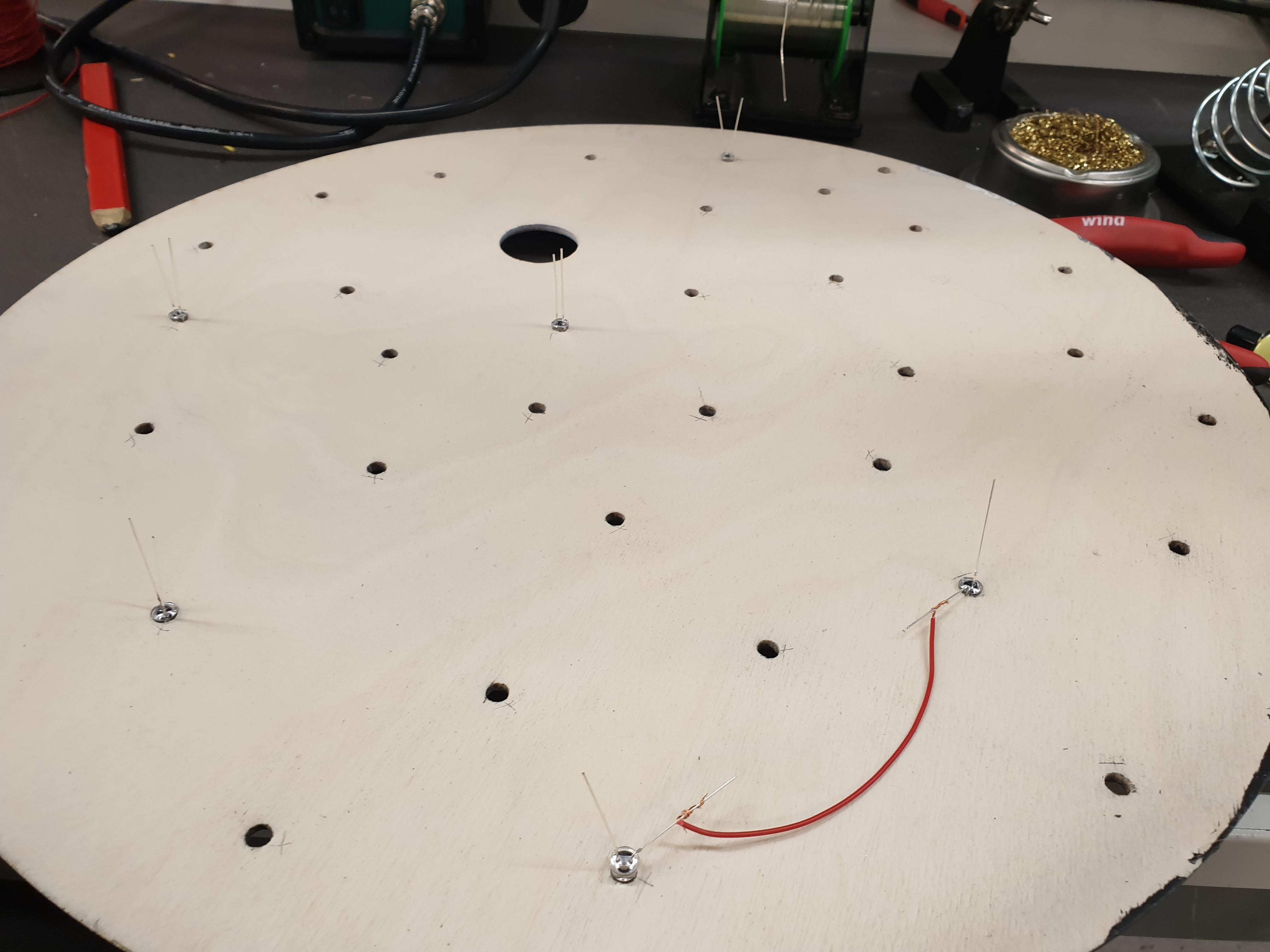
Next, I began soldering the LEDs into their series circuits. I connected each group by soldering the cathode (negative leg) of one LED to the anode (positive leg) of the next, forming a chain of three LEDs per series. To keep the wiring organized, I labeled each series pair clearly—for example, “1–1” and “1–2”—since my design included three LEDs in one series and two such series controlled by a single Micro:bit pin and code. (In other projects, the configuration may differ depending on the desired functionality.)
This labeling system helped me track which LEDs belonged to which circuit group and made later assembly much more efficient.
My Circuit
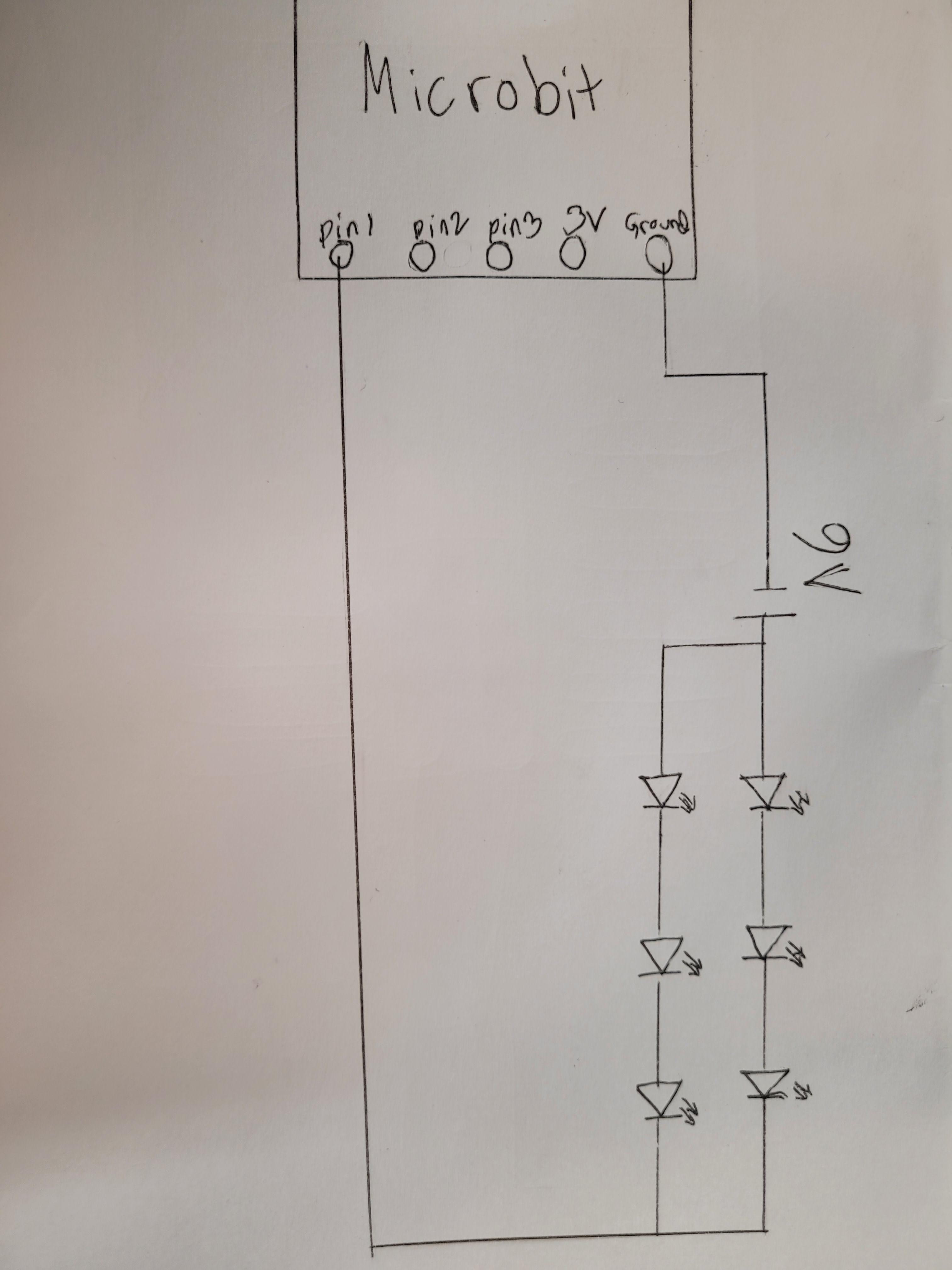
As mentioned earlier, I initially assumed that a transistor would be necessary for controlling the LEDs. However, after extensive testing, I discovered that the circuit functions correctly even without a transistor. I am now confident—at least 99%—that the configuration works as intended in this simpler form.
Once the circuit finally operated correctly, the code behaved exactly as planned: the LEDs blink randomly to simulate fireflies, and, if desired, all LEDs can remain continuously illuminated to create a steady “moonlight” effect. Although the circuit shown in the reference image still includes a transistor, I have not yet tested that specific version. I will evaluate it later for comparison.
With the working configuration established (previously with a transistor in place, otherwise the same layout), I proceeded with the soldering and wiring for the final build.
Soldering and Wiring
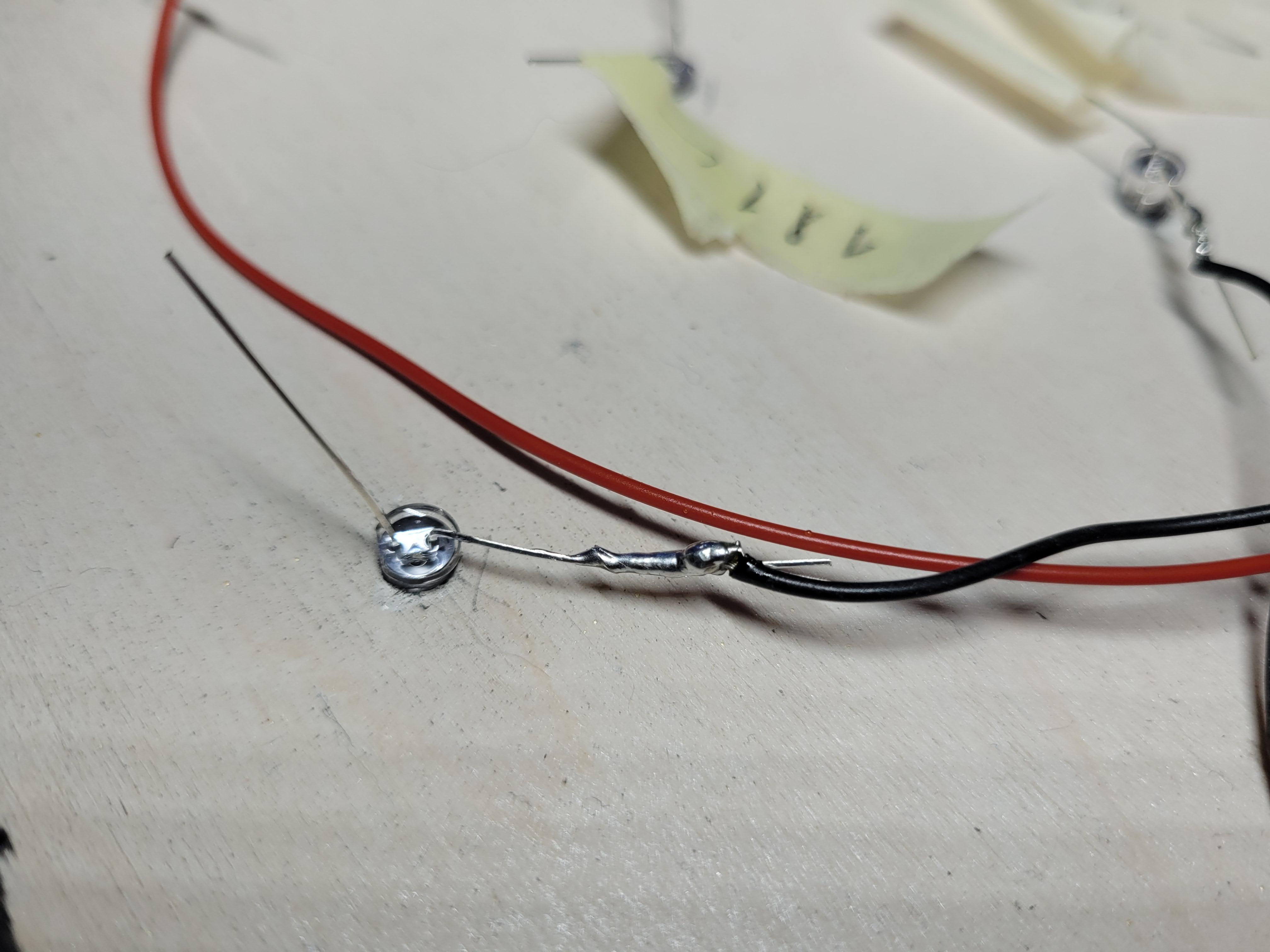
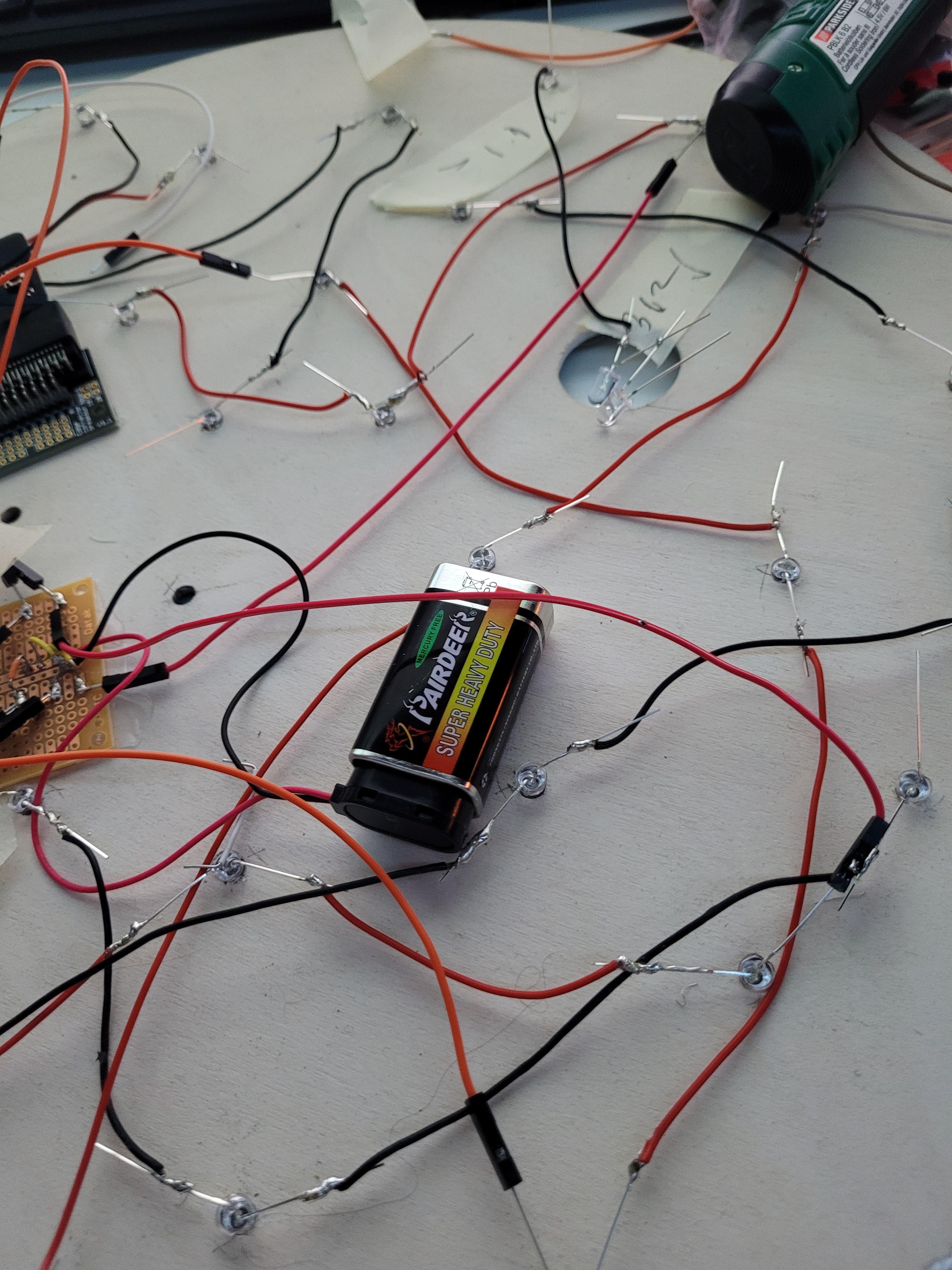
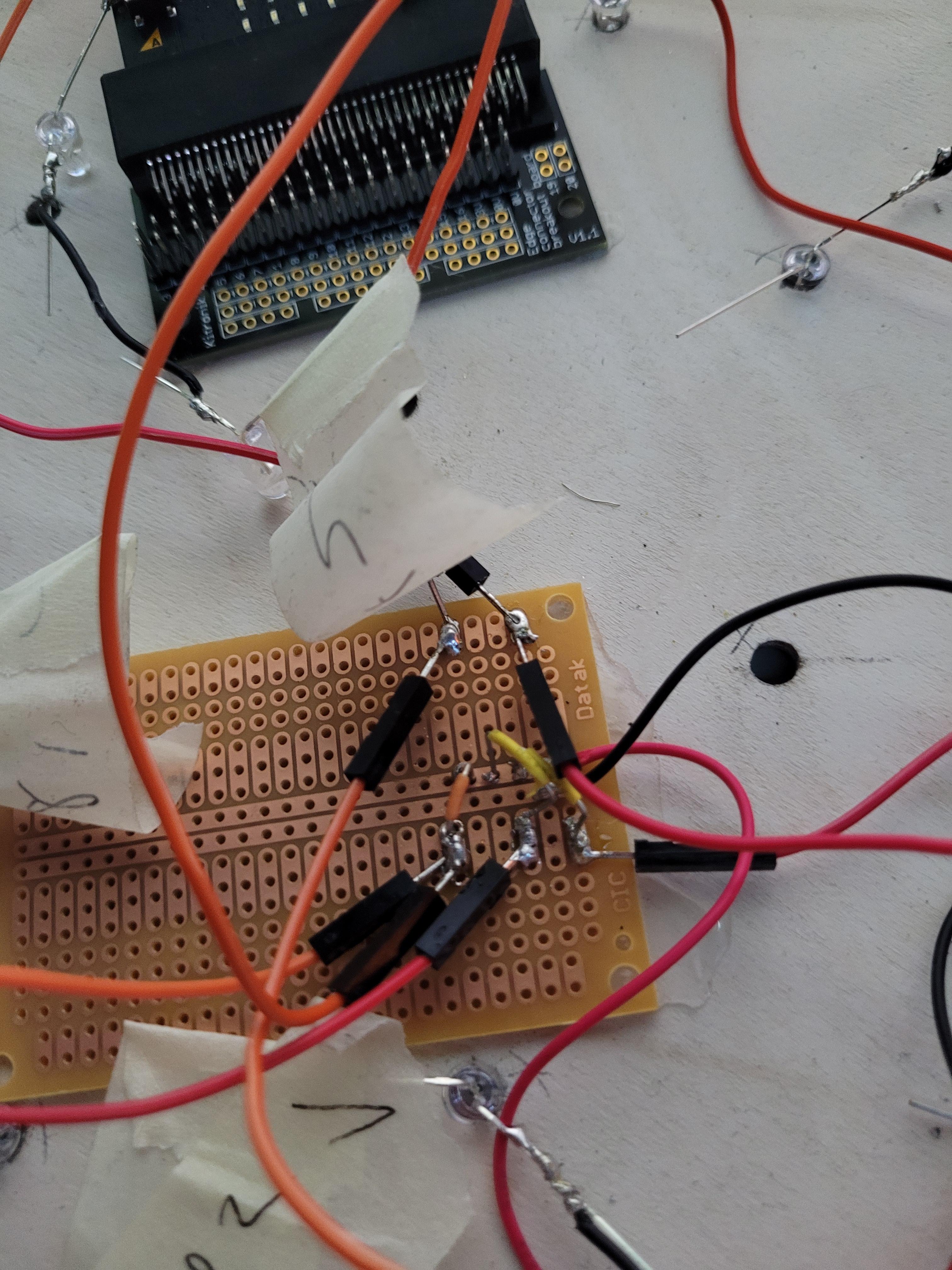
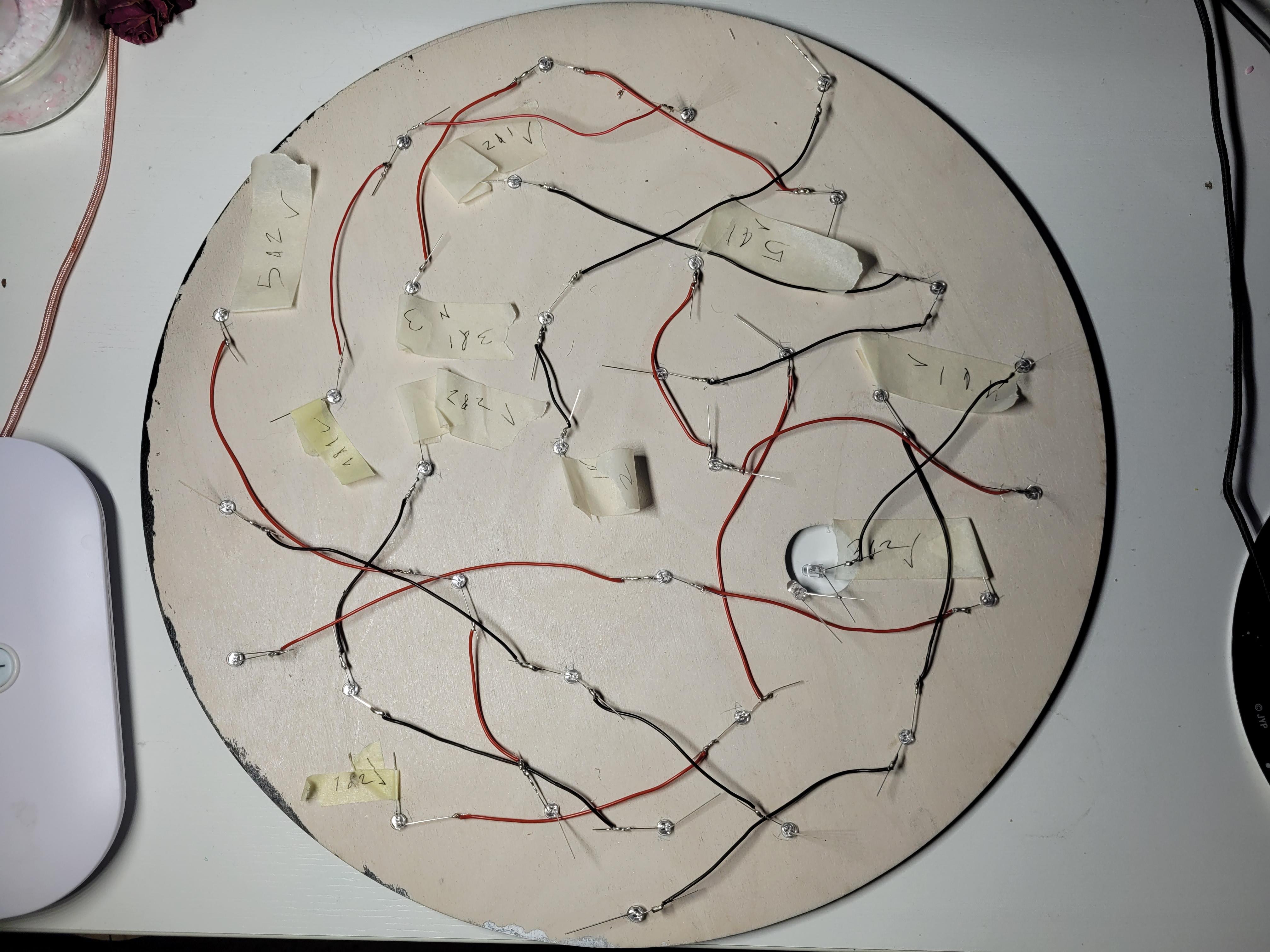
To organize the wiring, I used a circuit board to connect each LED series together—for example, linking series “1–1” with “1–2,” and so on. From each grouped connection, I attached a jumper wire that led to the corresponding pin on the Micro:bit breakout board. (The final image illustrates this configuration more clearly.)
There are many possible ways to structure this step, and the layout can vary significantly depending on factors such as the number of LEDs, how many LEDs are placed in each series, and how many series are controlled under a single code output. I chose this particular method because it was compatible with the components I had available at home.
How It Looks
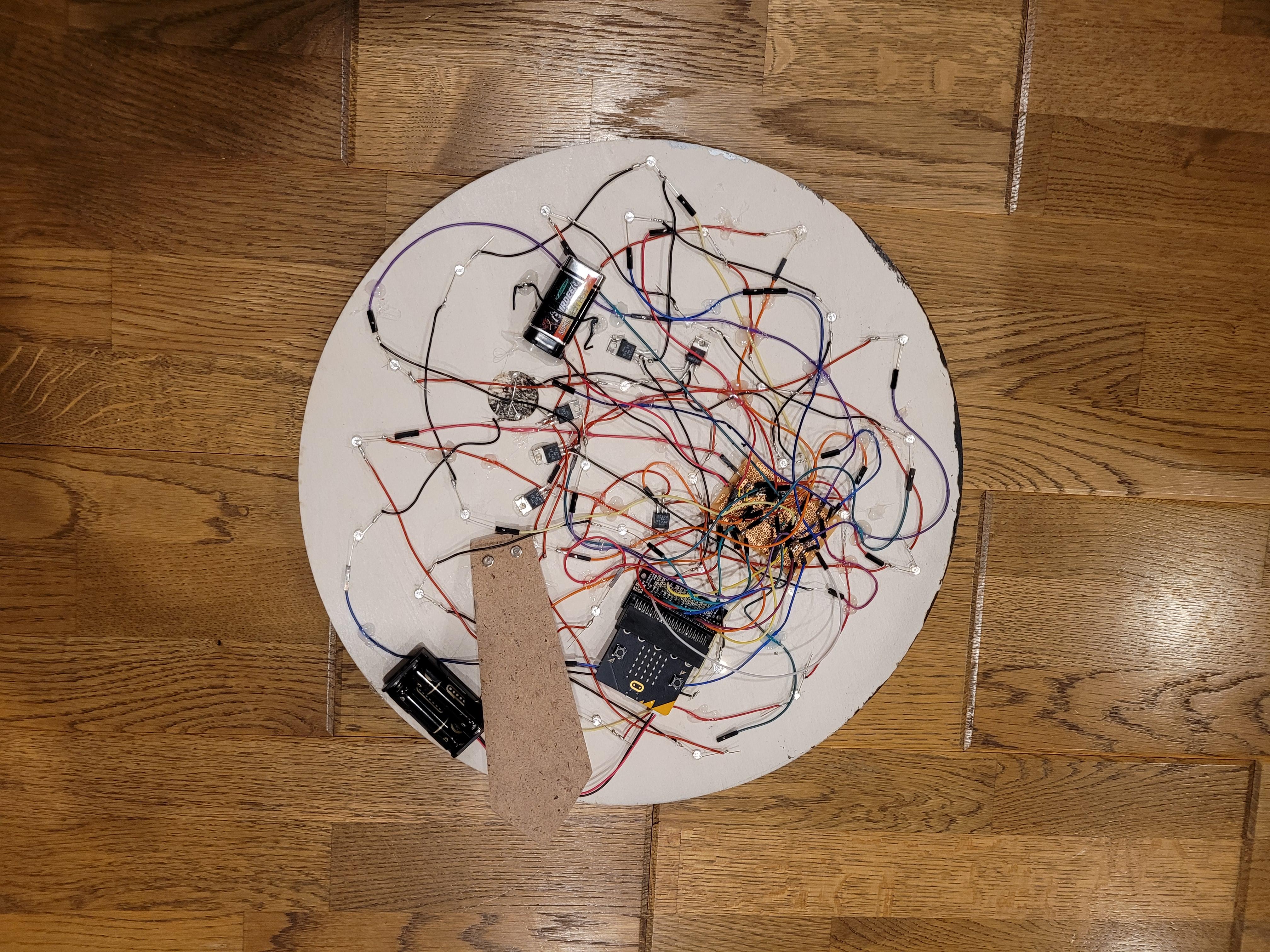
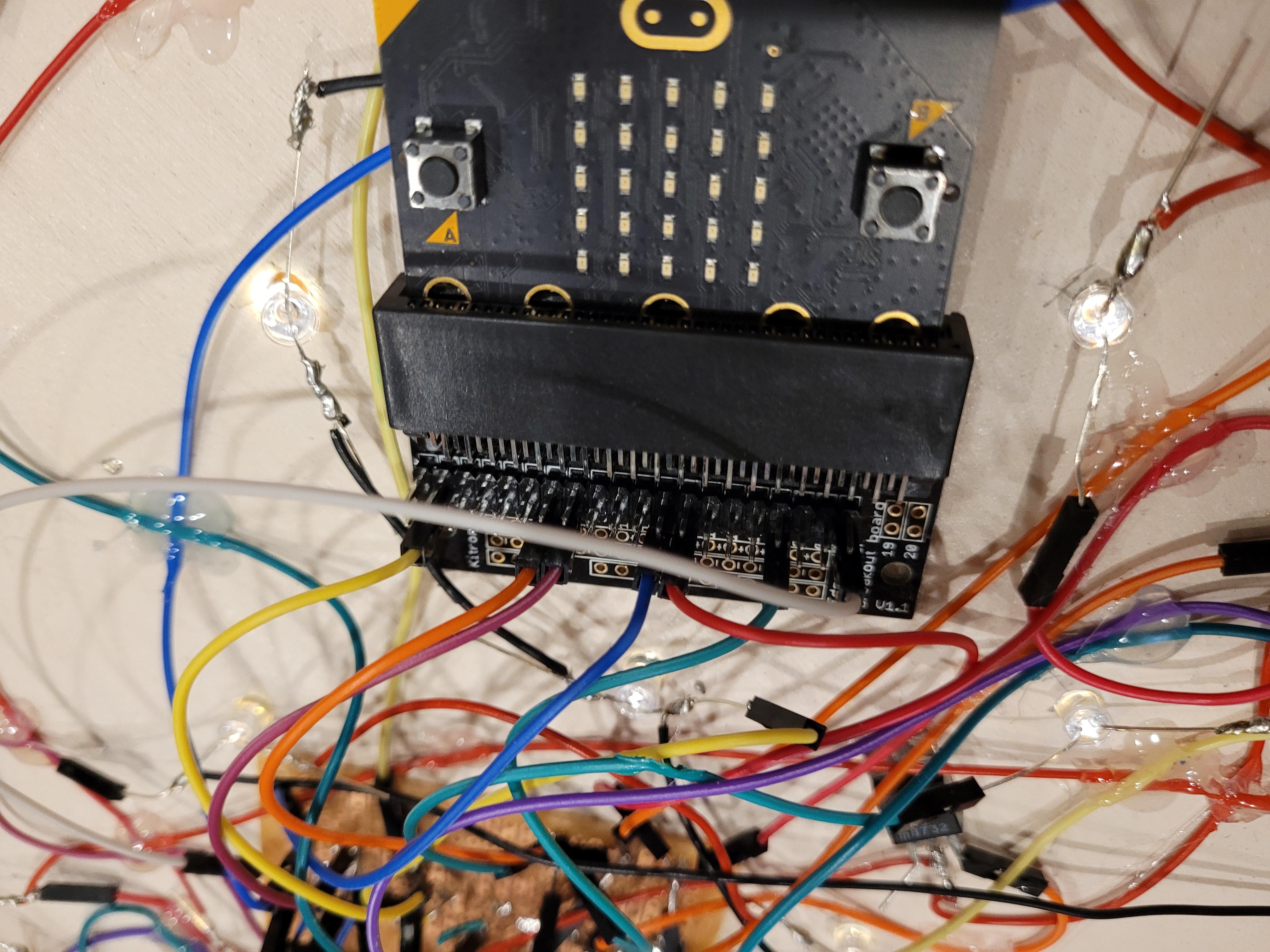
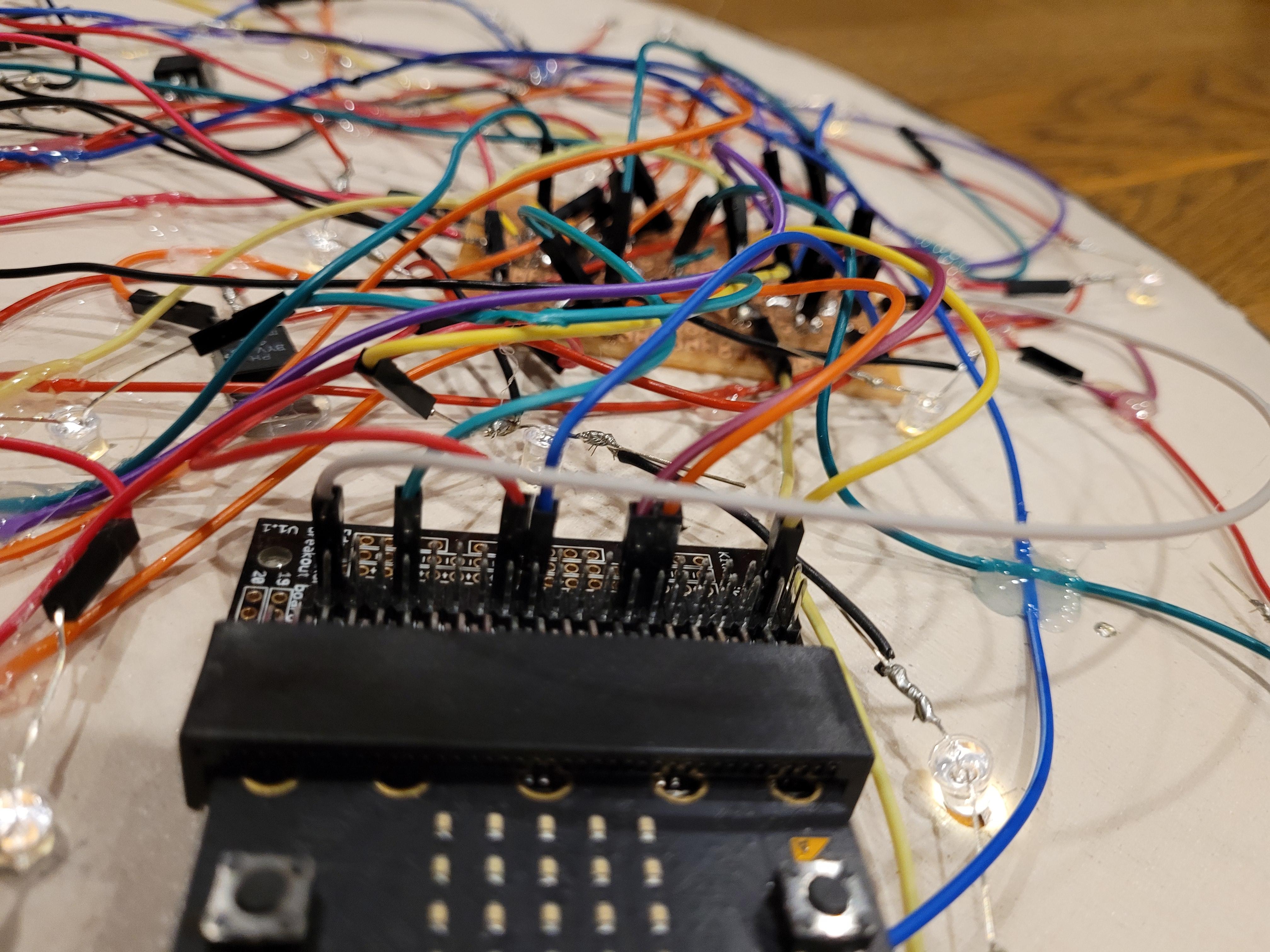
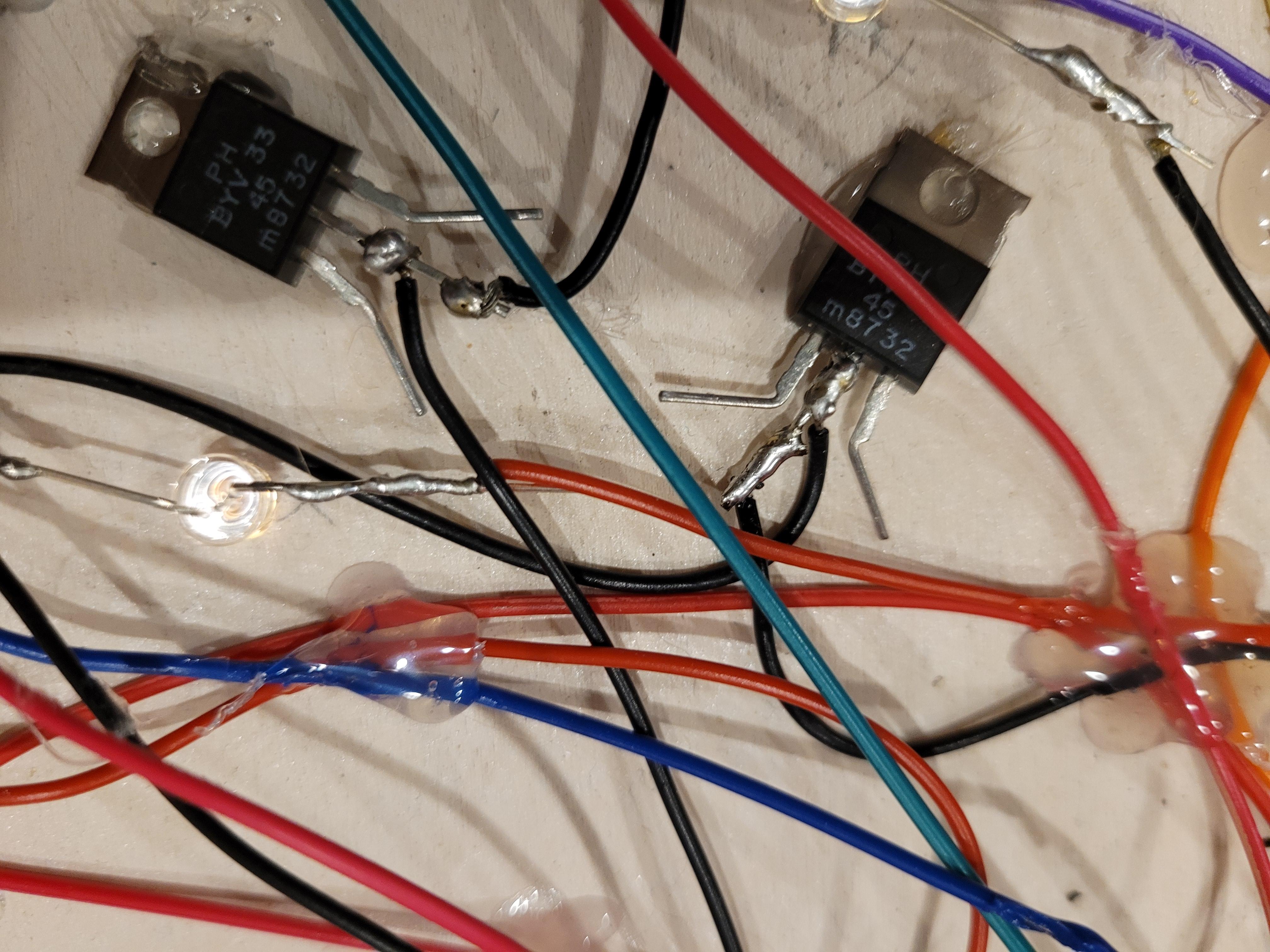
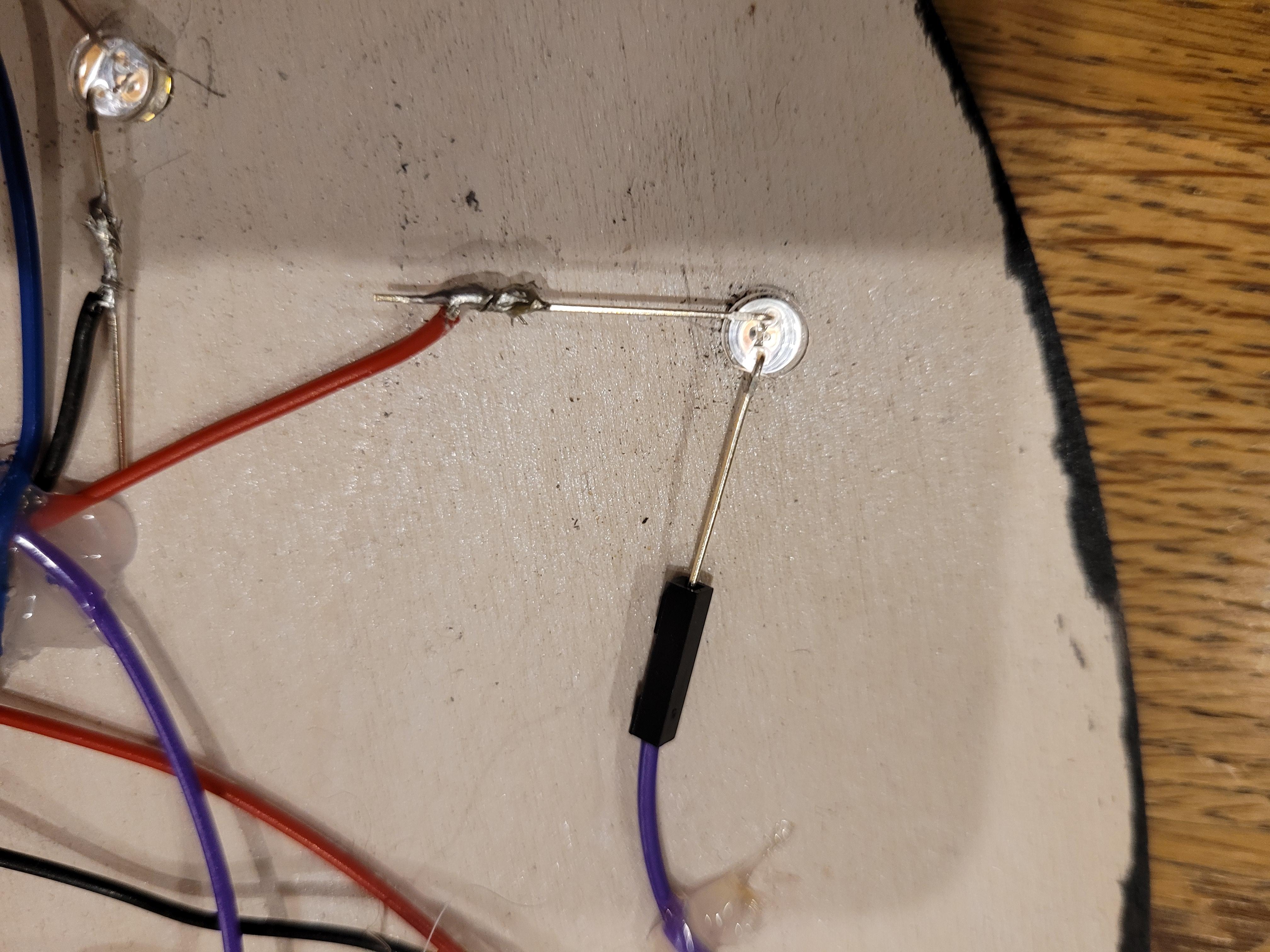
This is the final appearance of the wiring from the back. While the layout is somewhat messy due to the number of connections, the circuit functions reliably, and I am satisfied with the result.
Coding With MakeCode
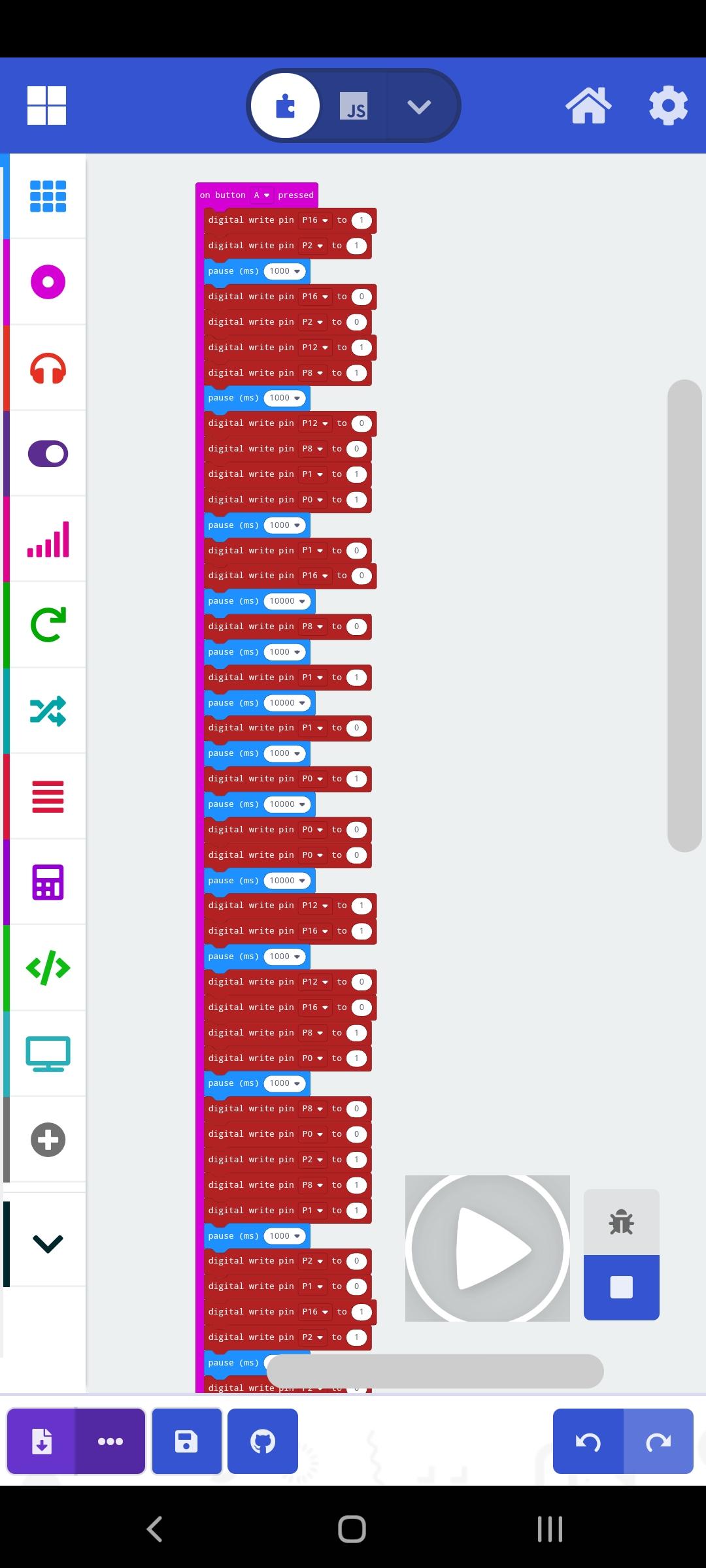

Once the circuit was functioning properly, I was finally able to focus on experimenting with the code in Microsoft MakeCode. One of the most enjoyable aspects of this stage was the flexibility—by adjusting the code, I could change the LED patterns at any time, allowing the lamp to behave differently depending on the effect I wanted.
MakeCode also offers a mobile app, which allows wireless programming for the Micro:bit (version 2 or newer). This means I can update and upload new code directly to the Micro:bit without using a computer or additional cables, making the process simple and convenient.
Final Product
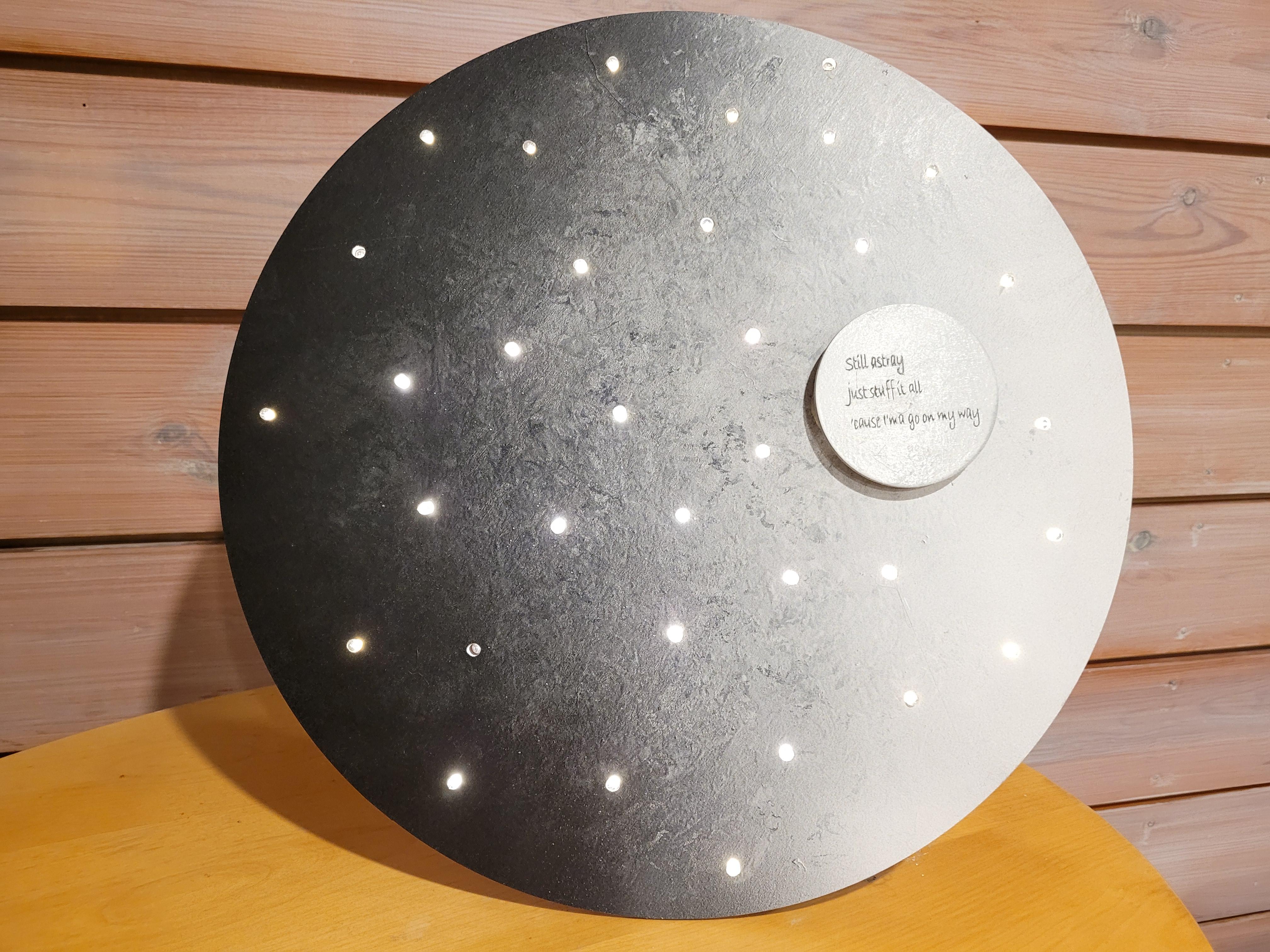
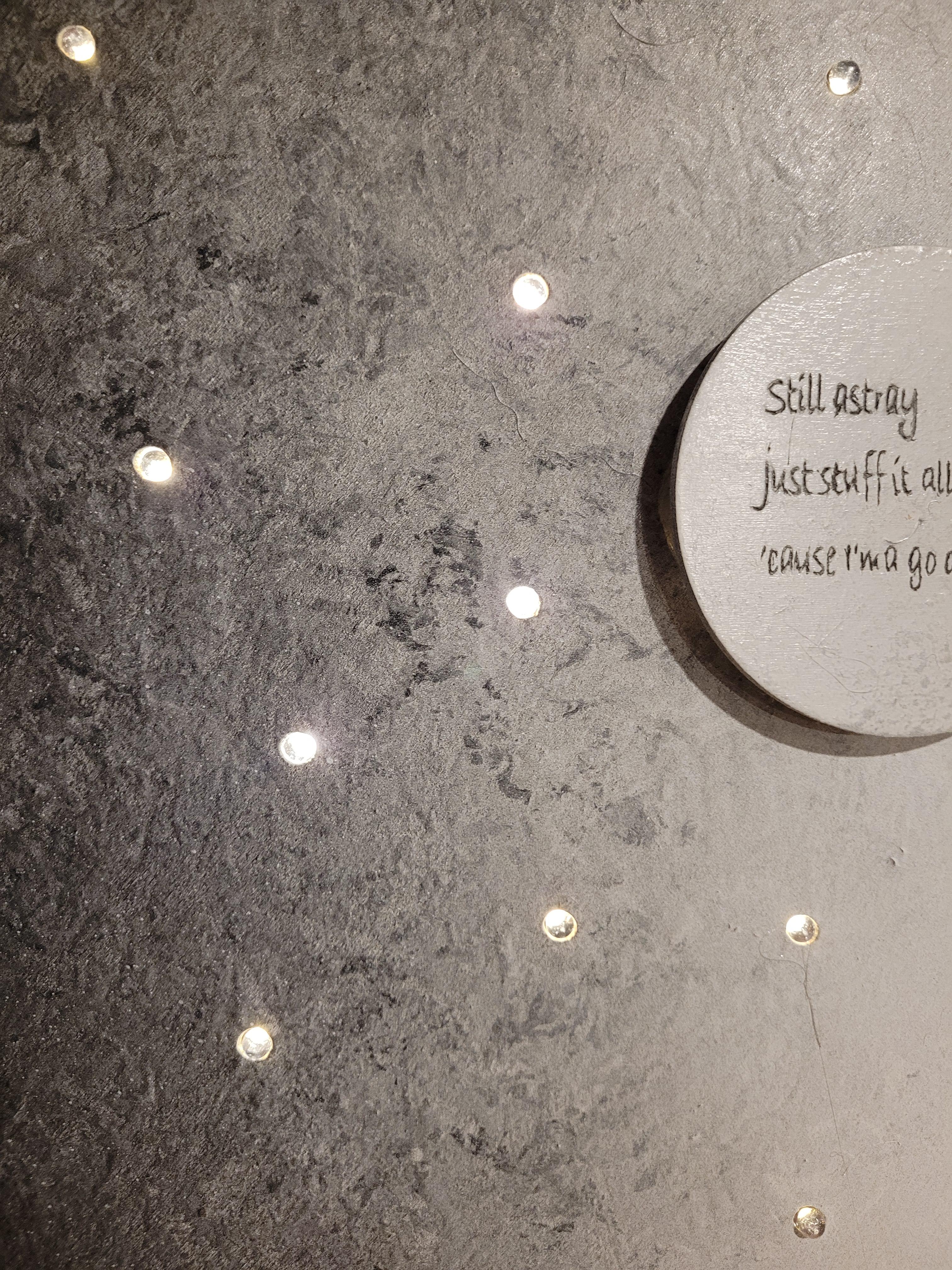
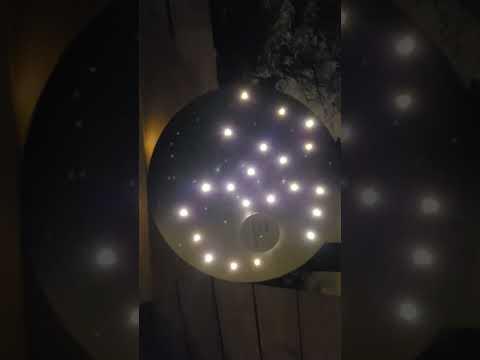
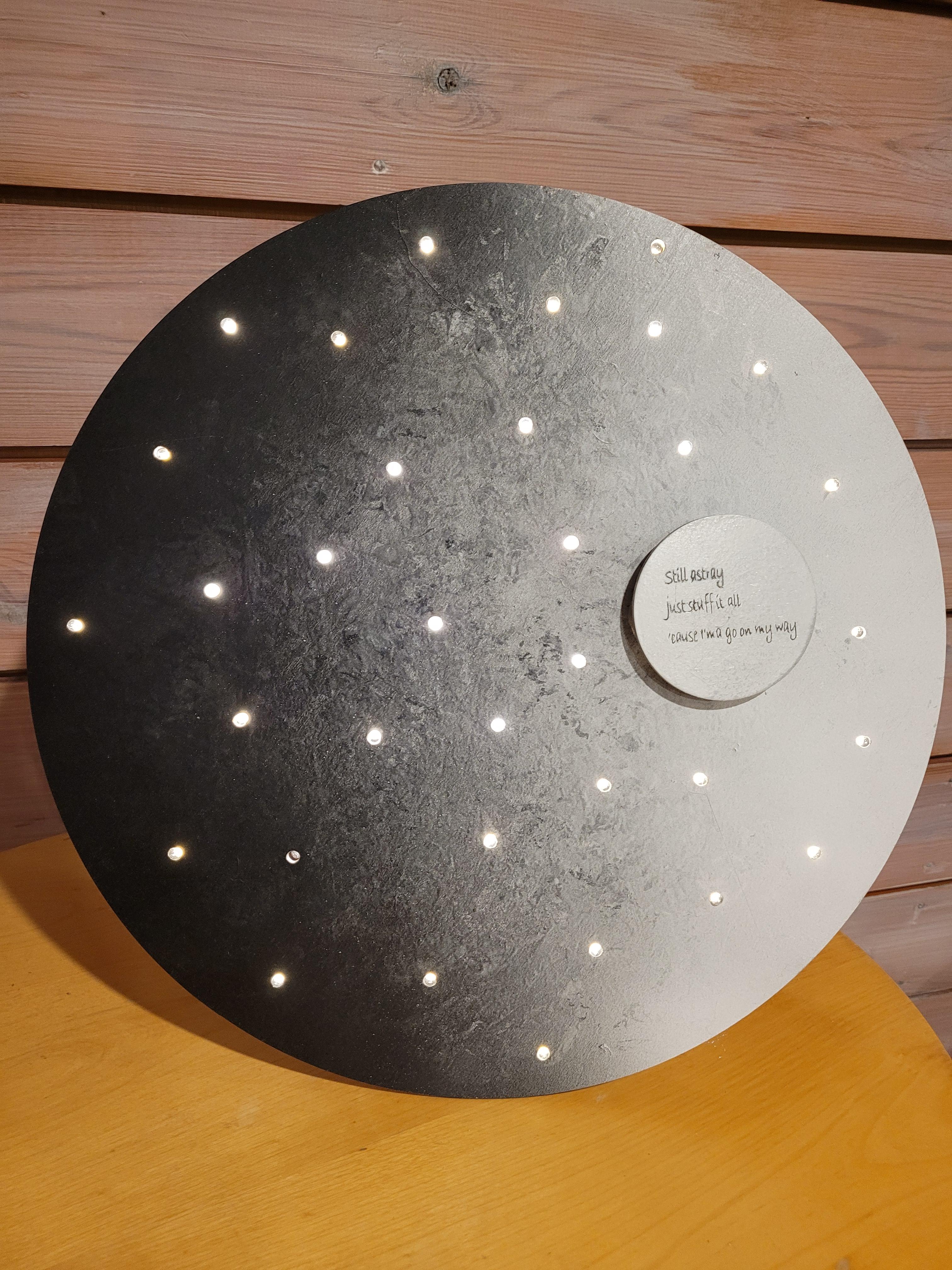
This is my final product, and I am very satisfied with the outcome. It turned out exactly as I envisioned. The project required extensive problem-solving, testing, and creative troubleshooting—especially since I could not find any examples of a similar build. Despite the challenges, the process was enjoyable, and I am proud of the final result. The finished lamp is both functional and visually beautiful.
As a small side note, the additional piece placed on top of the moon—where the text is engraved—was not part of the original plan. I had completed my laser cutting before fully understanding how the circuit would be arranged, and I initially designed a larger hole for a button to turn the lamp on and off. Later, I realized the Micro:bit breakout board and its push button would be located on the opposite side, making that design unnecessary.
To solve this, I improvised by creating a separate decorative piece with the laser cutter and attaching it with hot glue. The engraved text is a lyric from one of my favorite songs, which adds a personal touch to the design. Although it was not part of the initial steps, it became a meaningful and visually fitting addition to the final product.
How to Teach This in School?
I believe this project would work well at the secondary school level. It offers students an opportunity to engage in a full making process: planning, experimenting, problem-solving, and developing technical skills while creating a personalised product.
To begin, each student would decide how they want their light to function. There are countless possibilities, and this freedom encourages creativity. I would recommend using at least three LEDs, but otherwise students can choose the form and behaviour of their design. They would also be shown the available amount of plywood, and they could choose to use all of it or only a portion depending on their design.
Before starting the final project, students would complete introductory lessons on basic LED circuits and conduct small practice tasks to build confidence. They would also work with the Micro:bit and MakeCode to learn the fundamentals of block-based programming.
When starting their actual product, students would first design their idea digitally and prepare the file for laser cutting. Once the physical structure is ready, they would plan the internal layout: how the wires are routed, where the Micro:bit is placed, and how the components fit together. After planning, they would move on to soldering and wiring their circuit. Finally, students would write and refine their MakeCode program to bring their product to life.