Oxygen Tube / Venturi Device Adapter for DIY Oxygen Chamber
by Mjadkins in Workshop > 3D Printing
46 Views, 0 Favorites, 0 Comments
Oxygen Tube / Venturi Device Adapter for DIY Oxygen Chamber

This is a oxygen tube / venturi device adapter for a diy oxygen chamber for animals. It is intended to be feed through a 2 inch diameter hole on the side of a plastic tub along with a small gecko vent and screwed on. This adaptor will allow an oxygen tube from a compressor to be attached.
Supplies
For this project you will need
Solidworks software
slicer software
3D printer
PLA Filament
Threaded Base

Begin by opening solidworks and setting the units to MMGS and the decimals to 3 places. Once you have completed the set up click on the top plane and create a new sketch. At the origin create a circle and change the diameter using the smart dimensions setting found under the sketch tab and change the diameter to 49.6mm. After you have created the circle you are going to want to click the features tab then boss extrude upward using blind at a length of 12.7mm. This section will be the base for our threads later on.
Threaded Base

From there you are going to want to click the top face of the section created in part 1 and create a new sketch. Repeating the same process seen in step one just with different dimensions. For the circles diameter set it to 66.675mm and set the height extruded upwards using blind to 5.08mm.
Threaded Base

Next flip the part over so you are viewing the bottom plane and shell under the features tab. Then click the bottom of section 1's part and change the measurements to 2.540mm as seen in the example picture above and click the green checkbox.
Threaded Base


Next you are going to want to click the top face of section 2 and create a circle from the origin point with a diameter of 22.225mm and an extruded height of 22.225mm. While other dimensions can be modified it is very important that you keep these dimensions the same as these are based off the oxygen tube and venturi device pieces dimensions. On the same face we are going to want to create another circle at the origin and give it a diameter of 17.685mm. Then click features - extrude cut and through all. This feature will allow a hole to be made and air to pass through.
(Optional) Fillets for Threaded Base


This part is optional but can make the print a bit more visually appealing and make it slightly easier for the part to enter the screw on backing we will make further down in the process. To make the fillets you are going to want to click features - fillets and click on the lower outer ring and upper outer ring of the component we made in step one. From there you are going to want to make the fillet parameters symmetric with a radius of 2mm.
The same can be done to the section made in step 4 but with a radius of 1mm.
Threaded Base


After you have finished potentially creating fillets for your part and extruding the connector piece we are ready to begin designing the threads. It is very important that you do not use the thread feature given by the software as that feature only creates cosmetic threads and not functional threads.
To begin making the threads you will need to create a copy of the example seen in the first photo on the front plane in a new sketch. Once you have created the outline for your threads you will need to create a reference plane using the features - reference geometry - reference plane tab. This plane will need two references to align itself properly. The bottom face of boss-extrusion 1 and the midline point of the left most line created in the threads sketch.
Threaded Base


Using the plane you just created in step 6 to create sketch of a circle from the origin point with a diameter of 49.6mm. This will be your guide for creating a helix. Keeping the circle highlighted, click on features - curves - helix/spiral and enter the requirements seen in the photo above .
Finally click on sweep and sketch profile. Make the profile the thread outline and the sweep path the helix created in step 6.
Necessary Chamfers/Fillets for Threaded Base


Finally for the base you will need to make a series of chamfers and fillets. These are necessary fillets, without them the part has an extremely hard time acting as a thread and screwing onto the backing. To start click on features - fillet - chamfers and locate the bottom end of the thread created in step 7. Once you have located the end and changed the dimensions to match the first picture above click on the left most line. Next you are going to want to create a separate chamfer and select the lines shown in the second picture above, once again copying the examples diamensions and option selections.
Once the chamfers are made its time to move onto the fillets. The first fillet will use the middle line created from the intersection caused by chamfer 2 and have a radius of 1mm. Lasty the two edges of the threads body will need to be filleted with a radius of 0.2mm.
Save this part as Base 1 and create a copy called Base combine.
Base Combine

Open the solidworks part Base Combine and delete all the chamfers and fillets used to create the thread. Next open up the sketch of your threads outline and select all using ctrl a to change the lines from solid to construction then click offset entities and select only the outermost lines. Then offset the original lines by 0.2mm outwards. After that the Helix/spirl needs to be edited to match the picture attached.
Screw on Backing

Like the previous part we are going to want to start by opening a new parts file and changing the units to MMGS and the decimals to 3 places. Then we are going to want to create a sketch on the top plane by creating two circles centered at the origin. The larger one should be set to a diameter of 66.675mm and the smaller inner one should be set to a diameter of 50.8mm. The face created by the space between the two circles should then be extruded by 10.16mm.
Screw on Backing

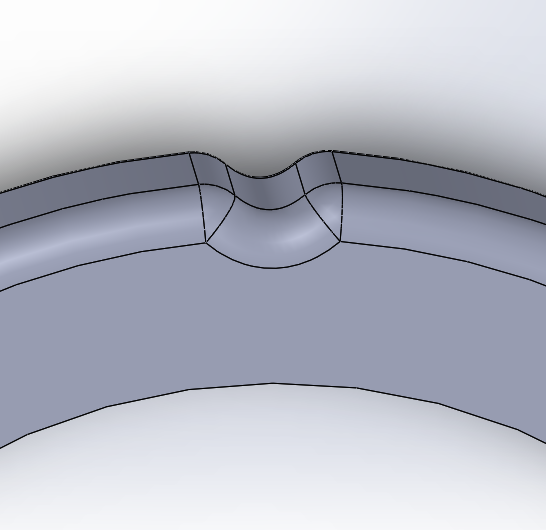

Next the outer diameter rings for the top and the bottom should be selected and filleted at a radius of 2mm. From there we are going to begin creating groves to hold onto so that the backing is easier to twist. To start the top face of the section made in step 10 should be selected and a sketch should be made to match the first photo attached. Using that sketch, click extrude cut and through all, then fillet the edge left behind using a radius of 2mm so that it looks like the second picture under this step. To create a repeating groove all around the surface click the tab features - linear paterns and a drop down menu should appear with an option for circular pattern. Once circular pattern is clicked enter in the information seen in picture 3. Then click the inner face to fillet the inner two edges to a radius of 1mm and save your part.
Screw on Backing Threads


Finally its time to cut out the threads from the backing. To do this stay in the file for the backing and click insert part then when the pop up occurs make sure to have the sections marked in photo 1 of this section marked on your own setup. Then open the file Base Combine. From there you are going to want to click on the face underneath the bases threads and the inner face of the backing and make the two faces concentric. Then, rotate your view until you can see the threads end face and click it as well as the front plane and make sure they're coincident. Next Click a flat face on top of the backing and the bottom face of the ledge that the base has and make them coincident. Lastly use the search bar to find combine and click subtract. The main body should be the screw on backing and the body to combine should be the base.
The files can then be saved as a stl. file and inported into a splicer to prepare for printing.