PIETROLLER: Wired & Wireless Game Controller Made Using STM32
by Aravind Vallaban in Circuits > Remote Control
1975 Views, 29 Favorites, 0 Comments
PIETROLLER: Wired & Wireless Game Controller Made Using STM32

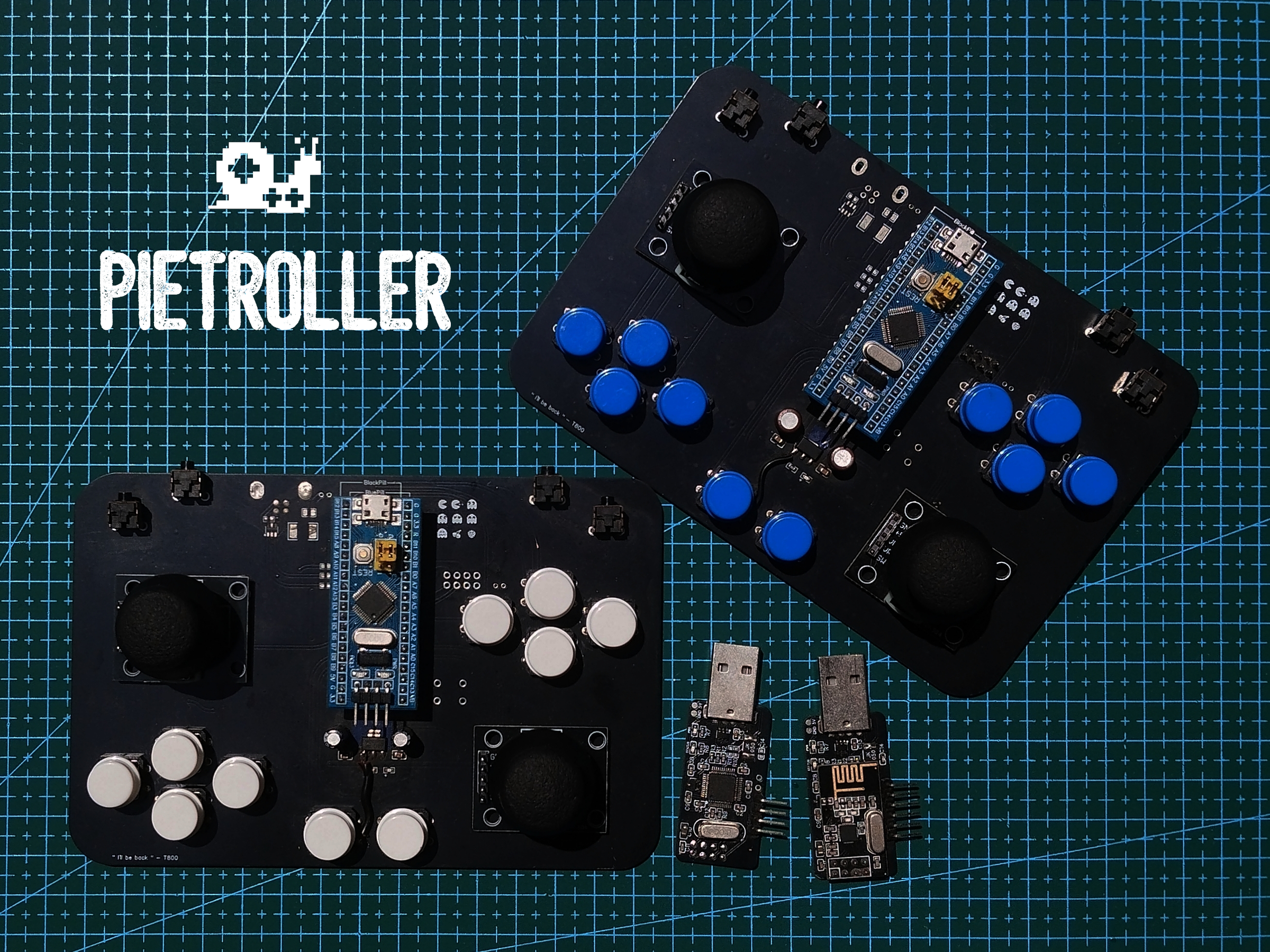


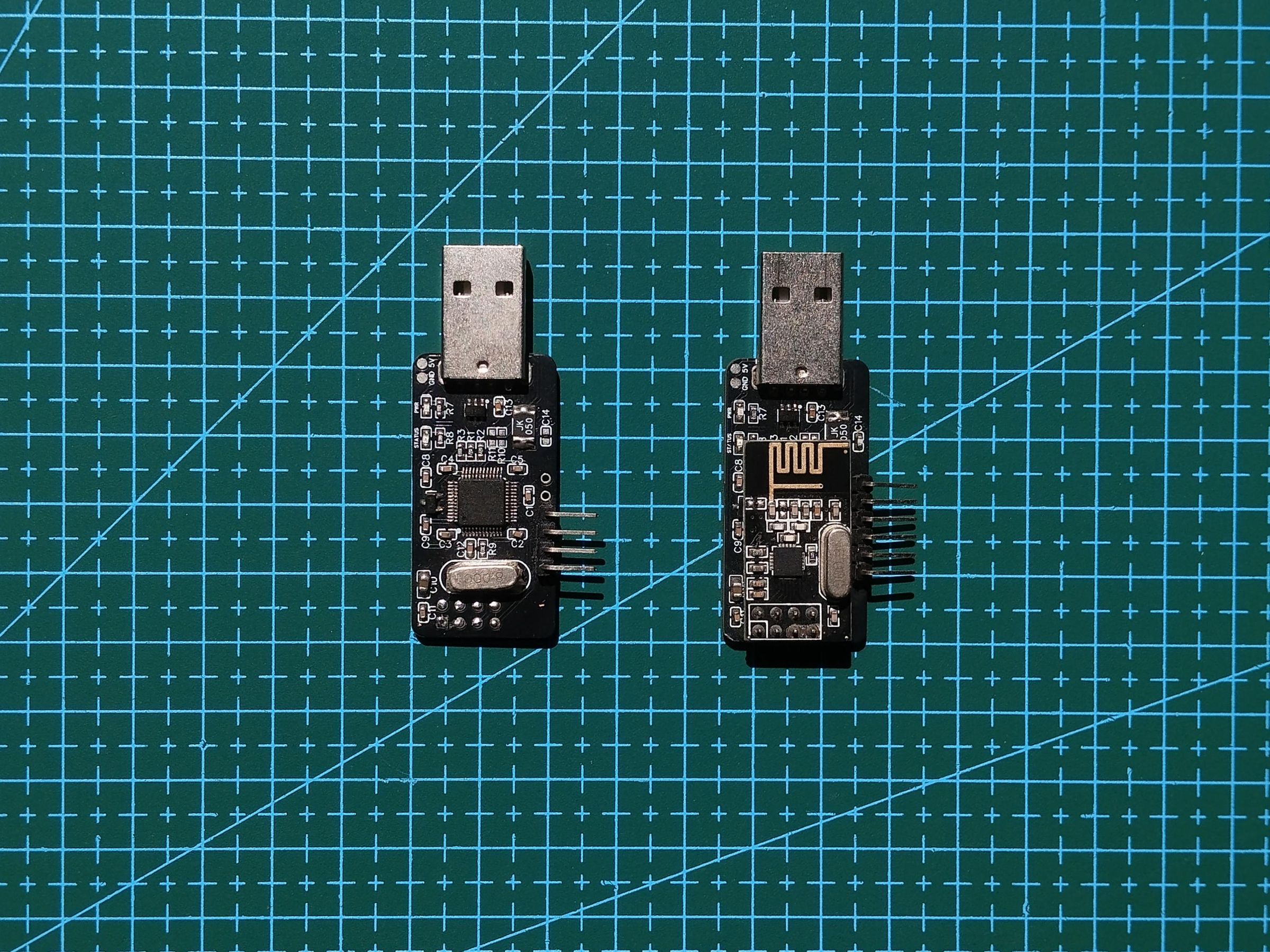

Lately, my friends and I started playing more SIM racing games and quickly realised that keyboard controls just don’t feel good any more. Most newer racing games like Forza are designed around analog input, where smooth steering and throttle control actually matter. With a keyboard, everything is either fully on or fully off, which makes driving feel awkward and difficult.
We looked into getting proper controllers, but decent ones from companies like Logitech were way too expensive for something we just wanted to enjoy casually with friends. So instead of buying one, I decided to make one myself and it only costs around 600 Rs or 6.27 USD. It will cost even less if PCB is made at home by etching. You can find an instructables on Etching PCB.
This project started as a simple idea: build a low cost DIY controller that still feels good to use. But as I kept working, it turned into a much bigger project with multiple firmware including wireless connectivity, PCB design and also learned a lot in the process.
The best part about DIY projects like this is that you are not limited to what companies sell. You can customise everything exactly the way you want while also learning a lot about ARM micro controller in the process. You can even change the name of the controller, how it enumerates itself to the computer.
In this Instructable, I’ll go through the entire build process, including the electronics, PCB design, firmware and the problems I faced while making it so that you don’t have to :D
Feel free to look around the 3D model to get a better visualisation of the controller.
Note: This is just a visual representation and actual product will vary.
Features:
- Supports multiple firmware ( X-INPUT / D-INPUT / Wireless)
- Uses NRF24L01 for trans-receiving packet
- Easy to integrate with other RC which uses NRF24L01
- Very Power efficient - uses 25mA average and even less without LEDs
- Supports older games with D-INPUT and newer games with X-INPUT
- Wireless range of up to 100m with upgradable NRF24L01 PA+LNA module to get around 1Km
Supplies


Hardware:
- STM32F103C8T6 (LQFP-48) ×1
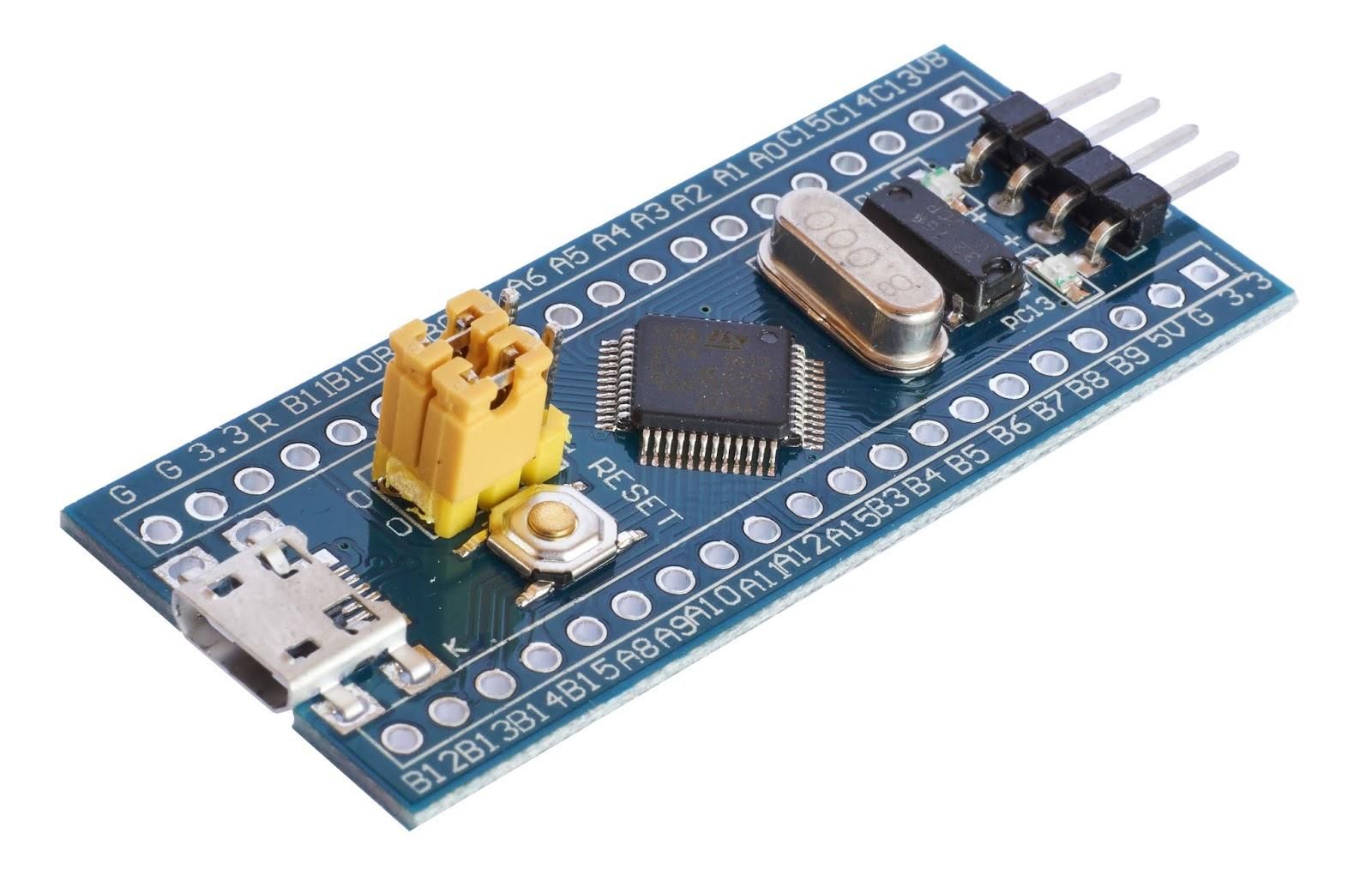
- STM32F103 Blue Pill Module ×1
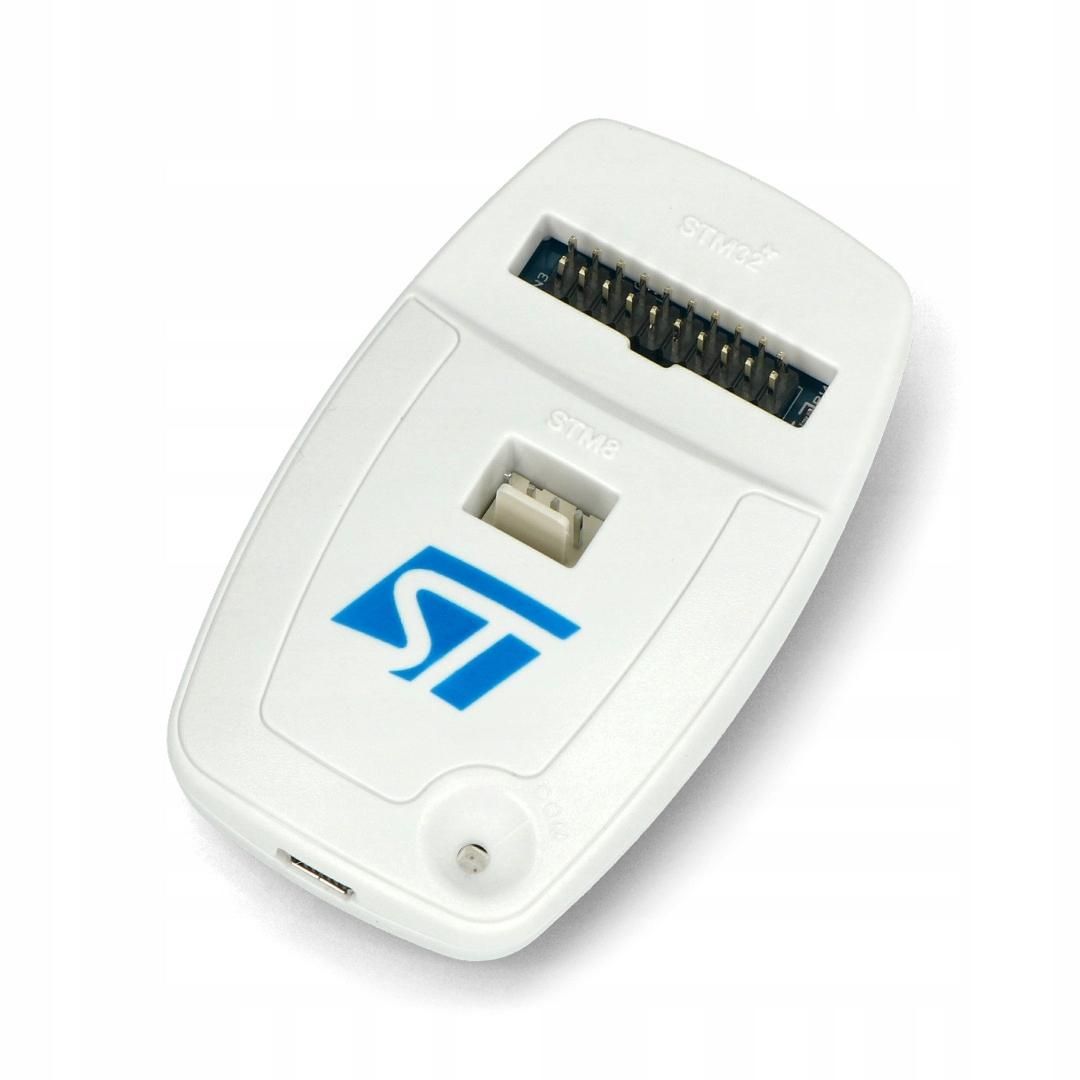
- ST Link V2 Programmer ×1
- NRF24L01 module ×2
- CH340C (SOP-16) ×1
- Joystick Module ×2
- 10uF Electrolyte Capacitor ×1
- Type B USB Female (optional) ×1
- AP2138N-3.3 (SOT23-3) ×1
- USBLC6-4 (SOT23-6) ×1
- 8MHz crystal ×1
- Polyfuse 500mA ×1
- USB-A male connector ×1
- 0603 LED Red ×1
- 0603 LED Blue ×1
- 1x4 2.54mm header ×1
Resistors
- 10kΩ ×3
- 1MΩ ×1
- 220Ω ×2
- 1.5kΩ ×1
- 1kΩ ×4
Capacitors
- 0.1uF ×6
- 1uF ×3
- 10uF ×1
- 20pF ×3
- 10nF ×1
All these components are for both the controller and receiver. Mostly SMD components comes in reels so you will probably need to buy around 50 to 100 of the SMD components. Its pretty cheap so no harm to anyone's wallets.
You can remove the STM32 chip from the blue pill board by desoldering it. Go to Step 3 to see how to desolder the chip.
Software:
- Download STM32CubeIDE if you want to program and understand the whole product from scratch. (Download version 1.19.0 as it has integrated CubeMX to setup and auto generate base code)
- Download STM32 Programmer to flash the firmware into the STM32F103. (optional)
- Download STM Link Utility for programming if the STLink V2 is a clone.
Why Choose STM32

- The reason I am using STM32 instead of Arduino is due to its higher speed and performance and also the ARM architecture. Arduino having a huge online community with countless amount of libraries is great but I wanted to explore embedded systems in depth rather than relying on high level abstraction.
- Also with Arduino's HID library, they help create with much more simplification but there is not much flexibility. With STM32, I've got more control over the firmware.
- Then comes the ADC resolution, STM32 offers 12 bit ADC on F103 series and 16 bit ADC in F4 which is very nice.
- Cost was another major factor, STM32 was very cheap as compared to Arduino. It cost me only 130Rs which is approx. $1.35 to $1.36 USD to buy the chip, whereas Arduino costs around 500Rs which is a lot.
- There is also support of STM32 in Arduino IDE through STM32Duino which enables us to use Arduino ecosystem with STM32.
- Overall STM32 gives better performance and more flexibility and better value for money in this project. You can absolutely build it with Arduino but for my use case, STM32 made more sense.
Designing Schematic and PCB
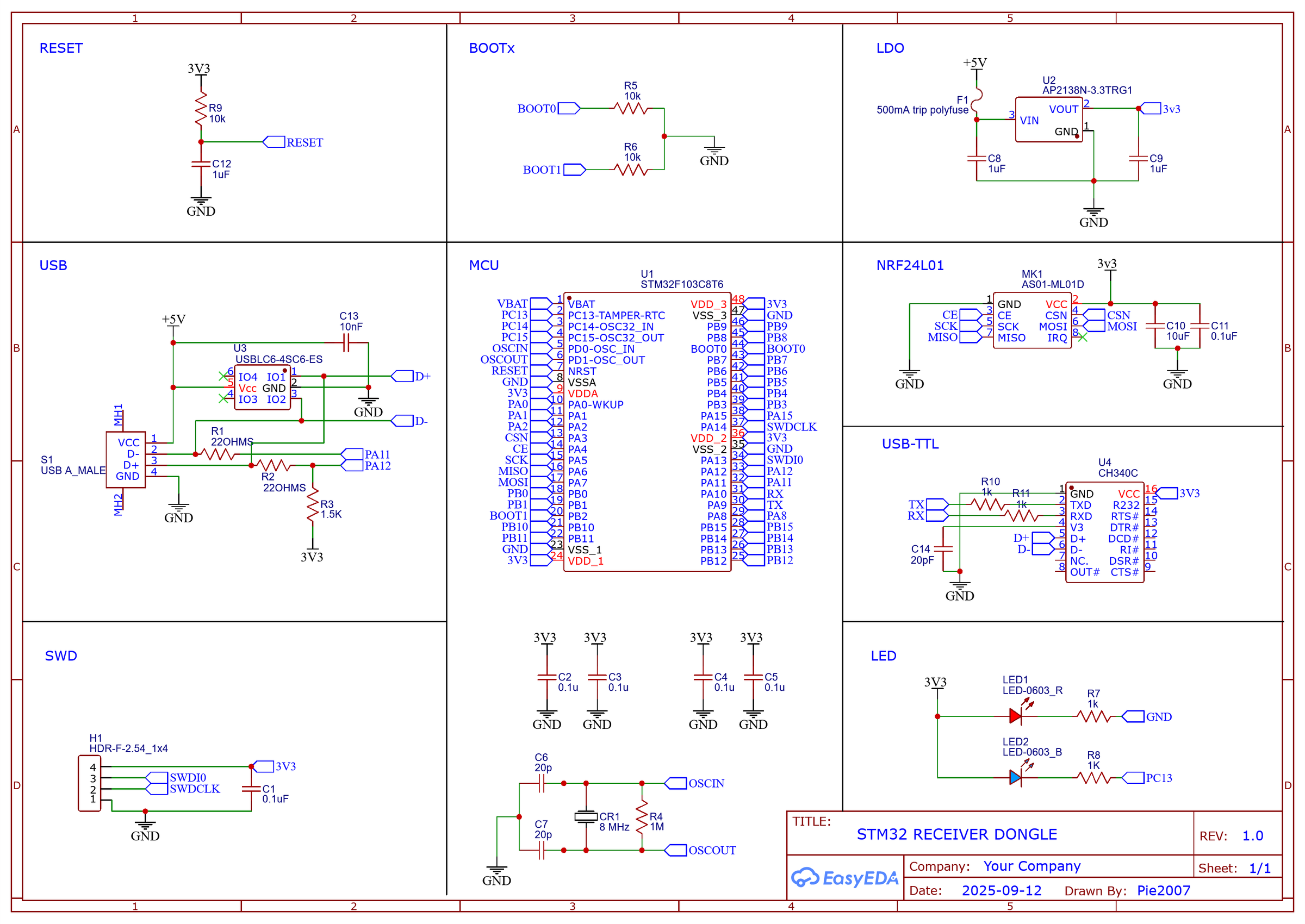
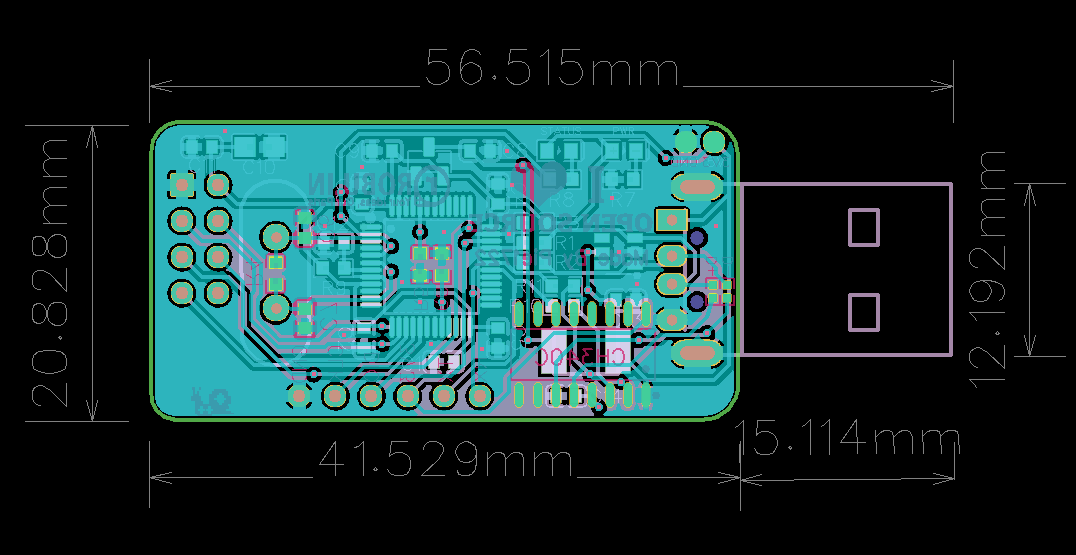
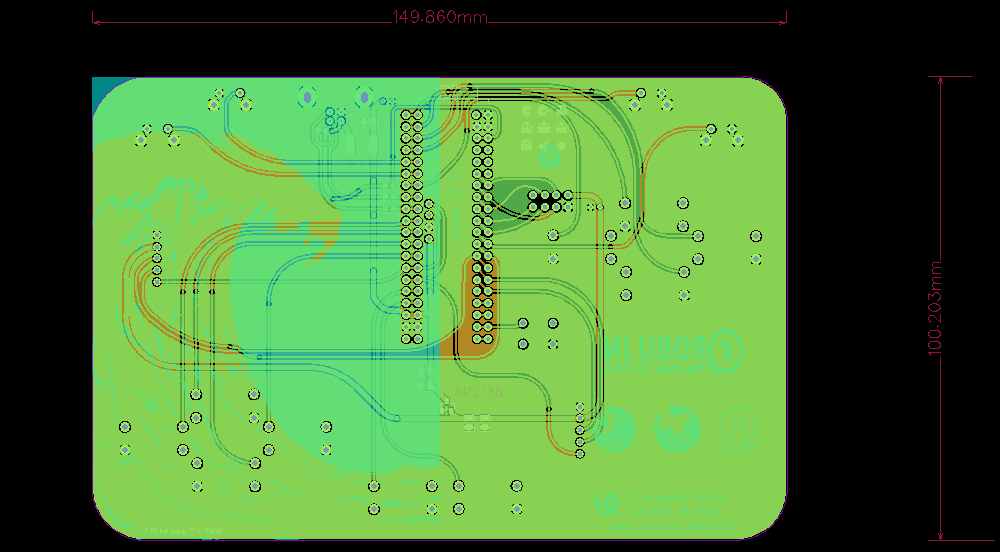
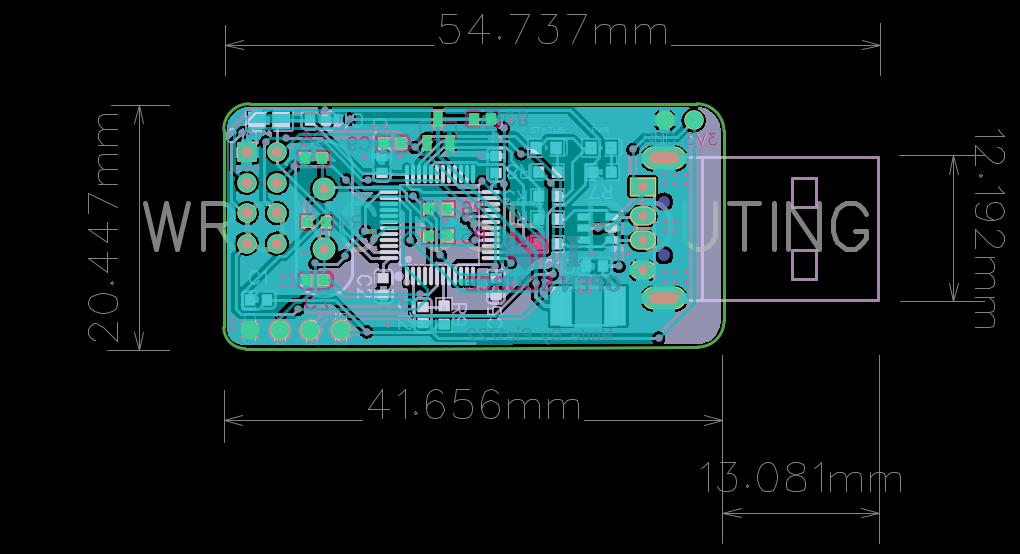
This is the first challenge of any embedded system project. Designing a system flawlessly so that it will work perfectly for a long period of time. Always remember to download the datasheets of each and every component as there are diagrams which really help in selecting components or sometimes manufacturers add the minimum system required diagrams so that we could just directly use the components in our project.
Lets go through each block one by one :)
- In the main MCU part we can see there are 4 capacitors with each 0.1uF or 100nF and its connected to VCC and GND but note that during designing it is supposed to connect to the VDD and GND pins of the MCU and should be kept very close to it. There capacitors are for decoupling, it makes the MCU work without any problem, without these decoupling caps the MCU may brownout under stress of EMI.
- For the USB part we are using a Type-A USB Male. The data lines from the USB should go to the MCU pins through a series resister of 22ohms to match the impedance. As we are going to configure the USB to be FS which is 12Mbps so it is not very fast. This is a good thing for designing the project as it won't be really necessary to match the impedance of both the lines (differential routing). Small changes is acceptable.
- I have added USBLC6-4 which is a transient suppressor for the USB lines. Do note to see the design guidelines given by ST electronics on its datasheet. It also has a 500mA polyfuse which is a resettable fuse mostly used in embedded electronics where you can't manually replace the fuse whenever its blown.
- For the crystal do note each manufacturers datasheet before adding the caps to it or else use a resonator, it doesn’t require capacitors.
Cl=(C1*C2/C1+C2) + Cstray
so, 2(Cl−Cstray)
here, Cl = Crystal capacitance
Cstray = pcb capacitance, somewhere between 2 to 5 pF
Example : Crystal with capacitance 12pF find the required supporting caps C1 and C2
=> 2 ( 12pF - 2pF)
=> C1 = C2 = 20pF
- Always make sure to add 10uF electrolyte capacitor in the VCC and GND of the NRF24L01 as it spikes up to 150mA during transmission.
- In this project I have used AP2138 by Diodes Incorp. instead of the standard AMS1117 as it is much more efficient than AMS1117 with very less quiescent current which is necessary for battery operated project. It is also much more stable which very low voltage drop. At 25mA it is sow less that it wont matter.
Now once the schematic is fully ready we need to design the PCB. Make sure to consult your design with someone professional or just post it on Reddit and there are professional engineers who will review the project and give some great insights.
These are the Transmitter and Receiver design files in Easy EDA. Have fun :P
You can download the Gerber files from my Github.
I had to actually design the receiver second time as in the first design i swapped the D+ and D- pins and it took me two weeks to figure it out. The funny part is that my exams were going on and instead of studying I was trying to debug the problem XD.
Nevertheless everything is working now. In the receiver project there still is the wrong USB routing PCB so that you guys could learn from my mistakes.
Soldering
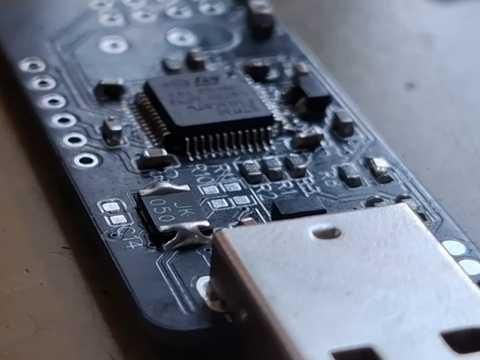


The above video is a 17 minutes timelapse of my whole soldering of the receiver dongle. Desoldering of the main chip will start at 6:50 timestamp. It does not have any kind of background music or sound for better concentration of the viewer :D
Soldering SMD (Surface Mount Devices) are very simple. If you have reflow solder or hot air then you will need a stencil to apply solder paste over the pads, it is still manageable without stencil.
But if you want to solder this product by just your soldering iron then you need to equip yourself with a T-12 soldering station or any Hakko Style soldering iron which uses 900M-T tips. If you are using an individual iron without a station then do remember to turn off the soldering iron after a while as it does not work on temperature control but rather or wattage or power control. So it will keep on heating and the solder tip will start to oxidise and turn blue.
Note: Always tin the soldering iron tip after use to increase its lifespan and not damage it the next time you heat the iron.
0603, 0805 or any two pad component:
- Add some solder on a single pad.
- Head the solder on the pad and simultaneously insert the component. So if it is a 0603 SMD LED then just insert the one end of the component and then remove the iron so the device gets soldered.
- Now heat the other solder pad and put some solder on it.
- If the solder doesn’t look shiny due to overheating then just apply some flux or rosin then head the solder again to regain its properties.
SOT-23, LQFP, SOP-16 etc.
- Add some solder on a single pad just like in 0603 packages.
- Feed the component properly and always check the dot marking to make sure it is pointing in the right direction.
- After the component is in place add some flux on all the other pins and put solder on all of them. No need to worry if pins get short, just use a desolder wire made of copper to pull out all the excess solder.
- Then apply flux and re-heat all the pads to get the proper solder quality.
After soldering of all components are completed then clean the PCB with IPA 99% (Isopropyl Solution) to remove all the flux residue and make the PCB look brand new. Just drop some liquid and use a bush to clean the board.
Note: Handle IPA solution with extreme care, it is highly flammable and do keep away from children.
Programming
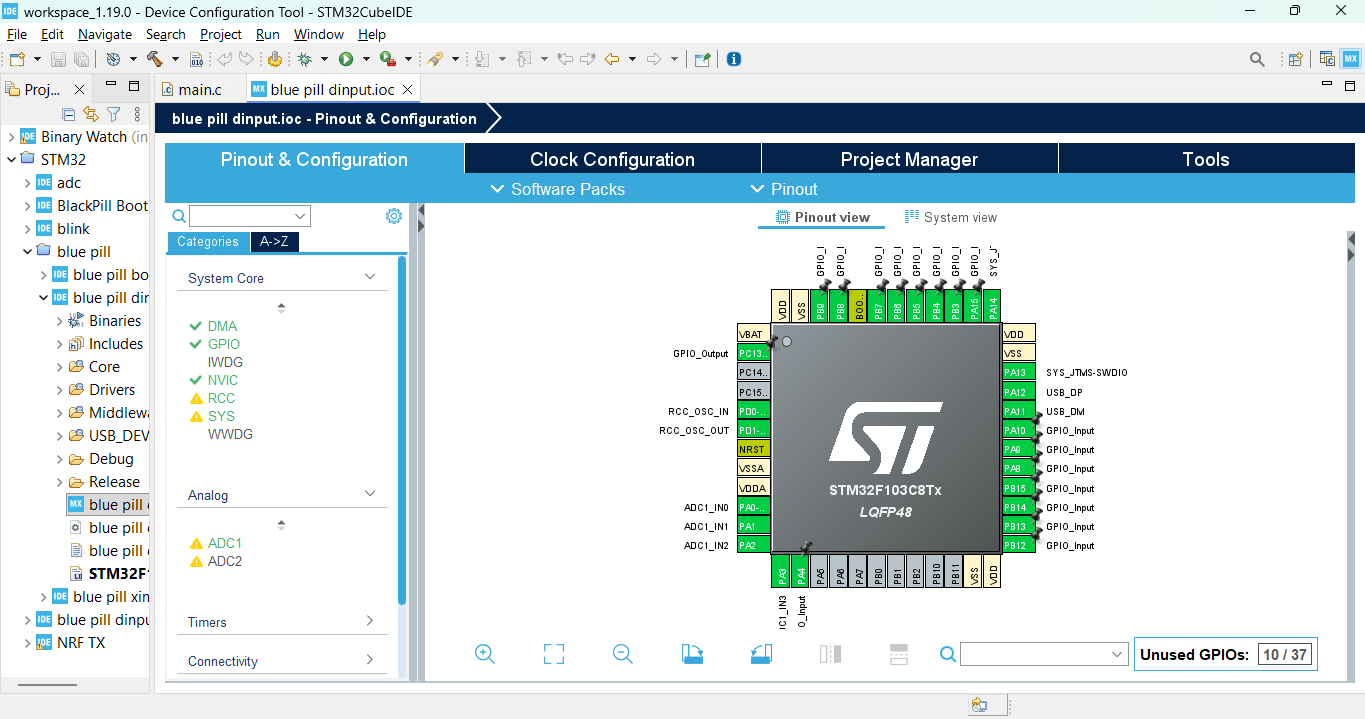
This is the second challenge of the project due to which I got so frustrated that I left the project for a few months. You can find all the project files in my Github.
If you want to build a project anything related USB you need to get this book USB Complete and mainly focus on the USB HID Class.
Now USB in a nutshell: When a USB device is plugged into a computer, the host begins a process called enumeration. The computer asks the device for its identity and capabilities. The device responds with descriptors containing information such as the Vendor ID (VID), Product ID (PID), device type, USB class, power requirements, and supported communication endpoints.Based on these descriptors, the operating system determines what kind of device has been connected such as a keyboard, mouse, game controller, storage device, or serial device and loads the appropriate driver.
In this project, the STM32 identifies itself as a USB HID (Human Interface Device), allowing it to work as a game controller without requiring custom drivers.
Now if you want the detailed guide on how to setup STM32CubeIDE for programming then I have made detailed guide in my github, I can't go into much detail and technicality here as I want to make it beginner friendly.
STM32CubeIDE Configuration:
- First we need to import the whole project folder into the IDE and then open the .IOC for configuration
- We need to config the GPIO, RCC (clock), protocols required, ADC, etc.
- As we can see in the above image we can configure the GPIO pins using the GUI and set it to work for input or output.
- For the protocols, we need to enable the USB_FS and SPI for NRF24L01 and set the clock properly.
- Then enable ADC conversions and set the clock for them and how many samples the conversion should take place. We can also enable DMA (Direct Memory Access) but then have to create volatile variables to get continuous data.
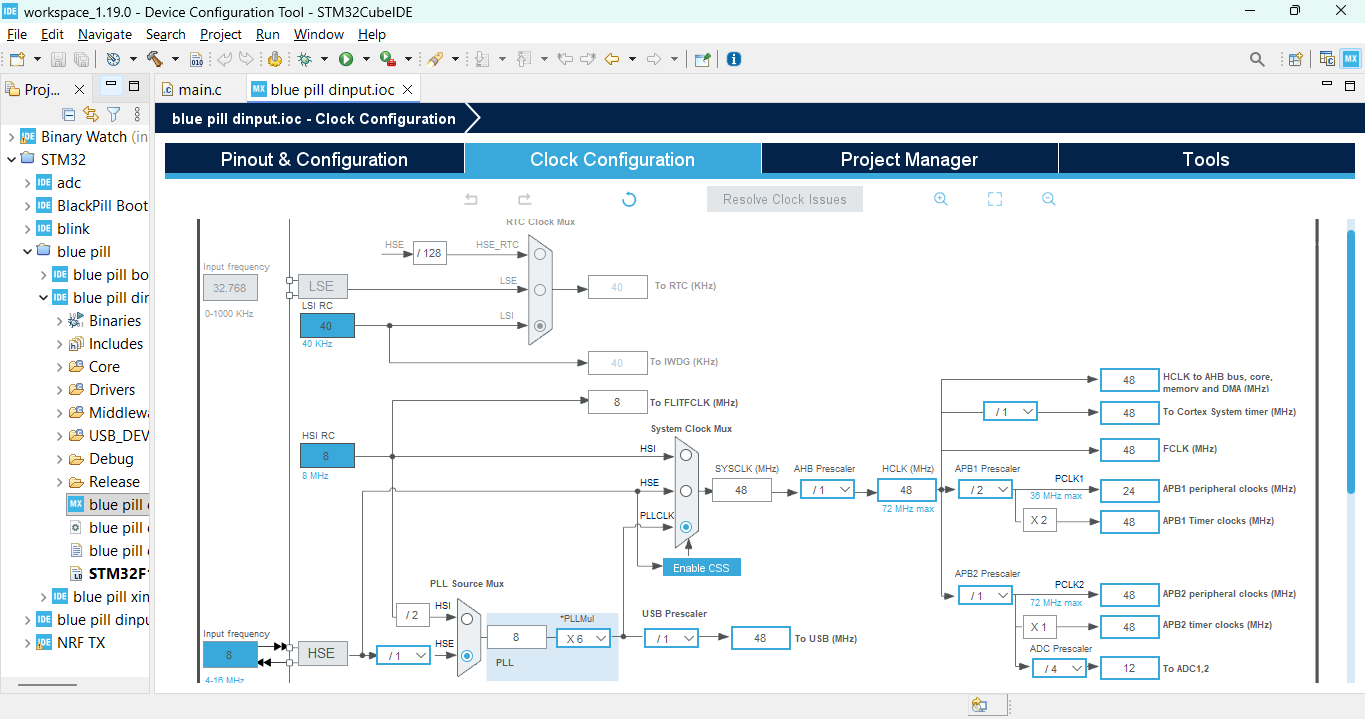
Clock Configuration:
- Configure the clock of the STM32 just as shown in the above picture.
- It has an option to automatically set the clock based on the current parameters which works perfectly.
- USB FS requires 48MHz of clock frequency but we are using HSE (High Speed External Crystal) of 12MHz, this is where the PLL (Phase Locked loop) block kicks in. We can use the PLL multiplier to multiply the frequency to get 48MHz.
- Always make sure to check the reference manuals to see from where each peripherals gets its clock from.
Now lets see some of the code snippets so that you can configure this controller as per your requirements.
USB Description:
- Inside the project folder under USB_DEVICE >> App >> there is usbd_desc.c where we can find this code snippet to update the description of the USB device.
- Here we can find the product string and the PID number. Whenever we change the product string, we also need to change the PID number, why? In windows whenever you plug in a device it caches its PID and name of the device so even if you change the name inside the code it will still show the earlier name in Windows. So we need to change the PID too.
- I have also added the VID and PID of Logitech controller so it will enumerate as a Logitech controller when plugged in.
USB HID Descriptors:
- This is the USD HID Class descriptors which tell the computer that it is a controller.
- You can find it in Middleware >> ST >> STM32_USB_DEVICE_LIBRARY >> Class >> HID >> Src >> usbd_hid.c
- Don't change anything unless you know what you are doing. Refer the USB Complete.
- A small change can cause errors enumerating the game controller.
ADC Averaging:
- ADC averaging is as simple as it sound.
- We just create an array to store 100 samples then just add each values and use a counter to know when we reach 100 samples.
- Then divide by 100 and we get an averaged value.
- This is required as the 12bit ADC of the STM32 is very noisy.
Joystick Deadzones and Endzones:
- This is the deadzones and endzones of the joystick.
- When I first wrote the firmware I didn’t program for deadzones so the joystick use to give weird values after some time.
- As joystick use potentiometers which are basically variable resistors, the resistance film inside the pots start to wear after a few months of usage to the analog values will be different than when first brought them.
- So deadzones are like a little area where if inside it the value will be 0 but once crossed then it will show the actual data.
- Same goes to endzones, the endzone of each joystick was different so now it just clips it inside +2047 and -2047.
- This is how professional controllers achieve higher accuracy and software calibration to compensate the hardware changes.
- I learned this from my friend's Logitech controller, which still works after 10 years although a few buttons had to be changed by me.
Flashing Firmware
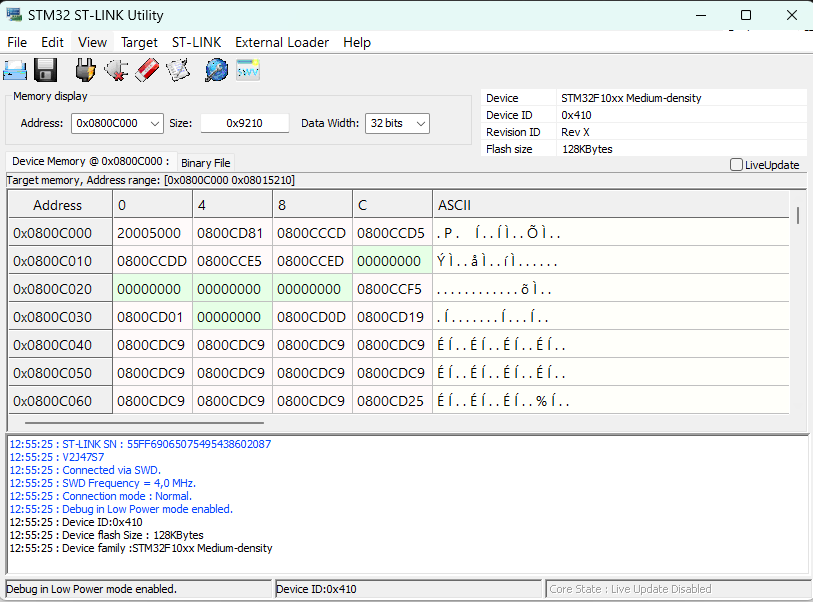
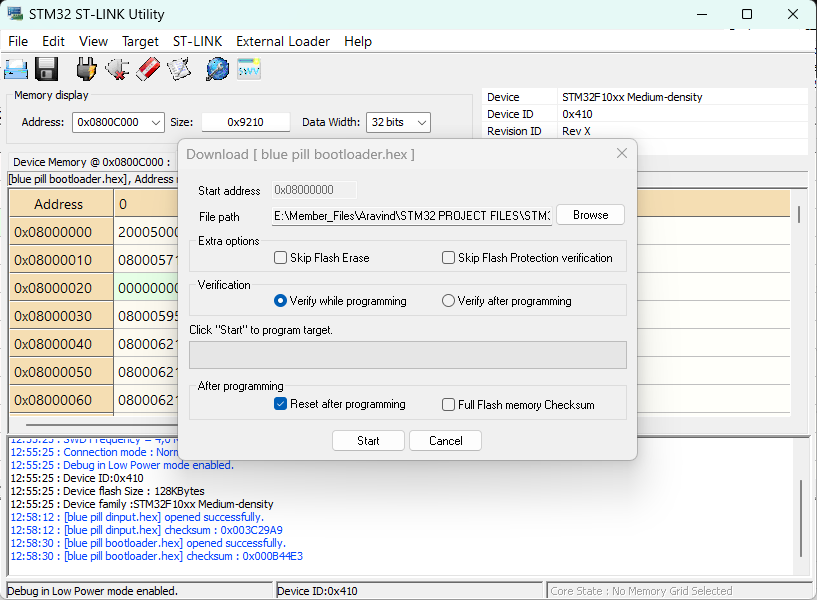
For flashing the firmwares we can use either STM32 STLINK Utility (as shown in above picture) or STM32Cube Programmer. If you have a clone chip that is unable to program with STM32Cube Programmer then use STM32 STLINK Utility.
- Connect the STLINK V2 with STM32F103C8T6 SWD pins then open the software and connect the MCU.
- Then check the specification of the MCU shown in the programmer.
Now if you want to upload all the three firmwares D-INPUT, X-INPUT and Wireless then you will need to flash the bootloader firmware too.
- Go to the Debug folder of each project where you will find the project_name.hex file which is to be opened in the STLINK Utility to flash into the MCU
- Do this for all the required firmware.
But if you only want any single firmware to be flashed then you will need to go to the linker file of the required project folder and then change the memory definition / starting address of the firmware to 0x08000000.
You can find the linker file inside the project folder named as STM32F103C8TX_FLASH.ld
I have attached the .hex files below. You can directly flash the firmwares without any modification and it will work as expected. As Instructables dont allow .zip files, to get the whole program and everything else, visit my Github.
blue pill bootloader.hex - Bootloader firmware
blue pill dinput.hex - D-INPUT firmware
blue pill xinput.hex - X-INPUT firmware
NRF TX.hex - Wireless transmitter firmware
blue pill dinput rx - Receiver dongle firmware
Testing and Debugging
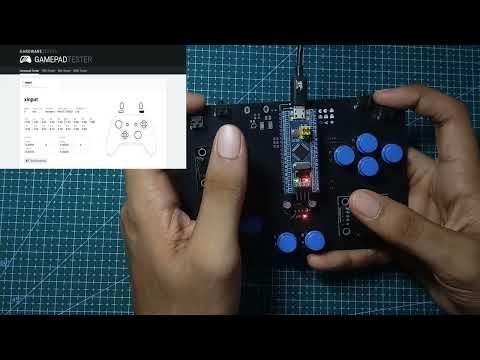

How to use the PIETROLLER?
- Bootloader: If the controller is plugged into the computer without going to a particular firmware then then computer will show an error. Disconnect the controller and follow the below steps.
- D-INPUT: Press the LB button and then plug the controller in the computer. If the onboard LED blinks for every 500ms then it has sucessfully entered the firmware.
- X-INPUT: Press the LT button and then plug the controller in the computer. If the onboard LED blinks for every 250ms then it has sucessfully entered the firmware.
- Wireless: Press the RT button and then power the controller with any battery source of USB. Then in the receiver, if the status LED is on then it has sucessfully connected to the dongle.
Debugging:
- To debug the controller, you need to connect it to STLINK V2 and then open the STM32CubeIDE and then there is an option to live debug the controller where you can see each registers and variables and see the data being updated in real time.
- You can even insert break points to pause the MCU core and see the state of the variables.
This controller has been tested on numerous games ranging from early 2000s to 2026 and will work without any firmware changes untill microsoft decides to change the driver which is not likely to happen.
Using for Other Projects
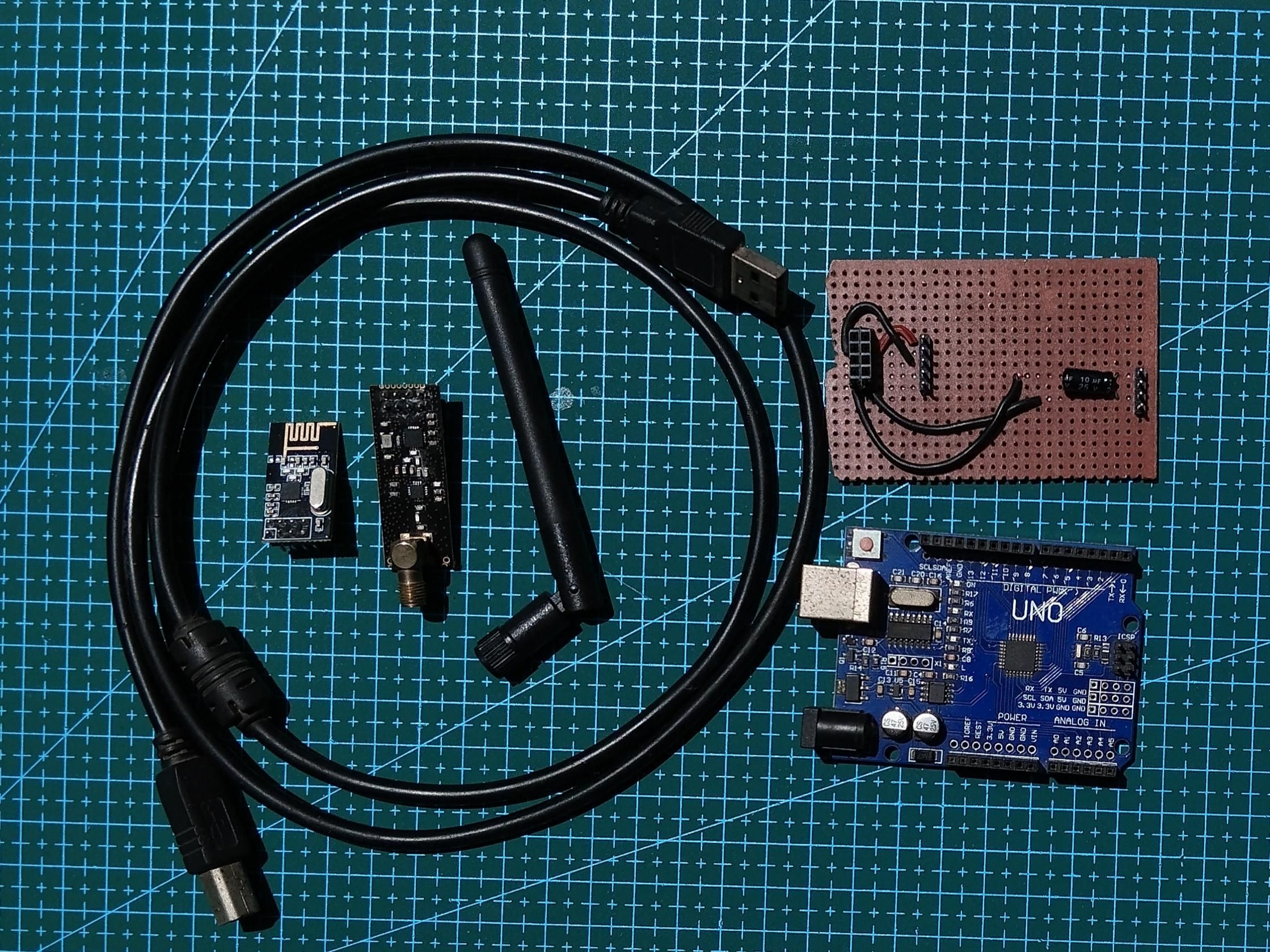
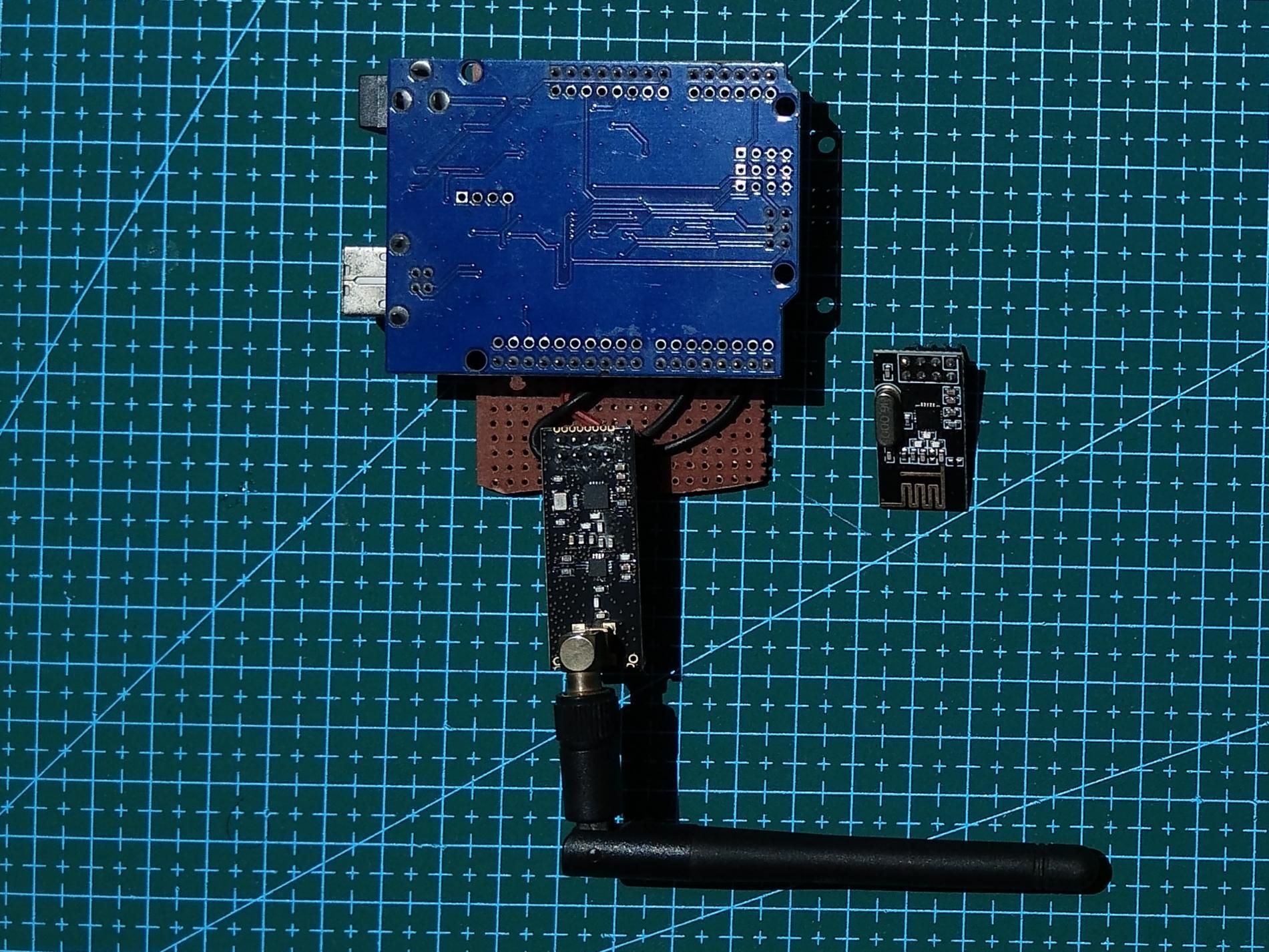


To use this controller for other devices like for a drone or any RC toys, you just need to create a receiver like the one in the pictures above.
Just connect the Arduino to the NRF24L01 with the SPI pins like this:
3.3V → VCC
GND → GND
D10 → CE You can use any other gpio pin in arduino (change the pins in code)
D9 → CSN You can use any other gpio pin in arduino (change the pins in code)
D13 → SCK
D11 → MOSI
D12 → MISO
In the firmware we need to make sure the configuration of the NRF24L01 is same in both the PIETROLLER and any other custom built receiver.
The address should be same or else it wont receive packets.
The data structure should also be the same or else you will get data but wont be able to decode it.
This is the configuration for the NRF24L01 and should be exact same. The PA level can be changed depending on how much power is required to transmit or receiver. 0dbm is maximum and spikes up to 150mA during transmission.
I've attached the whole Arduino Sketch below :)
Downloads
Thank You!
So that's it for this project / instructable :) I may not be able to make any changes as I am caught up with other projects. So as this is a huge open source community, do help this project to reach new heights.
What you can do?
- Fork my github repo and if you guys provide some great updates to the firmware then push the changes and create a pull request and explain the changes you have done and I will pull it to my main repo.
- Adding haptic feedback would be a great start as I've had a lot of people requesting the feature. There is an unfinished function in the xinput library.
- Feel free to contribute anything useful :D
If anyone wants to create a new PCB with a 3D printed body, reach me out and I will help you with the PCB design and prototyping.
Also make sure to share an I Made It! if you have made the project. I would love to see it! :P