Pico VGA BLASTER




Greetings everyone, and welcome back.
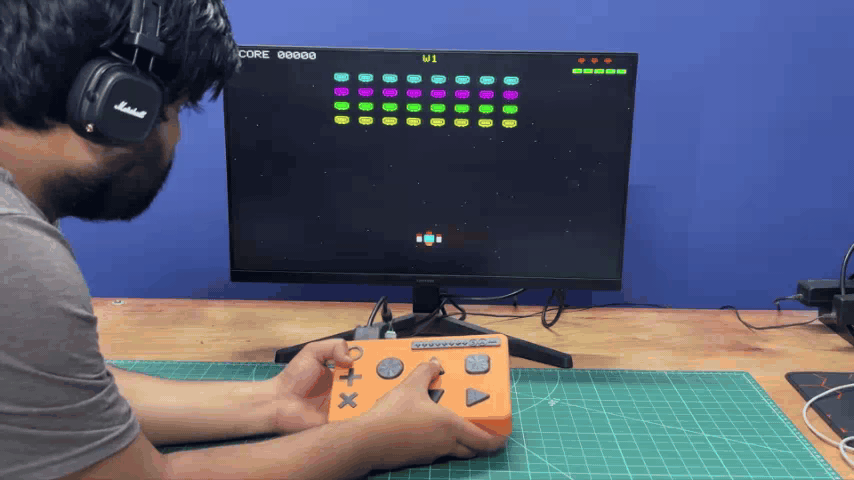
This is PICO VGA BLASTER, a DIY Retro Console that runs arcade-style games on a VGA Monitor.
This project was based on my previously created PICO VGA Board, in which a Raspberry Pi Pico is connected to a DSUB15 connector for driving a VGA monitor and using it as a regular display. By taking that project and adding a button board along with a few edits, I was able to create this retro-styled console.
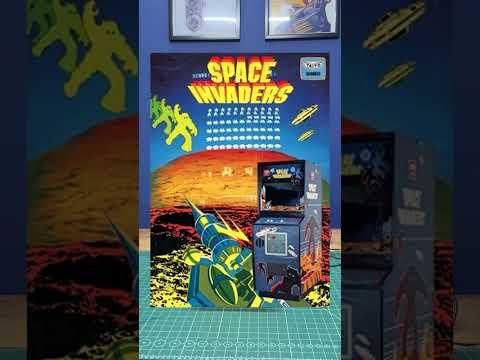
I prepared a custom game (PICO VGA BLASTER) specially made for this console. The game is loosely based on the original Space Invaders, but with a little twist: the aliens are VGA port-shaped entities that have invaded Earth, and we have to defend it.
My console contains six buttons: four directional buttons for controlling the spacecraft and two buttons for firing missiles and bullet projectiles.
A game without lore feels boring, so I also created a complete backstory and intro sequence for the game, giving the whole experience a retro arcade campaign feel.
For power, we need a 12V input provided by the DC barrel jack on the VGA board, and for the monitor, we are using a regular 27-inch LED Monitor.
For the housing, I even designed a custom enclosure, then 3D printed the parts and assembled everything together. This article covers the entire build process of this project, so let’s get started with the build.
Supplies
These are the components used in this project
- VGA PICO BOARD PCB (Provided by NEXTPCB)
- BUTTON BOARD (Provided by NEXTPCB)
- 12x12 tactile push buttons
- WS2812B LEDs
- 100nF Capacitors
- 3D Printed parts
- 12V Adaptor
- D-SUB 15 VGA Connector
- DC Barrel jack
- 330 Ohms Resistor 1206 Package
- 10k Resistor 0805 Package
- 1K Resistor 1206 Package
- LED Green 0603
- Female header Pins CON20 x 2
- PICO 1 or PICO W (any with RP2040)
PICO VGA BOARD 1.0
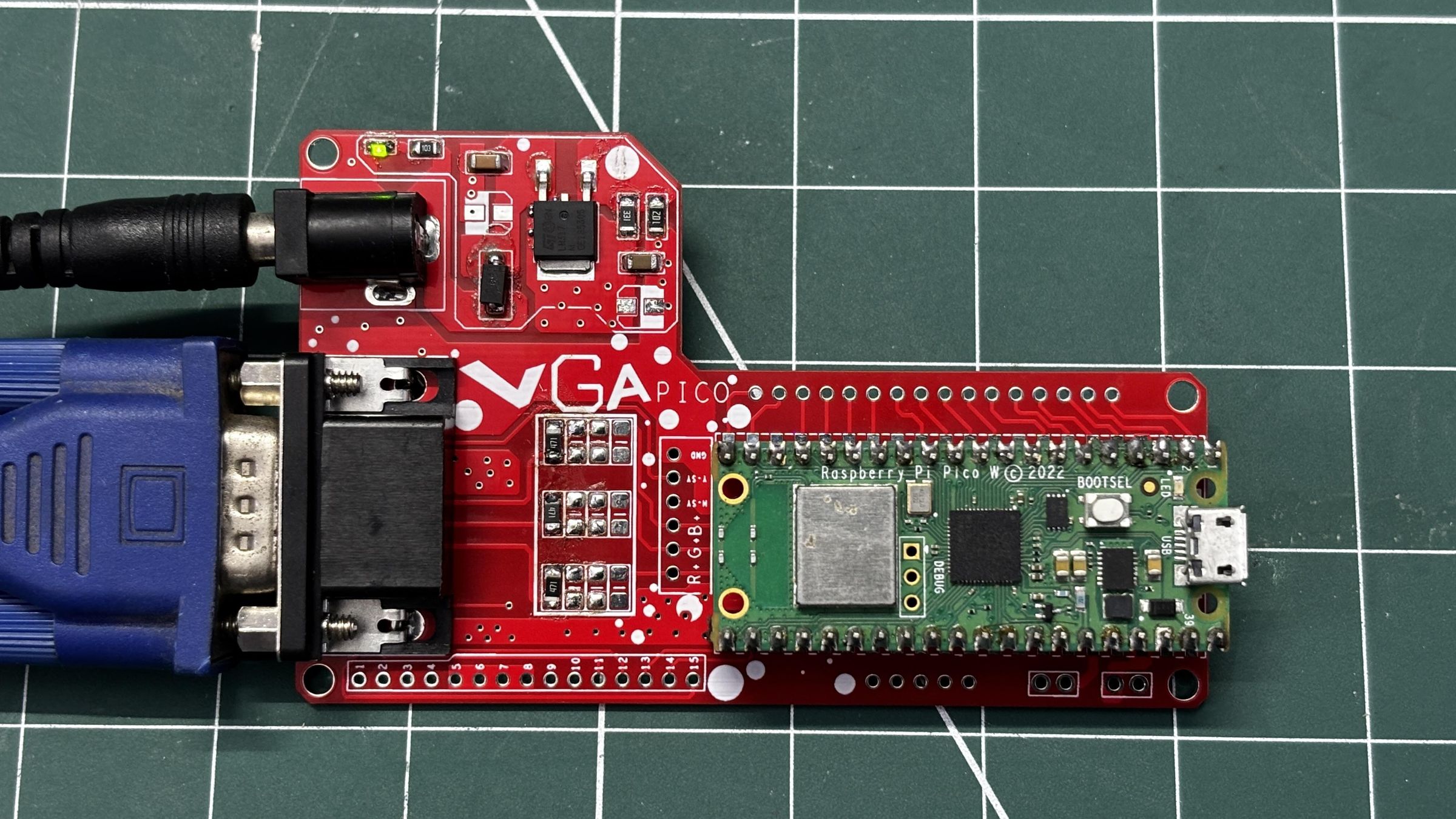

The star of our project is the previously created PICO VGA BOARD 1.0, in which I paired a D-SUB15 connector with a Raspberry Pi Pico for driving a VGA monitor and using it just like any OLED or LCD screen. With this board, we can integrate a full-size VGA monitor into our projects.
For more information on the setup and working of this VGA Board, check out its article using the link below.
PCB DESIGN - PICO VGA BOARD 1.0
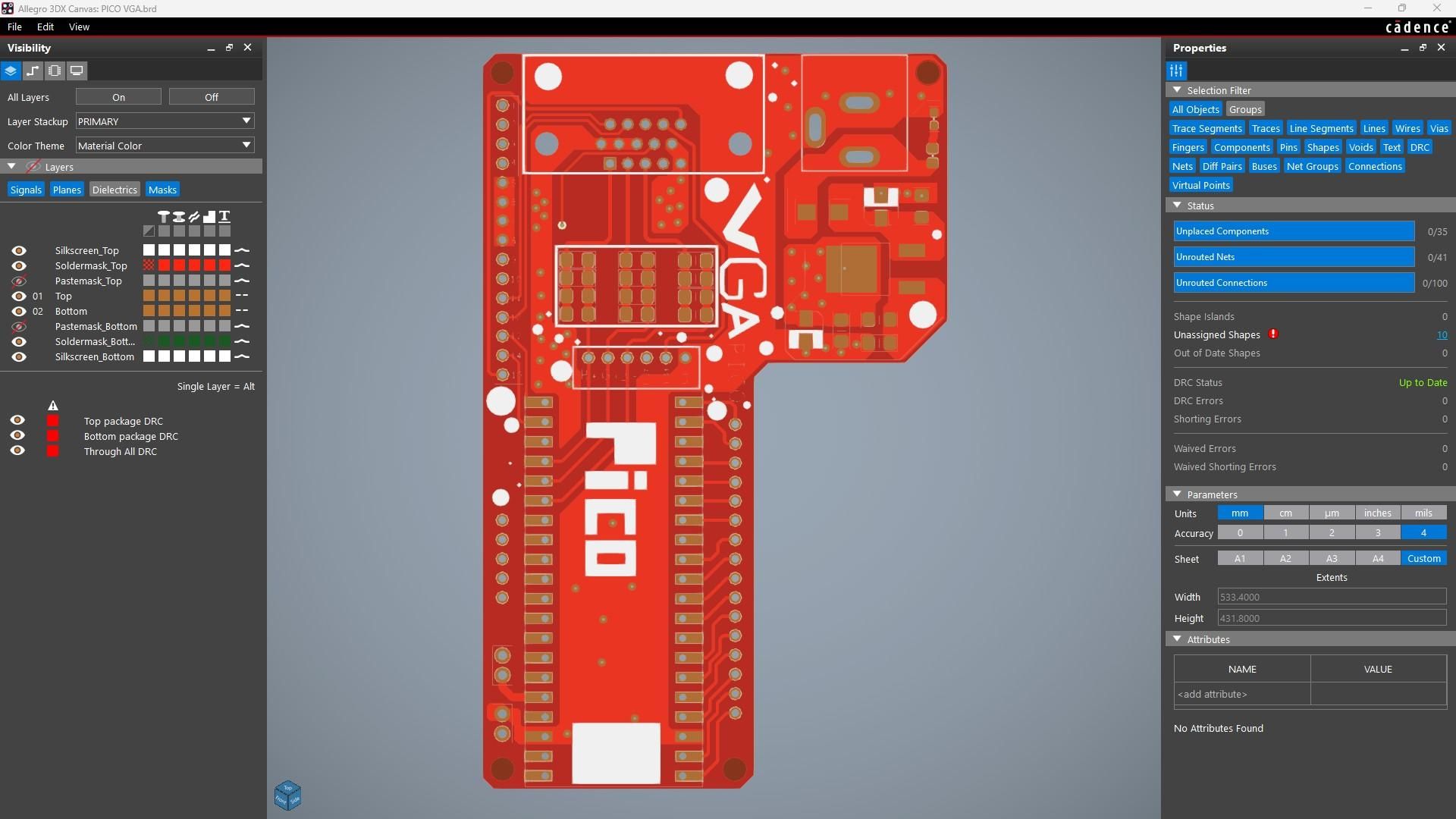
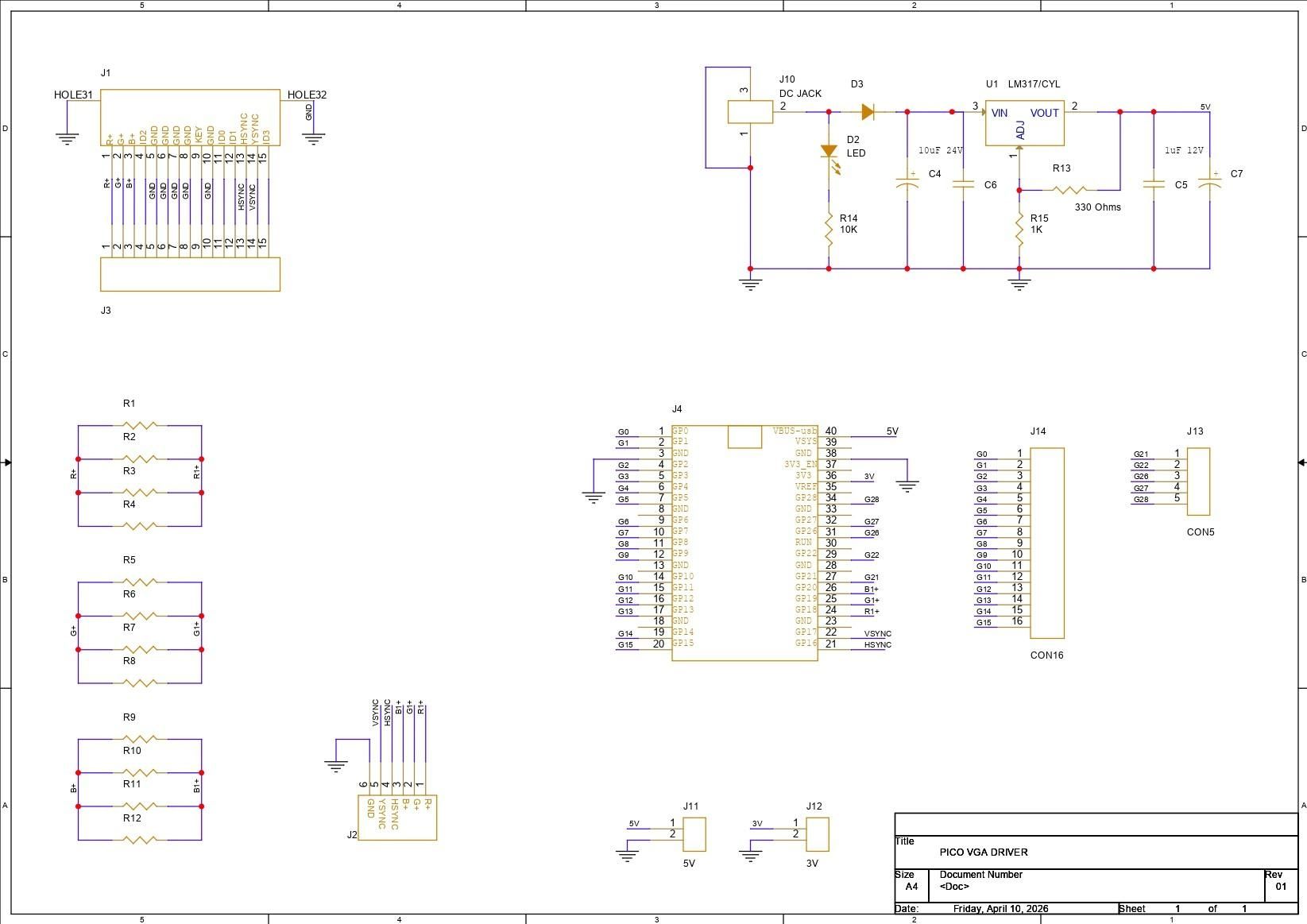
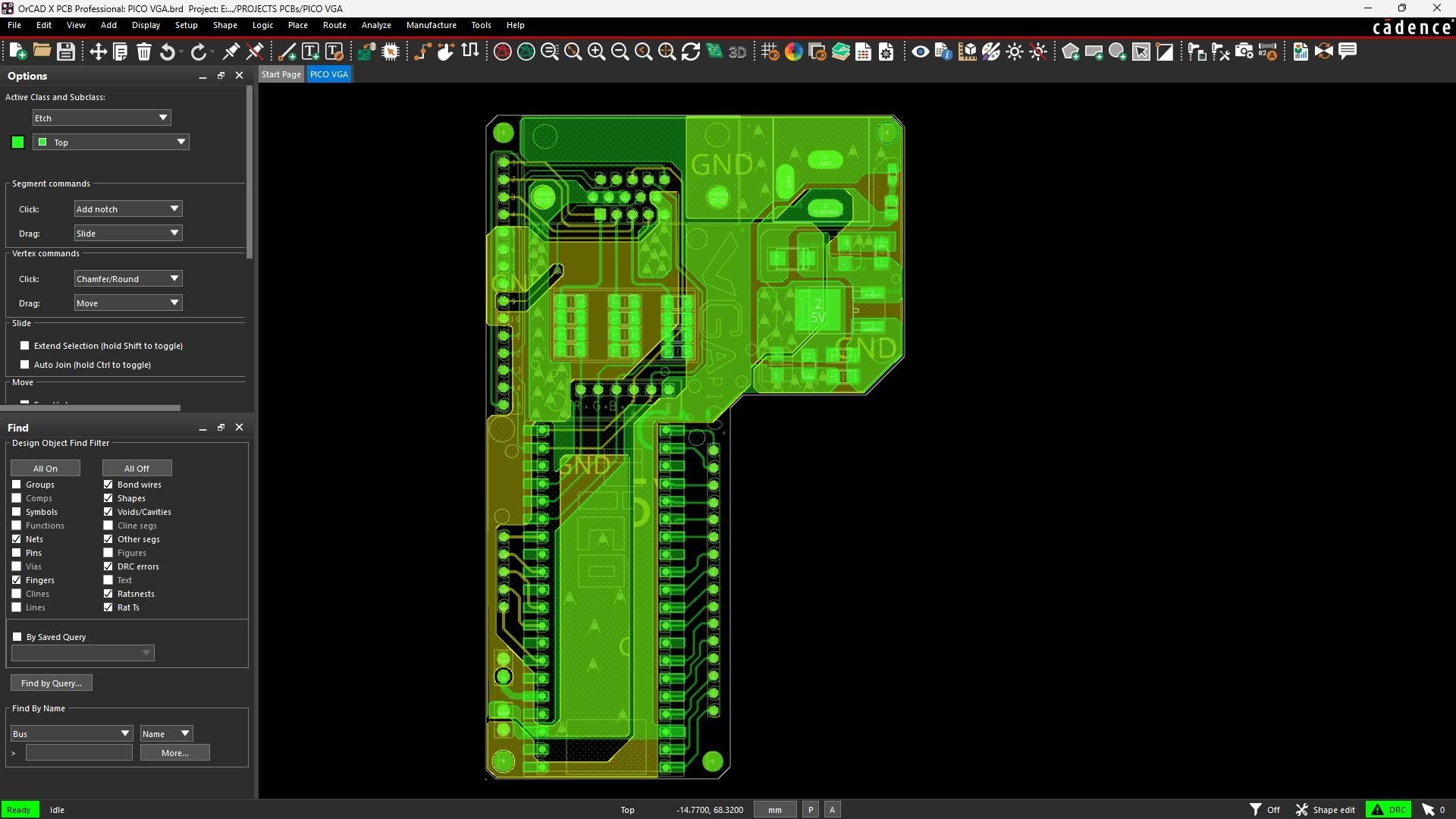
Let’s have a look at the PICO VGA BOARD 1.0 PCB Design. I connected a D-Sub 15-pin VGA connector directly to the Raspberry Pi Pico to generate VGA video output.
VGA works using three analog signals: Red, Green, and Blue. Each signal line carries a voltage ranging from 0V to 0.7V, where 0V means no intensity and 0.7V means full intensity. By combining these three signals, the monitor can reproduce different colors for every pixel. For example, setting only the red line to 0.7V produces pure red, while setting all three lines to 0.7V produces white.
Apart from RGB signals, VGA also requires two digital synchronization signals: HSYNC (Horizontal Sync) and VSYNC (Vertical Sync). HSYNC tells the monitor when a new horizontal line starts, while VSYNC indicates the start of a new frame. The monitor continuously draws pixels line by line, refreshing the entire screen around 60 times per second.
I connected Pico GPIO18, GPIO19, and GPIO20 to Pin 1, Pin 2, and Pin 3 of the VGA connector for the Red, Green, and Blue signals. Between these connections, I added resistor networks for proper voltage control. Each RGB line uses three 330Ω resistors connected in parallel, allowing the resistance value to be adjusted easily by adding or removing resistors while keeping all RGB channels balanced.
For synchronization, Pin 13 of the VGA connector, which is HSYNC, is connected to GPIO16 of the Pico, while Pin 14, which is VSYNC, is connected to GPIO17. Pins 5, 6, 7, 8, and 10 are all connected to ground.
I also added a CON15 breakout connector linked to all 15 VGA pins, making it easier to access individual VGA signals for testing or future expansion. Alongside that, I included additional headers connected to unused GPIO pins of the Pico so they can be used later for other peripherals or future projects.
For power regulation, I added an LM317 adjustable voltage regulator to the board. This regulator is capable of supplying more than 1.5A of current and supports an adjustable output voltage range from 1.25V to 37V.
We have set up the LM317 in such a way that when we input 12V, we get a stable 5V for powering the Pico.
PCB DESIGN - BUTTON BOARD
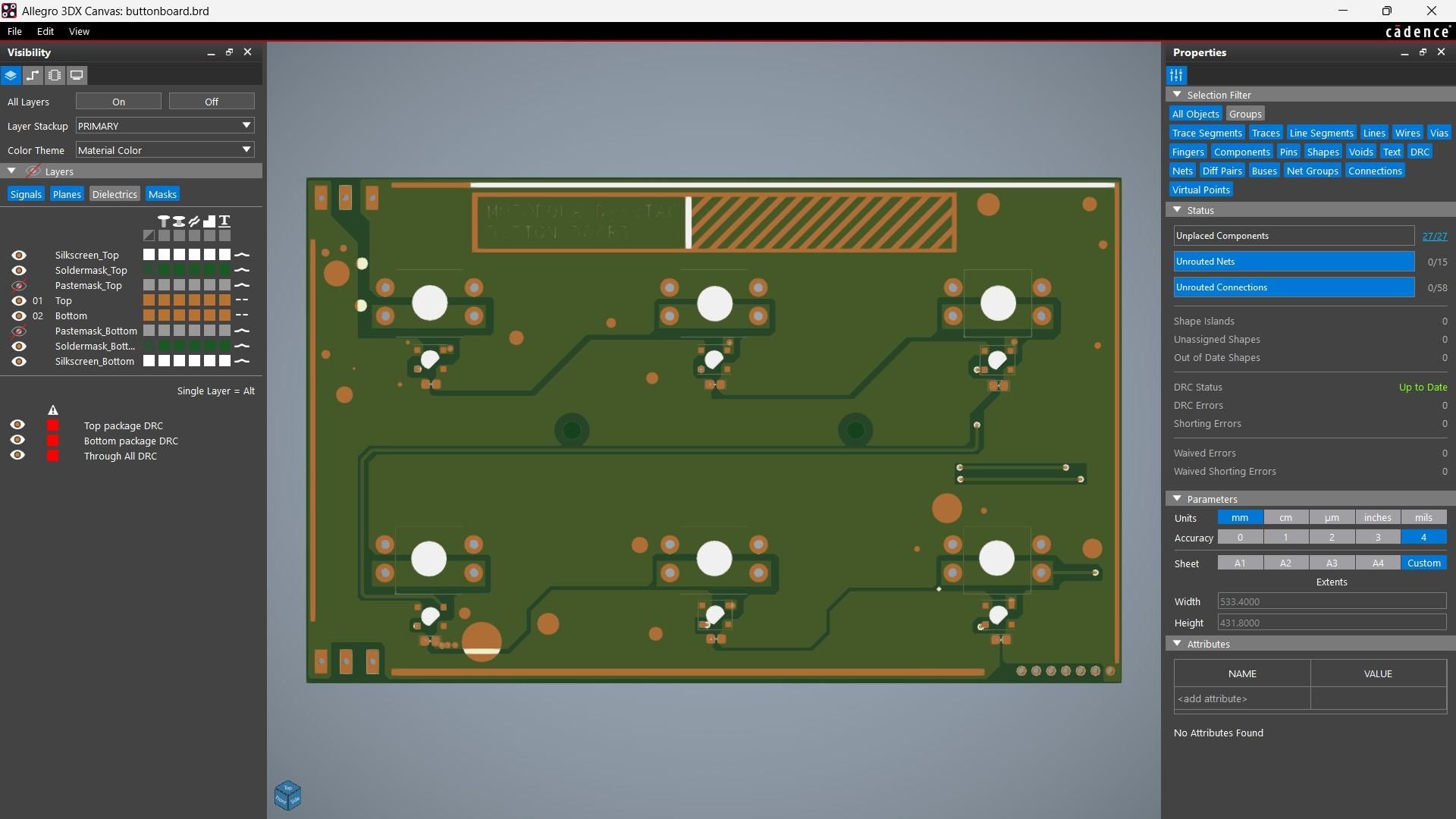
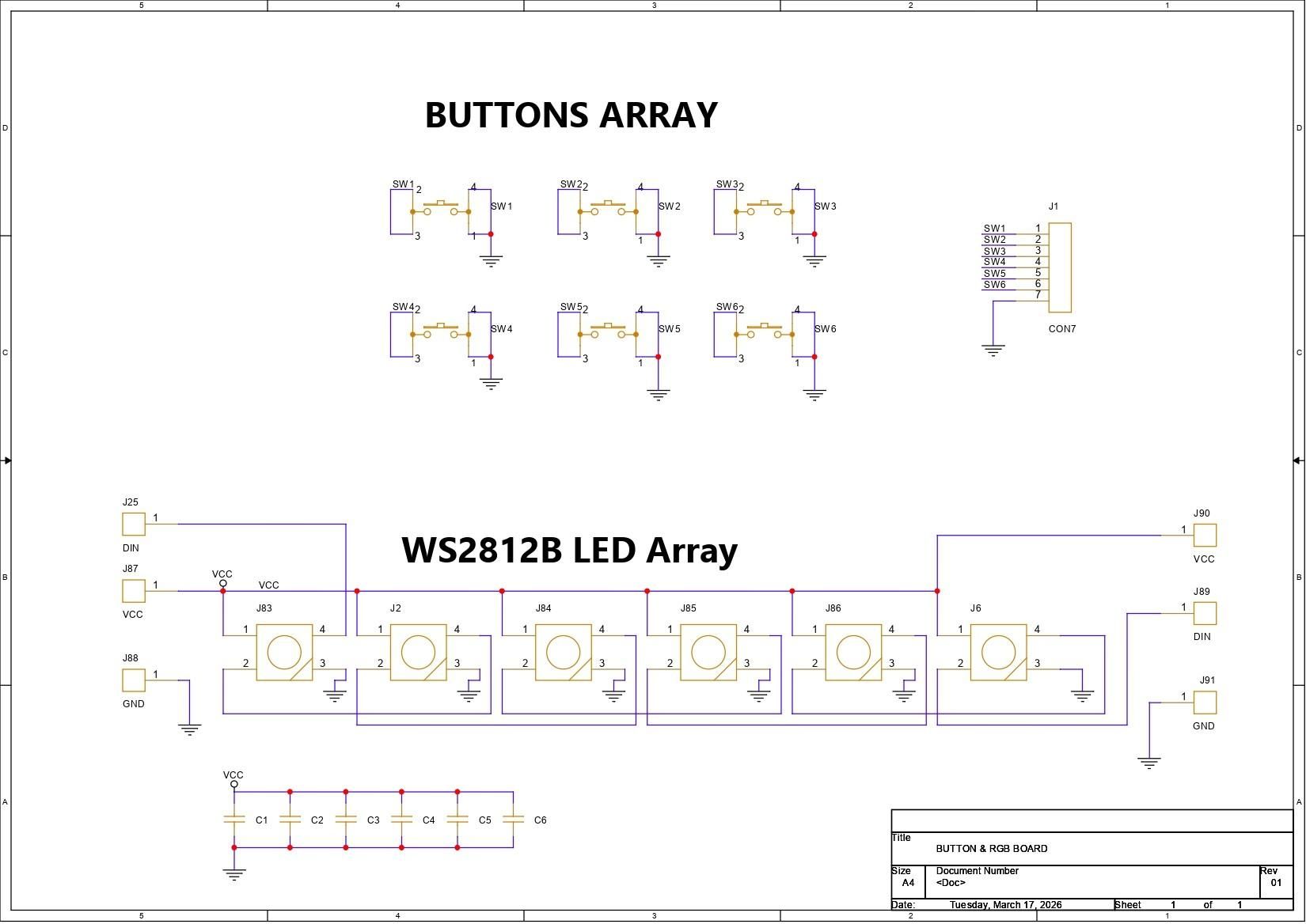
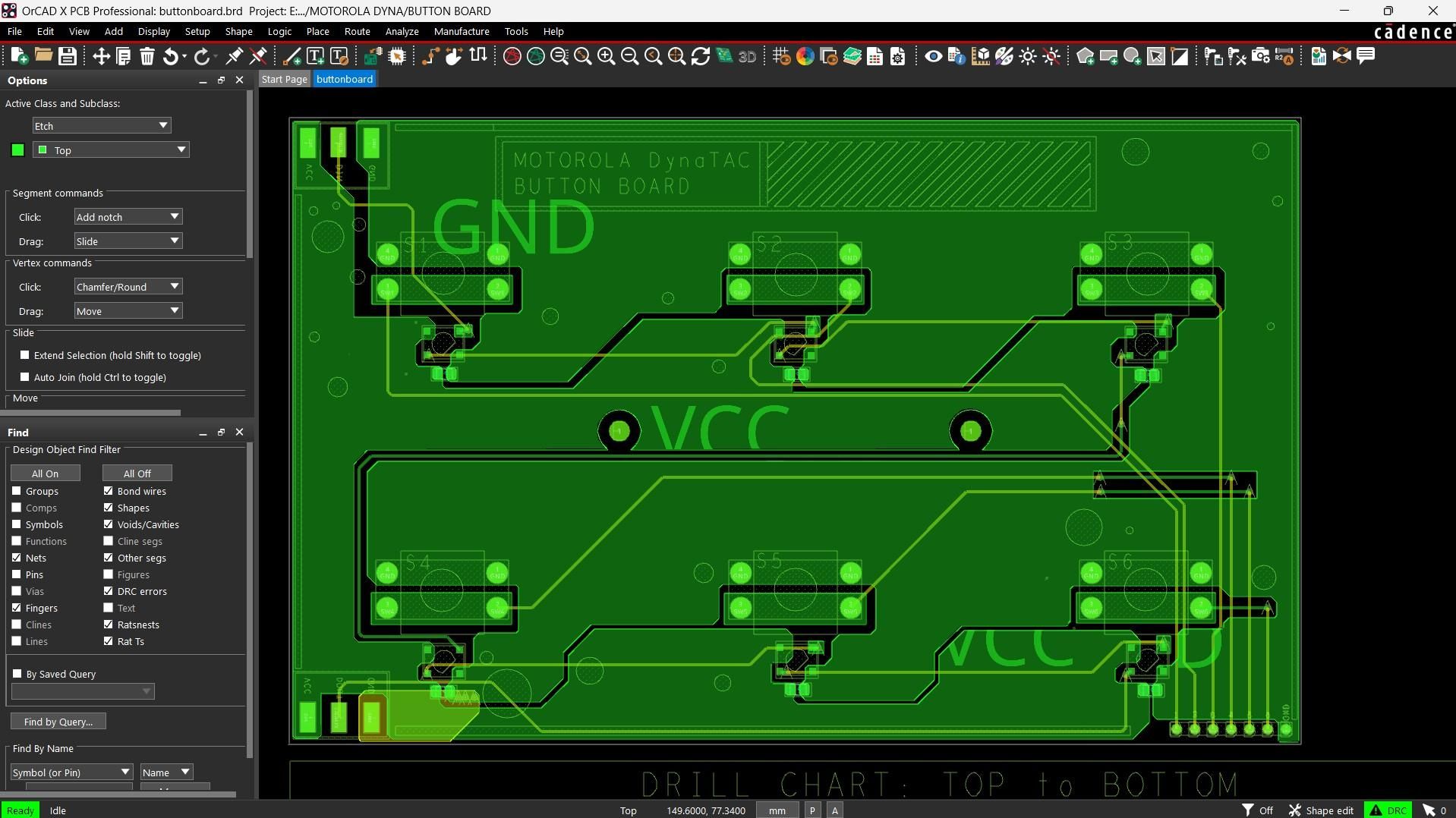
The second PCB I used in this project was the Button Board, which I reused from my Motorola DynaTAC project. Here, I added six buttons onto a custom PCB. All buttons are connected to GND, while their other pins are routed to a CON7 connector, which is used to interface the buttons with the microcontroller, in this case, the PICO VGA Board.
We also added six WS2812B RGB LEDs for additional lighting effects and visual feedback.
NextPCB PCB SERVICE
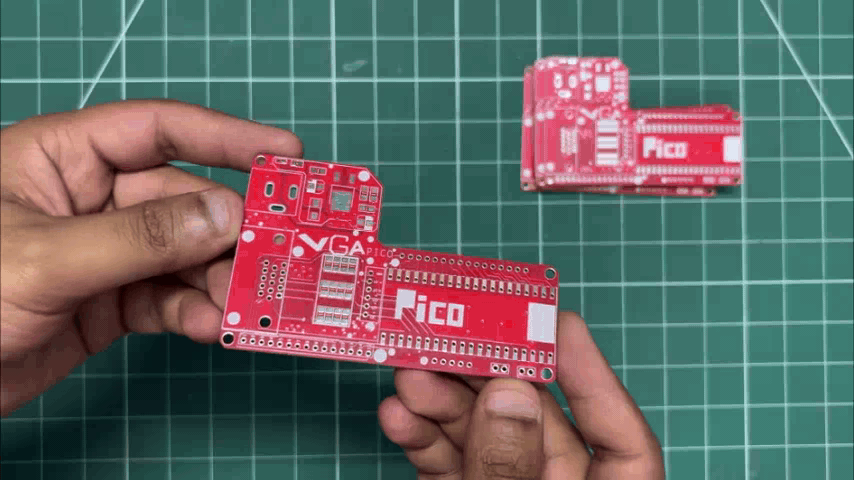
Gerber data for both PCBs was sent to HQ NextPCB, and an order was placed for a Red solder mask and one board with a green solder mask.
After placing the order, the PCBs were received within a week, and the PCB quality was pretty great.
In addition, I have to bring in HQDFM to you, which helped me a lot through many projects. Huaqiu’s in-house engineers developed the free Design for Manufacturing software, HQDFM, revolutionizing how PCB designers visualize and verify their designs.
Take advantage of NextPCB's Accelerator campaign and get 2 free assembled RP2040-based PCBs for your innovative projects.
https://www.nextpcb.com/blog/rp2040-free-pcba-prototypes-nextpcb-accelerator
This offer covers all costs, including logistics, making it easier and more affordable to bring your ideas to life. SMT services can be expensive, but NextPCB is here to help you overcome that hurdle. Simply share your relevant project, and they'll take care of the rest. Don't miss out on this amazing opportunity to advance your tech creations!
PCB ASSEMBLY PROCESS - VGA DRIVER


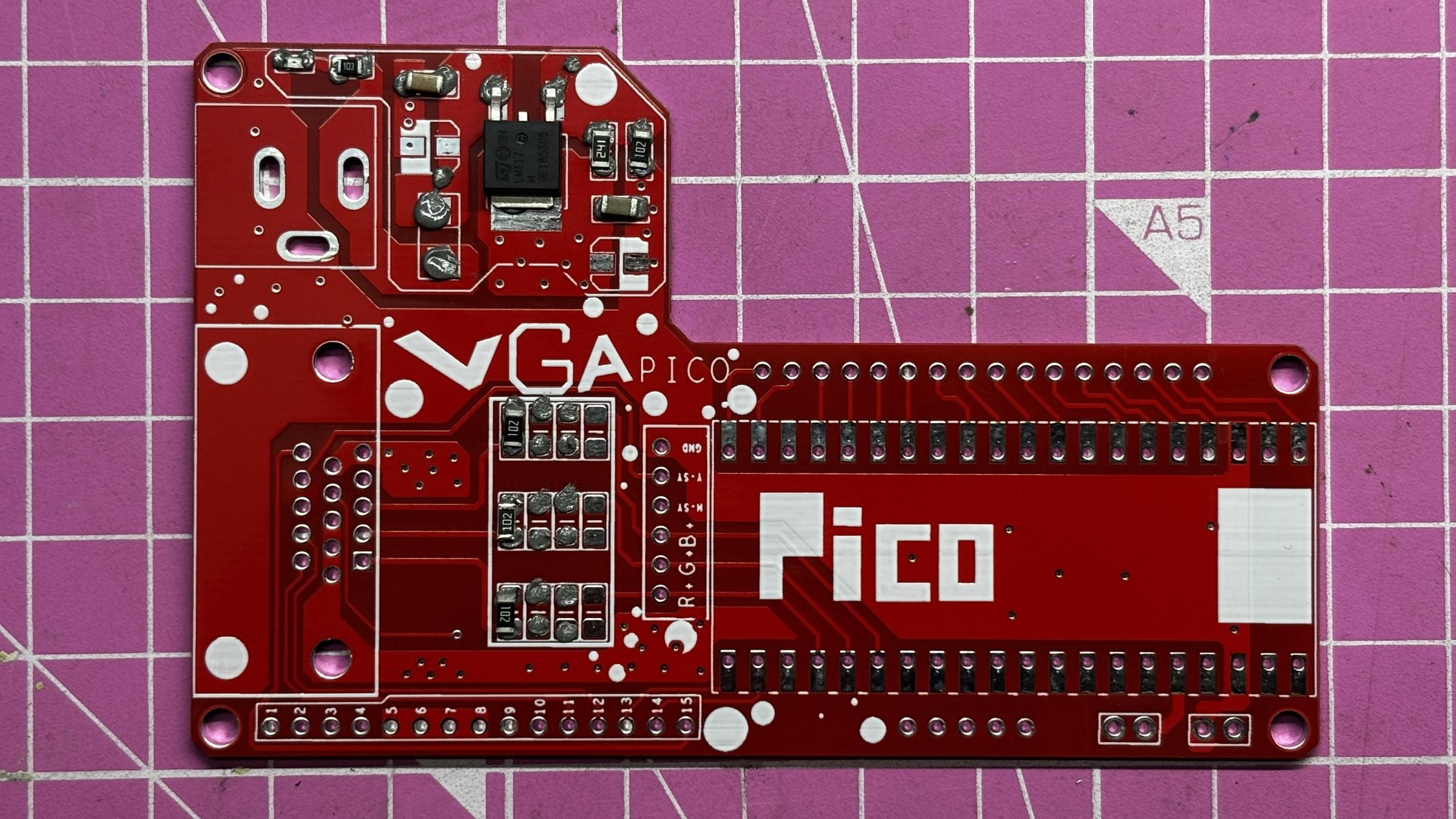
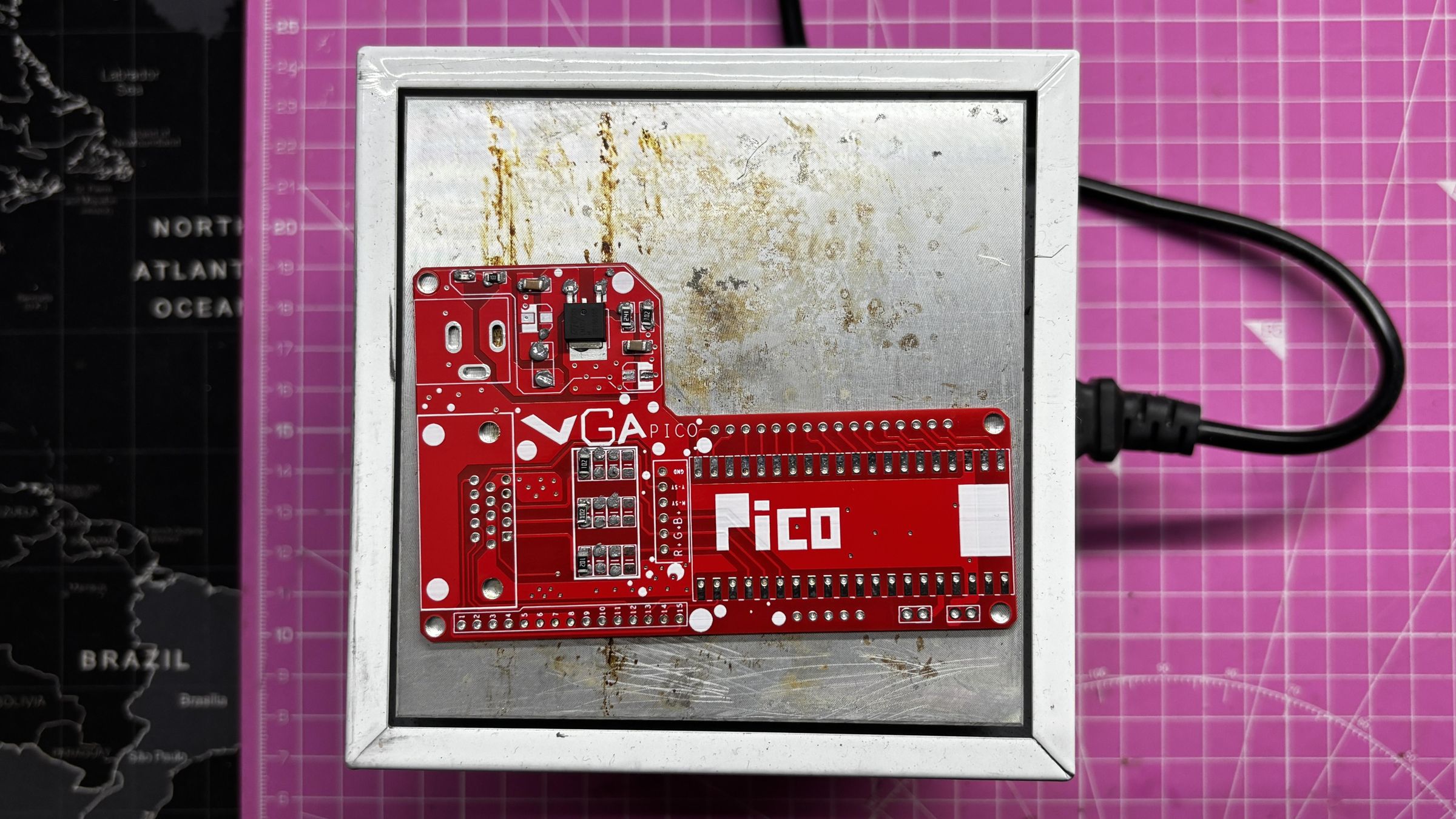

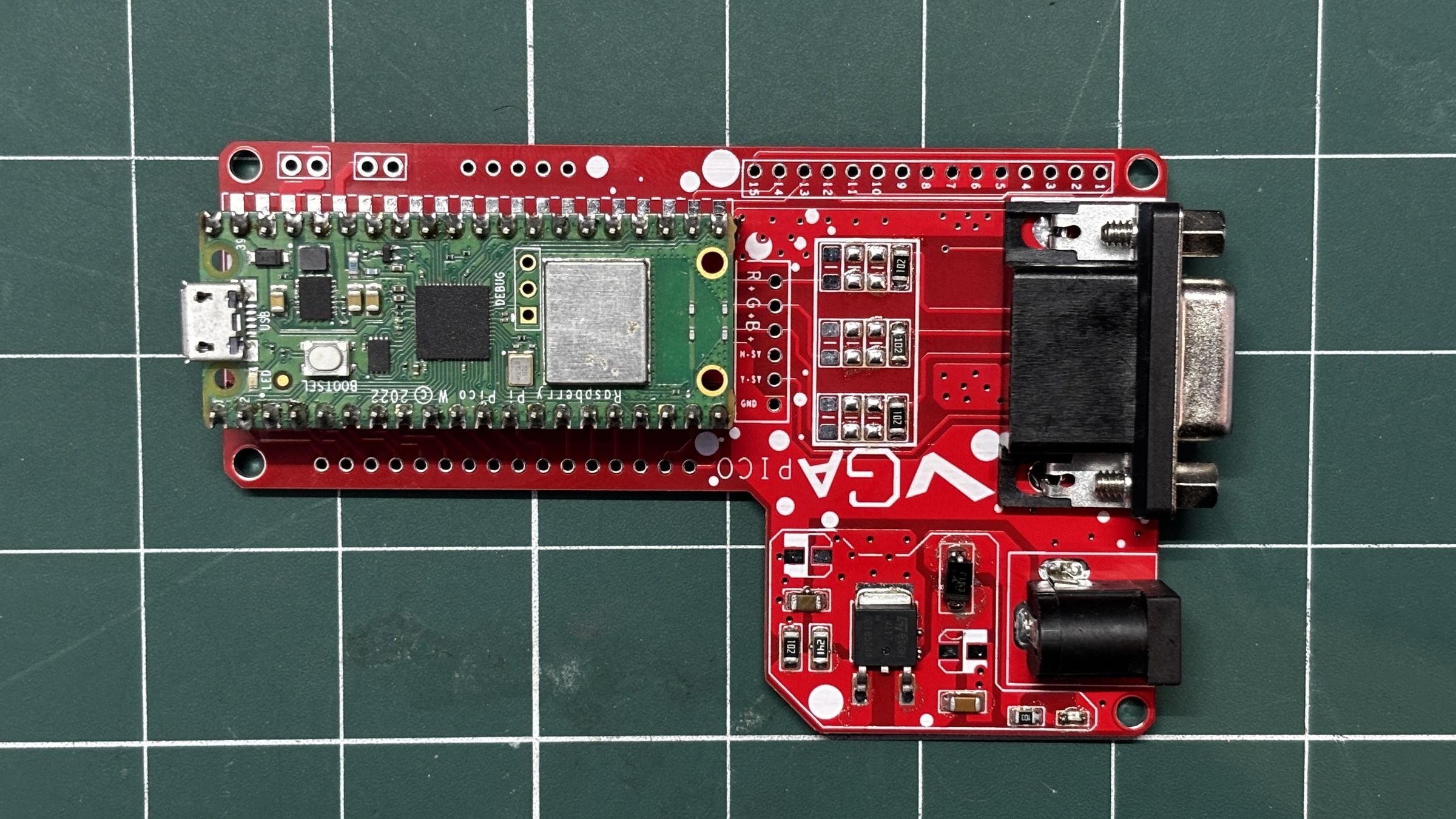
- We begin the PCB assembly process by first adding solder paste to each component’s pads one by one using a solder paste dispensing needle. Here, we are using 63/37 SnPb solder paste.
- We then pick and place each SMD component in its correct location.
- The PCB is then placed on a reflow hotplate, which heats the PCB from below up to the solder paste melting temperature. As soon as the PCB reaches that temperature, the solder paste melts, and all components are secured in their positions.
- For the through-hole assembly process, we added the D-Sub 15 connector in its position, followed by the barrel DC jack and two CON20 female header pins in place of the Pico. By turning the board over and using a soldering iron, we solder all the through-hole component leads, securing everything in position.
- At last, we place the Pico W in its position over the female header pins. This completes the assembly process of the driver board.
VGA DRIVER DEMO

To run the DEMO CODE on our VGA Board, we plug the VGA cable from the monitor into the VGA port of our circuit, and then connect the power adapter via the DC barrel jack connector.
Here's the Code we used for DEMO, and it's a simple one.
Code begins by defining the screen resolution, which is the following.
We next define the grid size for cells. Each cell is 8x8 Pixels, the grid becomes 640/8 = 80 columns and 480/8 = 60 rows.
Below is the buffer or core of our simulation. This prevents overwriting data while calculating.
Next up is drawing a cell logic. This first converts the grid position into screen pixels.
Using this, a square is drawn.
This is a random function that fills the grid randomly when the code starts.
This is the core logic of the game of life, which is counting neighbours. It checks all 8 surrounding cells.
Game Rules are set with the following.
Alive Cell survives if there are 2 or 3 neighbours. Dead cells become alive if there are exactly 3 neighbours.
Using the section below, we only redraw the cells that are changed instead of a full-screen redraw.
This is the copy state that moves next from the current frame.
In the setup, VGA is initialized, randomness is added, and the simulation starts.
In the loop, the simulation is updated continuously, and its speed is controlled. Lower delay means fast evolution, and higher delay results in a slower, easier-to-see evolution.
PCB ASSEMBLY PROCESS- BUTTON BOARD
- Button board assembly begins by applying solder paste to the SMD LED and capacitor pads.
- All the SMD components are then placed in their correct positions, six 100 nF decoupling capacitors and six WS2812B RGB LEDs, using ESD-safe tweezers.
- The entire board is then placed on a reflow hotplate, which heats the PCB from below up to the solder paste’s melting temperature. Once the PCB reaches this temperature, the solder paste melts, and all the SMD components are securely soldered in place.
- We place 12×12 mm push buttons in their designated location.
- After placing the through-hole switches, we flipped the boards over and soldered each lead using a soldering iron.
This completed the Button Board assembly process.
MAIN ELECTRONICS SETUP
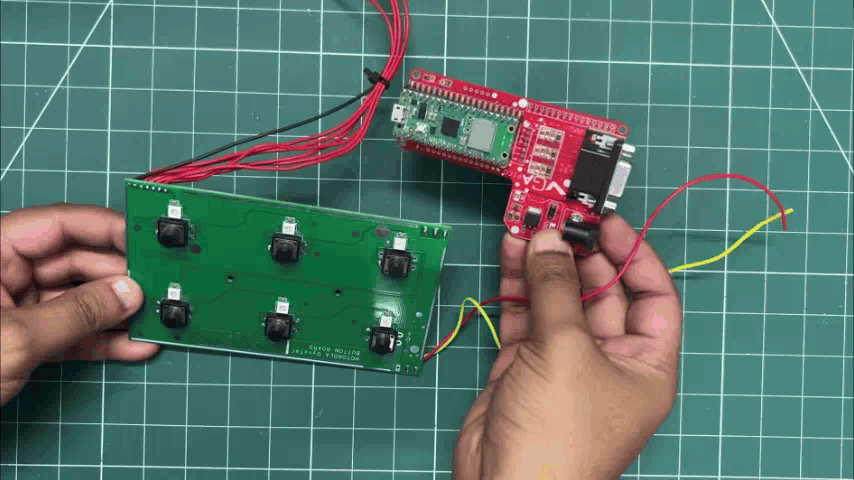

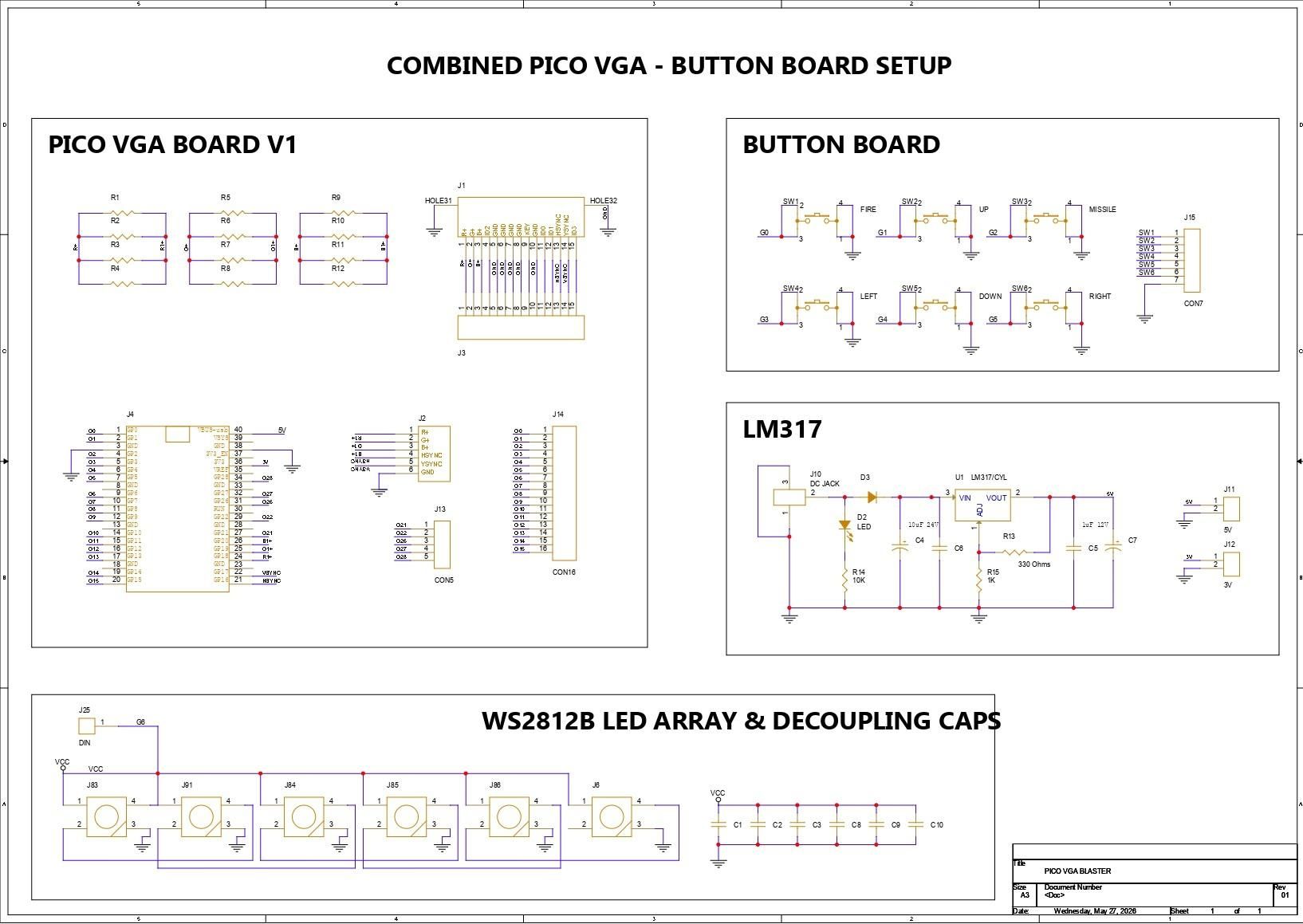
For the main wiring of our setup, we first connected the GND of the VGA Board with the GND of the Button Board so both PCBs could share a common ground connection.
The button connections were done as follows:
- Fire Button to GPIO0
- UP Button to GPIO1
- Missile Button to GPIO2
- LEFT Button to GPIO3
- DOWN Button to GPIO4
- RIGHT Button to GPIO5
For the RGB lighting setup, the DIN pin of the WS2812B LED was connected to GPIO6, while its VCC pin was connected to the 5V output of the Raspberry Pi Pico.
For all the wiring connections, we used single-core silver copper wire along with a soldering iron to securely solder every connection in place.
GAME CODE
The main code for our project is attached, which contains the game logic and functionality.
The code is long, but the core functionality is super simple. Let me explain.
We use the above libraries in our code. The VGA graphics library is used for generating VGA video output, while the hardware libraries are used for PWM audio, GPIO button input, clock handling, and synchronization.
Here, we define the VGA screen resolution. Our setup runs at 640×480 resolution.
Four buttons are used for directional movement, while the remaining two are used for firing bullets and missiles.
We define the RGB LED strip used for lighting effects during gameplay. The LEDs glow whenever enemies are destroyed or special events occur.
The game is divided into multiple states, including the intro screen, lore screen, gameplay, and game over screen.
I also added a splash screen with a complete game lore sequence. Before gameplay starts, the game displays a cinematic intro story using animated typewriter-style text.
This function renders the main splash screen of the game with the “PICO VGA BLASTER” title and animated background stars.
This function creates the typewriter animation effect for the lore screen, where text appears character by character along with sound effects.
This function initializes all button GPIO pins and enables internal pull-up resistors so the Pico can detect button presses correctly.
This is the main player control function. It reads directional button inputs and updates the spaceship movement and attacks.
This part handles the horizontal movement of the spaceship.
This creates a bullet projectile whenever the fire button is pressed.
This renders the game HUD, including score, lives, missile ammo, and boss health bar.
This function displays the final game-over screen with the player’s score and restart animation.
Downloads
3D DESIGN

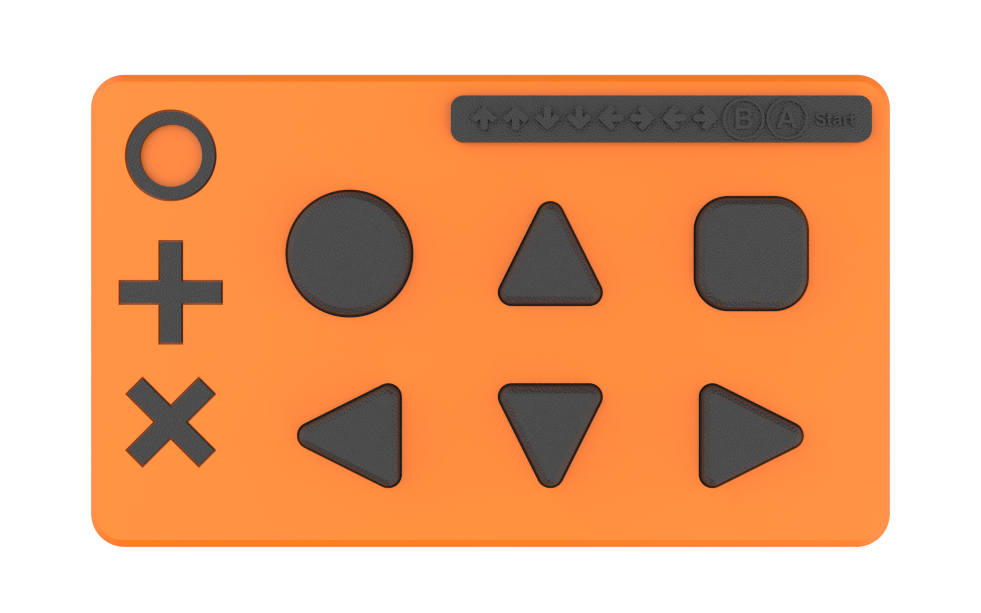


For the design of this project, my goal was to create an enclosure that could house both the PICO VGA Board and the Button Board together. The VGA port and DC jack for power needed to remain visible from one end, so the VGA cable and power input could be accessed easily. I also wanted the device to feature large buttons that would be comfortable and easy to use.
The enclosure design itself was kept very minimal, but to improve the aesthetics, the directional buttons were designed as triangles rotated according to the direction of the D-pad. The Fire and Missile buttons were modeled in round and square shapes, respectively.
To further enhance the look, I added four greeble parts, O, Plus, and X-shaped elements, along with a separate part featuring the legendary Konami Code: “Up Up Down Down Left Right Left Right B A Start.”
My idea was to print the main enclosure in orange color and use black PLA for the rest of the parts, creating a dual-tone aesthetic for the final design.
Downloads
ENCLOSURE DESIGN
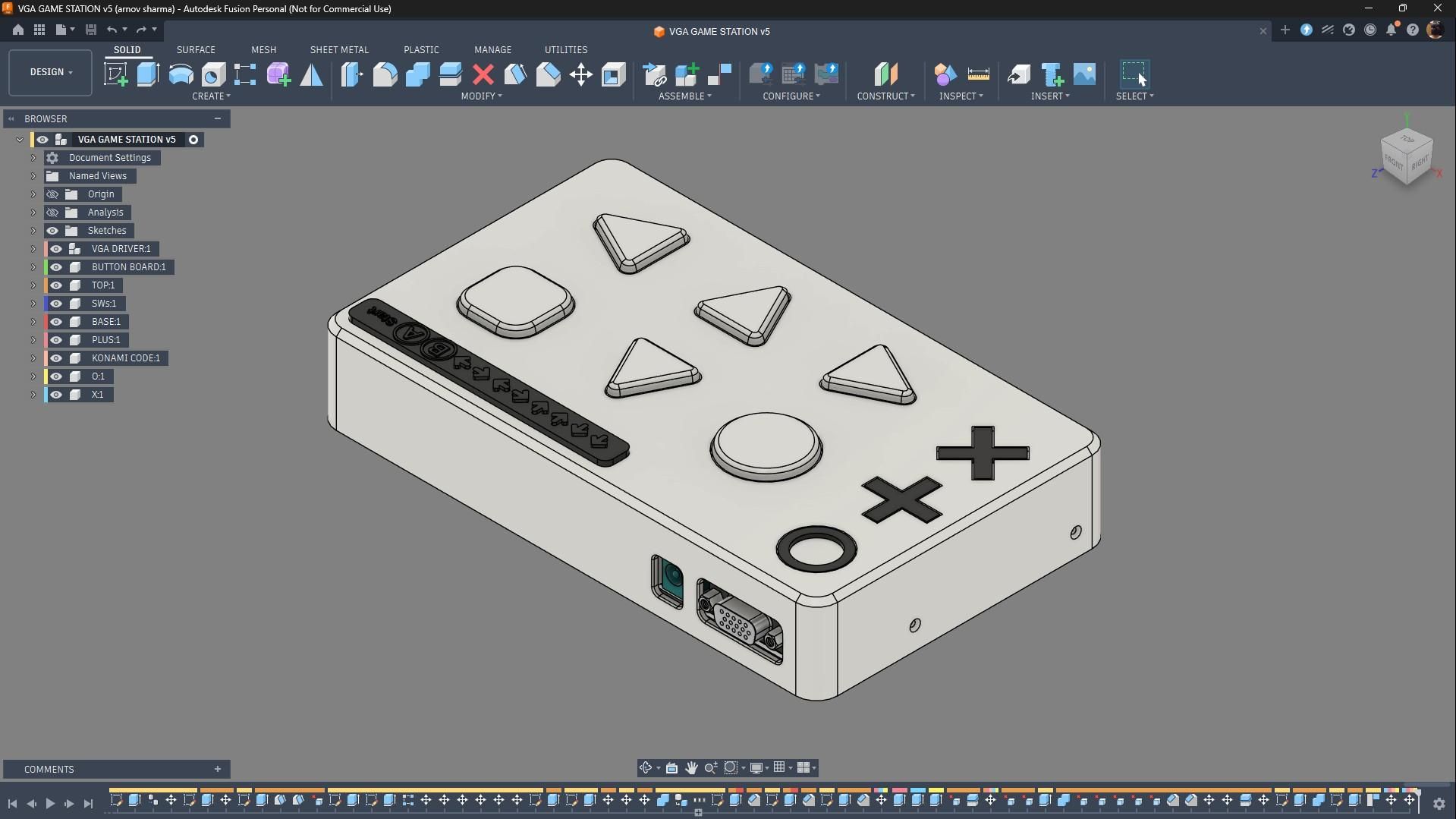
For the enclosure, we modeled two parts: the housing and the lid. All the components, including the PICO VGA Board, Button Board, switches, and greeble parts, are housed inside the main housing.
The switch triangles were positioned inside the housing and are held in place once the Button PCB is mounted over them, keeping everything securely locked in position. When these switch triangles are pressed, they activate the switches on the Button Board, and the Pico detects the button press and performs the corresponding function.
The VGA Board is also mounted inside the housing on dedicated screw bosses, allowing it to be fixed in place using M2 screws. Similarly, screw bosses were added for securing the Button Board using M2 screws as well.
From the back side, a separate lid part was modeled to close the housing. We added four mounting holes, two on each side, which use four M2 screws to securely fasten the housing and lid together.
GREEBLES
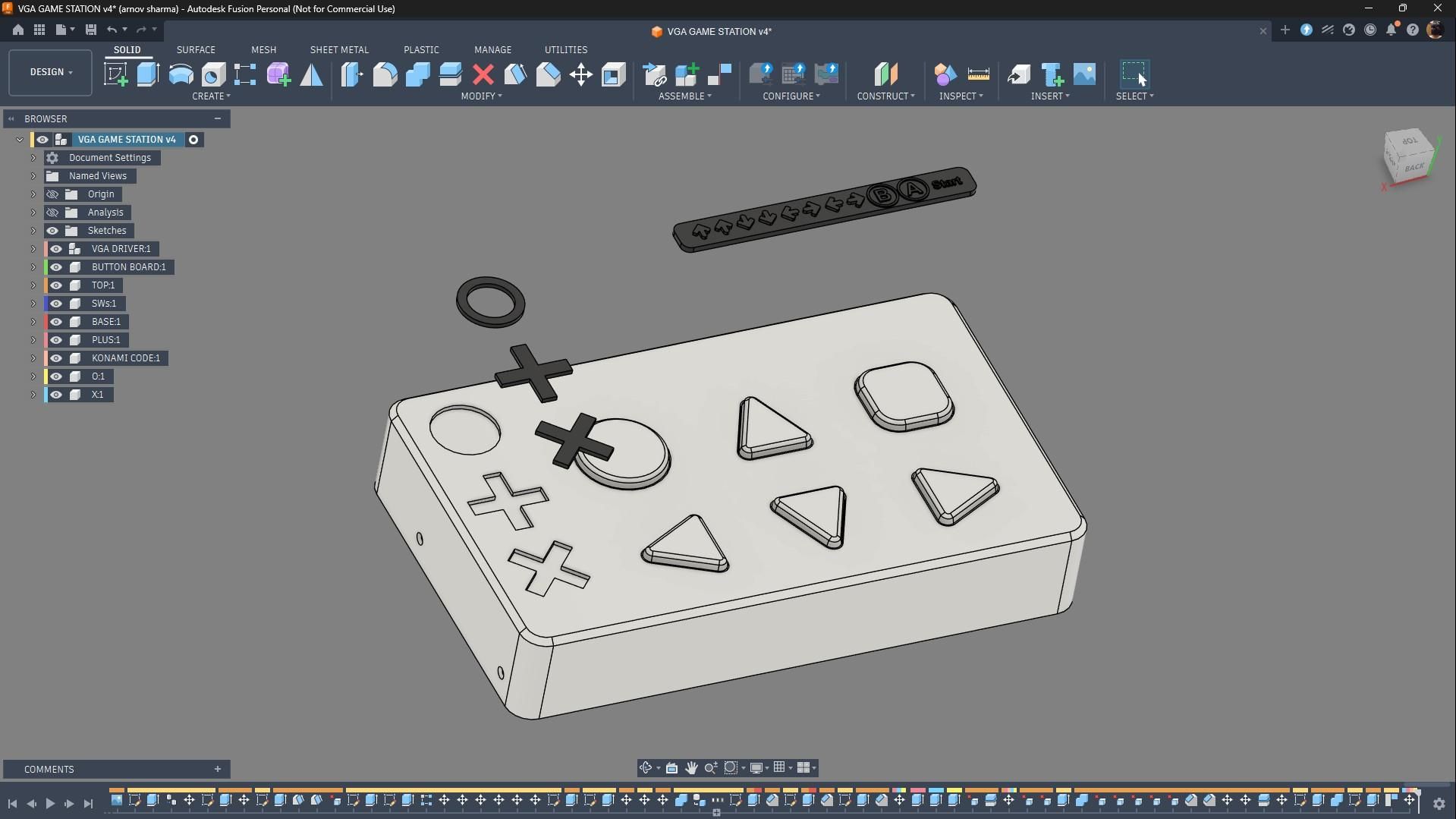
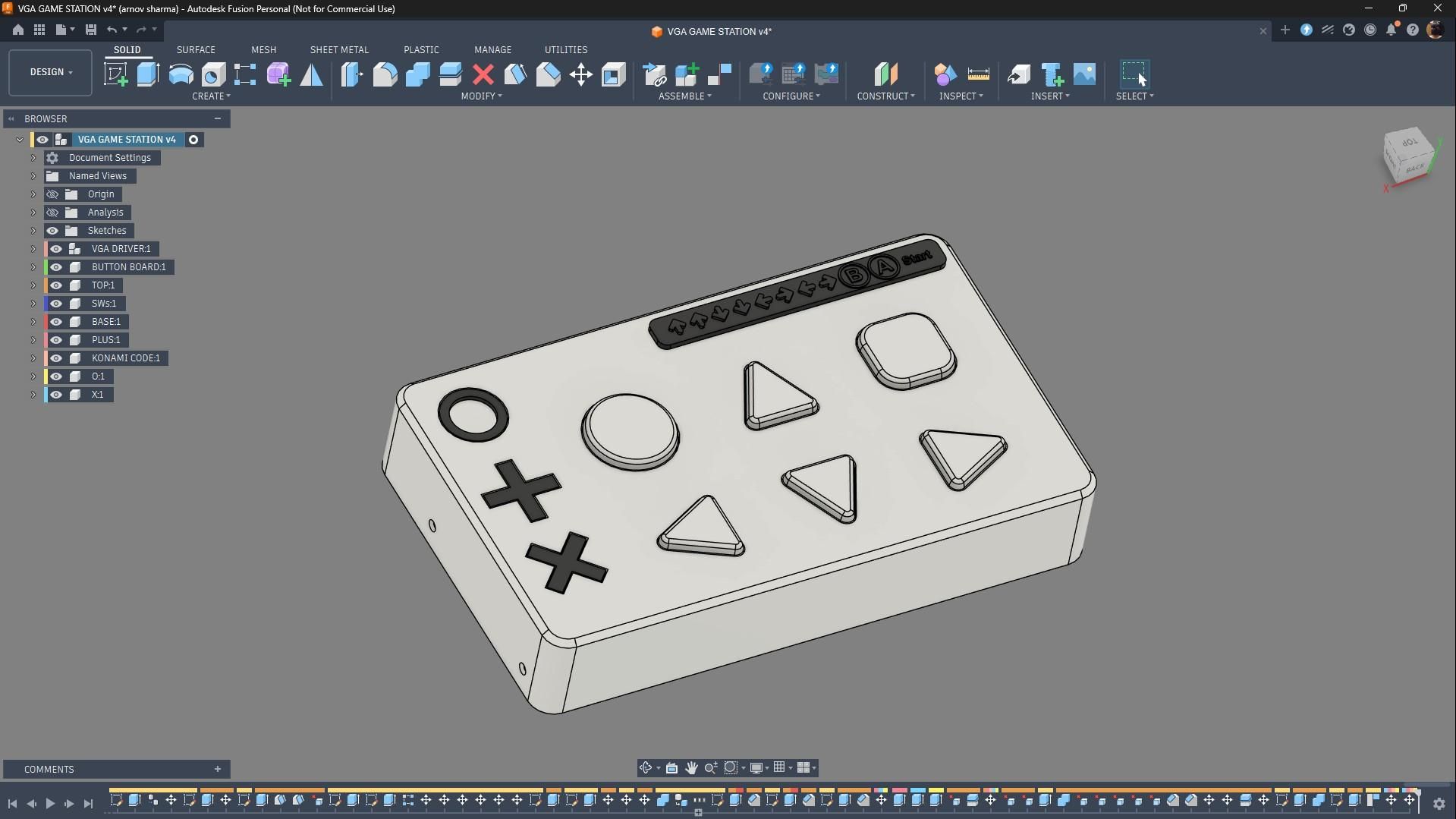
Some greeble parts were also modeled to improve the aesthetics of the design. I designed regular-shaped O, Plus, and X symbols, which were added to the front face of the housing. I even created dedicated slots where all three parts fit perfectly into position.
Next, as an easter egg for gamers, I added the legendary Konami Code. I modeled a separate part featuring the physical shapes of Up, Down, Left, Right, A, B, and Start and positioned it slightly above the square button.
3D PRINTED PARTS


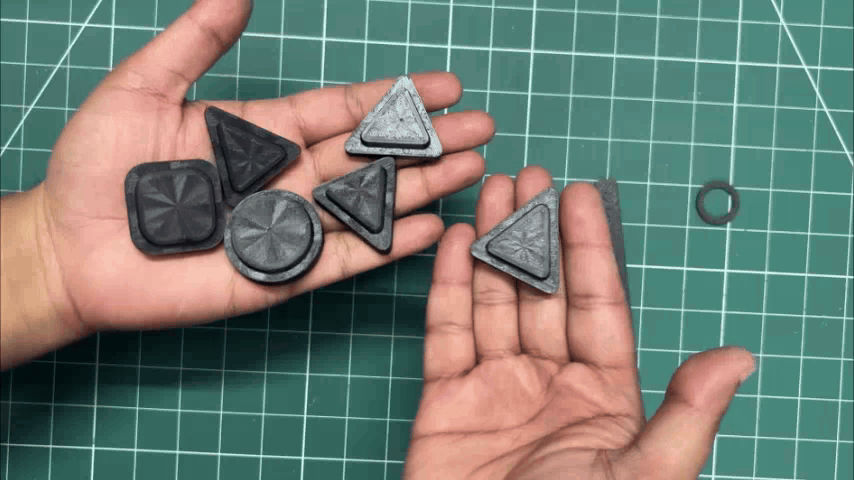

For the 3D prints, the housing was the only part printed in Orange Hyper PLA using a 0.4mm nozzle, 0.16mm layer height, and 25% infill. I printed the part face down, which allowed me to avoid using any support material.
Using the same print settings but with Black Hyper PLA, I first printed the lid part separately and then printed all the greeble parts together.
The switch parts were printed separately, as they required support material, for which I used tree supports.
ENCLOSURE ASSEMBLY

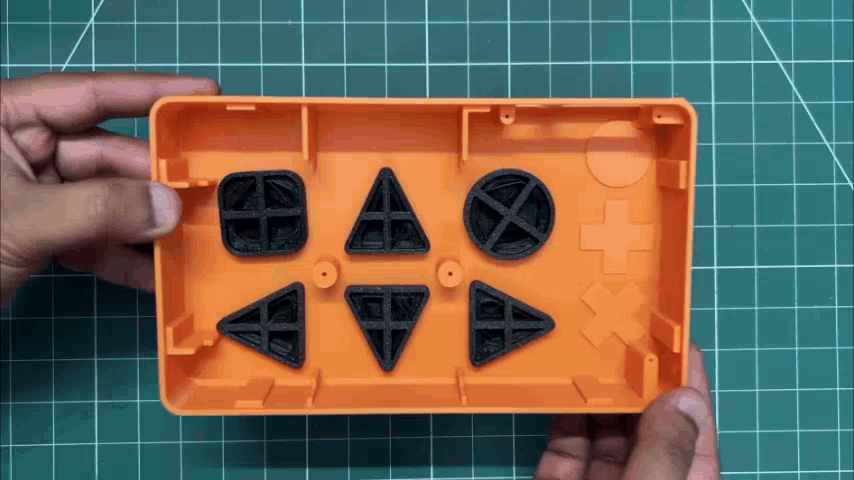


- The enclosure assembly begins by placing all the switches into position from inside the housing.
- Over the switches, we position the Button Board by aligning its mounting holes with the screw bosses of the housing.
- Similarly, we also place the VGA Board onto its dedicated screw bosses.
- M2 screws were used throughout the assembly, two for securing the Button Board and three for securing the VGA Board in place.
- Finally, we place the lid from the bottom side and use four M2 screws to permanently secure the lid to the housing.
GREEBLES ASSEMBLY

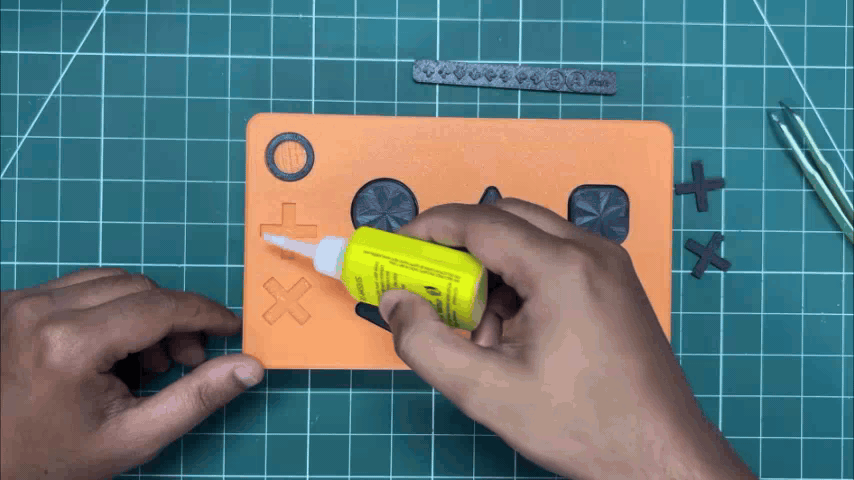


- We begin the greeble assembly by applying super glue to the mounting spots and then placing the O-shaped part into position.
- Similarly, we followed the same process for the Plus and X greeble parts, first applying super glue to their mounting points and then positioning each part.
- Finally, we added the Konami Code part by applying super glue to the back side of the piece and positioning it slightly above the square switch.
RESULT
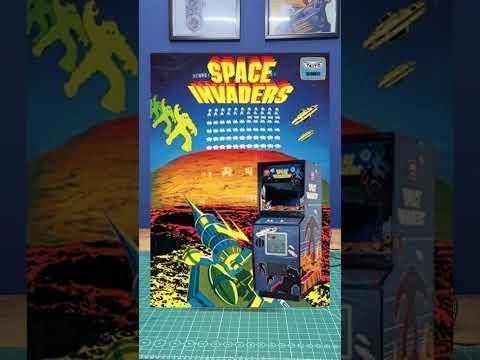


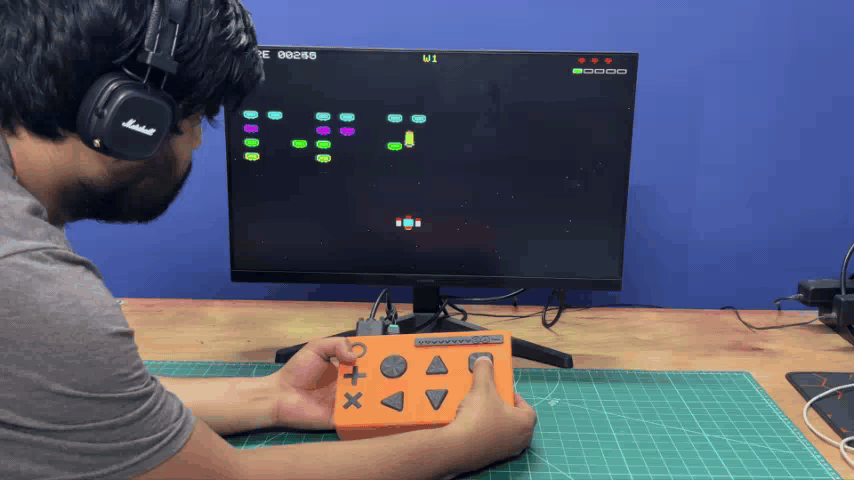

Here’s the end result of this build: the PICO VGA BLASTER, a retro-styled console that runs my custom-made game.
To use this console, we connect it to a VGA monitor. In this case, we are using a regular LED monitor that supports VGA connectivity, and power the setup using a 12V power adapter connected through the DC jack.
The console runs my own version of Space Invaders, where the enemies are designed to look like VGA ports. Using the D-pad, we can control our spacecraft, and there are two attack options: a normal fire mode and a missile launcher. After defeating one fleet of enemies, a boss fight begins, followed by another fleet where the VGA enemies can now fire back at the player. After that comes a second boss fight, which is twice as difficult. If all three players' lives are lost, the game-over sequence is triggered.
I created this project for an event where I will be showcasing the setup on a large display so people can try the game themselves.
For Version 2 of this project, I would like to add controller support, make the console smaller, and possibly even add multiplayer support, and not to forget, improved sound functionality as well.
Special thanks for making it this far, and I’ll be back with another new project very soon.