Colourful Macropad With Audio Using Pimoroni Keybow 2040 and Adafruit STEMMA Speaker (HID + MIDI Capable)
by kevinjwalters in Circuits > Gadgets
917 Views, 6 Favorites, 0 Comments
Colourful Macropad With Audio Using Pimoroni Keybow 2040 and Adafruit STEMMA Speaker (HID + MIDI Capable)
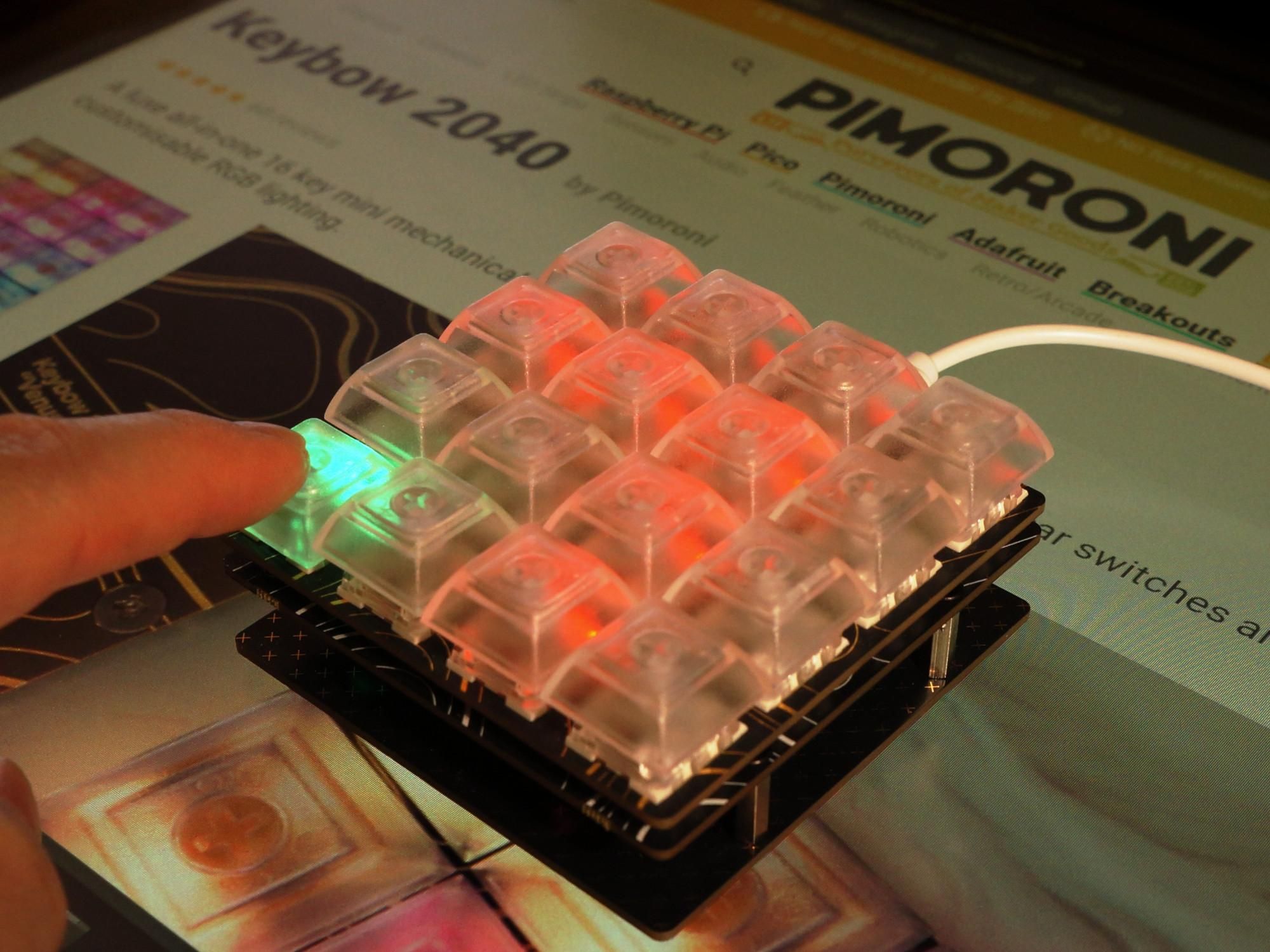
The Pimoroni Keybow 2040 is a 4x4 keypad featuring Kailh (Cherry MX-compatible) keys with clear keycaps and per-key RGB LED illumination. The Keybow 2040 runs CircuitPython on its RP2040 microcontroller with the pmk Pimoroni library. It can emulate a keyboard (HID) or send MIDI over USB-C.
This article shows how to add a small audio board to the Keybow 2040 for extra fun with surprisingly loud sound effects. An example program is shown which emulates single key presses or sends strings accompanied with sound effects and visual animations on the RGB LEDs. It can also send MIDI and Consumer Control Device messages. All of this is based on a flexible configuration file which can contain multiple "layers".
The addition of the audio board involves soldering.
A second article covers the addition of click-free, I2S digital stereo audio.
Supplies
- Pimoroni Keybow 2040: Pimoroni | Micro Center (clicky key version)
- Active speaker
- Adafruit STEMMA Speaker: Pimoroni | DigiKey
- or a PAM8302 board with one 1W thin speaker or a pair of 1W 8 ohm thin speakers in parallel.
- 4x M2 threaded 12mm spacers (standoffs) - these replace the 4mm ones supplied with the Keybow 2040
- Wurth Elektronik Standoff M2, 12 mm Body, Brass (plated): Radio Spares
- Unbranded Aluminium Alloy: AliExpress - these are colourful but sadly these do not have good threads making it hit and miss whether the short screws will reach the thread and if it does reach it will probably strip the tiny amount of spacer thread.
- A small Phillips screwdriver - required for Keybow 2040 assembly and gain adjustment on STEMMA Speaker.
- 3x short stranded wires, ideally red, black and one other colour. A pair of wire cutters.
- 220 ohm resistor.
- 0.1uF ceramic capacitor.
- Small piece of heatshrink (to cover resistor) and something to heat it.
- Solder, soldering iron. Something to hold in place components and extra flux may be useful.
- Small pieces of insulating tape to cover the back of the STEMMA Speaker.
- Something to increase the speaker height by about 1mm.
- A clean metal washer stuck to the STEMMA Speaker PCB with cyanoacrylate adhesive (super glue/krazy glue) was used.
- A blob of epoxy resin on its own could work well too.
- A scrap piece of standard thickness PCB would work. At 1.6mm this will still fit.
Pimoroni Keybow 2040 Unboxing
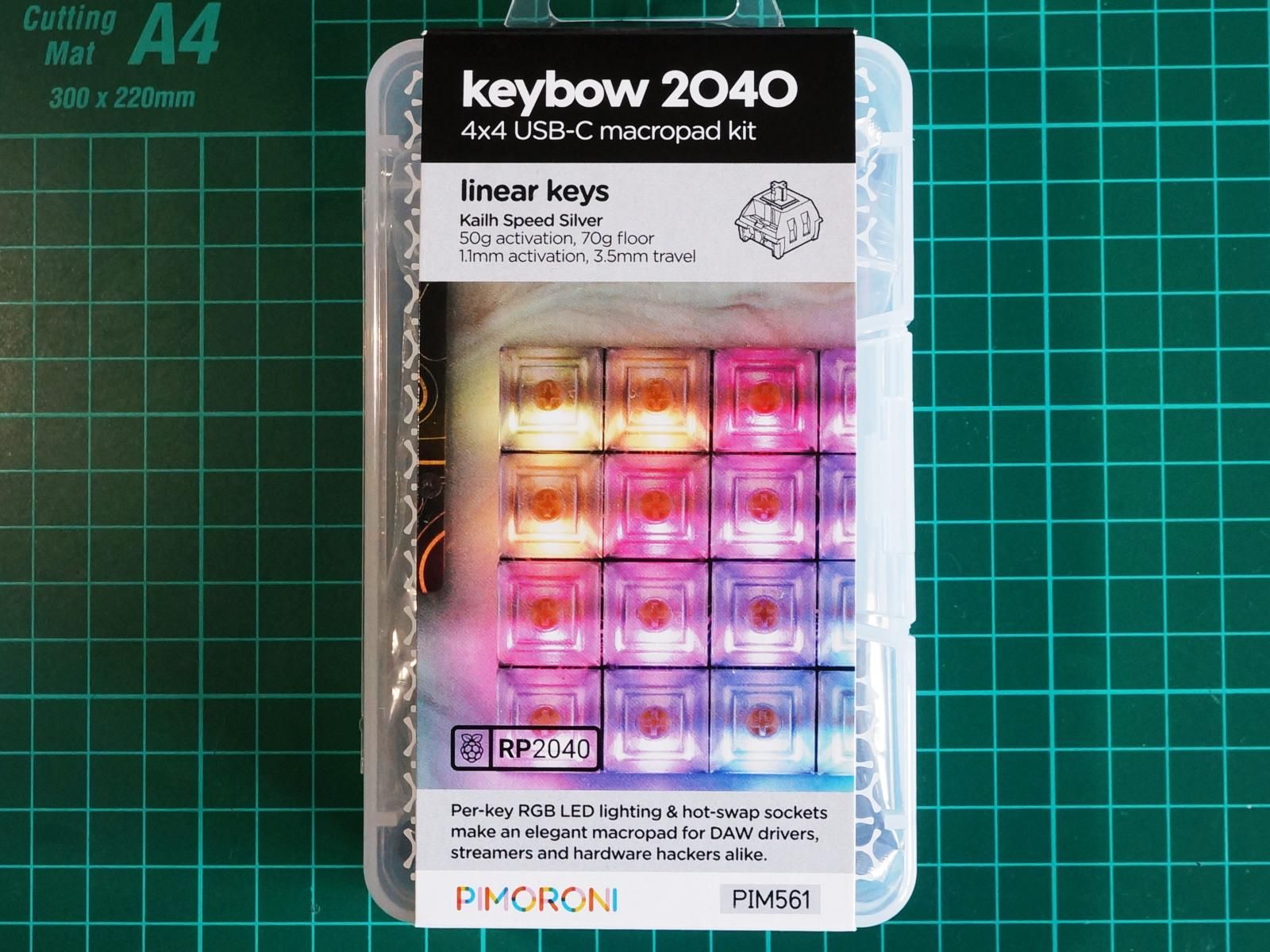
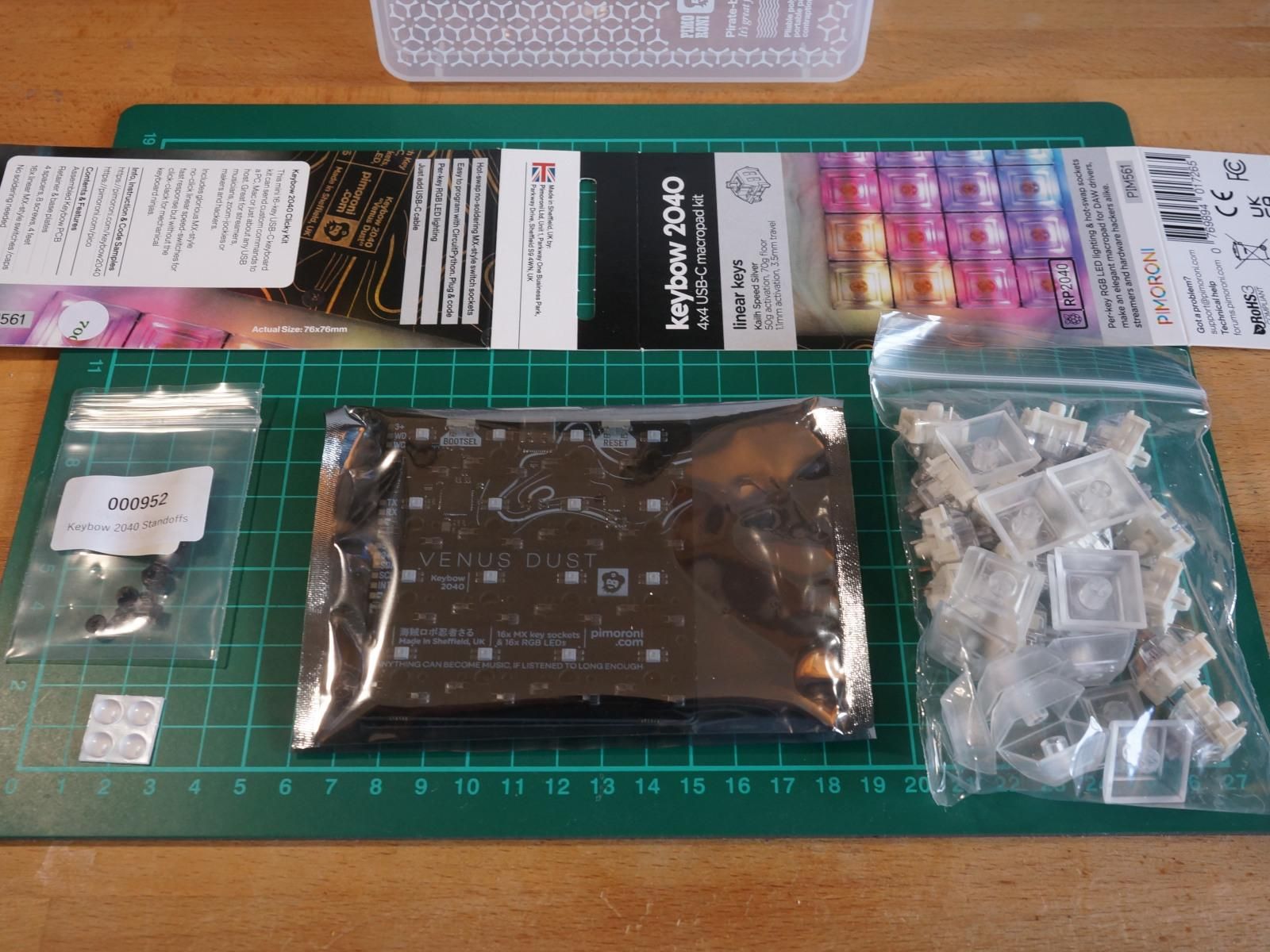
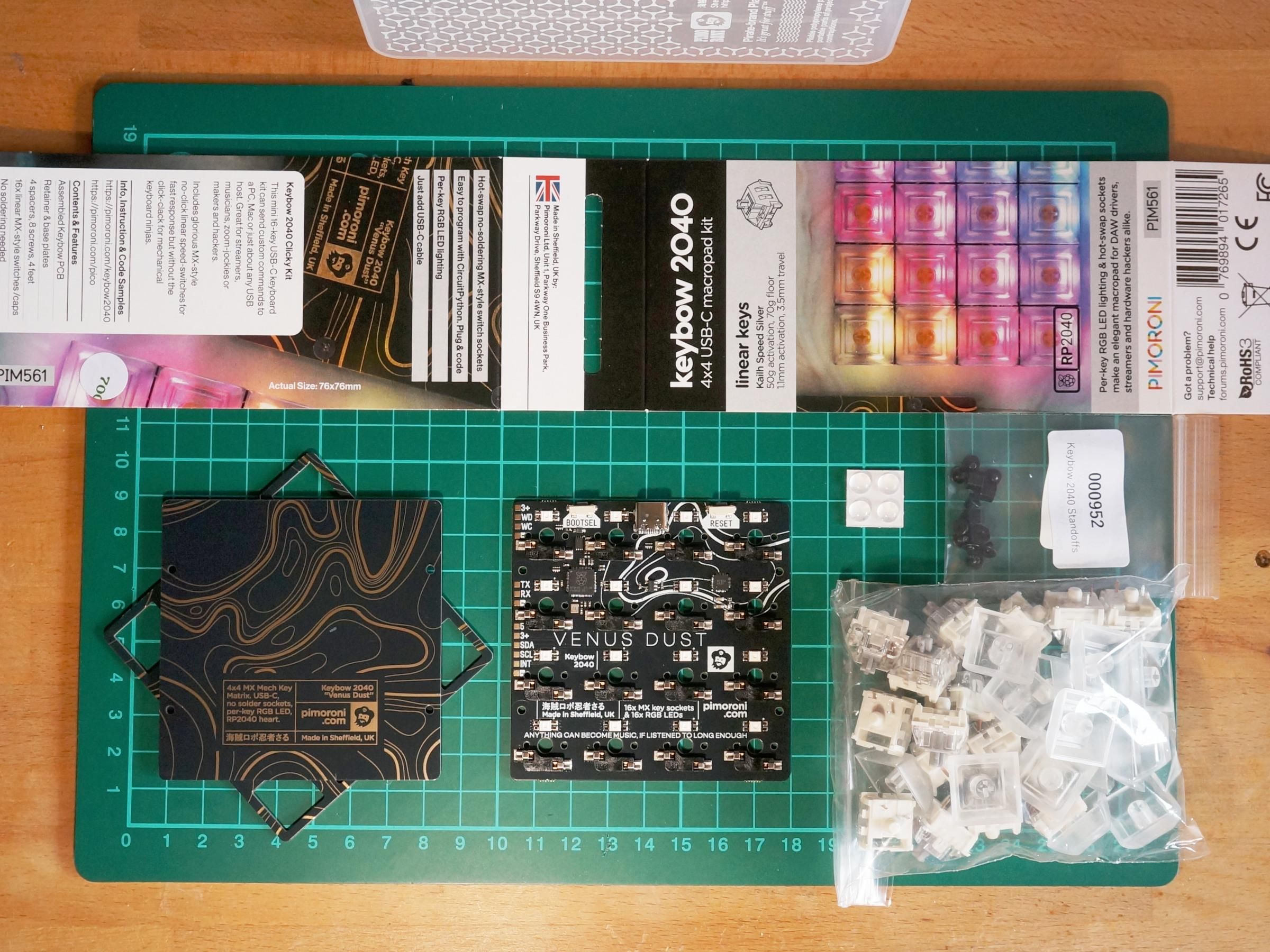
The content of the Keybow 2040 box with linear (quiet) keys is shown above. From left to right.
- 8x small M2 screws with 8x 4mm threaded spacers.
- 4x adhesive rubber feet.
- The three PCB layers (in an anti-static bag)
- The top layer is a frame the switches slot into.
- The middle layer has the microcontroller and the switch sockets on it.
- The base layer is the bottom of the "open case" design. The spacers are used between this and the middle layer.
- 16x clear keycaps and 16x key switches.
Some Speaker Options
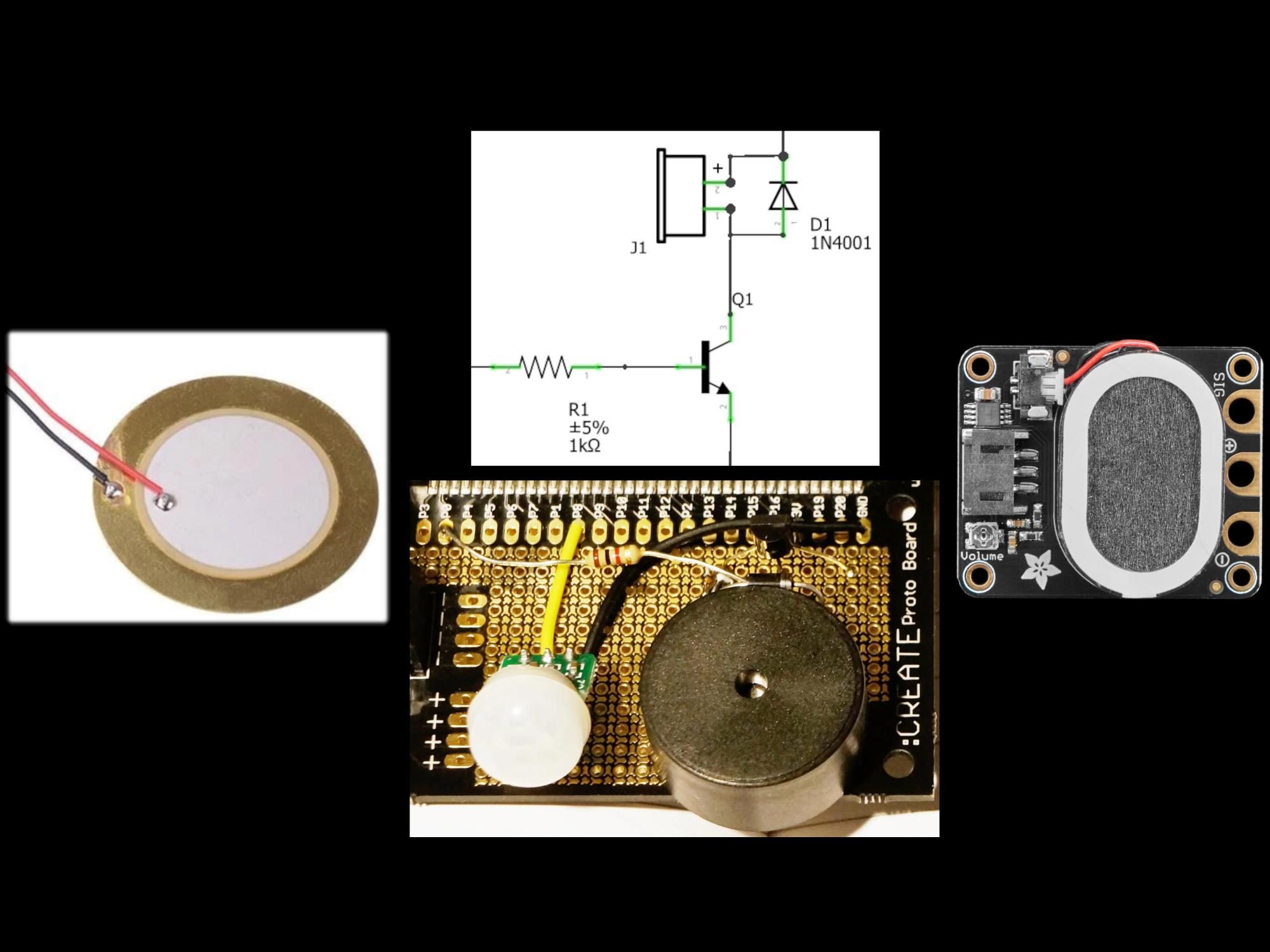
The Keybow 2040 has some pads which expose some of the RP2040's GPIO and leaves the other unused ones stranded. The RP2040 has no digital-to-analogue converter (DAC) to produce analogue audio but a speaker can be driven with either a simple PWM signal to make simple tones or using audio produced with high frequency PWM. The GPIO available on pads are listed below.
- GP0, GP1 - TX, RX - intended for UART serial communication.
- GP3, GP4, GP5 - INT, SDA, SCL - these are intended for i2c use and all have external 10k pull-up resistors.
- GP23 - USER_SW - this is used for the switch to the right of the USB-C connector, during power on this acts like the BOOTSEL button on the Pi Pico.
- GP25, GP26 - SWCLK, SDIO - intended for hardware debugging.
GP0 (TX) is a suitable candidate for this project to drive the speaker. All solutions would need testing to see if the PWM carrier frequency creates noise or other audible artefacts. Three audio options are compared below.
(GP6 to GP21 are used for the switches.)
GPIO-driven Piezo Speaker
The component on the left of the photograph is a classic brass-mounted piezo disc speaker.
Pros
- Piezo speakers are inherently thin and without a housing will fit inside an unmodified Keybow 2040.
- Most of these can be driven directly from the 3.3V GPIO within the current limits.
- A pair of these could easily be used for stereo and a slight increase in volume.
Cons
- Difficult to solder onto (buy one with leads).
- Extremely quiet.
Transistor-controlled Thin Speaker
An NPN transistor allows a GPIO pin to drive a small speaker with a square wave at a higher voltage. A current limiting resistor is needed for the GPIO output and a diode is required to deal with back EMF from a speaker with a coil. This can be seen in the middle of the photograph as a circuit and an implementation on proto-board. A current limiting resistor (with suitable wattage) might be needed in series with the speaker depending on its impedance and the voltage used.
Pros
- Small speakers are available with about 5mm thickness.
- Only needs a small number of components.
Cons
- Needs new spacers to replace the supplied 4mm ones with M2 threads - 10-12mm needed to provide room for speakers and circuitry.
- The circuitry needs to be placed on a new small circuit board or perhaps inelegantly soldered to the pads using the stiffness of the component leads to hold them in place.
- The speaker might need holes in the base layers to prevent a muffled sound.
- The speaker is driven with a unipolar signal. For a normal speaker this is inefficient and will warm the speaker up a little if the audio is left active or more so if the GPIO is accidentally left in a high state.
An example of this type of circuit can be seen in Instructables: PIR Movement Alarm With BBC Micro:bit and External Speaker.
Amplifier Module with Thin Speaker
An amplifier board with integrated speaker could be useful, for example the Adafruit STEMMA Speaker shown above on the right of the photograph. This ideally needs to be able to cope with PWM audio produced with a carrier of 80-120kHz and the associated DC offset on that signal.
Pros
- Still thin.
- Easy to add with just three wires, needs no extra components.
- Power efficient and no DC component on signal sent to speaker.
- A second speaker could be added, i.e. a PAM8202-based board could drive two 8 ohm speakers in parallel.
Cons
- Needs new 12mm spacers.
- A tiny bit more expensive.
- A tiny bit thicker than same speaker with circuit alongside it.
- The speaker might need holes in the base layer to prevent a muffled sound.
- Reverse polarity power may destroy device - need to be careful on the wiring.
- This might not be wholly compatible with PWM audio produced from a GPIO pin due to either
- DC offset or
- PWM carrier.
Experimenting With the Adafruit STEMMA Speaker on a Pi Pico

The Pi Pico has the same RP2040 microcontroller as the Keybow RP2040. This makes it useful for some quick testing before adding the STEMMA Speaker.
This revealed the following.
- The sounds sample crackled a little during playback. Turning down the gain on the amplifier using a small flat-bladed screwdriver dealt with this. An Adafruit forum post discusses this issue and describes it as "fizz".
- After playing the sound sample the speaker would sometimes produce unpleasant squealing noises. An oscilloscope shows this was a continuous 50% duty cycle PWM which equates to silence. This suggests the PWM carrier at around 120kHz interacts poorly with the STEMMA Speaker. A simple RC filter was added with a 220 ohm and 100nF (0.1uF) capacitor and this improved. An Adafruit forum post covered filters to reduce the effect of the PWM carrier including a passive 2 pole RC filter.
- Two counter-intuitive physical phenomena were noted.
- The sound gets significantly louder when the speaker is pressed up against a firm thin panel like the base plate of the Keybow 2040.
- Experiments with a piece of solid plastic with small holes showed the audio was better when the speaker was pressed up against sections without any holes.
- There is a little bit of noise when silent audio is played or the signal pin is connected to a GPIO in input mode, i.e. a high impedance state. This sounds like it's partly related to noise from the USB 5V power. If the GPIO is set to be an output then low is similar to an input, perhaps a tiny bit noisier, a high state produces noticeably more noise.
- It's noticeable that the speaker is not the highest component on the board, the STEMMA 3 pin plug (JST PH) is. This means the oval adhesive ring on the speaker will not yield a good bond to another large flat surface.
The gain was adjusted again with the RC filter and the speaker held against the Keybow 2040 base plate as this makes it far louder.
Keybow 2040 Assembly
Pimoroni have assembly instructions for the Keybow 2040. A small Phillips screwdriver is needed. These instructions can be followed with the following differences/postponed steps.
- Use 12mm rather than the supplied 4m standoffs.
- Do not screw the base layer to the middle layer.
- Do not press the top layer with keys onto the middle layer.
Adding the Adafruit STEMMA Speaker - Part I

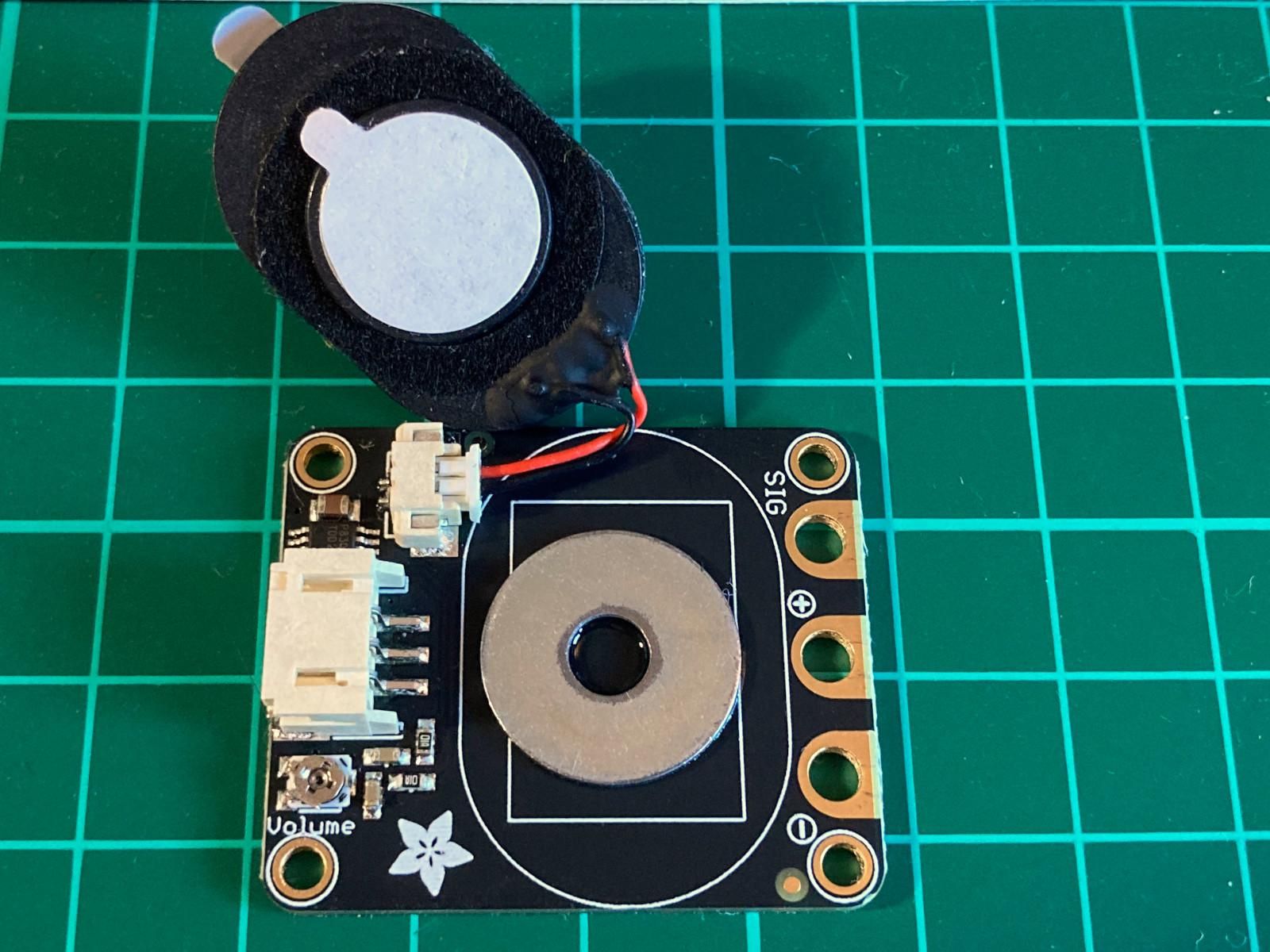

The order of some of these steps is important. If you have already assembled the Keybow 2040 then the top layer with keys will need to be gently and evenly prised off and the base layer unscrewed. You should be familiar with Pimoroni's assembly instructions before adding the speaker, the steps are listed below.
- Remove the 4mm spacers if they are fitted from the Keybow 2040 middle layer (the one with electronics components on) and add the 12mm ones.
- Add the washer** (1mm spacer) to the STEMMA Speaker. Glue this in place. Press firmly against the board for 10 seconds with a pair of pliers if using cyanoacrylate adhesive***.
- Insert the speaker's plug into the socket taking care to avoid any glue.
- Remove the circular adhesive cover from the back of the speaker and press against the spacer (washer). Any exposed glue is a bonus here. The connector almost intrudes into the space for the speaker, take care to keep the speaker flat and snug up against the connector.
- Wait for the glue to set. This is a minute or two for cyanoacrylate adhesive.
** Washers may not be perfectly flat, find one that's reasonably flat. They can also be grubby and/or covered in oil, cleaning with alcohol is worthwhile.
*** A finger is a poor choice as it may get stuck to the board!
Adding the Adafruit STEMMA Speaker - Part II

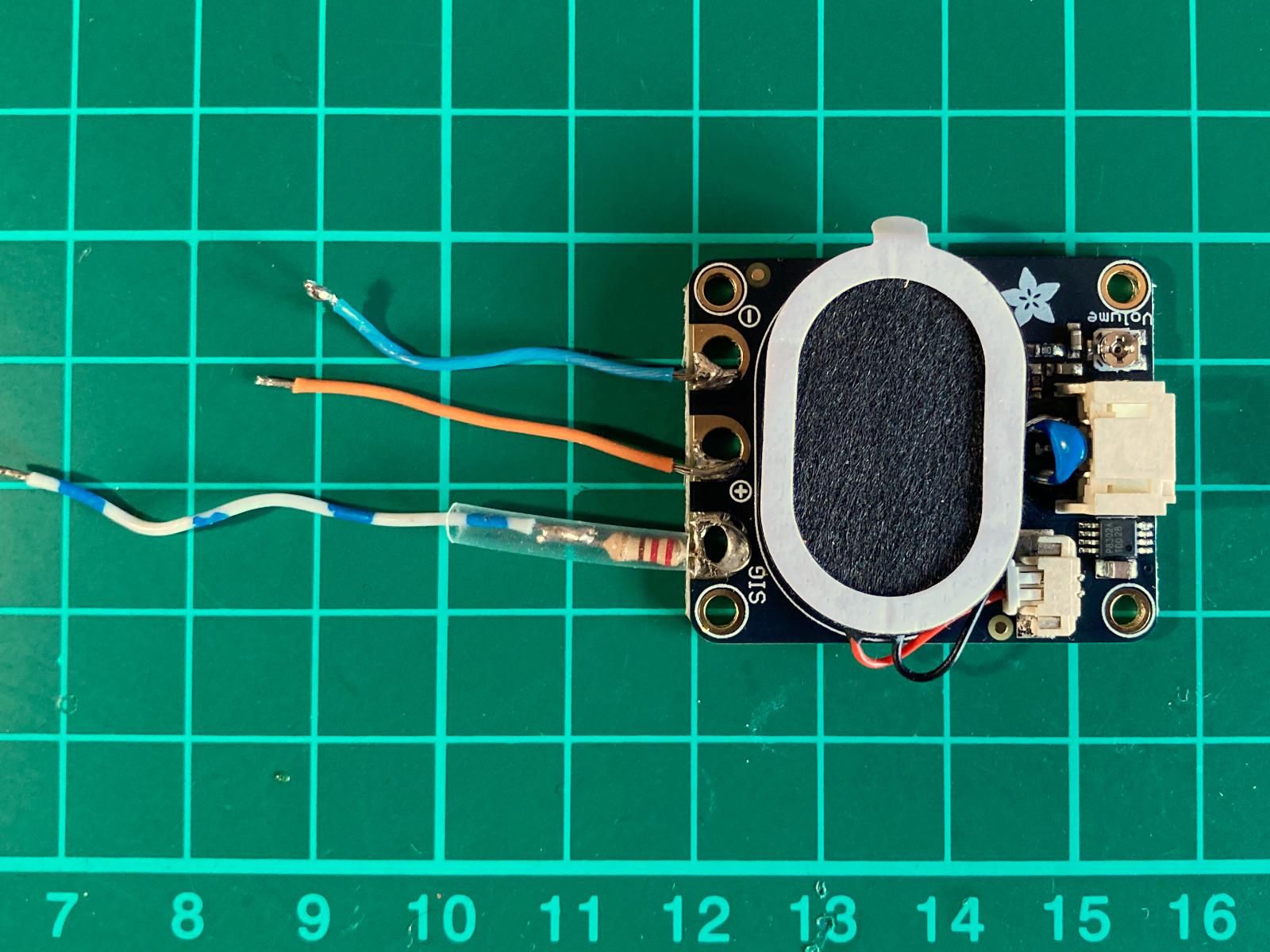
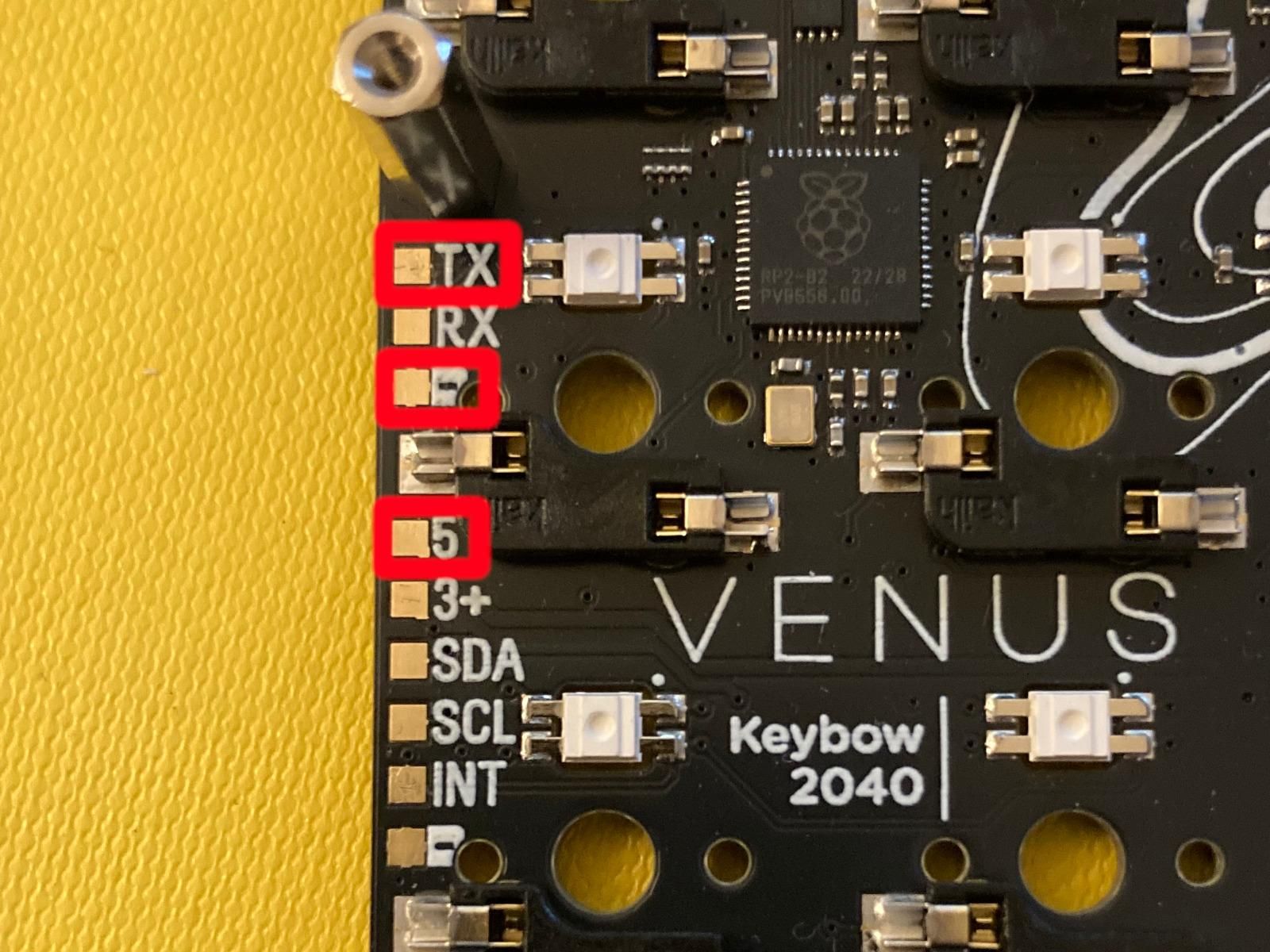
The steps to solder the RC filter to the speaker, add wires and solder these to the Keybow 2040 are listed below.
- Solder the 100nF ceramic capacitor across the signal and ground pins on the JST PH connector. This is fiddly to do but avoids soldering two leads to the pads. This is best done with flux placed on the pins on the PCB, tinned leads on the capacitor and something holding the capacitor in place during soldering. The capacitor needs to sit below the level of the JST PH connector. Testing the resistance with a multimeter afterwards from each lead to the STEMMA speaker pads will confirm if the connections are good.
- Shorten one lead of the 220 ohm resistor and bend it into a circular hook for soldering onto the top of the signal pad.
- Ensure the USB is not connected on the Keybow 2040 middle layer.
- Solder three stranded wires** (slightly too long is easier to remedy than too short) onto
- other colour wire to the resistor attached to the signal pad,
- red wire to the positive pad and
- black wire to the negative pad.
- Add heatshrink to cover the resistor and its exposed short lead and shrink it.
- Solder the wires (length may need adjusting slightly) to the three small pads of the middle layer of the Keybow 2040:
- TX,
- 5 (5V power supply from USB) and
- GND (marked -).
** Stranded wires were borrowed from some UTP cable, orange standing in for red and blue standing in for black.
Adding the Adafruit STEMMA Speaker - Part III
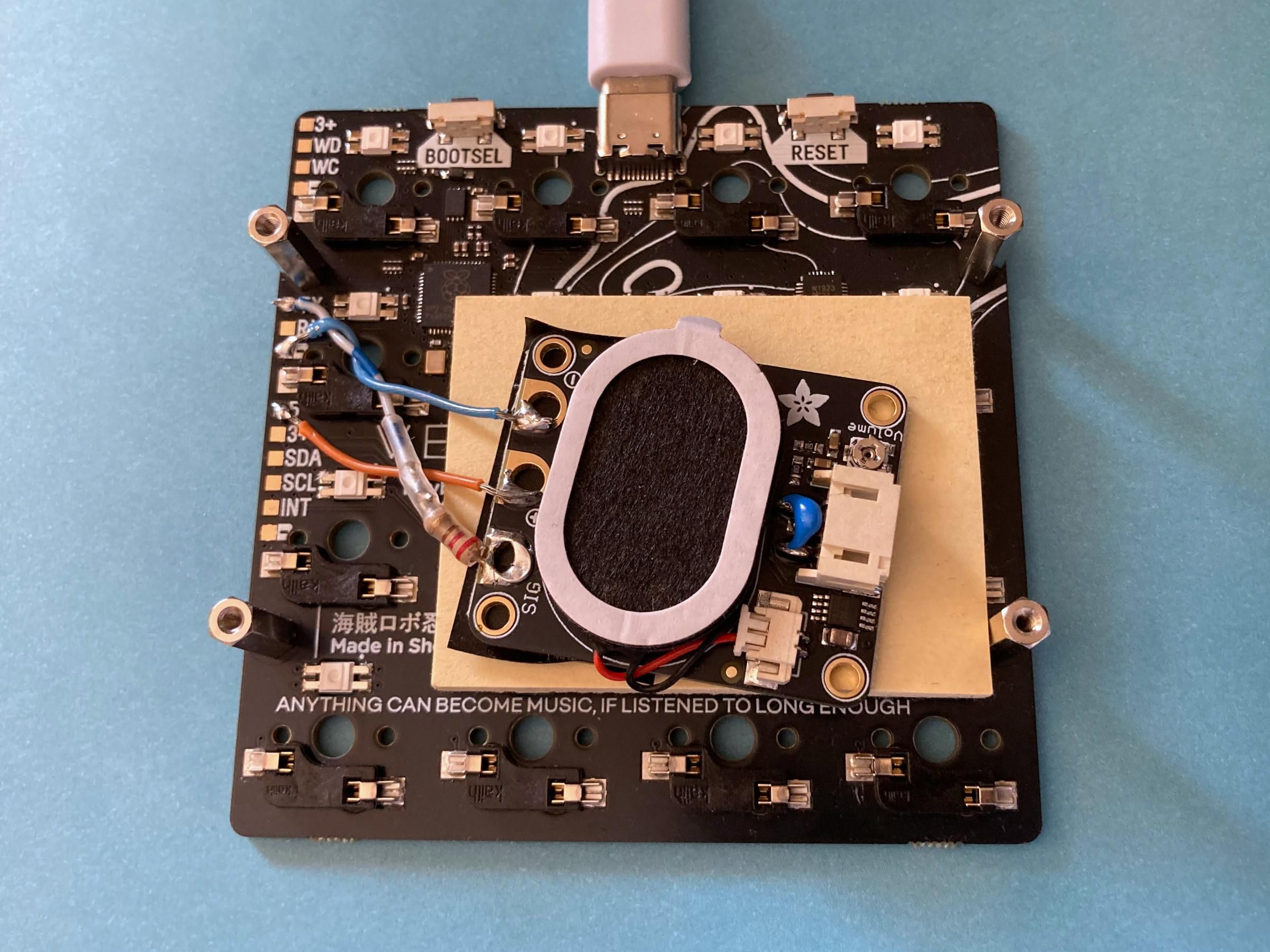
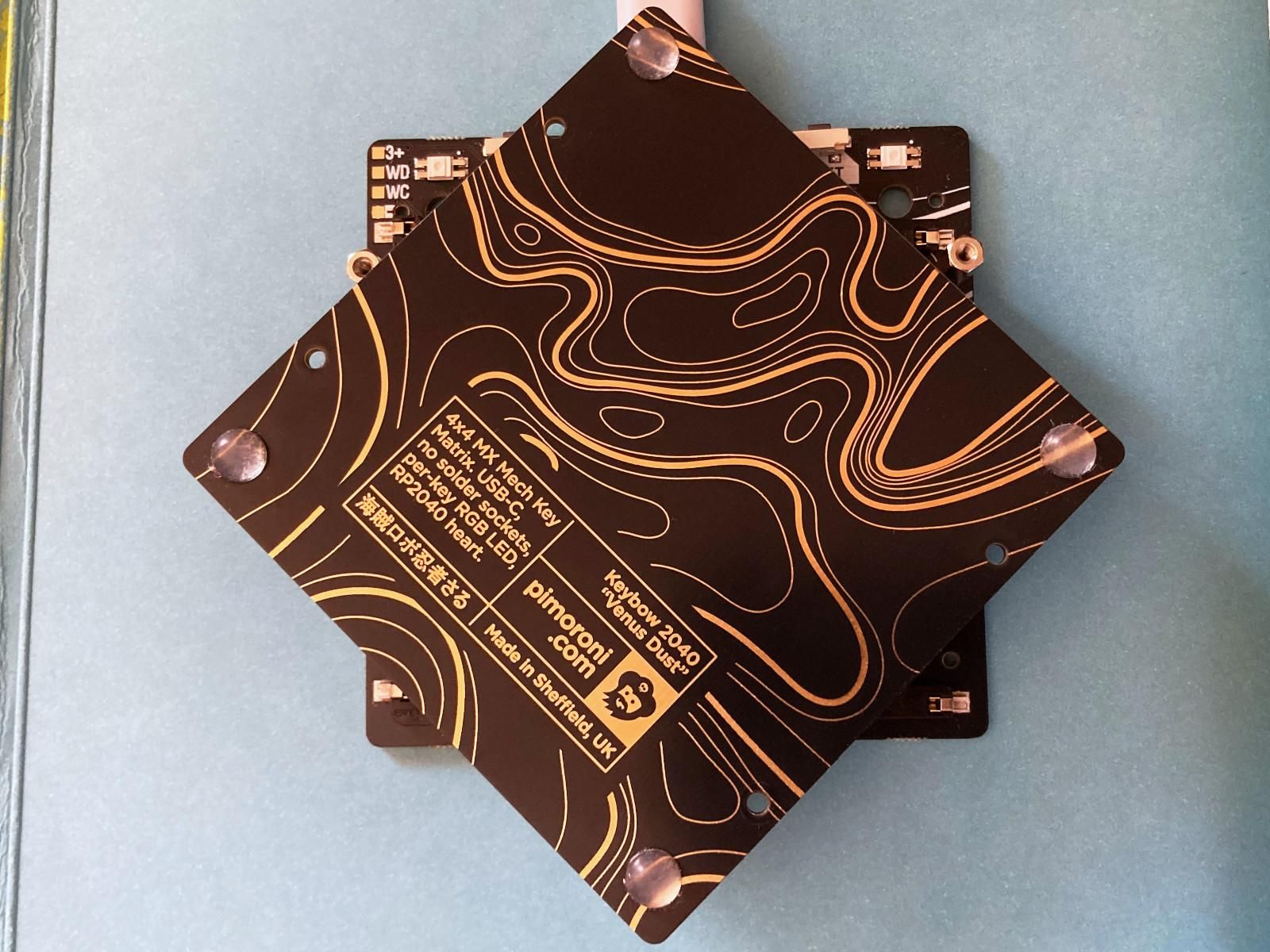

These steps cover testing the speaker and adjusting the amplifier gain on the STEMMA Speaker board. When the STEMMA speaker is later attached to the Keybow 2040 the gain potentiometer becomes inaccessible.
- Apply some insulation tape to the flat back of the STEMMA Speaker to cover the pads and the mounting holes - the latter have metal-plated edges. This will offer some protection to the other side of the pads in the unlikely event of the STEMMA Speaker becoming loose.
- For testing it's useful to raise the STEMMA Speaker up slightly - a small pad of sticky notes was used for this in the photograph above.
- Amplifier gain adjustment.
- Connect the USB to a host computer.
- Connect to the serial console over USB and play a test wav file** using the code below.
- Adjust the gain by turning the metal potentiometer on the STEMMA Speaker with a small flat-bladed screwdriver. This will need to be repeated a few times to find the loudest setting before it crackles/fizzes/distorts when playing the sound sample.
- The Keybow 2040 base layer must be pressed up against the speaker when the sample is playing to hear what it will actually sound like in the finished project.
- Check the noise level when there's no sound and no audio playing by calling deinit(). This is likely to be audible with your ear up against the base layer but once the Keybow 2040 is on a desk will be inaudible unless you're in a very quiet room.
- Remove the narrow, oval adhesive cover and stick the STEMMA Speaker to the upper side of the base layer.
- Screw the base layer onto the middle layer with the four small screws.
- Press the top layer with the keys attached to it onto the middle layer firmly but carefully.
- Play the test wav file again to ensure everything still works and sounds okay.
Playing a wav file on REPL
** The wav file should be "loud", i.e. use the maximum sample range/full dynamic range available. Audacity's Volume and Compression > Amplify under the Effects menu can be used to ensure this.
Installing Software

If you are not familiar with CircuitPython then it's worth reading the Welcome to CircuitPython guide first.
- Install the latest version of CircuitPython (10.1.4 on April 2024) from https://circuitpython.org/ - this process is described for a similar RP2040-based board in Introducing Adafruit Feather RP2040: Installing CircuitPython.
- adafruit-circuitpython-pimoroni_keybow2040-en_GB-10.1.4.uf2
- Verify the new installation by connecting to the serial console over USB. The REPL prompt shows the version number. The version can also be checked by inspecting the boot_out.txt file on the CIRCUITPY drive.
- Install these libraries from a recent bundle from https://circuitpython.org/libraries into the lib directory on CIRCUITPY:
- adafruit_hid
- adafruit_is31fl3731 (the Keybow 2040 needs this for its RGB LEDs)
- adafruit_midi
- Install the Pimoroni pmk library from https://github.com/pimoroni/pmk-circuitpython/tree/main/lib/pmk into the lib directory on CIRCUITPY. Alternatively, use the pre-installed one on the Keybow 2040. These are uncompiled python files and will run on any verison of CircuitPython.
- Download the following files to CIRCUITPY by clicking on the Raw button on the page and then Save link as...
- multioutput-with-effects.py - the program.
- config_types.py
- keybow_font.py
- keybow_config.py - an example configuration file.
- keybow-usbdrive-boot.by - this prevents the CIRCUITPY drive from appearing unless the bottom left key is held down as the Keybow 2040 is powered on.
- Download the demonstration wav files using Download raw file to CIRCUITPY from
- modelf-click-32k.wav
- defender
- Rename or delete any existing code.py file on CIRCUITPY, then rename multioutput-with-effects.py to code.py. This file is run when the CircuitPython interpreter starts or reloads.
- Rename or delete any existing boot.py file on CIRCUITPY, then rename the keybow-usdrive-boot.py to boot.py. This file is run when the microcontroller is first powered or resets.
- Unmount (eject) the CIRCUITPY drive.
- Reset the Keybow 2040 using the button on the side to the left of the USB-C connector.
The versions used for this article were:
- CircuitPython: 10.1.4
- CircuitPython library bundle: adafruit-circuitpython-bundle-10.x-mpy-20260415
Software

When the Keybow 2040 is powered on by plugging in the USB-C lead CircuitPython will run the boot.py - this only makes the CIRCUITPY drive appear over USB if the bottom left key is held down. The program in code.py then runs and will load keybow_config.py, its configuration file, which is described on the next page. The first layer in the configuration file is used as the default. Sound and visual effects are enabled by default.
The effects can be toggled with a long press (> 1s) on the top right button on the side of the Keybow 2040, the blue at the top represents sound effects and the yellow at the bottom represents visual effects. A short press on the same button will bring up the colourful layer selection (seven layers shown in the photograph above). The layers are represented with their configured colours with the top left being the first layer and then going across each row. Pressing a lit button will select that layer, pressing any other button will keep the current layer.
Configuration File
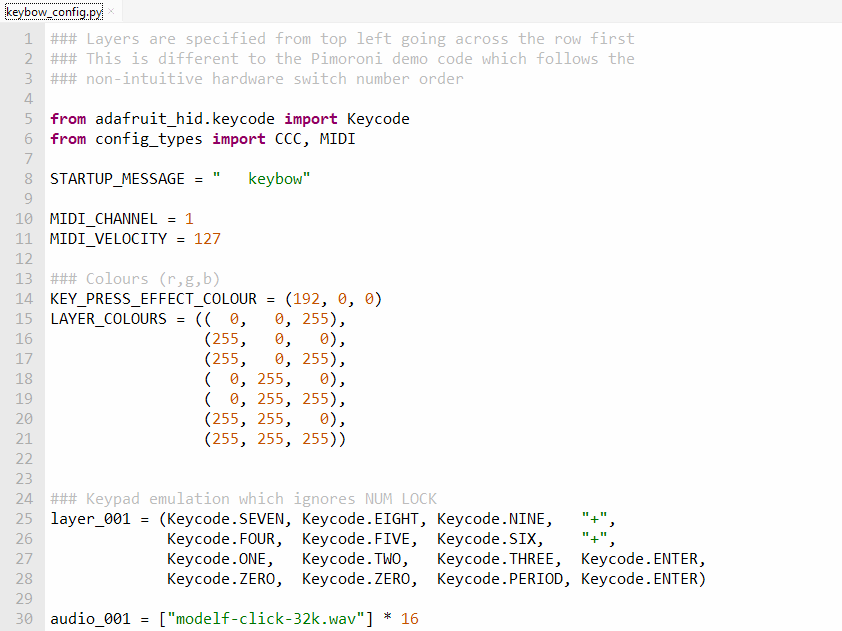
The configuration file which is just a Python module allows one of more "layers" to be specified as tuple/list variables which start with layer_. Using four elements per row the values match the layout of the Keybow 2040. Optionally, audio wav files can be specified with a matching variable name with audio_ prefix. The wav files can also be specified with a volume from 0.0 to 1.0 in a list/tuple format. The examples below are taken from keybow_config.py (this may be easier to read as Instructables tends to disrupt the indentation in code blocks).
If you have many audio files then it will be tidier to put them in a folder.
Keys and a String
This emulates a keypad with Num Lock on. The "+" is specified as a string as the plus character needs to be sent using a modifier key, Shift + =.
Consumer Control Device
The CCC() is a local class to represent values from adafruit_hid.consumer_control_code.ConsumerControlCode. No audio variable accompanies this layer so it will be silent.
MIDI notes
Midi note numbers can be specified using the local MIDI() class.
Keys
Four sound samples are specified here with different volumes. The list comprehension will convert these into sixteeen tuples, e.g. ("defender-humanoiddrop-32k.wav", 0.8).
Strings
The Adafruit CircuitPython HID library can send multi-character strings.
Demonstration
 with 1W Adafruit STEMMA Speaker)
The software and modified Keybow 2040 are demonstrated in the video above, the content is described below.
- 00:00 Pimoroni Keybow 2040 on a terminal window with green text.
- 00:04 Pressing reset button on the side of Keybow 2040.
- 00:11 Introductory scrolling text.
- 00:20 Default layer 1.
- 00:21 Keypad output with sound (IBM Model F keyboard click) and visual effects.
- 00:29 Long press on user button on side of Keybow 2040: all effects off.
- 00:38 Visual effects only.
- 00:51 Short press: select layer 2 (red).
- 00:55 Consumer Control Device.
- 01:09 Short press: select layer 3 (magenta).
- 01:11 MIDI output to Surge XT in Cakewalk Sonar.
- 01:27 Short press: select layer 4 (green).
- 01:29 More keys - this was intended to be layer 5 for some strings of characters!
- 01:35 Long press: sound effects only.
- 01:47 Long press: sound and visual effects.
Editing the Configuration File
These are the steps to edit the configuration file once the software is fully installed.
- Hold down the bottom left button on the Keybow 2040 and either connect the USB to a host computer or tap the reset button on the side of the Keybow to the left of the USB-C connector. This should cause the CIRCUITPY drive to appear a few seconds latter - the boot.py from the software installation normally inhibits this.
- Rename the keybow_config.py file to something like keybow_config_previous.py. Keep this as a known-to-work backup file. Copy this file to something like keybow_config_next.py.
- Carefully edit the keybow_config_next.py file in your favourite IDE or editor. An editor with features to highlight/validate python syntax will be helpful.
- Copy the finished file keybow_config_next.py to keybow_config.py.
- Unmount (eject) the CIRCUITPY drive.
- Tap the Keybow 2040's reset button.
If this doesn't work the file probably has errors in it. Inspect your file closely and/or use a terminal program to connect to CircuitPython's serial console over USB to see the error message if it doesn't work as expected.
Keybow 2040 Internals - Switch Layout
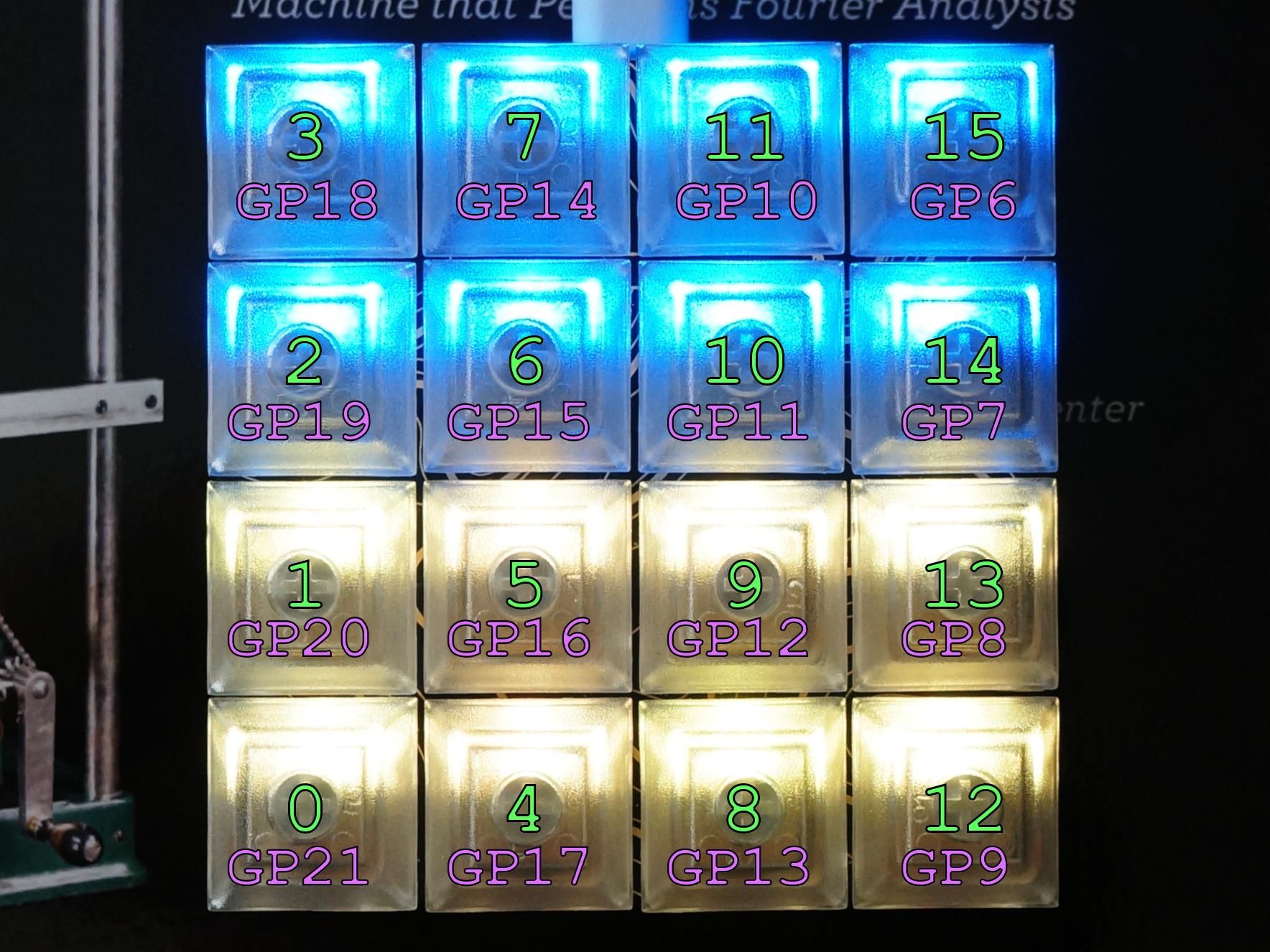
The image of the Keybow 2040 above with the USB-C connector at the top is annotated with the switch numbers and the GPIO pins used on the RP2040 microcontroller. In CircuitPython's hardware-customised board module, switch 0 (bottom left) is called board.SW0, for example. The keys connect the switch to ground. A software pull-up resistor needs to be enabled on each switch for them to work. This is all handled by Pimoroni's pmk library.
Going Further

Some ideas to explore:
- Software
- Seek inspiration from Pimoroni's collection of example programs.
- Investigate CircuitPython's implementation of asyncio to see if it can be used to reduce the effect that large or complex animations have on key reading.
- Add a feature to support timed sequences.
- Try using the RPxxxx Programmable IO (PIO) to improve the key reading and debounce in the pmk library.
- Make your own sound samples or find some.
- Mono 32k 16bit work well, lower bit rates or 8bit samples may be used if space is tight.
- Freesound is an interesting site to rummage through, for example the keyboard click sound was made from Fractal_'s IBM Model F keyboard typing.
- Add your own animated visual effects on the RGB LEDs.
- Try CircuitPython's mp3 capabilities.
- Look at reducing/eliminating the pops/clicks when the audio board is started and when the sample rate or bit depth changes. This may not be possible in a CircuitPython program as it looks likely to require changes to the interpreter's implementation of PWMAudioOut and related classes. This is discussed in Adafruit Forums: STEMMA Speaker pops when sound starts and stops using a different microcontroller.
- Pimoroni Library
- Make the i2c bus configurable to allow it to run at 400kilobaud.
- Look at CircuitPython's built-in keypad library to see if this is more efficient or an improvement over the current Pimoroni key scanning and debouncing implementation. This is described in Adafruit Learn: Keypad and Matrix Scanning in CircuitPython.
- Hardware
- Try some thin coaxial cable to connect the signal to the STEMMA Speaker to see if it reduces the noise when it's idle. (A second Keybow 2040 was assembled using coaxial cable for the audio signal and it did not improve the noise from the speaker board - YMMV.)
- Try the 2-pole passive RC filter from Adafruit Forums: MAX9744 High frequency output to see if it sounds different to the 1 pole version.
- Introduce your Keybow 2040 to stereophonic sound using the TX (GP0) and RX (GP1) pads and a pair of amplified small speakers on either side of the Keybow 2040.
- Look at amplifiers which can be enabled/shutdown using a GPIO to eliminate any quiet noise when samples aren't playing.
- Go digital - the three-wire I2S protocol might be feasible to transmit the signal to an I2S-capable amplifier board.
Similar products/kits:
- Adafruit Learn: Adafruit MacroPad RP2040 (kit) - a 3x4 RGB LED illuminated mechanical keypad with a small monochrome OLED screen, rotary encoder, a tiny speaker and a STEMMA QT connector.
- Pimoroni: Pico RGB Keypad Base (kit) - a 4x4 keypad with silicone keys illuminated by RGB LEDs powered by a Pi Pico.
- Anavi ANAVI Macro Pad 12 (kit) - a 3x4 RGB LED illuminated mechanical keypad with a small OLED screen and RGB underlighting powered by a Seeed Studio XIAO RP2040.
Further reading
- Pimoroni: Introducing Keybow 2040 - 16 key mini mechanical keyboard powered by RP2040 (YouTube)
- Tom's Hardware: Les Pounder: How to Build an RP2040 Powered Shortcut Keyboard
- NerdCave
- Transform an old broken Keyboard to a Macro Keyboard (YouTube) - using Pi Pico and CircuitPython
- DIY Macro Keyboard - Custom PCB and Mechanical Switches - Raspberry Pi Pico (YouTube) - a follow-up to first project with screen and rotary encoder
- Tom's Hardware: The Pi Cast: Adafruit Talks KB2040 Board for Custom Keyboards (YouTube)
- Jan Lunge: Pi Pico + KMK = the perfect combo for Custom Keyboards (YouTube) - shows another CircuitPython library, KMK, (with limited support) for keyboards/macropads.
- Instructables: Modular Macro Keyboard System — Ocreeb MK2 - a 3D-printed modular keypad system with magnetic connectors similar to littleBits/ROLI Blocks using CircuitPython and KMK.
- Paul Cutler's curated list of applications, macros, 3D printed cases, guides, and more for the Adafruit MacroPad RP2040.
- Non-CircuitPython corner
- QMK (Quantum Mechanical Keyboard) Firmware - open-source firmware for custom macropads and keyboards.
- Instructables: DIY Bluetooth Macro Keypad - an inexpensive Bluetooth Low Energy (BLE) HID keypad using a membrane keyboard, an ESP32 microcontroller board and Arduino C/C++ - an Unexpected Maker TinyPICO is used but most other ESP32 boards will also work.
- Instructables: How to Reverse-Engineer Almost Any Keyboard Matrix With Raspberry Pi Pico - an interesting approach to scanning the connector of an unknown keyboard to automatically determine the wiring layout of the matrix using a Pi Pico.
- Andreas Spiess: (487) Remote control of PC and Smartphones with DIY HID devices (incl. Rubber Ducky / Bad USB) (YouTube)
- DigiKey: Custom Macropad - The Byte Sized Engineer | DigiKey (YouTube) - Warning: includes gratuitous dancing.