Pixel Tester and Bench Power Supply
by TomHammond in Circuits > LEDs
1020 Views, 11 Favorites, 0 Comments
Pixel Tester and Bench Power Supply
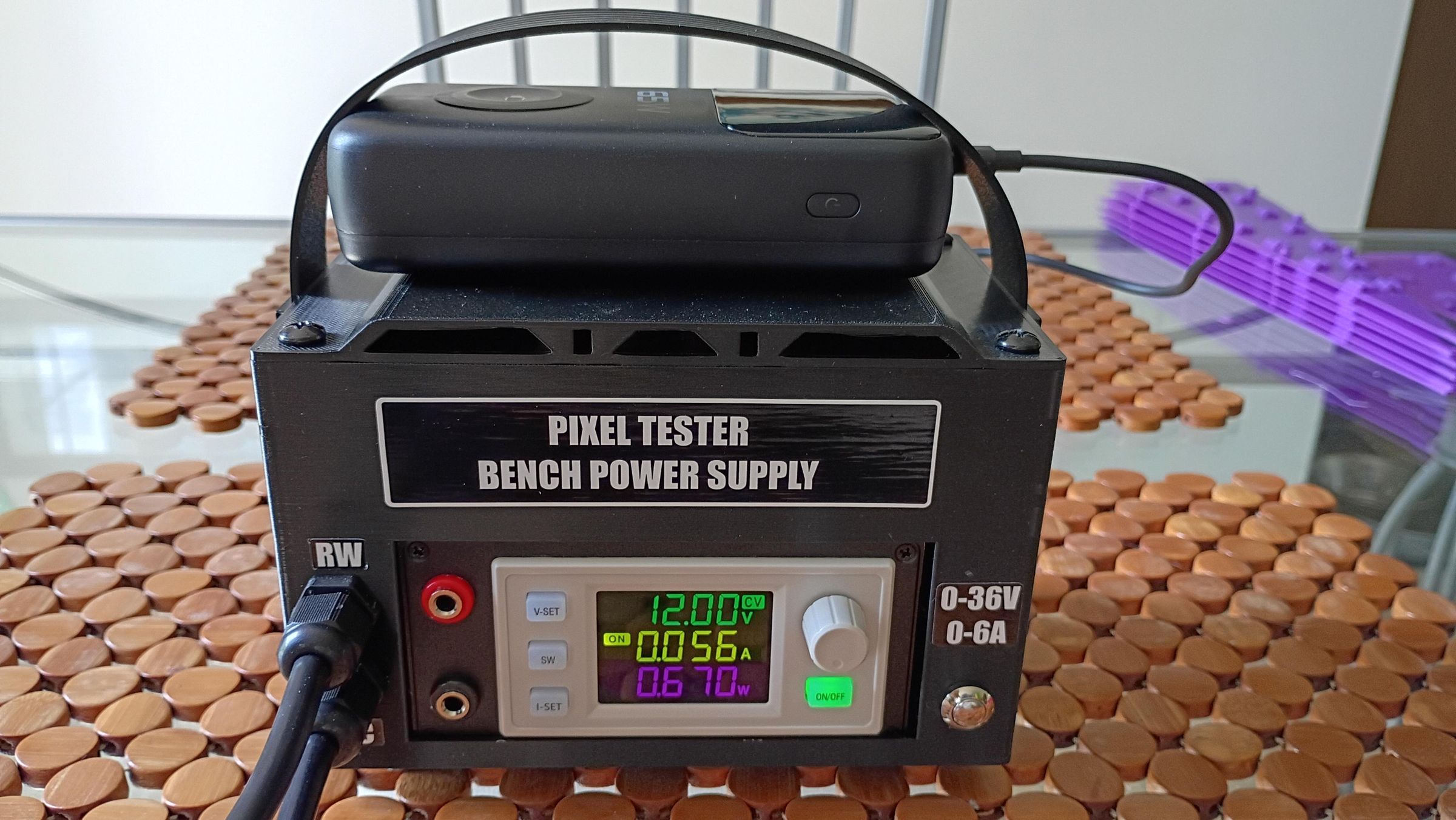

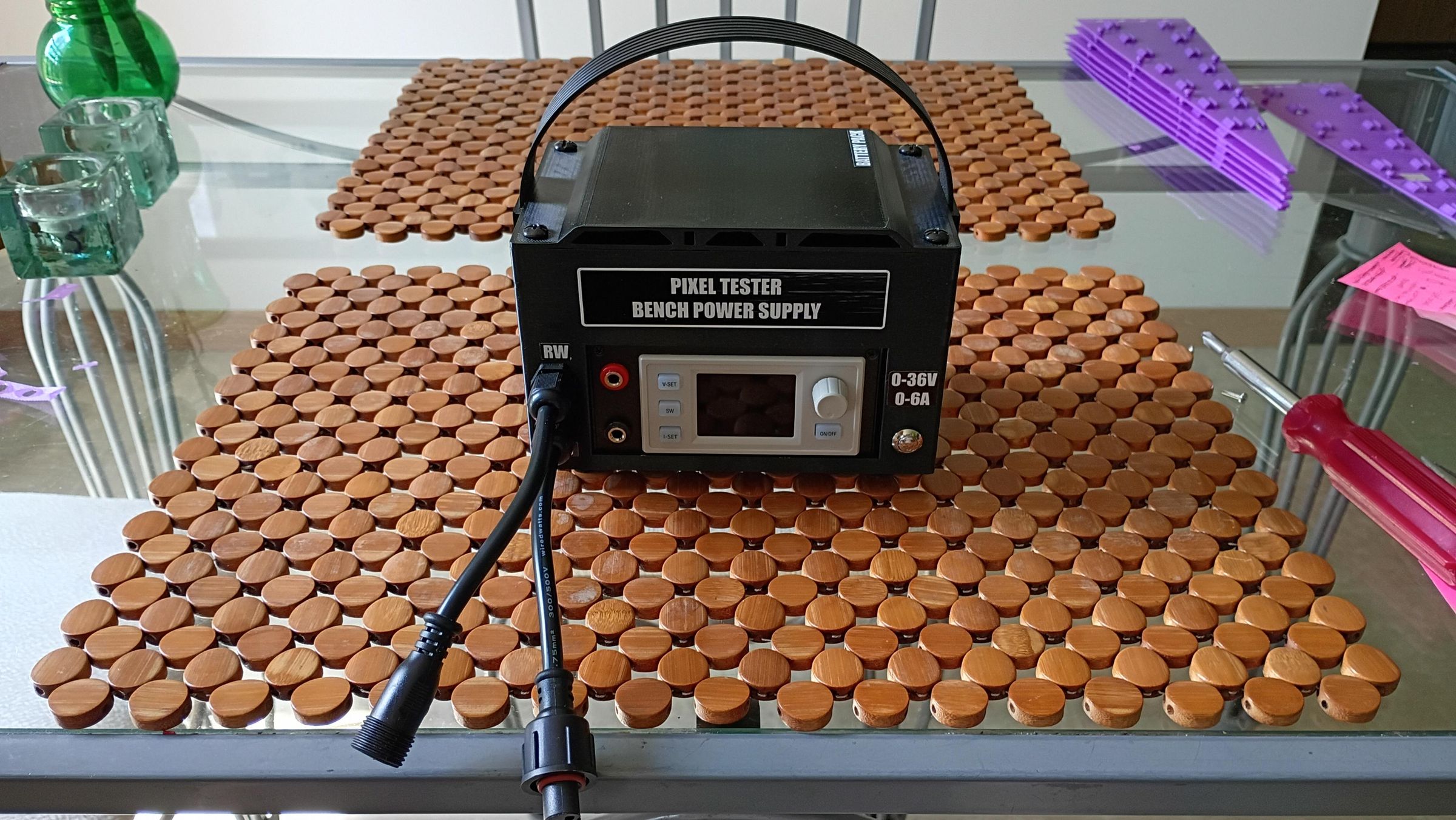
A new invention to help with Christmas lights troubleshooting and other electronics hobbies! This combines a power supply, digital buck/boost converter with display, and a 2-port pixel controller.
What do you get? A lot! it can test two strings of 800 lights (Ray Wu and xConnect supported). It will test any pixel voltage (5, 12, 24V). You can dial-down the voltage to see how the lights work with low voltage (a common problem).
You can use your phone to interact with the lights (no app required, it's a Wi-Fi access point). It defaults to a red-green-blue-white pattern at power-up. The silver button in the lower-right allows two user-defined actions in WLED without needing to involve your phone. And it's an xLights receiver, too.
It also serves as a bench power supply for any voltage up to 36V and 6A. You feed it one power source, it will adapt to any voltage that you need.
You can plug it into the wall (AC input) or strap-on a power bank via USB-C to make it portable! The case is 3D printed (of course).
I've been wanting something like this for years.
Supplies
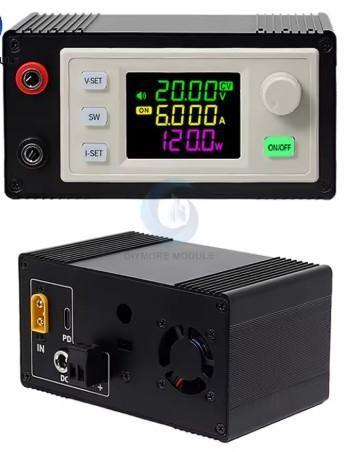



- Adjustable voltage regulator. In order to fit the provided enclosure, be sure to order the exact model as shown in the picture. This one supports up to 120W, 6A, and 36V. Product link
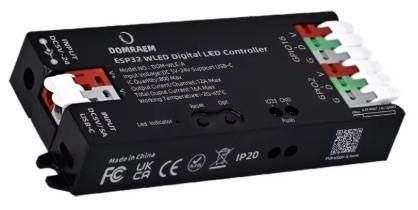
- Addressable LED controller. In order to fit the provided enclosure, be sure to order the exact model as shown in the picture. This controller runs WLED and uses an ESP32 microcontroller. Product link
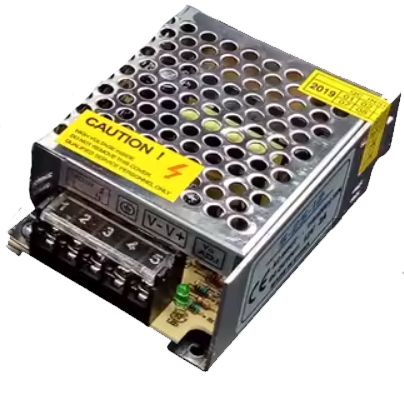
- 12V DC power supply. In order to fit the provided enclosure, be sure to order the exact model as shown in the picture. If you buy a power supply with more amps/watts, it may not fit the enclosure. This one is rated 12V and 6A and should be no larger than 113mm long and 80mm wide. Note that the adjustable voltage regulator requires at least a 6V power supply. Product link
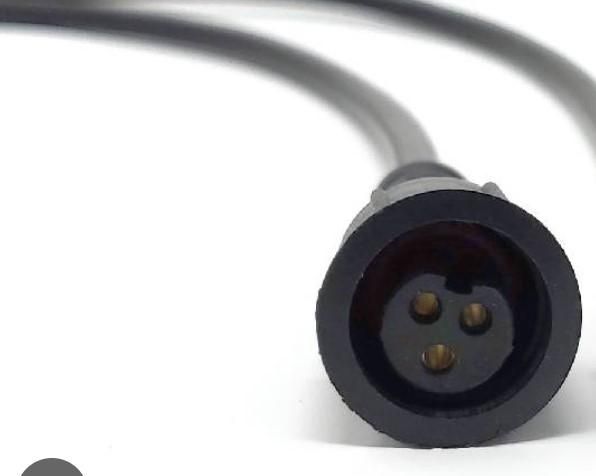
- 2 female pixel pigtails (Ray Wu or xConnect). Pigtails with round cables (not flat) work best. Product link
- 2 PG7 glands. Used for securing pigtails to enclosure. Product link
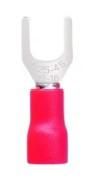
- 6 crimp-style fork connectors. Used for securing AC and DC power cables to power supply.
- 3 crimp-style spade connectors. Used for securing power cables to AC socket.
- Type-C extension cable. This is a panel mount extension cable between the voltage regulator and the enclosure. This needs to be rated for "fast charging speed" and/or Power Delivery for at least 100W. Make sure that the non-panel mount end is right angle and vertical (see picture). Product link
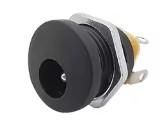
- Panel mount barrel connector. This allows auxilary power to be supplied to the voltage regulator. You can use any size connector that you want, but consider the standard Arduino size with an inside diameter (ID) of 2.1mm and outside diameter (OD) of 5.5mm or less. Product link
- 18AWG 2-conductor cable. For connecting the barrel connector to the voltage regulator
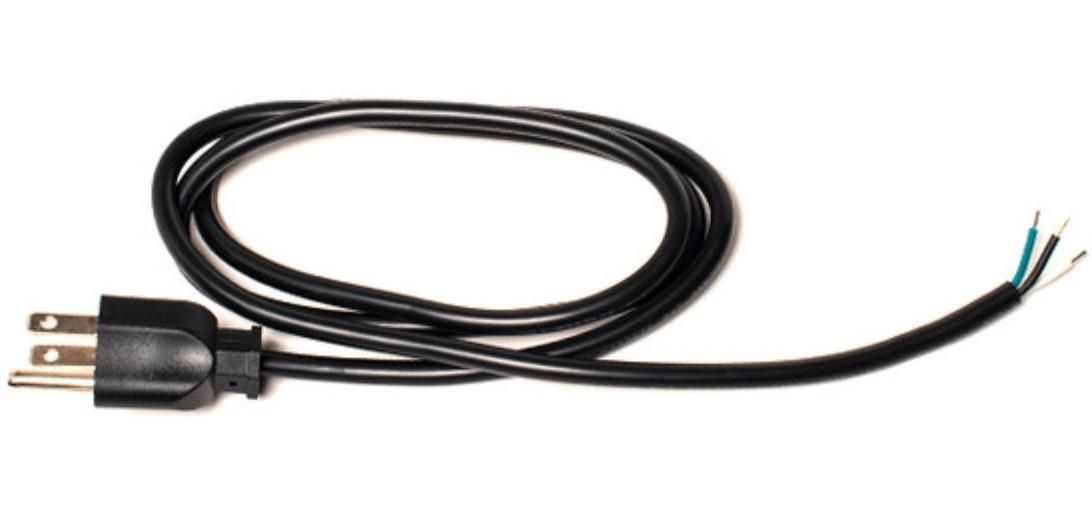
- 3-prong AC power cable with plug, 18AWG. Any computer or monitor power cable will do, simply cut-off the "computer" end.
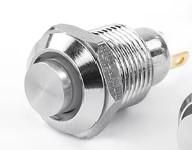
- 2-pin button. Any panel-mount button will do. The enclosure has a 9mm hole for it. This is used for initiating user actions from WLED. Product link
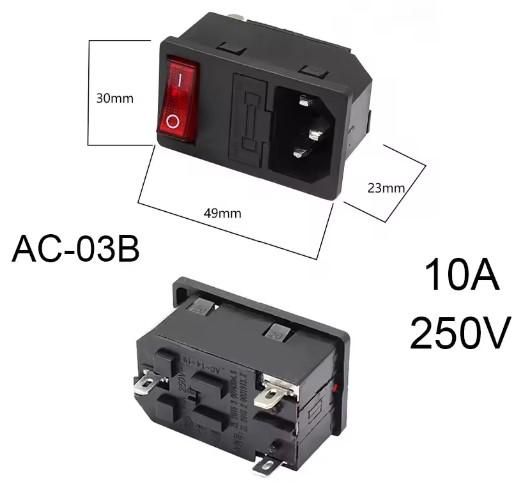
- 3-pin IEC rocker switch. This allows a standard computer/monitor cable to power the pixel tester. I used the "AC-03B" variant with a lighted switch and fuse; this will fit the enclosure properly (see picture). Product link
- 4 screws, 2 bolts, 2 lock washers & regular nuts or 2 nylon nuts. 4 screws are used to secure the lid (hole is 5mm). 2 nuts & bolts are used to secure the handle. Secure these bolts with either a regular nut & lock washer or nylon nuts that don't need lock washers. The handle hole is 5.25mm. If you need to use smaller diameters screws and bolts, let me know and I will provide an updated 3D model with the hole size that you need.
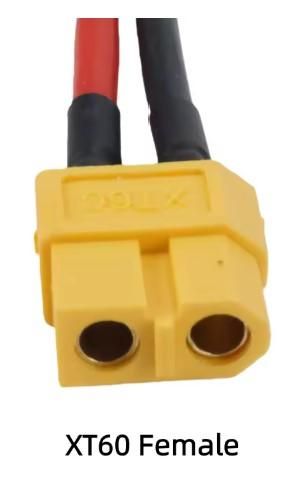
- XT60 female battery connector. This is used to send power from the DC power supply to the voltage regulator. Cable length needs to be 10cm or longer. Product link
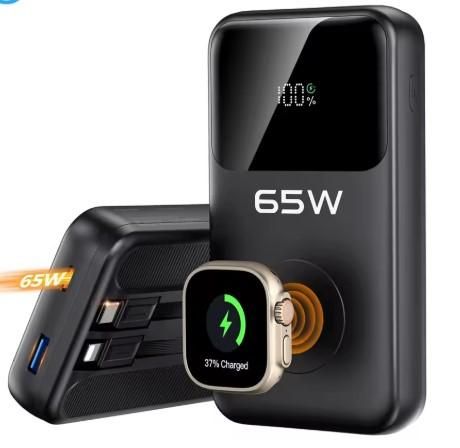
- 65W power bank (optional). This is used to make the pixel tester portable. You can use any mAh rating that you like, but it needs to supply power at 65W minimum and must support Power Delivery (PD).. This is needed as PD power banks supply a higher voltage to the voltage regulator. Typical power banks only supply 5V and that won't work with this voltage regular. I chose a 20,000mAh capacity, but you can choose what you like. This power bank connects to the pixel tester via USB-C. If you want to use a different battery (such as an R/C battery), wire it to a barrel connector and connect it to the pixel tester's AUX port. The battery can be strapped onto the lid; 1" slots are provided for the straps. Product link
- 2 in-line mini fuses & holders (optional). If you want the pixel outputs to be fused, purchase these and attach them to the power lines of each pigtail. Choose the 7.5A variant. I chose not to fuse my pixel tester, but you certainly can. There should be enough room in the enclosure for them. Product link
- 3D printer. The enclosure requires a 3D printer to fabricate it. Any kind of filament will work, but I chose PETG for its ruggedness. The handle can be printed with TPU or TPE (rubber).
3D Print Enclosure


3D print the enclosure, lid, and handle. You can download the STL files for these at Thingiverse here:
https://www.thingiverse.com/thing:7354696
The lid can be printed without supports.
The enclosure can be printed without supports, but add supports for the large window in front and for the AC power panel mount connector in the rear.
Print the handle in TPU or TPE without supports.
I used 15% infill and 4 walls/perimeters for the enclosure so that the screw holes have plenty of filament around them for strength.
Install Panel Mount Connectors
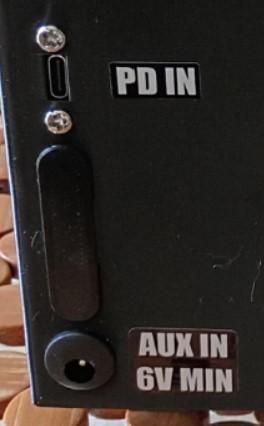

- Install the USB-C panel mount connector to the back of the enclosure using the provided bolts.
- Solder two 18AWG wires to the panel mount barrel connector, then attach the connector to the back of the enclosure. You will see an unused green or black Phoenix plug on the back of voltage regulator. Disconnect this plug and attach the other end of the barrel connector wires to it. Do not plug the Phoenix connector into the voltage regulator yet.
- Warning: Make sure to get the polarity correct on the barrel connector! The center pin wire goes to the "+" terminal on the voltage regular while the outside barrel wire goes to the "-" terminal.
- Solder two wires to the 2-pin panel mount button, wires long enough to reach the middle-top of the enclosure. Then attach the button to the lower-front of the enclosure and leave the wires loose for now.
Modify Voltage Regulator
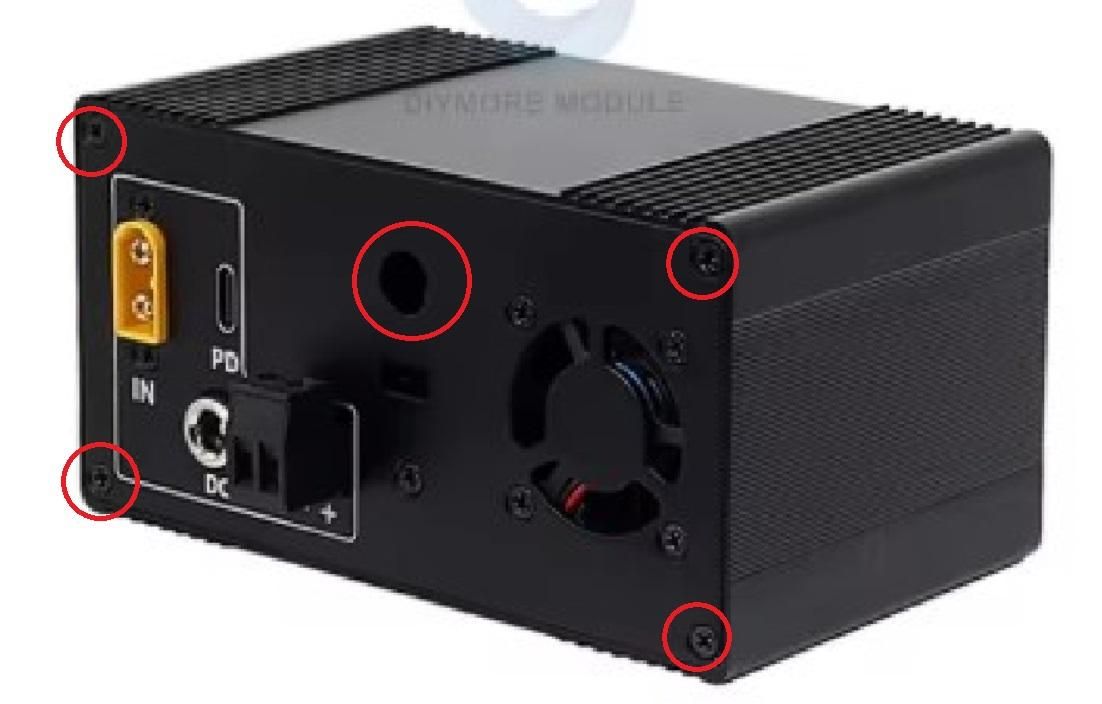
The pixel controller will get its power from the voltage regulator's output. However, the voltage regulator only has external banana jacks for output power; we need something more integrated.
- Remove the four tiny screws from the back of the voltage regulator. This disengages the back cover.
- Locate the banana plug terminals from inside the regulator. Red and black wires connect to each terminal via removable post connectors.
- Use a socket wrench to remove the nuts securing the wires. What's left are two threaded posts.
- Crimp large fork or circle connectors to 18AWG wire, connectors wide enough to slip around the threaded posts.
- Slip the fork/circle connectors over the posts, reattach the original red & black wires, then firmly secure both with the post nuts.
- The back cover has a circular hole in it, route the 18AWG wires through it.
- Reattach the back cover.
Prepare AC Cable
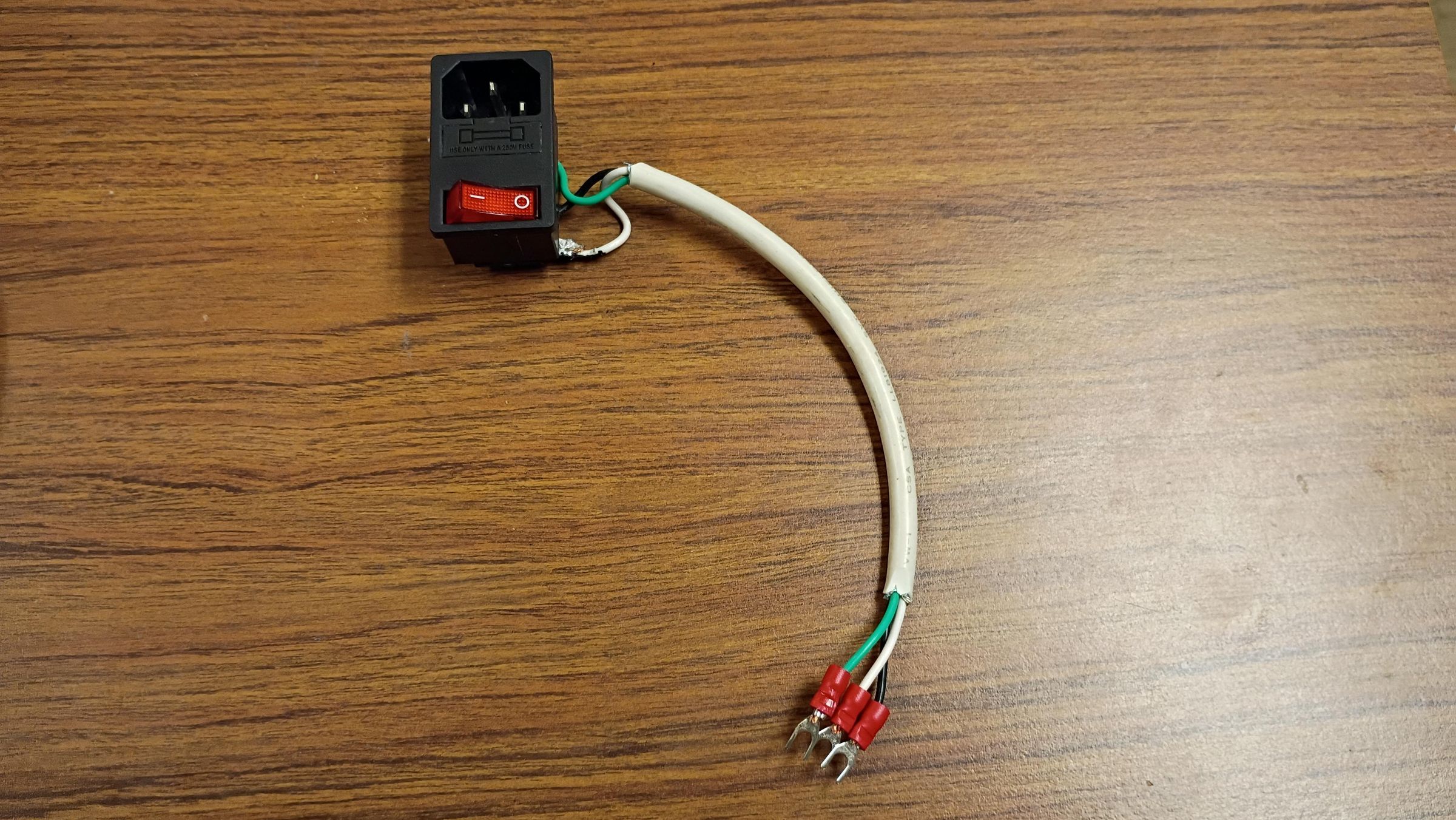
With a short length of 3-prong A/C cable (it's highly recommended to use a cable with black, white, and green 18AWG conductors):
- Crimp fork connectors on one end of the cable.
- Crimp spade connectors on the other cable end.
- Attach the spade connectors to the 3-pin IEC rocker switch panel mount terminals. The black wire connects to Line/Main, the white wire connects to Neutral, and the green wire connects to Ground. If you are unsure which terminals are which, Google is your friend.
- Feed the forked end of the cable through the power output hole in the back of the enclosure, then snap the IEC rocker switch in-place.
Warning: Be very sure to get switch terminals right or you may get shocked or harmed when applying AC power to the pixel tester!
Build Power Supply Output Cable
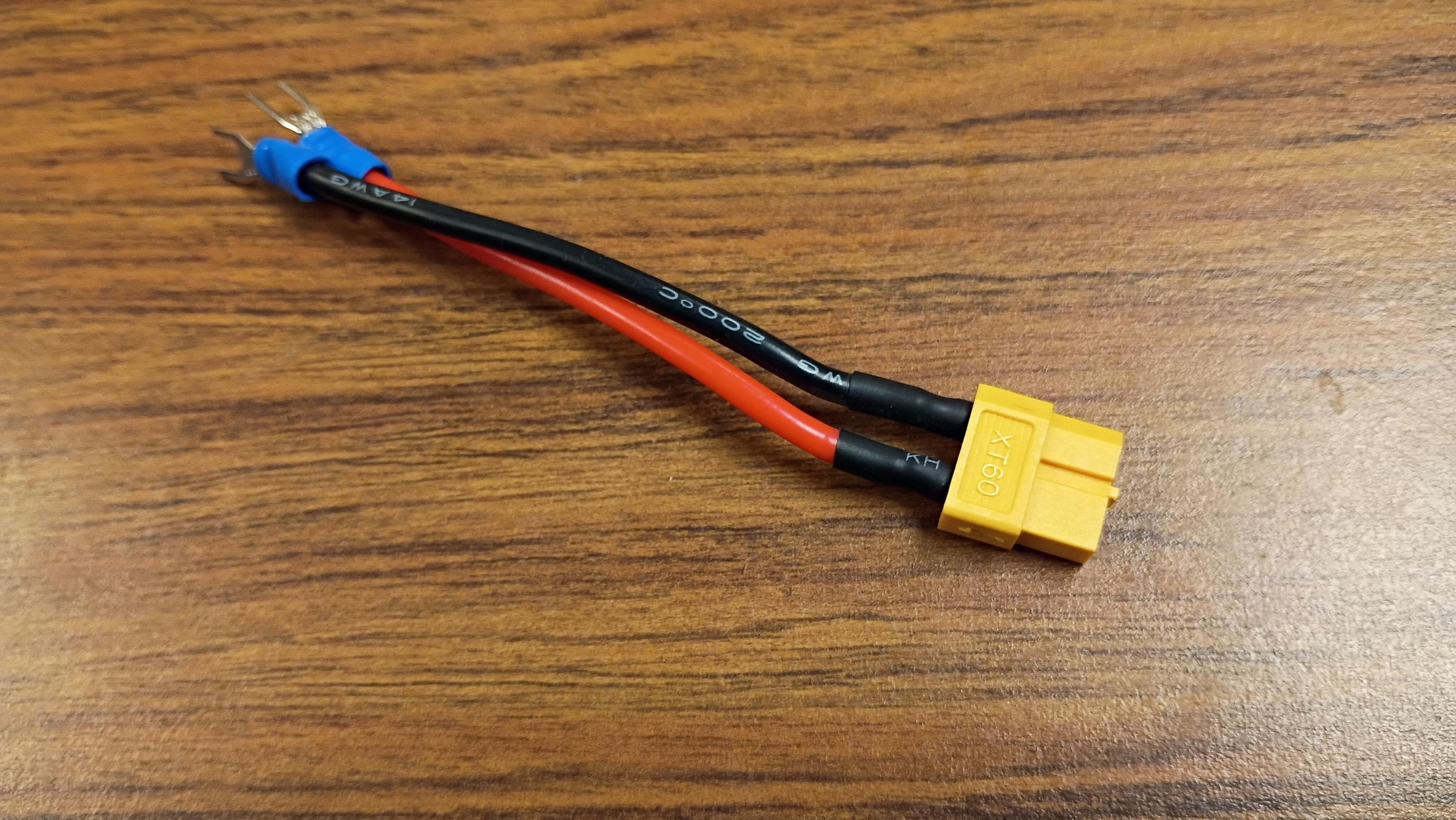
- Trim-off the soldered ends of the yellow XT60 battery connector cables.
- Attached fork connectors to these cables.
Mount Voltage Regulator

- Connect the XT60 battery connector to the back of the voltage regulator.
- Place the voltage regular into the enclosure with the screen-side of the regulator facing the large window of the enclosure.
- Connect the Phoenix connector from the barrel cable to the back of the voltage regulator. It's a tight fit, but it will fit.
- Connect the USB-C connector to the back of the voltage regulator.
Mount Power Supply
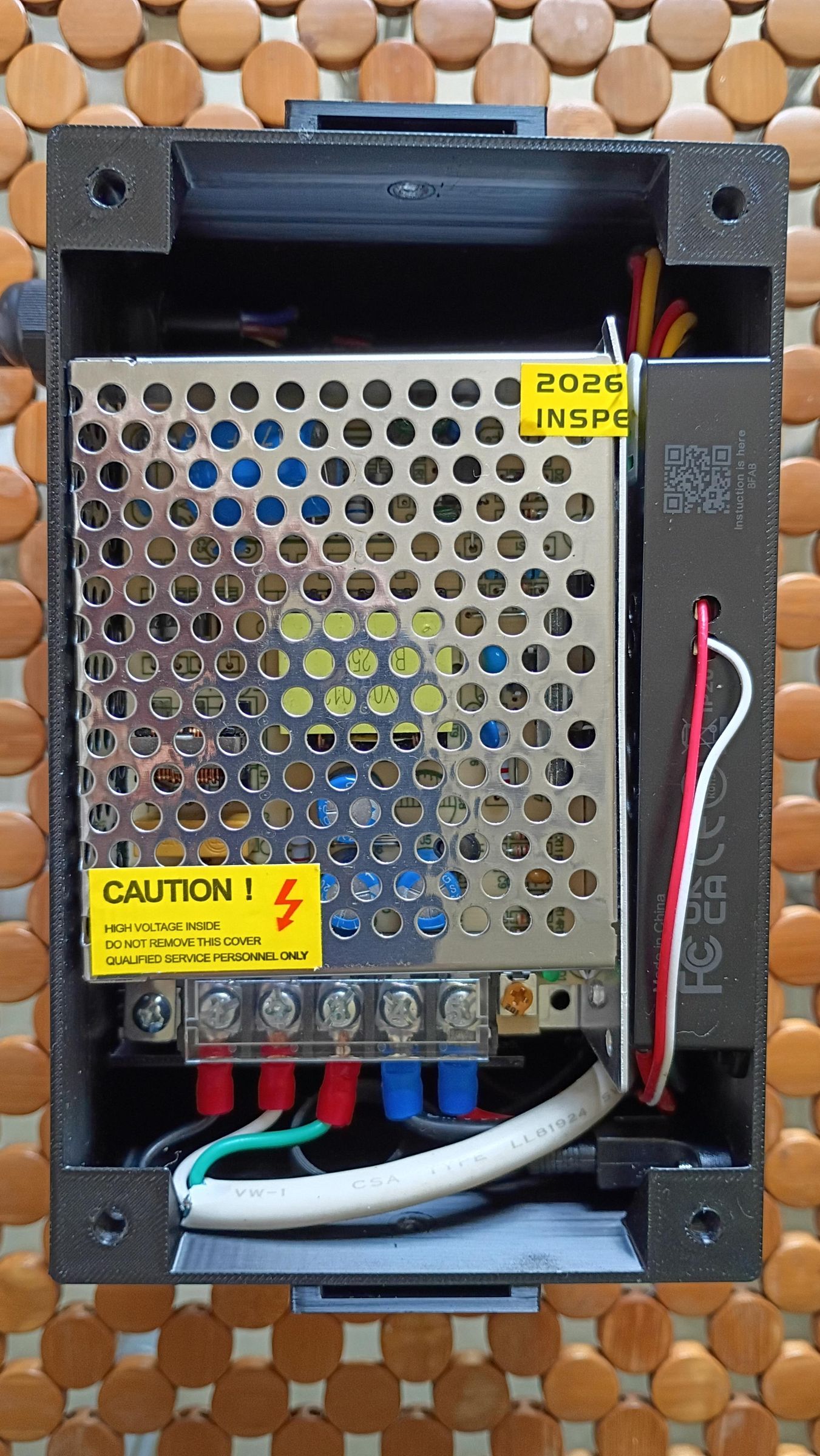
- Place the DC power supply on top of the voltage regulator, with the screw terminals facing the USB and barrel connector side of the enclosure.
- Attach the black, white, and green fork connectors from the 3-pin IEC rocker switch to the L(ine), N(eutral), and G(round) terminals on the power supply respectively.
- Attach the red and black wires from the yellow battery connector to the + and - terminals on the power supply, respectively.
Warning: Be careful with the terminal connections, be very sure that you connected the wires to the correct terminals, otherwise electric shock, harm, or fire could occur!
Mount Pigtails
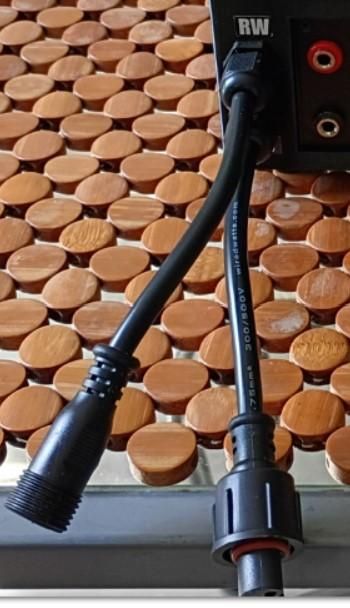
- With each pigtail, trim-off the soldered ends, then strip enough insulation to expose about 1/4" of bare wire on the three wires. Twist the bare wire to keep the fine strands together.
- Remove the nuts from the PG7 glands, insert the glands into the front two holes on the left side of the enclosure, then attach the nuts to the glands from inside the enclosure.
- Remove the caps from the PG7 glands, then slide the caps onto the pigtails.
- Slide the pigtails into the PG7 glands from the front of the enclosure to inside.
- Screw the caps back onto the PG7 glands, securing the pigtails in-place.
Mount Pixel Controller


Looking at the pixel controller, one one narrow edge are two terminals. These are for power input to the controller. On the other end of the controller are six terminals, three for each pigtail. On the long edge are two holes. These are for the button wires.
- Orient the pixel controller so that the edge with two terminals is facing the power supply's terminals. Make sure the two holes on the long edge of the controller are facing up. Don't mount the controller into the enclosure yet.
- Flip up the tabs on the controller edge with just two terminals. It takes some effort to fully flip them open.
- On the voltage regulator, take the two wires that you installed (coming out of the round hole in the back of the regulator) and insert them into the two terminals on one edge of the controller. The red terminal on the controller is for voltage, the gray terminal is for ground. Push down the tabs to lock the wires in-place.
- Optional: Solder the in-line mini fuse holders to the power conductors of each pigtail. Insert the 7.5 amp fuses into the fuse holders.
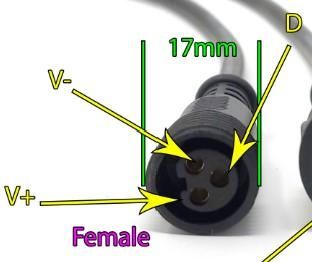
- Each pigtail has power (V+), ground (V-), and data (D) conductors. Use the attached picture and a voltmeter to determine which connector is which on the pigtails. This webpage may help, too.
- Flip open all six tabs on the narrow edge of the pixel controller. The first set of three tabs are for the bottom pigtail, the second set of three tabs are for the top pigtail. Attach the bottom pigtail's V+ conductor to the first red V terminal, the V- conductor to the gray G terminal, and the D conductor to the green D terminal. Repeat the same for the top pigtail on the second set of three terminals. Flip-down the tabs to lock the conductors in-place.
- On the face of the pixel controller, you will see two screw terminals labeled "Push". Use a small flat blade screwdriver to loosen these screws a little. Do not remove the screws, just a couple of turns will work.
- Insert the two button wires into the two holes on the long edge of the controller, then tighten the screw terminals to lock them in-place.
- Slide the pixel controller vertically to the side of the power supply, along the back of the enclosure (see picture). The button wires should be facing up. In the picture, the front of the enclosure is on the left, the pixel output terminals on the controller are facing the top.
- You are finished with building the internal components!
Attach Handle (optional)

- Insert the ears of each side of the handle into the slots on each side of the enclosure. The holes in the handles should align with those in the slots.
- Push bolts from outside the enclosure's handle slots into receiving nuts on inside the enclosure and tighten.
Attach Lid
- Slide the lid onto the top of the enclosure, underneath the handle.
- Secure lid with four bolts.
- You are done with the pixel tester build!
Connect Power Source
The pixel tester has three power inputs:
- A/C (via computer IEC cable)
- USB-C (via a Power Delivery capable source such as an AC to DC wall adapter or power bank battery. You can strap a battery to the lid using its 1" strap slots)
- Auxiliary (via barrel connector)
It is very important to only connect one power source at a time! Otherwise there is the risk of component failure, electric shock, or fire.
- Connect a power source of your choice (A/C may be the simplest choice for the time being).
- Flip the rocker switch on the back of the enclosure to activate the pixel tester. The switch should light-up.
- On front of the pixel tester, the On/Off button in the lower-left corner of the voltage regulator should turn red but the display is dark.
- Push the red button, the display should light-up and show information. The button stays red and the voltage regulator is not outputting power yet.
- To set a voltage, push V-Set button, then turn the knob to a desired voltage (start with 5V). You can push the knob like a button to set the decimal places in the voltage.
- Since the power button is still red, the voltage regulator is not yet outputting power. Also, when this button is red, the pixel controller inside your tester is not receiving power. Press the red button to turn on the voltage regulator (and thereby the pixel controller), turning the button green.
Configure Pixel Tester Settings

The pixel controller uses WLED as its interface. It creates its own wireless access point that you can connect to with your phone or laptop (hint, the SSID starts with WLED).
To configure the WLED settings for use as a pixel tester, do the following:
- On your phone or laptop, download the attached cfg.json and presets.json files.
- Connect to the WLED-AP Wi-Fi network. There is no password.
- Upon connection, your phone should open the WLED interface. If it doesn't, open a web browser and go to address: 4.3.2.1
- Choose Config in the top-right corner, then scroll-down and choose "Security & Updates" at the bottom of the menu.
- On the next screen, scroll-down to the "Restore configuration" section, then select "Choose File" under it. Browse to the cfg.json file that you downloaded.
- WLED may reboot after restoring the configuration.
- Repeat steps 1-4, then choose Choose File under the "Restore presets" section. Browse to the presets.json file that you downloaded.
- At this point, your pixel tester is configured and ready to use!
How to Use
- Connect 1 or 2 strings of pixels to the pixel tester's pigtails. While the pixel tester supports 800 pixels per string, the power supply only supports 6A total output with both ports combined.
- Set the correct voltage and turn on the pixel tester as described in the previous step.
- The pixel tester will automatically light-up the strings as red, green, blue, white in succession, then repeat.
- Short-pressing the silver button chooses a random LED "effect". Press it again to choose another random effect.
- Long-pressing the silver button (2 seconds) will revert back to the red-green-blue-white test pattern. Note, you can change the button's actions in the WLED interface to your own actions. Read the WLED documentation here, here, and here to learn more.
Warning: Do not long-press the button for more than 2 seconds as it may erase your pixel controller's WLED settings, forcing you to re-upload the cfg.json and presets.json files to it.
You can also power other electronics projects through the banana plug terminals on the front of the pixel tester. Voltage can be adjusted from 0-36V and amps from 0-6A.
Enjoy your new pixel tester!