PowerPD — ESP32 USB-C PD Bench Power Supply
by Rau7han in Circuits > Electronics
1146 Views, 4 Favorites, 0 Comments
PowerPD — ESP32 USB-C PD Bench Power Supply


USB-C PD chargers are everywhere these days. Most of us already have a 30W, 65W, or even 100W charger sitting in a drawer. While they're usually used for charging phones and laptops, they can also be used as surprisingly capable power sources.
That inspired me to build PowerPD, a compact ESP32-based programmable power supply that turns a USB-C PD charger into a small bench supply. Using an AP33772S PD controller, it can negotiate different voltage profiles from a compatible charger, while an INA226 monitors voltage, current, and power in real time.
Using the rotary encoder, I can select standard PD voltages such as 5V, 9V, 12V, 15V, and 20V. If the charger supports PPS, the output voltage can also be adjusted in smaller steps. The OLED display shows live measurements, and the ESP32 can even send data to Adafruit IO for remote monitoring.
In this Instructable, I'll show how I designed the hardware, assembled the PCB, developed the firmware, and tested the finished device.
Supplies

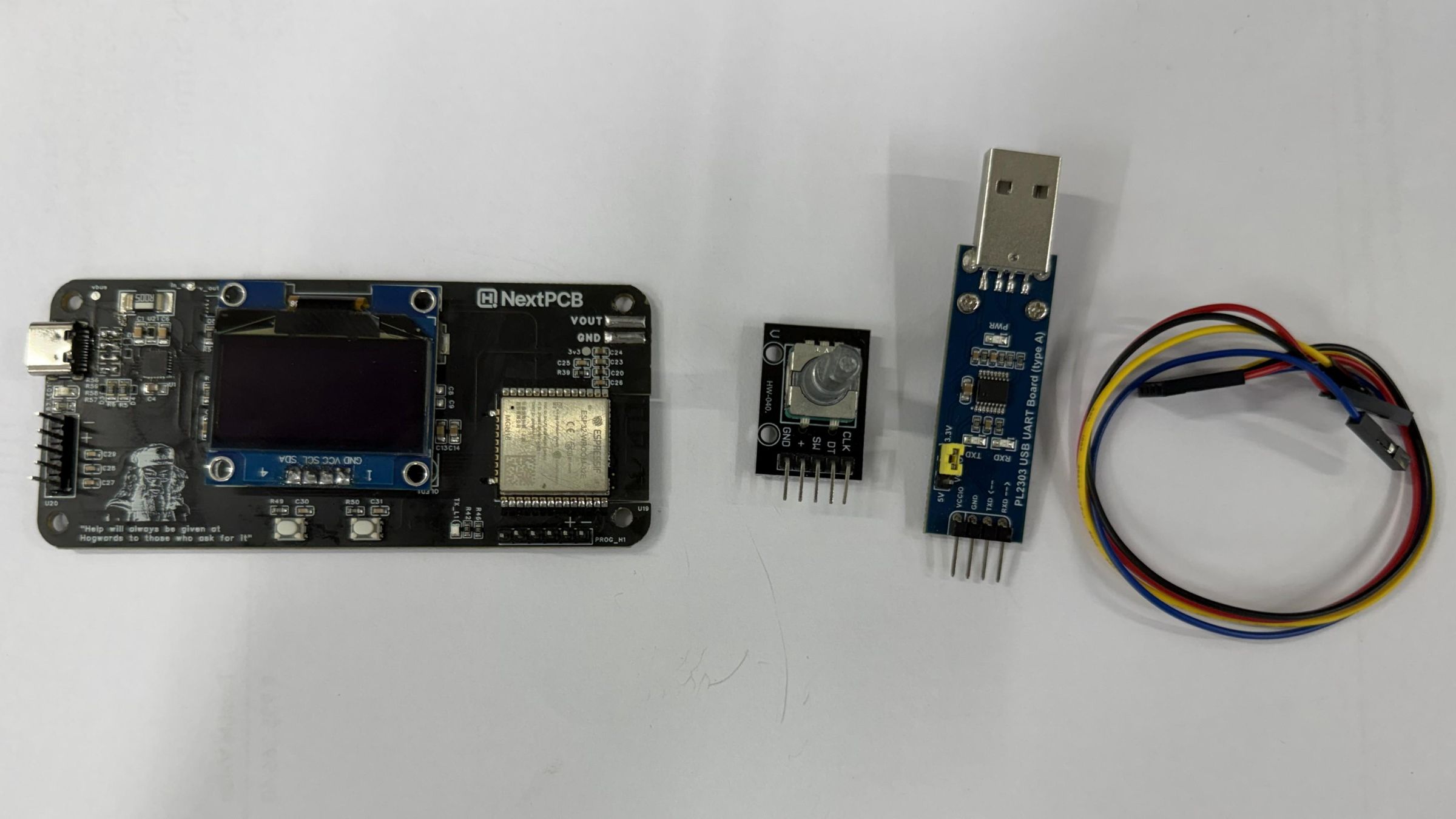

Main Components
- ESP32-WROOM-32E Module
- AP33772S USB-C PD Sink Controller
- INA226 Voltage/Current Monitor
- MP1584 Buck Converter
- AP2204K 3.3V Regulator
- USB Type-C Connector
- 5 mΩ Current Sense Resistor
- MOSFET Output Switch
- 1.3-inch SH1106 OLED Display
- Rotary Encoder
- Push Buttons
- Status LEDs
- Assorted resistors, capacitors, diodes, and other passive components
Tools
- USB-C PD Charger (supports at least 9V PD)
- 3.3V USB-to-UART Adapter (CP2102, CH340, or FT232RL)
- Jumper Wires
- Multimeter
Working Principle


Before getting into the hardware, it helps to understand how PowerPD works.
When a USB-C PD charger is connected, it starts at the default 5V output. The AP33772S then reads the voltage profiles supported by the charger and negotiates the requested PD or PPS voltage.
Once the voltage is selected, power flows through the 5 mΩ shunt resistor and MOSFET output switch before reaching the output terminals. The INA226 continuously measures voltage, current, and power, then sends the data to the ESP32 over I²C.
The ESP32 updates the OLED display, handles the rotary encoder and buttons, controls the output switch, and can optionally send live data to Adafruit IO over Wi-Fi.
The onboard buck converter and 3.3V regulator power the ESP32 and other logic circuits directly from the USB-C input.
Circuit Overview
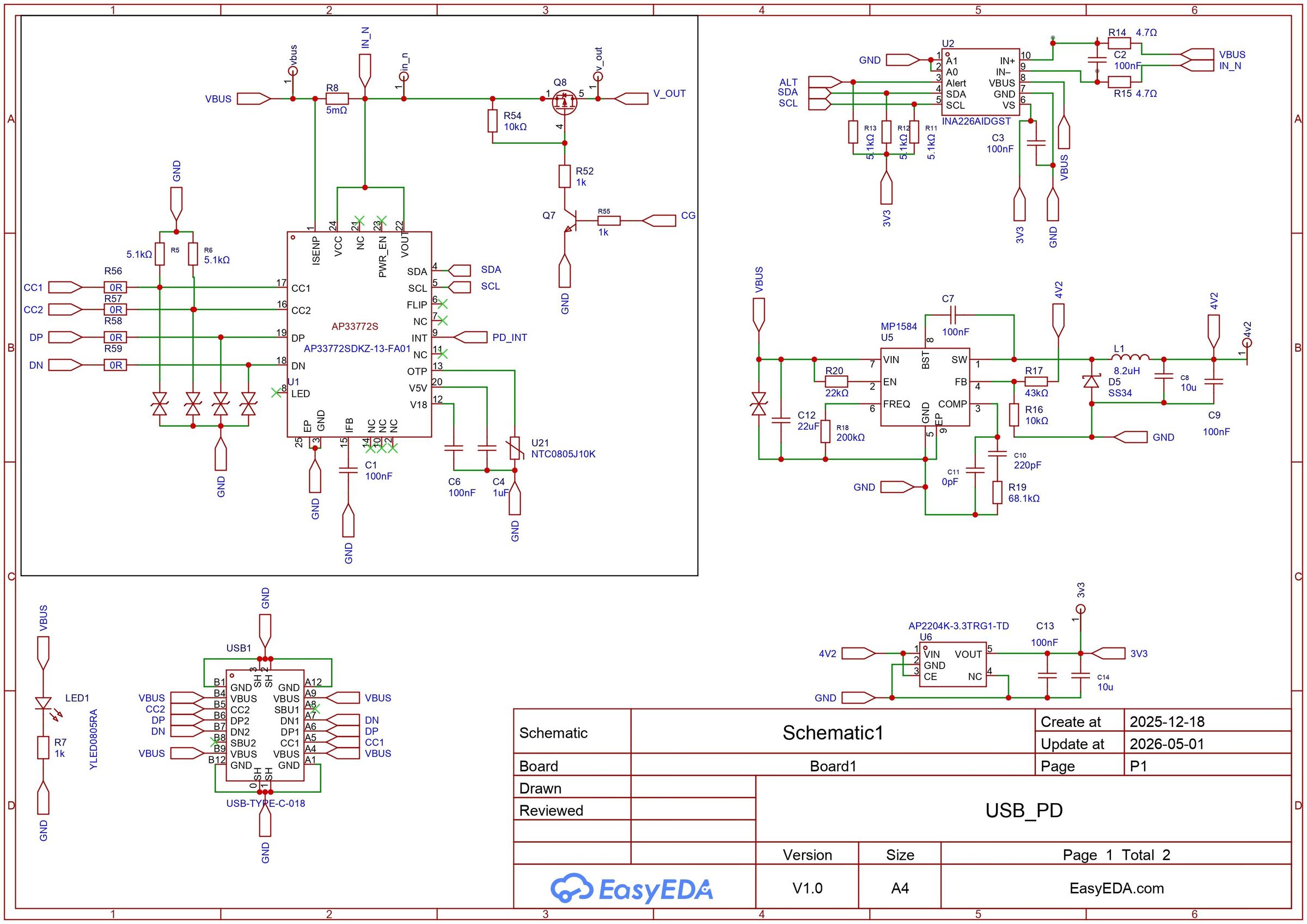

The USB-C connector provides both power and communication with the PD charger. The AP33772S handles PD negotiation and requests the selected voltage profile, such as 5V, 9V, 12V, 15V, or 20V.
Voltage and Current Monitoring
A 5 mΩ shunt resistor and INA226 monitor the output voltage, current, and power in real time. This data is sent to the ESP32 over I²C.
Output Switching
A MOSFET acts as an electronic power switch, allowing the ESP32 to safely enable or disable the output.
Internal Power Supply
The MP1584 buck converter reduces the input voltage, while the AP2204K regulator generates a stable 3.3V supply for the ESP32 and other logic circuits.
ESP32 Controller
The ESP32 manages the entire system. It handles PD negotiation, reads measurement data, updates the OLED display, processes user inputs, and can optionally send data to Adafruit IO over Wi-Fi.
User Interface
The board uses a 1.3-inch SH1106 OLED display, a rotary encoder, and push buttons for voltage selection, menu navigation, and output control.
Downloads
USB-C PD, PPS, and AVS Basics

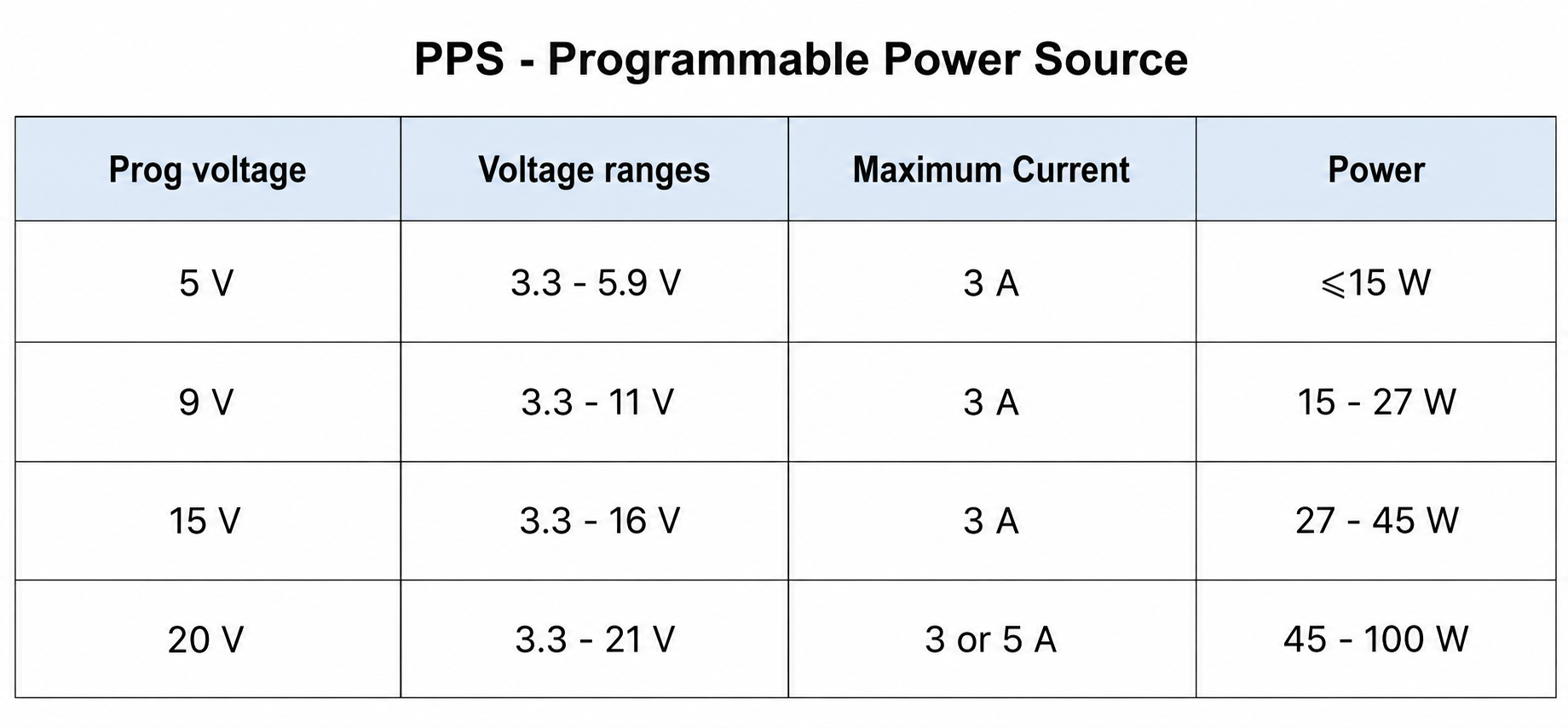


USB-C PD chargers can provide multiple voltage levels depending on their capabilities. The most common PD profiles are:
- 5V
- 9V
- 12V
- 15V
- 20V
These fixed voltage levels work well for most applications, but sometimes a project needs a voltage in between. That's where PPS comes in.
PPS (Programmable Power Supply)
PPS allows the charger to adjust its output voltage in small steps instead of switching only between fixed profiles. This makes it useful for powering prototypes, testing circuits, and other electronics projects that require more flexibility.
Not all USB-C PD chargers support PPS, so it's worth checking the charger specifications before using this feature.
EPR (Extended Power Range)
Newer USB-C chargers may support EPR, which adds higher voltage levels such as 28V, 36V, and 48V for high-power devices.
PowerPD currently supports standard PD and PPS profiles only.
AVS (Adjustable Voltage Supply)
AVS is another adjustable voltage feature introduced in newer USB PD specifications. It is designed for higher-power applications and is not currently supported by PowerPD.
Before requesting any voltage, always check what your charger supports. The AP33772S can only negotiate profiles advertised by the charger.
PCB Design and Assembly


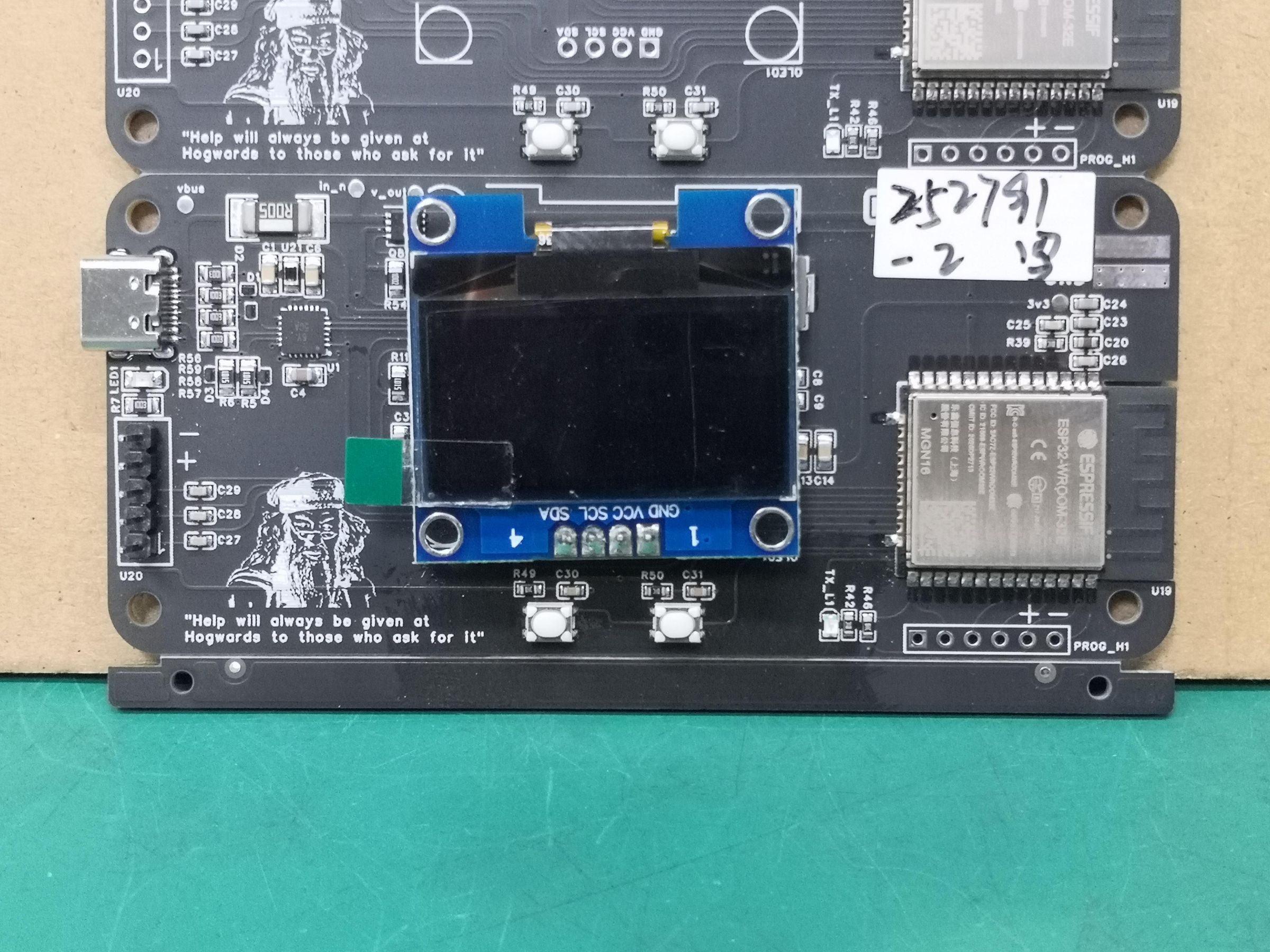


My friend Rabindra designed the PowerPD PCB in EasyEDA. He also handled the design research, component selection, schematic planning, PCB layout, and overall development process.
The AP33772S is placed close to the USB-C connector to keep the CC traces short, while the INA226 sits next to the 5 mΩ shunt resistor for accurate current sensing.
Since several components use fine-pitch packages, including the AP33772S and USB-C connector, I decided to have the boards professionally assembled. For this project, I used NextPCB for both fabrication and assembly.
After uploading the Gerber files, BOM, and pick-and-place file, NextPCB handled component sourcing and assembly. Before shipping, they sent photos of the completed boards so I could verify the component placement.
Sponsored by NextPCB
This project was successfully completed with the support of NextPCB, a reliable multilayer PCB manufacturer. With over 15 years of experience in PCB fabrication and assembly, NextPCB offers high-quality and dependable PCB solutions for makers and professionals worldwide.
You can order high-quality PCBs starting at $1.9, and multilayer PCBs starting at $6.9:
https://www.nextpcb.com/pcb-quote
Get free PCB assembly for up to 5 boards:
https://www.nextpcb.com/pcb-assembly-quote
With comprehensive Design for Manufacture (DFM) analysis features, HQDFM is a free, sophisticated online PCB Gerber file viewer.
Once the boards arrived, all that was left was to upload the firmware and start testing. The boards worked straight away without any rework.
If you'd like to build your own PowerPD, I've included the Gerber files, BOM, and schematic in the GitHub repository.
Firmware Overview


To communicate with the AP33772S USB-C PD controller, I created a custom Arduino library for this project. The library, firmware, and project files are available on GitHub.
To compile the project, place the following files in the same Arduino sketch folder:
- PowerPD.ino
- AP33772S.h
- AP33772S.cpp
Before uploading the firmware, install these libraries:
- U8g2
- INA226
- PubSubClient
The ESP32 handles PD/PPS negotiation, reads measurements from the INA226, updates the OLED display, processes user inputs, controls the output MOSFET, and can optionally send data to Adafruit IO over Wi-Fi.
On startup, the ESP32 checks the AP33772S and INA226, reads the available PD profiles from the charger, and displays the main interface. From there, the user can select a voltage, enable the output, and monitor live measurements.
Adafruit IO Setup


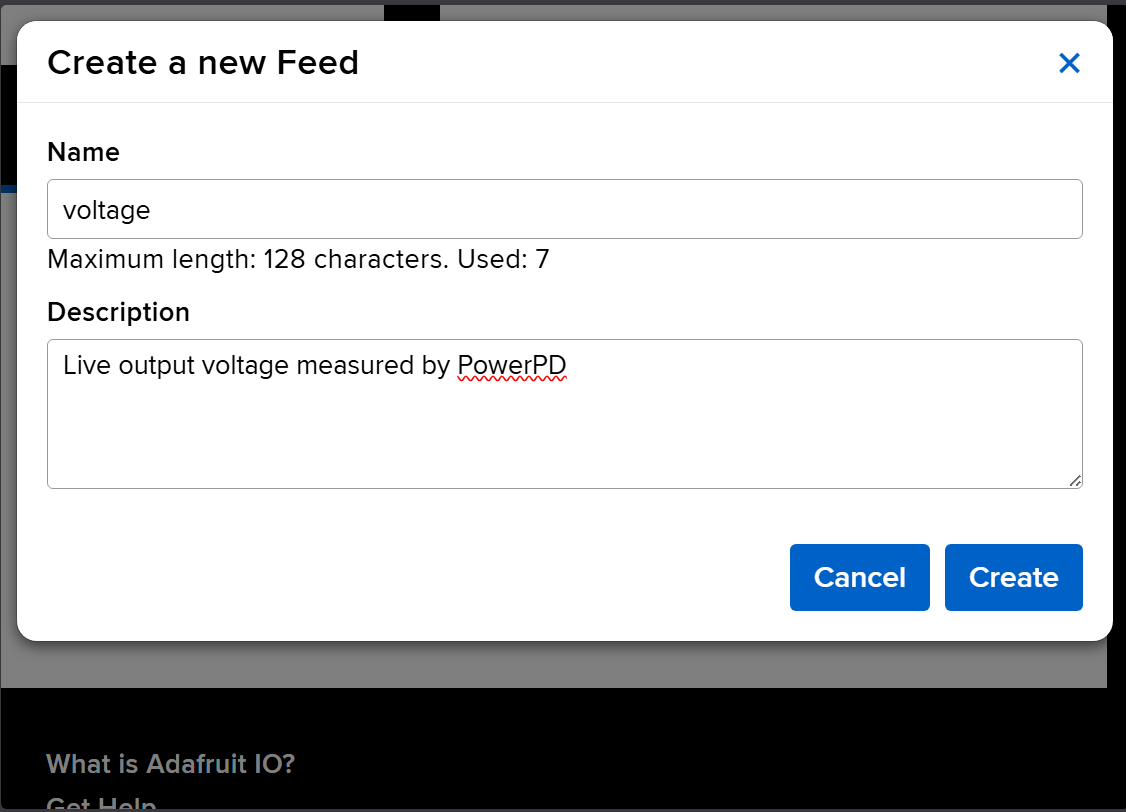


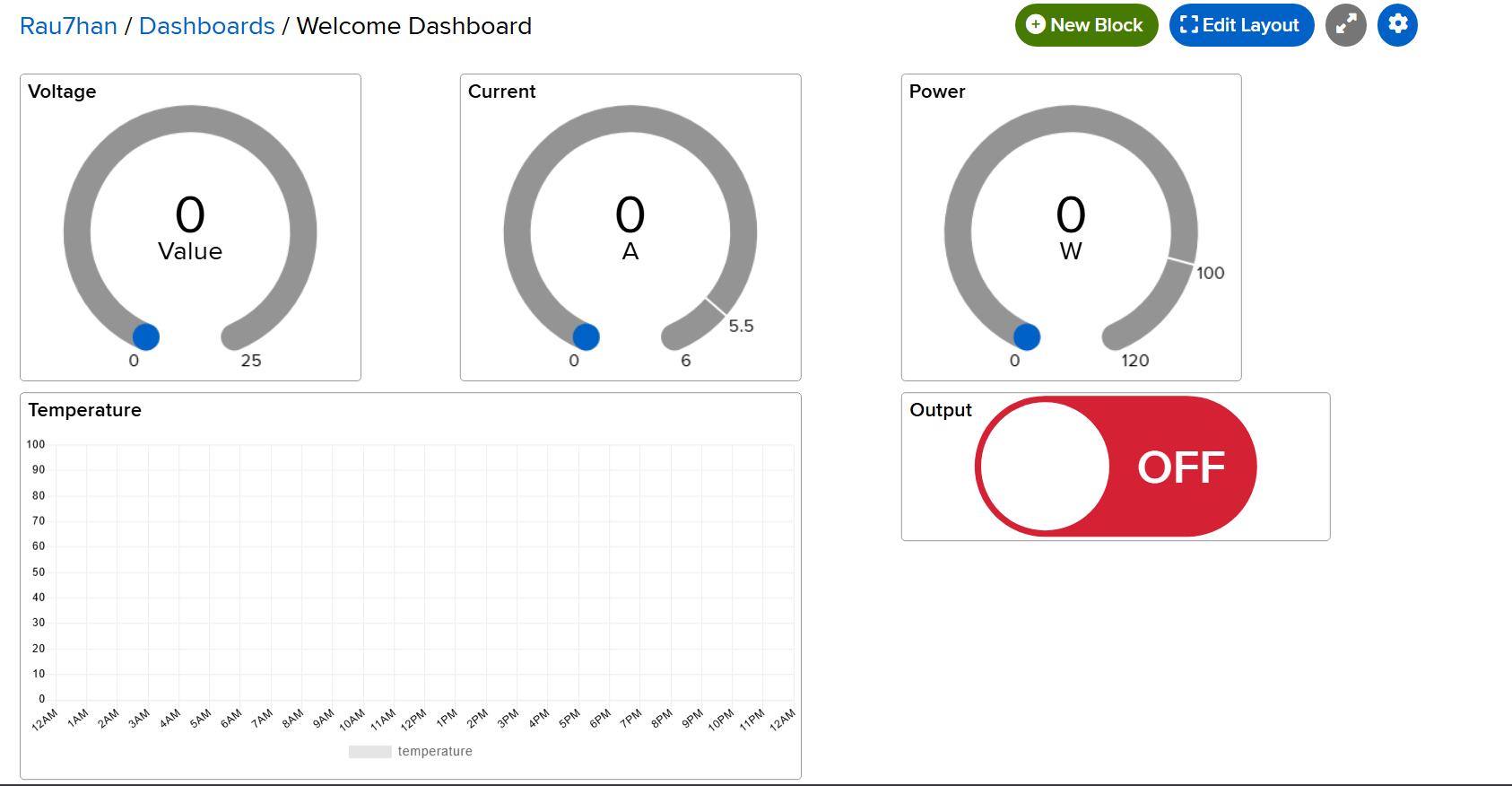
PowerPD can send live data to Adafruit IO, allowing me to monitor the power supply remotely from a web dashboard.
For this project, I created five feeds:
- voltage
- current
- power
- temperature
- output
After creating the feeds, I created a dashboard and added gauge widgets for voltage, current, and power, a chart for temperature monitoring, and a toggle switch for output control.
The ESP32 publishes live measurements to Adafruit IO over Wi-Fi, and it can also subscribe to the output feed, allowing the output to be turned ON or OFF directly from the dashboard.
Finally, update your Wi-Fi and Adafruit IO credentials in the firmware before uploading:
Once configured, the dashboard will display live voltage, current, power, temperature, and output status from PowerPD.
Uploading Firmware
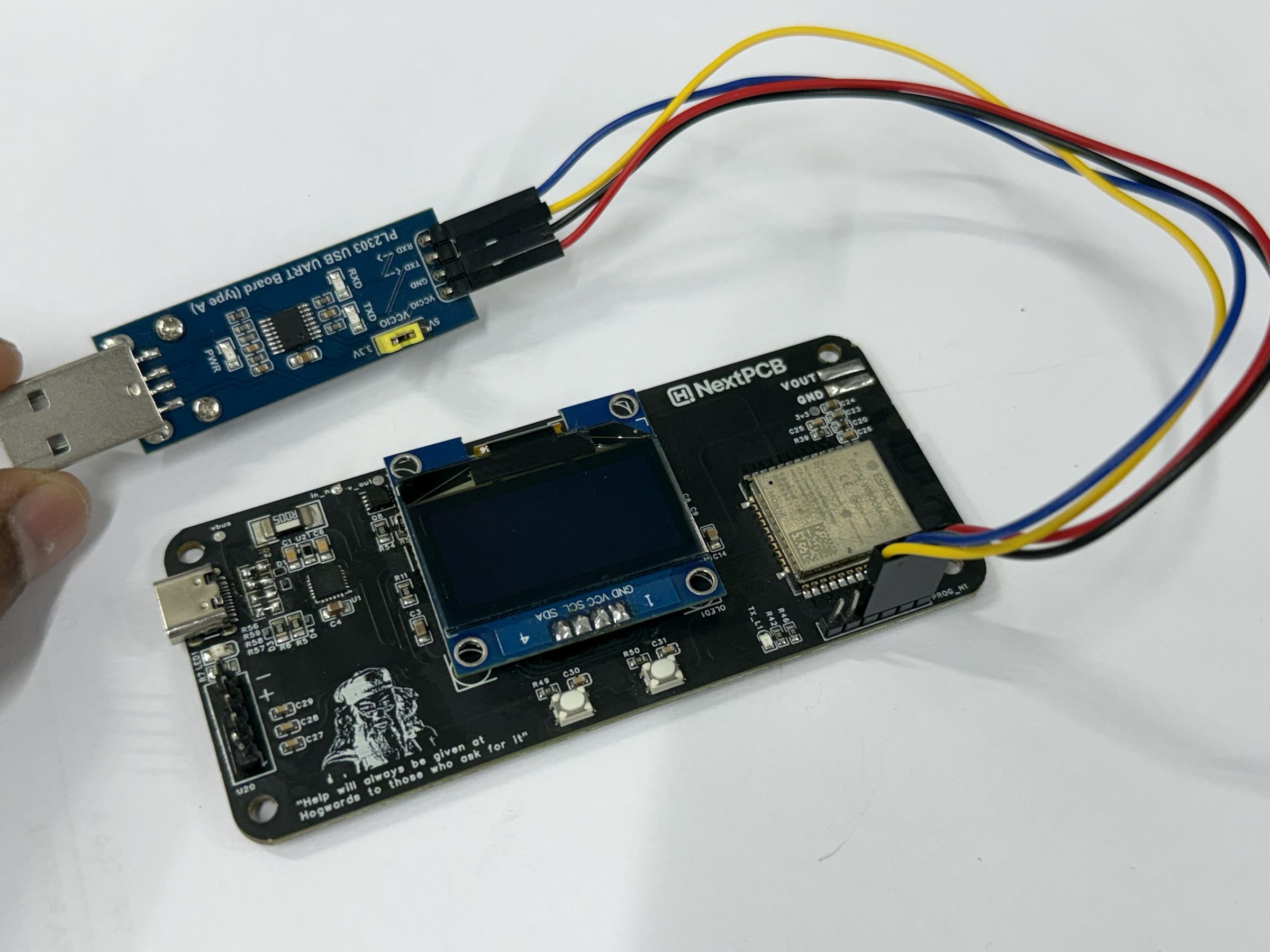
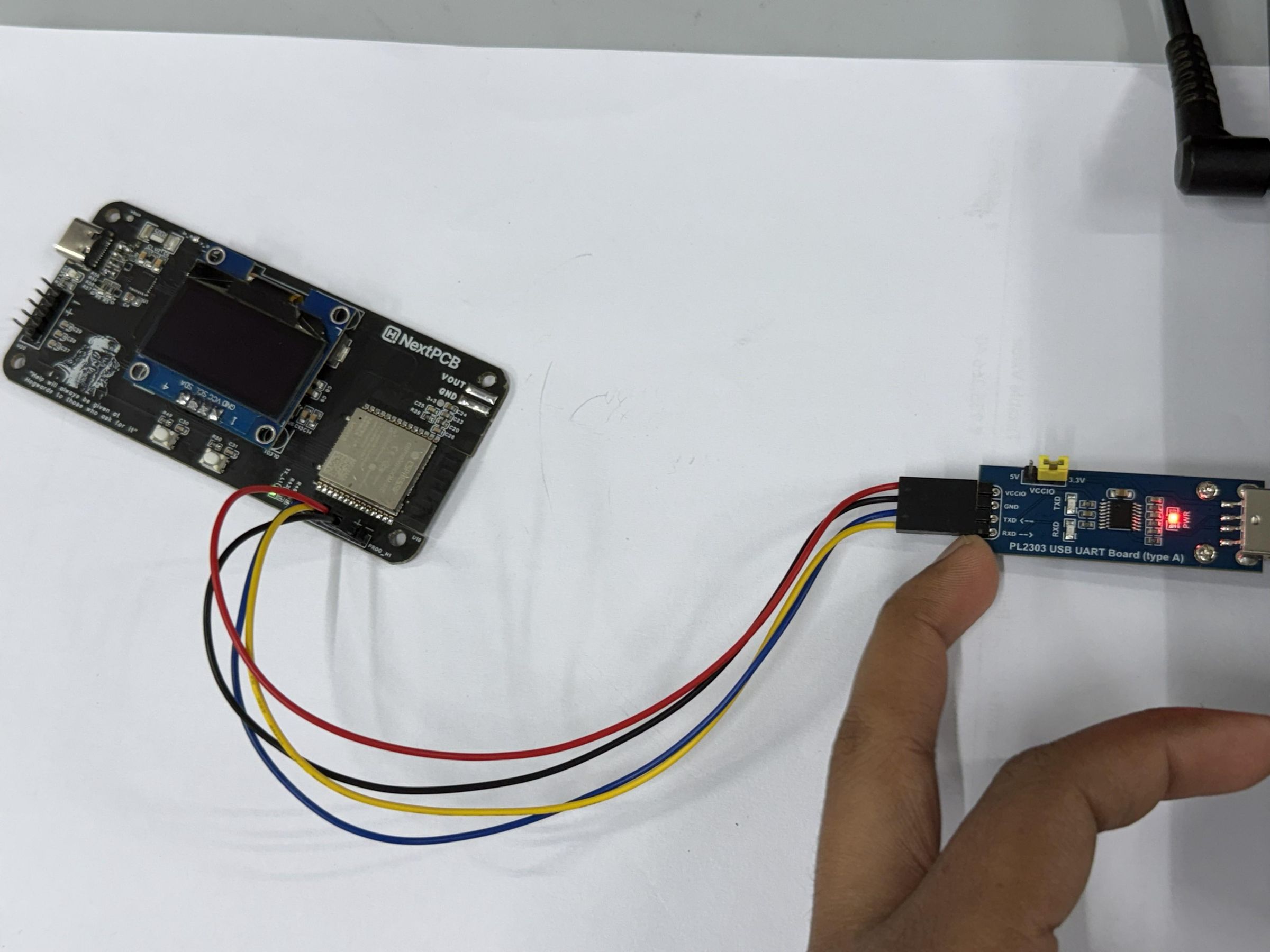
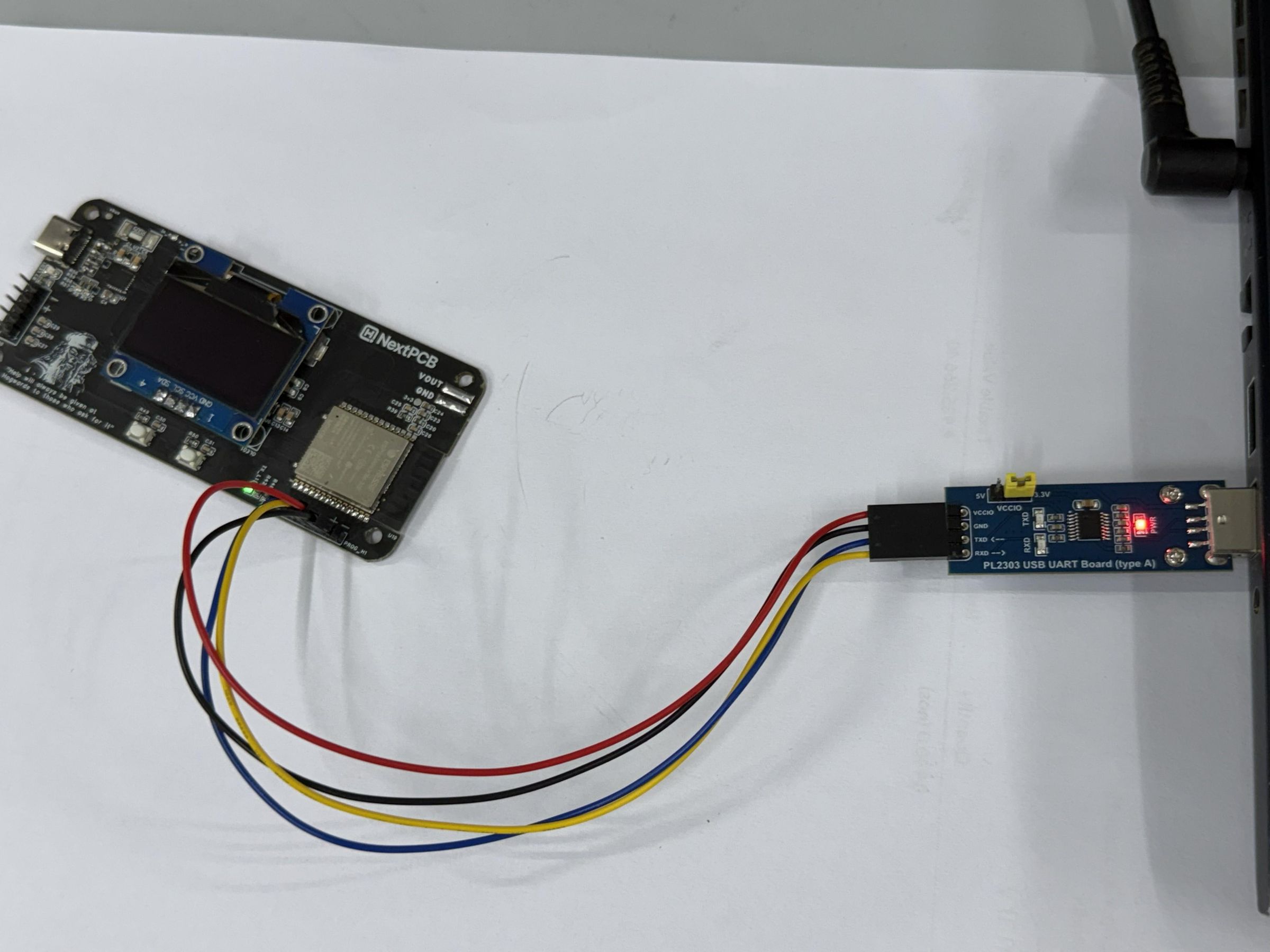
Create a folder named PowerPD and place the following files inside:
- PowerPD.ino
- AP33772S.h
- AP33772S.cpp
Open PowerPD.ino in Arduino IDE and update your Wi-Fi and Adafruit IO credentials if you plan to use remote monitoring.
For programming, connect a 3.3V USB-to-UART adapter to the PowerPD programming header.
⚠️ Do not use a 5V USB-to-UART adapter, as it may damage the ESP32.
To enter download mode:
- Press and hold the BOOT button.
- Press and release the EN button.
- Release the BOOT button.
- Click Upload in Arduino IDE.
Once the upload is complete, press EN to restart the ESP32. The OLED should display the PowerPD startup screen within a few seconds.
You can also open the Serial Monitor at 115200 baud to verify that the AP33772S and INA226 are detected correctly.
USB-C PD Chargers and Cables


The charger and cable you use can have a big impact on how well PowerPD performs.
USB-C PD chargers can only provide the voltage profiles they advertise. Before testing, check the charger label and make sure it supports the voltages you plan to use, such as 5V, 9V, 12V, 15V, or 20V.
If you want to use PPS mode, make sure the charger specifically lists PPS support in its specifications.
The cable matters too. Low-quality cables can cause voltage drop, unstable connections, or failed PD negotiation. For most applications, a USB-C to USB-C cable rated for 3A is sufficient. For higher power operation, use a properly rated 5A e-marked cable.
For best results, keep the setup simple:
USB-C PD Charger → USB-C Cable → PowerPD
Before connecting a load, always verify the output voltage with a multimeter.
First Power-Up

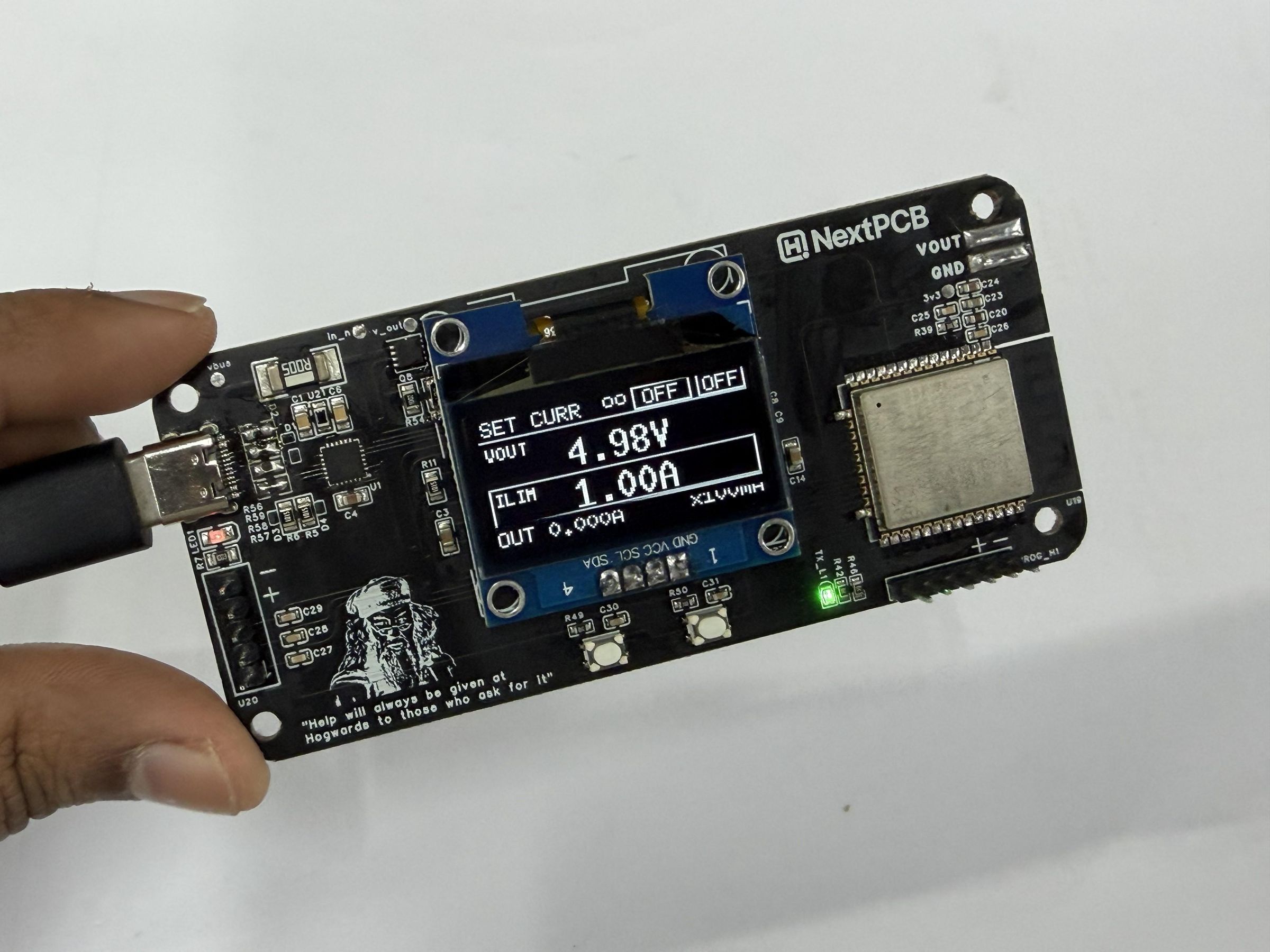


Connect a USB-C PD charger using a quality USB-C cable. Leave the output terminals disconnected for now.
When power is applied:
- The status LED should turn on.
- The OLED should display the startup screen.
- The ESP32 will detect the charger and read the available PD profiles.
- The output will remain OFF until enabled by the user.
If the OLED remains blank, check the firmware upload and power connections. If the status LED does not light up, verify the charger and cable.
You can also open the Serial Monitor at 115200 baud to confirm that the AP33772S and INA226 are detected correctly.
Once the startup process is complete, verify that the available PD profiles appear on the OLED before proceeding to voltage testing.
CAD Design


I designed the PowerPD enclosure in Autodesk Fusion 360 with a focus on keeping it compact, easy to assemble, and suitable for everyday bench use.
The enclosure consists of three main parts:
Front Panel
The front panel includes cutouts for the OLED display, rotary encoder, push buttons, USB-C connector, and output terminals.
Main Housing
The main housing holds the PCB securely and provides mounting points for the enclosure hardware while keeping the electronics protected.
Rotary Encoder Knob
A custom knob fits directly onto the rotary encoder shaft, making it easy to adjust voltage settings and navigate menus.
I've attached the Fusion 360 design files and STL files so you can modify the enclosure or print it as-is for your own build.
Voltage Testing


With the board powered on, I used the rotary encoder to select different USB-C PD voltage profiles and verified the output using a multimeter.
The charger used for testing supported 5V, 9V, 15V, and 20V profiles. After selecting a voltage and enabling the output, I measured the output voltage at the V_OUT terminals.
The measured values closely matched the values shown on the OLED:
- 5V profile → 4.98V measured
- 16V PPS setting → 15.96V measured
- 20V profile → 20.07V measured
I also tested PPS mode by selecting different voltage levels through the rotary encoder. The output voltage adjusted correctly, and the measured values matched the requested voltage shown on the display.
These tests confirmed that the AP33772S was negotiating the correct PD/PPS profiles and that the INA226 measurements were properly calibrated.
Load Testing


After verifying the output voltage, I connected a few real loads to test how PowerPD performed under load.
Instead of using an electronic load, I tested the board with a 12V cooling fan and a high-power BLDC motor powered from different USB-C PD voltage profiles.
With the output enabled, the OLED displayed live voltage, current, and power measurements in real time. The INA226 tracked the load conditions accurately, allowing me to monitor power consumption directly from the device.
At the same time, the ESP32 sent the measurement data to Adafruit IO over Wi-Fi, making it possible to monitor voltage, current, power, and temperature remotely from the dashboard.
During testing, PowerPD remained stable and successfully negotiated the selected PD profiles while powering the connected loads.
This project has become a handy tool for powering prototypes, testing circuits, and experimenting with USB-C PD technology.
If I revisit this project in the future, I'd like to add support for newer USB PD features, additional safety protections, and a few more measurement and logging options.
You May Also Like
If you enjoyed this project, you might also be interested in some of my other ESP32-based builds:
https://www.instructables.com/DIY-IoT-Smart-Energy-Meter-With-ESP32-LoRa-Web-Mon/