Procedurally Generated 3D Terrain for Tabletop Gaming
by jinna124 in Design > 3D Design
173 Views, 2 Favorites, 0 Comments
Procedurally Generated 3D Terrain for Tabletop Gaming

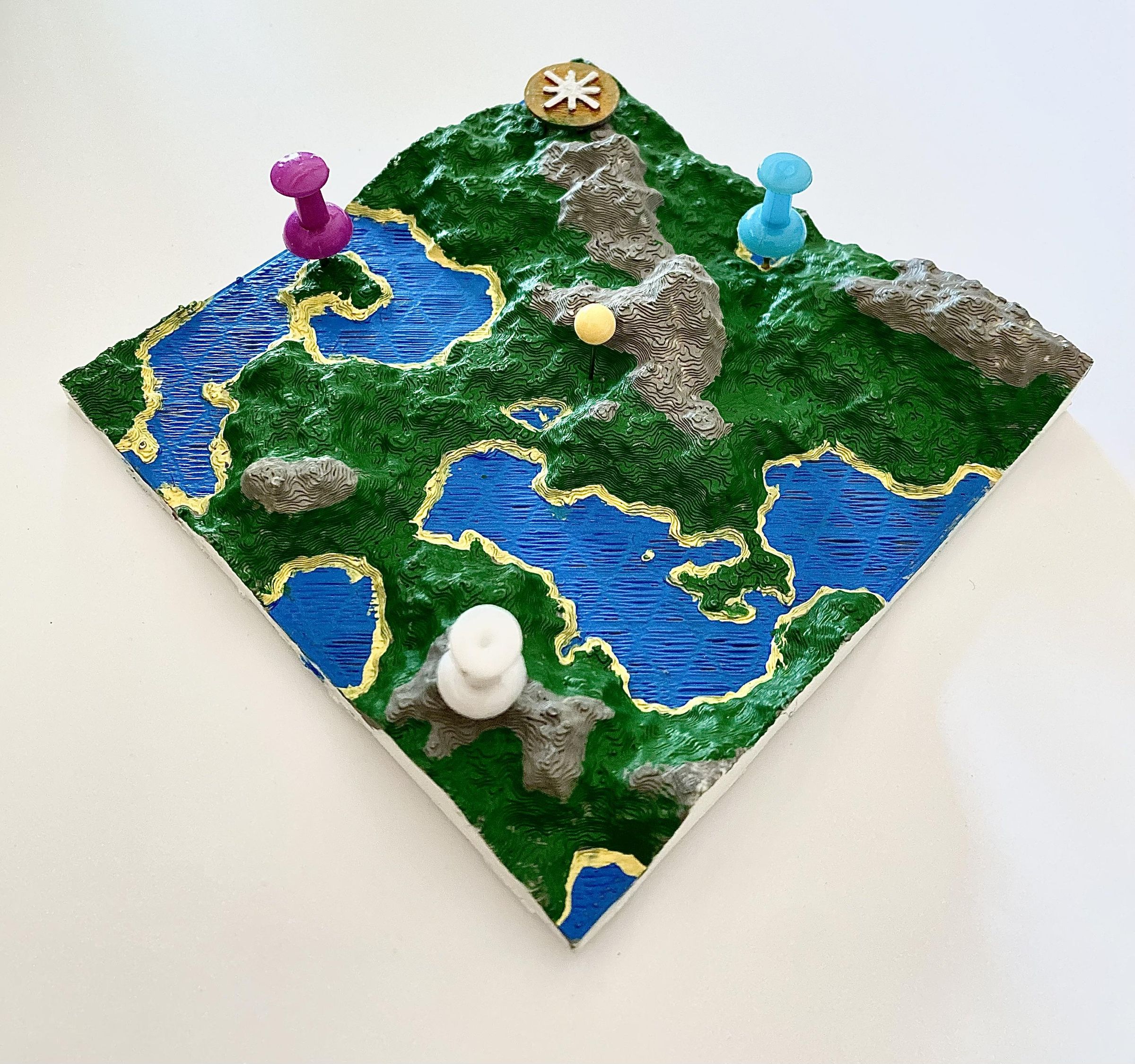


I love Dungeons & Dragons. The world is so immersive and fun, and it provides an escape from my otherwise incredibly stressful and mundane reality. I really love my campaigns and my fellow players, but being a Dungeon Master (DM) is a lot of work- especially when it comes to creating entire maps, layouts, and the character backstories to go with them. Unless you buy an expensive map that’s just a glorified piece of paper, you’ll have to spend hours designing your own custom map that ends up looking flat anyway. And if you want painted landscapes and carefully-crafted terrain, you’ll have to sell an arm and a leg.
So, what if you just generate one? It takes ten minutes, a python script, and a 3D print worth less than two dollars.
Supplies


- A PC for running all the code (needs support for OpenSCAD)
- A 3D printer
- Filament: ABS, PLA, PLA+ all work
- Code files to run, linked below
- Optional: Acrylic paint, a brush, and markers to decorate your map!
Basics of Procedural Generation
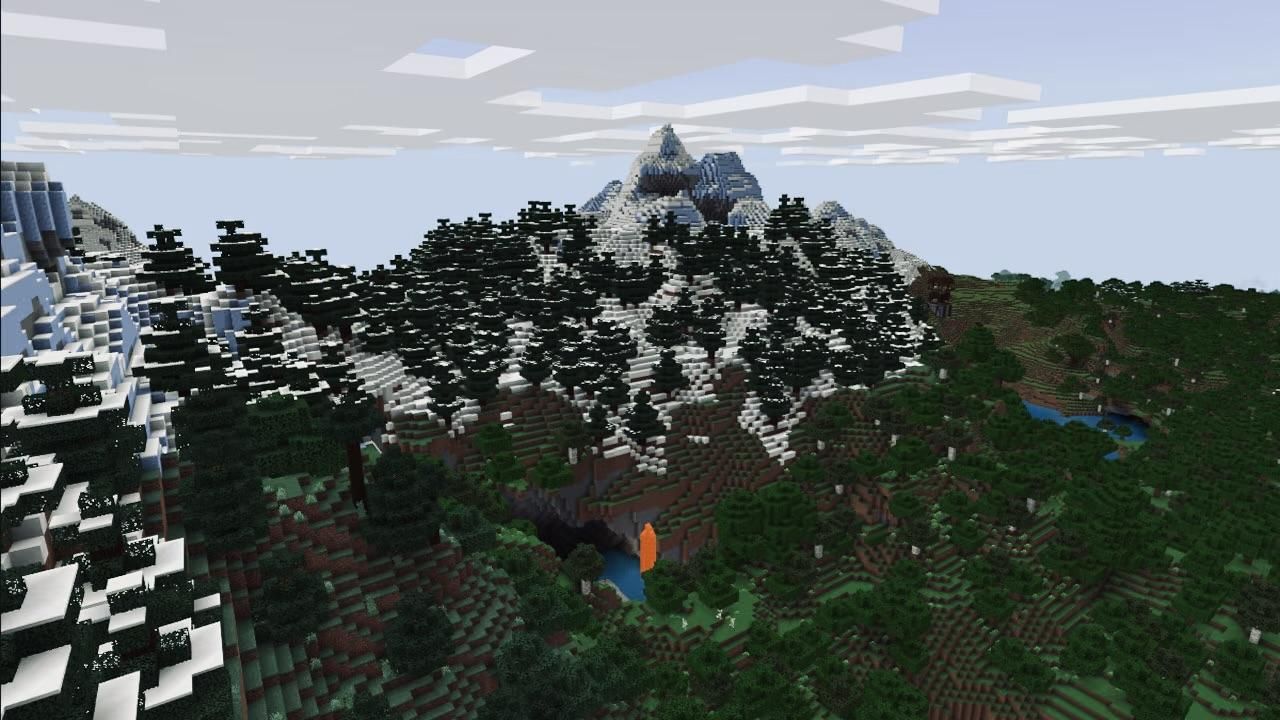

Before we start, we need to understand how we’re going to accomplish this. We are going to use procedural generation: a method of algorithmically creating data with computer-generated randomness. It’s a strategy often used to generate worlds in video games, such as Minecraft, No Man’s Sky, Factorio, and Rimworld to achieve replayability. However, it’s not just a bunch of random dice rolls- procedural generation uses a set of rules to create a logical, natural world. Pure randomness will result in something akin to TV static, which is utterly useless to us.
Setting Up

In order to create your map, you need a few dependencies.
- Install Python 3 from python.org.
- Install the libraries. In a terminal, run:
- Numpy takes care of the math, matplotlib creates the heightmap, and opensimplex is the source of the randomness. Pillow is used to create small previews of each seed world- I'll get into that later. Also, you will need pathlib (not included in picture) for saving the files to the correct folder.
- Install OpenSCAD from openscad.org. It’s a powerful, free tool for script-based CAD design.
- Put worldgen.py and mapV4.scad together in one folder. You can find mapV4.scad here. (Instructables doesn't support attaching .scad files)
Downloads
Perlin Noise and Simplex Noise

Our project is built on Perlin noise, a type of random noise that creates landscapes that flow into each other naturally. The thing about the base random() function is that it doesn’t remember the past results. If you plot a grid with different colours based on just the random function, you’ll end up with meaningless static. Real environments have biomes and features that blend into one another.
Perlin noise is the answer. Ken Perlin invented it in 1983 because he thought the CGI used in movies was too fake. It assigns gradient vectors to corners of a hypercube grid, calculates the dot product, and systematically interpolates the points to blend the image.
Simplex noise is a redesigned, “better” version of Perlin noise that he released in 2001. It’s easier to compute, scales better in higher dimensions, and has fewer directional artifacts. To be specific, it no longer uses interpolation, in favour of another method called kernel summation, and uses a simplex grid instead of a hypercube grid. This is the technique we’re using for our map through the opensimplex library.
Octaves, Seeds, and Artificial Biomes

However, noise on its own doesn’t create enough visual interest. It creates gentle hills and curves… that all look the same. Real landscapes have more detail and sharp deviations, like cliffs, valleys, canyons, and etc.
We create this effect by stacking more layers of noise. We call each layer an octave. Going up in octaves will exponentially increase detail, creating ridges, crags, and surface roughness. Each time you add an octave, you double the frequency (sizing down) and half the amplitude (changing less). The early octaves are the most influential, and the latter ones are deliberately weaker, adding little details. It’s a bit like using sandpaper: you have to start with the rough grits to get most of the material out of the way, before going in with the finer grits to perfect the surface.
Seeds are a string of numbers that is used to identify different generated worlds. It's pretty much their unique name. Seeds only exist because computers aren't completely random- they are actually just calculations and scripts all the way down! They are deterministic, which means if you put the exact same input in, you will always get the exact same output. Your computer takes a number, which is your seed, and runs it through complicated formulas to generate your noise. It looks random, but it's actually not, because if you take the same seed and run it through again, you will get the same world.
Generating Your Heightmaps With Python


Enough talk. Let's get into how you can actually turn all these concepts into an actual 3D terrain piece you can touch!
Navigate to the folder you're using for this project and run the script:
It might take some time, depending on your computer, but it will generate twenty greyscale heightmaps made with layers of Perlin noise, each with its own identifying seed at the end of the filename. It also generates worlds.png, a helpful picture of each world rendered in colour so you can choose the one you like best. Open this one first.
Important Parameters!!
- SEEDS
- Controls how many maps are generated.
- range(1, 21) makes seeds 1 through 20, because Python uses a nifty thing called zero indexing.
- Don't generate too many at once, it may lag out your computer...
- GRID
- Controls the resolution/detail of each heightmap.
- Whatever value you use here, set heightmap_px in OpenSCAD to the same number.
- OCTAVES
- Controls how many layers of noise/detail are stacked together.
- Lower values make smoother, simpler terrain.
- Higher values make rougher, more detailed terrain.
- I would not go crazy high here; it can get noisy and ugly fast. Around 5 or 6 is good.
- ZOOM
- Controls the scale of the land shapes.
- Lower zoom = bigger, smoother landmasses.
- Higher zoom = smaller, more broken-up landmasses.
- Good range:
- 2.0–2.5 = continent/mainland feel
- 3.0–3.5 = balanced fantasy map
- 4.0+ = busy, shattered, island-heavy terrain
- ISLAND
- Controls whether the map is forced into an island shape.
- Use True for islands.
- Use False for continents, regions, or mainland that continues off the map.
- COAST
- Only matters when ISLAND is turned on.
- Controls how strongly the edges are pushed into the sea.
- Higher coast = smaller island, more ocean.
- Lower coast = bigger island, less ocean.
- I recommend values over 0.8 for a complete-looking island and not a peninsula...
Now, after you've generated your heightmaps, hop on over to OpenSCAD to create your actual 3D model!
Customizing in OpenSCAD


What is OpenSCAD? It's a free software for script-based CAD design. Unlike other CAD design software, OpenSCAD uses its own "coding language" to structurally compile a 3D object. While it's not a program you would use to sculpt or model something artistic, it's great for creating exact measurements and has many incredibly useful functions.
We need the surface() command. Feed it your heightmaps and it reads each pixel's brightness as a height — white pixels represent elevated areas, and black pixels represent lower areas. It then builds a solid 3D landscape from it. mapV4.scad allows you to use the built-in OpenSCAD Customizer to adjust sliders and change different variables.
- Seed: use this slider to select the world you want from the range of heightmaps you generated. (uncheck the box if you want to use another heightmap by uploading it) If no maps are showing, you need to put the maps in the same folder as the SCAD file.
- Heightmap px: this is the resolution of the heightmap generated. By default, it is 200. If you choose to tinker in worldgen.py, you must adjust the resolution in OpenSCAD accordingly, or it will not scale properly.
- Map width & Map depth: this is the size of your terrain's base. I used 90x90mm, but you can upscale for a larger map.
- Relief height: this is how "dramatic" your world looks. It pretty much stretches out your landscape vertically, making for cooler-looking and more extreme elevations.
- Base thickness: you can add additional padding to the bottom of your terrain if you want. Personally, I set this to 0 to save material.
- Water level: this is how much of your world will be covered in water. Higher numbers may result in mass "flooding" of your world. If you find that most of the world is flat and non-visible, it's probably because the water level is too high.
- Show compass: I added a decorative compass rose to indicate the north. Toggle this on/off.
- Rose height: the rose is attached to a pillar. You will have to manually adjust this to rise above the land/water so it is visible. This should be the only part that requires support when printing.
- Colour: hex codes of the colour of various areas based on their elevation. Set to whatever you want.
Do this now: open mapV4.scad in OpenSCAD. Fiddle around with the settings to create something you like. Press F5 to spin the 3D preview, then F6 to render in colour, then File → Export → Export as STL. Please do note that rendering took me a good 5 minutes on my fairly high-spec CPU, so do not panic if it takes longer for you.
The map that I decided on is linked below if you choose to use it.
Downloads
Slice & Print!


Export your finished file from OpenSCAD as an STL, 3MF, or whatever file format you prefer. Then, download a slicer such as Ultimaker Cura and set up your 3D printer. I printed my terrain tile in White Overture PLA with the following print settings:
- Layer height: 0.2 mm
- Wall line count: 2
- Infill: 20% Cubic
- Print speed: 60 mm/s
- Outer/inner wall speed: 30 mm/s
- Supports: Tree supports for the compass rose
I only used 2 top/bottom layers because it was using too much material for only a small payoff. For large, flat prints like this, that's the main factor that inflates your print time.
In total, it only took 2 and a half hours on my Ender 3 S1 Pro, and only 20 grams of filament!
Paint


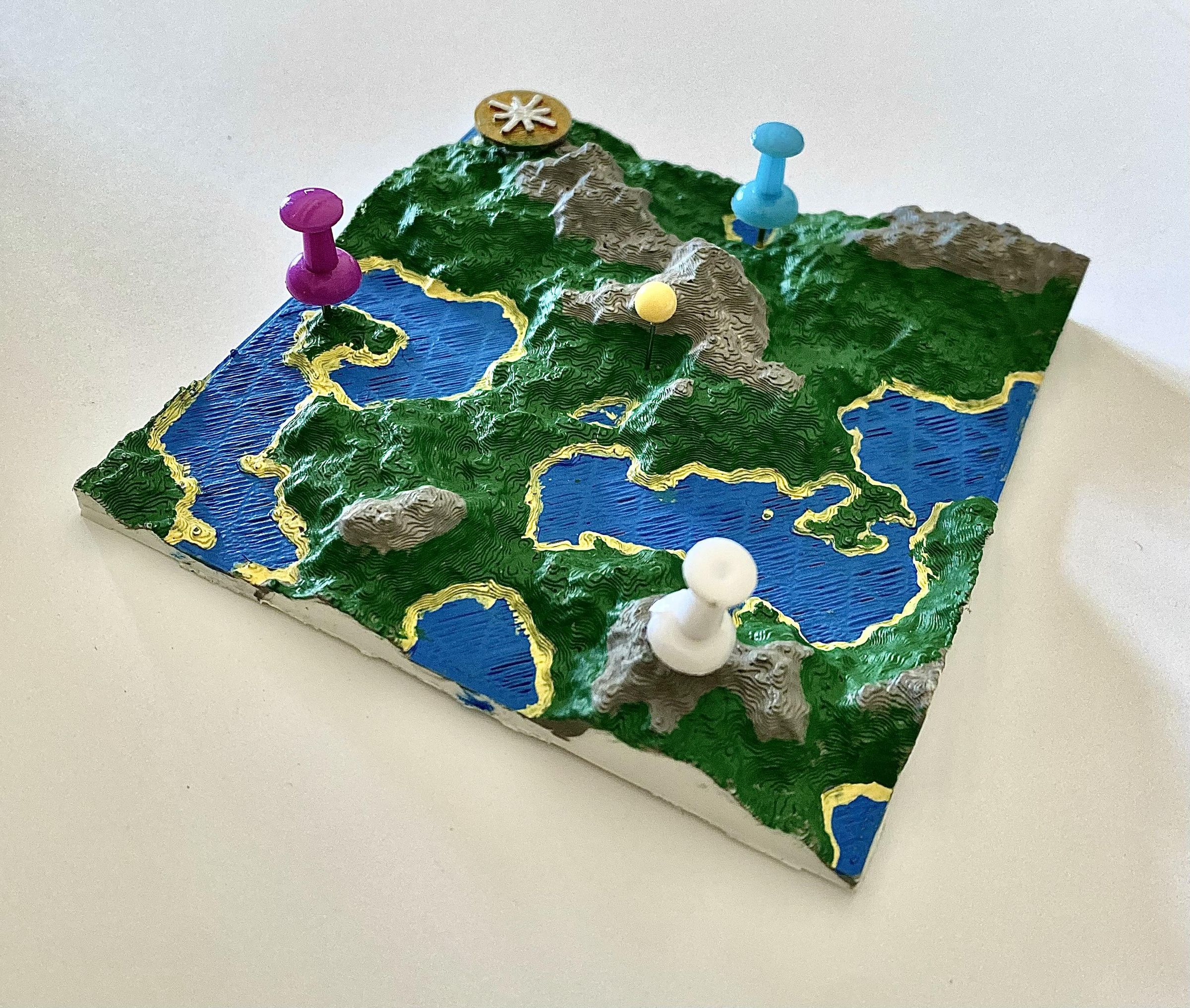
A plain white 3D print won't look very appealing, so my friend graciously helped me paint it! I think it turned out really good! A couple people even asked me what material it was made of. I'm taking that as a compliment- a good paintjob and some photography skills can make a crappy little piece of plastic look like a masterful terrain piece you would find on an actual tabletop gaming store!
Here's a breakdown of what the painting process looked like:
- Apply a layer of primer. We used The Army Painter's Gamemaster Brush-On Primer for this. Primer is not strictly necessary, but it helps your paint layers spread more evenly. It's especially recommended on non-porous materials, such as plastic. Without it, the paint would peel off with just a scrape.
- Fill in the oceans with a blue acrylic paint. We used a small brush for precise strokes. The water ended up with a interesting texture on the top because I barely used any top layers, making for a streaky lined surface. It's quite visually distinct from the land, which I like.
- Carefully highlight the coastline with a bold yellow. Again, we used a fine brush to really get into those little nooks and crannies and to maneouvre around the mainland. The compass rose in the top-left corner was painted gold and white.
- Paint the land and mountains in a lush green. I stopped painting the mountain ranges at a certain level so it would taper off into a grey (from the primer), since there is less vegetation up there. Optionally, you can brush a bit of white onto the peaks for a snowy look. Add any other details or small colour deviations to make it look a little more lively! Make sure to fill in any little holes completely.
Finally, I inserted a some colourful push pins onto the map to add some flair! These serve as useful markers to represent any important locations in your campaign. For example, the spherical yellow pin at the centre marks the home base of the adventurers. Make sure to use bold, high-contrast colours! Simply push them into the plastic, ensuring no pointy ends stick out the bottom. They will hold themselves up (though a thicker base will hold better.)
A big thank you to my friends Lucas & Sharon for helping out with this! Everything turned out absolutely beautiful with your support!
Make It Yours
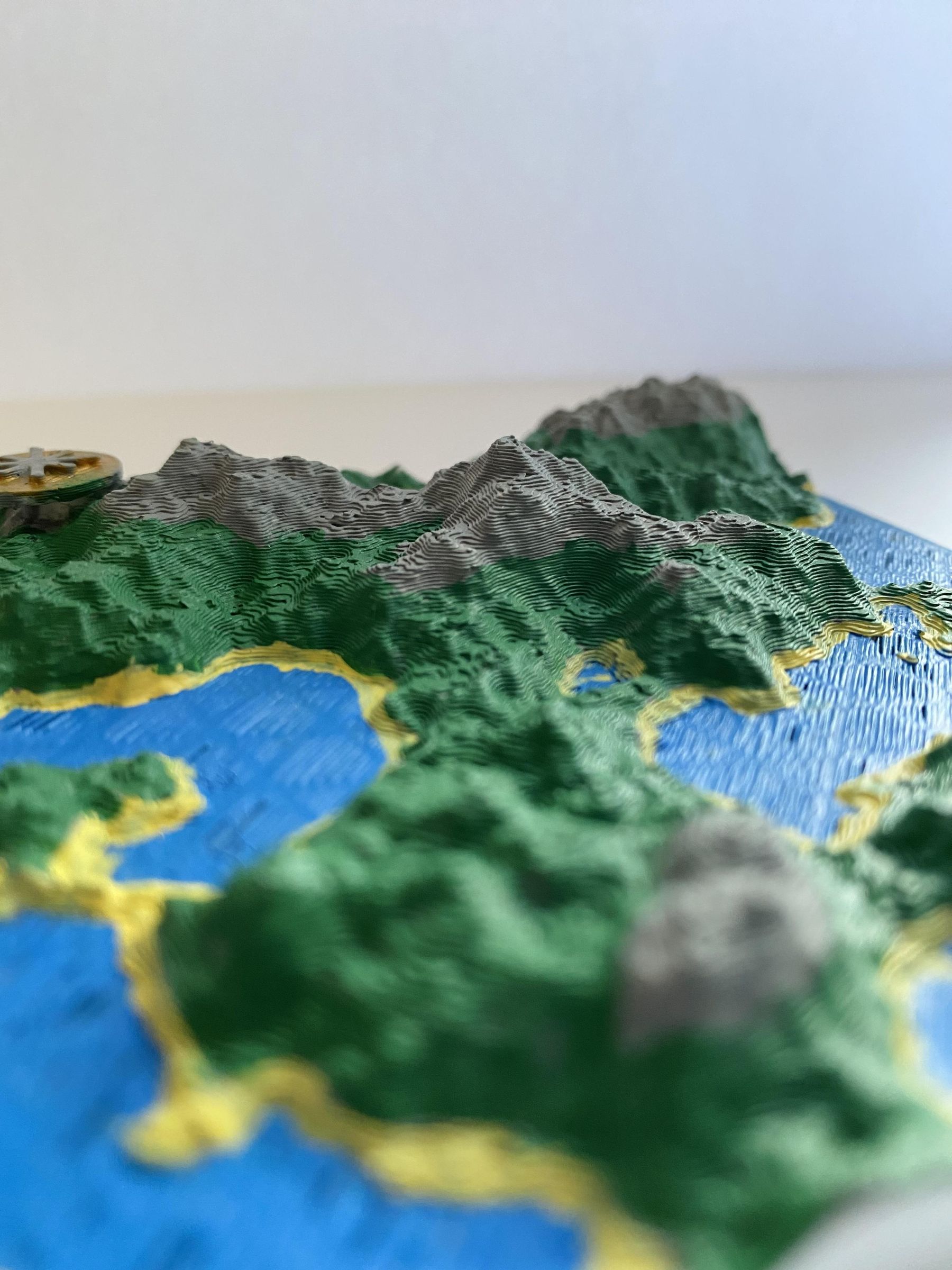


My printed world is small — around 90 mm, the size of a coaster. You couldn't fit a single 28 mm miniature on it, let alone run a fight. But it's perfect for passing around a table and is a great visual tool to actually see what the landscapes look like.
If you do want a larger map, which I recommend, you can use it to set the scene of the whole world or at least a much larger area. It's an easy fix: drastically increase the resolution of generated heightmaps in worldgen.py and then change the dimensions of the terrain to the desired size in OpenSCAD.
Some amazing use cases for this in DND could include:
- Acting as an in-world artifact- an ancient tablet map leading to a mysterious treasure!
- A location tracker- markers showing areas of interest, the quest's next stop, or where the party currently is
- Players start thinking about using the land to their advantage. Every mountain passage becomes an ambush point for traveling parties.
- Enhancing travel- use to visualize routes and find actually traversable paths instead of "we move two spaces to the left and climb over the giant mountain"
- Modular world map- you can print more maps and join them together to create a tiled, larger world to explore!
- Makes for a great take-home gift at the end of a campaign- who doesn't want a pretty painted 3D map marked with all your spoils and epic battles? Trust me, it's a much better keepsake than a crappy paper map!
Congratulations! You have made your own procedurally-generated tabletop gaming terrain harnessing the power of Simplex Noise and OpenSCAD!
Use this power wisely... noble adventurer.