Pulse Breeze: Auto Cooling for Zwift & Indoor HR
by flowstate3d in Circuits > Remote Control
104 Views, 2 Favorites, 0 Comments
Pulse Breeze: Auto Cooling for Zwift & Indoor HR
(7) (1).jpg)
Upgrade your indoor cycling or training setup! Pulse Breeze automatically adjusts your fan's speed based on your Heart Rate (HR). It connects to your HR monitor via Bluetooth and increases cooling power as your intensity goes up, allowing you to focus entirely on your workout.
Supplies
tal build cost under $20. Since the platform's database can be restrictive with direct shopping links, I’ve listed the exact parts I used below to ensure a perfect fit with the 3D printed enclosure.
- ESP32-C3 Super Mini:Link
- AC Dimmer Module (1 Channel, 3.3V/5V logic):Link
- 0.96" OLED Display (I2C) Yellow/Blue:Link
- AC-DC Buck Converter (220V to 5V 700mA):Link
- EU Industrial Power Outlet (250V 16A):Link
- Rotary Encoder:Link
- Resistors Set (2x 3.3k, 4.7k or 5.1k):Link
- M2x16 Screws (4 pcs required):Link
- 6.3mm Female Crimp Terminals:Link
- 24AWG Soft Copper Wire:Link
- 1.5M EU Plug Power Cable:Link
SAFETY WARNING & DISCLAIMER

⚠️
- This is a DIY project that operates at mains voltage (230V AC). Incorrect assembly, damaged cables, or component failure can cause electric shock, fire, or serious damage.
- This device has not been tested or approved by any official regulatory body.
- The author provides these instructions “as-is” for educational and hobby use only.
- By building or using this project, you fully accept all risks and take 100% responsibility for any damage to property, loss of warranty, personal injury, or fire.
- If you are not 100% confident in working with 230V AC wiring and electrical safety → do not build this project or have it assembled by a qualified electrician.
Stay safe and build responsibly!
Enclosure and Materials

Before you start the assembly, you need a housing for your Pulse Breeze. The enclosure is designed specifically for this project and ensures all components fit perfectly.
Where to get the files?
You can download the 3D models for the enclosure from the official Bambu Lab MakerWorld page. Make sure to download both the main box and the custom clip for the ESP32. []
Material Recommendations:
Choosing the right material is critical because the device operates at 230V AC.
- Best Choice (Recommended): PC-FR (Flame Retardant Polycarbonate). This is the superior choice for mains-voltage projects as it provides maximum safety and heat resistance.
- Great Alternative: PC-CF (Polycarbonate Carbon Fiber). It offers excellent structural rigidity and a professional finish.
- Acceptable: ABS. This material was used for earlier prototypes and is tough enough for regular use, though it doesn't have the flame-retardant properties of PC-FR. []
Pro Tip: Use the "Multi-Color Profile" on MakerWorld if you have an AMS (Automatic Material System) to get the decorative text on the front panel. []
Programming the ESP32-C3 Super Mini
.jpg)


.jpg)

Step 2: Programming the ESP32-C3 Super Mini
Before you start soldering, you must flash the firmware onto the controller. Doing this first allows you to verify the board is working correctly before it is integrated into the project.
Preparation:
- Connect: Use a high-quality USB-C cable to connect the ESP32-C3 Super Mini to your computer.
- Enter Programming Mode: Press and hold the "BOOT" button on the module while plugging it into the USB port. Once powered, you can release the button.
- Software: Ensure you have the provided software package downloaded and unzipped on your computer.
Flashing the Firmware:
- Locate the file named upload_esp32c3_supermini.bat in the project folder.
- Run the file and wait for the terminal window to complete the process.
- If the connection is successful, you will see a "Success" message. The ESP32 is now programmed and ready for assembly.
3.3V Power Supply Connection
.jpg)
In this step, we will prepare the components and create the main 3.3V power rail that will run the logic of our device.
Important: Critical Soldering Note
All wires must be soldered from the back of the boards (ESP32, Display, and Encoder). The components are mounted with their front faces directly against the enclosure. Wires soldered from the front will interfere with the mounting and prevent the device from closing.
Component Preparation:
- Clear Space: Remove any pre-installed goldpins from the PWM regulator and the encoder sockets.
- ESP32: It is highly recommended to use the ESP32-C3 Super Mini version without pre-soldered pins to save space.
Wiring Instructions:
- Cut Wires: Cut four 10 cm sections of the 3.3V power cable (typically red).
- Connect to VCC: Solder one end of each cable to the VCC/3.3V pins on the following components:
- PWM Regulator (VCC)
- Display (VCC) — Note: You must also attach two 5.6 kΩ pull-up resistors to this point (see next step for data lines).
- ESP32 (3V3 pin)
- Encoder (+ pin)
- Joint: Join the four remaining free ends of these wires together.
- Insulate: Secure and insulate the joint using heat-shrink tubing to prevent any short circuits.
Ground (GND) Connection

After setting up the power lines, we need to create a common ground for all components to ensure the circuit works correctly and safely.
Wiring the Ground Rail:
- Prepare Cables: Cut five 10 cm sections of black cable.
- Soldering (From the Back!): Just like with the power lines, remember to solder everything from the back of the boards. Connect the wires to the GND pins of:
- The Encoder
- The ESP32
- The Display
- The PWM Regulator
- The Negative (-) terminal of the 5V power supply module.
- Finalize the Joint: Join all five free ends of these black wires together.
- Secure: Use heat-shrink tubing to fully insulate the connection. This "star" ground configuration helps reduce electrical noise in the circuit.
Signal Lines and Data Connections
.jpg)
.jpg)
Now it's time to connect the communication lines between the ESP32-C3 and the other modules. Precision is key here to ensure the encoder and display communicate correctly with the controller.
Soldering the Data Lines:
All connections must be soldered from the back of the boards. Connect the signal lines according to the following pinout:
- PWM Regulator (ZC) → ESP32 Pin 10
- PWM Regulator (DIM) → ESP32 Pin 21
- Encoder (CLK) → ESP32 Pin 5
- Encoder (DT) → ESP32 Pin 0
- Encoder (SW) → ESP32 Pin 6
- Display (SCL) → ESP32 Pin 4
- Display (SDA) → ESP32 Pin 3
Finalizing the I2C Pull-up Resistors:
Take the free ends of the two 5.6 kΩ resistors that you previously attached to the Display VCC (in the previous step) and solder them as follows:
- Solder one resistor's end to the SCL line (Pin 4).
- Solder the other resistor's end to the SDA line (Pin 3).
These resistors ensure stable data transmission between the ESP32 and the OLED display. Double-check that there are no solder bridges between these pins, as they are very close to each other.
Bluetooth Range Extension (Essential)

To ensure a stable Bluetooth connection beyond 0.5 meters, you must extend the antenna. Since the internal ceramic antenna needs to be bypassed anyway, I highly recommend removing it to gain more space inside the enclosure.
The Antenna Bypass:
- Remove the Component: Carefully de-solder and remove the small red ceramic antenna from the ESP32-C3 board.
- Prepare the Wire: Use a single strand from an RJ45 (Ethernet) cable.
- Soldering: Solder the wire directly to the antenna signal pads on the board. This creates a clean bypass and ensures the signal goes directly to your new wire antenna.
- Why remove it? Removing the red component not only ensures a better electrical connection for the bypass but also provides more clearance when mounting the ESP32 into its tight slot in the 3D-printed case.
Crucial Specification:
Trim the wire so the total length from the solder point to the tip is exactly 31 mm. This exact length is required for the antenna to resonate correctly at 2.4 GHz.
Preliminary Testing
.jpg)
Before we connect any high-voltage wiring, we must verify that the logic circuit is working correctly. This step allows you to troubleshoot without any risk of electric shock.
The Test Procedure:
- USB Power: Connect the ESP32 to your computer or a power bank using a USB-C cable.
- Verify the Display: The OLED screen should light up. If the screen remains black, check your 3.3V, GND, and I2C (SCL/SDA) connections, including the pull-up resistors.
- Test the Encoder: Rotate the knob and press the button.
- Troubleshooting: If the values on the display move in the wrong direction (e.g., decreasing when you turn right), simply swap the CLK and DT wires on the ESP32.
- Final Logic Power Connection: Once everything works perfectly, disconnect the USB and solder the positive (+) wire from the internal 5V power supply module to the 5V pin on the ESP32.
Warning: This is the last step involving only low voltage. After this, we move to the 230V AC section. Double-check all your joints now!
High Voltage (230V) Connection

Before proceeding, please stop and read the SAFETY WARNING & DISCLAIMER at the beginning of this guide once more. This is the most critical stage where we connect the main power cable to the AC Dimmer, the Power Supply, and the Output Socket.
Preparation:
- Grommet: Before soldering or connecting anything, slide the 3D-printed grommet onto the main power cable. You won't be able to put it on later!
Blue (Neutral) Wire Connections:
The Neutral wire needs to be split into three branches:
- Connect the first branch to the N IN terminal on the AC Dimmer module.
- Connect the second branch to the Neutral (N) input of the 5V Power Supply.
- Connect the third branch directly to one of the terminals of the Output Socket.
Brown (Phase/Live) Wire Connections:
The Phase wire needs to be split into two branches:
- Connect the first branch to the L IN terminal on the AC Dimmer module.
- Connect the second branch to the Line (L) input of the 5V Power Supply.
Output and Grounding:
- Load Connection: Connect a wire from the LOAD / OUT terminal of the AC Dimmer to the second (remaining) terminal of the Output Socket.
- Safety First (Grounding): Connect the Yellow/Green (Ground) wire from the main power cable directly to the grounding pin (earth terminal) of the output socket. Do not skip this step!
Final Mechanical Assembly
.JPG)
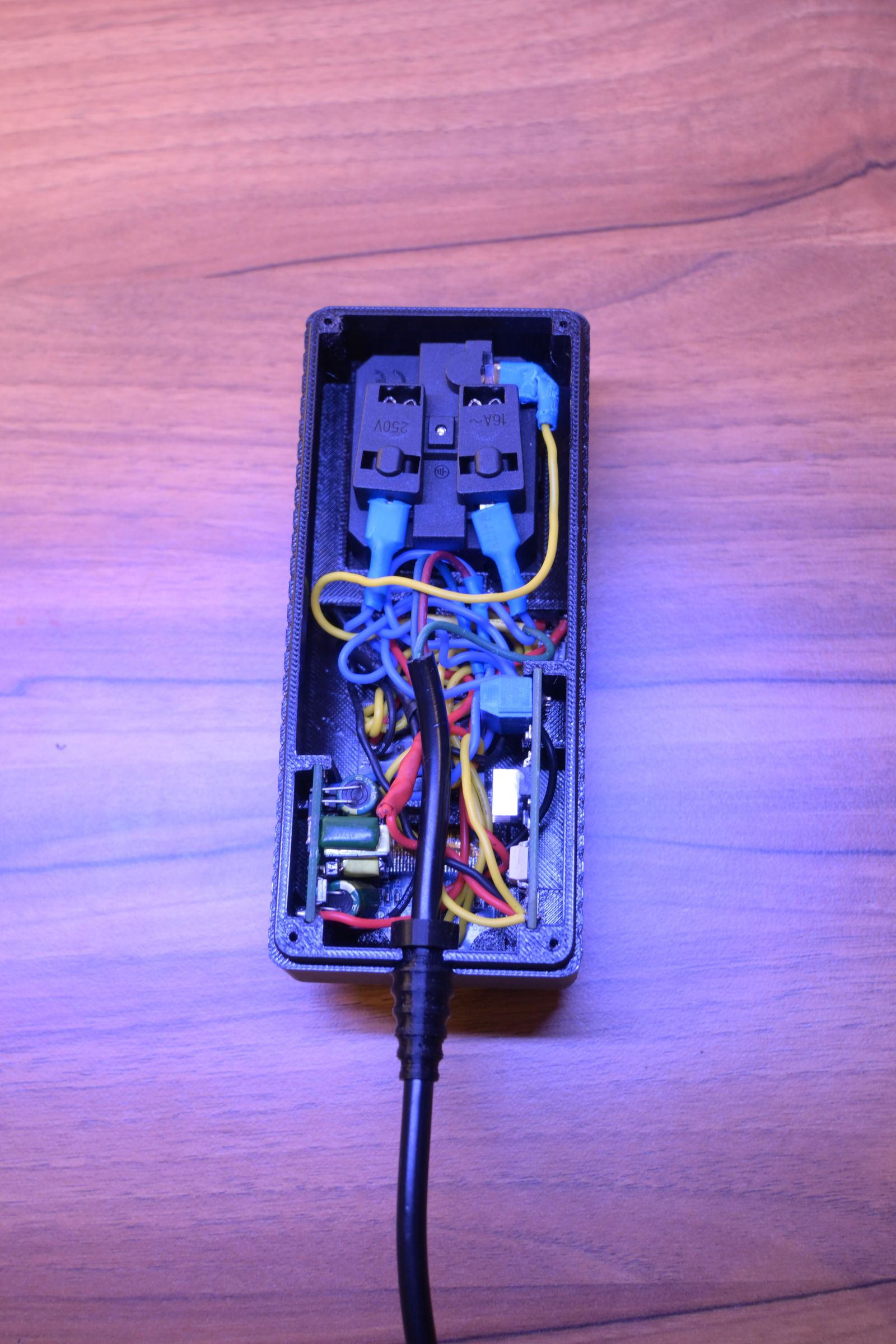

Now that all the wiring is complete and tested, we need to fit everything into the 3D-printed enclosure. This part requires patience, as the space is quite tight.
Mounting the Components:
- Display: Snap the OLED display into its custom frame at the front of the enclosure. You can do this from the inside.
- ESP32-C3: Place the ESP32 module in its dedicated slot. Once seated, lock it firmly in place using the custom 3D-printed square clip. This ensures the USB-C port stays aligned and the board doesn't move when plugging in a cable.
- Encoder: Insert the rotary encoder into its hole and tighten the nut from the outside. Add the knob on top.
Closing the Enclosure:
- Cable Management: Carefully tuck all the wires into the box. Make sure no wires are pinched between the case edges or the screw posts. Ensure that the high-voltage (230V) wires are separated from the low-voltage logic wires as much as possible.
- Final Check: Look inside one last time to ensure no solder joints are touching and that the ground wire is securely connected.
- Seal it up: Close the enclosure and secure it. Your Pulse Breeze is now ready for its first official 230V power-up!
Congratulations! You have successfully built your Pulse Breeze controller. Use it responsibly and enjoy your new DIY smart device!