Push to Light 3D Printed Switch for Homemade Greeting Cards
by FredWayland in Craft > Cards
654 Views, 1 Favorites, 0 Comments
Push to Light 3D Printed Switch for Homemade Greeting Cards


This is a single thin lightweight 3D-printed part that fits inside a card, holds a CR2032 battery, and switches LEDs on and off — for under $2.
This card switch makes it easy to add LEDs that light up when you press a spot on the front of a homemade card. I found that other approaches using foam tape, paper, and glue are time consuming and sometimes unreliable. This single 3D-printed part snaps together with a CR2032 coin cell, two strips of conductive Faraday tape, and keeps working after 500+ presses.
The design is thin enough to put inside a folded card, prints without supports in about 20 minutes, and costs less than $2 in materials. It is a direct, lower cost alternative to commercial products like EZ-Lights that can cost $10 or more.
This Instructable covers:
- How to print the parts including the card switch and a “Push” label.
- How to add the battery and Faraday tape
- How to wire up one LED or multiple LEDs in a card
- Tips for using it in an elementary school class
Videos and files: Setup video (battery + tape) | Full card build video | MakerWorld 3D files
Supplies

For the card switch
- This 3D-printed part (card switch + “Push” label)
- 1x CR2032 3V coin cell battery
- Conductive Faraday tape, 0.4 inch (10 mm) wide — example on Amazon
To make a light-up card
- Thick folded card (nothing on the inside of the front)
- White or blue 5 mm LEDs (no resistor needed with CR2032) — example on Amazon
- Scissors to cut Faraday tape
- Craft glue (e.g. Aleene’s) to attach the card switch and Push label
- Safety pin to poke LED lead holes
- Pencil to mark + and − sides
Print the Card Switch


Print the card switch standing upright with the rectangular section flat on the build plate. The angled flap cantilevers upward from the top.
- No supports required
- Use an outer brim
- 0.12 mm layer height, 0.4 mm nozzle
- Standard PLA filament
- In Bambu Studio: set Wall Loops to 4 in the Strength tab (makes the hinge area solid)
The “Push” label is a separate two-color print and does not need a brim.
Slide the Battery in With the Flat (positive) Side Down.

With the Battery Fully Slid In, Push Down the Flap End Until the Battery Snaps In.

Push the Tape Sticky Side Up Under the Flap and It Wrap Back Over the Flap
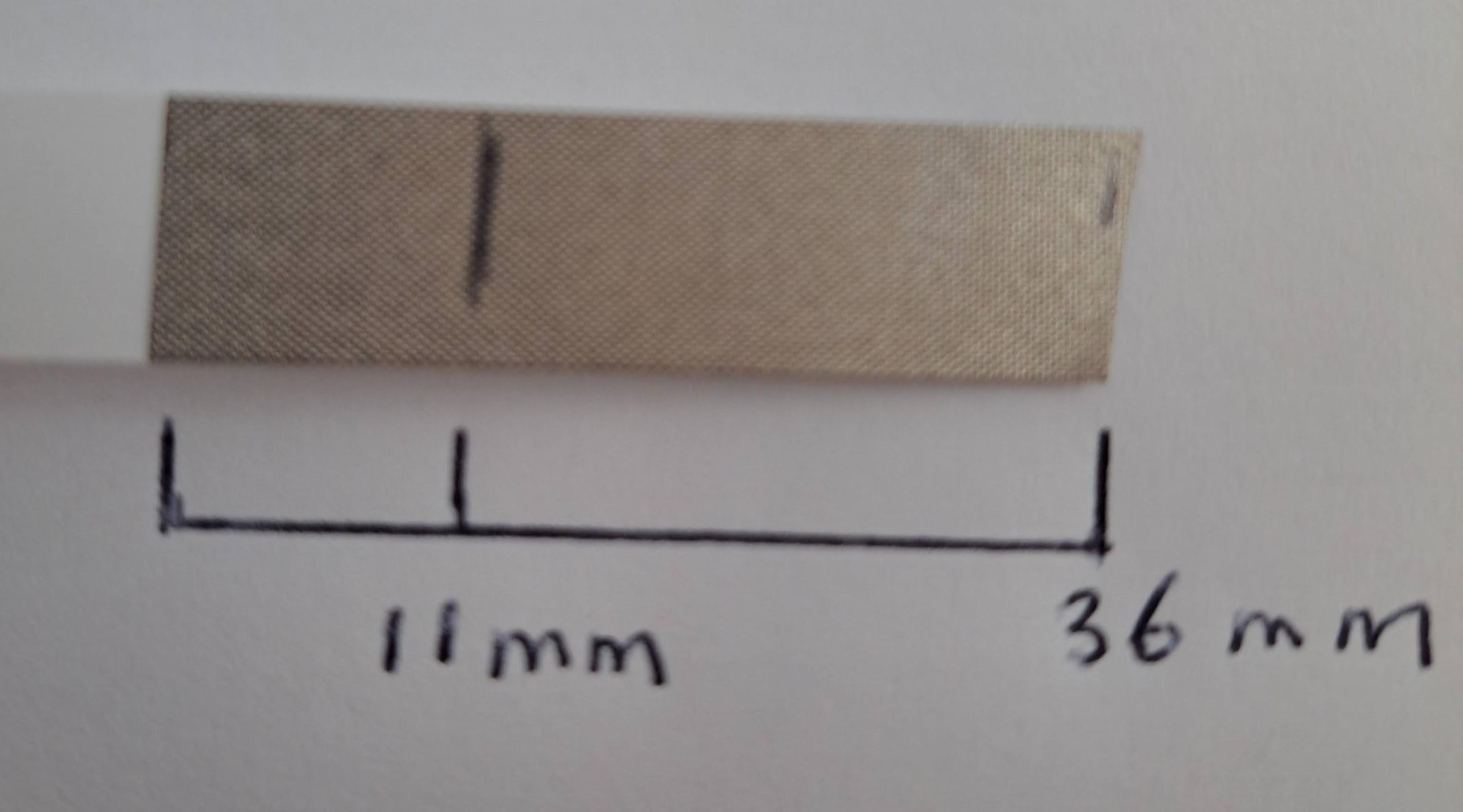
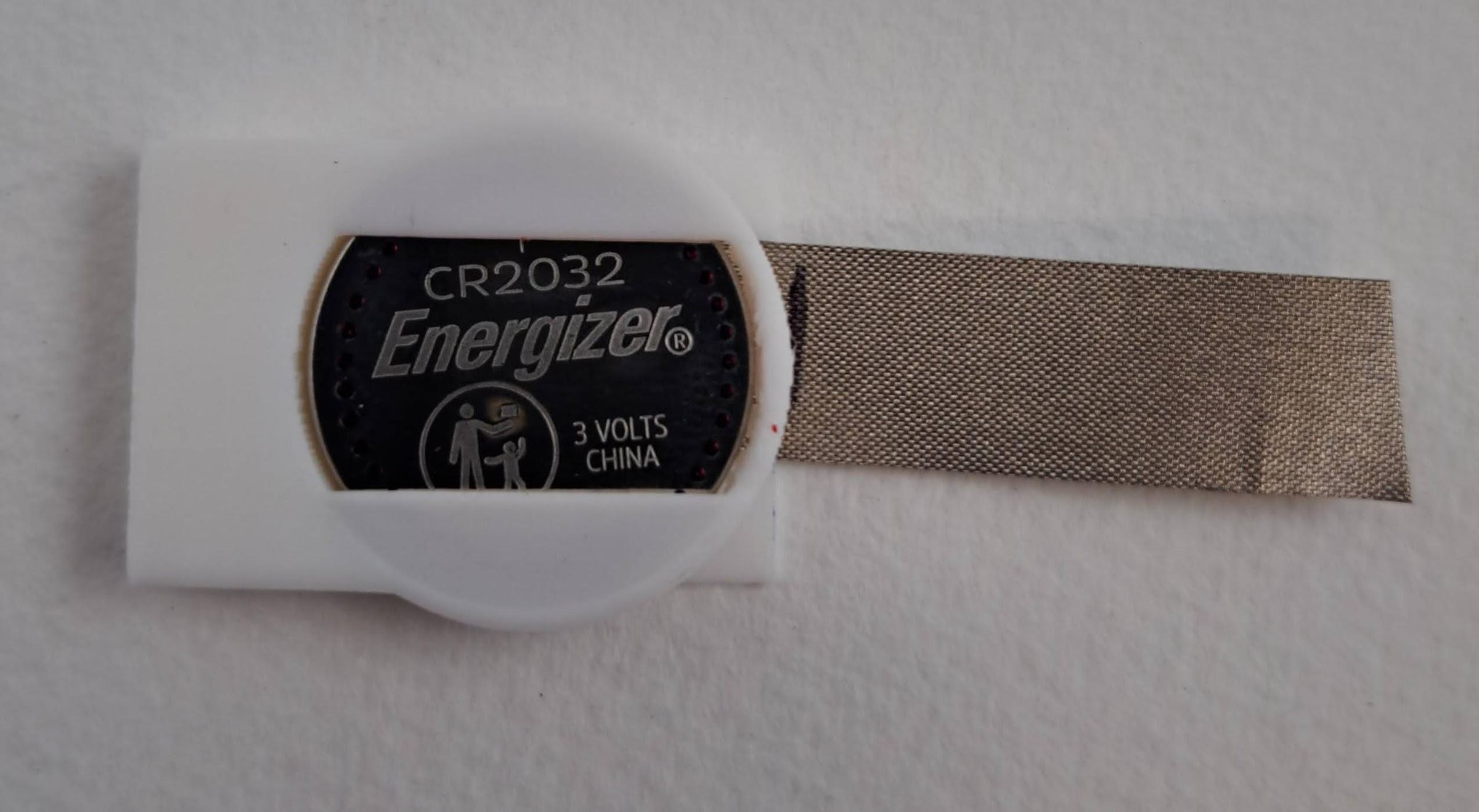
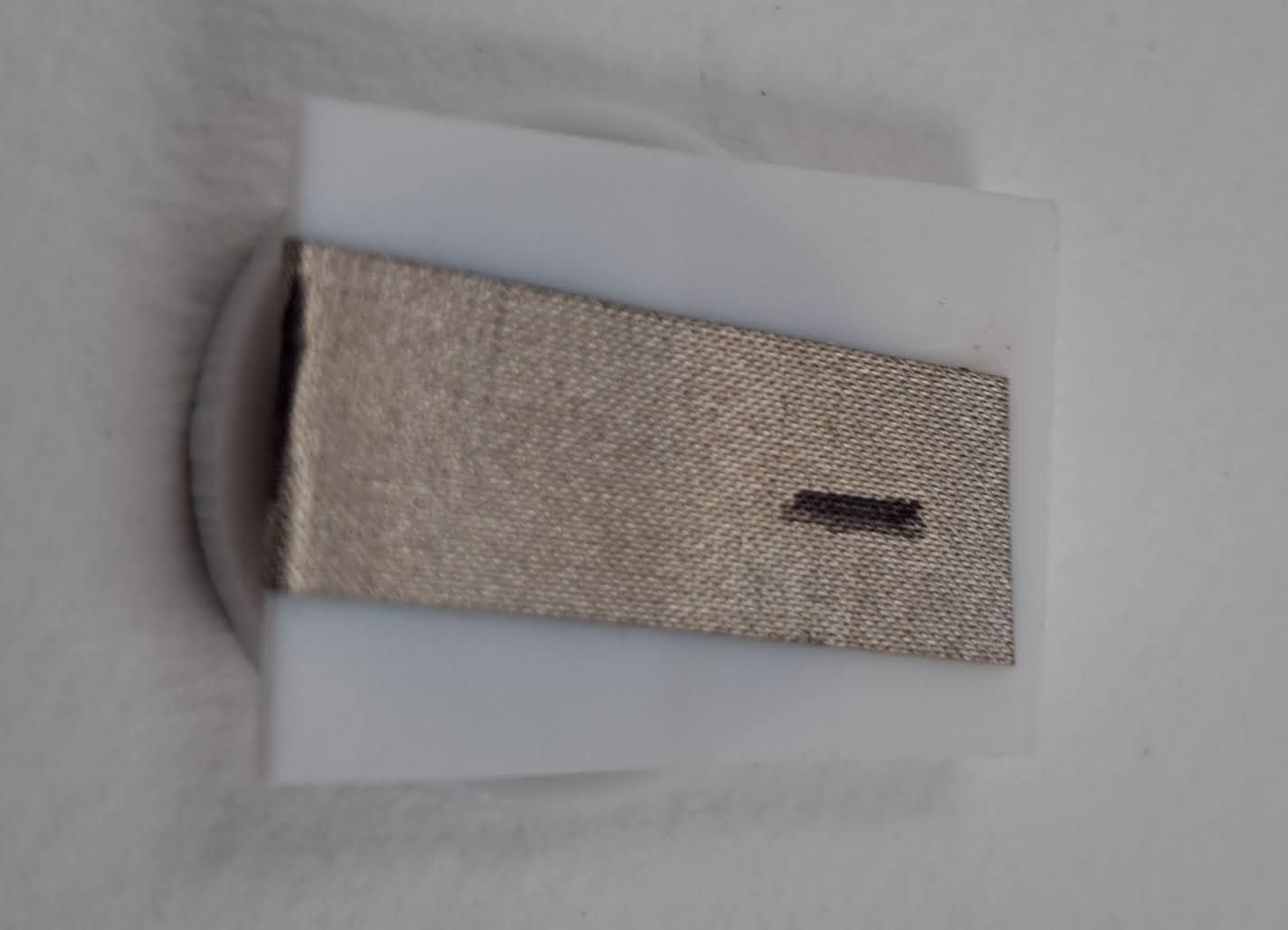
Cut a piece of Faraday tape 36 mm long and make a mark 11 mm from one end. You can use a ruler or make a simple reference as shown above on a piece of paper to measure the length and make the mark. Put the card switch bottom side up so you can see the battery through the bottom. Remove the backing from the tape and insert it sticky side down above the flap and push it in centered on the flap inserting the tape to the line 11 mm in from the end of the tape. Now push the flap down so the tape sticks to the bottom of the flap. Pick up the card switch and wrap the tape around the edge of the flap and up over the top. Make sure there are no wrinkles or folds in the part of the tape on the underside of the flap. This is the negative tape. You can add more tape to this short piece on the top as needed to extend it off the card switch.
Attach Faraday Tape to the Battery Bottom Visible Through the Bottom Slot


Position the sticky side of this tape on the bottom positive side of the battery that is visible through the bottom and press the tape down firmly. This is the positive tape from the battery.
Select a Card to Add LED Lights
Your card should be folded, with nothing on the inside face of the front panel — that is where the circuit will go. Decide where the LED should go on the front.
Poke Two Holes in the Front of the Card With the Safety Pin for the LED Leads.

The holes should be spaced to match the LED lead spacing and they should be horizontal.
Push LED Leads Through the Holes Until the LED Sits Flat on the Front

Identify the Positive and Negative LED Leads

On inside where the leads come through mark on the card with a positive (+) next to the the long wire and a negative (-) next to the short wire.
Bend the LED Leads Outward

Bend both leads outward flat inside the card. Make sure you can still see the “+” next to the long lead and “−” next to the short lead.
Glue the 3D Printed Card Switch to the Inside of the Front Cover


Apply glue to the bottom of the Card Switch and glue it below where the LED leads are with the + tape on the same side as the + long LED lead which means the - tape is on the same side as the short - LED lead. This is why you labeled the tapes from the Card Switch.
Add Tape to LED Leads

Press one strip of Faraday tape along each LED lead, leaving a small gap at the LED itself so the two tapes don’t touch. Press the tape tightly along each LED lead with your fingernail.
Complete All Connections From the Card Switch to the LED


Flip the positive tape from the card switch so it points upward and press it down onto the positive LED tape. Add another piece of tape to connect the negative card switch tape to the negative LED tape. Press all tapes down firmly with your fingernail.
Glue "Push" Label to Card, Push to Light Up the Card


Glue the “Push” label to the front of the card. It should be over the flap on the card switch. You should test it before the glue sets and reposition if necessary. The card is done and will light up when you push.
Lighting Multiple LEDs


To light multiple LEDs, connect them all in parallel: all positive LED leads go to the positive tape, all negative leads go to the negative tape. Use LEDs of the same blue or white color for consistent brightness.
When inserting the LED leads, orient them all the same way — for example, all positive leads pointing left and all negative leads pointing right — to keep the wiring simple as shown in the image.
You can expect good performance with up to 5–10 LEDs of the same color in an occasionally-used card. Shown is an example of a Christmas card with four bright white LEDs wired in parallel.
The CR2032 has enough capacity for many hours of occasional use with multiple LEDs. If left on continuously, expect a few days with 1 LED or several hours with 5 LEDs.
Using in an Elementary School Class
The low cost makes this ideal for classroom use. Approximate costs:
- 20 white + 20 blue LEDs for $8 — example
- CR2032 batteries ~$1 each — example
- Faraday tape ~$6 per roll — example
If a parent or school maker lab prints the card switches, the total cost per student can be under $2.
Recommended teacher prep: install batteries in the switches, pre-cut Faraday tape into strips, and poke the LED holes yourself after students mark the location.
Before students build, show them a completed card and explain that electrical current flows in a circuit from the battery through the LED and back again. This is similar to the electricity from a wall outlet. Electricity flows to an appliance from one prong of an outlet and back through the other (although it is AC and not DC).
Key tips to share with students
- Don’t play with the LED leads — they can break if bent back and forth.
- Push the LED all the way in past the small bumps on the leads.
- Press the Faraday tape down firmly with your fingernail along all wire leads.
- Keep the tape flat under the flap.
- Don’t let the positive and negative tapes touch — this shorts the battery.
- Don’t wrap tape around the battery — this also shorts the battery.
- Glue the Push label above the card switch.
Troubleshooting
If the LED doesn’t light up, check these in order:
- Faraday tape not pressed down firmly enough — press harder with your fingernail along the full length of each lead.
- Battery inserted upside down — the flat positive side must face down.
- LED connected backwards — the long lead must go to the + tape.
- Positive and negative tapes are touching — check for accidental contact and separate them.
- Broken LED lead near the base — replace the LED.
- Dead battery — try a fresh CR2032.