📆 ☔️ Raspberry Pi E-Ink Dashboard (DIY Inky Planner)
by Anoraker in Circuits > Raspberry Pi
1931 Views, 24 Favorites, 0 Comments
📆 ☔️ Raspberry Pi E-Ink Dashboard (DIY Inky Planner)


A Calm Planning Dashboard
This is the Inky Planner.
It’s a low-distraction household display designed to give you exactly what you need to know before you walk out the door. With a single button press, you can flip between a five-day dashboard, a deep dive into today’s schedule, tomorrow’s events, or even a digital photo frame. It works on a desk or mounted to a wall, and the best part is you can build the whole thing yourself in just a few minutes.
The idea behind this project is pretty simple. We already have shared calendars and weather apps and notifications on our phones, but most of that information is trapped behind lock screens and buried inside apps. You have to intentionally go looking for it. I wanted something that worked more like the family calendar hanging on a refrigerator door, except cleaner, automatic, and actually pleasant to look at.
And because this is e-ink, it behaves very differently from a normal smart display. It is not constantly glowing at you from across the room, it is not trying to pull your attention away from something else, and it does not feel like a tablet bolted to a wall. Most of the time it just quietly exists in the background until you need it. Then you glance at it for two seconds, get the information you need, and move on with your day.
All of the code for this project is available on GitHub, and I also created a setup script that handles most of the installation automatically. And naturally, I've provided free 3D print files for the cases.
GitHub Project:
Supplies
-Pimoroni 7.3 inch display : Newegg (affiliate)
- Raspberry Pi Zero 2 WH: https://amzn.to/3Pva8Ul (affiliate)
- Raspberry Pi Power Supply: https://amzn.to/4eY3pws (affiliate)
- 3D Printer: https://amzn.to/4aAA6xq (affiliate)
- filament: https://amzn.to/4tArbn9 (affiliate)
Prepare Raspberry Pi
Insert microSD card into your home computer and use Raspberry Pi imager to set it up for your Raspberry Pi with Raspberry Pi Os
Download Script to Raspberry Pi
- Download the install script
- Install the software:
3D Print Case

I designed a few different versions of the case depending on how you want to use the display.
There is a desk version if you want this sitting on a shelf or counter, and there is also a wall-mounted version if you want it to behave more like a permanent household calendar.
Before printing anything though, you need to check which version of the Inky Impression display you have.
Originally Pimoroni shipped these displays with buttons mounted on the side, but apparently those buttons broke fairly often during shipping. So newer versions moved the buttons to the back of the display instead.
That means there are actually two different button layouts for the case.
If your display has buttons on the side, print the version with the longer side buttons.
If your display has buttons on the back, print the version with the round cylinder buttons and the small crossbar piece that helps hold the buttons in place.
I have made all of the STL files available for free so you can print whichever version works for your hardware.
FreeSTLs:
Buttons on side (2025 version)
Buttons on back (2026 version)
Assemble the Hardware


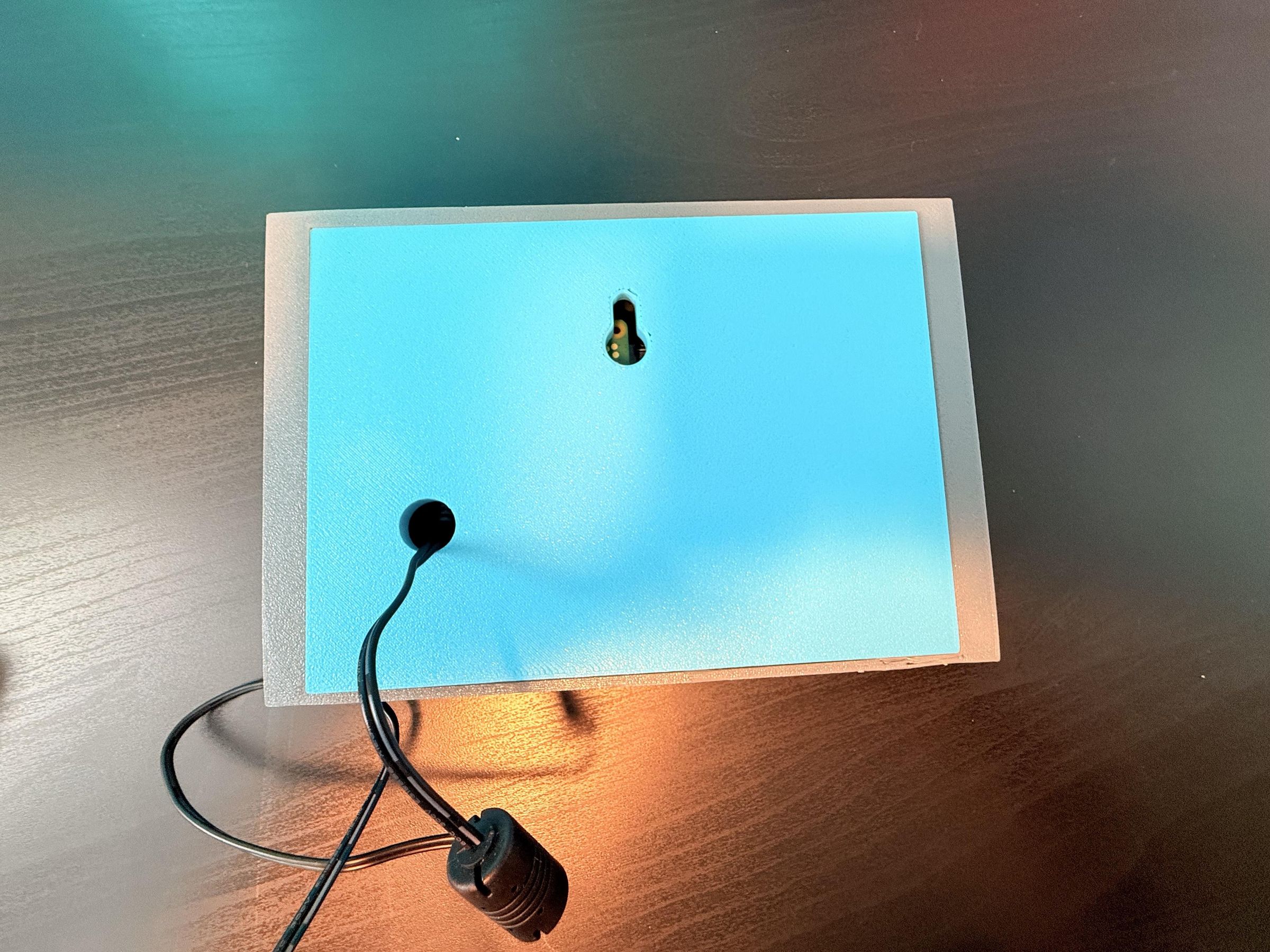
Once everything is printed, assembly is actually pretty straightforward.
Start by inserting the MicroSD card into the Raspberry Pi Zero 2 W. Then connect the Pi to the back of the Inky Impression using the GPIO pins.
After that, take the front half of the case and insert the buttons from the inside. If you are using the rear-button version, slide the crossbar over the buttons so they stay aligned correctly.
Next, place the display into the case. I found it easiest to angle the button side down first so the buttons line up more naturally.
Once the display is seated correctly, place the two small spacer blocks at the bottom of the case to help hold everything securely in place.
Finally, route the power cable through the back piece, plug it into the Raspberry Pi, and slide the rear panel into place. The back uses a friction fit, so no screws are required.
That is basically it for the hardware assembly.
Configure the Planner
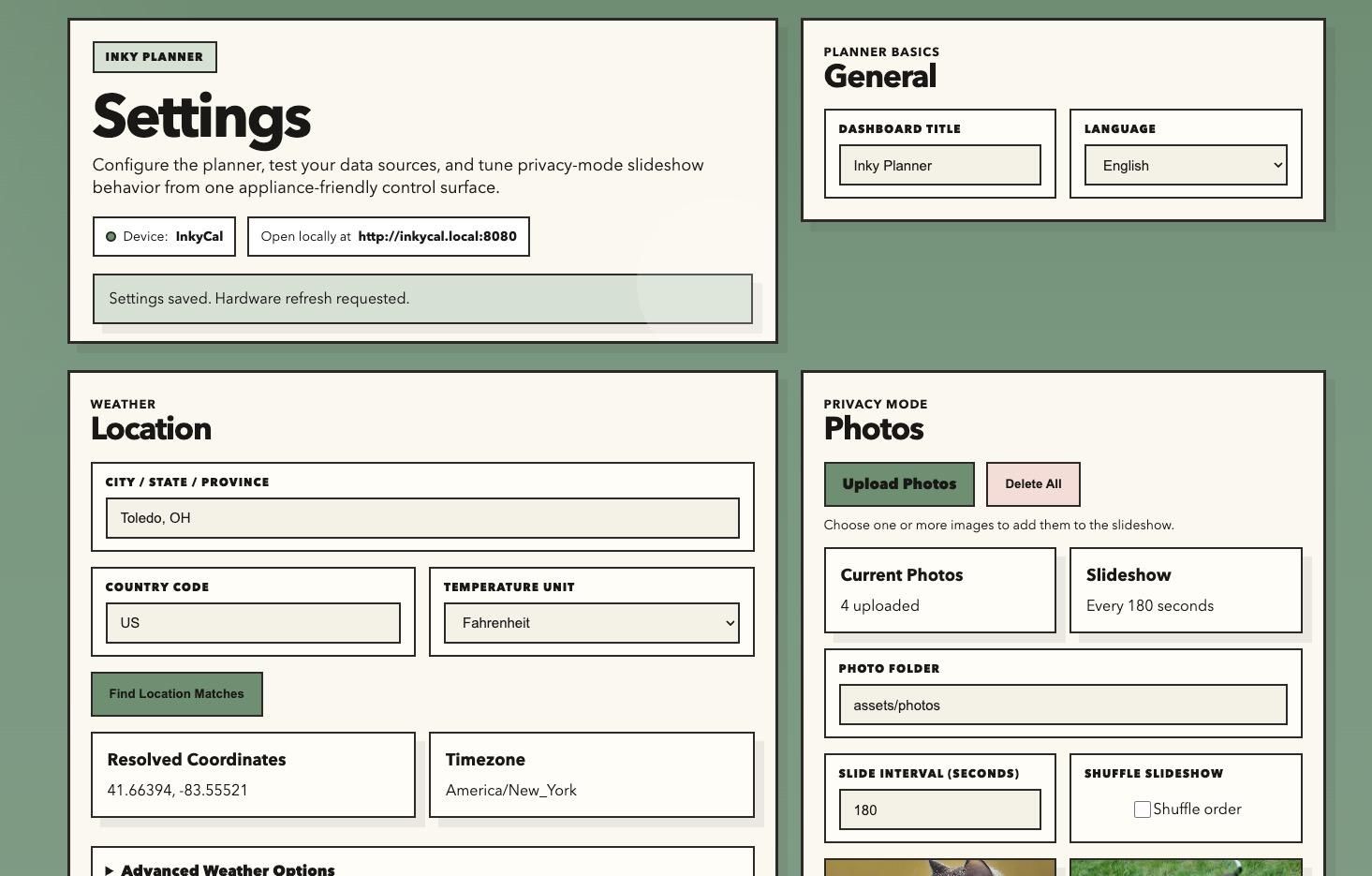
Once the setup script finishes, it will give you a local web address you can open in a browser.
That browser interface is where most of the customization happens.
You can:
- Add calendars
- Configure weather settings
- Adjust snow thresholds
- Upload new photo frame images
- Change languages
- Switch between imperial and metric units
- Adjust layout preferences
I really wanted this project to feel more like an actual household device and less like a Raspberry Pi project you constantly have to reconfigure through code.
Using the Planner


The default dashboard view gives you a five-day overview of your schedule along with weather information. You can also switch to more detailed views focused on today (button 2) or tomorrow (button 3) if you want additional information.
There is even a photo frame mode (button 4) if you want the display to quietly rotate through pictures instead. And because the display uses physical buttons instead of a touchscreen, switching between views feels quick and natural.