Autonomous RC Submarine - HSV Color-Based Object Avoidance | Automatically Detect Obstacles Underwater - Raspberry Pi & Wi-Fi ESP32
by ayman_023 in Circuits > Raspberry Pi
2031 Views, 15 Favorites, 0 Comments
Autonomous RC Submarine - HSV Color-Based Object Avoidance | Automatically Detect Obstacles Underwater - Raspberry Pi & Wi-Fi ESP32


This project is a submission for the 25-26 Butwin Elias Science and Technology Award, more commonly known as the BEST AWARD. This award was created by the Adam Iseman Foundation.
Welcome again! My name is Ayman Assefa, and I am a sophomore at the Wilkes-Barre Area STEM Academy. The following Instructable will provide a step-by-step guide regarding the process of creating a Wi-Fi-controlled autonomous submarine. This project will involve 3D printing, using a custom PCB, circuits and wiring, programming, soldering, and numerous problems to solve.
Part 1 - Overview
When the idea of building this project first came to mind, I realized I wanted to build something complex—a project I could mention and showcase to colleges and teachers that would genuinely require strenuous problem-solving and engineering. After haphazardly stepping into the world of engineering last year, I realized what I wanted to do when I got older — or rather, a list of engineering disciplines I was deeply interested in. Mechanical, software, and electrical engineering -- these disciplines could all be found in the field of Mechatronics engineering, and the best way to prepare myself for that would be to participate in a competition like this. This project itself took around three months of planning, and a little less than a month of hands-on work to finish.
Of course, I could have built a simple remote control vehicle, or even utilized the craze of machine learning and Artificial Intelligence as I contemplated initially, but I wanted something with a little more "wow" factor. After weeks of research and planning, I decided I wanted to build a submarine that could be controlled with Wi-Fi, powered by a Raspberry Pi 4B and an ESP32, with two cameras, a piston ballast system, magnetic drive coupling, and a color based, machine learning obstacle avoidance system.
The reason I strayed away from AI was because there are more cost intuitive ways of accomplishing the same goal. With AI, you could spend a larger sum of money and definitely get a better result, but the fact of the matter is unless the value of the product outweighs the cost, it's not worth it. As a company, if you just needed a simple software to detect the types of fish in a lake with a submersible, would you rather dish out 5x or 2x the money on machine learning or genuine AI? In this scenario, the obvious choice is machine learning; the value doesn't outweigh the cost. That is why I chose OpenCV's color detection & machine learning over the incredibly popular choice of AI, though I could have likely gotten a system with more variety and responsiveness, at the cost of processing power, heat dissipation, space, and overall resources. There's no doubt that AI will overtake machine learning in the future, but currently, and depending on the situation, it can go both ways.
The CAD design, printed control board soldering, mechanical intuition, rigorous programming in Python, electronics, and software knowledge wouldn't be easy; there is little information on how to use OpenCV color tracking, how to incorporate it with underwater obstacles, how to connect it to an ESP32, and how to route them all together into one complete project, so creating this project on my own as a sophomore couldn't be done with just a guide, tutorial, or even a GitHub program with little dedicated guides to follow would be immensely difficult.
Though, I underestimated the difficulty of this project. Some of my prints failed eight times, a multitude of my soldering pads simply fell off, a short circuit fried one of my ESP32's, I snapped a reed switch, I spent nearly 10+ hours debugging a faulty motor driver, one of my microSD cards simply snapped, and I had to rewire the power circuit three times. Though the most annoying problem of all: one package that contained the most important part of my project was delayed nearly five days, leading the project to cut dangerously close to the deadline.
Regardless, these problems taught me more than a project that came with no issues could have. If you would like to build this project, you should plan for a multitude of failures.
Here is a list of the finished submarine's capabilities:
- Wi-Fi control from any browser at 192.168.4.1
- Piston Ballast System -- two syringes with remote-controlled metal gear motors able to be filled and emptied to dive and surface
- Magnetic coupling -- motor uses magnets to spin the propeller through the shaft with no water contact
- Rudder steering using servo-controlled magnetic coupling
- Dual camera system -- ESP32 First Person View camera recording onto a microSD card with live feed and a Raspberry Pi Arducam for live obstacle avoidance
- HSV (Hue, Saturation, Vibrance) color-based obstacle avoidance -- the Pi detects any specific colored object and commands the submarine to steer away, while using heading sensors to precisely control direction
- Wi-Fi-controlled headlights in three different colors that blink when the battery runs low
- Wireless charging
Part 2 - How the Submarine Works
As you may know, after hearing about ESP and Raspberry Pi at least three times by now, it uses two separate processors that work alongside each other. The ESP32 (more specifically the XIAO ESP32S3 Sense) handles the hardware control as the brain of the submarine -- ballasts, motor, rudder, LEDs, camera streaming, and the Wi-Fi interface. The Raspberry Pi 4 handles the computational vision side of the submarine. It runs OpenCV, the camera feed, detects colored objects using HSV color filtering, and sends steering commands when it sees an object in its path.
The two processors communicate over UART at 115,20 baud; the Pi, using the Arducam, tells the ESP32 to steer. Furthermore, the ESP32 tells the servos whether or not to steer. Both processors have their own battery, so that when compartmentalized, they stay safe if the other fails.
Similar to most submarines, the depth control uses ballast for buoyancy. Two syringes inside the hull, driven by N20 metal gear motors using worm gear racks, are the ballast tanks. When they retract, water enters through hoses routed to the hull exterior. When they extend, water is pushed out. When tanks are filled, the submarine sinks. When both are full of air, they rise. The system uses linear slide potentiometers and rotary trimmers to set position and travel limits.
The drive and steering systems work in the same way. Neodymium magnets arranged in alternating polarity use coupling to drive one set from the inside, and another set from the outside. While the motor drives one set, the propeller shaft follows magnetically through a waterproof hull.
The dual camera system uses the OV3660 built into the XIAO ESP32S3 that faces forward through the front dome. It streams live video to the web interface using the GitHub code and converts it into AVI format. The Arducam IMX708 sits in the Raspberry Pi enclosure below the hull and feeds the video into OpenCV for obstacle detection.
The power comes from two 2500mAh LiPo batteries for the ESP32 system, and a dedicated battery for the Pi. An XL6009 boost converter steps the LiPo up to 5V for the Pi. The battery chargers are through a wireless coil mounted inside the front frame.
Disclaimer:
This project follows a tutorial for a similar design to Max's submarine. However, the general design of how the submarine works is a composite design that is common throughout YouTube, featuring a ballast system and motor, though Max's design is the one I used for part of my submarine.
Though this builds upon Max's design, the autonomous navigation system, Pi integration, camera setup, direction and pressure sensors, Onshape assembly design, and my Raspberry Pi compartment are entirely original. Nearly everything in this project is custom-built and uses some mechanical objects in intuitive ways.
If you'd like to learn how to build this submarine, read this Instructable, and by the end, you'll be able to do it yourself!
** The first few steps do not contain as much detail and are light on words, but read ahead before deciding if the project is simple enough for you. The complex value of the project is important to understand once you have read the entire Instructables. The Raspberry Pi coding, o-ring calculations, and the HSV / object avoidance calibration are the longest and most intricate steps, though they are at the bottom.
**Without reading to the end, this project was fully functional and this step-by-step guide will result in a working submarine if steps are followed carefully and correctly.
Supplies


The picture above was earlier in the project, only shows 60-70% of supplies, the total list is below, and throughout the project
Software:
ESP-32 Code - https://github.com/s60sc/ESP32-CAM_MJPEG2SD
Arduino Software - https://www.arduino.cc/en/software/
Max's Project Files - https://drive.google.com/drive/folders/1DiSvwND1y_ihd31ceJY6NEj7EEpBI6VJ?usp=sharing
Raspberry Pi OS: https://www.raspberrypi.com/software/
Python libraries: OpenCV, RPi.GPIO, smbus2, pyserial, Flask, adafruitcircuitpython-bno08x, adafruit-circuitpython-bmp280, matplotlib
The links for these specific supplies are not listed as Amazon usually does not sell specific parts, but rather in assortment sets. Websites like AliExpress CAN work if you want the specific parts on their own, but shipping times are long. I would not want to sway opinions on where to get the parts, as the safety of Amazon comes at a price. Furthermore, if done correctly, one could save nearly 50-75% than a less efficient supply list by simply using this list as if it were not refined; it could cost much more. I made some economic choices after the project to save future readers who were interested in building the project a decent sum of money.
Tools:
- Soldering Iron
- Multimeter
- Helping Hands Tool (I 3D printed this)
- Soldering Paste
- Flux
- Soldering Braid
- Needle Nose Pliers
- Power Supply (I used an old Arduino)
- Wire Strippers
- Hacksaw
- Drill with small bits
- Calipers
- Hot glue gun
- Soldering Wire
ESP32 Electronics:
- XIAO ESP32S3 Sense x1
- DRV8833 Dual Motor Driver x1
- 050 High-torque Brushed DC Motor x1
- SG90 Servo Motors x3 (rudder + two ballasts)
- N20 104-RPM Geared Motors x2 (ballast pistons)
- 3.7V to 5V Boost Converter Module x1
- 5V Wireless Charger Coil Modules TX+RX x1 set
- Reed Switch N/O x1 • 12V DC adapter (for wireless charger TX)
- 3mm White LEDs x4
- 3mm Blue LEDs x4
- 3mm Green LEDs x4
- 47uF Electrolytic Capacitor x1
- SI2300DS N-Channel MOSFET x1
- SI2301DS P-Channel MOSFET x1
- BC847B NPN Transistors x2
- 150 Ohm 0805 SMD Resistors x12
- 10k Ohm 0805 SMD Resistors x2
- 47k Ohm 0805 SMD Resistor x1
- 51k Ohm 0805 SMD Resistor x1
- 100k Ohm 0805 SMD Resistors x3
- 1M Ohm 0805 SMD Resistor x1
- 10k Ohm Linear Slide Potentiometers 60mm x2
- 10k Ohm Rotary Trim Potentiometers x4
- JST PH2.0 Connectors (assorted)
- Male/Female pin header rows x4
- DC-005 Power Jack x1 • 5M SMA Coaxial Cable x1
- U.FL to SMA Antenna Adapter x1
- 20AWG Silicone Wire red/black
- LiPo Batteries 2500mAh 3.7V x2
- 32GB MicroSD Card x1
Price: $87.07
Raspberry Pi Electronics
- Raspberry Pi 4 2GB x1
- Arducam IMX708 120-degree Wide Angle Camera x1
- GeeekPi ICE Tower Fan/Heatsink x1
- BNO085 IMU x1
- BMP280 Pressure Sensor x2 (one for hull, one for Pi box)
- XL6009 Boost Converter x1 — MUST be set to exactly 5.0V with a multimeter before connecting Pi
- LiPo Battery 2500mAh 3.7V x1 (dedicated Pi power)
- DRV8833 Motor Driver x1 (Pi-controlled motor)
Price: $107.90
PCB
- ESP-DIVE Controller Board
4 layers, 1.6mm thickness, green, remove mark
If I were to do this again, I would not order from JLCPCB -- they are based internationally and shipping cost me $40 -- domestic would likely be much cheaper
Price: $6.80
Mechanical
- Neodymium Magnets 5x3mm x16
- Iron Wheel Weights 7g x28 (approximately)
- Plastic Bearings 3x9x3mm x3
- Spray Can Straws 2.2mm x2
- Bicycle Steel Spoke 2mm x1
- O-rings 44mm OD 37mm ID 3.5mm width x2 (hull end caps)
- O-ring for Pi box lid (size depends on your box dimensions — see Step 18)
- 5mL Syringes x2
- Clear PVC Tube 3mm ID 6mm OD
- Clear Acrylic Pipe 44mm ID 48mm OD x305mm
- Clear Ornament Shell 40mm x1
- M12 IP68 Cable Glands x2
- Acrylic Sheet 3mm clear (Pi box camera window)
- Polystyrene Sheet (free -- find in packaging foam)
- M1.6 Screws x6 • M3 Screws assorted lengths
- M3 Threaded Inserts x8+ 5
- M2.5 Threaded Inserts (for Pi standoffs)
- M2 Threaded Inserts (for Pi box lid)
Price: $35.64
Sealants / Miscellaneous
- Consumables • Superglue gel
- Hot glue sticks
- Epoxy (PETG to acrylic joints)
- Dielectric grease (O-rings)
- Silica gel packets (inside hull)
- Heat shrink tubing 3:1
- PETG filament (all printed parts — do not use PLA)
Price: $18.66
Total Price (read disclaimer): $254.00
Disclaimer: the prices for these parts are the ones used, not the cost of buying them. If you were to buy a pack of screws for $5 but only use one to two, you would use the base price of one to two screws. Meaning, if you were to buy everything directly from the links, it would be more expensive than the cost of the project, as you would be buying much more than is actually needed.
PCB Order


Ordering a custom PCB is necessary as it saves a large amount of time and space compared to a breadboard, as the intricate connections have already been wired for you under the solder mask. This does not insinuate, however, that wiring PCBs is easy. For me, it was the hardest part of the project, and you will understand why in a few steps.
In order to wire all the components neatly, we need to use Max's custom PCB he designed.
First, download this Gerber file below and then head to this website.
Settings:
- 4 layers
- Any quantity of PCBs
- Board thickness should be 1.6mm
- Any board color is suitable; I chose the cheapest
- Select "Remove Mark" to remove printed order numbers
Then, add to cart and check out.
Important: I ordered from JLCPCB simply because Max instructed me to do so. I am not entirely confident it is the cheapest manufacturer, as shipping was nearly six times the price of the PCBs. Local or domestic PCB may be a better alternative.
3D Printing + CAD


The 3D design is a combination of my own design, coupled together with the hull design from Max Imagination, which can be acquired here.
For this process, I used Onshape, though applications like Fusion 360 and SolidWorks would likely be better; I used what was financially available to me through my school.
The assembly, however, is original. Use PETG filament as it is water-resistant.
Additionally, the list of parts seems small, but the assembly looks more complex as many parts usually fit together rather than being separate intricate parts.
Parts Briefly Explained:
Front and Rear Frame: all electronics mount here before tube slides over
Front and Rear Caps - seal both ends of the tube using o-ring grooves - front cap holes FPV camera dome
Tail Cone - rear housing for the rudder coupling, propellor shaft, and antenna routing
Propeller - five blade, spins with no hull penetration
Worm and Rack Gears - ballast transmission, n20 drives worm gear which moves syringe plunger in a linear path
Coupling Halves - two sets of magnetic couplings for drive and rudder, uses alternating polarity magnets to transmit torque and resist rotation though the wall to spin without compromising waterproof integrity
Exo-Ballast Weight Holders - clips onto hull exterior to hold weights during water testing
Pipe Cutter Holder - used to neatly cut acrylic tube to exactly 288mm
Wireless Charging Housing - holts transmitting coil, snaps magnetically against hull for alignment
Pi Box - PETG enclosure below hull housing Pi 4B, Arducam, BNO085, BMP280, cooling tower and LiPo battery sealed with o-ring and m2 bolts
Pi Box Acrylic Cutout - laser cut 1mm thick acrylic epoxied to Pi Box for clean visuals
Cable Gland Mount - holds the M16 IP68 cable gland that holds the wires connecting Pi and hull
Gasket - lid that holds the o-ring beneath pi box
Camera Mount - bracket that holds the arducam straightforward for responsive object avoidance
Soldering Component Clips - I custom 3D printed this to help hold intricate soldering components -- uses alligator clips I found at school
Sourced Parts:
- Front and Rear Frame
- Front and Rear Caps
- Tail Cone
- Propeller
- Worm and Rack Gears
- Coupling Halves
- Exo-ballast holder
- Pipe Cutter Holder
- Wireless Charger Housing
- Stand
Custom Parts:
- Stand
- Pi Box
- Pi Acrylic Cutout (Laser Printer)
- Cable Gland
- Gasket
- Camera Mount
- Soldering Component Clips
Print with brim mode for bed adhesion and supports enabled -- 3-6 wall loops + 50% infill.
SMD Soldering


** The alligator clips are part of a
The SMDs (surface mount devices) are the smallest components of the build. One faulty solder or bridge will lead to hours of debugging.
It was important for me and important for you to understand what these components do.
Resistors limit the flow of voltage. If they didn't exist, too much current would destroy fragile components. Ohm values represent the resistance value.
Transistors are electronically controlled switches. If you apply a small voltage to the pin, it allows a much larger current to flow through the other pins, like a light switch.
MOSFETs work similarly to transistors but respond to voltage. This makes them faster at switching bigger loads. The two types used are the SI2301DS and the SI2300DS for the headlights.
Capacitors store and release energy to keep the voltage consistent to help with reliable components. They store some energy to add back into the circuit when the voltage gets shaky.
Latching (electronically) is typically used in the context of circuits. It stays in whatever state it was last set to, whether it be on or off, without a continuous input signal. The circuit remembers to stay on even after the initial current is removed.
The Where and How:
The power switch circuit uses two BC847B transistors and a SI2301DS P-MOSFET that latch together to control the main power. The 100k ohm resistors (R1, R2, R3) bias the transistor bases -- meaning they set the correct voltage level for the transistors to switch properly. The 1m ohm resistor (R4) feeds a portion of the output back into the input, which keeps the latch held in position. The 10k ohm resistor (R8) tells the DRV8833 it's allowed to run.
The headlight circuit is simple; the XIAO sends a signal, and the SI2300DS N-MOSFET switches all 12 LEDs on and off while the resistors sit in series to prevent the LEDs from burning out.
The 47k ohm and 51k om resistors (R6, R7) form a voltage divider -- two resistors in series that produce a proportional output voltage from the battery input. This scaled-down voltage is safe to feed into GPIO6 on the XIAO for battery level monitoring.
Simply put soldering paste onto the pads, heat the soldering iron, and connect the components to their respective positions.
Top Side Components:
- SI2300DS N-MOSFET
- R5 10K ohm
- R6 47k ohm
- R7 51k ohm
- R9-R20 150 ohm
Bottom side Components:
- SI2301DS P-MOSFET
- BC84B x2
- R1, R2, R3 100K ohm
- R4 1M ohm
- R8 10k ohm
How to read codes: 1004 = 1M 1003 = 100K 1002 = 10K
Through Hole Components + Microcontrollers


Polarity is incredibly significant for this step of the process. View the additional pictures to understand how to solder the XIAO. Simply solder according to the instructions below and the pictures above.
Order of Installation:
- Female Header Rows (for XIAO)
- Male Header Rows on bottom (motor driver and servo headers)
- JST Battery connector
- 47 microfarad capacitor
- DRV8833 motor driver
- XIAO ESP32S3 Sense
- LEDs
LED Installation:
The 12 LEDs go through the front face holes. The short leg goes into the square pad (negative), and the long leg goes into the circle pad (positive). I personally used four white, four green, and four blue LEDs. Any LED that uses a 3.2V voltage will work.
XIAO Battery Connection:
The XIAO connects to battery power through pads on its underside. The battery's positive and negative wires connect here using JST connectors. The battery pad on the XIAO underside is fragile; if it lifts during soldering, simply solder to the nearest accessible GND pin, as any GND is equivalent.
Antenna:
Connect the U.FL to SMA pigtail to the XIAO's U.FL port. Press straight down; the connector is rated for about 30 connections before it breaks, but there are spares just in case.
ESP Programming


Download and Setup
- Go to https://github.com/s60sc/ESP32-CAM_MJPEG2SD
- Click Code, then download ZIP
- Extract the ZIP and remove "-master" from the folder name (needed for Arduino IDE)
- Open the .ino file inside the folder
In Arduino IDE: - Tools -> Board -> Boards Manager -> search "esp32 by Esspressif Systems" -> Install
Then, Tools -> Board -> esp32 -> XIAO_ESP32S3 -> Tools -> USB CDC On Boot -> Enabled -> Tools -> PSRAM -> OPI PSRAM
Changes to appGlobals.h:
Find this line near the top:
// ** #if defined (CONFIG-IDF_TARGET_ESP32)
// #define CAMERA_MODEL_XIAO_ESP32
Remove the comment markers
Set to true:
#define INCLUDE_PERIPH true
#define INCLUDE_MCPWM true
Lastly, you will need to instert this code:
SD card setup: Copy the entire data folder from the download link onto the microSD card. This sets the web interface, and the microSD needs to be plugged in before powering on.
Upload: Connect XIAO to PC using a USB-C data cable. Select the COM port and click Upload until you see "Hard resetting via RTS pin."
ESP's WiFi App


This integrated browser app uses code from the GitHub repository to create a custom interface that controls every part of the submarine.
After uploading firmware and copying the data folder to the SD card, power the board by connecting the battery and shorting the reed switch (use a needle-nose plier and touch both pads, and even sometimes your finger may work).
Connect to the Wi-Fi network that appears as "ESP-CAM_MJPEG_[device ID]). Open a browser and go to "192.168.4.1."
I came across this issue, and after research this fix may work, but if you're using an iPhone, iOS detects no internet and may try to switch to cellular, so you must select "Use Without Internet" when prompted. You must also turn off Wi-Fi Assist in Settings -> Cellular -> Wi-Fi Assist to prevent automatic switching. You may still need to connect, disconnect, then reconnect, and finally, it may stay connected to the network.
Edit Configurations:
Peripherals: Enabled
Remote Control: Enabled
Servo Use: Enabled
Lamp Pin: 21
Voltage Pin: GPIO 6
Low Voltage Warning: 3.5V
Voltage Check: Enabled
RC Config
Headlight: GPIO 43
Forward Motor: 1
Reverse Motor: 2
Steering Servo: 3
Servo
Camera Pan: Pin 4 (Front Ballast)
Camera Tilt: Pin 5 (Rear Ballast)
Next, save and then reboot the ESP. Reconnect to Wi-Fi and then refresh the 192.168.4.1
The camera resolution, when set to SVGA (800x600), gets around 20 FPS and adequate camera quality.
Remote Control Piston Ballasts


This is personally my favorite component of the build, as the design is intuitive and compact.
Each piston ballast is built around a 5mL syringe driven by an N20 gear motor through a worm gear and rack, with position feedback from a linear slide potentiometer and travel limits set by rotary trimmer potentiometers.
Assembly sequence:
- Trim one flange tab from the syringe plunger, drill a hole through the remaining tab
- Trim one side wall from the plunger so the rack gear sits flush
- Mount the syringe in the bracket with an M3 bolt
- Insert a linear slide potentiometer, secure with glue or a protruding pin
- Slide the rack gear onto the potentiometer slider and glue the backing to the flat plunger section
- Mount N20 motor snug against syringe with M1.6 screws
- Heat the motor shaft briefly and press on the worm gear -- hold straight for 10 seconds
- Desolder 9G servo board from SG90 servo (remove from motor and internal pot), trim edge if needed, glue in place
- Install two rotary trimmer potentiometers and wire per Max's schematic
a. Left trimmer front pin to the left pin of the linear potentiometer
b. Right trimmer front pin to top-left pin at end of linear potentiometer
c. Remaining trimmer legs to GND and power pads on servo board
10. Center servo board pad to second linear potentiometer pin from left
11. Solder 3-wire signal/VCC/GND cable (from disassembled SG90) to servo board
12. Hot glue all wires for strain relief -- never use superglue near wiring
Troubleshooting: I ran into the issue of every connection getting signal, but motor wouldn't drive. I tested in continuity and resistance mode, then came to the conclusion I needed to replace the linear potentiometer.
Testing ESP Components


Before assembling the hull, every component needs to be tested while connected to the PCB.
Test Procedure:
- Connect both ballasts to the servo headers (pan and tilt positions)
- Connect the rudder servo to the steering header
- Connect the driver motor to the JST header
- Power via battery and reed switch
- Connect to Wi-Fi and open 192.168.4.1
Things to verify:
- Camera feed visible and correctly oriented
- Headlights turn on with the headlight button
- Battery voltage reads in the correct range
- Rudder servo responds to the right horizontal slider
- Both ballast pistons extend and retract
- The driver motor spins forward and reverse
Ballast Tuning:
- Set the slider to 180 (empty) and adjust the lower trimmer until the piston stops just at the end of travel
- Set the slider to 0 (full) and adjust the upper trimmer until the piston reaches the other end
- Test at 0, 90, and 180 degrees, the piston should stop cleanly without any motor strain
- Repeat for the second ballast; both should behave identically
If you don't have a power supply for testing:
I personally used an old Arduino UNO as a 5V/3.3V source for isolated component testing. In order to test similarly as I did, connect Arduino GND to PCB GND first (shared ground, then touch Arduino 3.3V to the component input you want to test. Never connect both USB and battery simultaneously -- it damaged one of my XIAO's.
You can also use multimeters to test connections and voltage. Continuity mode shows whether or not two points are connected, and DC mode shows the voltage of a connection.
Submarines Front and Rear Half


Now we must connect the two halves of our submarine together.
Front Half:
- Extend the wireless charging receiver coil wires, glue the charging board into the cavity, and mount the coil in a gentle curve. Next, add a magnet so the TX coil snaps in during charging.
- Prepare the boost converter by desoldering USB ports, solder short leads to battery input and 5V output pads, mount, and glue.
- Install reed switch in side cavity, test with magnet, glue and solder extension wires.
- Solder JST connectors for drive motor -- female side on PCB.
- Wire charger board and boost converter to PCB power pads: B+, B- (battery) and 5V/G(GND) (boost output)
- Wire two LiPo batteries in parallel using JST connectors. Solder two female and one male JST connector together in parallel. Glue between pins to prevent shorts. Insert batteries and connect.
- Route U.FL to SMA antenna adapter through PCB hole and connect to XIAO.
- Connect servo, rear ballast, route through frame loops, fasten with M3 screws.
- Connect charging coil to board and seal joints with heat shrink.
Rear Half:
- Install threaded insert for rear ballast mount
- Secure driver motor with M1.6 screws
- Mount rudder servo with its included screws.
- Attach PVC hose to rear ballast, fasten with 16mm bolt
- Join front and rear frames with M3 screws
Coaxial cable:
Route from front antenna adapter through the rear frame. Slide heat shrink over joint before connecting to SMA. Connect firmly with pliers, shrink, and glue.
Magnetic Couplings + Tail Cone
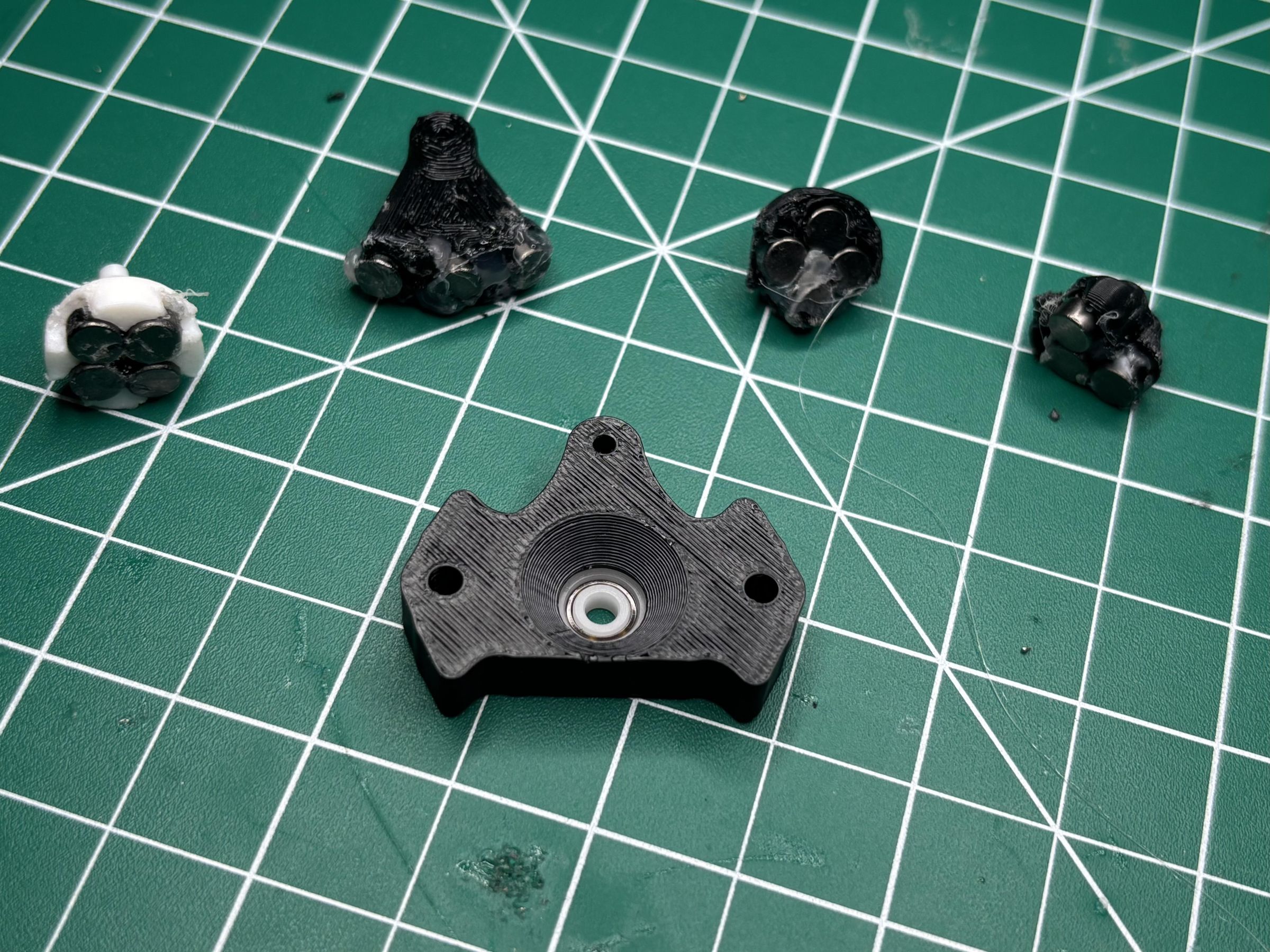


Magnetic Couplings:
Press 5x3mm magnets into the coupling slots in alternating polarity. This pattern creates a torque; when one coupling turns, the other follows even through the hull wall, without any physical connection, allowing it to be waterproof.
Drive coupling: This uses 8 magnets with alternating polarity, sealed with superglue on the wet side. Rudder coupling: 3 magnets per coupling, with the same alternating pattern.
Next, insert a plastic bearing into the motor shaft. Then, press the drive coupling into the bearing and glue. Heat the motor shaft and press on the coupling assembly.
Tail Cone Assembly:
- Install threaded inserts in the rear cap.
- Install a plastic bearing in the rear cap for the propeller shaft.
- Cut the spray can straw to length for the propeller shaft, roughen the contact points, and secure it to the coupling with epoxy.
- Assemble rudder: insert the second straw into the rudder half, trim 20mm from the fin, and reinsert with the magnetic rudder coupling.
- Install the third bearing at the tail cone end.
- Glue the rudder shaft bypass connector.
- Join the rear cap to the tail cone, fasten with 16mm bolts, and check that the propeller shaft spins freely.
- Cut the shaft to 6mm.
- Route the antenna cable through the tail cone sections, seal the cable exit with superglue, then hot glue.
- Install the propeller secured with a heated LED pin.
- Mount the servo drive gear and the driven rudder gear.
- Install piston hoses into the rear cap, trim to length, superglue, and seal edges.
Internal & External Ballast Weights

The submarine has two sets of iron wheel weights that help control the buoyancy of the submarine -- external and internal. Here's an explanation of how to install both sets of weights.
Internal Weights:
The front and rear weight holders each accept 8 iron wheel weights in two rows of four. Trim edges and remove sticky backing before pressing in.
Note: The Raspberry Pi system adds approximately 180-195g mounted below the hull near the front-center. This shifts center of gravity forward compared to Max's original design. I removed 3-4 front internal weights to compensate. Start with fewer front weights and add during water testing.
External exo-ballast weights:
Remove sticky backing from each weight, slide into heat shrink tubing, seal both ends with superglue. Make 10-12 if these. Use 407 during testing depending on fresh v.s. salt water. The exo-ballast holder snaps onto the hull knobs and locks when end caps are sealed.
Acrylic Components


This step is crucial for maintaining hull integrity throughout testing. Make sure you follow these steps thoroughly. If needed, snap the walls of the Pi box then secure later.
Cutting The Tube:
The 44mm ID, 48mm OD acrylic tube cuts to exactly 288mm. Use the printed pipe cutter holder -- insert two M3 hex nuts and bolts to complete it. Mark the tube at 288mm, clamp the cutter holder in position, and saw carefully for a straight clean cut. Deburr both edges with a hobby knife -- the cut acrylic edge is sharp.
Pi Box Camera Windows:
Laser cut using the attached file to precisely cut out the transparent windows out of the 1mm acrylic sheet.
Press the windows into the recess from the inside and seal around the perimeter with epoxy. Make sure not to use super-glue as it weakens PETG joints.
Downloads
Antennae Buoy + Wireless Charger

This buoy will allow the submarine to stay connected even when the submarine is underwater.
Antenna buoy:
Cut a circle from thick polystyrene packaging foam. Mark center and chamfer the bottom edge for smooth water contact. Cut a lot from edge to center hole so antenna cable snaps in. Cover exposed metal with heat shrink to prevent corrosion. The buoy trails behind the submarine on the 5M coaxial cable, keeping the antenna at the surface. The 50-meter control range requires the antenna above water -- signal degrades rapidly through water at 2.4GHz.
Wireless charger housing:
Insert a small neodymium magnet for easy clip-on docking. Solder DC jack wires and push into the cavity. Slot the TX board in and connect DC jack to input pads. Resolder the TX coil with shortened wires, then glue in position using the acrylic pipe as an alignment guide. Fill the lectronics cavity with hot glue.
Power the TX unit with a 12V DC adapter. Align TX coil with the receiver coil inside hull and it begins charging. Full charge takes around 8 hours, and you can used a LiPo charger for faster charging if you remove the front cap and connect to the JST connector.
Raspberry Pi Software


Before OS installation, you need to install the cooling fan. Match the orientation with the two pictures above, place thermal pads on the matching components and screw in the four copper pillars from the bottom. This will secure the fan and keep the temperature low. Here is an instruction guide on how to install any Pi camera.
Raspberry Pi OS Installation
The Raspberry Pi boots from a microSD card, so just like installing Windows, the first step is flashing the operating system on the card from your computer.
- Download Raspberry Pi Imager from https://www.raspberrypi.com/software/ and install it on your personal computer or Mac
- Insert your 32GB SD card into your computer
- Open Imager and select
- Device: Raspberry Pi 4B
- OS: Raspberry Pi OS 64-bit
- Storage: Universal Serial Bus or USB
- Click on the settings menu to configure at this stage rather than later in the Raspberry Pi desktop (it's easier)
- Set the hostname to something recognisable; I did "submarine"
- Set username and password to something you'll remember; you'll need to use them often
- Enable SSH -- this allows you to control the Pi wirelessly, but it won't work underwater
- Click Write, and it will take anywhere from 5 to 45 minutes for the image to write and verify; it depends on the speed of the SD card
Once done, insert the SD card back into the Pi's slot, connect via micro HDMI to HDMI, plug in a mouse and keyboard via the blue USB ports and plug in the power supply using USB.
Configuration - raspi
raspi-config is the built-in configuration tool; you navigate the text menu using arrow keys. Open a terminal and run:
Then, enable two things:
Interface Options -> 12C -> YES
I2C allows the Pi to talk to sensors using a data line and a clock line. The BNO085 IMU and BMP280 pressure sensors communicate over I2C.
Interface Options -> Serial Port -> No (login shell) -> Yes (hardware serial)
This enables UART on the Pi's GPIO pins; you need to say no for login shell over serial, and yes for the hardware serial port. This allows the Pi to send commands to the ESP32.
Python Libraries
First, update the system to make sure everything is current:
This checks for system updates.
Next, install each Python Library:
OpenCV is the computer vision library. It handles capturing frames, converting to colour spaces, and drawing bounding boxes around detected objects.
This is the standard library for controlling the GPIO pins; Used for driving the motor driver.
smbus2 provides I2C communication to send and receive data over the I2C bus.
pyserial handles UART communication to send commands from the Pi to the ESP32 over TX/RX.
Flask is a web server that is used to serve as a motor control dashboard that can be accessed on a browser from the same network.
matplotlib handles data visualisation; it generates graphs of speed, heading, and sensor data (I didn't get around to installing this, but I will show how)
Adafruit's driver library for the BNO085 IMU. It really helps to have clean functions for gyroscope data.
Camera Test
Before writing any code, confirm that the camera works and can produce images. Open the Python interpreter by typing python3 in the terminal and then run this code:
This opens the camera, captures a single frame, saves it as a JPEG file, and then releases the camera so programs can use it.
BNO085 I2C Test
The sensor provides direction information and runs in IMUPLUS mode, which uses the gyroscope (remember magnetic interference)
This opens the I2C bus using SCL and SDA pins, initialises the BNO085 sensor objects, reports gyroscope data, and prints the X, Y, and Z axes. (axis plural)
BMP280 Pressure Test
Both sensors share the two wires since I2C supports many devices on one bus, then it initialises the BMP, reads temperature and pressure in hectopascals (hPa).
UART Test
UART is how the Pi talks to the ESP; the Pi sends ASCII text (1s and 0s that represent letters) over a wire to the serial port, and the firmware reads them and moves the servo.
This opens the hardware port at 115,200 baud; (if you remember earlier, I mentioned that this is the range that the two computers talk to each other) then waits 3 seconds after opening port so the commands aren't ignored during boot, then sends the bytes for the "rudder center" command then adds a special character that signals that the command is over and it ready to be processed -- prints okay when done.
HSV Color Detection + Avoidance


Why I chose to use HSV over RGB: RGB mixes color and brightness, making it sensitive to lighting changes (which would affect obstacle avoidance accuracy). HSV separates hue (the actual color) from saturation and value (brightness), so orange looks orange whether in sunlight or shade.
The example above shows how the OpenCV calibration using this GitHub repository (a trained model) can accurately track obstacles in my pool. However, the code is still original, and combined with the tracker to work in my situation.
HSV Calibration Script:
This code needs to be done before obstacle avoidance, so the same orange hue can be found in the specific lighting that the submarine will be in.
This code creates a window with bars for each HSV value, sets the name with min and max value, and converts the camera frame from the way OpenCV stores color (BGR) to HSV color. Then, it creates a binary image (1s and 0s) so everything outside becomes a 0 (black) and isolates the orange pixels. Lastly, it applies the mask to the original frame so the detected region can be seen in color.
Obstacle Avoidance Code:
Don't forget to replace upper and lower values with what you got from calibration, otherwise it probably won't work (educated guess)
Code Explained:
The script sets up the boundaries and camera settings. Orange upper and lower are the values from the calibration (which is why I said it might be important) and tell the system what color to look for. The resolution which is at 320x240, processes factor making decisions quicker. Threshold means that the obstacle must cover more than 5% of the frame, and within 30% of the middle of the frame means the submarine is heading straight for the obstacle.
Then, the UART and motor open at 115,200 baud, which is the Pi's UART pin connected to the ESP32. After the aforementioned 3-second delay, the pins get configured at 1000Hz, which turns the GPIO pin off and on at 1000Hz.
detect_obstacle scaled each frame down, converts to HSV, and runs cv2 to produce a mask (like before) where orange is white, and everything else is black. If it's greater than 5%, it draws a bounding box and calculates where the orange obstacle is to decide between left, right, and center.
The loop runs at 20 frames, or 20 times, a second. If there's no obstacle, it continues forward. If there's an immediate obstacle, the sub stops, steers right, and starts again.
Object Avoidance Showcase


Note: Box updates at around 5-60fps, if slow in this showcase, may have been in the lower end of the range.
This showcase demonstrates how the system detects orange objects covering more than 5% of the camera frame. When a centered obstacle is detected, the submarine stops and steers right for one second before resuming. If the obstacle is offset, the sub steers toward the clear side while maintaining forward motion.
The BNO085 IMY running in IMUPLUS mode (gyroscope only, magnetometer disabled) provides heading hold. The magnetometer is disabled because of the pool rebar, and the submarine's own magnets create too much interference. Gryscope drift of 1-3 degrees per minute is fine for pool demos.
Pi Connection to Motor & Connections to ESP32


The connection between the Raspberry Pi and the ESP32 uses motor control via Pi GPIO / UART pins.
The drive motor connects directly to the Pi through a spare DRV8833 module. This gives the Pi full PWM speed control independently of the ESP32.
Motor Wiring:
- Control Signal Forward: Pi GPIO14 to DRV8833 IN1
- Control Signal Reverse: Pi GPIO15 to DRV8833 IN2
- Logic Power: Pi3.3V Pin to DRV8833 VCC
- Ground: Pi GND Pin to DRV8833 GND
- Motor Power: Battery Positive to DRV8833 VM
- Motor Ground: Battery Negative to DRV8833 GND
- Motor Wire 1: DRV8833 OUT1 to Motor Terminal
- Motor Wire 2: DRV8833 OUT2 to Motor Terminal
When GPIO14 goes HIGH, and GPIO15 goes LOW, the DRV8833 connects OUT1 to VM and OUT2 to GND -- current flows through the motor in one direction, and it spins forward. Reversing which pin is HIGH flips the current direction, and the motor runs backward. The Pi controls this using PWM -- rapidly switching the pin on and off at varying duty cycles to control speed.
UART Communication Wiring:
UART is a type of direct wire connection between the two microcontrollers that allows the ESP32 to read and act on certain text commands -- like steering the rudder and controlling the ballasts.
UART uses two signal wires and a shared ground. Critically, transmit on one device connects to receive on another device, and they connect.
- Transmit: Pi GPIO14 TX to XIAO D7 (GPIO44) RX
- Receive: Pi GPIO15 RX to XIAO D6 (GPIO43) TX
- Ground: Pi GND to XIAO GND
UART Command Reference:
The Pi sends text commands, and the ESP32 firmware reads them until it sees the last character, then processes the command.
Command and Effect:
RUDDER:LEFT -- Deflects rudder servo left
RUDDER:RIGHT -- Deflects rudder servo right
RUDDER:CENTER -- Returns rudder to straight ahead
BALLAST_FRONT:[0-180] -- Sets front ballast position (0 = full, 180 =empty)
BALLAST_REAR:[0-180] -- Sets rear ballast position (0 = full, 180 = empty)
Pi Compartment Sealing + O-Ring Calculations


The Pi box is a sealed PETG box mounted below the hull, attached to a weight rack. It holds the Pi, BNO085, BMP280, Geeek Pi ICE Tower, and a 5200 mAh 3.7V LiPo battery.
Sealing Calculations and Measurements:
The lid is sealed using a radial O-ring:
The lid has a lip that inserts into the box opening. An o-ring groove runs around the lip perimeter. The O-ring compresses radially between the lip face and the inner box wall when the lid seats.
Oringe groove dimensions for a 4mm cross-section O-ring:
Groove depth: 1.0mm (protrudes 1mm from lip face)
Groove width: 4.0mm
Corner fillet: 5mm
Compression: 0.5mm compression / 4.0mm cross section = 12.5%
O-ring perimeter calculation:
Lip outer dimensions: 124.55mm with 5mm fillets
Groove centerline (1mm inset): 122x53mm
Perimeter 2*(122-10)+2*(53-10)+2pi*5 = 341.4mm
O-ring Inner Diameter: 341.4 / pi * 0.95 = 103mm (5% smaller for stretch fit)
Order: 103mm ID x 111 OD x 4mm cross-section O-ring
Lid Fastening:
4 M2 bolts through corners that screw into heat-set insets inside Pi box walls -- apply dielectric grease to O-ring before opening
Camera window:
Acrylic sheet pressed into recess, sealed with epoxy, snap supports, and secured later if need be
Cable Gland:
M16 IP68 cable gland through the rear or side wall for wiring between the Pi box and the hull
Final Sealing + Waterproof Testing


Now the submarine is almost water-ready, but there are a few housekeeping tasks left
Hull End caps:
Apply dielectric grease to both o-rings and seat them in their grooves. They should sit about the surface before the tube slides on. Slide the acrylic tube over the frame with slight resistance, enough for o-ring compression (like mentioned earlier).
Superglue Sealing:
All PLA (if used) surfaces that contact water need to be sealed, but PETG does not.
Coat each surface with superglue, and then let it cure fully before water contact.
Place at least two packets of silica gel inside the main hull to prevent condensation.
Bathtub test:
Submerge sealed for 30 minutes, then check for bubbles or condensation, then if all goes well, continue onto the next step.
My Troubleshooting Issues + Tips


This is a list of every significant issue I ran into during the length of this build + what caused them and how I fixed them.
LED Headlights Completely Dead:
Every connection seemed fine, the configuration was right, and the firmware was finding the pin, but the light's weren't turning on. I later figured out, though, that the SI2300 N-MOSFET was only soldered on 2/3 pins.
Drive Motor Never Spinning:
The single problem cost me days of work and a net 10+ hours. The motor wouldn't work at at, even the config, firmware, and pin changes wouldn't affect a thing. I manually applied voltage to what I thought was IN1 and the motor spun, which made me think the XIAO was the problem, but rather, the XIAO had been connected to OUT1 and OUT2 instead of the input pins. The H-bridge never received a signal during the entire process, and eventually after multimeter and power supply testing, I rewired the pins and successfully spun the motor.
Piston Ballat Motor Not Driving:
When I checked with the multimeter, every connection had clean continuity, and the servo board was getting signal AND power + the motor spin when connected to a power supply. The issue happened to be a linear slide potentiometer that was constantly outputting the wrong value, which made the servo board think the piston already WAS at 180, when it was actually at 0. I temporarily connected a rotary trim potentiometer in place of the linear potentiometer and it spun -- this fix was probably my most intuitive fix throughout the project. I replaced the linear potentiometer and it spun perfectly fine afterwards.
Reed Switch Pad Lifted:
After resoldering during debugging, the reed switch pad came clean off. Meaning, no matter what, I couldn't turn on anything as it was constantly set to "off" mode. This issue was solved by scraping off the adjacent solder mask and soldering directly from the reed switch pad one to the battery +, sacrificing the ability to turn the sub on and off temporarily for smooth testing.
XIAO Not Turning On:
The GND pad on the XIAO underside was damaged beyond use after repeated soldering, meaning there was no way to connect the XIAO to power. Intuitively, I did the same trace method as the reed switch, connected it and then the XIAO still didn't turn on. I then soldered both BAT+ and BAT- of the PCB to the JST through hole connectors, then connected those wires directly to the XIAO and it fixed all of my power issues.
Forgot Exo-Weights At Home:
I forgot my iron wheel weights at home after arriving at the pool: my submarine was too buoyant to dive. I zip tied and tied rope from the submarine to a brick to allow it to stay low enough to test all of the submarines capabilities. Next time, I would likely add more weight and remove what I need later.
Water Test + Conclusion


The brick is only tied to the submarine because I forgot my wheel weights at home, but otherwise, it worked exceptionally well, avoided my orange training cone, and all functions worked well. Furthermore, absolutely zero water crept into the hull.
Procedure before first test:
- Use a syringe to pump water until the front ballast fills with water and starts operating properly
- Set both ballasts to 90 (neutral)
- Power the submarine using a magnet and the reed switch
- Make sure every control works just fine before diving
Tip: Add way a little bit more weight than you think you need; my sub was too buoyant, but otherwise worked fine.
Project Specs:
Battery life: 45-60 mins
Range: 50 meters with 2.4gHz
Depth: Untested
Max speed: 1.5 feet/s
Weight: 850g
What I would have done differently / improvements:
I would have ordered the PCB domestically, as I paid nearly $40 in shipping costs, I would have mapped out my connections before soldering (desoldering took maybe 10-12 hours total in this project), and I should have definitely taken more photos of the actual finished submarine in water.
I could have programmed the submarine to hold depth using the BM28 rather than manual ballast commands, used sonar or ultrasonic sensors for more autonomous steering, and definitely better UI for all software related programs.
Conclusion:
The idea for this project came from the desire to build something that couldn't easily be compared to anything else out there. Last year, I built a robotic arm; sure, it's a good starting point especially considering the short time frame, but there are a plethora of robotic arms out there. I didn't want to make the same mistake this year by either creating something elementary, or simply grabbing low hanging fruit in AI (I do not mean to discredit AI, to me it felt unsatisfactory to abuse the “new big thing” in order to get clicks). A project that would need to be adequately engineered, or else it would have devastating consequences if it had even a single flaw. Though it wasn't obvious at first, a submarine made sense, but just a submarine with a motor and rudder didn't meet my other requirements. A submarine with intricate and incredibly complex interior systems, however, did.
The design for the submarine came slowly, like the idea for the submarine, it wasn't obvious in the beginning. The rigorous brainstorming on Onshape, the potential Amazon shopping lists, the CAD assemblies; everything was planned before a single tool touched my workbench. Even then, no amount of planning could have foresaw and prevented every small problem that I came across. The failed prints reminded me of that.
The electronic issues were even worse. Failed motor drivers that were the result of one unsoldered resistor, which I only realized was the case after checking firmware, pin assignments, and wiring a multitude of times. A short circuit nearly lit my battery on fire, PCB pads lifted from too much head, late packages, desoldering and resoldering the same components to no avail, and a reed switch pad fell off completed and had to be bypassed by scraping solder mask off a trace with a kitchen knife: these issues taught me something.
However, what surprised me most wasn't how hard individual problems were, rather, it was how being underwater changed the situation entirely. Sure, a submarine could work fine on a bench, but ensuring it's water proof from the design board and on the workbench is a different story. Even after my entire project was successful, the water test was limited by the fact I left the exo-ballast weights in my house so the submarine wasn't heavy enough to dive. Though, failsafes ensure months of work aren't destroyed; the thoughtful waterproofing ensured all my components stayed safe, even underwater. Every control worked, and the obstacle avoidance drove away from my orange cone.
This project has taught me that I have a long way to go, but it has also taught me many things I had nearly zero idea of this time last year. Regardless of all the failures, the overall success of the project has led me to come to this conclusion:
The last three months were worth it.