Raspberry Pi Handheld Game Console
by intercontinentalballisticmissile in Circuits > Raspberry Pi
1125 Views, 4 Favorites, 0 Comments
Raspberry Pi Handheld Game Console

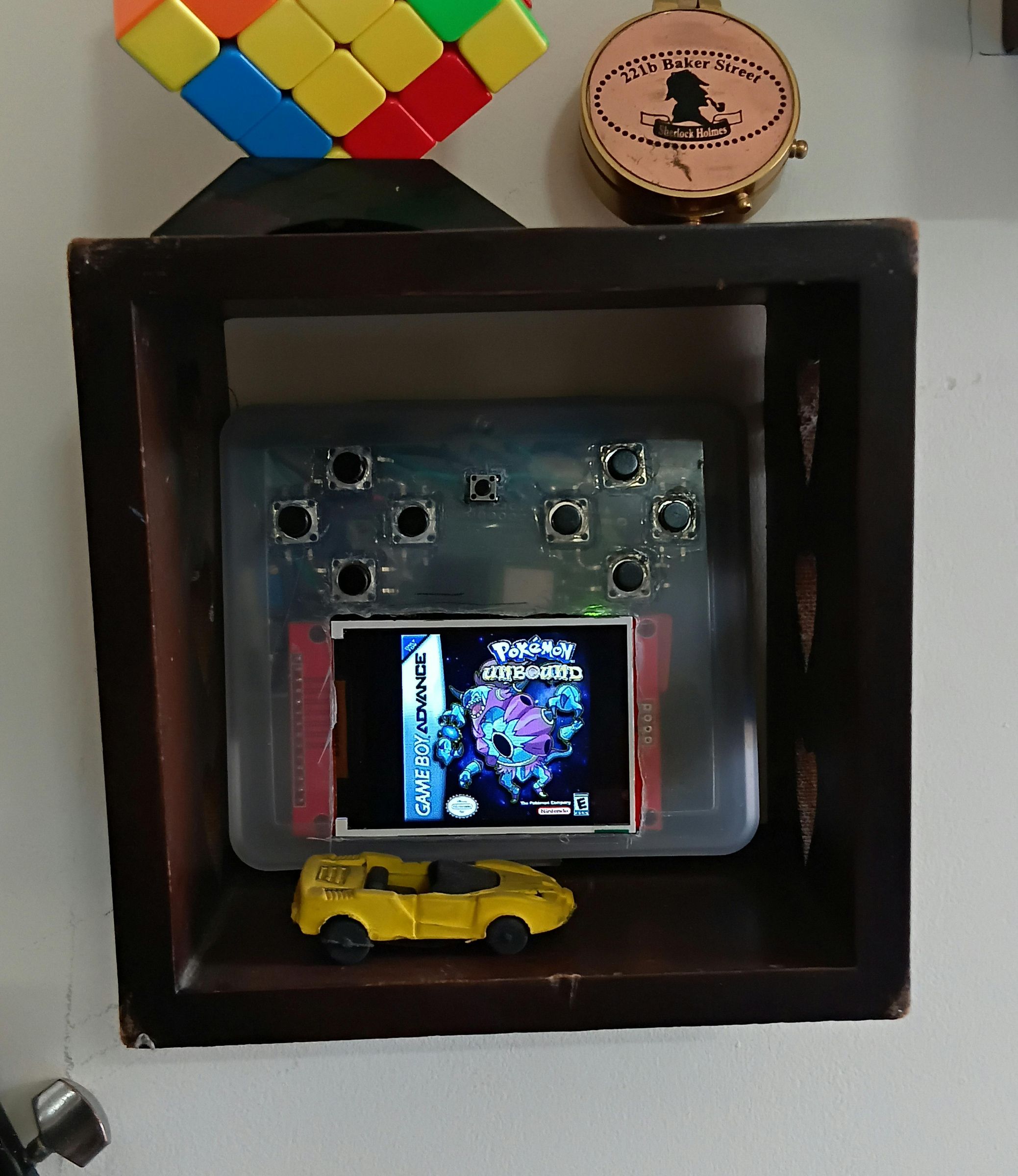
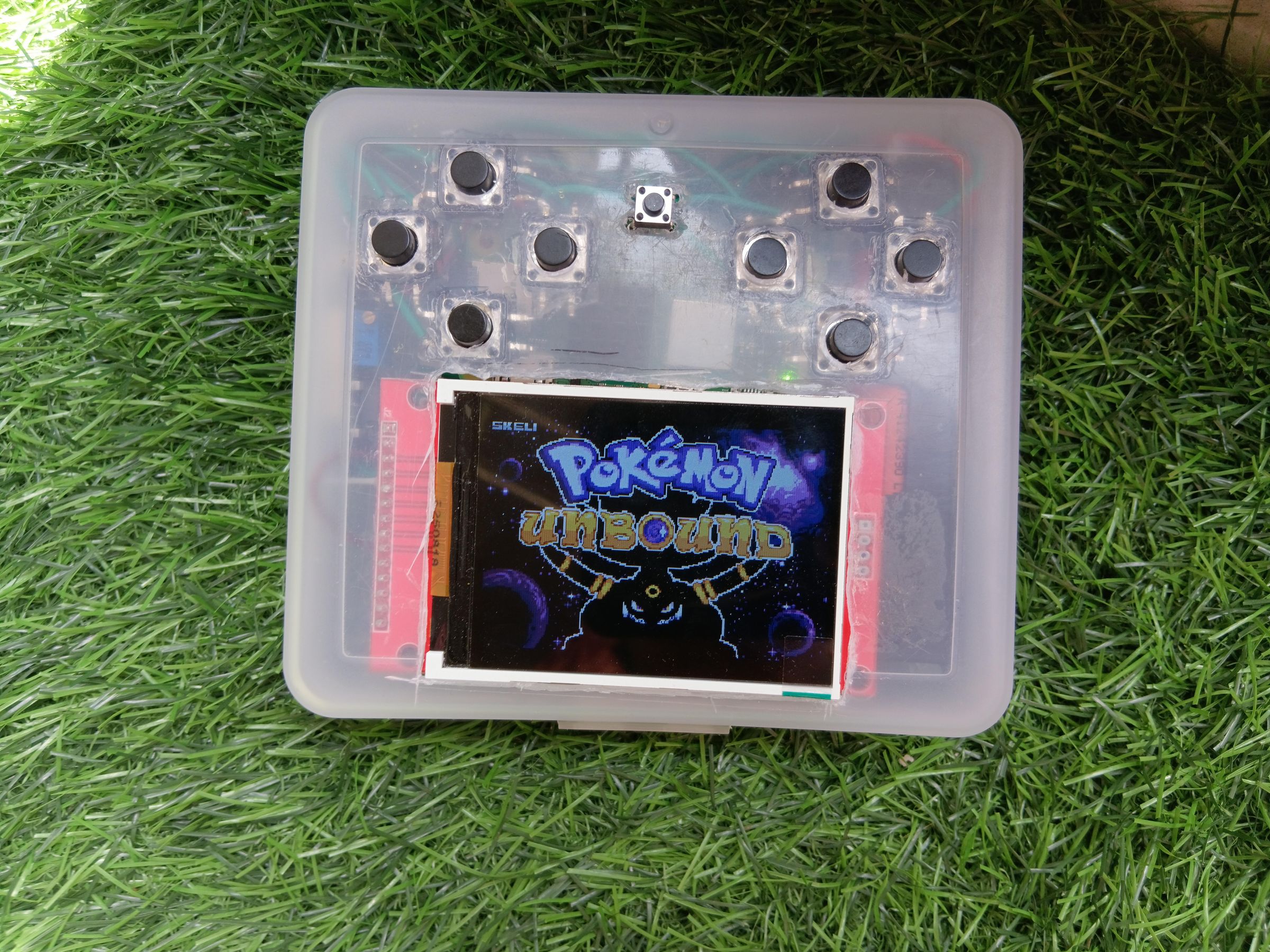
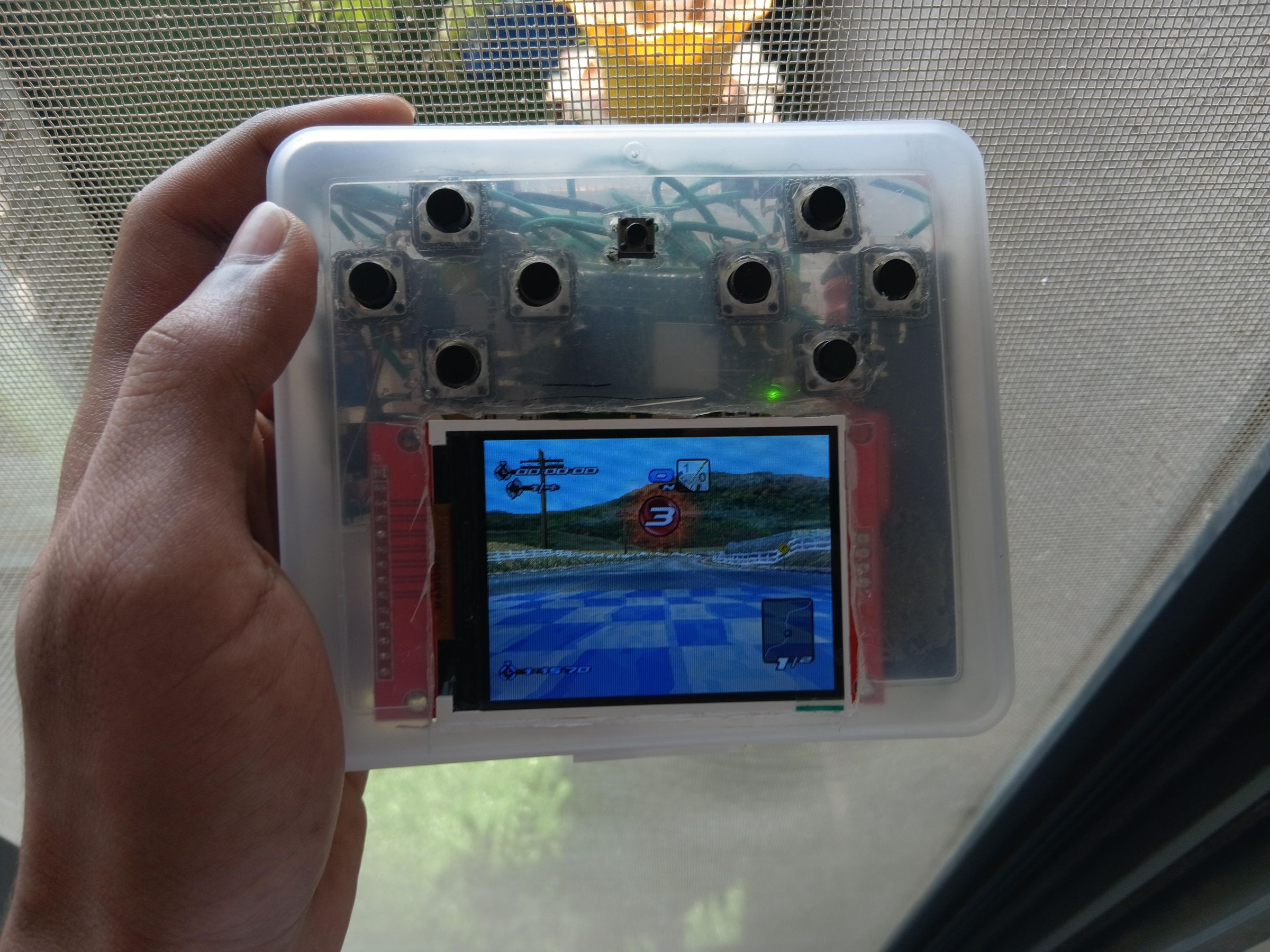


This is the 1st version of my raspberry pi handheld game console, powered by a Raspberry Pi Zero 2 W and a 2.8inch tft display. This entire project was made in under 2500rs (around 30$)
I recently stumbled across the pokemon unbound reddit and thought it would be fun to make a retro emulator to play it. I already tried making one a few months ago but unfortunately burnt the pi in the process :/
Since this is not a final project, and I aim to make it better, I used headers for both the raspberry pi and the tft display. without headers you could cut down the breadth by about 1cm (It's almost 3cm right now)
I have included the necessary steps to wire everything, install the OS (Retropie), installing drivers for the tft display, transferring ROMs etc.
Also, this is my first time posting a project online, so any suggestions would be greatly appreciated:)
Supplies
For the case, I just used an old plastic box that had stationary items in it.
Parts:
Raspberry Pi Zero 2 W (zero works too) ~ 1700rs
Tactile push buttons x 11 ~ 10rs
ILI9341 2.8inch TFT display ~ 500rs
18650 battery holder ~50rs
18650 cells
TP4056 charging module ~ 20rs
MT3608 boost converter ~ 30rs
Micro SD card (any size)
Prototyping board
Male, female headers
heatsink (optional)
Make sure to buy good quality 18650 batteries. I bought 2 cells for very cheap (less than 90rs/1$) and while they did work properly, they would restart randomly after 1 hour of playtime, which is super annoying. Ignoring the random crashes, the battery life is about 3-4hrs while emulating Game Boy Advance.
Also, try to buy from local shops if possible, as prices on amazon is 1.5-2x higher.
Tools:
Soldering Utilities
Glue
Wires
Soldering the Headers

Since I'm planning to reuse the Raspberry Pi for other projects too, I want it to be removable. You can skip this step if you want- It'll save you about 1cm in height, which would make a huge difference for handhelds.
There are 40pins in the raspberry pi and 14pins in the TFT display; however, you will only need 9 of those pins since the rest are for touchscreen inputs.
Wiring the Display
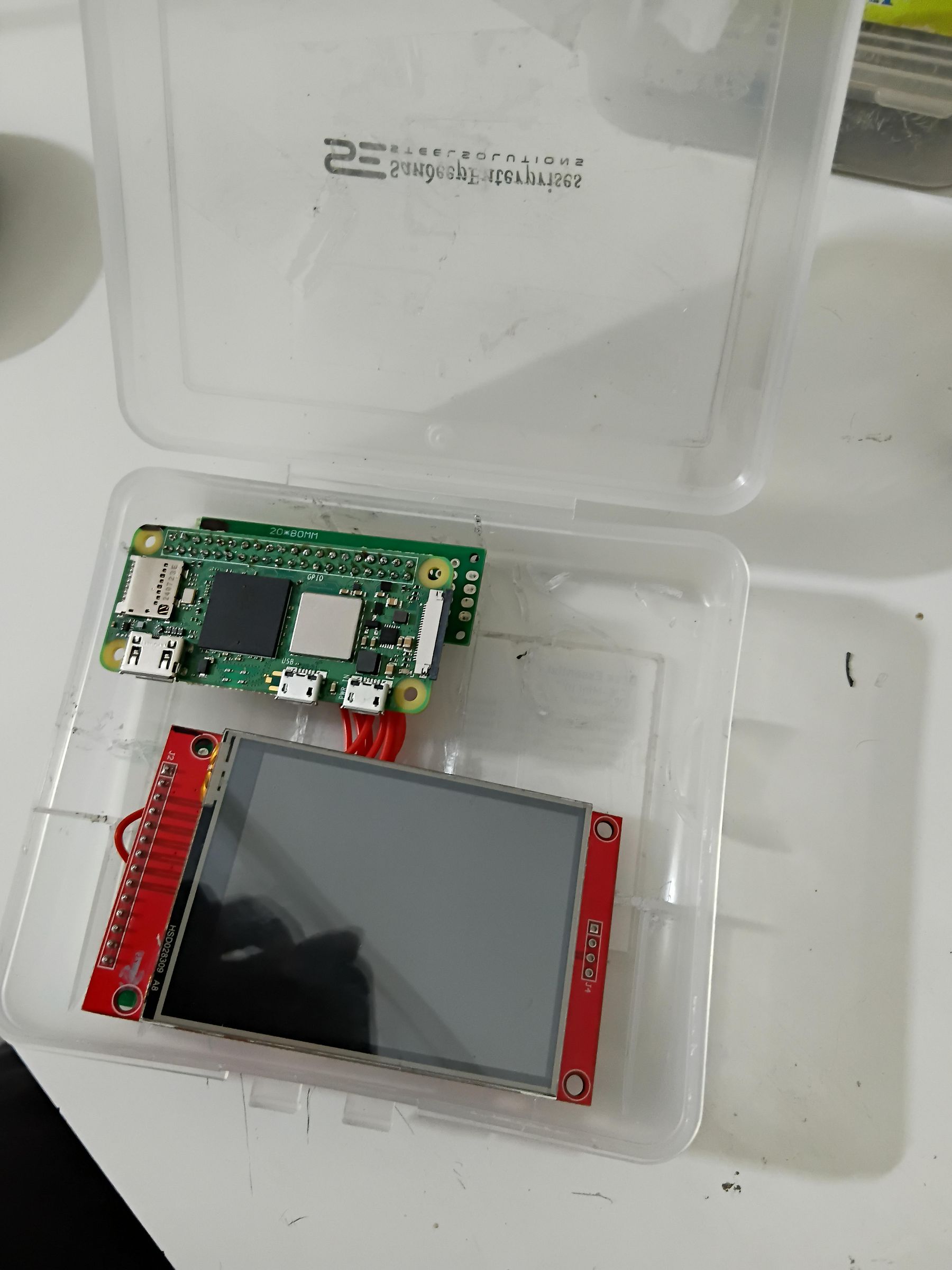


Make sure you wire the display to 3v and not 5v. Some displays do not support 5v and you'd end up burning them if youre not careful.
Here is the wiring:
SD0(MISO) - 21
LED(BACKLIGHT) - 3v
SCK - 23
SDI(MOSI) - 19
DC - 29(GPIO5)
RESET - 31(GPIO6)
CS - 24
GND - GND
VCC - 3v
Wiring Buttons

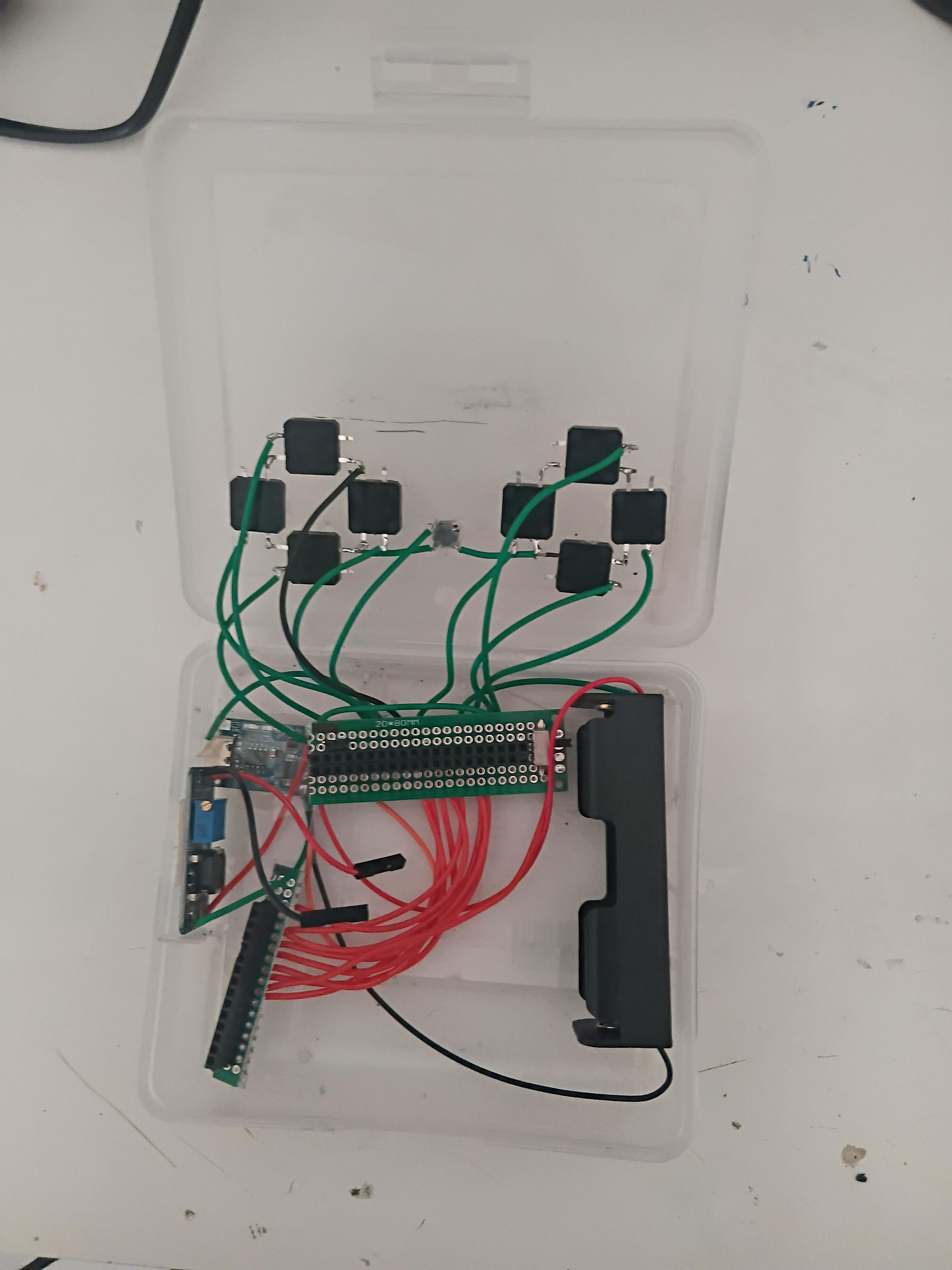

While it is recommended to use a micro controller like arduino pro micro or teensy, I decided to wire the buttons directly to the Raspberry Pi to save money. Keep in mind that this approach could be very messy and the wiring would become confusing very quickly if you're not careful. If you have an arduino pro micro, I highly recommend routing the controller inputs through it. With that out of the way, here's the wiring:
Left D-pad:
Left - 27
Right - 23
Up - 4
Down - 17
Right D=pad:
Left(start) - 16
Down(select) - 25
Up(A) - 26
Right(B) - 13
Hotkey: - 22
Left shoulder - 24
Right shoulder - 12
Note: You can wire the buttons in any way thats convenient to you.
There's only a total of 10 buttons + 1 hotkey button, which is enough for GBA and SNES games. For PSX and other consoles however, you would need more buttons.
Powering the Console

I used a TP4056 charging module and MT3608 boost converter connected to a single 18650 cell to power the console. You could also use a power bank module to replace the first two components and keep it clean.
Connect the 18650 cell to the boost converter and check the output voltage with a multimeter. Then turn the potentiometer until the ouput reaches 5v. Be very careful not to set a voltage too high.
After that, wire the positive and negative terminals from the battery to the charging module's input.
Wire the charging module's output to the boost converter's input. Wire the boost converter's output to the pi.
Battery -> Charging module -> Boost converter -> Raspberry Pi
Installing Retropie and Configuring the Software
I've decided to use Retropie for this project. Install the Raspberry Pi Imager from the official website and insert your SD card in your computer.
In the imager, select Raspberry pi zero 2 W -> game emulation OS -> Retropie
It will take around 15-30 mins or more depending on the speed of your internet and SD card.
After its done installing, eject the SD card, and plug it into the computer again.
Create an empty file called 'ssh'. Make sure not to save it as a .txt file.
This will enable ssh, so that we can access the Raspberry pi directly through another computer.
After that is done, create another file called "wpa_supplicant.conf"
Make sure to change the country and input your correct 2.4G wifi details.
save the file and then boot up the pi
The next step is to find the IP address of the raspberry pi. You can either check your wifi admin page, or run an nmap scan to find it out.
Another option is to temporarily connect the pi to a display via the HDMI cable and navigate through Retropie->show ip
Or, connect a keyboard and monitor through hdmi, press F4 and type "hostname -I"
After you get the IP address, open terminal on your PC and type the following command:
ssh pi@192.168.1.xx replace the xx with the respective number in the IP address
The default password is "raspberry"
Type yes when prompted
Congratulations! You can control the Pi from your computer now.
If you want to learn more, check out this page in the official docs.
Getting the Display to Work


I'm going to use this driver called fbcp-ili9341 written by juj. Here's the github link for the project.
This specific driver allows us to get upto 60fps(and more in some cases). It achieves this by changing only the pixels that update, instead of refreshing the entire screen every single frame. I would highly encourage you to read the docs to learn more about it.
SSH into your Raspberry Pi and then type out the following commands in order:
sudo apt-get install cmake
clone into the github repository:
git clone https://github.com/juj/fbcp-ili9341.git
change directory to fbcp-ili9341:
cd fbcp-ili9341
make a directory 'build':
mkdir build
go to directory 'build':
cd build
Configuring the options. Be sure to include the two dots at the end
If you're using a different display, you can refer to the docs to change the code.
If the display isn't working properly, change -DSPI_BUS_CLOCK_DIVISOR= to a higher number (30 for example). Note that using a higher number would result in lower refresh rate.
make -j
------
After that is done, type the following commands to enable the driver on startup:
cd
open the file with text editor nano:
sudo nano /etc/rc.local
add the following command before the last line, as shown in the image uploaded above.. do not forget to include the '&'
sudo /home/pi/fbcp-ili9341/build/fbcp-ili9341 &
press ctrl + o
press enter
press ctrl + x
Now type sudo reboot
After the Pi reboots, you should see the display working. This is a bit difficult and it took me a couple of tries to get right, so if you face any difficulties, feel free to ask in the comments.
You can refer to the github page if you want to change more stuff like rotating the display by 180*, adding borders etc.
Note that the display will appear white for sometime after the Pi starts. This is normal.
Getting the Buttons to Work
If you've made this far, congrats! Just one more step before you can play your favorite retro games.
For this step, we will be using the adafruit-retrogame library. Here is the github link.
This will be much easier to set up compared to the display drivers.
SSH into the Pi and type the following:
Then run:
sudo bash retrogame.sh
you can choose any option, because we're gonna replace the configuration file in the next step.
After that is done, shutdown the Raspberry Pi insert the SD card into your computer.
Replace the content in retrogame.cfg with this instead:
Save this file as retrogame.cfg
If you added more buttons/ followed a different wiring, check out this page to learn how to change the configs.
Add ROMs and Play!


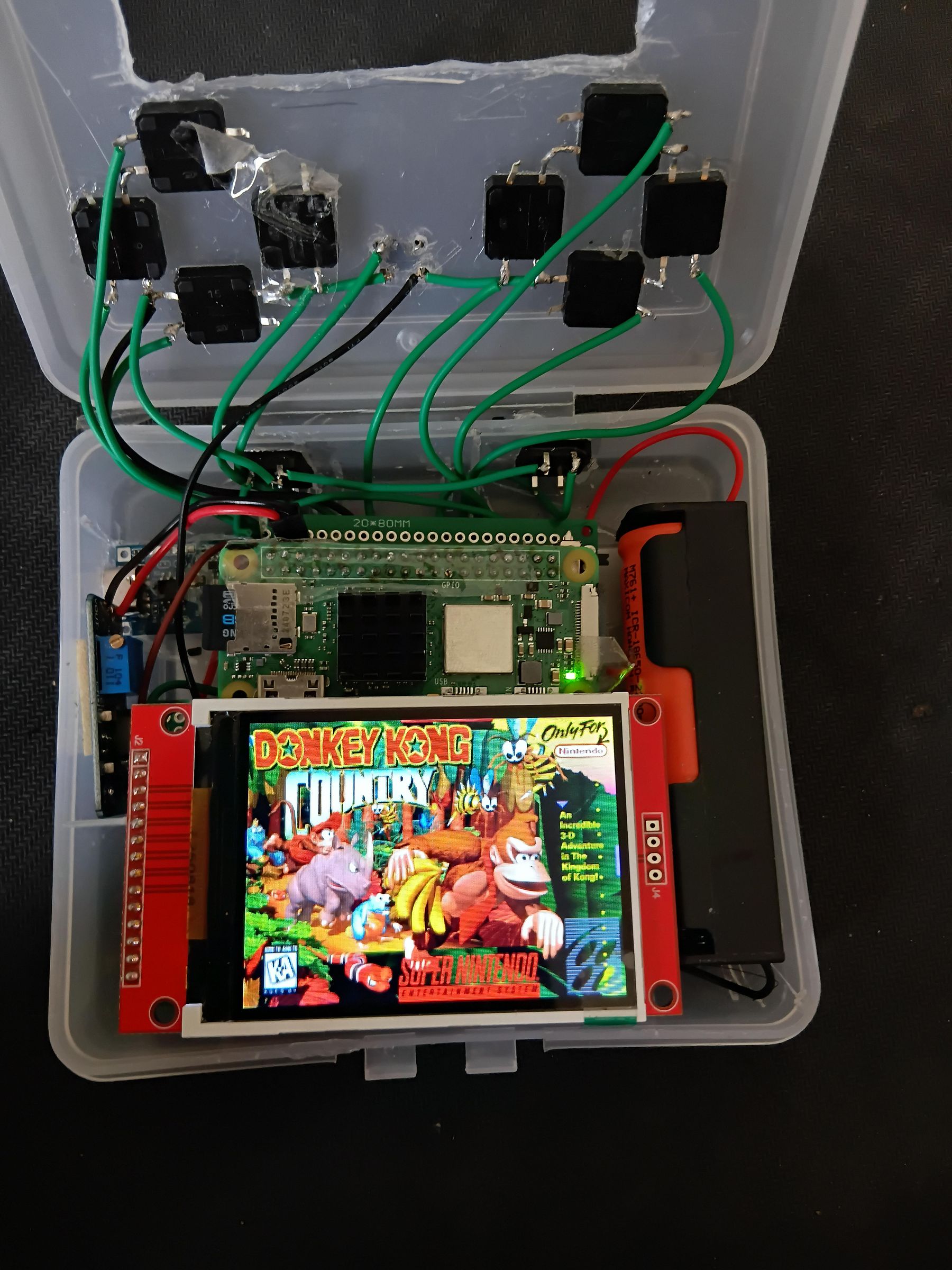


If you've followed all the previous steps correctly, you should be able to see the display turn on and the "configure input" screen. Go ahead and configure the inputs as you like. You can hold a random button to skip an input.
I used the left dpad for movement, right dpad for start, select, A, B.
The middle button for hotkey
and shoulder buttons for R1 and L1.
To transfer roms and start playing, follow these steps:
- Open your web browser, search for the game you want to play and download it.
- Open file manager
- On the top bar, type \\RETROPIE and hit enter (you will need to enable network sharing on your PC)
- Open the roms folder, and the console which you downloaded the rom for
- Paste the downloaded game here
- Reboot the Pi, and you should be able to see the games now.
Again, if you face any difficulties, feel free to ask.
Visit this site for more information on transferring roms.
If you successfully transferred the roms, you can start playing now:)
The hotkey to exit the game is hotkey+start
Additionally, you can go to ES themes to install custom themes (I used the bubblegum theme in the linked youtube video). There are a lot of settings to play with, so take your time exploring each one of it. In case you need any help, this is the official docs.
Have fun!
Additional Notes:
GBA, SNES and other low end consoles seem to work perfectly fine with no overheating. I have played for over 30hrs in GBA and a few hours in SNES and havent experienced any issues with the emulator so far. I'd still recommend creating backups to another PC tho, just in case things go wrong.
Some PSX games launch, but they are barely playable(slower than a powerpoint presentatino). However, this isn't overclocked, and with some optimisations and serious overclocking a few titles might be playable.
Emulators like N64 doesn't even launch.
Ive gotten about 3-4hrs of continuous playtime with one 18650 cell, although it starts randomly restarting after 1hr of playtime. This is probably because of the very cheap cell I used. You should be fine if you're using a good quality cell.
What Next?
This is just a prototype that I built, and I definitely look forward to improve this console.
If you've made this project and want to improve it, or would like to make a better version of it, you could take some ideas from here.
- The biggest upgrade would be to add audio. I tried getting GPIO audio to work, but unfortunately I couldnt. GPIO audio would be noisy anyways, so the best option would be to use a soundcard.
- As for the battery, I'm planning to use 2 cells in series to distribute the current and (hopefully) the random crashes after 1hr will stop. This shouldnt be a problem if you are using good quality cells tho.
- I also want to replace the cheap charging module and boost converter with a more reliable powerbank module, as it takes forever to charge. I'm planning on using this module as it also shows how much power is left before the battery dies.
- The enclosure could be improved a lot. A 3d printed case would be very nice.
- USB hubs could be added to connect additional peripherals.
- Optimize the OS to last longer on battery/boost performance to emulate more demanding consoles
- Use an external microcontroller to handle inputs, and add joysticks.
But for now, I'm just going to play more pokemon till my exams finish:)
Good luck on building your own retro handheld gaming console!