Rebound: a Short Film

Success rarely happens on the first try.
Whether you're learning a new skill, preparing for a competition, or chasing a personal goal, progress often comes through repeated failure. Every missed attempt becomes another opportunity to improve, adapt, and try again.
My name is Suchit Choudhary, and that idea is what inspired this project.
I have always been fascinated by the moment something hits the ground and decides what happens next. A bounce seems simple, yet it carries a surprising amount of emotion. There is impact, hesitation, and then a choice to rise. Even though it is nothing more than physics, every bounce feels like a tiny story.
While creating this animation, I noticed how naturally we read emotion into motion. A slow rebound can feel exhausting. A powerful bounce can seem confident. A missed jump can look frustrating. That observation led me to a simple question: could a bouncing ball tell a story about determination?
At first glance, this animation is about a ball trying to escape a bedroom. It begins near a window, drawn toward the world outside. Along the way, it misses jumps, encounters obstacles, and repeatedly falls short of its goal. Yet each setback becomes part of its progress. Instead of giving up, it keeps moving forward until it finally reaches freedom.
Rather than using dialogue or facial expressions, I wanted the motion itself to carry the meaning. Every bounce becomes a moment of effort. Every missed landing becomes a setback. Every successful jump becomes a victory. What begins as a simple animation exercise gradually transforms into a story about resilience.
The theme "Make It Bounce" became more than a challenge about movement; it became a message about persistence. Through a simple ball and a series of obstacles, this animation explores how growth often comes from trying again, even after failure.
This project can be completed in a few days, but depending on your computer's specifications, rendering may take significantly longer. Don't be surprised if the entire process stretches closer to a week, especially when rendering multiple scenes and making revisions.
Because sometimes success is just one more bounce away.
Let's jump right in!
Supplies


This animation was created using only a few essential tools and assets, keeping the focus on motion, timing, and camera work rather than complex modeling.
Software
- Blender 5.1.2: Used for animation, lighting, camera work, and rendering.
- DaVinci Resolve 21: Used for final editing, color adjustments, and exporting the finished video.
- ElevenLabs: Used for voice generation
Hardware
- Computer or laptop: capable of running the software listed above
Audio Assets
Pixabay
YouTube
Scene Assets
- Moonlit Golf HDRI environment provides natural lighting and reflections
- RoomFinalBlender by MasterJuan579 Main environment for the animation
Optional
- Notes or sketches for planning bounce arcs
- Mouse with middle‑click for navigation and precision
Researching How a Ball Bounces
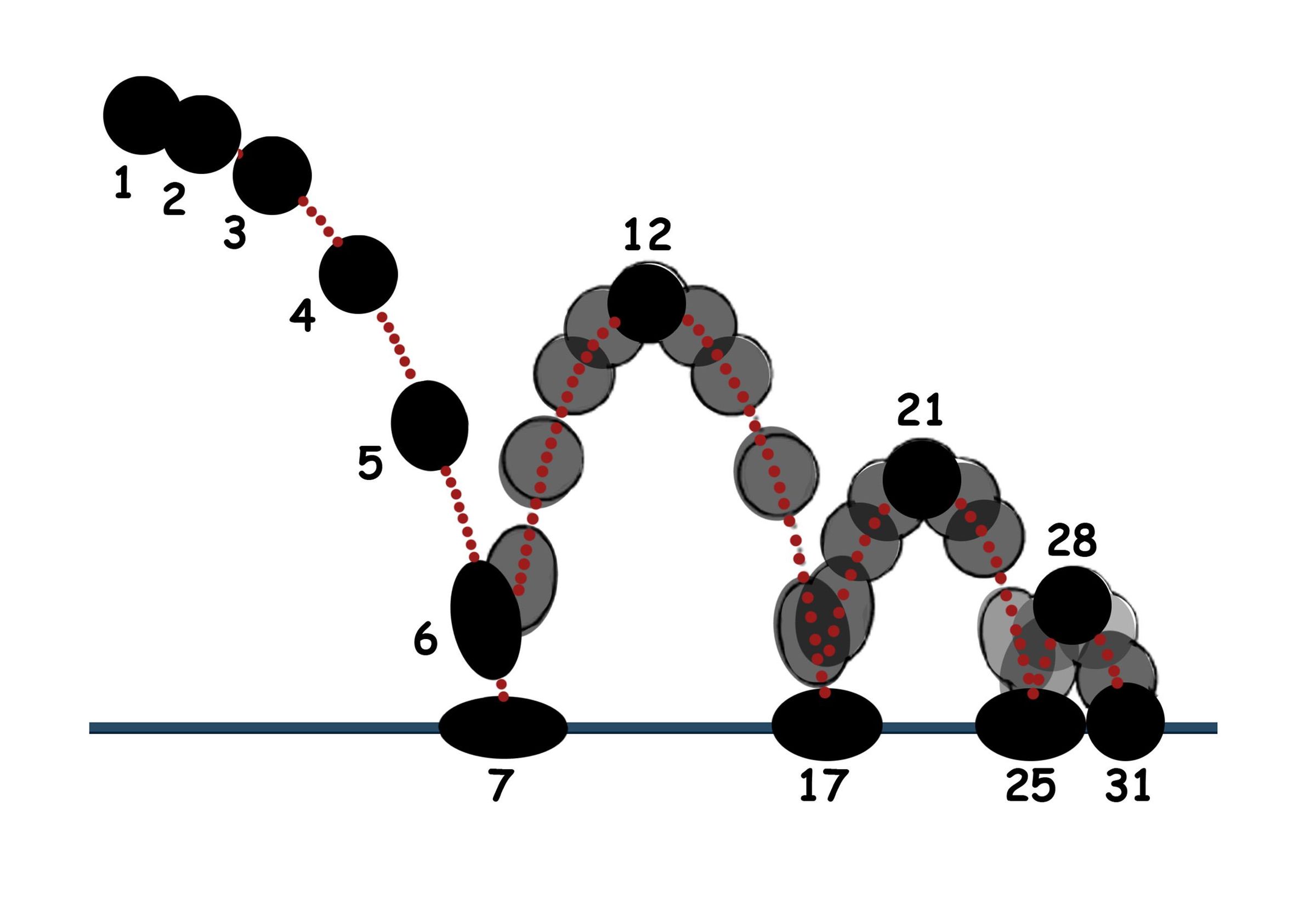
Before opening Blender, I spent some time studying how a ball actually moves.
Since this project revolves entirely around a bouncing ball, I wanted the motion to feel believable. The reference image above helped me understand several important animation principles, including arcs, timing and spacing, squash and stretch, and how each bounce gradually loses height as energy is lost.
Even though Blender's physics system handles much of the bouncing automatically, understanding these concepts made it easier to create more realistic motion and camera work throughout the animation.
A few minutes of research can save hours of trial and error later.
Now that we understand how a bouncing ball behaves, it's time to plan our animation before we start the project.
Planning the Animation
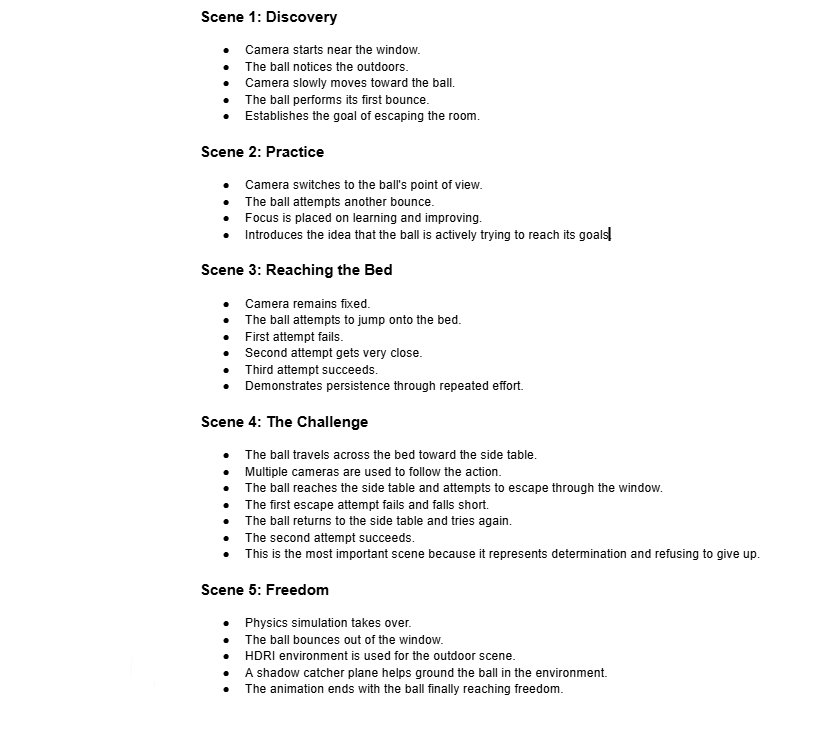
Before beginning any animation, I like to create a simple scene plan. This helps organize the story, camera angles, and major actions before spending hours animating. While the final animation may change during production, having a roadmap makes the entire process much easier.
For this project, I planned the animation around five scenes, and this plan served as a guide throughout production. Some details changed while animating, but having a clear structure made it much easier to stay organized and focused on the story.
Set Up Your Workspace
Before creating your bouncing animation, you'll need two applications downloaded on your device: Blender for animation and DaVinci Resolve for final editing.
1. Install Blender
Blender is where you'll create, animate, light, and render your project.
Download
- Visit Blender Official Website
- Click Download Blender
- Select the latest stable version for your operating system
Install
- Run the installer
- Keep the default installation settings
- Complete setup
Verify
Open Blender and confirm that:
- The application launches successfully
- The default scene appears
- No error messages are displayed
2. Install DaVinci Resolve
DaVinci Resolve will be used to edit, color-correct, and export your final animation.
Download
- Visit DaVinci Resolve Official Website
- Select DaVinci Resolve (Free Version)
- Choose your operating system
Install
- Run the installer
- Follow the recommended setup process
- Launch the program after installation
Verify
Open DaVinci Resolve and confirm that:
- The project manager's screen loads correctly
- Menus and panels appear normally
- No startup warnings occur
3. Prepare Your Workspace
Animation projects can become large very quickly. Before continuing, ensure your system is ready.
Storage
- Reserve at least 10–20 GB of free space
- Create a dedicated project folder
Software Check
Confirm that:
- Blender opens without errors
- DaVinci Resolve opens without errors
- Both programs run smoothly
You now have everything you need installed, organized, and ready to go. In Step 4, you’ll open Blender for the first time, learn the essential shortcuts, and get familiar with the interface so you can navigate confidently before building your animation.
Blender's Basics and Shortcuts
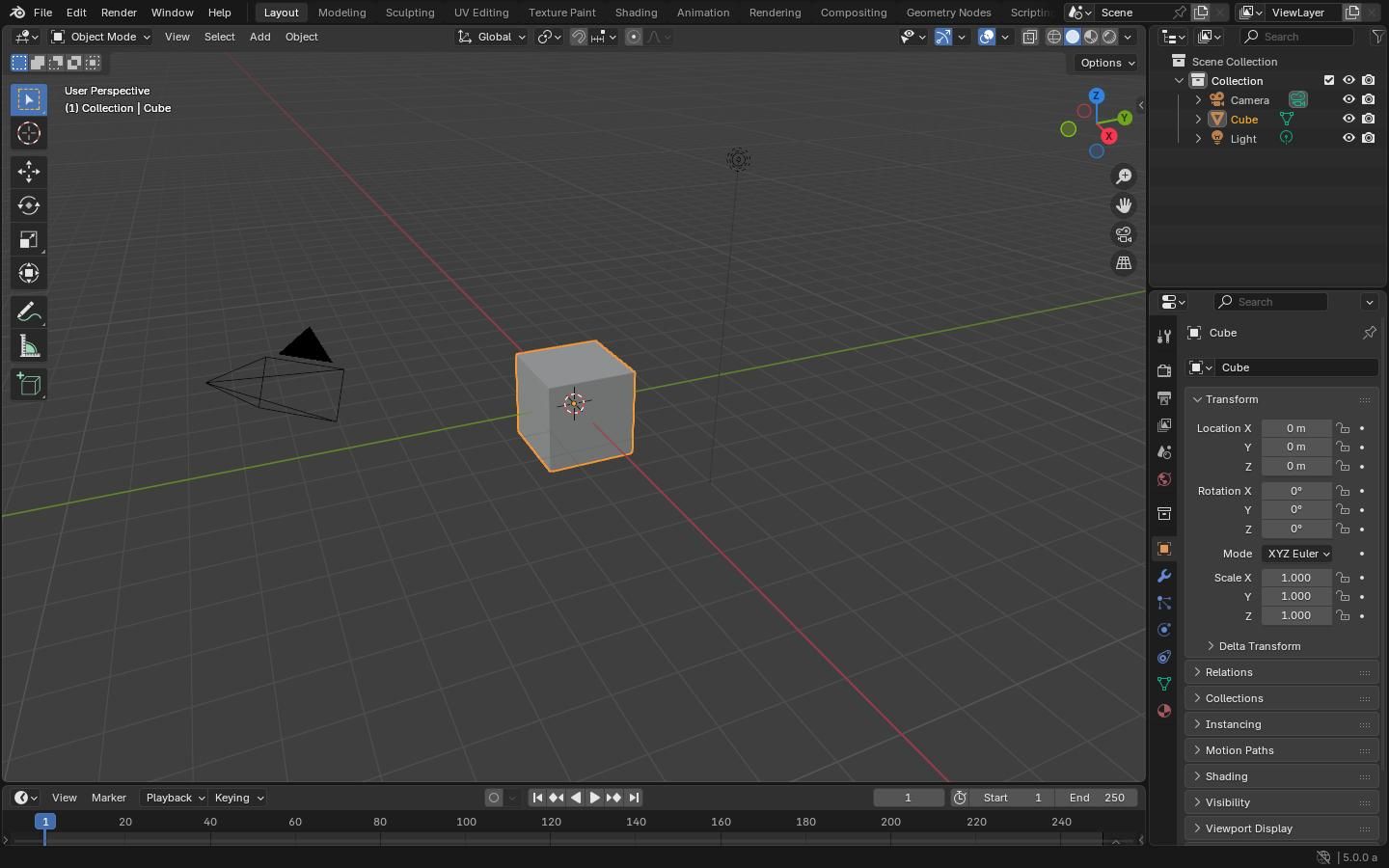
Before animating the bouncing ball, it's important to become familiar with Blender's workspace. At first, the interface can seem overwhelming, but you'll only need a handful of tools to create this project.
Key Areas of the Interface
3D Viewport
This is where you'll spend most of your time. The viewport allows you to view, move, animate, and interact with objects in your scene.
Outliner
Located in the upper-right corner, the Outliner displays every object in your scene. Think of it as a table of contents for your project.
Properties Panel
This panel contains settings for objects, materials, lighting, render options, physics, and more.
Dope Sheet
Located at the bottom of the screen in the Animation Tab, the Dope Sheet is where animation happens. You'll use it to create and manage keyframes that control the ball's movement.
Essential Navigation Controls
Being able to move around your scene efficiently is one of the most important Blender skills.
- Middle Mouse Button (MMB): Orbit around the scene
- Shift + MMB: Pan the view
- Scroll Wheel: Zoom in and out
- Numpad 0: Enter camera view
- Numpad 1: Front view
- Numpad 3: Side view
- Numpad 7: Top view
If your keyboard does not have a numpad, these views can also be accessed through the View menu.
Essential Animation Shortcuts
These are the shortcuts I used most frequently while creating this project.
G — Move the selected object
R — Rotate the selected object
S — Scale the selected object
I — Insert a keyframe
Spacebar — Play or pause the animation
Ctrl + S — Save the project
Ctrl + Z — Undo the previous action
N — Open the Transform panel to view and edit exact position, rotation, and scale values
M — Add a marker on the timeline to organize scenes and important animation moments
Ctrl + B — Bind Camera to Markers, allowing Blender to automatically switch between cameras at specific markers on the timeline
Useful Tip
When animating, constantly save your work. Blender's autosave is helpful, but creating manual saves after major changes can save hours of work if something goes wrong.
Building the Bedroom Environment
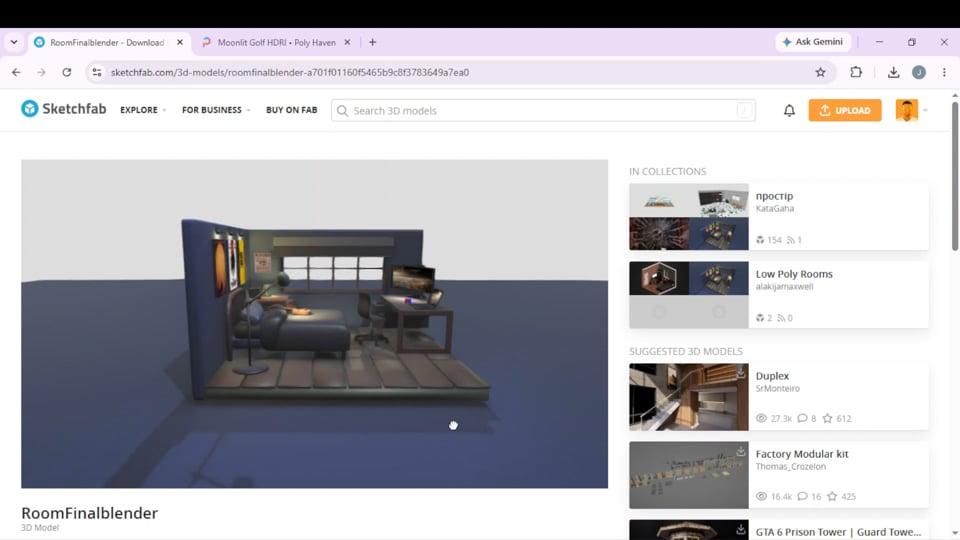
Before animating the ball, I needed to create the world it would explore. Since the story revolves around a ball trying to escape a bedroom, the environment plays an important role in guiding the viewer's attention and establishing the goal from the very first shot.
For this project, I used the RoomFinalBlender bedroom model by MasterJuan579 as the primary environment and the Moonlit Golf HDRI from Poly Haven for lighting and reflections.
Importing the Bedroom
- Open Blender and create a new project.
- Delete the default cube if it is still present.
- Import the bedroom model.
- Check the scene scale and make sure the room appears at an appropriate size.
- Organize the environment into its own collection to keep the Outliner clean and easy to navigate.
Setting Up the HDRI
Lighting plays a huge role in animation. The HDRI not only illuminates the room but also creates realistic reflections on the ball while helping establish the nighttime atmosphere.
- Open the World Properties tab.
- Click the color dot next to Color.
- Select Environment Texture.
- Open the Moonlit Golf HDRI file.
- Adjust the HDRI strength until the room has the desired brightness.
Why I Chose This Lighting
I wanted the room to feel calm and slightly mysterious. The moonlit lighting helps direct attention toward the ball while creating interesting reflections that make the animation feel more cinematic. Since the story begins near the window, the HDRI also reinforces the idea that the outside world is calling the ball toward its goal.
With the environment complete, the stage is set. In the next step, I'll create the ball, which is the main character of the story.
Creating the Main Character

Every story needs a main character. For this animation, that character is a simple bouncing ball.
Although it is one of the simplest objects possible, the ball carries the entire story. Through its movement, timing, and interactions with the environment, it becomes a symbol of determination and persistence.
Adding the Ball
To create the ball, I used Blender's built-in sphere.
- Press Shift + A.
- Select Mesh → UV Sphere.
- Position the sphere near the window where the story begins.
- Scale the sphere until it fits naturally within the room.
Ball Transform Values
Scale
- X: 0.383
- Y: 0.383
- Z: 0.383
Creating the Material
Once the ball was in place, I gave it a material so it would stand out from the environment.
- Select the sphere.
- Open the Material Properties tab.
- Click New Material.
- Choose the color for the ball.
- Adjust the material settings until the ball looks visually appealing under the HDRI lighting.
I wanted the ball to be easy for viewers to follow throughout the animation, so I chose a material that contrasted with the room while still reflecting the environment around it.
Testing the Lighting
Before animating, I spent a few minutes checking how the ball interacted with the room's lighting.
Things I looked for included:
- Reflections from the indoor lighting
- Contrast against the environment
Since the ball is the focus of the story, making it clearly visible was important before moving on to animation.
With the main character ready, it was finally time to bring it to life. In the next step, we'll animate the opening scene as the ball notices the world outside the window and begins its journey.
Scene 1 – the Journey Begins
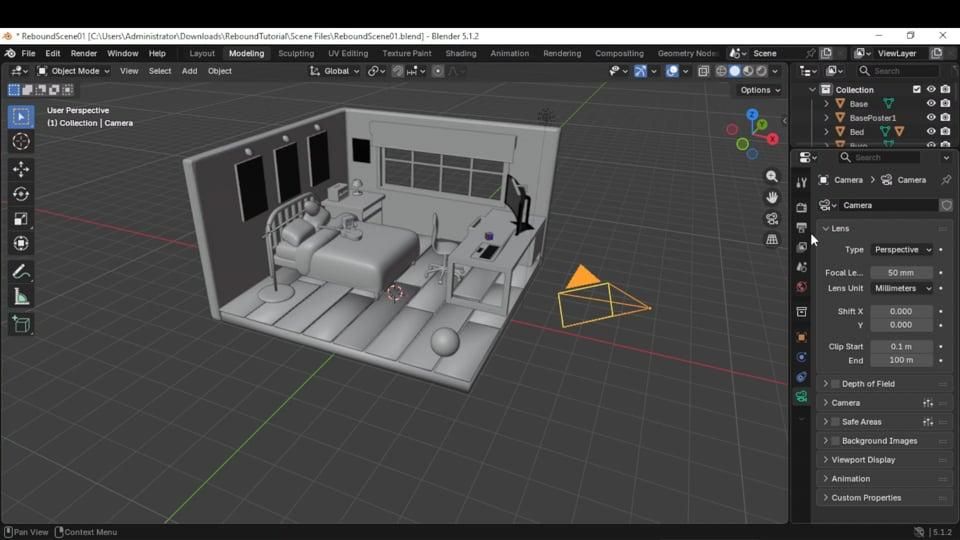
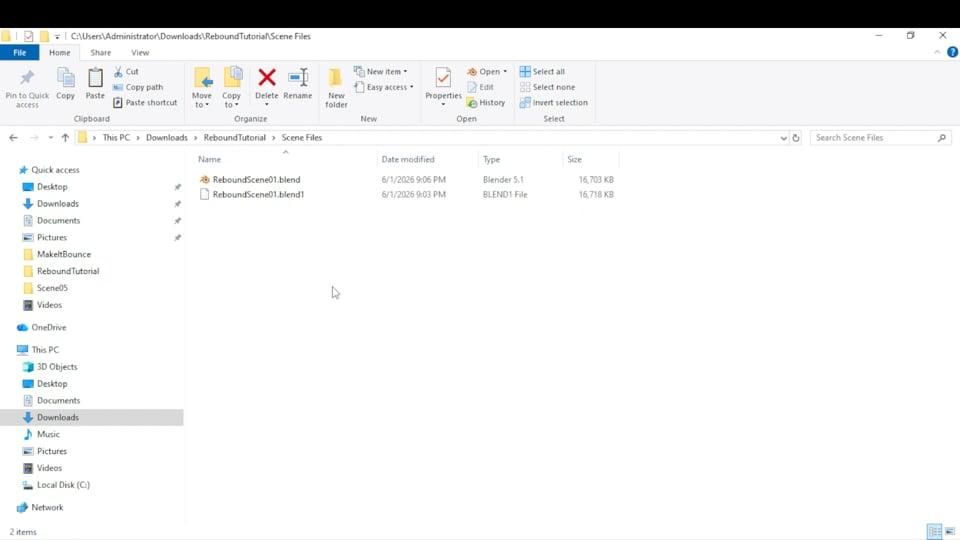
Before animating, I saved a new Blender file specifically for Scene 1. Keeping each scene in its own file helped keep the project organized and made it easier to troubleshoot or revise individual sections later.
Frame Range: 1–300 (changed in Output Properties)
Every story needs a beginning.
This scene introduces both the environment and the ball's goal. The animation begins with the camera looking through the bedroom window before slowly moving toward the ball. I wanted the audience to immediately understand that the outside world represented freedom and possibility.
As the camera approaches, the ball performs its first bounce. Although it is a simple action, it represents the beginning of the journey. The ball has noticed something beyond the room and is taking its first step toward reaching it.
Camera Animation
To create this shot, I manually animated the camera using keyframes.
- Position the camera near the window.
- Click the camera, and insert a keyframe by clicking I on your keyboard.
- Move through the timeline.
- Reposition the camera
- Click the camera and insert another keyframe.
The movement was intentionally smooth and gradual. Rather than beginning with fast action, I wanted to establish the setting and create curiosity about what would happen next.
The camera movement also helps guide the viewer's attention directly toward the ball, making it clear that it will be the focus of the story.
Ball Animation
Once the camera reaches the ball, the first bounce occurs.
I animated the bounce using keyframes and adjusted the timing until the motion felt natural. Because this is the first bounce in the animation, I intentionally kept it small. The ball is not yet attempting a major challenge; it is simply discovering the possibility of freedom beyond the room.
Even though only one bounce occurs, it serves an important purpose. It establishes movement, motivation, and the beginning of the ball's journey.
Creative Decisions
The goal of this scene was to communicate discovery.
I wanted the audience to feel as if the ball had just noticed something beyond the bedroom and was becoming curious about the outside world. By starting with the window and slowly revealing the ball, the animation creates a connection between the ball and its eventual goal of escaping.
This scene also establishes the central theme of the project: persistence begins with a single step. Before the ball can overcome obstacles, it first needs a reason to try.
Technical Note
All camera positions, rotations, ball transformations, keyframes, and timing changes are shown in the attached walkthrough video. The video documents the complete animation process used to create this scene.
With the journey now underway, it is time to see the world through the ball's perspective. In the next scene, the camera becomes the ball as it continues practicing its bounce and building confidence for the challenges ahead.
Scene 2 – Learning Through Practice
Frame Range: 0–110 (changed in Output Properties)
After discovering the possibility of freedom, the ball begins to move with more purpose.
For this scene, I wanted the audience to experience the world from the ball's perspective. Instead of watching the ball from a distance, the camera effectively becomes the ball, allowing viewers to feel each movement firsthand.
Camera Animation
To create the ball's point of view, I manually animated the camera throughout the scene.
As the ball moves upward and downward, the camera follows the same motion, creating the feeling that the viewer is experiencing the bounce directly. I also animated the camera's rotation to make it feel more natural and immersive.
Rather than using camera shake or additional effects, I relied on the motion itself to communicate the feeling of bouncing. Small changes in rotation helped emphasize the movement without becoming distracting.
Ball Animation
The ball performs a single bounce during this scene.
Although the action is simple, the purpose of the bounce is different from the previous scene. The first bounce represented discovery. This bounce represents practice.
The ball is beginning to understand its abilities and build confidence. It is no longer simply reacting to its environment; it is actively preparing for the challenges ahead.
Creative Decisions
The goal of this scene was to communicate growth through repetition.
Before attempting larger obstacles, the ball needs experience. Just like learning any new skill, improvement comes from practice. The bounce in this scene serves as a small but important step in the ball's journey.
Using a first-person perspective also helps the audience connect with the ball. Rather than observing its progress, viewers experience it alongside the character.
This scene may only last a few seconds, but it helps bridge the gap between discovery and action, preparing the audience for the first major obstacle in the next scene.
Technical Note
All camera positions, rotations, ball transformations, keyframes, and timing changes are shown in the attached walkthrough video. The video documents the complete animation process used to create this scene.
With practice comes confidence. In the next scene, the ball faces its first true challenge as it attempts to reach the bed, learning that success often requires more than one try.
Scene 3 – Reaching the Bed

Frame Range: 0–275 (changed in Output Properties)
This scene represents the first major obstacle in the animation.
Up until this point, the ball has only been discovering and practicing its ability to bounce. Now it finally faces a challenge that cannot be overcome on the first attempt. The goal is simple: reach the bed. However, like many goals in life, it turns out to be more difficult than expected.
Camera Setup
Unlike the previous scene, I kept the camera fixed for this sequence.
By keeping the camera stationary, the audience can focus entirely on the ball's movement and clearly see each attempt. This also makes it easier to compare the different bounces and understand the ball's progress.
Ball Animation
The ball makes three attempts to reach the bed.
First Attempt
The ball jumps toward the bed but falls short.
Although it tries its best, it does not have enough height or momentum to reach the top. This establishes the challenge and shows that success will require more than a single effort.
Second Attempt
The ball tries again.
This bounce reaches nearly the same height as the first attempt and comes very close to succeeding, but it still falls short of the goal. At this point, the audience understands that determination alone is not enough. The ball needs to keep improving.
Third Attempt
On the final attempt, the ball generates more force and reaches a much greater height.
This bounce successfully lands on the bed and marks the first major victory in the animation. The increased height helps communicate growth and progress while rewarding the audience after watching the previous failures.
Creative Decisions
The goal of this scene was to communicate perseverance.
Many challenges cannot be overcome immediately. Failure is often part of the learning process, and improvement usually comes through repeated attempts. By showing the ball fail multiple times before finally succeeding, I wanted the audience to see that setbacks are not the end of the journey; they are part of it.
The third bounce is intentionally the highest because it represents the moment when persistence finally pays off.
This scene is where the theme of the project becomes most visible. The ball is no longer simply moving through the room; it is actively overcoming obstacles.
Technical Note
The final bounce was animated with greater force and height than the previous attempts to emphasize the feeling of progress and achievement.
All camera positions, rotations, ball transformations, keyframes, and timing changes are shown in the attached walkthrough video. The video documents the complete animation process used to create this scene.
After finally reaching the bed, the ball gains confidence and continues moving toward the window. In the next scene, it faces its most difficult challenge yet: crossing the bed, reaching the side table, and attempting its escape.
Scene 4 – the Hardest Challenge
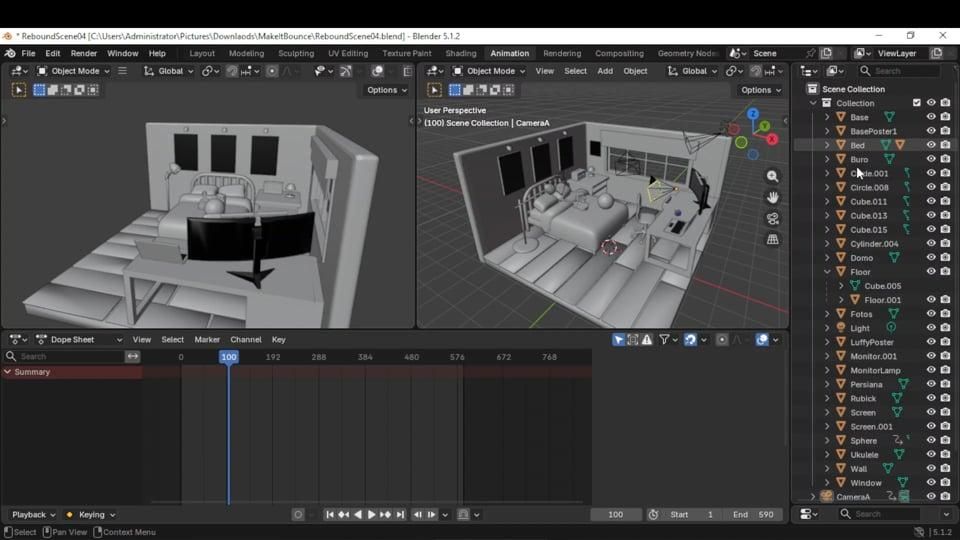
Frame Range: 0–590 (changed in Output Properties)
This was the most complex scene in the entire animation and the one I am most proud of.
After successfully reaching the bed, the ball is closer than ever to its goal. However, the final stretch turns out to be the most difficult part of the journey. To escape through the window, the ball must travel across the bed, reach the side table, and make a leap toward freedom.
Unlike the previous scene, the challenge is no longer simply gaining height. The ball now has to navigate a series of obstacles while maintaining momentum.
Using Multiple Cameras
This scene was significantly longer than the previous scenes, so I used multiple camera angles to keep the animation engaging and clearly show the ball's progress.
To switch between cameras:
- Select the camera you want to use.
- Move to the desired frame in the Timeline.
- Press M to create a marker.
- Press Ctrl + B to bind the selected camera to that marker.
- Repeat this process for each camera transition.
Using multiple cameras allowed me to highlight important moments while making it feel more cinematic.
Ball Animation
The journey begins on one side of the bed.
Crossing the Bed
The ball bounces from the bottom-left corner of the bed toward the bottom-right corner before continuing toward the top-right corner.
Because the ball had already learned from its previous attempts, I increased the speed and force of these movements. The animation feels more confident than the earlier scenes, reflecting the ball's growth throughout the story.
Reaching the Side Table
After crossing the bed, the ball successfully lands on the side table.
At this point, the goal is within reach. The window is directly ahead, and the audience is led to believe that escape is finally about to happen.
The Failed Escape
The ball jumps from the side table toward the open window.
However, it falls short.
Instead of reaching freedom, the ball drops to the floor below.
This moment is one of the most important parts of the animation because it occurs after several successes. Even though the ball has already overcome multiple obstacles, it still experiences another setback.
One Final Attempt
After falling, the ball returns to the side table and prepares for another jump.
This time, it succeeds.
The second attempt carries the ball through the open window and completes the challenge that seemed impossible only moments earlier.
Creative Decisions
The goal of this scene was to communicate determination.
Many stories end after the first major success, but real progress often involves new obstacles appearing just when success feels close. I wanted the audience to feel that frustration when the ball misses the window and falls.
At the same time, I wanted to show that failure does not erase previous progress. Even after falling, the ball does not return to the beginning of its journey. It uses everything it has learned to try again.
The failed escape makes the final success more meaningful because it has to be earned.
Technical Note
This scene uses multiple cameras bound to timeline markers to create smooth transitions between viewpoints and better showcase the ball's movement throughout the room.
All camera positions, rotations, ball transformations, keyframes, and timing changes are shown in the attached walkthrough video. The video documents the complete animation process used to create this scene.
With the final obstacle overcome, the ball is finally ready to leave the bedroom behind. In the next scene, the journey concludes as the ball reaches the outside world and achieves the freedom it has been chasing since the very first bounce.
Scene 5 - Freedom
Frame Range: 0–120 (changed in Output Properties)
This scene serves as the conclusion to the animation.
After repeatedly falling short of its goal, the ball finally escapes through the window and reaches the outside world. Since this is the payoff for the entire story, I wanted the ending to feel natural, rewarding, and visually different from the previous scenes.
Creating the Outdoor Environment
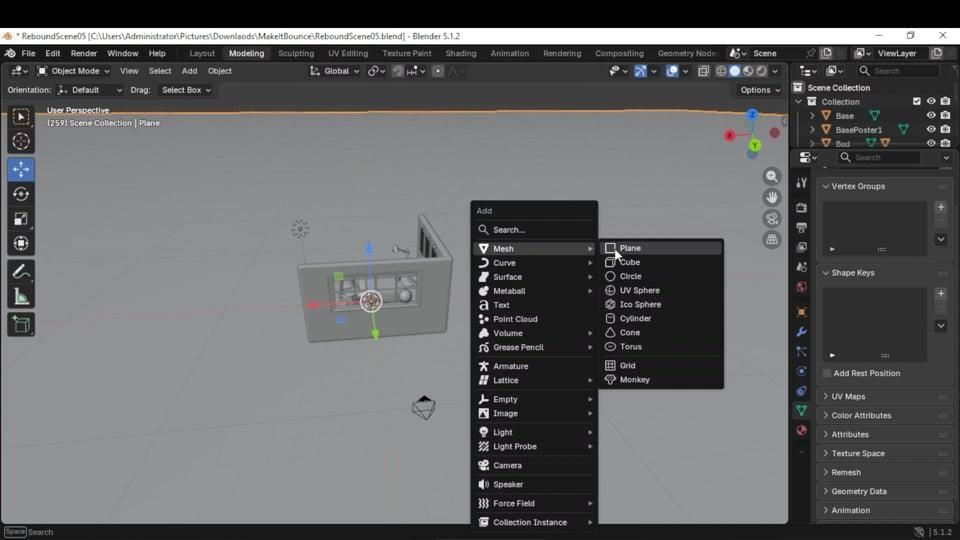
To blend the HDRI environment with the animation, I added a plane beneath the ball to act as the ground.
- Press Shift + A
- Select Mesh → Plane
- Scale the plane to cover the visible area
- Position it beneath the ball
Because I rendered the project in Eevee, I used a custom shadow catcher setup to help integrate the ball into the HDRI environment.
Shadow Catcher Setup
The material setup used for the plane is shown in the image above.
The node setup uses:
- Emission Shader
- Diffuse BSDF
- Transparent BSDF
- Mix Shader
- Shader to RGB
- Color Ramp
- Material Output
This setup allows the plane to receive shadows while remaining visually hidden, making the HDRI feel like a real environment rather than a background image. Make sure to change the Render Method to "Blended" in the Material Properties section.
Physics Settings
Unlike Scenes 1–4, which were animated entirely with keyframes, this scene uses Blender's physics system.
To allow the ball to bounce naturally, I configured the plane with the following rigid body settings:
Plane Settings
Type: Passive
Shape: Box
Friction: 0.589
Bounciness: 1.0
Ball Settings
Rigid Body Type: Active
Dynamic: Enabled
Friction: 0.55
Bounciness: 0.7
Collision Margin: Enabled
Margin: 0.01
Linear Damping: 0.2
Angular Damping: 0.4
Combining Keyframes and Physics
Before the physics simulation begins, the ball first moves forward using keyframe animation.
To transition smoothly from keyframes to physics:
- Enable Animated in the ball's Rigid Body settings.
- Hover over the Animated checkbox and press I to insert a keyframe.
- Move to the frame where physics should take over.
- Disable Animated.
- Hover over the checkbox and press I again to keyframe the change.
This allows the ball to follow a precise path at the beginning of the scene, before Blender's physics engine takes control and automatically generates the final bounce.
Creative Decisions
Throughout the animation, the ball repeatedly encounters setbacks. It misses jumps, falls short, and is forced to try again. I wanted the final scene to feel different from those moments.
Instead of another challenge, this scene focuses on the reward. The ball has finally achieved what it has been working toward since the opening shot. The physics-based bounce helps reinforce that feeling by moving appear unrestricted.
Why This Scene Matters
The entire animation builds toward this moment.
What began as a simple bounce near a bedroom window gradually became a story about perseverance. By the time the ball finally escapes, the audience has watched it fail, improve, adapt, and continue moving forward.
The final bounce is not just movement; it is the result of every bounce that came before it.
Success rarely happens on the first try.
Technical Note
A complete walkthrough of this scene, including all camera positions, keyframes, material settings, physics settings, and animation adjustments, is provided in the attached video.
Rendering the Animation
.png)
.png)
After all five scenes were animated, it was time to render them into final frames. Rendering converts everything created in Blender, including the models, materials, lighting, camera movements, and animations, into the images that will later be assembled into the final video.
Since this project was approximately one minute long and contained multiple scenes, I chose Eevee as my render engine. Eevee provided significantly faster render times while still producing the visual quality needed for the final animation.
Cycles is another excellent option and generally produces more realistic lighting, reflections, and shadows. If your computer has a powerful GPU, CPU, or both, you may want to try rendering the project in Cycles instead. I chose Eevee because it offered a better balance between render quality and render time for my computer's specifications while still achieving the visual style I wanted.
Render Settings
Refer to the images above for the exact render settings used during this project.
Output Settings
Navigate to Output Properties and configure the following settings:
Resolution X: 1920
Resolution Y: 1080
Frame Rate: 24 FPS
File Format: PNG
I rendered each frame as a PNG image. This creates an image sequence that can later be imported directly into DaVinci Resolve. Rendering as PNGs is also safer because if Blender crashes or a render is interrupted, previously rendered frames are not lost.
Frame Ranges
Each scene was rendered separately using its own frame range:
Scene 1: Frames 1–300
Scene 2: Frames 0–110
Scene 3: Frames 0–275
Scene 4: Frames 0–590
Scene 5: Frames 0–120
Rendering scenes individually made it easier to organize files and re-render specific sections if changes were needed.
Organizing Render Outputs
Before rendering, I created separate folders for each scene:
- Scene 1
- Scene 2
- Scene 3
- Scene 4
- Scene 5
Keeping each render organized made the editing process much easier later in DaVinci Resolve.
Rendering the Animation
Once all settings were configured:
- Verify the correct frame range.
- Verify the output folder.
- Save the Blender project.
- Click Render → Render Animation.
Depending on your hardware, rendering may take several minutes or several hours. During long renders, I periodically checked the output frames to ensure everything was rendering correctly.
With all five scenes rendered and organized, the animation was ready to move into post-production. In the next step, we'll import the image sequences into DaVinci Resolve, add narration, sound effects, music, and assemble the final film.
Editing in DaVinci Resolve
.png)
With all five scenes rendered, it was time to assemble everything into the final animation. For this step, I used DaVinci Resolve 21 to combine the rendered image sequences, narration, music, and sound effects into a single video.
Setting Up the Project
Before importing any files, create a new project and verify that the project settings match the render settings used in Blender.
Resolution: 1920×1080
Frame Rate: 24 FPS
Matching these settings helps prevent timing issues and keeps the animation consistent throughout the editing process.
Importing the Image Sequences
Since each scene was rendered as PNG images, they must be imported as image sequences.
To import an image sequence:
- Open the Media Page in DaVinci Resolve.
- Open the Media Storage panel and navigate to your rendered frames.
- Click the three dots in the upper-right corner.
- Select Frame Display Mode → Sequence.
- Drag and drop the image sequence folder into the Media Pool.
- Repeat this process for all five scenes.
- Drag the image sequences onto the timeline in order.
Once assembled, the entire animation should play as one continuous story.
Adding Narration
The narration was generated using ElevenLabs and imported as a standard audio file.
After importing the narration, I placed it on its own audio track and adjusted its position to match the timing of the animation. You can create a new audio track by right-clicking an existing audio track and selecting "Add Track."
Adding Music
For the background music, I used "A Little Journey" by Mixroba Studio.
Music plays a major role in storytelling and helps establish the emotional tone of the animation. Since this project focuses on perseverance and growth, I wanted a track that felt uplifting and supported the progression of the story.
After importing the music, I adjusted the volume so it complemented the narration rather than overpowering it.
Adding Sound Effects
To help bring the animation to life, I added sound effects from Pixabay.
Sound effects used:
The bounce sounds help emphasize impacts and movement, while the woosh effect adds the fall effect from the side table to the floor.
Useful Editing Shortcuts
These are the shortcuts I used most frequently while editing:
A → Selection Tool
B → Blade Tool
N → Toggle Snapping On/Off
These three shortcuts made it much easier to trim clips, adjust timing, and organize the final sequence.
Making It Your Own
This is the stage where you can have the most fun and add your own creative style.
Experiment with:
- Audio levels
- Music placement
- Sound effect timing
- Clip trimming
- Scene pacing
Small editing decisions can completely change how a story feels, so don't be afraid to try different ideas and see what works best for your project.
Exporting the Final Video
Once the edit was complete:
- Open the Deliver page.
- Verify the export settings.
- Click Add to Render Queue.
- Click Render All.
I used DaVinci Resolve's default export settings for the final video.
After rendering finished, the project was complete.
In the next step, I'll reflect on what worked well, what I learned during the process, and what I would improve in future animation projects.
Reflection
After completing this project, I spent some time reflecting on both the animation and the process behind creating it.
When I started, the goal was simply to create an entry for the Make It Bounce contest. As the project developed, however, it became a story about determination, persistence, and the willingness to keep trying after failure.
The part I am most proud of is Scene 4. It was the longest and most challenging scene to animate, requiring multiple cameras, careful timing, and several failed attempts before the final escape. It also best represents the message of the animation: success often comes after setbacks, not before them.
One of the biggest lessons I learned is that storytelling does not always require dialogue or facial expressions. Motion alone can communicate emotion. A missed jump can feel frustrating, a successful landing can feel rewarding, and a simple bounce can tell a story.
If I were to continue improving this project, I would experiment with additional physics simulations, particle effects, and more advanced environmental details. Every project teaches something new, and this one strengthened both my animation and storytelling skills.
I would also like to thank my family for taking the time to watch the animation, provide feedback, and help me improve the project throughout the process.
Thank you for following along with this project. I hope you had fun, learned something new, and maybe even feel inspired to create your own animation.
And remember:
Success rarely happens on the first try. Sometimes success is just one more bounce away.