SkySpotter - a Live GPS-Synced Desktop Airplane
by mondal3011 in Circuits > Art
1598 Views, 10 Favorites, 0 Comments
SkySpotter - a Live GPS-Synced Desktop Airplane
.png)
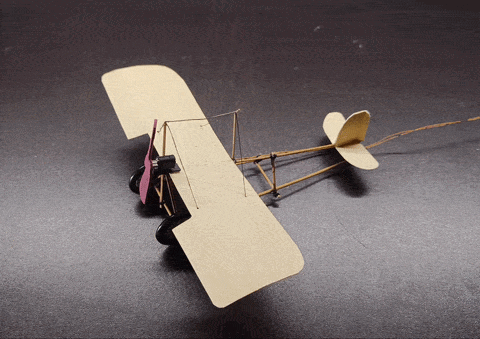

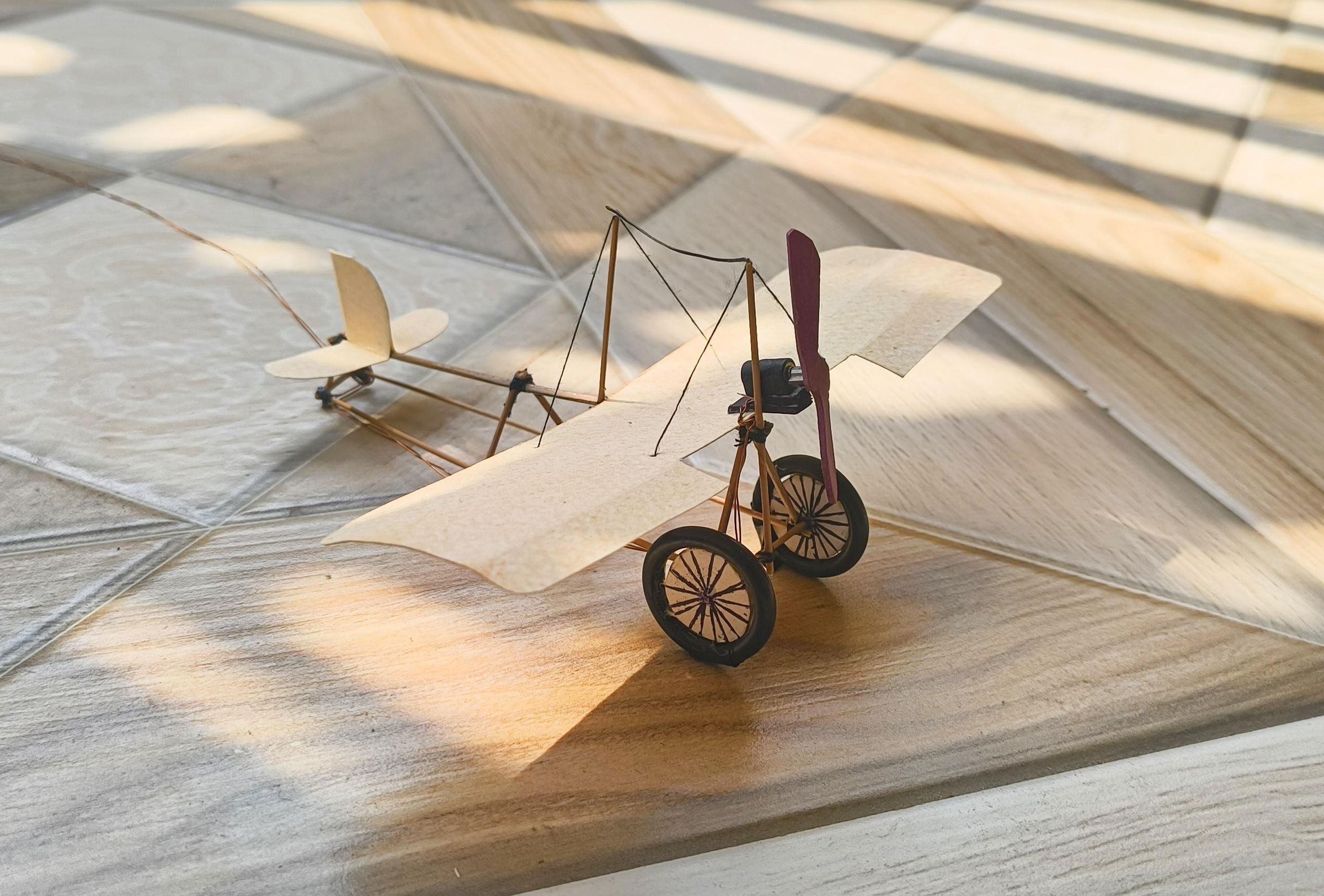
SkySpotter is a miniature, beautifully handmade vintage aircraft model. It is designed to look stunning sitting on any work desk or shelf, but it hides a secret: every time a real aircraft flies overhead, it's propeller starts spinning!
The heart of this project relies heavily on GPS mapping and geo-fencing. The miniature plane connects to your home Wi-Fi and hosts its own custom web dashboard. Using your smartphone's built-in GPS, it pings your exact geographical coordinates (Latitude and Longitude) and allows you to set a custom detection radius.
By calculating these coordinates, the device draws a bounding box on the map directly above your house. It continuously fetches live, real-time flight data from the OpenSky Network. When at least one real aircraft enters your mapped airspace overhead, the model starts spinning its own tiny propeller! Once the real plane flies out of your specific GPS radius, the model's propeller stops, waiting for the next flight to cross your map.
In this tutorial, I will show you exactly how to build the circuit, program the GPS mapping logic, and put together your very own live-action desktop airplane!
Supplies
Electronics
- Wemos D1 mini (or any wifi enabled microcontroller) — purchase link
- Micro DC motor (I repurposed a smartphone vibration motor) — purchase link
- BC547 or any NPN transistor — purchase link
- 1N4007 or 1N4148 Diode — purchase link
- Hookup wires — purchase link
- 5v power supply — purchase link
- Micro usb cable — purchase link
- Magnet wire
Craft supplies
- Thin wooden sticks (3x 120mm, 10x 8mm, spares) — purchase link
- Balsa wood / 300 GSM cold pressed paper — purchase link
- Adhesive — purchase link
- Black sewing thread — purchase link
- Acrylic paint and brushes — purchase link
Tools
- Soldering iron — purchase link
- Pliers — purchase link
- Tweezers (optional) — purchase link
- Scissors — purchase link
Make the Fuselage
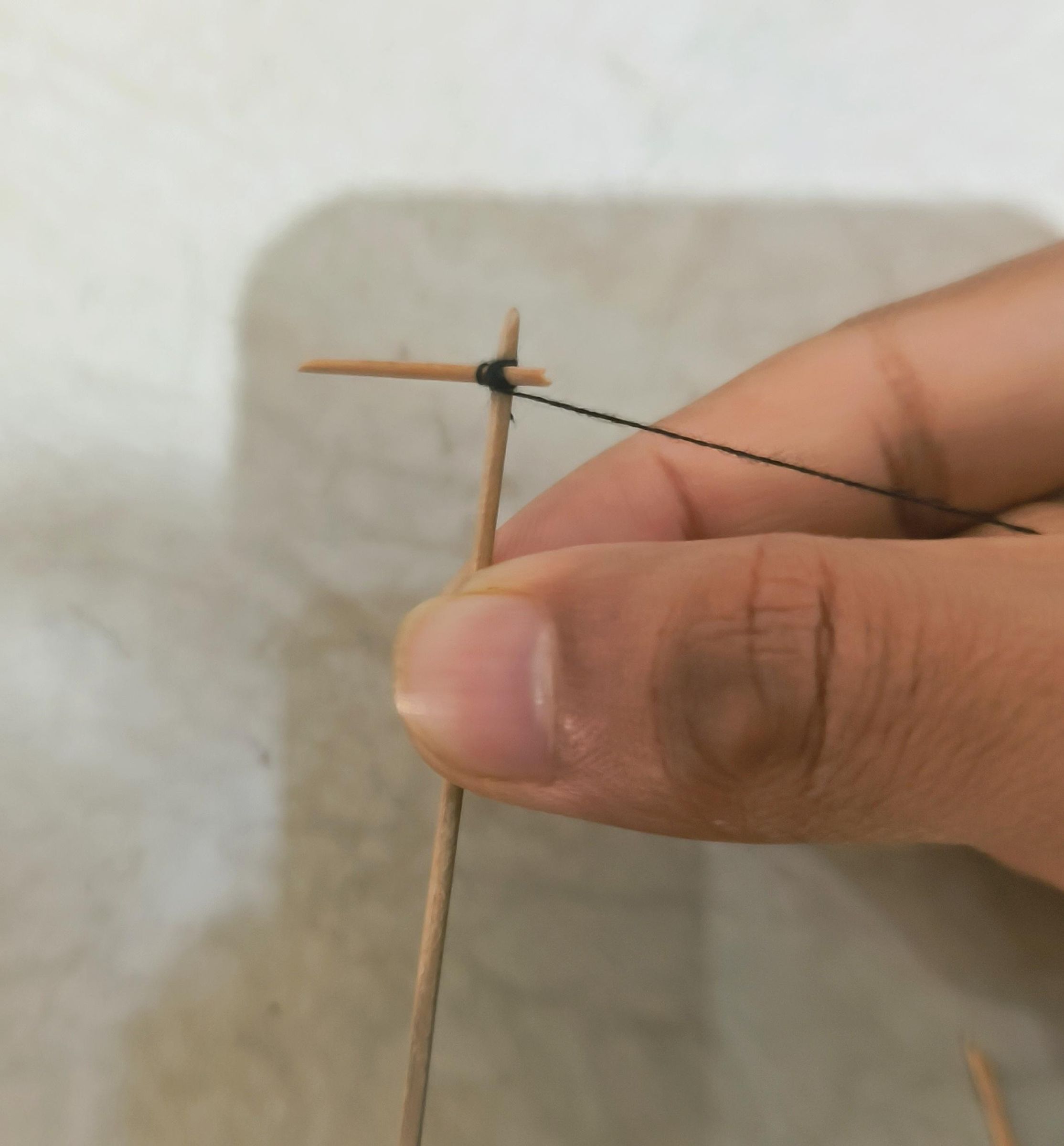
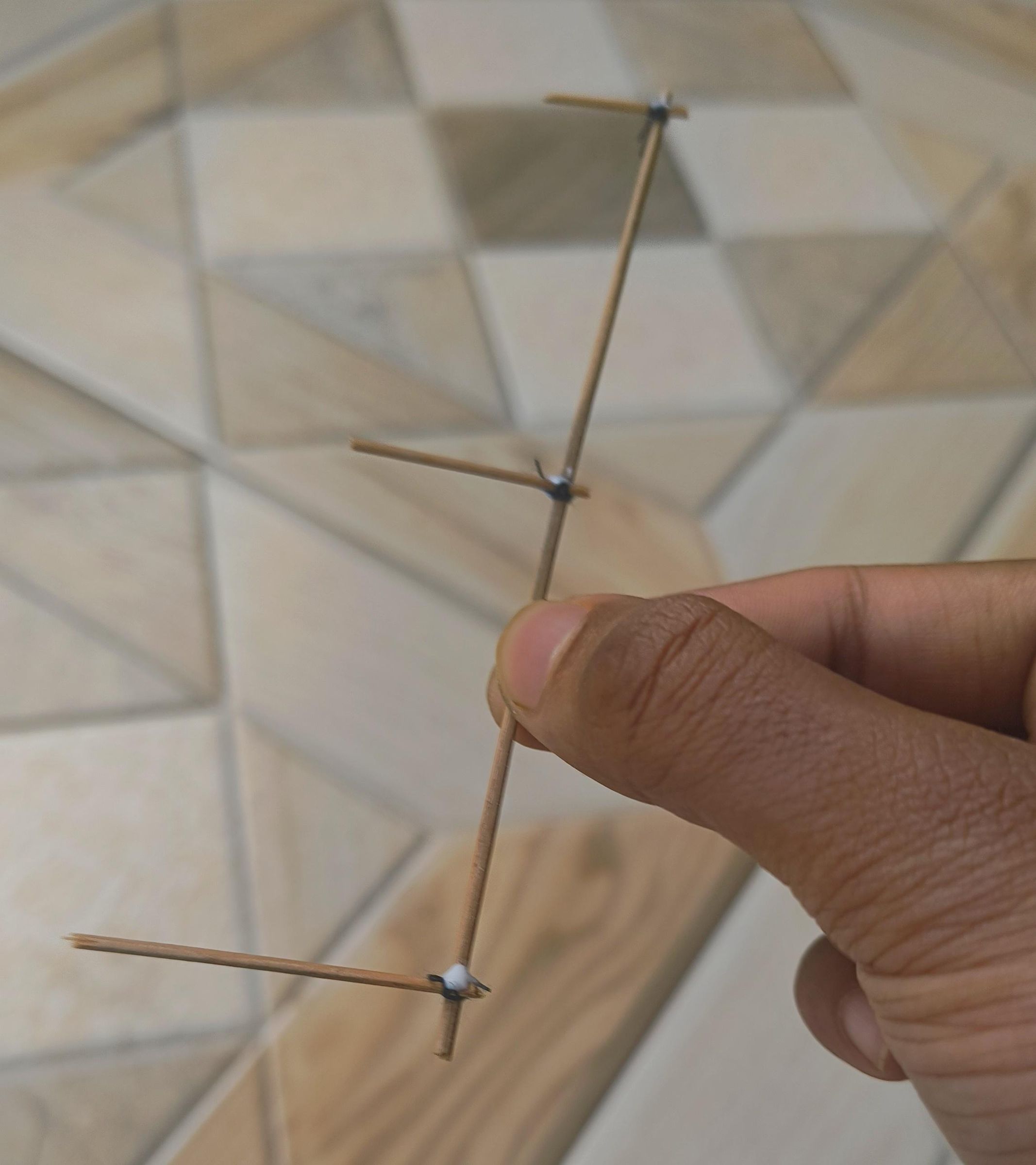
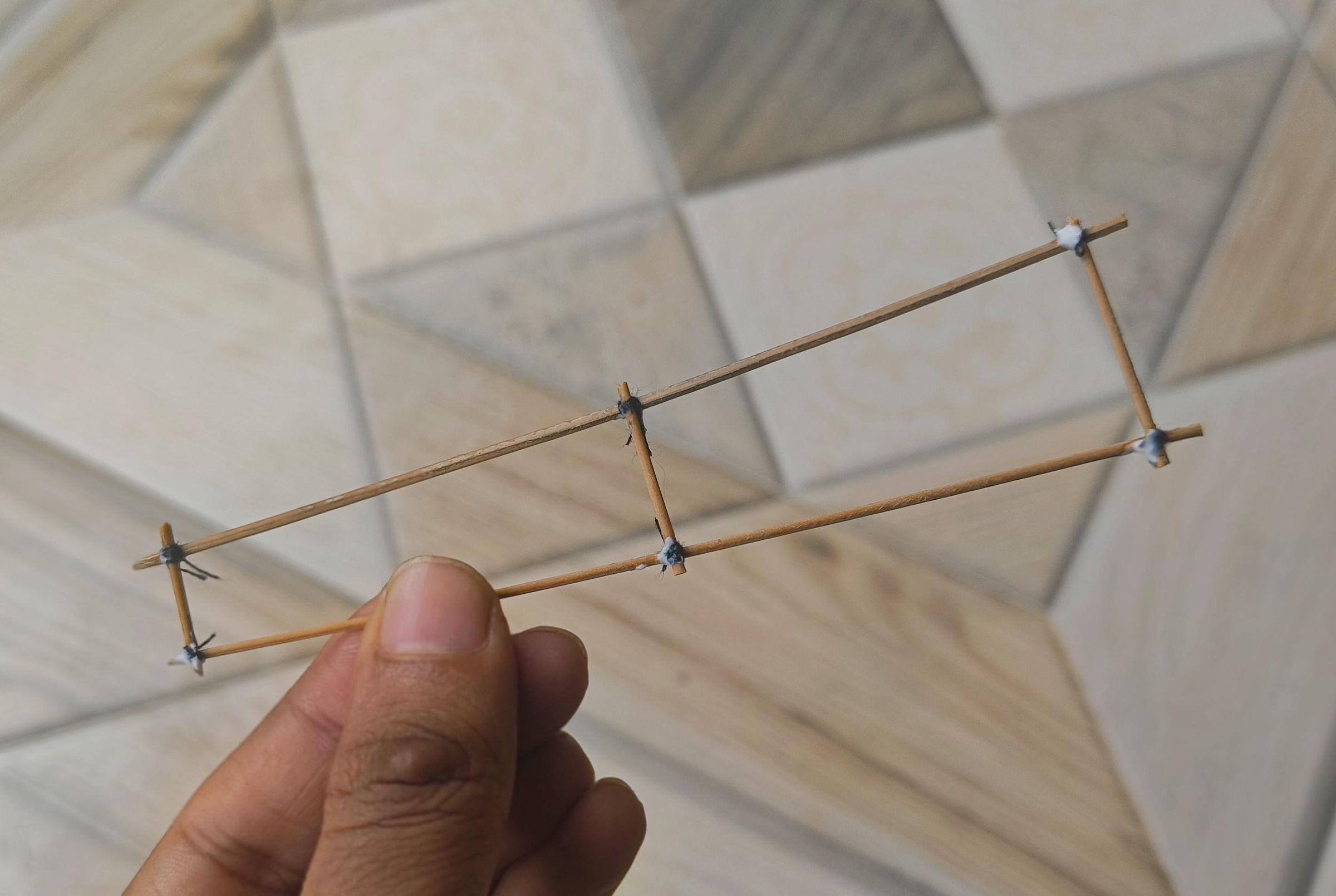
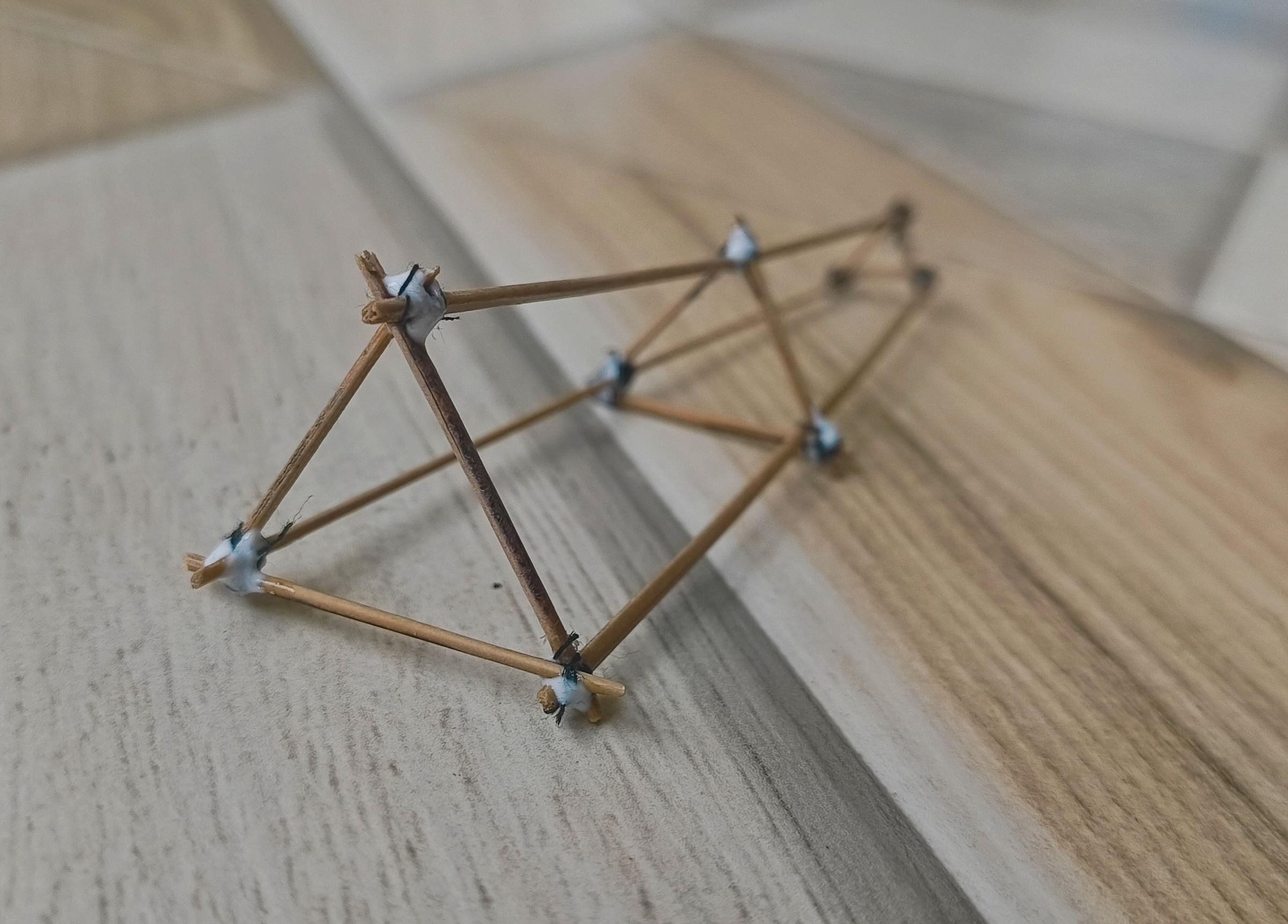
The foundation of our vintage aircraft is the fuselage. To give it an authentic, early-aviation look that complements its high-tech GPS core, we will build a stick-frame fuselage.
Material Requirements
- 3 x Main wooden sticks: 120mm long (balsa or thin bamboo skewers work best)
- Connecting wooden sticks: Varying smaller lengths for cross-bracing
- Black sewing thread
- PVA glue (for securing knots)
The fuselage is a three-dimensional triangle (a triangular prism) that tapers. It needs to be wider at the front to and get progressively narrower as it reaches the tail. Because of this taper, the smaller cross-sticks connecting the three main 120mm beams must get progressively longer as you move toward the front.
Instead of just gluing the sticks together end-to-end, we will use black thread to lash the cross-pieces to the three main 120mm long chassis rails. Align a cross-stick to the main rails. Wrap the black thread tightly around the joint in a crisscross pattern several times. While using superglue is faster, tying the structural joints with black thread beautifully mimics the look of real pioneer-era aircraft parts bound with structural rigging rope.
Once a joint is tied tightly and knotted, it can still unwrap over time. To permanently secure the thread, drop a tiny blob of PVA glue directly onto the thread knot. The glue will eventually turn transparent, so not to worry.
Wing Struts
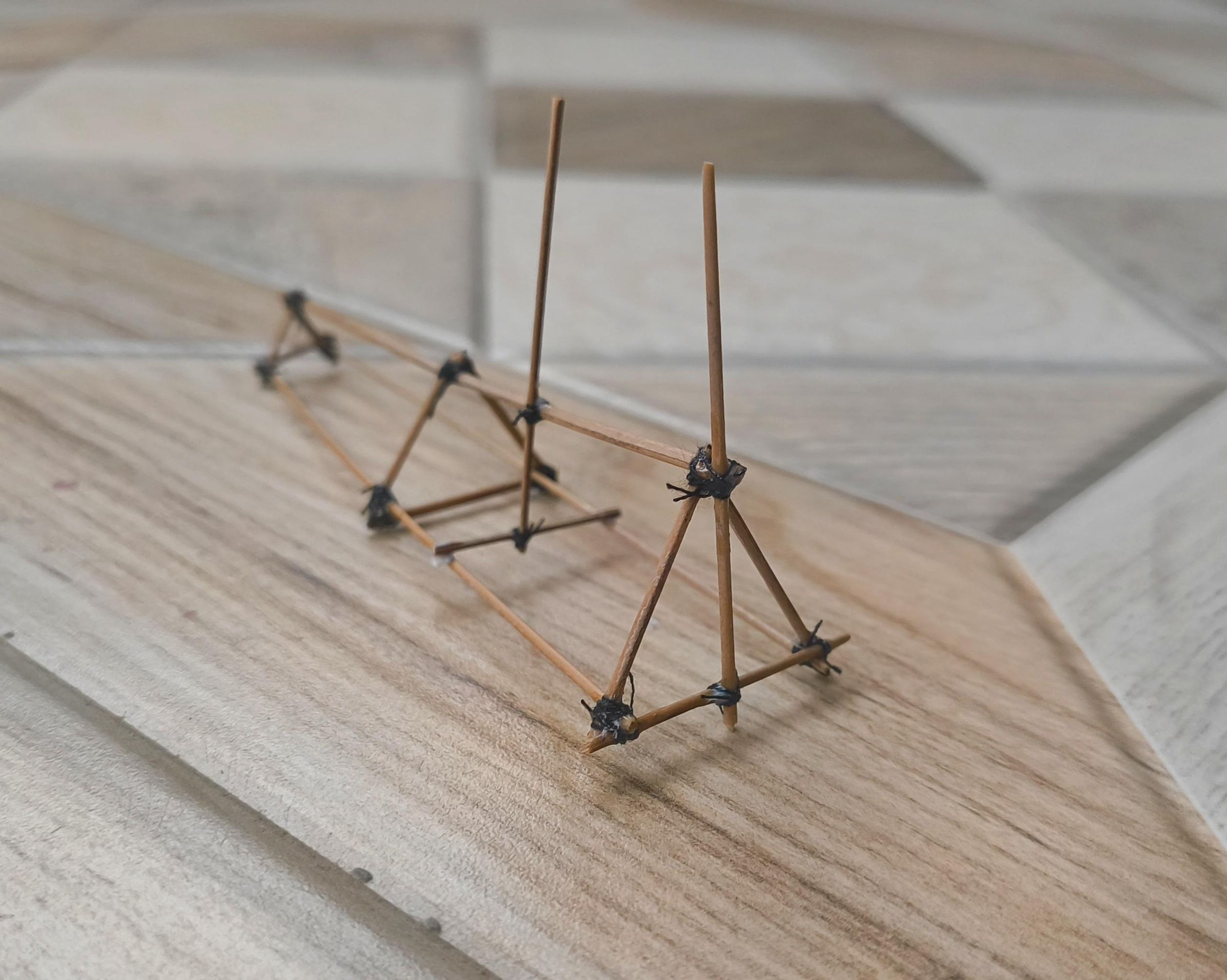
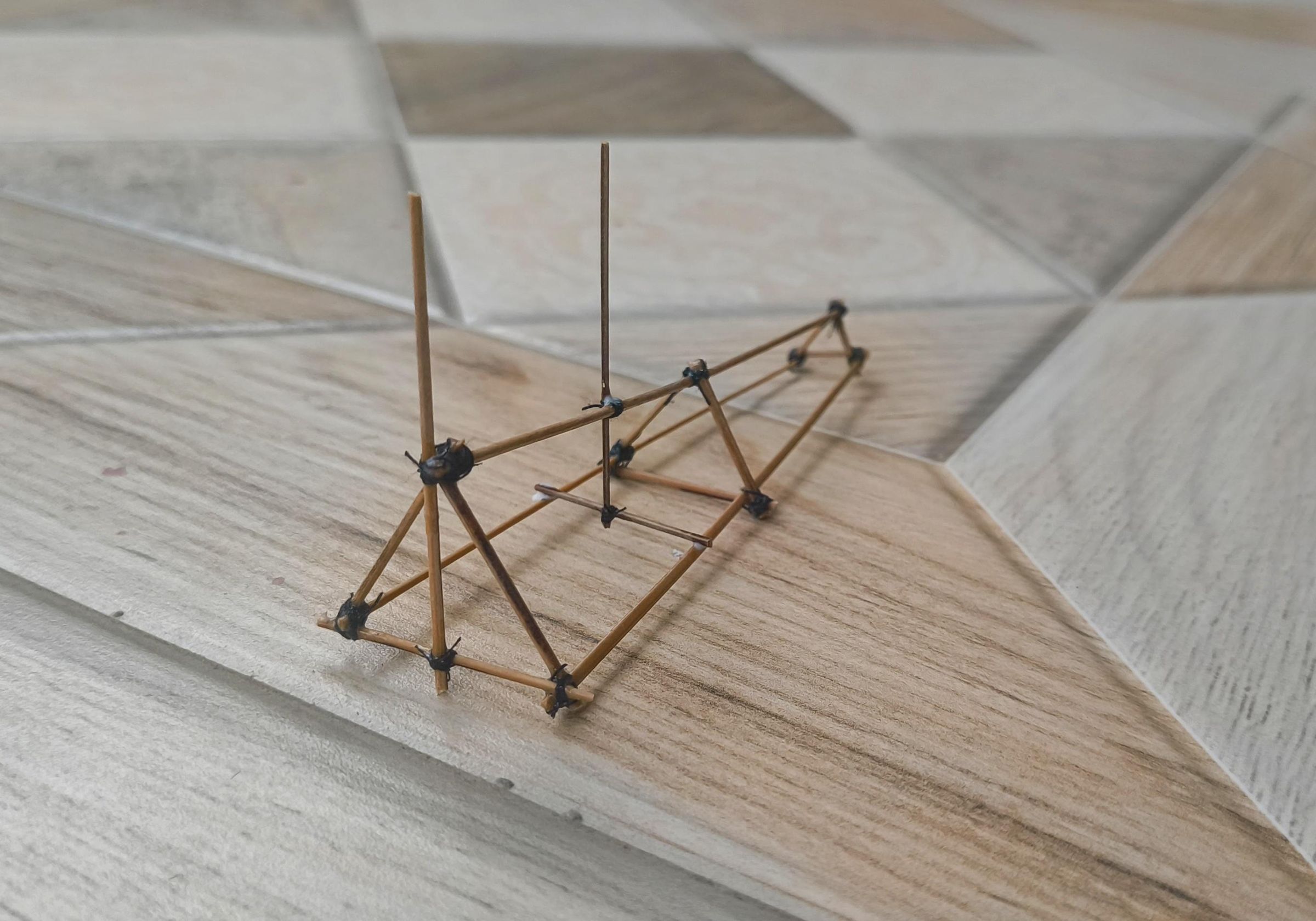
Time to build the support structure for the main wing. If you look at early pioneer aircraft, they used thin vertical struts supported by a network of tensioned cables to prevent the wings from sagging. We are going to replicate that exact vintage look.
- Cut two sticks to act as your vertical wing supports. Make sure they are tall enough to give your motor and propeller enough clearance later on.
- Position these two vertical sticks upright near the wider front section of your triangular fuselage.
- Using the exact same lashing technique from Step 1, use your black sewing thread to tightly bind the base of these vertical struts to the main cross-beams of the fuselage.
- Lock the thread in place with a tiny drop of superglue.
Wheels
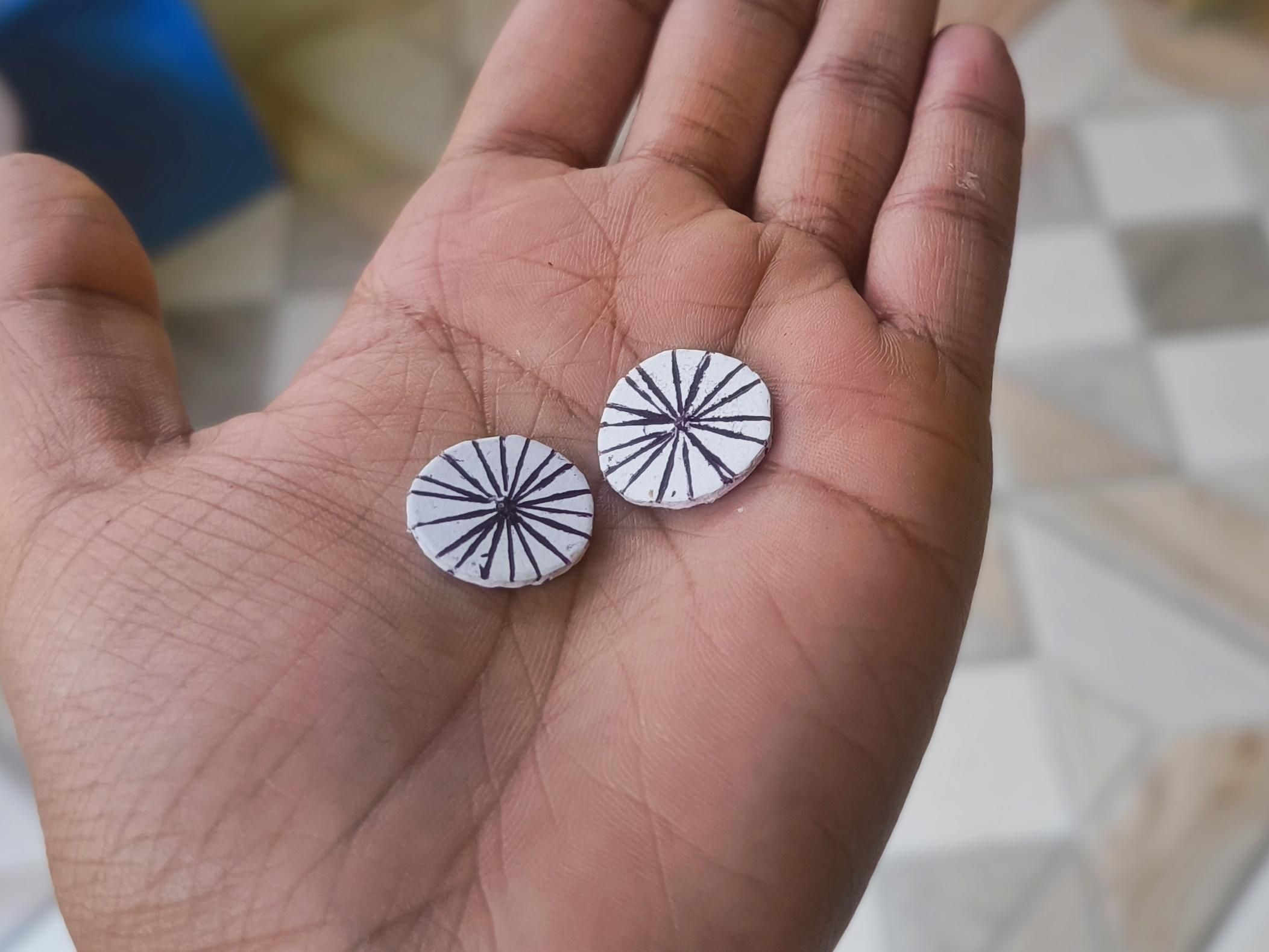
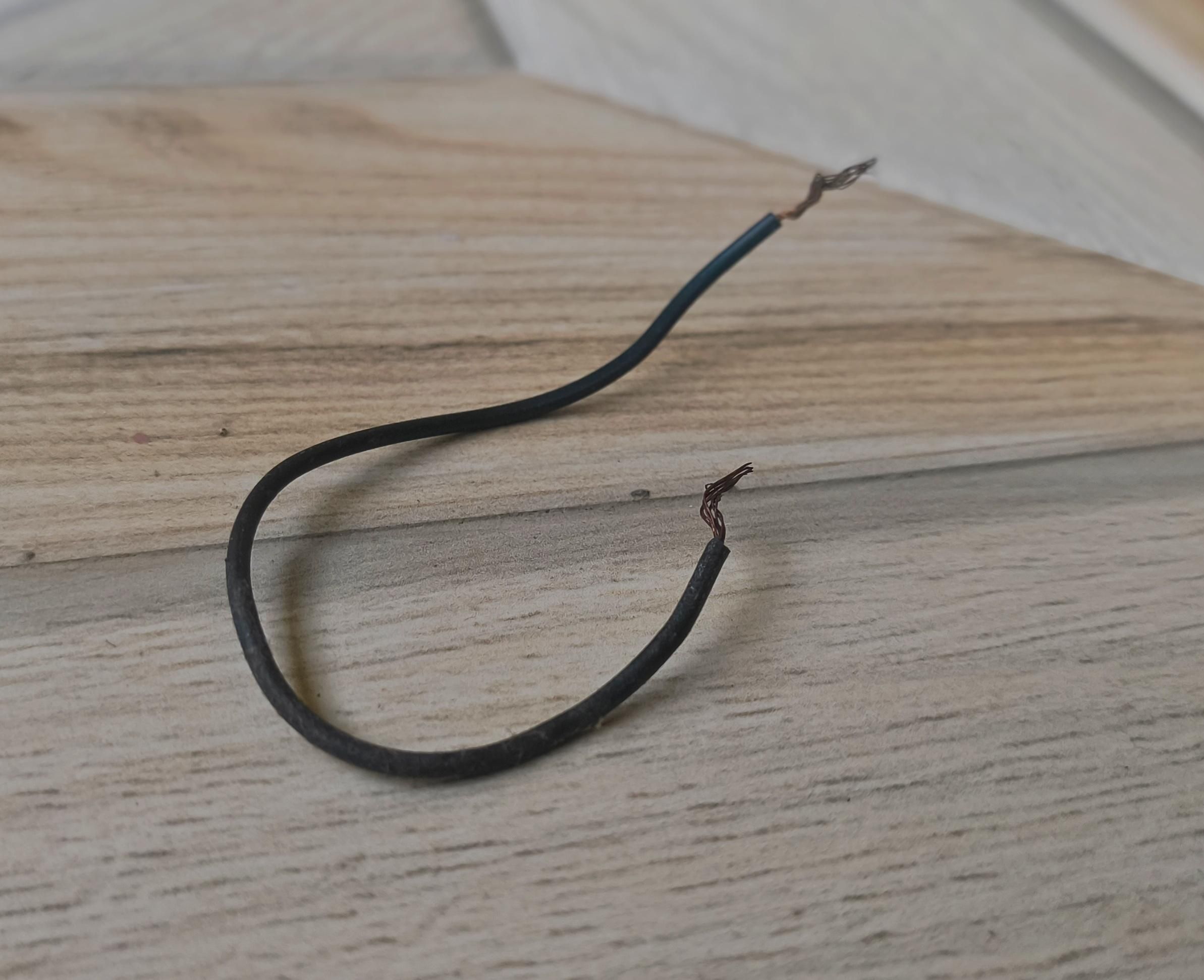
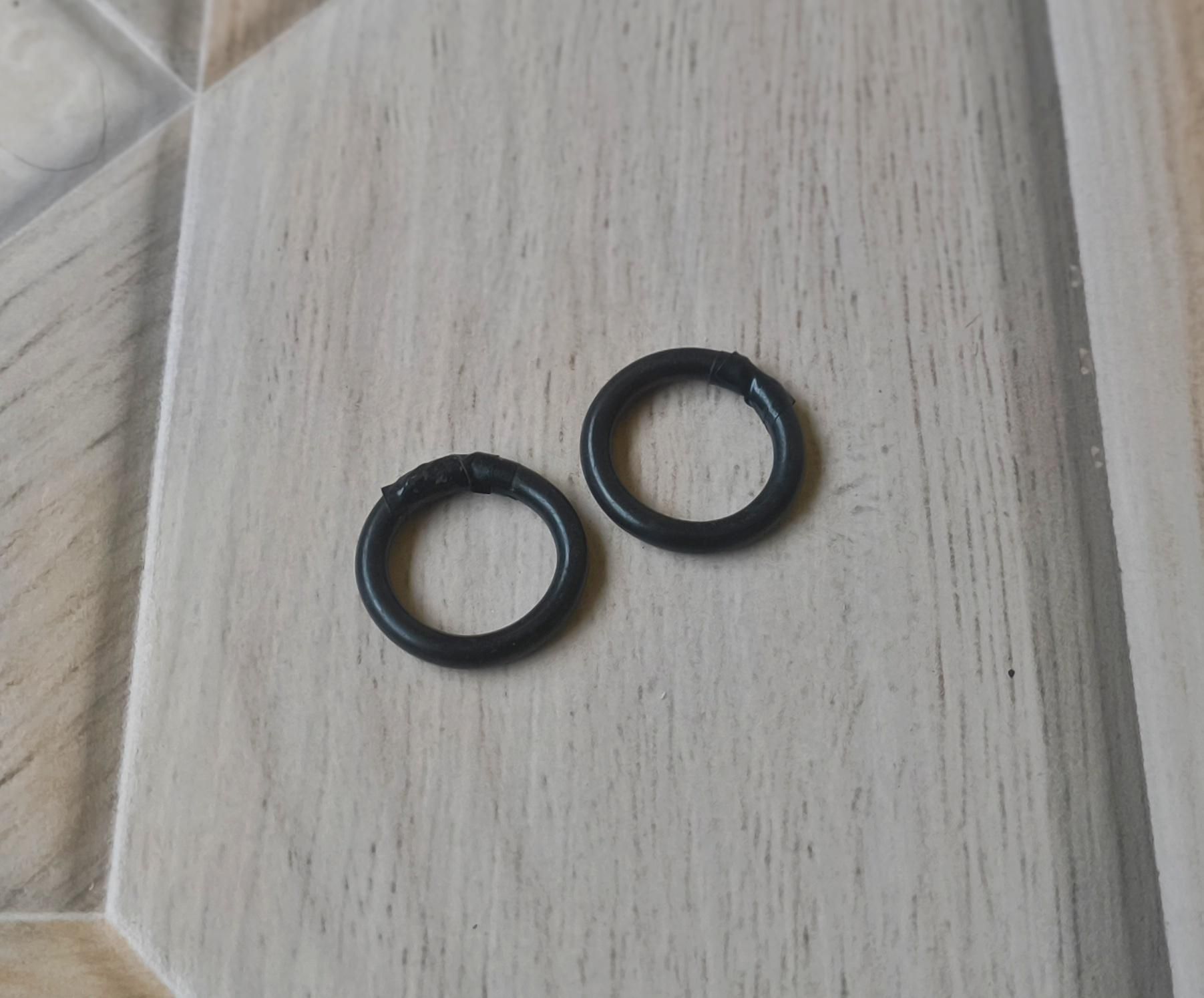
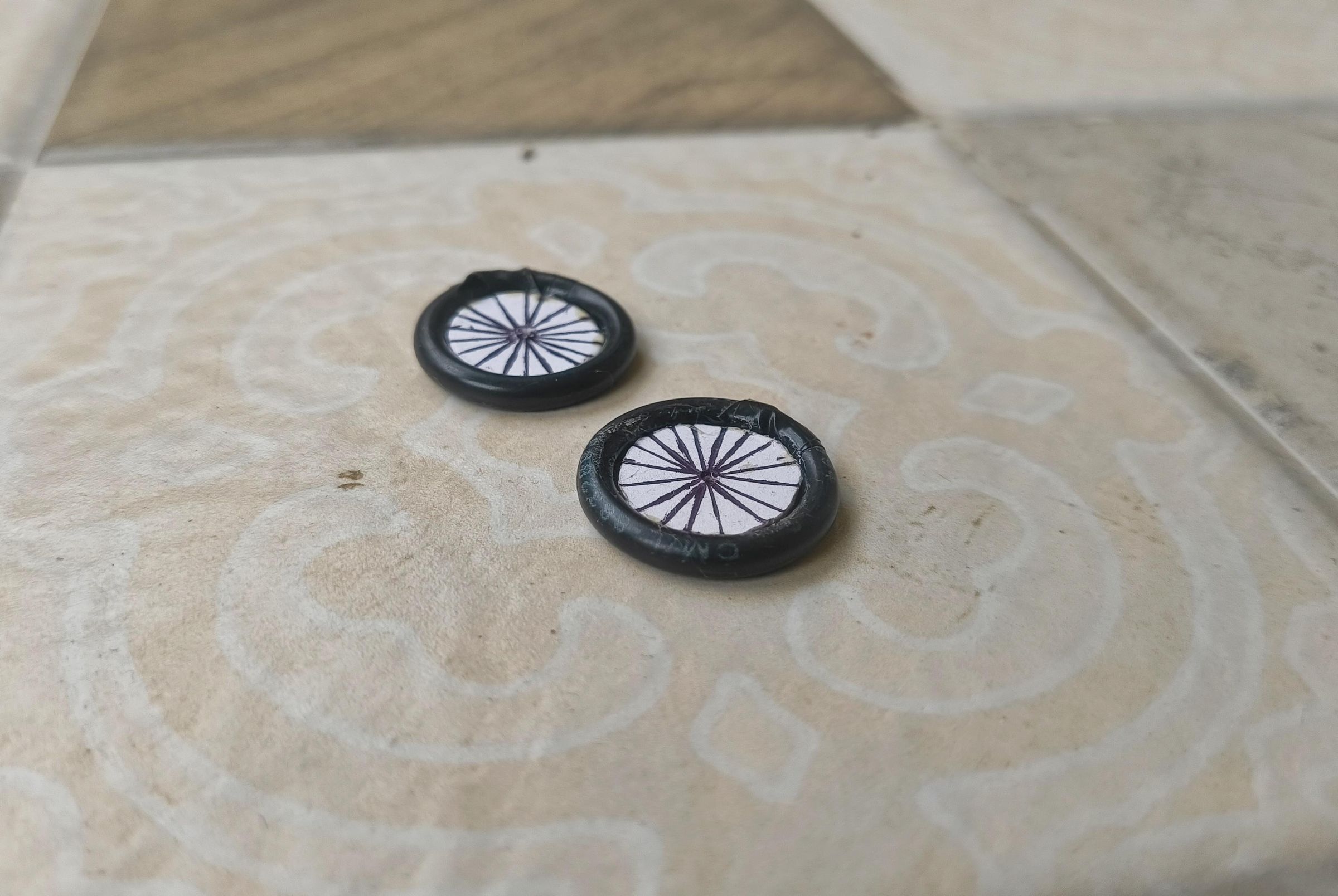
While our fuselage frame is drying, we can shift our focus to the landing gear.
Material Requirements
- 300 GSM heavy paper/card stock
- Thick black electrical mains wire
- Fine-tip black permanent marker
- A sharp pin or needle
- Prepare the Wheel Hubs:
- Cut out two tiny, identical circular discs from your 300 GSM paper. Aim for a diameter of roughly 15mm.
- Detailing the Spokes:
- Take your fine-tip black marker and carefully draw a small dot exactly in the centre of each paper disc. Draw straight, radial lines from that centre point out to the edge, mimicking the classic wire-spoke design found on pioneer aircraft.
- Forming the Tyres:
- Take a piece of thick black mains wire. We are using the thick, rubbery black insulation as our tyre tread. Bend and loop the wire into a tight ring. Size it so that the 15mm paper disc fits snugly right inside the loop.
- Tiny hole:
- Use a needle to make a tiny hole at the centre of each disc.
Propeller
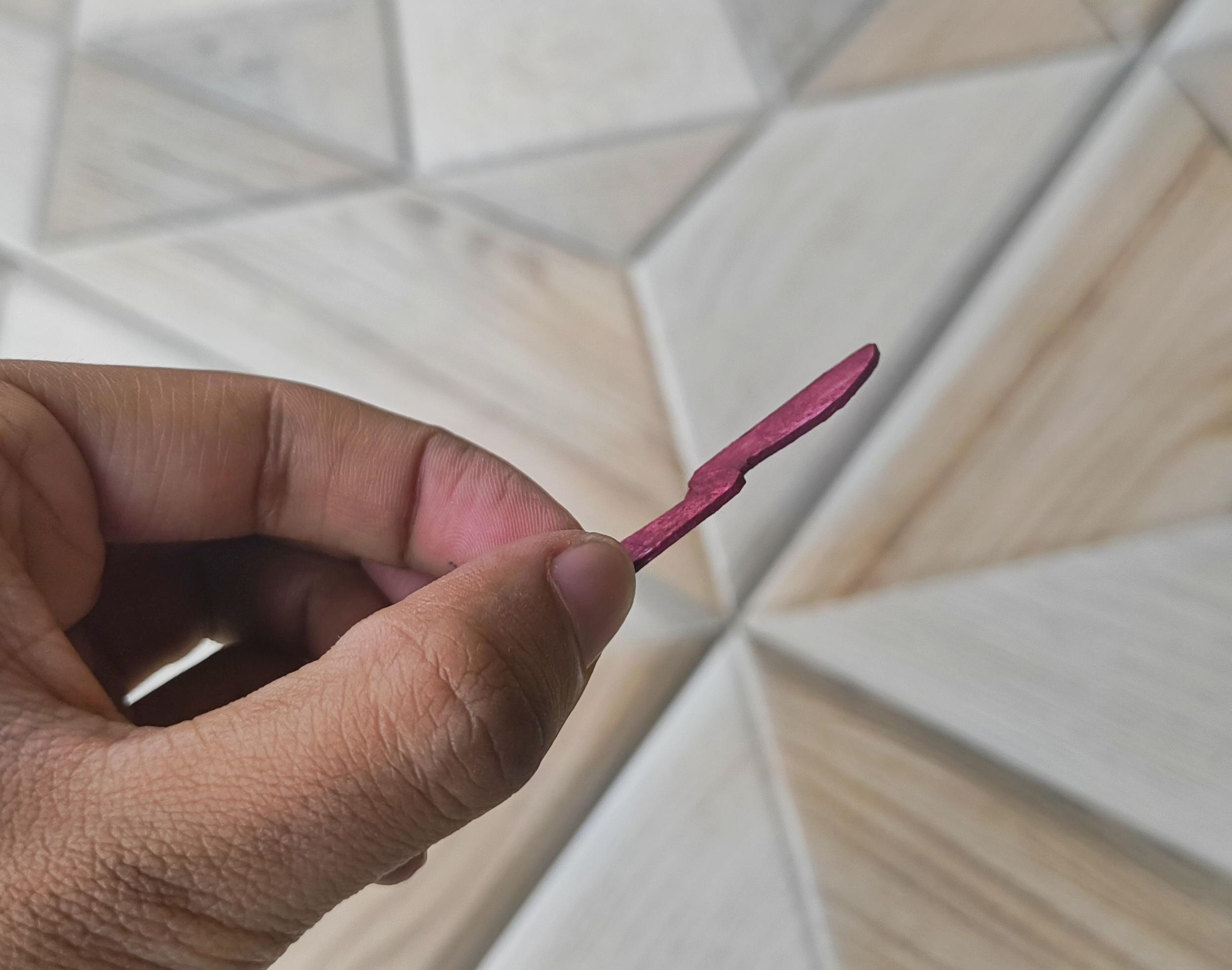
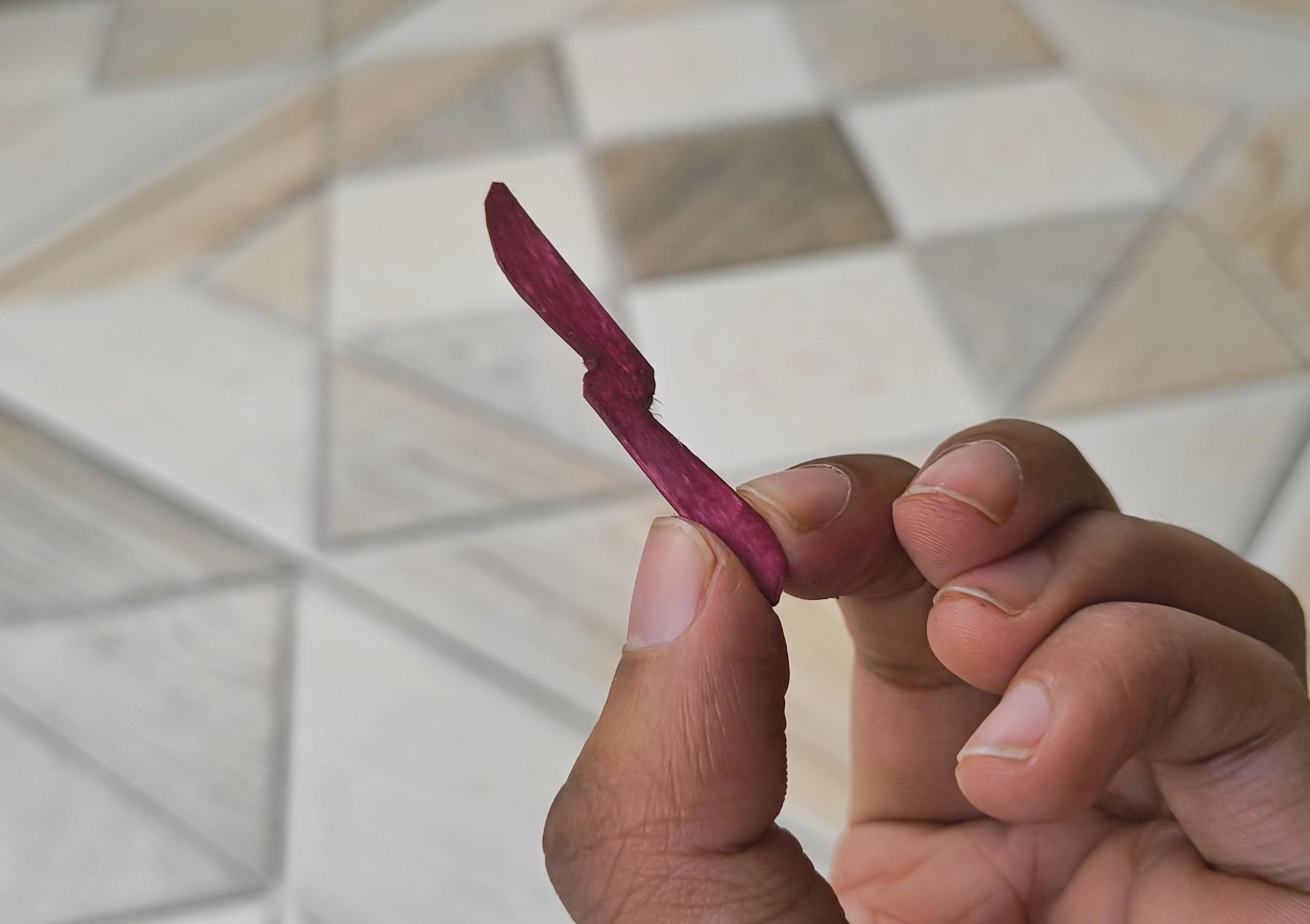
Because the prop needs to spin rapidly without adding too much weight or strain to our tiny coreless DC motor, balsa wood is the perfect choice.
Material Requirements
- A small scrap piece of thin balsa wood
- A sharp hobby knife or scalpel
- Fine-grit sandpaper (220 grit or higher)
- Red acrylic paint and a small paintbrush
- A straight pin or needle
Sketch a classic two-blade propeller profile onto your scrap piece of balsa wood, keeping it scaled nicely to the front width of your fuselage.
Using a very sharp hobby knife, carefully cut out the profile.
Paint the finished balsa wood propeller with a few coats of vibrant red acrylic paint.
The bold red colour provides a gorgeous contrast against the natural wood of the fuselage and makes the rotation highly visible when the ESP8266 detects a live flight overhead.
Wing and Tail
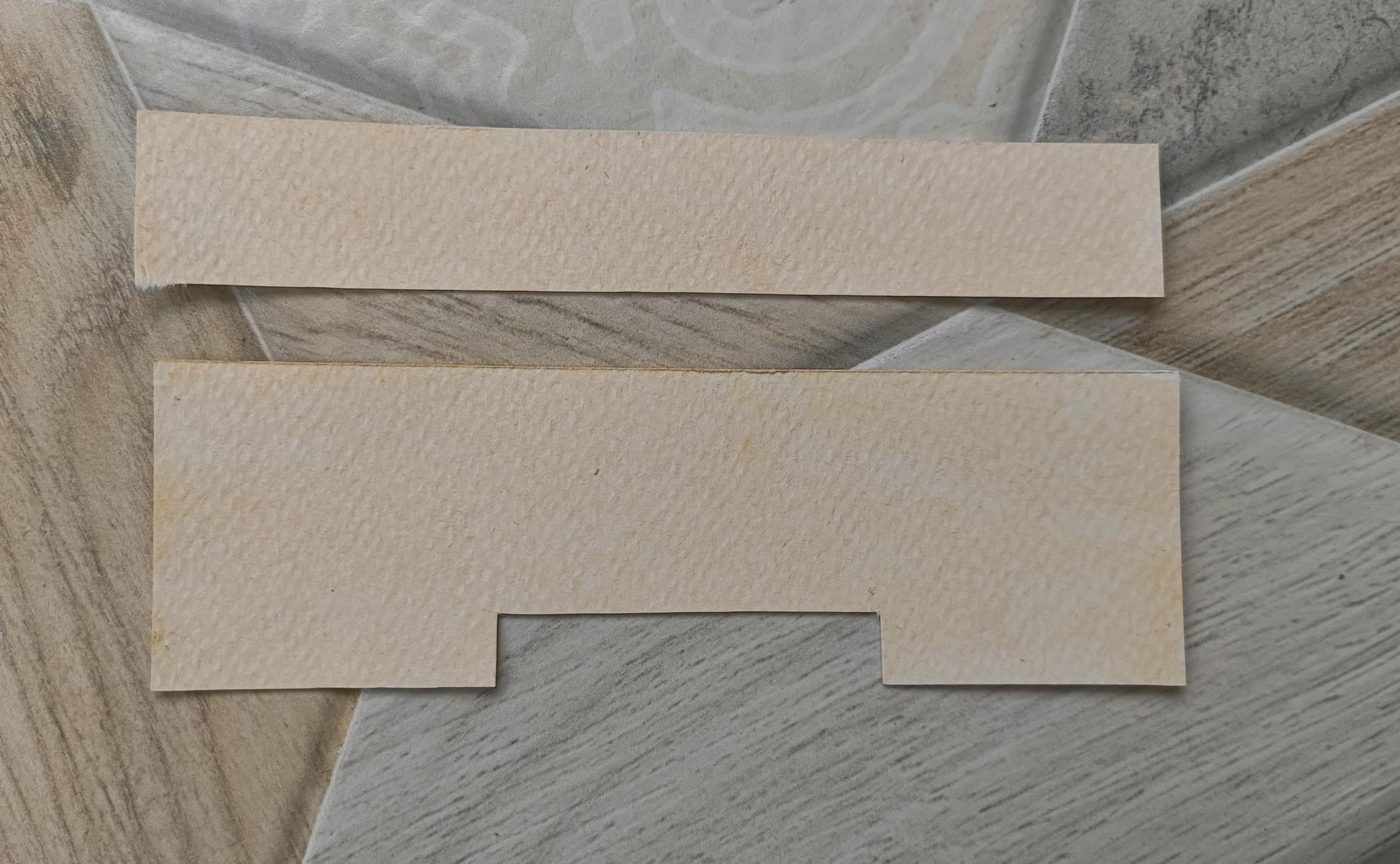
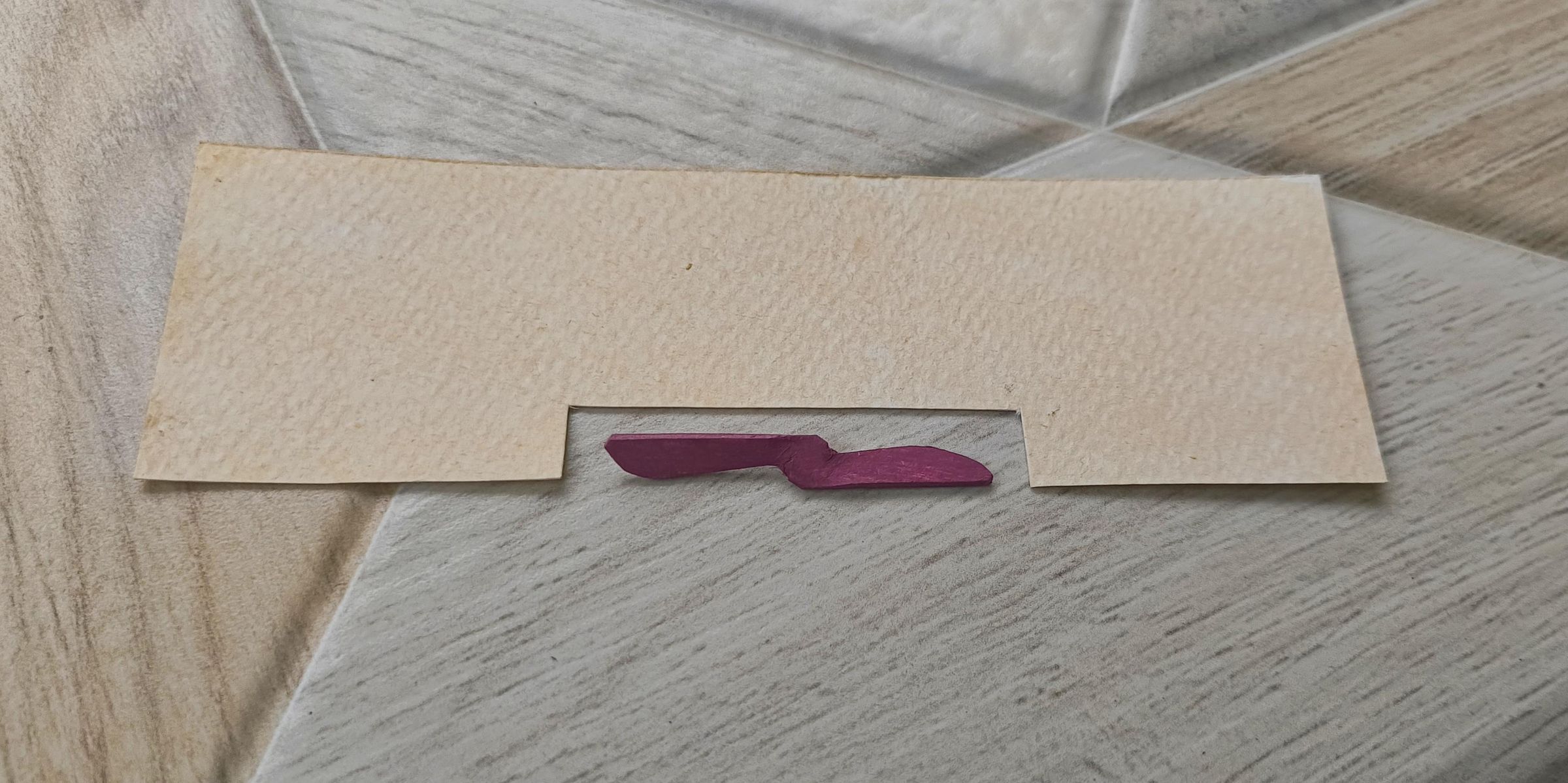
To keep the model lightweight and easy to build, we are going to use heavy card stock again.
Material Requirements
- 300 GSM paper/cardstock (or thin balsa wood sheets if you prefer)
- Scissors or a sharp hobby knife
- A ruler
- Light brown acrylic paint and a paintbrush
- PVA glue
- Cutting the Main Wing:
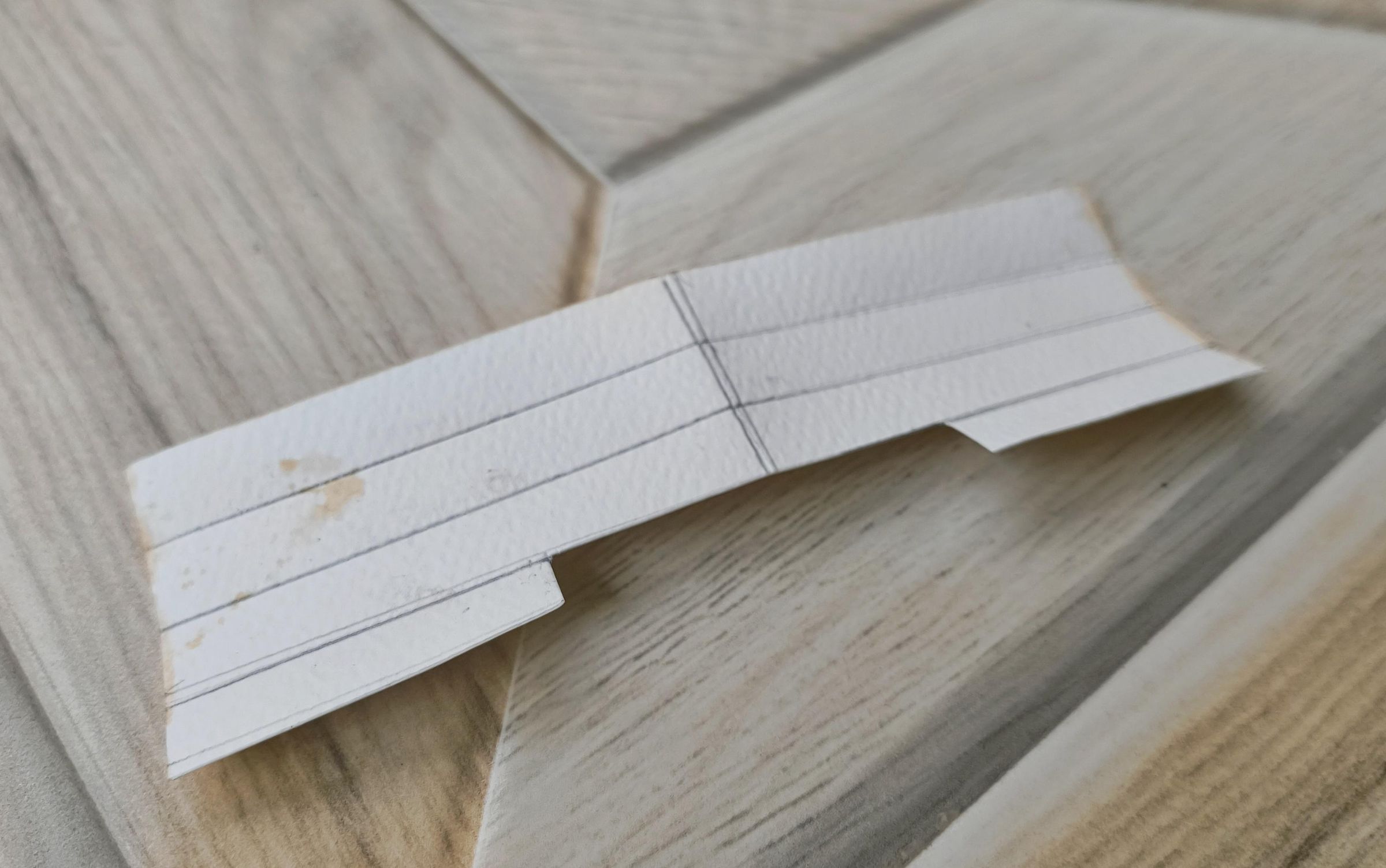
- Cut a rectangle out of your 300 GSM paper. The length should roughly match the length of your fuselage (about 120mm), and the width should be approximately 50mm.
- Because the motor mounts directly on the wing, the spinning propeller will hit the edge of the paper. To fix this, carefully cut a rectangular notch out of the centre edge of the wing to give the propeller plenty of clearance.
- Gently round off the four outer corners of the wing for a more aerodynamic, vintage look.
- The Tail Unit:
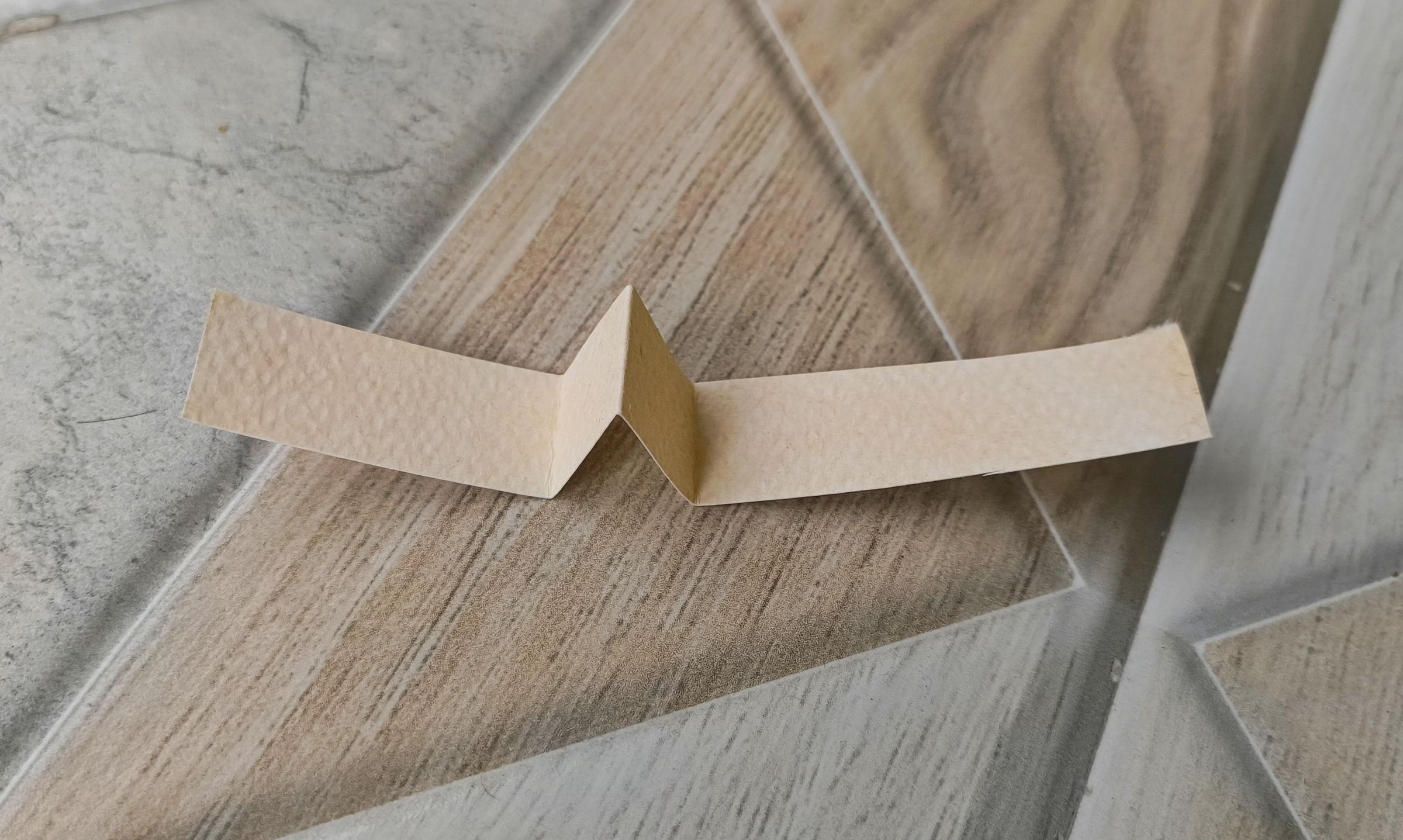
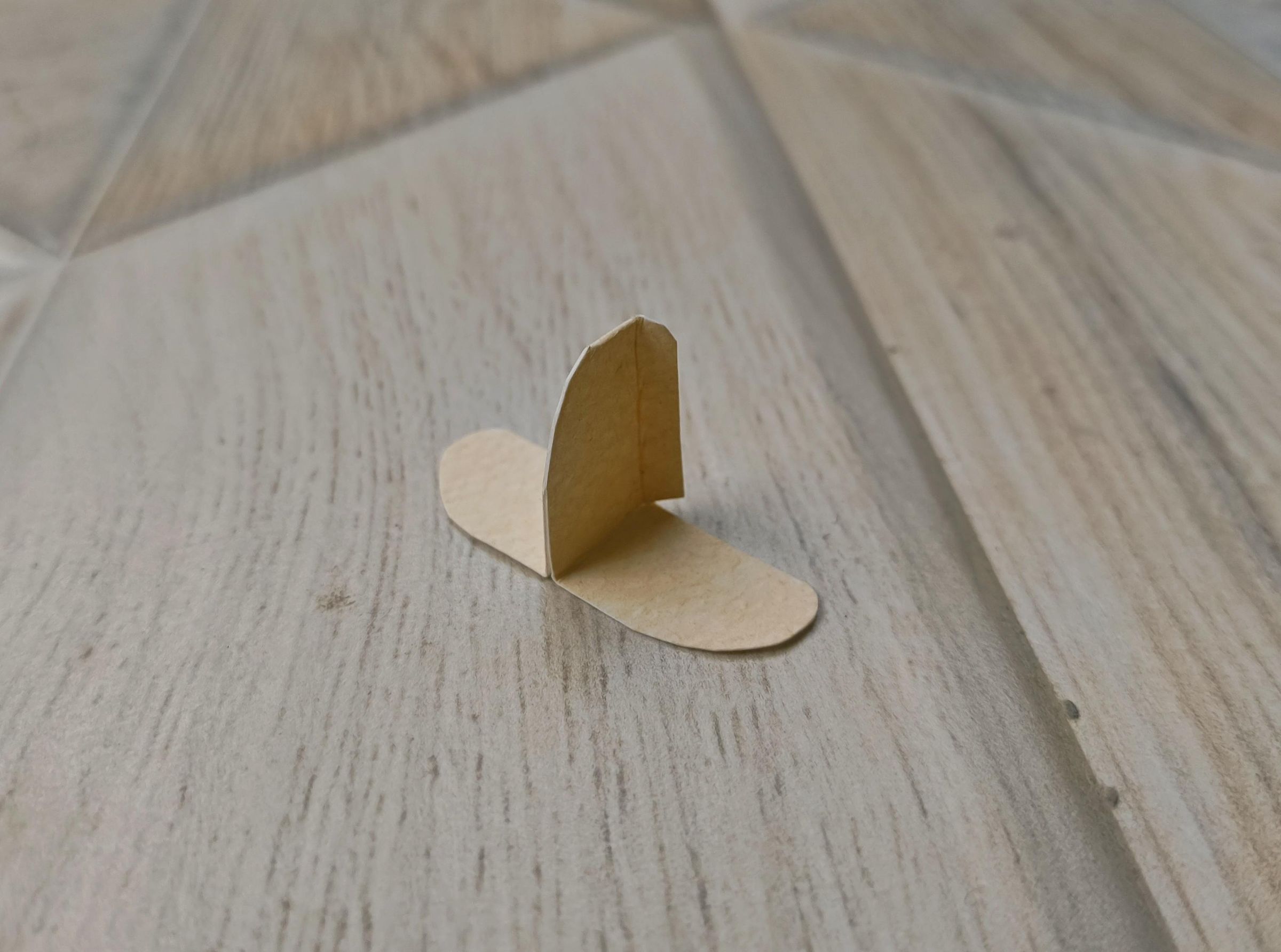
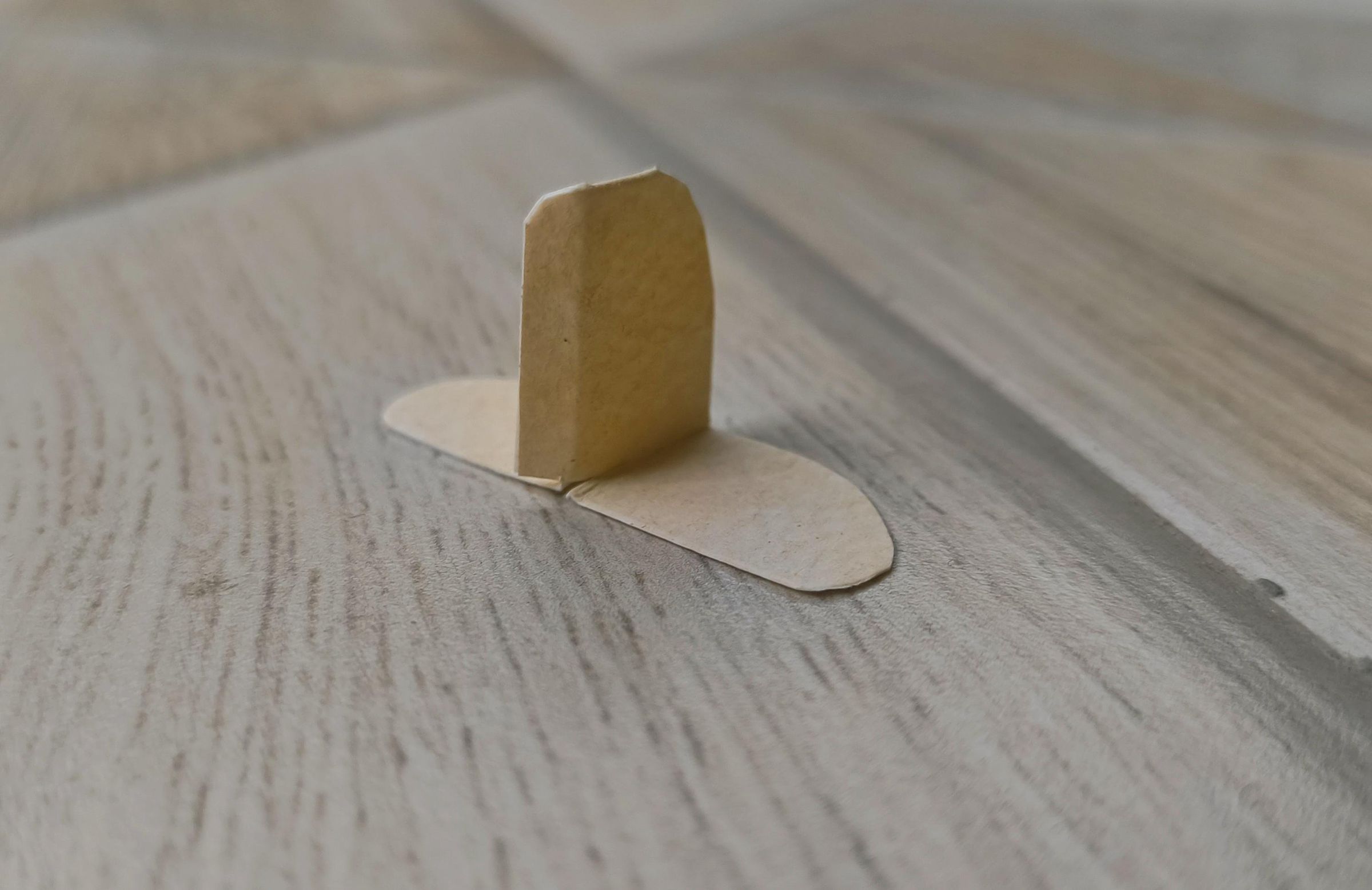
- Instead of cutting three separate pieces for the tail, we can make the entire tail assembly out of one continuous strip of paper. Cut a small rectangle of paper. Fold the paper into an "M" shape.
- Pinch and glue the centre of the "M" tightly. This glued centre section becomes the vertical fin, while the two flat flaps extending outwards become the horizontal stabilizers.
- Trim and round off the outer edges of the horizontal stabilizers and the top of the vertical fin.
- To make it look like a functional control surface, use your knife to cut a shallow vertical slit into the back edge of the vertical fin to represent the rudder line.
- Painting the Fabric/Wood Finish:
- Pioneer aircraft were often made of raw wood frames stretched with doped linen or canvas. To replicate this, paint the main wing and the folded tail unit with a light brown acrylic paint.
I also made some lines along the wing and folded it gently along them to give the impression of wing spars. This is optional.
Attach the Propeller
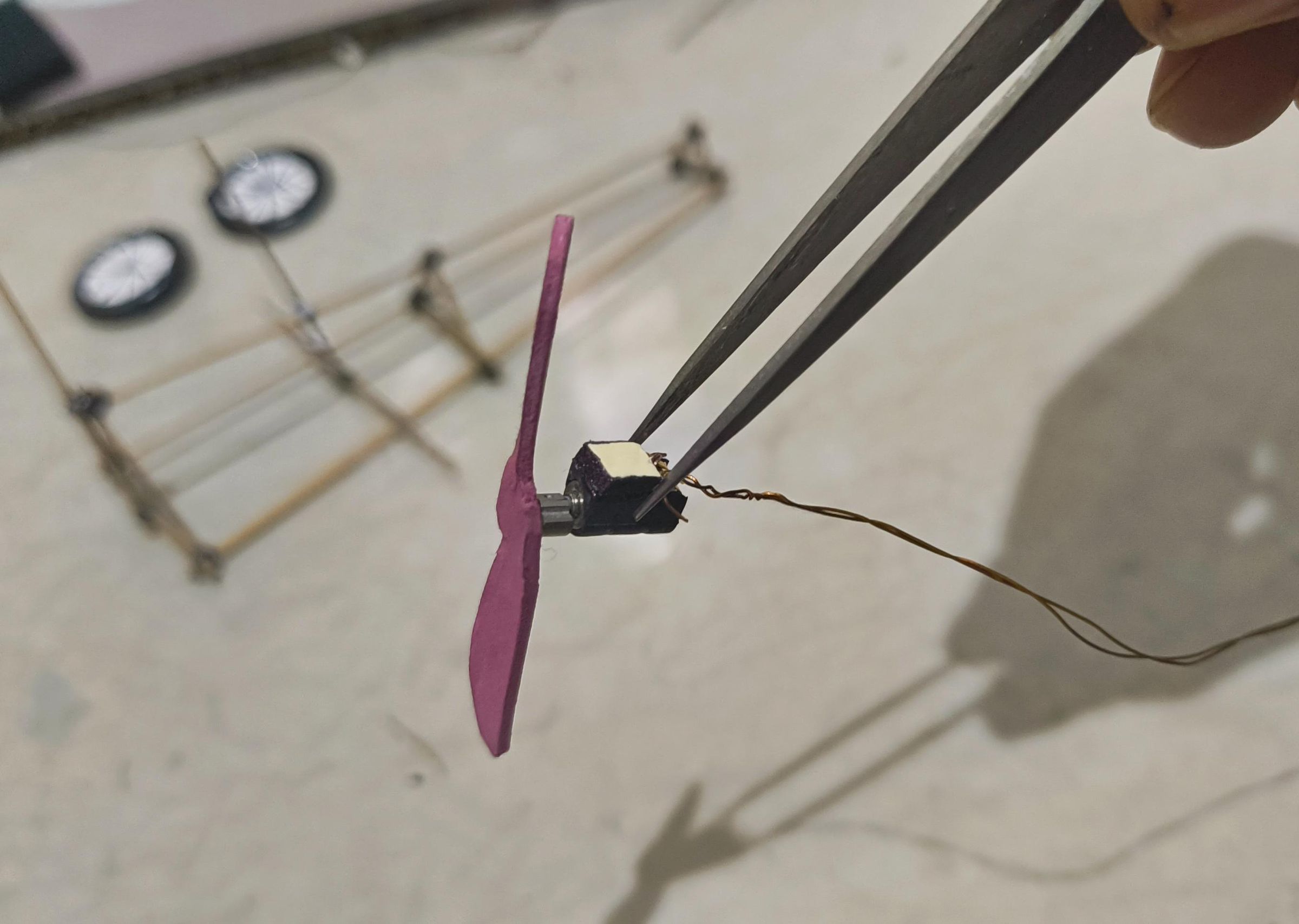
Material Requirements
- Tiny smartphone vibration motor (or a micro coreless DC motor)
- Thin enamelled magnet wire (salvaged from an old transformer or broken motor)
- Superglue
Selecting the Motor
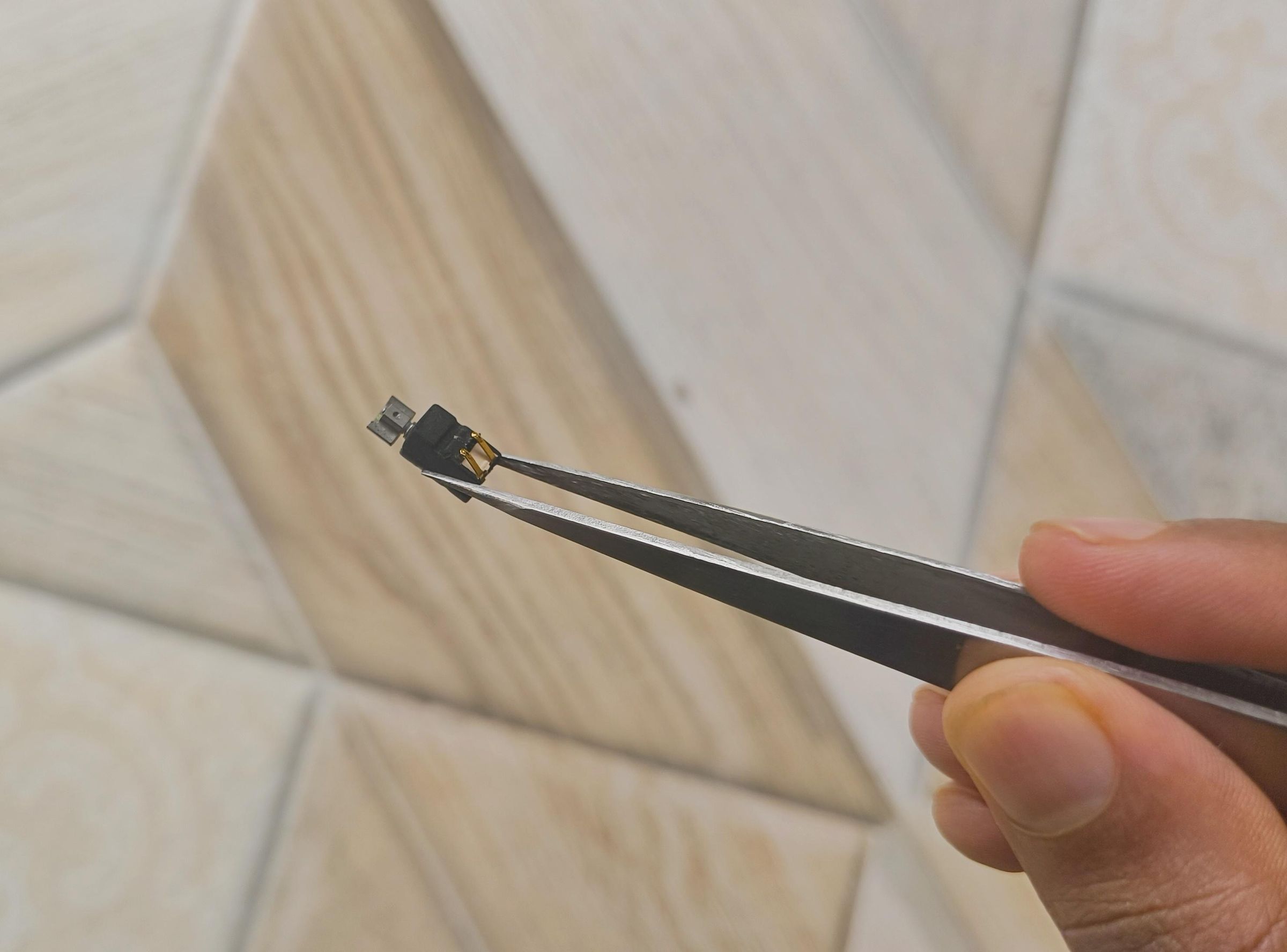
A standard micro coreless DC motor is perfect for spinning small props. However, to keep things as compact as possible, I used an absolutely tiny smartphone vibration motor.
Initially, I planned to pry off the offset metal weight that makes the motor vibrate. But I decided to leave it on. When the motor spins, that slight vibration creates a whirring sound. Now, when a mapped plane flies into your airspace, the model doesn't just visually spin its propeller it physically rumbles and sounds like a real vintage aircraft engine spooling up!
- Mounting the Propeller:
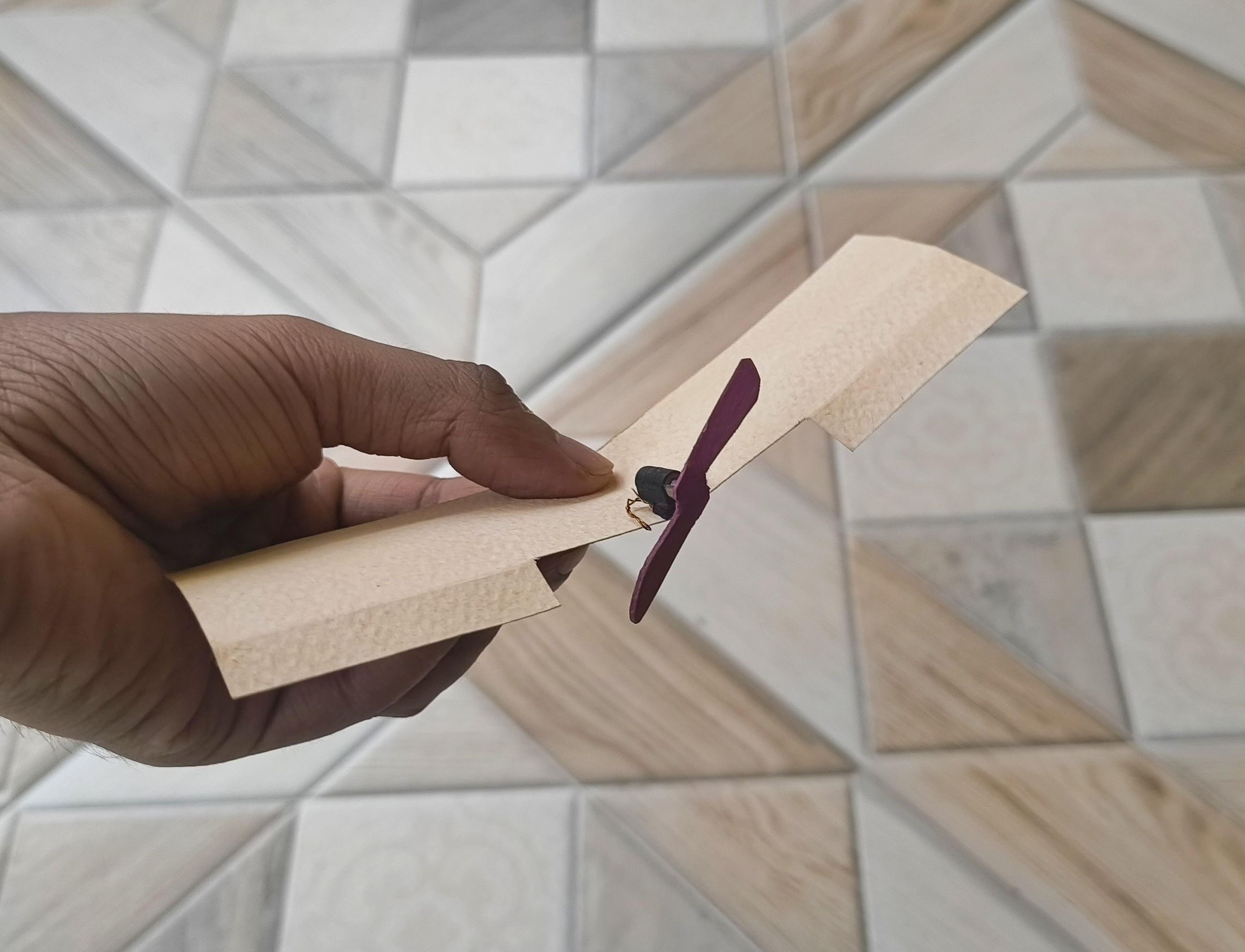
- Because we kept the offset weight on the vibration motor, simply apply a drop of superglue to the flat face of the metal weight and carefully stick your red balsa wood propeller directly to it. (If you opted for a standard coreless motor instead, just pierce a tiny hole in the back of the wooden prop and push it snugly onto the bare metal shaft).
- Mounting the Engine:
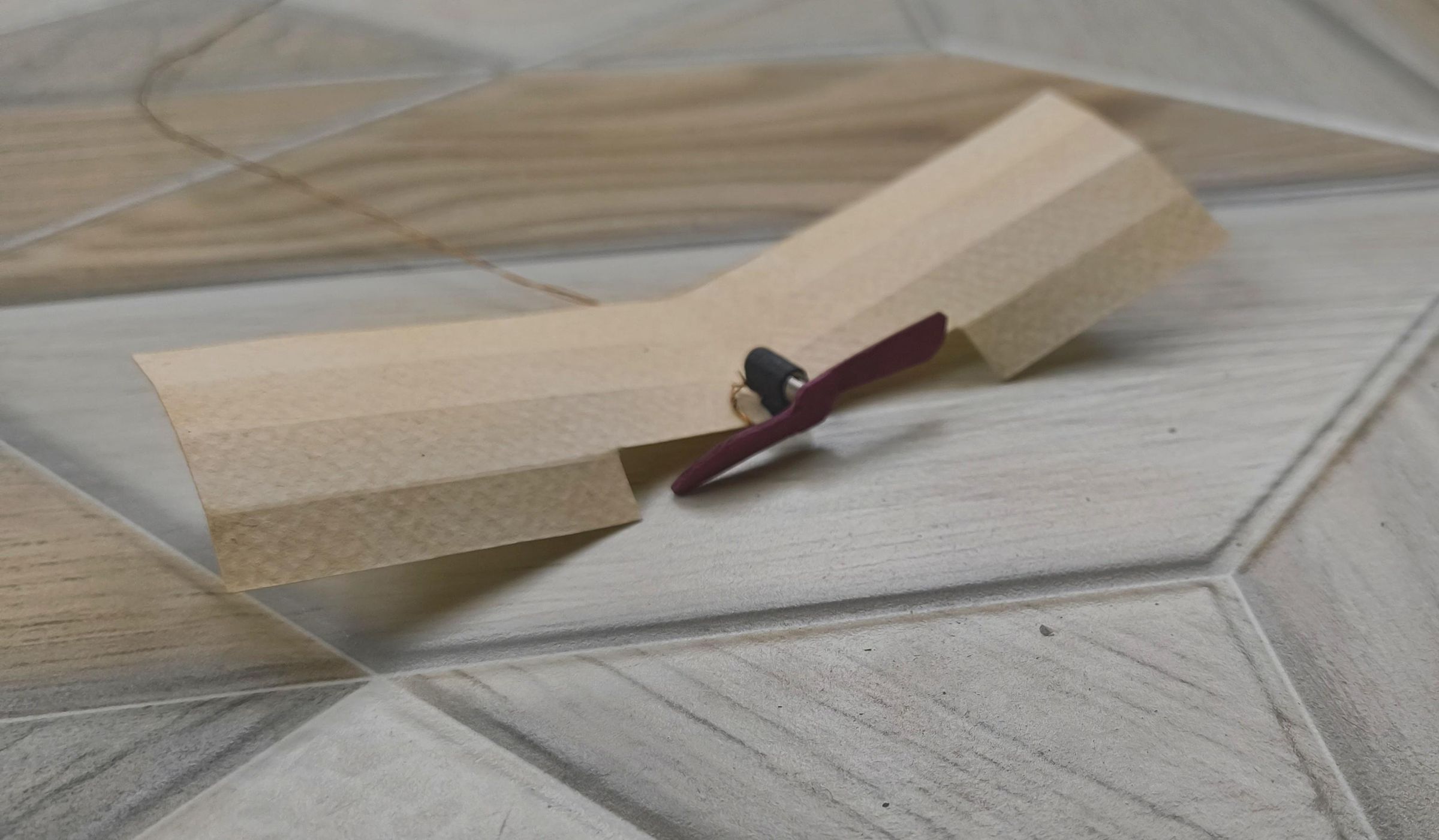
- Take the complete motor/propeller assembly and glue the motor body securely to the top-centre of the main paper wing, right where we cut that rectangular clearance slot in the previous step.
- Wiring:
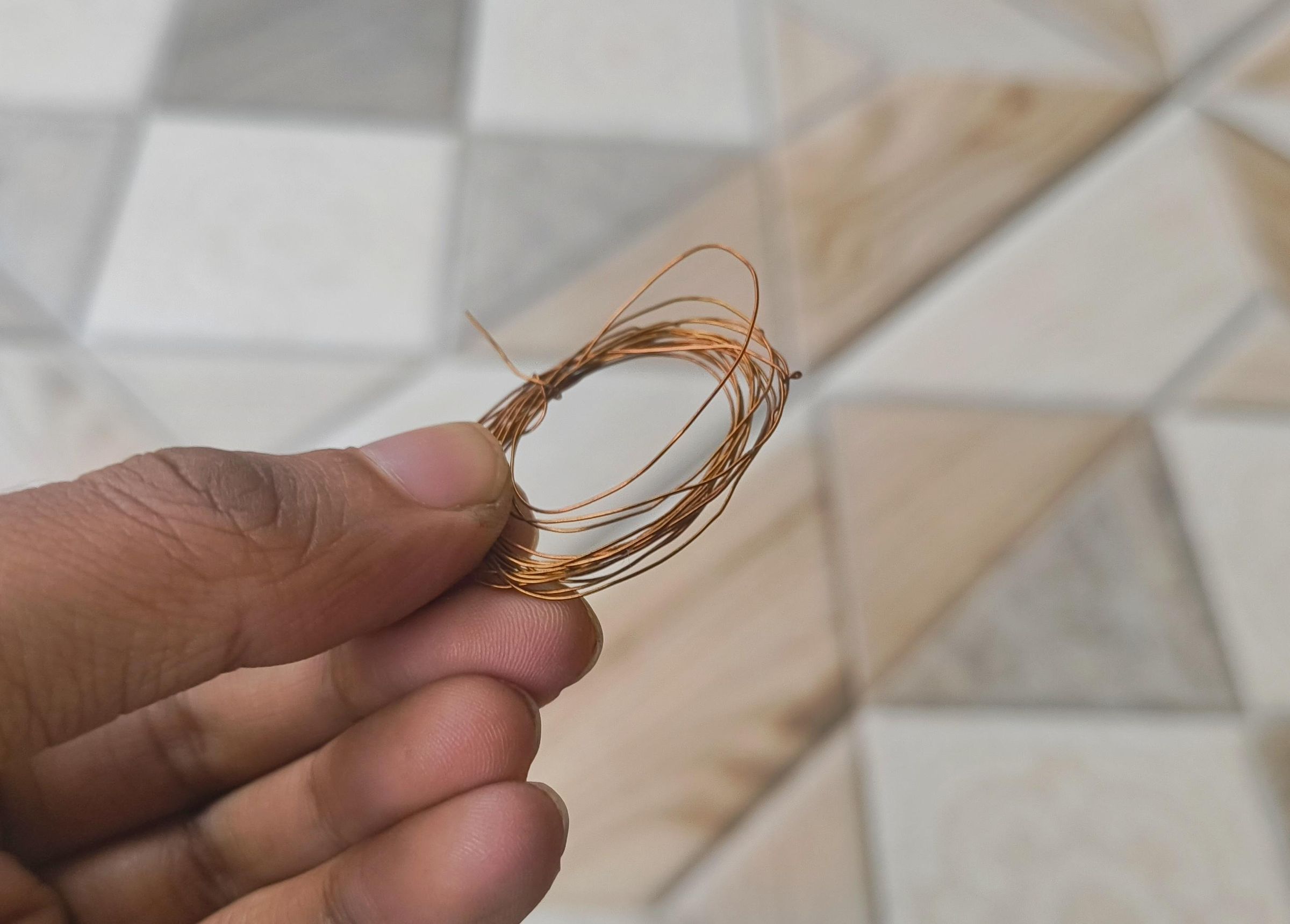
- Use ultra-thin, copper magnet wire (you can easily salvage this by unraveling an old broken motor or power transformer).
- Solder two long strands of this thin wire to the motor terminals and run them neatly down the fuselage, trailing out past the tail.
Don't forget to carefully scrape or burn off the clear enamel coating at the very tips of the magnet wire before trying to solder them.
Attach the Tail

Mounting the Tail Unit:
- Apply a line of rubber adhesive or PVA glue along the bottom crease of your "M-folded" tail unit.
- Gently press it onto the very rear end of the top stick of your triangular fuselage.
- Look at the model straight on from the front or back to ensure the horizontal stabilizers are perfectly level before the glue dries.
Attach the Wing Assembly
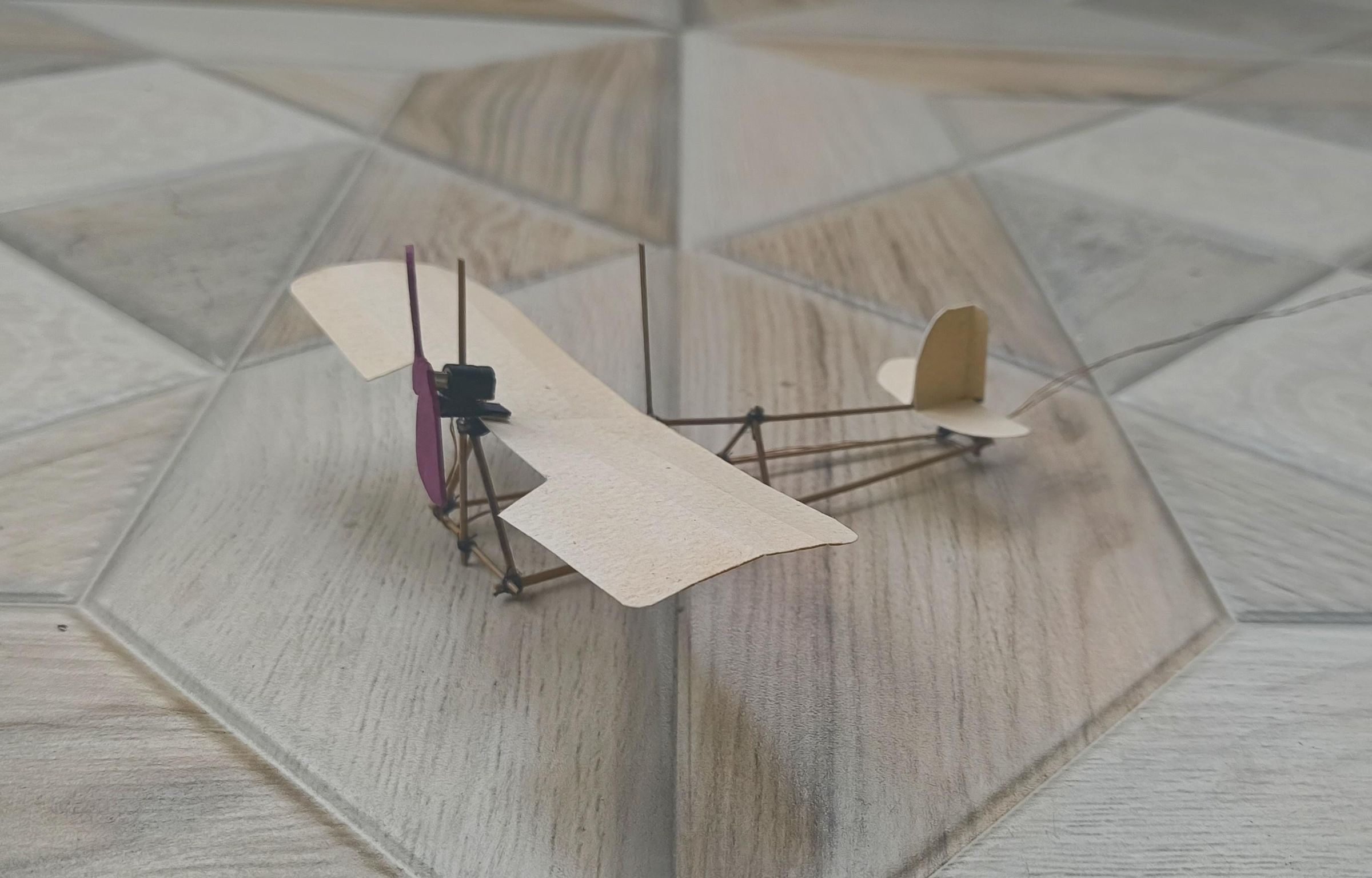
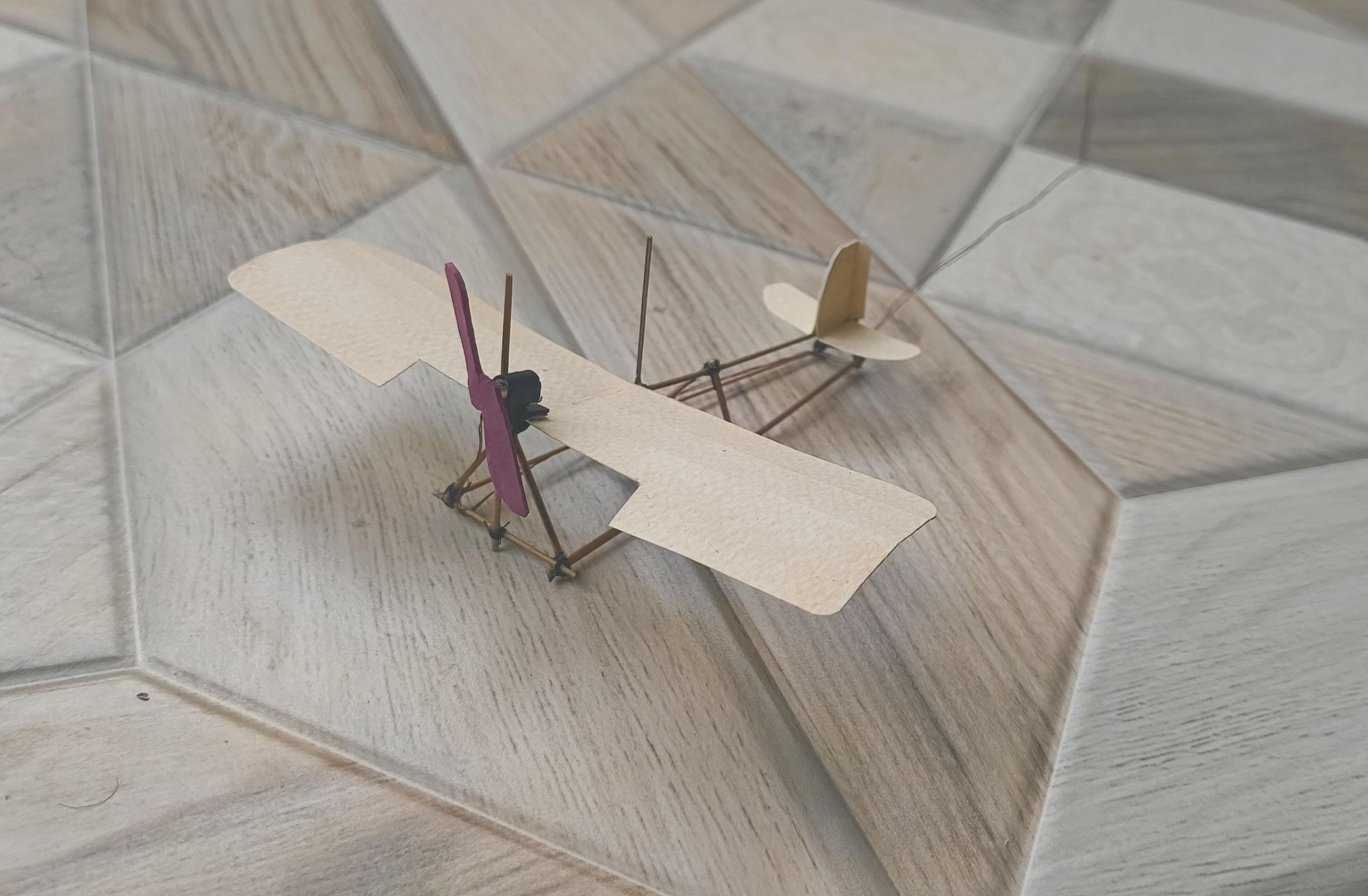
Mounting the Main Wing:
- Apply adhesive to the bottom centre of the main wing.
- Rest the wing exactly on top of the front section of the fuselage's top stick.
- Before the glue sets, manually spin the red propeller. Ensure you have mounted the wing far enough forward (or backward) so that the spinning propeller blades have ample space and do not strike the vertical wing support struts we installed in Step 2.
Final Alignment:
- Step back and look at your aircraft from a few different angles. Ensure the main wing is perfectly parallel with the tail's horizontal stabilizers.
- Because you used rubber adhesive or PVA, you have a few minutes to slide the wing around and get it perfectly symmetrical before it locks into place.
Attach the Wheels and the Wing Tension Cables
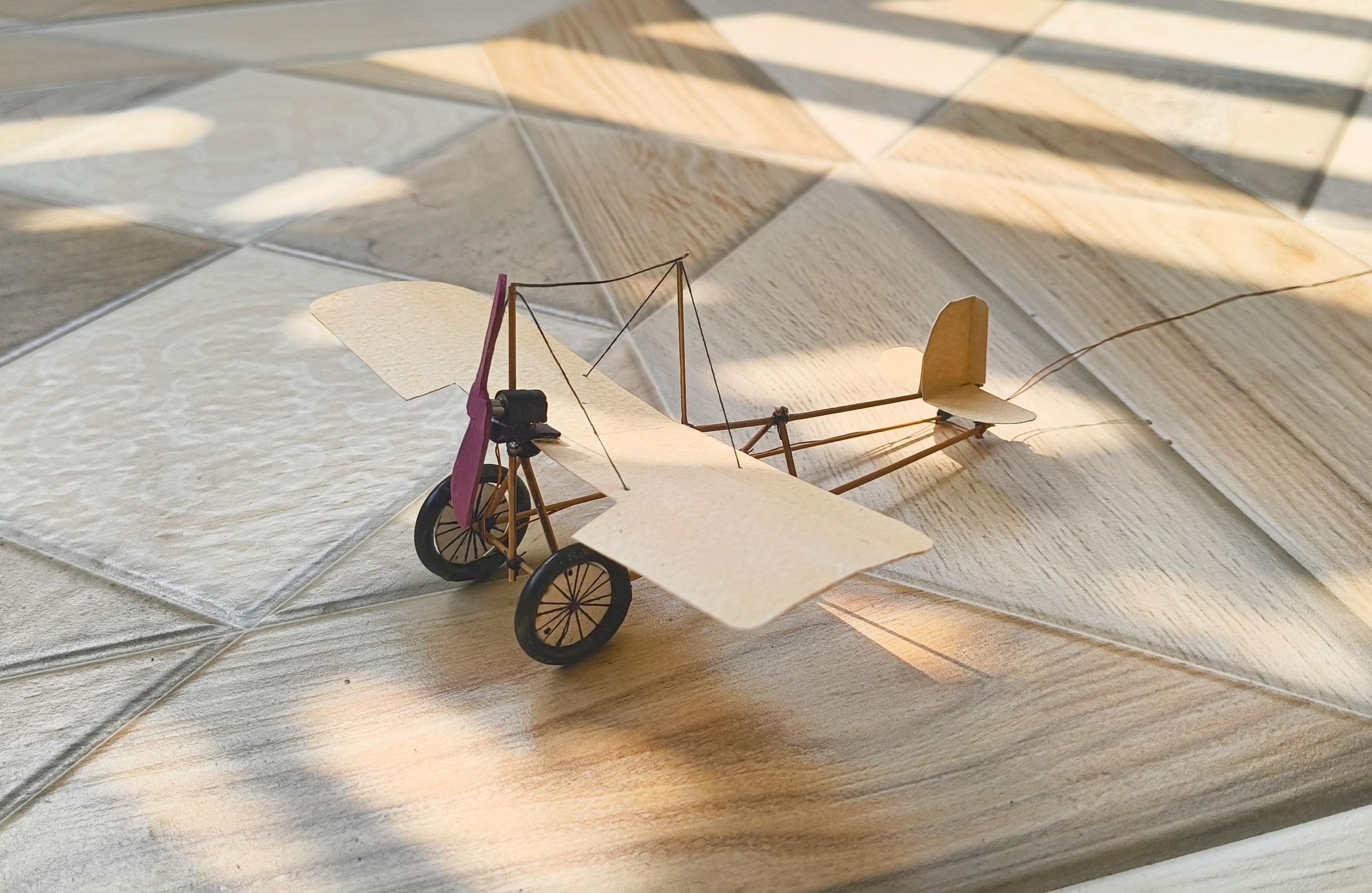
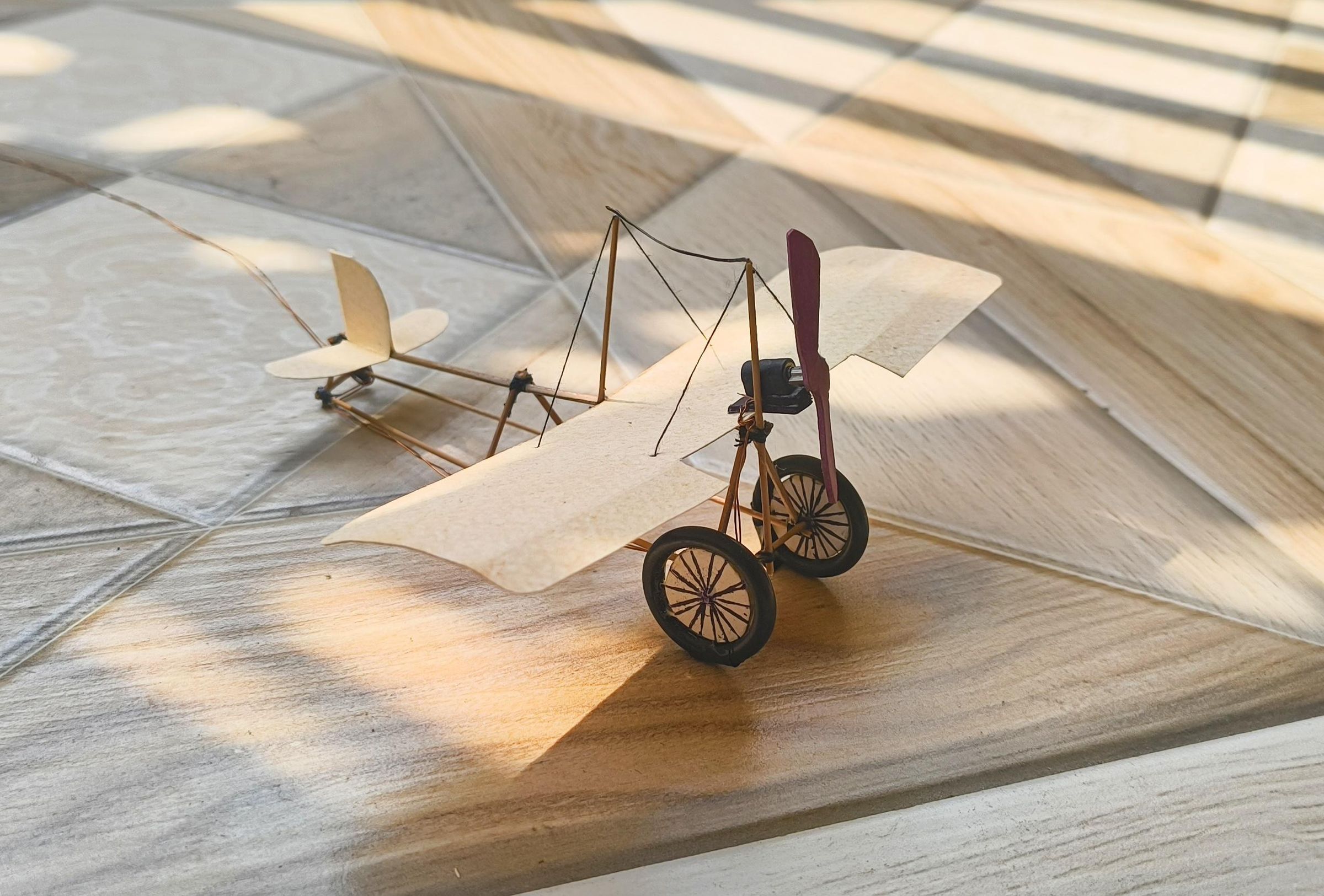
Take a sharp needle and carefully pierce two tiny holes on each outer side of the main paper wing.
Cut a few lengths of your black sewing thread. Tie one end of the thread securely to the very top of the vertical wing support sticks. Run the thread down to the main wing, pass it through the holes you just pierced, and tape it to the underside.
Take the wheels we built earlier. Apply a drop of superglue to the centre hubs (or directly to the bottom fuselage sticks, depending on how you wish to mount them).
Securely attach the wheels to the bottom-front corners of your triangular fuselage frame.
Now the physical build is complete and we can move on to the electronics.
The Sky Scanner

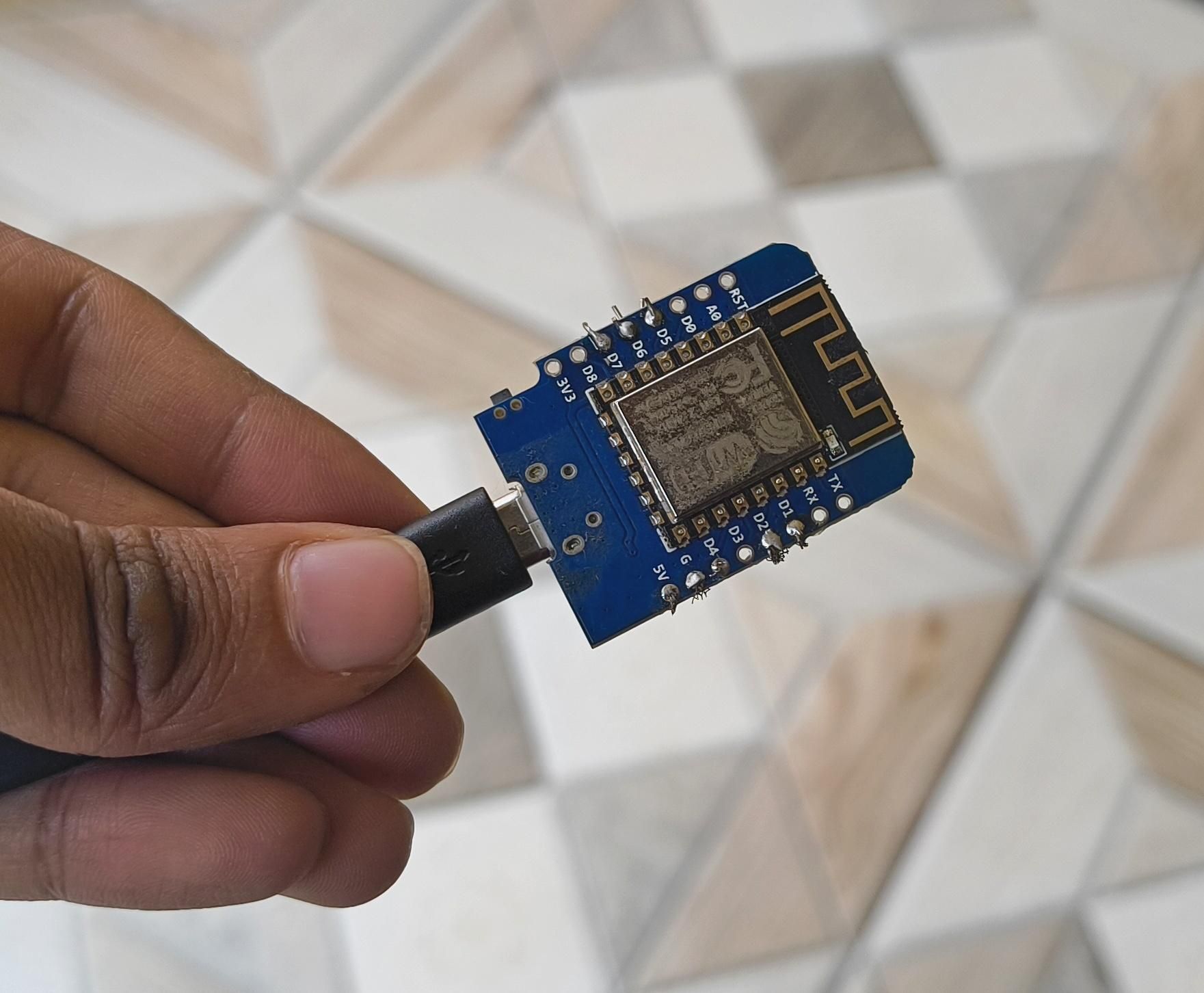
Now we move to the software side. We will have a D1 Mini scanning the sky above us to look for actively moving planes.
We have two major challenges. First, since this project is going to be a gift, it needs to feel like a polished consumer product, not a raw prototype that requires the user to install Arduino IDE just to update their Wi-Fi password. Setting up the network, updating the GPS location, and adjusting the radar bounding box needs to be completely user-friendly.
Second is the hardware limitation. The ESP8266 inside the D1 Mini has very limited RAM. Parsing massive chunks of live flight data from the OpenSky API needs to be done carefully, so the microcontroller does not run out of memory and crash.
Here is how the software workflow solves these problems:
1. No-Code Wi-Fi Setup
Instead of hard-coding the network credentials, the code utilizes the WiFiManager library. When the user plugs the plane in for the first time, it broadcasts its own Wi-Fi network (Access Point). The user connects to it with their smartphone, selects their home Wi-Fi, and enters the password. The D1 Mini remembers this forever.
2. The Web Dashboard
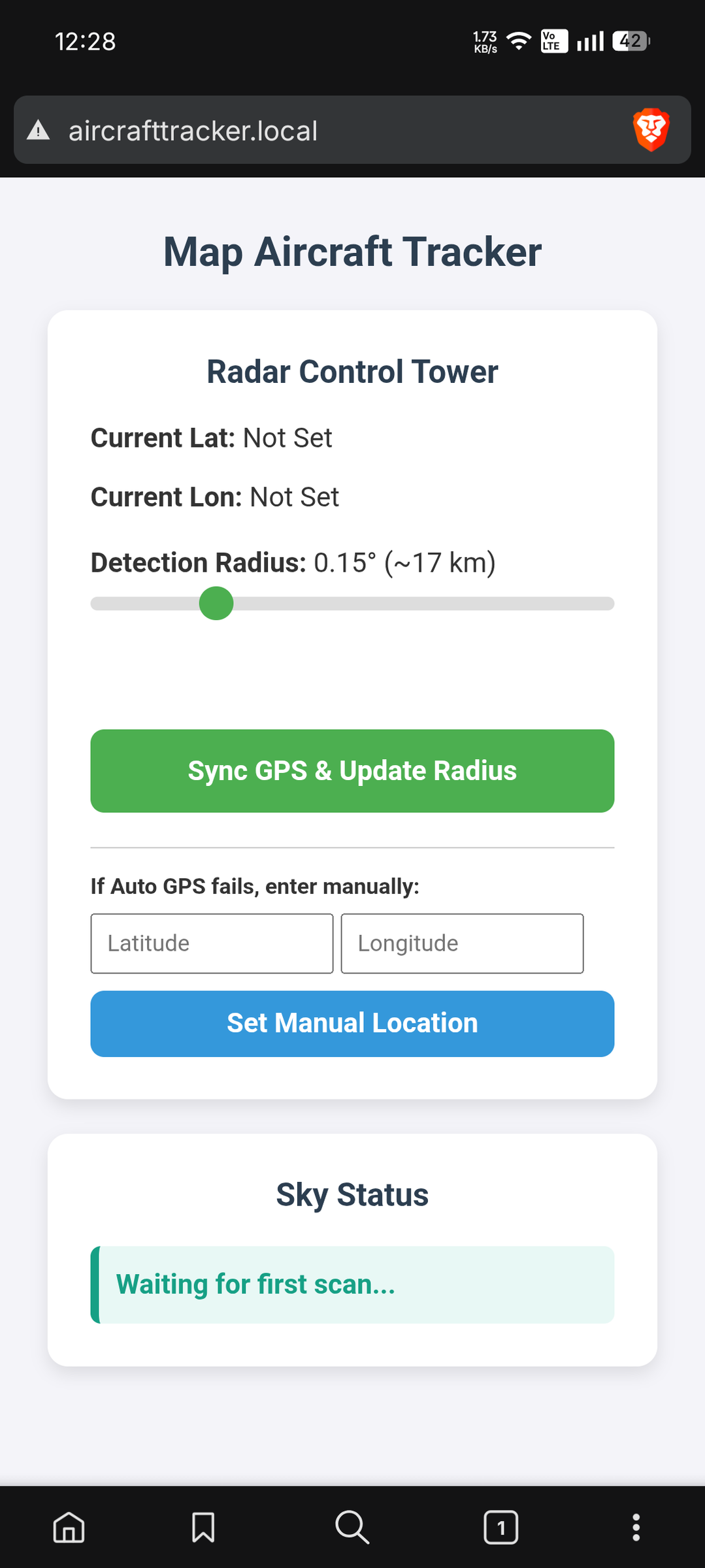
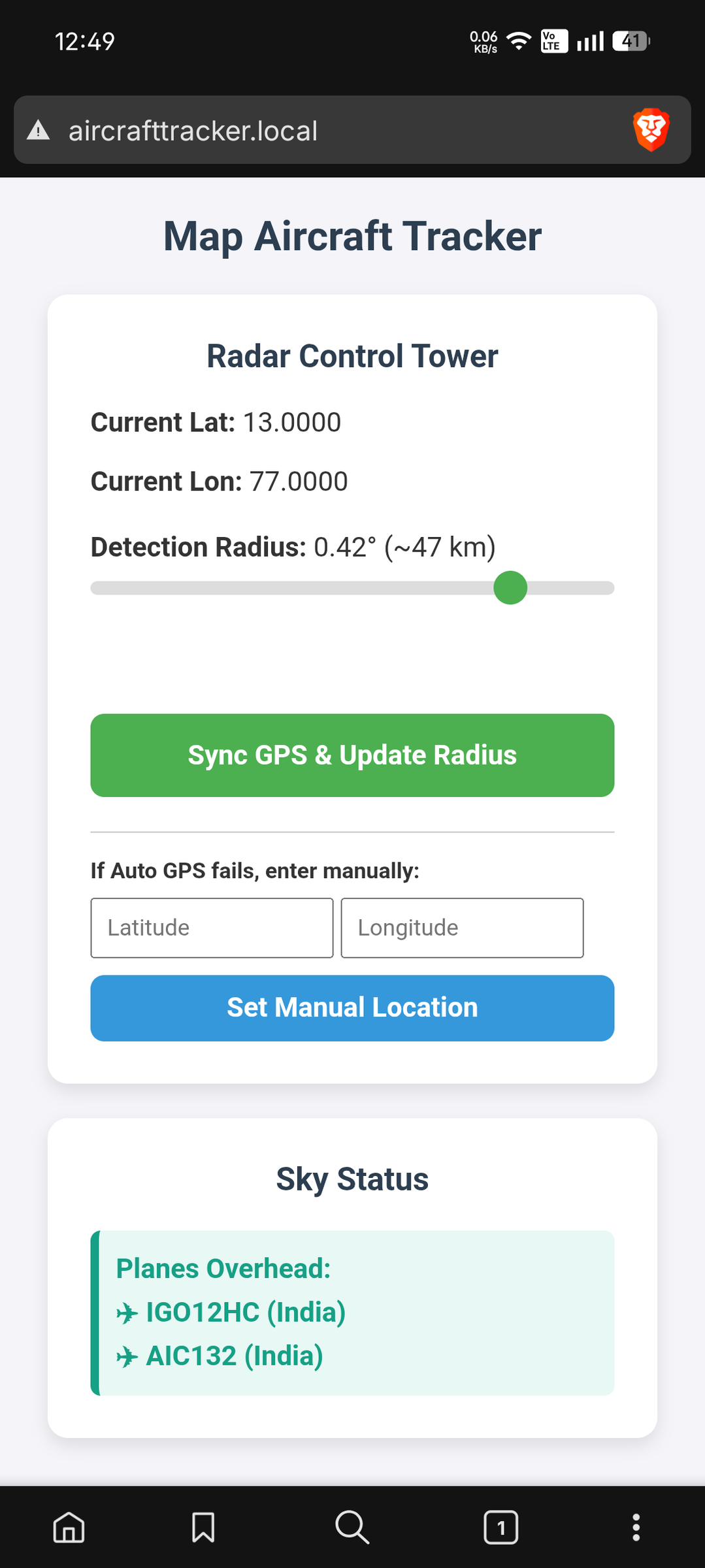
Once connected to the internet, the D1 Mini hosts its own webpage (http://aircrafttracker.local). This is the user interface. From here, the user can:
- Click a button to grab their phone's exact GPS Coordinates (Latitude and Longitude).
- Use a slider to set their desired Detection Radius (how far out they want to track planes).
- View a live feed of the aircraft currently flying overhead (including flight numbers and origin countries).
3. Geo-fencing and Permanent Memory
When the user syncs their GPS data via the dashboard, the D1 Mini takes that central point and calculates a geographical Bounding Box (Minimum/Maximum Latitude and Longitude). It then permanently saves these coordinates into its Flash Memory (EEPROM). This means if the user unplugs the plane and moves it to another room, it instantly remembers exactly where it is in the world upon booting up without needing to be synced again.
4. Bypassing API Keys and Rate Limits
To avoid the hassle of forcing the user to create an OpenSky developer account and generate API keys, the code uses the OpenSky API completely anonymously. This limits the number of requests we can make. If we ping their servers too rapidly, they will temporarily ban our IP address (an HTTP 429 Error). To prevent this, the software is strictly programmed to poll the sky exactly once every 2 minutes.
Because it operates completely autonomously, we don't want the motor whirring to life at 3:00 AM when a red-eye cargo flight passes over, waking everyone up! The software syncs with a global time server (NTP) to check the real-world time. It is programmed to only scan the sky and spin the motor between 9:00 AM and 9:00 PM. Outside those hours, the plane safely "sleeps."
The Code
To make this device a plug-and-play gift, the code handles a massive amount of background logic behind a simple user interface.
1. The Geo-fencing Engine (The Bounding Box)
The OpenSky API doesn't let us search by a circle radius; it requires a bounding box defined by four points: Minimum/Maximum Latitude and Longitude.
Because Earth is a sphere, 1 degree of latitude is always roughly 111 km. We use this geographic constant to convert the user's custom slider radius (in kilometres) into coordinate offsets:
2. Preserving Location Across Power Cycles (EEPROM)
When you update the location on the phone, we don't want to lose it the second the device is unplugged. We save the coordinates directly to the onboard flash memory (EEPROM).
Upon booting up, EEPROM.get() is triggered inside setup(), allowing the desktop plane to instantly recover its location on the global map without internet reconfiguration.
3. Memory-Safe JSON Parsing
The OpenSky API response can be massive. If we try to parse it inefficiently, the ESP8266 will instantly crash with an Out-of-Memory (OOM) error. We use the ArduinoJson library to allocate a dedicated block of heap memory right up front to safely capture the data stream.
4. The Sleep Mode (NTP Sync)
To make this a friendly house companion, the plane shouldn't wake you up at 3:00 AM because of an overnight cargo flight. The software fetches the local time using Network Time Protocol (NTP) to enforce quiet hours.
Getting the Full Code
The full sketch combines these blocks alongside WiFiManager (for the smartphone setup portal) and an ESP8266WebServer instance to serve the custom dashboard. Feel free to download the code below. It is ready to upload right out of the box!
Downloads
Upload the Code



1. Install the ESP8266 Board Core:
By default, the Arduino IDE only contains standard Arduino boards. We need to add the ESP8266.
- Open Arduino IDE and go to File > Preferences.
- In the Additional Boards Manager URLs field, paste this exact link:
- http://arduino.esp8266.com/stable/package_esp8266com_index.json
- Click OK.
- Go to Tools > Board > Boards Manager...
- Search for esp8266 and click Install.
2. Install the Required Libraries:
Our code relies on a few pre-written libraries to handle the heavy lifting of Wi-Fi, JSON parsing, and time-keeping.
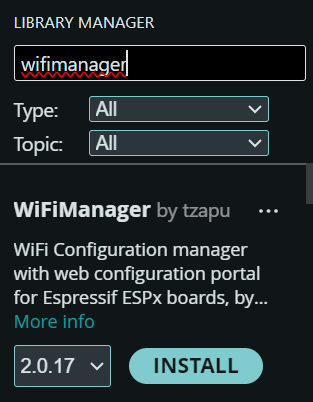
- Go to Sketch > Include Library > Manage Libraries...
- Search for and install the following three libraries:
- WiFiManager (by tzapu)
- ArduinoJson (by Benoit Blanchon - Make sure you install version 6.x, not the older V5)
- NTPClient (by Fabrice Weinberg)
Flashing the Code
- Connect the D1 Mini: Plug your D1 Mini into your computer using a Micro-USB cable.
- Select Your Board: Go to Tools > Board > ESP8266 Boards.
- Select LOLIN(WEMOS) D1 R2 & mini.
- Select Your Port:
- Go to Tools > Port and select the COM port that appeared when you plugged the board in.
- Upload:
- Download the .ino file attached in the previous step and open it in the Arduino IDE.
- Click the Upload button
Build the Motor Driver

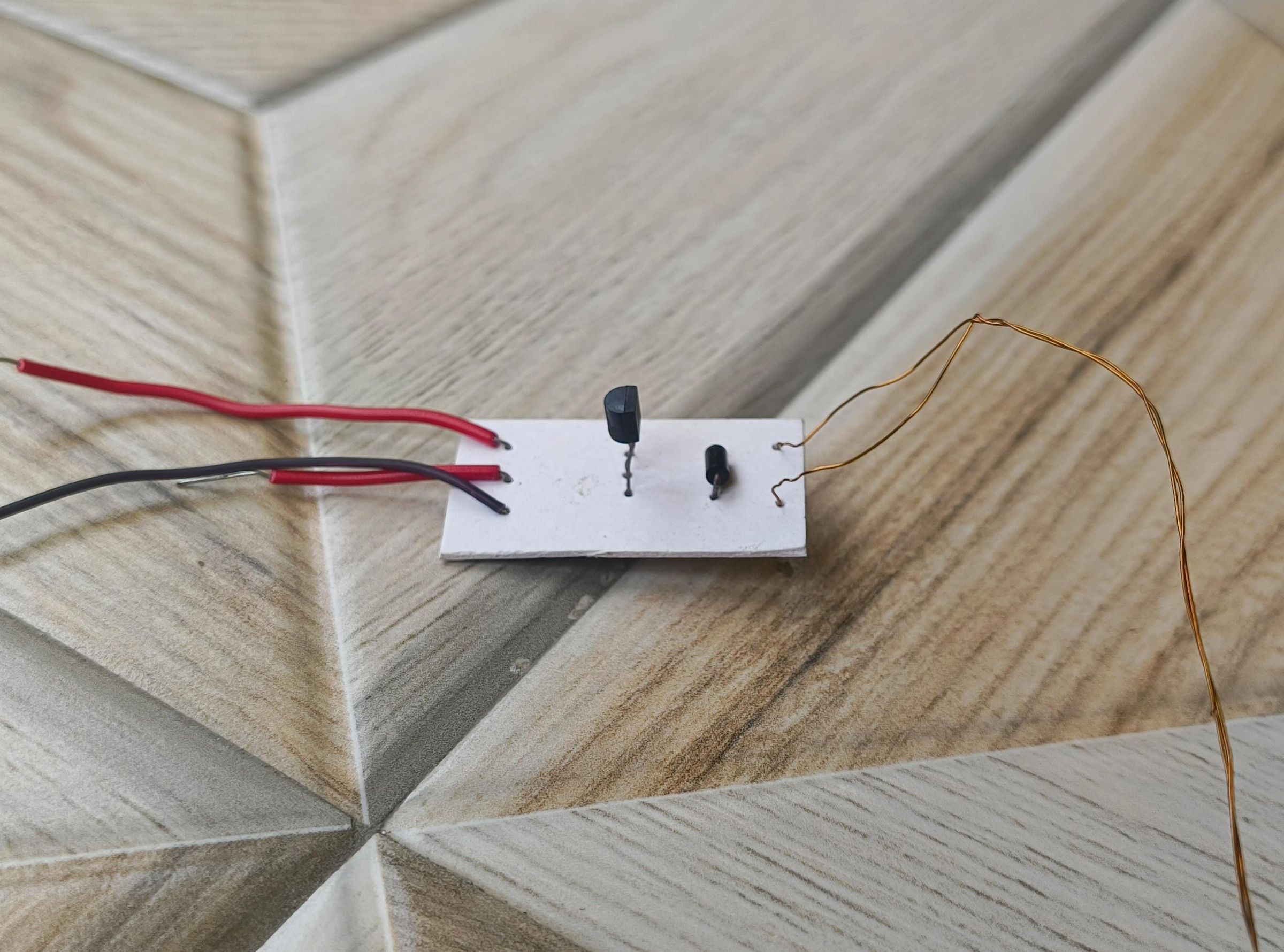
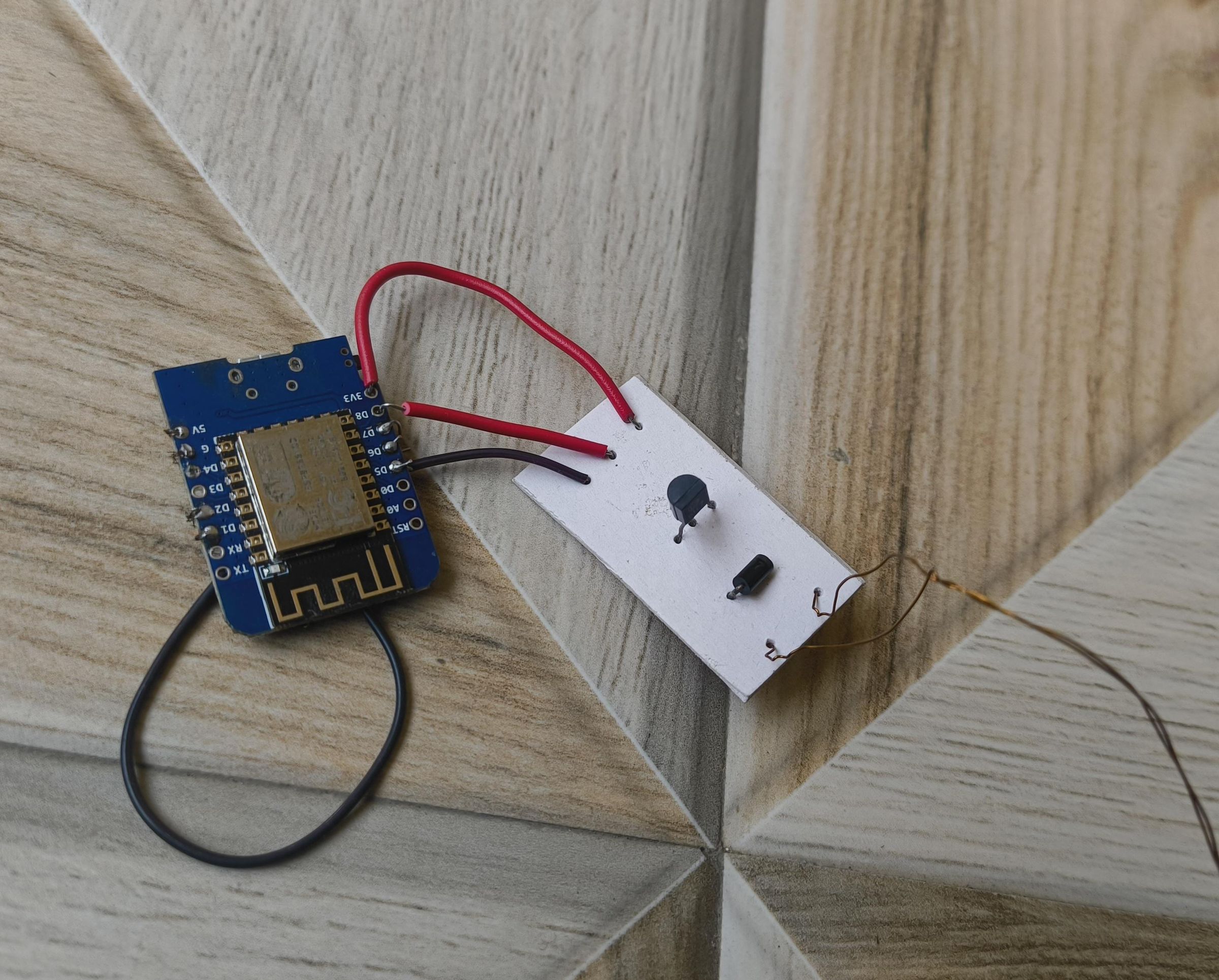
Now that our D1 Mini is programmed, it's time to connect the physical hardware.
The D1 Mini's data pins output 3.3V and can only safely supply about 12mA of current. Even our tiny smartphone vibration motor pulls significantly more current than that. So we build a mini transistor motor driver.
Material Requirements
- 1x BC547 Transistor (NPN small-signal transistor)
- 1x 330 ohm Resistor (Optional)
- 1x 1N4148 Diode (A "flyback" diode to protect the transistor)
- Pre-programmed D1 Mini
We are going to wire the transistor in series with the motor, placing it between the motor and the Ground line to act as a gatekeeper. Here is the exact routing:
1. The Motor Power (5V):
Take the positive wire from your motor (the thin magnet wire we routed earlier) and connect it directly to the 5V pin on your D1 Mini. Power is now always waiting at the motor, but it can't flow yet because the ground path is broken.
2. The Transistor:
- Connect the Collector pin of the BC547 transistor to the negative wire of your motor.
- Connect the Emitter pin of the BC547 directly to the GND (Ground) pin on the D1 Mini. Connect one end of the 330 ohm Resistor to the Base (middle pin) of the BC547. Connect the other end of the resistor to pin D7 on the D1 Mini.
- How it works: When the code sees an airplane, it turns D7 HIGH. The 3.3V signal passes through the resistor (which limits the current safely), hits the transistor's Base, and allows the 5V power to flow through the motor and down to ground. The motor then turns on.
4. The Flyback Diode:
When the D1 Mini turns the motor off, the magnetic field collapses and shoots a massive, high-voltage reverse spike back down the wires. To prevent this spike from blowing up your transistor, wire the 1N4148 Diode in parallel with the motor.
- Connect the Cathode (the side with the black stripe) to the 5V line (Motor +).
- Connect the Anode to the Collector line (Motor -).
Setting Up the Device
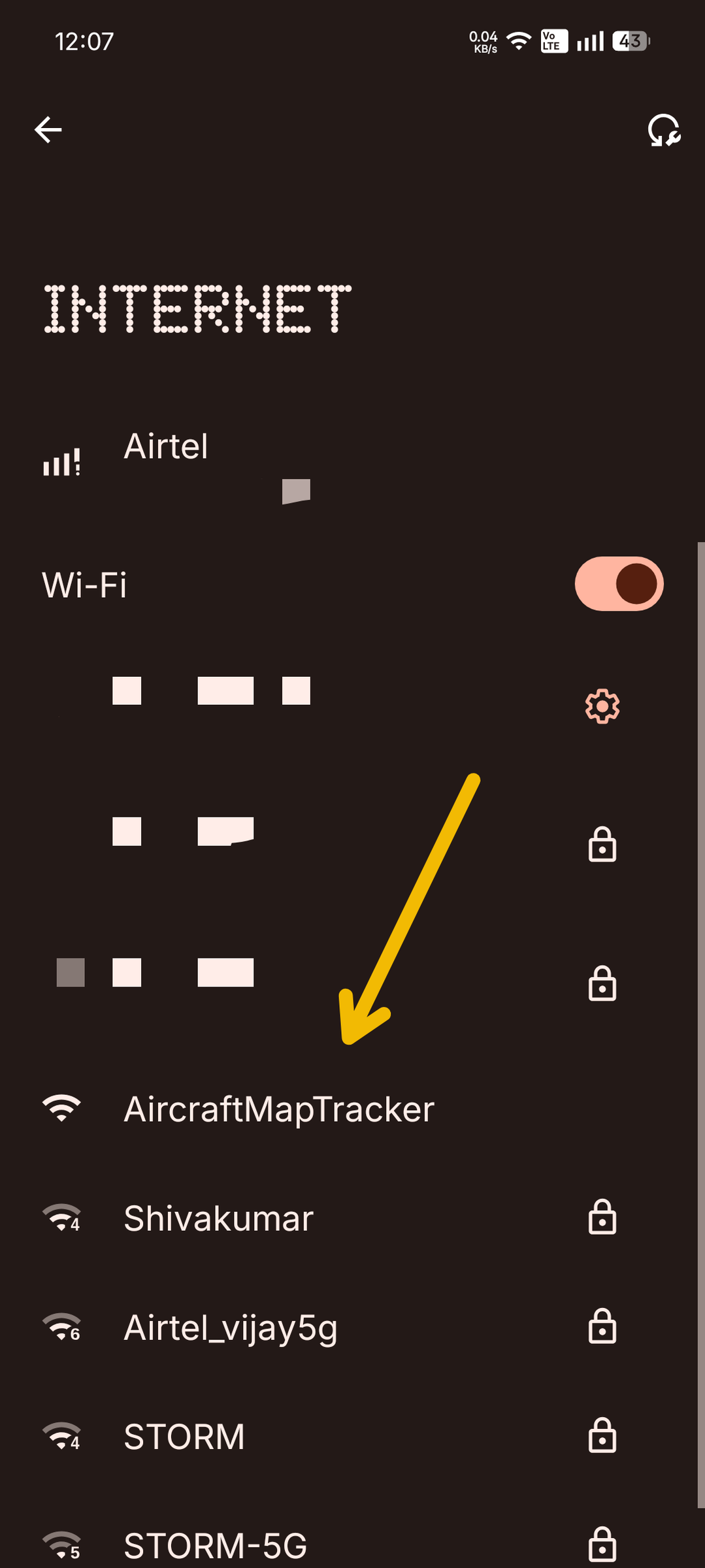
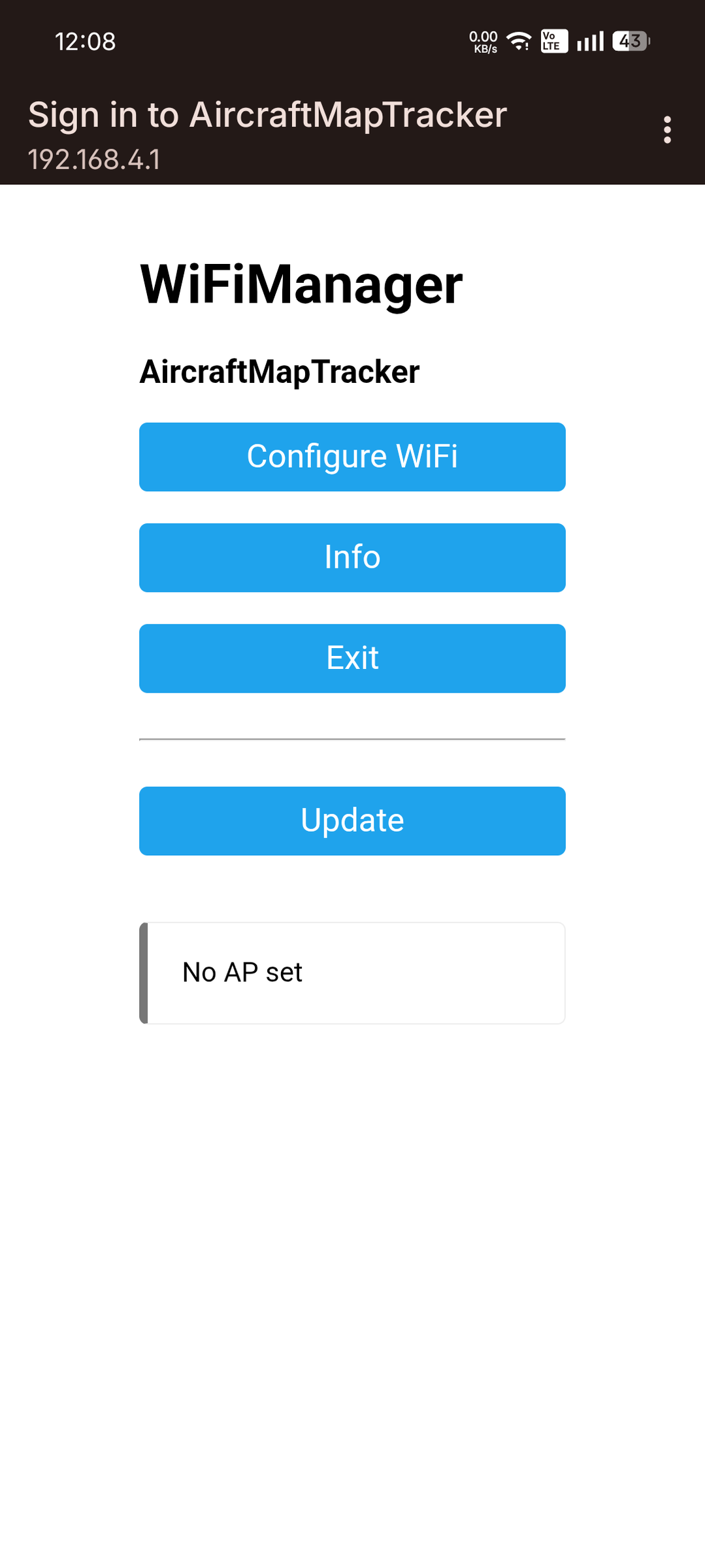

This final step will guide you through connecting the device to your home network, anchoring it to its physical spot on Earth, and establishing your custom overhead geo-fence.
Wi-Fi credentials
- Grab your smartphone, tablet, or laptop and open up your Wi-Fi Settings.
- Scan for nearby networks. You will see a brand new, unsecured access point named AircraftMapTracker. Connect to it.
- Once connected, a webpage will automatically pop open on your screen. If it doesn't, simply open any mobile web browser and type 192.168.4.1 into the address bar.
- Tap Configure WiFi. Select your home network from the scanned list, type in your network password, and hit Save.
The D1 Mini will safely store your network credentials in its internal flash memory, and connect directly to your home router.
Calibrating Your Airspace
Now that your desktop plane is live on your local network, it's time to set up your tracking boundaries. Open a browser on your phone or PC (make sure it's connected to the same home Wi-Fi) and navigate to:
http://aircrafttracker.local
Method A: Automatic Geolocation Sync
Click the Sync GPS button. The dashboard will use your smartphone’s internal location hardware to grab your precise real-time coordinates and instantly populate the Latitude and Longitude fields.
Method B: The Google Maps Workaround
Because aircrafttracker.local is hosted over a local HTTP connection, some modern smartphone web browsers will strictly block native GPS access due to security protocols. If your browser blocks the automatic sync, use this method:
- Open the Google Maps app on your smartphone or desktop.
- Find your exact location on the map and long-press on the screen to drop a digital pin.
- Look at the information card on the the search bar at the top. Google Maps will display your exact numerical coordinates (e.g., 40.7128, -74.0060).
- Copy these numbers and paste them manually into the Latitude and Longitude fields on your plane's dashboard page.
Setting Your Bounding Box
Adjust the slider to set your preferred tracking radius (e.g., 25 kilometres). This number dictates how wide of a circular boundary your plane will track before sounding its engine.
Once your coordinates and radius look correct, click Set Manual Location.
The second you hit that button, your D1 Mini takes the inputs, draws its digital bounding box across the global map, and permanently saves it to its internal EEPROM.
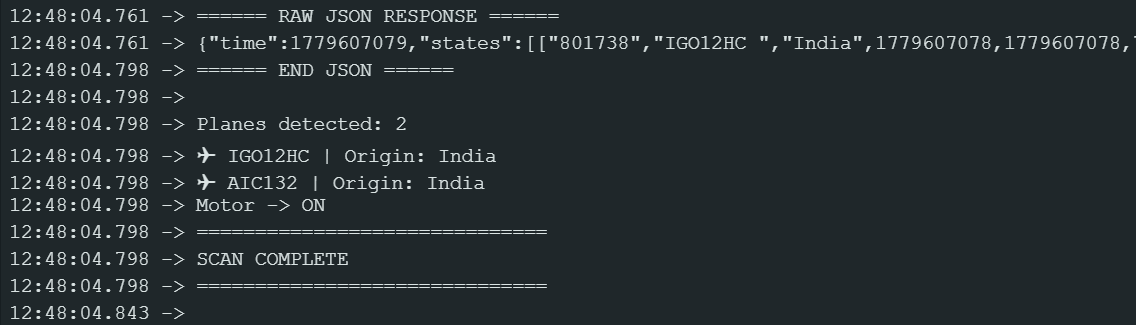
The dashboard page will instantly refresh and show you a live terminal log. If a real flight is actively crossing through your newly mapped airspace, you will see its flight registry number and country of origin pop up right on your screen. Concurrently, you'll hear that whir of your plane's propeller spinning!
Over to You!


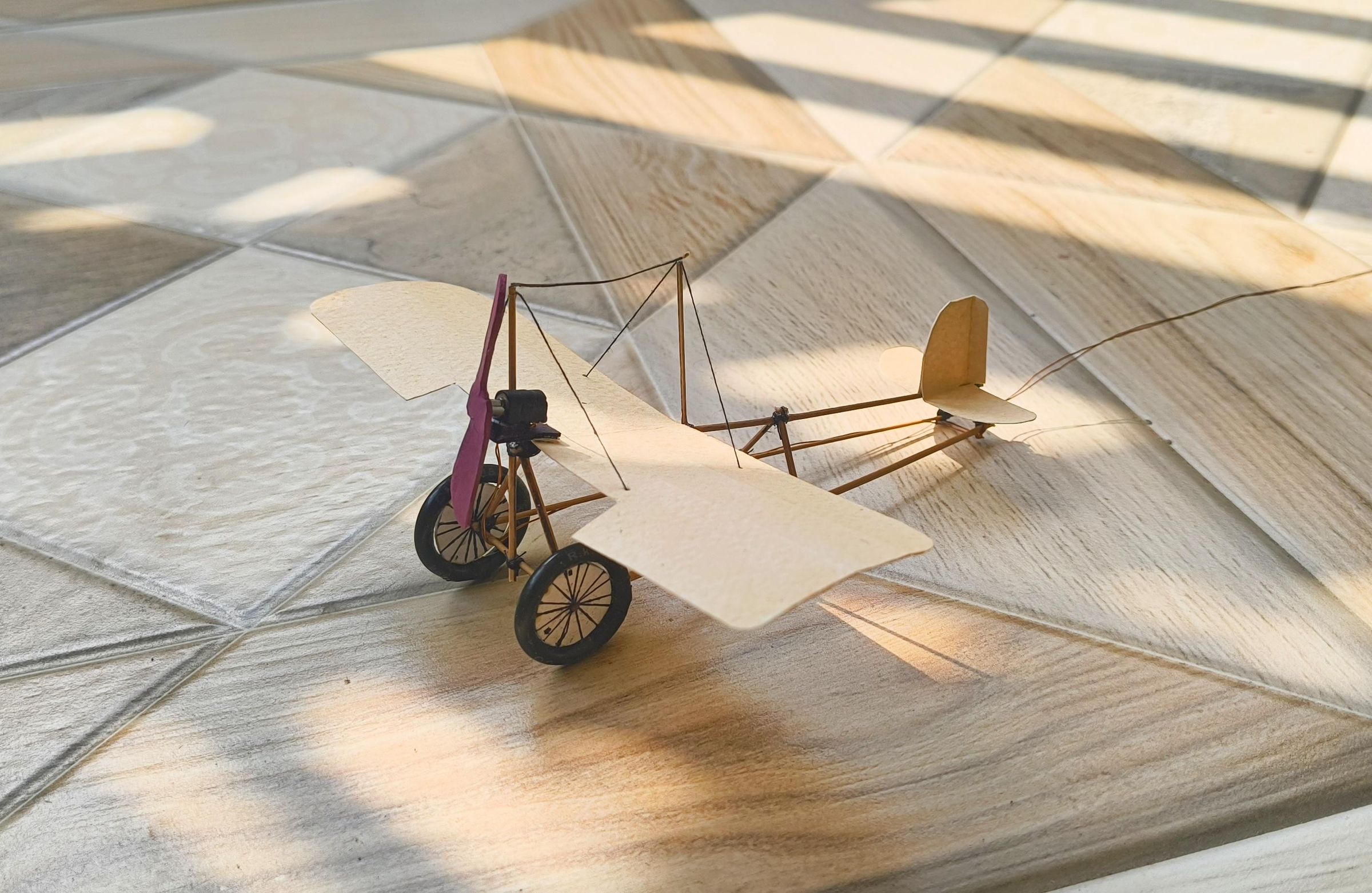
Finally, after all the cutting, lashing, soldering, and coding, your live GPS-synced aircraft model is ready!
I think the final result looks absolutely beautiful sitting on a work desk or shelf. Because it quietly waits and only spins up when real-world map data dictates it, it feels almost magical. I think it makes for an amazing gift!
Yes, building the vintage frame entirely from scratch and wiring up the custom circuitry takes a good bit of effort. But honestly, that is exactly what makes this project so incredibly valuable! Despite keeping the overall hardware costs remarkably low, the final result feels like a premium, personalized, and highly functional piece of art.
I hope you enjoyed this tutorial and decide to build one of these live flight trackers for yourself or a friend. If you do build this, please share a picture of your finished aircraft in the "I Made It!" section below. I would absolutely love to see your unique vintage designs!