Skyrim Topographic Map: a Layered Wall Art Project
3502 Views, 14 Favorites, 0 Comments
Skyrim Topographic Map: a Layered Wall Art Project
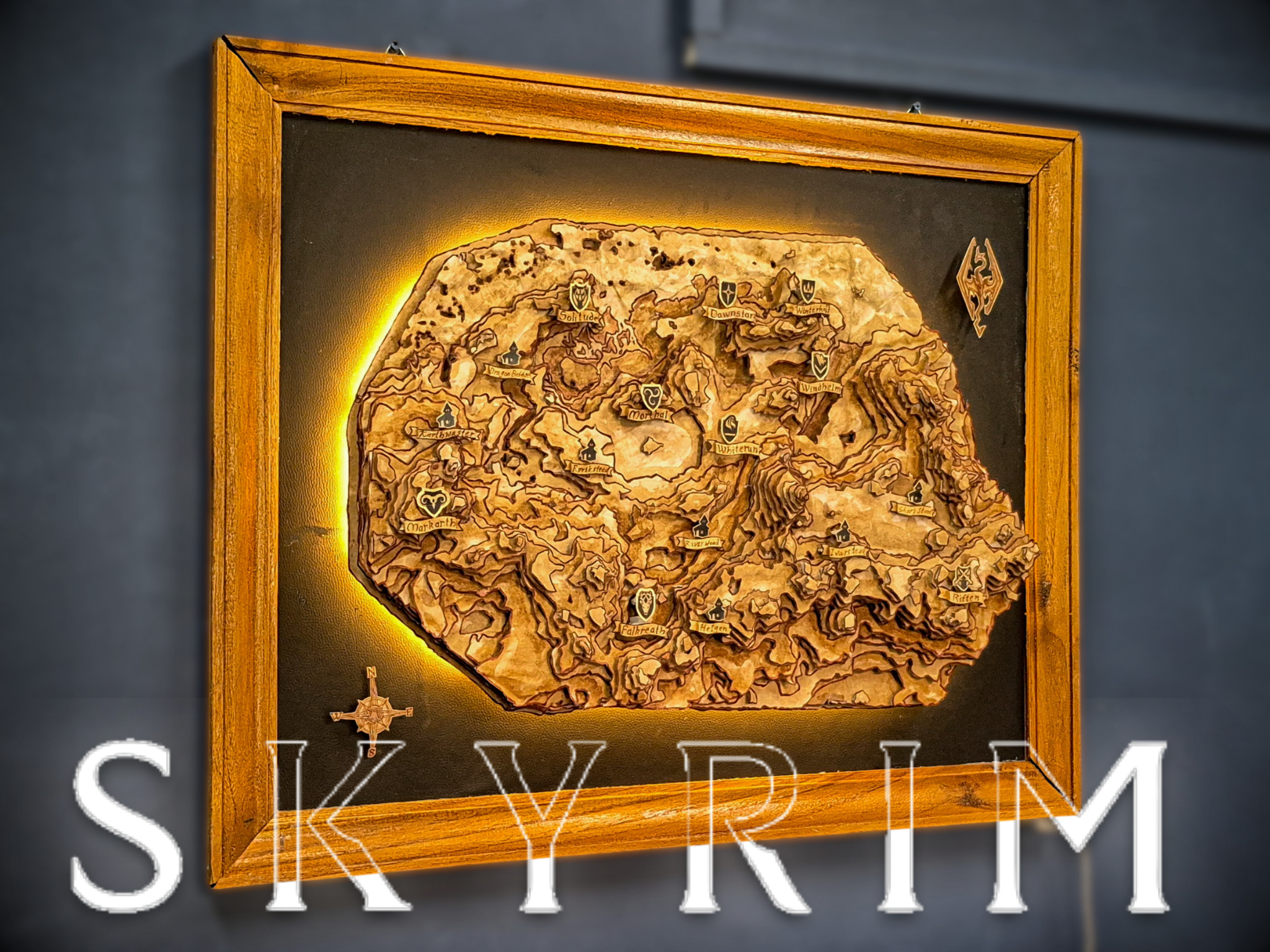

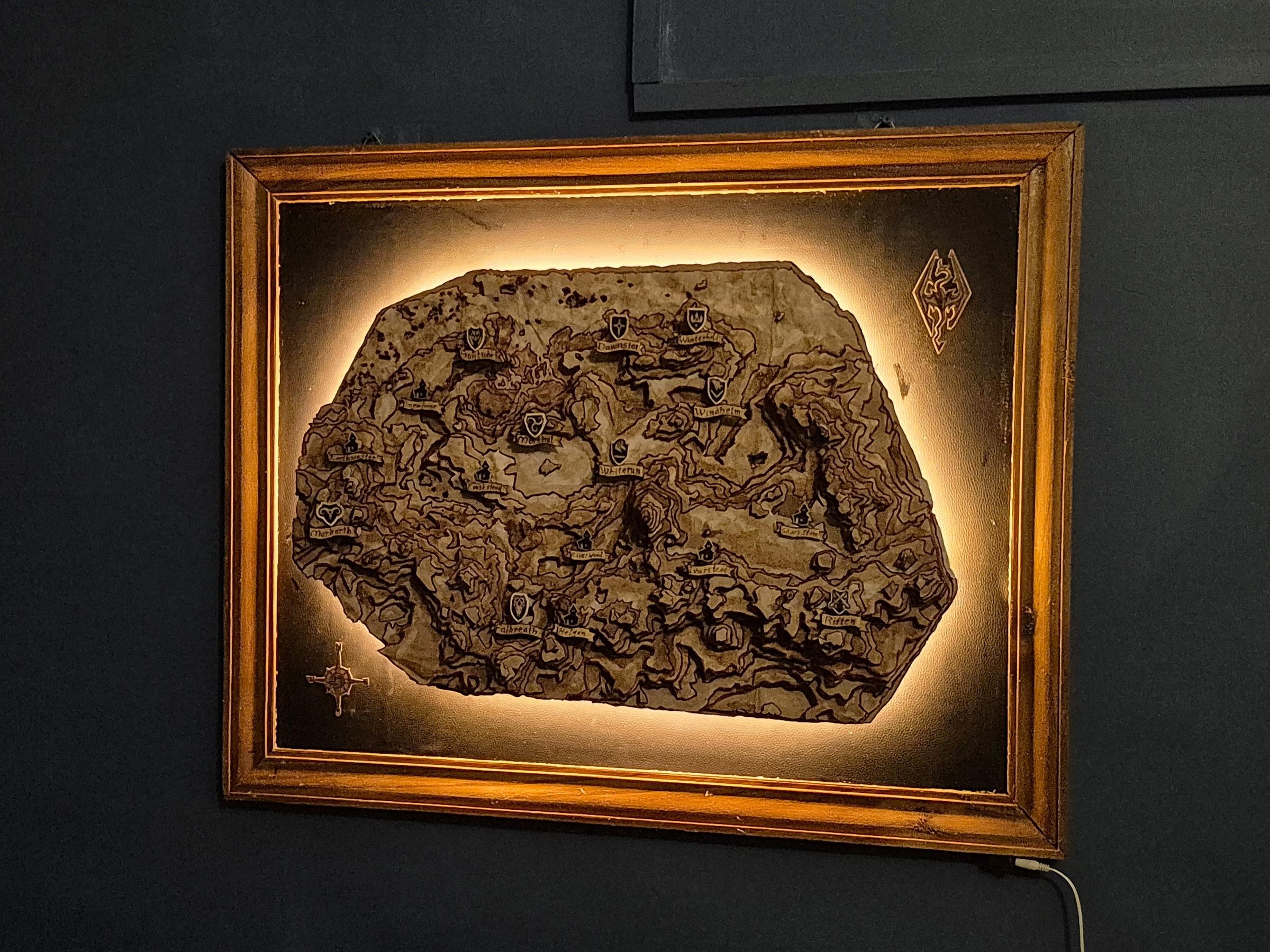
My name is Arush, an engineering student who loves to mix art, design, and gaming into unique handmade projects. I especially like to create elements from games and media that I enjoy. There are like trophies I collected from the game’s or show’s world, being a reminder of my experiences.
I have played many games, but Skyrim is one of those games that has stuck with me for years. One of the reasons is its atmosphere. Its snow-capped mountains, ancient ruins, and far spaced cities create a landscape that feels out of time, begging to be explored at every turn. Having spent a lot of time roaming its roads and valleys, I wanted to capture a small piece of that world in a project.
Here’s the result, a multilevel relief map of Skyrim. The project is made up of a number of layers stacked on top of each other, turning the landscape of the game into a 3D piece of wall art. My biggest project yet, and it was capturing mountains above the plains and cities marked across the province, and the finished piece is an old world map worthy of hanging in Dragonsreach itself.
Supplies


Software:
- Blender - Used to create terrain layers from the map's 3D model.
- LaserCAD - Used to create the map base and prepare cutting layouts.
Map Construction:
- A4 paper sheets - Printed layer templates.
- Chart paper - Added thickness and joined large printouts.
- Cardboard - Base support for the map.
- EVA foam - Used as spacers between terrain layers.
- Wooden sticks - Reinforced each layer.
- Coffee - Natural stain used to age the map.
- White craft glue - General paper assembly.
- Super glue - Strong permanent bonds where additional strength was needed.
- X-Acto knife or scissors - Cutting the map layers.
- Paintbrushes - Applying the coffee stain.
- Brown markers - Outlining details and text labels.
Frame Construction:
- 4 mm MDF board - Main backing board for the frame and map.
- Wood frame strips - Constructing the outer frame.
- Rexine (artificial leather) - Background material behind the map.
- Photo frame hooks - Wall mounting hardware.
- Nuts and bolts (1.5 inch) - Connecting the map assembly to the frame.
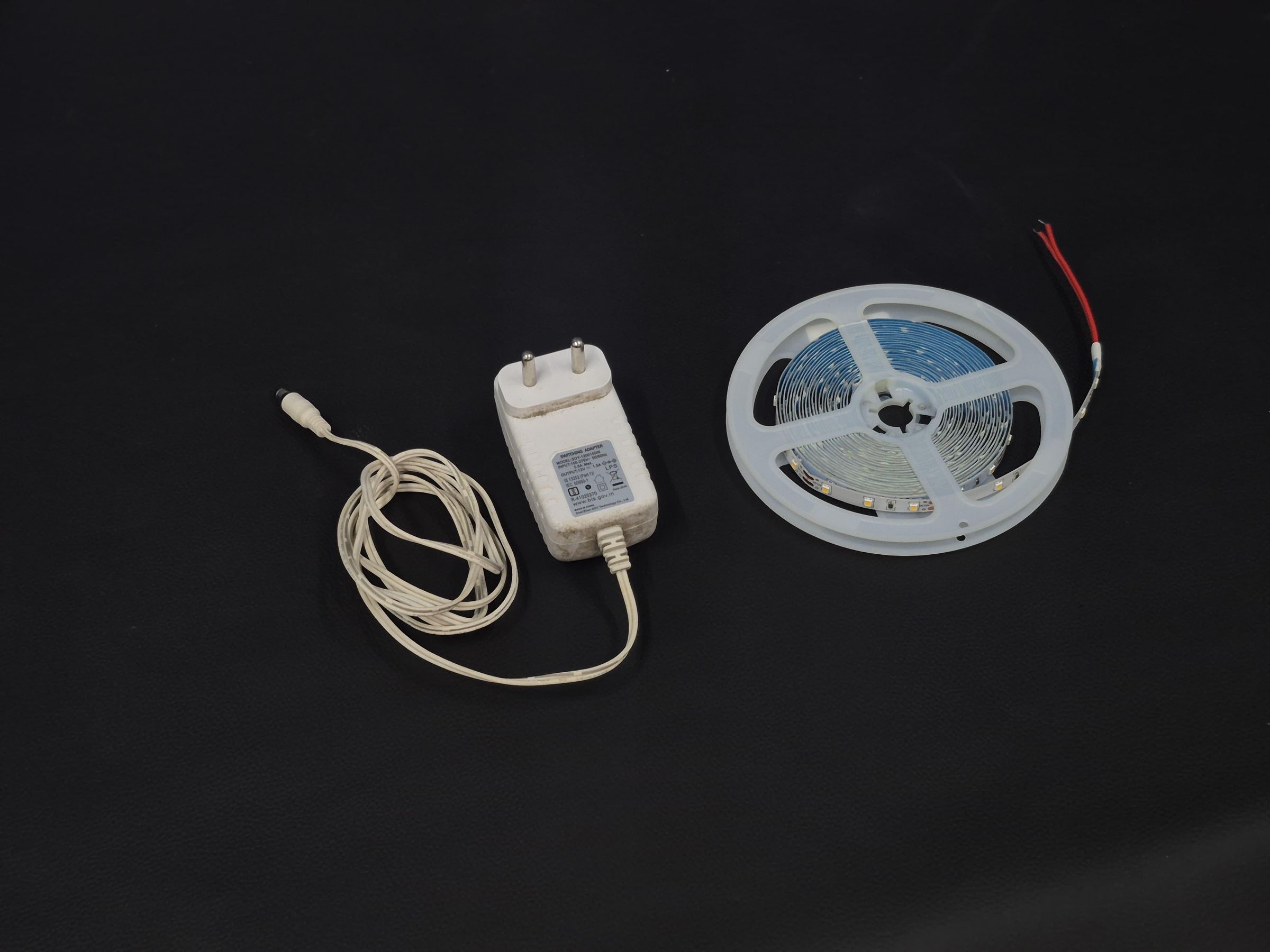
- LED strip - Decorative backlighting.
Tools & Finishing:
- Wood glue – Gluing wooden frame components.
- Hammer and nails – Reinforcing the frame joints.
- Wood varnish – Protecting the wooden frame.
- Soldering iron – Soldering LED wiring. soldering iron—to solder led connections
Finding Refrences & 3d Models
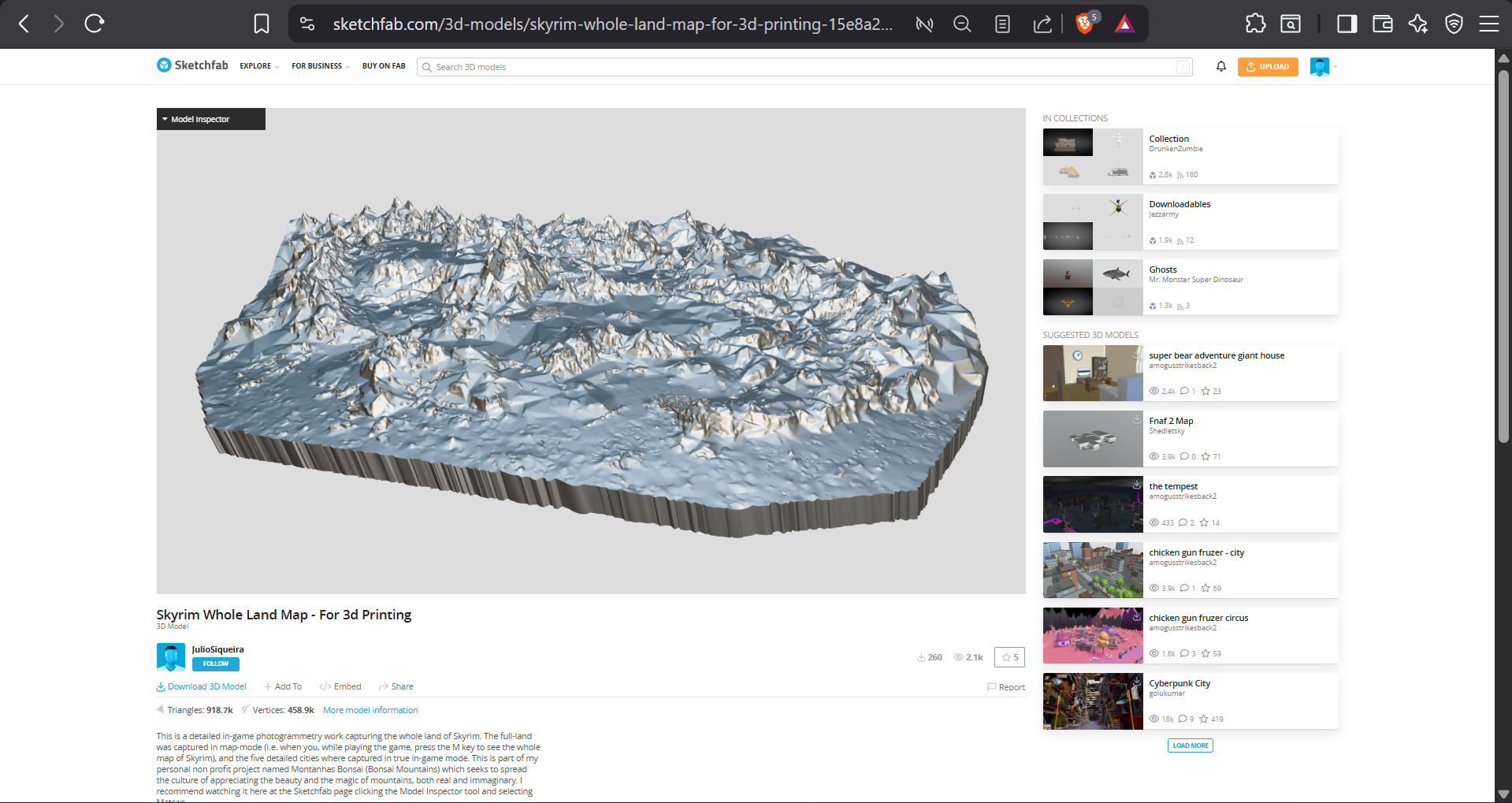
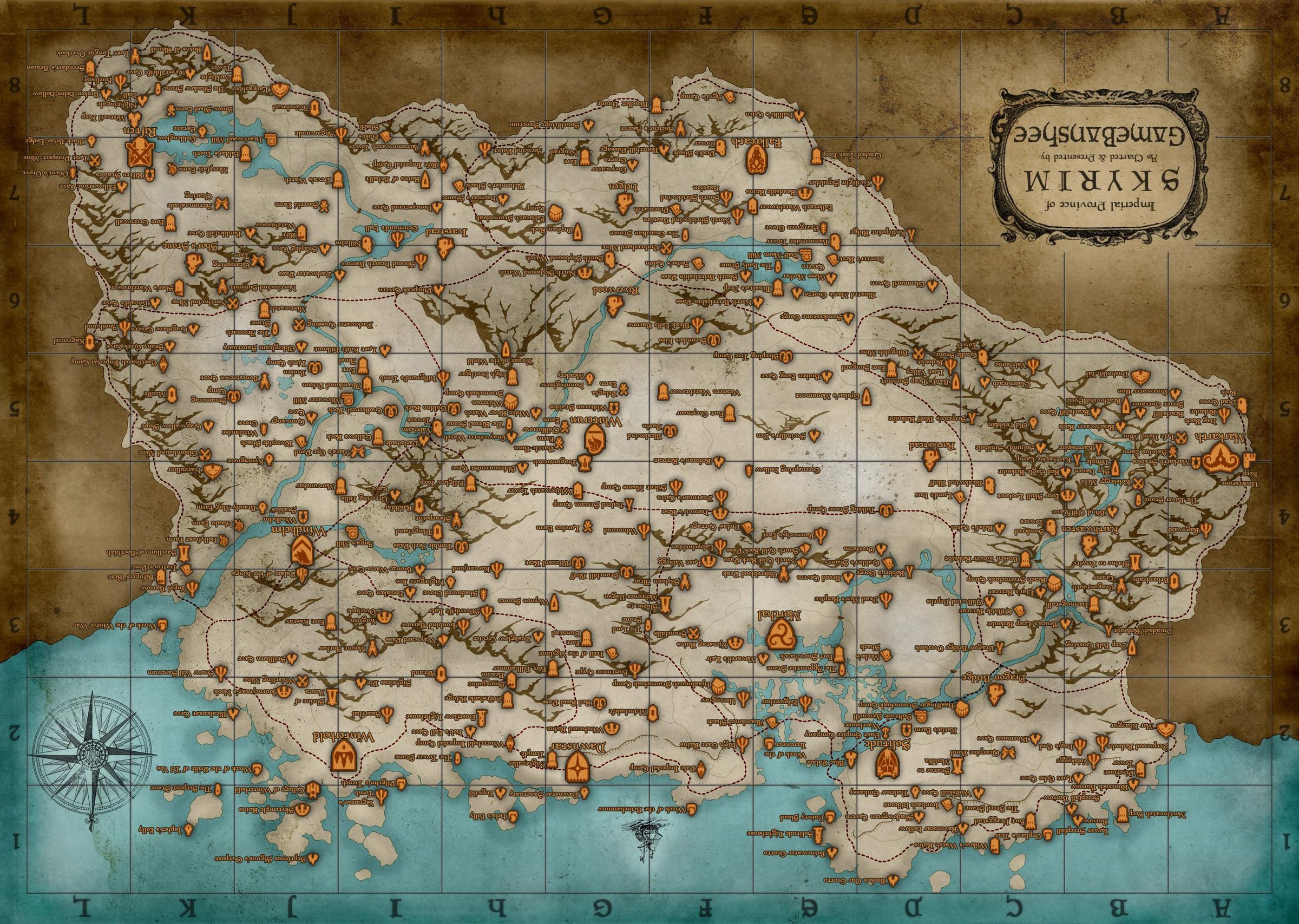

The first step of every project is finding references and doing research. I studied and downloaded multiple maps of Skyrim from elderscrolls.fandom.com and studied the map in-game.
While I was looking for game assets, I came across this 3D model by JulioSiqueira on Sketchfab.
Refining the Model
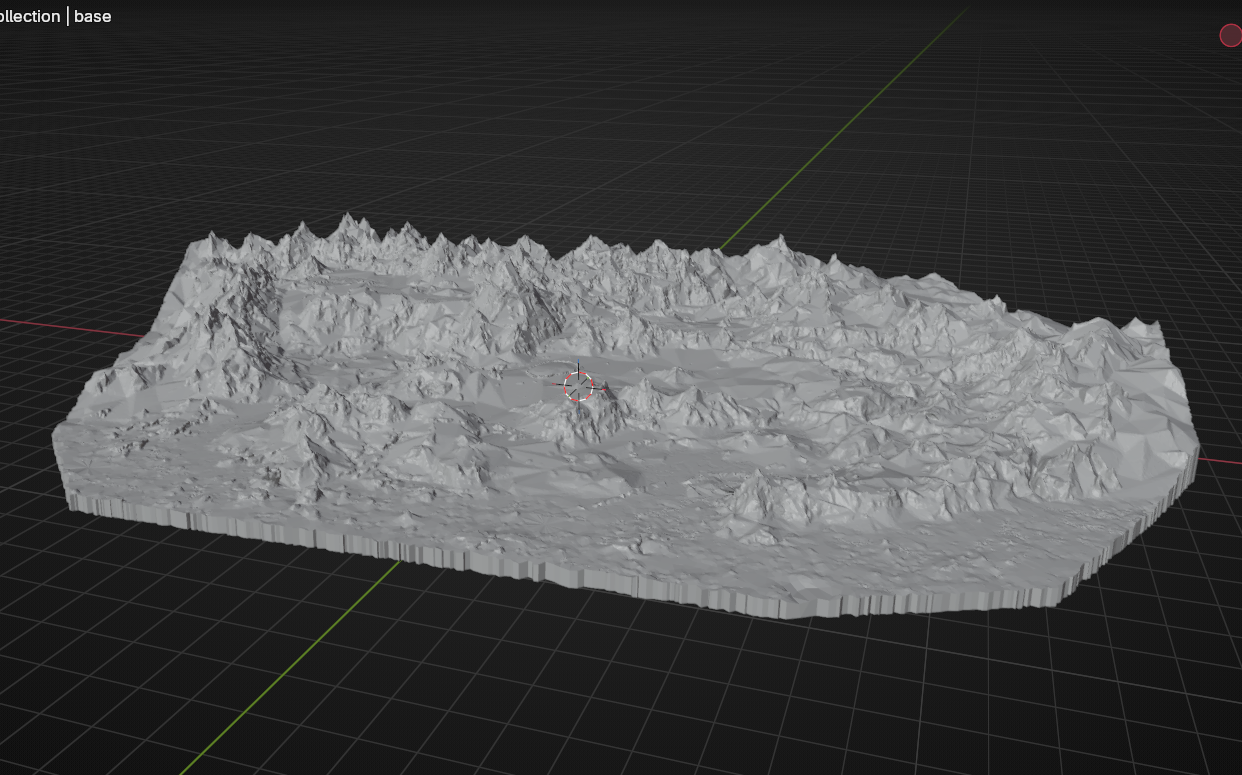
Before using the model, I had to make some major changes to it to reduce its face count and patch some holes.
The first thing I noticed was that the model contained highly detailed models of the major cities, so I removed the models and filled the holes left behind by adding faces and minor remodeling.
Then I decreased its face count by converting the tris into quads; to do this, I had to be in edit mode and select all by pressing A > shift + J to convert tris into quads.
Next, I reduced its height and made all the walls straight. Finally, I cleaned up floating faces and edges by going to the top-left ribbon. Mesh > Clean Up > Delete Loose
Creating Layers


To turn the model in to layer i, first I added a pane and applied an array modifier to i, adding 20 equally spaced layers, and adjusted the spacing accordingly.
The next step is to apply a Boolean modifier to the map model, setting it to intersection and selecting planes.
Normally this would be it for this step, but since this model has an extremely high poly count and multiple hills, the Boolean did not work properly. If you want to understand why it happened so you can avoid it in your projects, the next step explains the reason; otherwise, you could skip it. ;)
Understanding the Boolean Issue
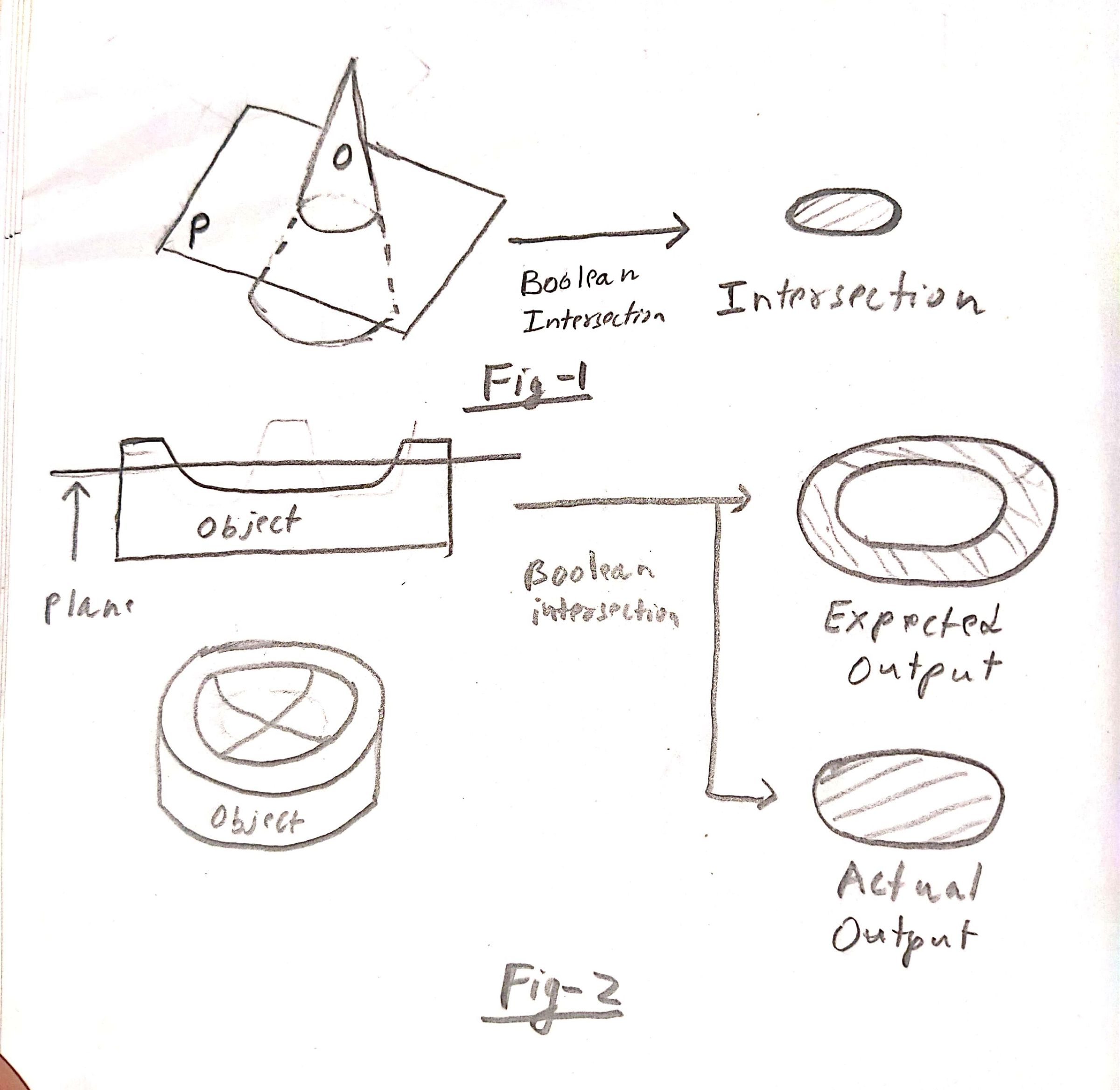
To understand why the Boolean did not work on specific layers, you need to understand how it works in Blender.
If you apply a boolean on an object and use the intersection mode to remove excess sections, Blender seeks the face intersection of the 2 objects and removes everything except the faces inside the intersecting area shown in Fig. 1. Since Blender is polygon mesh and sculpting software, it does not add any geometry and just creates faces. It is incapable of making holes in faces (this can only be done by adding extra geometry). The result is shown in Fig. 2.
This leaves the blender incapable of generating layers with holes in them, which is almost all of the midsection of Skrim's map.
Counteracting the Boolean Issue
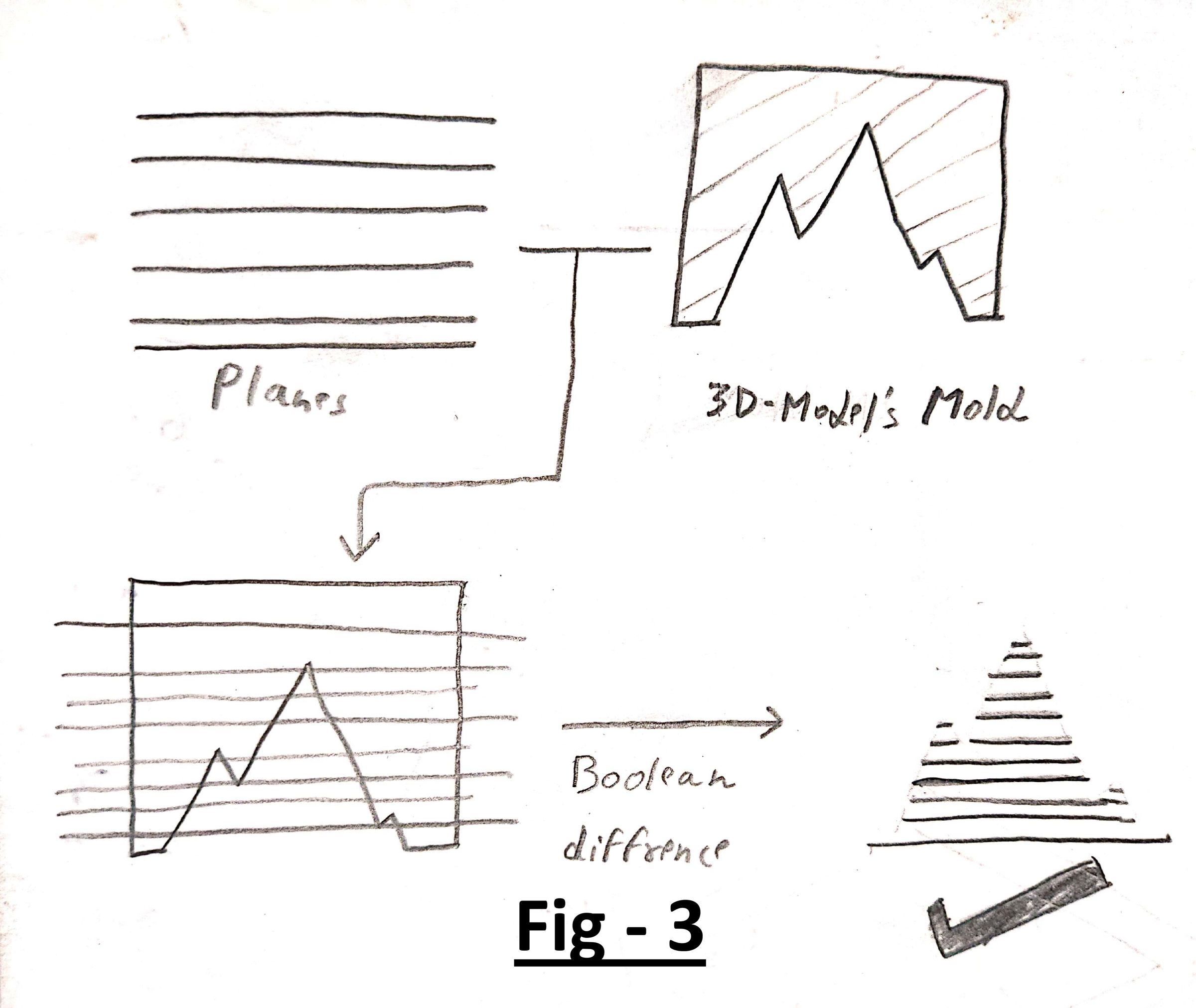


After understanding the working of boolean modifiers, I thought of different ways to achieve the needed results and finally got an idea.
Instead of cutting out slices from the map's model using the planes, I could use the map as a mold or a stamp to cut out the sections from the planes. As you can see in Fig. 3
To do this in Blender, I selected the base of the map and moved it above the map, flipping the map inside out, and to fix the face normal vector n, in edit mode, select all with A > Shift + N to flip the normals.
This time instead of using square planes, I duplicated the base of the map by using Shift + D and applied an array modifier to it.
Finally, I applied a boolean modifier on the planes, set it to difference, and selected the map. This time I got perfect layers. I also applied grease pencil to the layer so they are distinguishable.
Cleaning Up the Layers


The layers I got after applying the modifiers were better than before but still had overlapping geometry and floating faces and edges, so I started with clearing the floating edges and faces like before by using Mesh > Clean Up > Delete Loose. After that, I deleted overlapping faces and started bridging the faces to fill the gaps and holes. I also removed islands or details that would be too small to handle while making the map. I also removed 2 bottom layers from the map to reduce its height.
The whole process took a while, but in the end I was left with a clean, layered map.
Cleaning and Color-Coding the Layers


Since I would have to handle almost 100 pieces, it is essential to make sure I don't mix up pieces. To ensure that wouldn't happen, I thought of color-coding each layer.
To do that, I first used Smart UV Unwrap to make a UV mesh of all the layers, then opened paint mode, added a base color, and started coloring each layer one by one.
Exporting Failure

I usually use Pepakura to make my paper model template, so I thought it would work this time too, but after exporting the files and opening them in Pepakura, I was shocked to realize it has converted the model into 2442 pieces 💀. Then I tried to simplify the geometry of each layer, merging faces, making new joints, and deleting faces just to reduce the face count for hours, but it only got me up to 1864 faces.
Rendering Layers

I thought of a new way to export a high-resolution template of each layer. I added a camera and positioned it above the map. Next, set its resolution to 5856 x 4237, which was the size I needed the map to be in mm. Next I added an HDR for lighting and placed a plane behind the map. The most important part was to remove perspective to avoid stretched layers, so I set the camera to orthographic view.
Finally, I rendered images of each layer one by one in the same spot and created a PDF of all the layers. I have attached the pdf if anyone wants to use it to recreate this project.
Downloads
Creating Printable Template
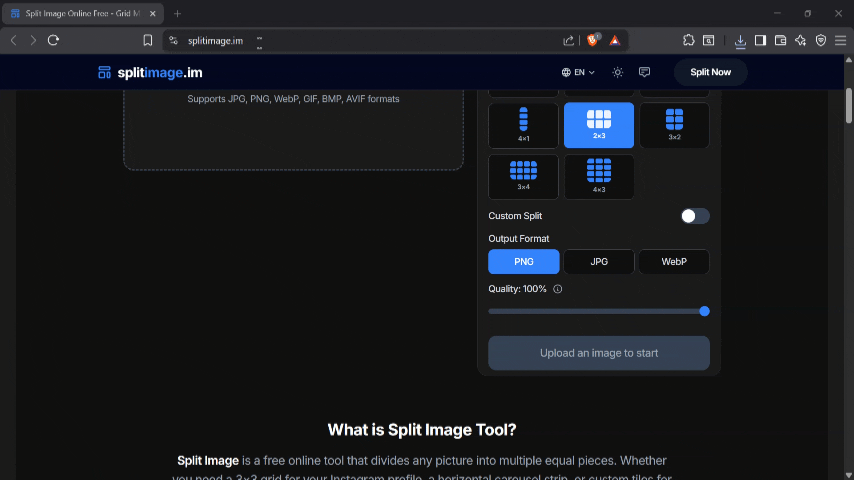

To minimize paper wastage while printing, I decided to edit the template by adding the top smaller layers/pieces in the empty spaces, decreasing the number of pages from 18 to 12. I also wrote their layer number near them to make it easy to differentiate and flipped them left to right to get a mirrored image so I could glue them behind the chart, making it easier to cut pieces.
To get a printable template that would be of the correct scale when printed, I split them into 6 pages (2x3) using splitimage. I finally compiled all the images into a final PDF with all the layers and removed the pages with no pieces. Now you can see the number of pages saved from the previous step. The final number of pages would have been 18X6=108, but after editing, the final PDF ended up with 61 pages, 47 pages saved.
Preparing Template for Cutting
.jpg)


.jpg)
I printed out all the 61 template prints as well as the layer print, which will come in handy while assembling pieces. First, I marked each piece, for example, 8-2 (layer 8 piece 2). While I was doing this, I also marked the pieces with the same number in the layer prints. After marking each piece, I grouped and stapled them according to layers and wrote the layer in the stack on the side.
Next, I cut all the borders of the printouts and taped the pages together
Cutting Layers


To make pieces thicker and give myself a clean surface to paint, I roughly cut out groups of pieces and glued them to chart papers. After that, I cut out each piece, kept them organized, and marked them on the layer prints to ensure no piece went missing. Finally, I stacked the bigger pieces to see how it will look after assembly.
Then I noticed that one of the pieces was flipped. How did it happen, you might ask? I don't know it must have been the wind. Anyways, it was not a big deal, though I just cut, flipped, and glued the piece. Now all the pieces are ready to be painted.
Test Painting


Now comes the most important part of the project: painting each piece. Before painting the layers, I wanted to test out some painting methods and mediums I could use.
So I took a piece from the cutting scraps and started testing different mediums on it. To get the aged map look, I used coffee water as paint. I prepared two types: one thicker and darker and one runnier and lighter. First, I applied a coat of the lighter coffee, dried it with a hairdryer, and applied a second coat. This time, I painted only the area around the edges, finally putting on the darker coffee mix. I also tested different methods to outline and make markings with pencil colors, markers, and crayons, choosing markers.
To add some texture, I crumpled up the page and applied a lighter coat of coffee mix. This changed everything; it gave the piece depth, and it held its shape after drying.
These are the steps I finalized :
- Apply a light coat of coffee mix.
- Apply second light coat on the edges
- Apply a darker coffee mix on the section where the other lateris directly above this will be; this makes the separation between the layers easier to spot.
- Crumple the larger pieces and apply a final light coat to give them depth.
- Create an outline using markers.
Painting

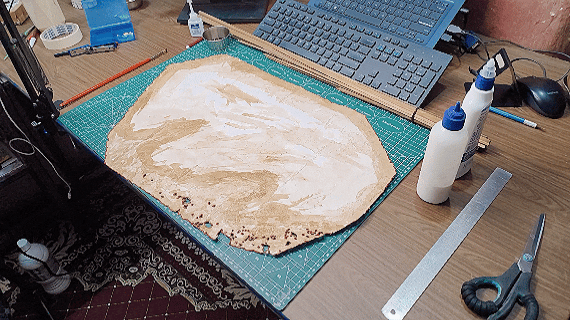


After some test runs, now I can start with the real deal. First, I applied a light coffee layer, then placed the layer above on it to paint the darker outline. After removing the above layer, I slowly added layers, continuously drying it after each layer. To add some texture and depth, I crumpled and folded the pieces and added some more coffee mix to highlight the seams, then drew the outlines using a marker.
I repeated this process for all the pieces
Reinforcing Layers


To ensure the layers don't bend after assembly, I reinforced them using wooden sticks. First, I glued two thicker sticks parallel to each other and one in the center. After that, I superglued thinner sticks branching out from the thicker sticks, supporting each section. For the smaller islands, I simply hardened them with super glue.
Now all the pieces are ready for the assembly.
Assembling the Terrain Layers

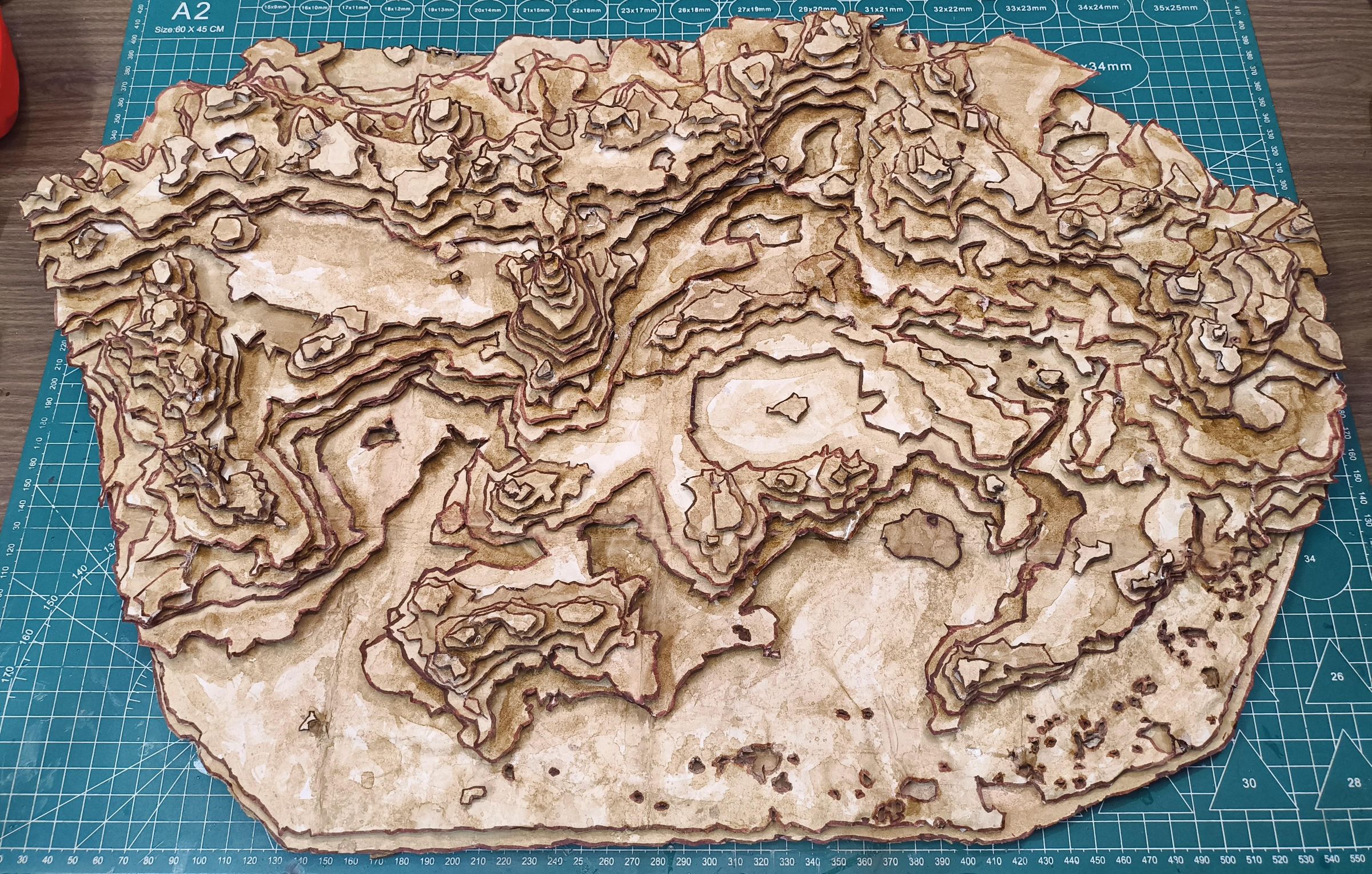
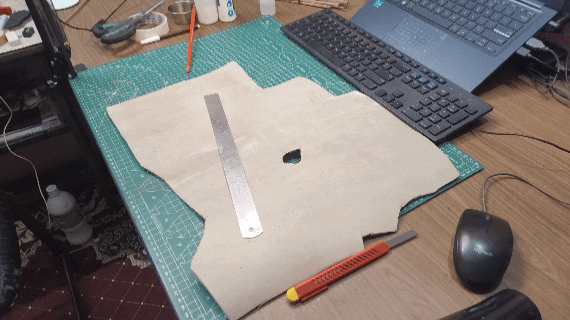
With all the layers completely painted and dried, it's time to transform these individual pieces into 3D terrain. To add the elevation to each layer, I used EVA foam as spacers. I cut 1x1 cm squares of foam and further cut them diagonally for smaller pieces.
Using Layer Print and Map Render, I started assembling the layers. I started by first gluing the bigger pieces to get a rough shape of the map, making it easier to find locations of the smaller pieces.
It was a good thing to mark each piece and color-code each layer. This helped me a lot in the assembly process and would have been imposible witout it
With that, the assembly of the map is complete; now I can move on to adding details.
Additional Details
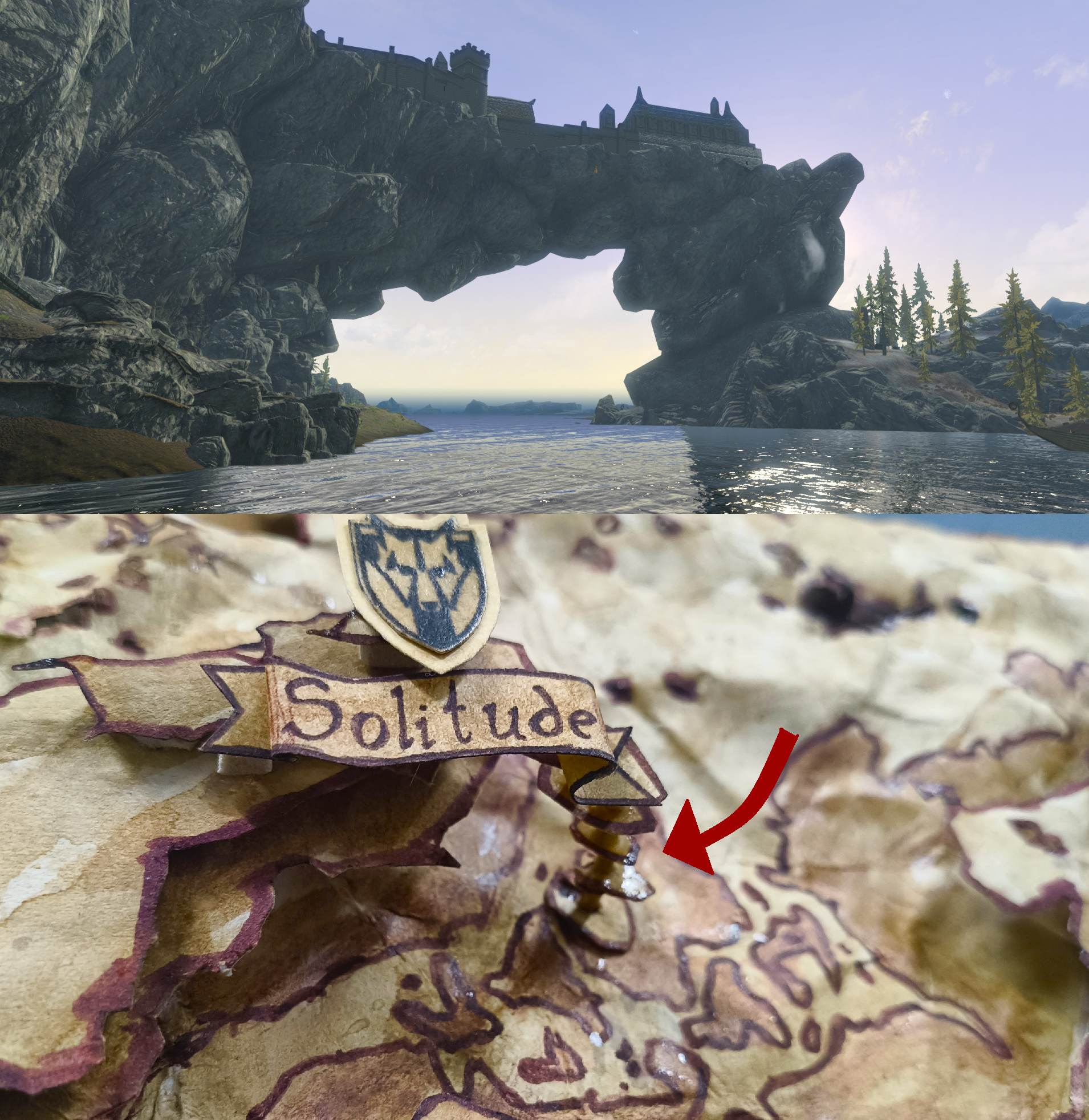


If you have played Skyrim and remember the map, you can easily notice that the north coast is missing a lot of huge landmasses and islands around Solitude. The reason for that is the northern coast is very flat and almost the same level as the ocean, and many sections are due to this. When I was slicing the layers from the 3D model, I combined them with the ocean, but I couldn't have left out these essential details.
So using the Skyrim map, I drew the missing land and islands with a marker and used pencil color for shading, finishing it with a few layers of coffee to blend it with the surrounding.
Another missing detail was the iconic Rock Arch under Solitude; it was the city's defining feature. To add this crucial detail, I cut out a few pieces from the scrap cutting paper, painted and drew their outlines, and spaced them out using toothpicks, creating the iconic rock arch of Solitude.
Adding these small details is one of my favorite things about these kind of project because almost everyone will never notice them, but if you have played Skyrim and know these areas, you will greatly appreciate them, and seeing someone noticing these details in my projects makes my day :)
Adding City Markers and Labels


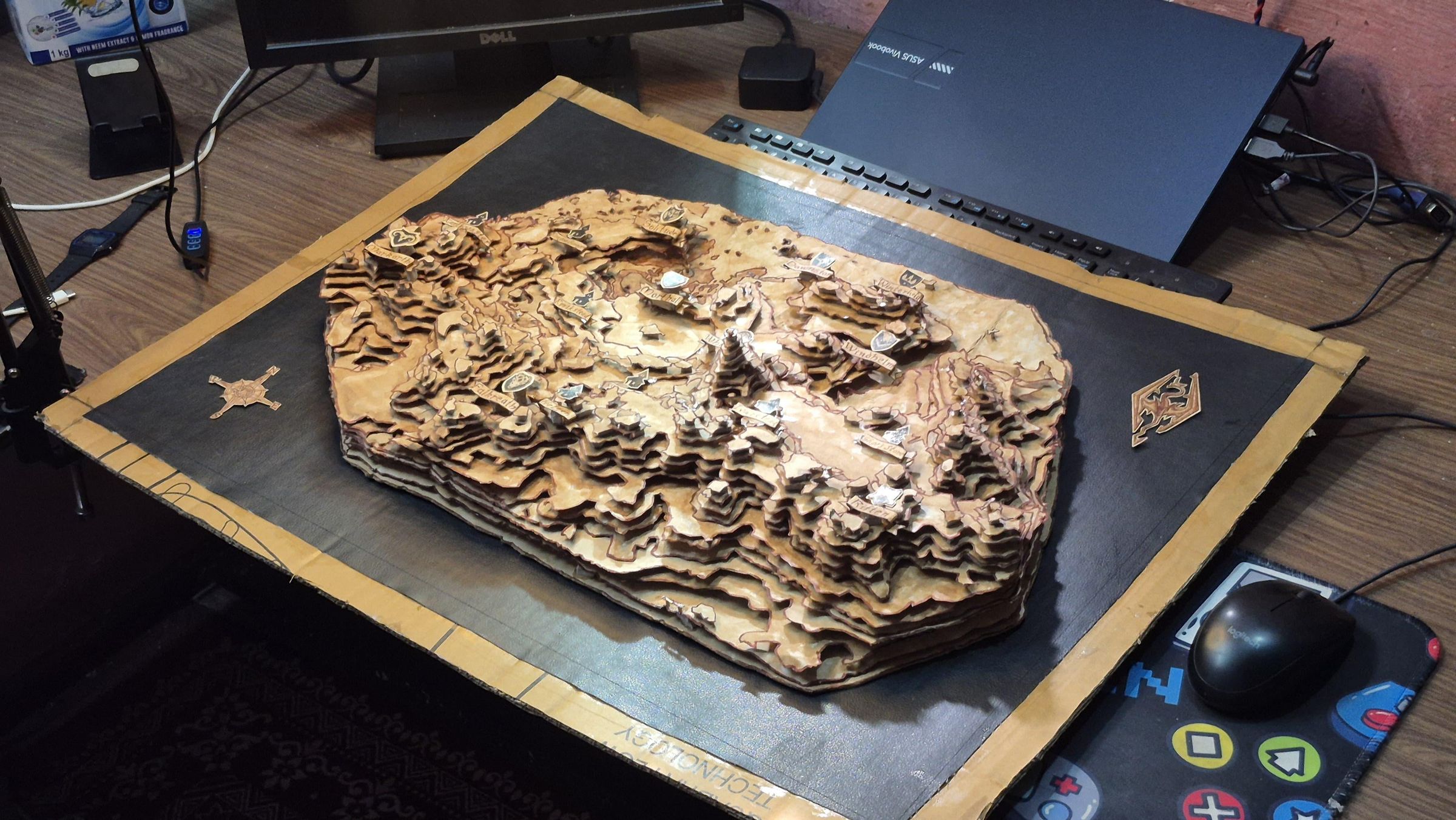
With the terrain assembly complete, I can move on to adding city and town markers.
To keep the medieval in-game aesthetic going, I decided on using ribbon title cards for the city and town names. First I drew 2 types of Ribbon-Shaped Title Cards on paper: thicker title cards for the major cities and thinner, longer ones for the towns. and cut them out, drew their borders using a marker, and wrote the names of the cities and towns using a marker in Skyrim's in-game font. Finally, I curved and folded the ends of the ribbons to make them 3D and help them to stand out from their background.
For the city and town symbols, I printed out the in-game symbols of the major cities and multiple town symbols for the towns. I cut the out and applied a layer of super glue to harden them to help them stand out from their background. I added a paper piece behind each symbol to create a border around them.
Finally, I glued them on their respective positions using EVA foam as spacers, just like before.
And with that, the Layered Topographic Map is complete, and I can now move on to the frame.
Cutting the Frame Components
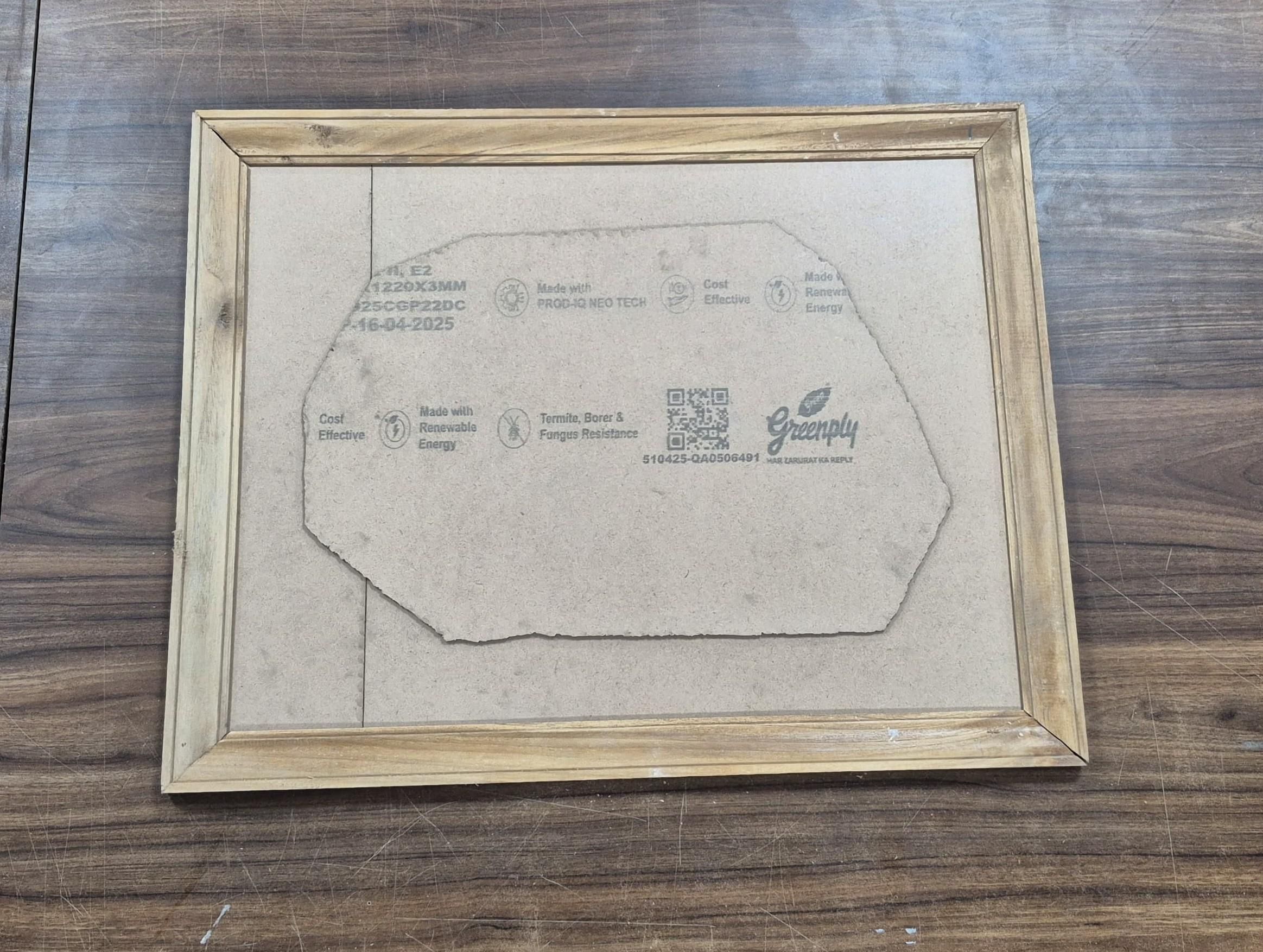
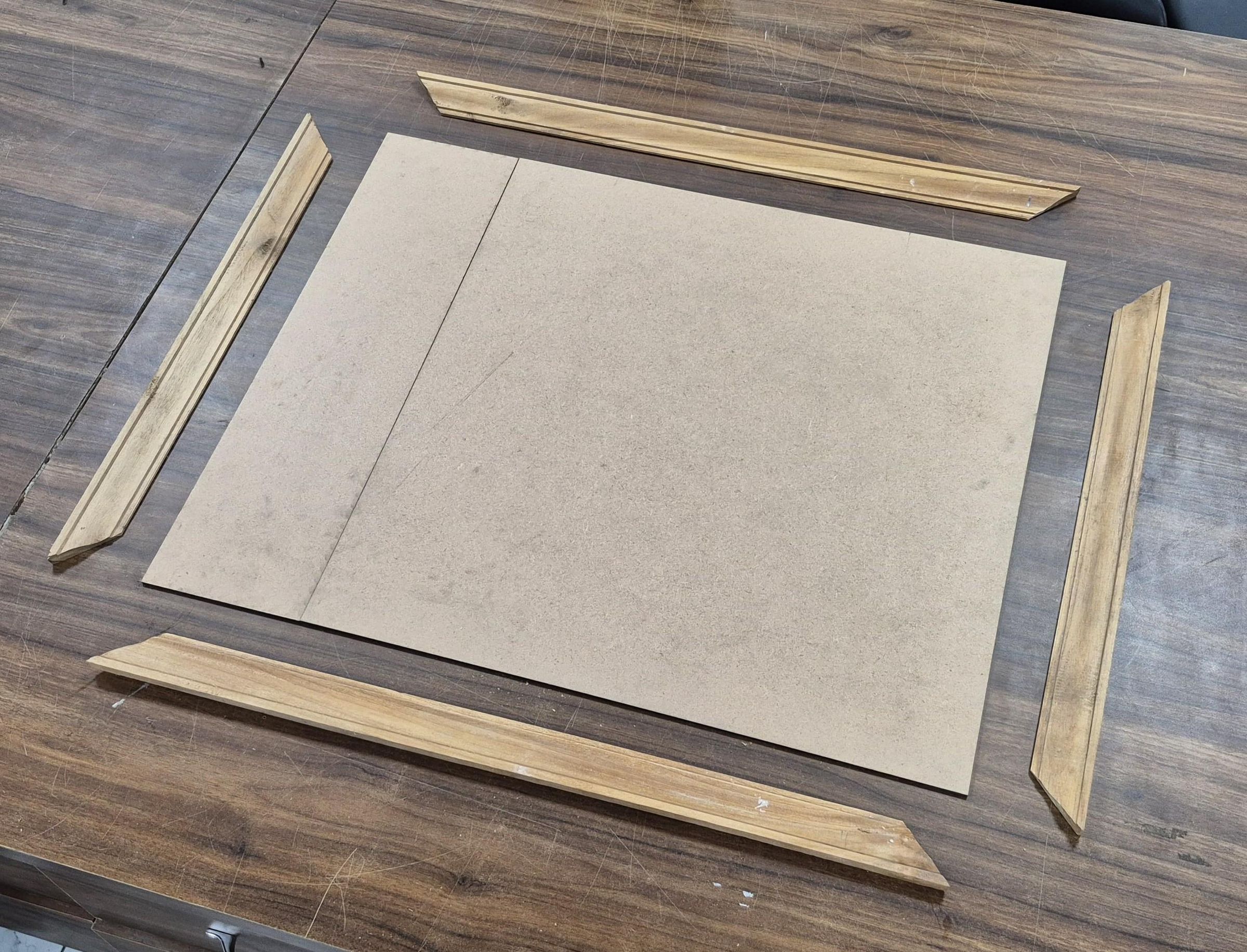
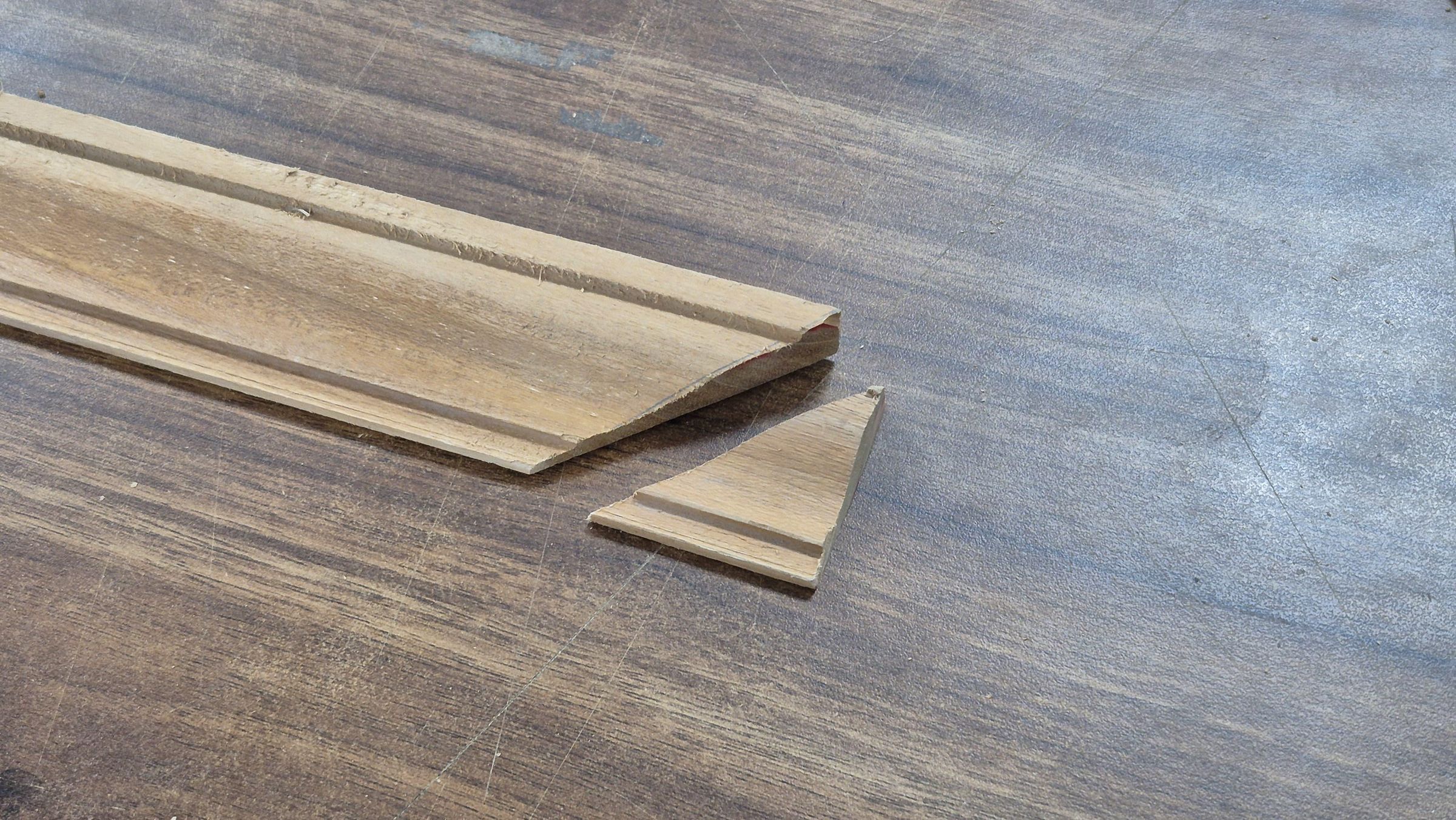
With the map itself complete, the next step was to create a custom frame in which to mount and display the finished piece. It had 2 sections: the back frame and map platform, which will hold the map 1.5 inches above the back frame, giving me space to add the LEDs.
I cut two pieces of MDF board and joined them to make a 22X25 inch backboard. which would serve as the base of the frame. next i cut frame molding strips. 4cm thick that would form the outer border.
For the map platform to ensure proper shape and sharp edges, I used a laser cutter available at my college. I converted the base template image into a .dxf file and reduced its size by a centimeter.
Now that all the parts are cut, I can move to preparing it for assembly
Preparing the Frame Components

I applied several coats of wood varnish to protect the surface and enhance the natural look of the wood.
For the backboard, I first drilled four holes for mounting the map's platform and another for the wiring. After that, I glued a sheet of Rexine (artificial leather) on the neckboard. I chose it for the background to give it the medieval aesthetic; the black works as a great background, shifting the focus to the map and also adding texture to the background. Finally, I cut out holes in the Racine for the mounting holes.
After the varnish had dried, I glued the frame molding strips to the backboard and secured them with nails from the back. then screwed in the hanging hooks to the back of the frame. completing the frame assembly.
Installing the LED Lighting
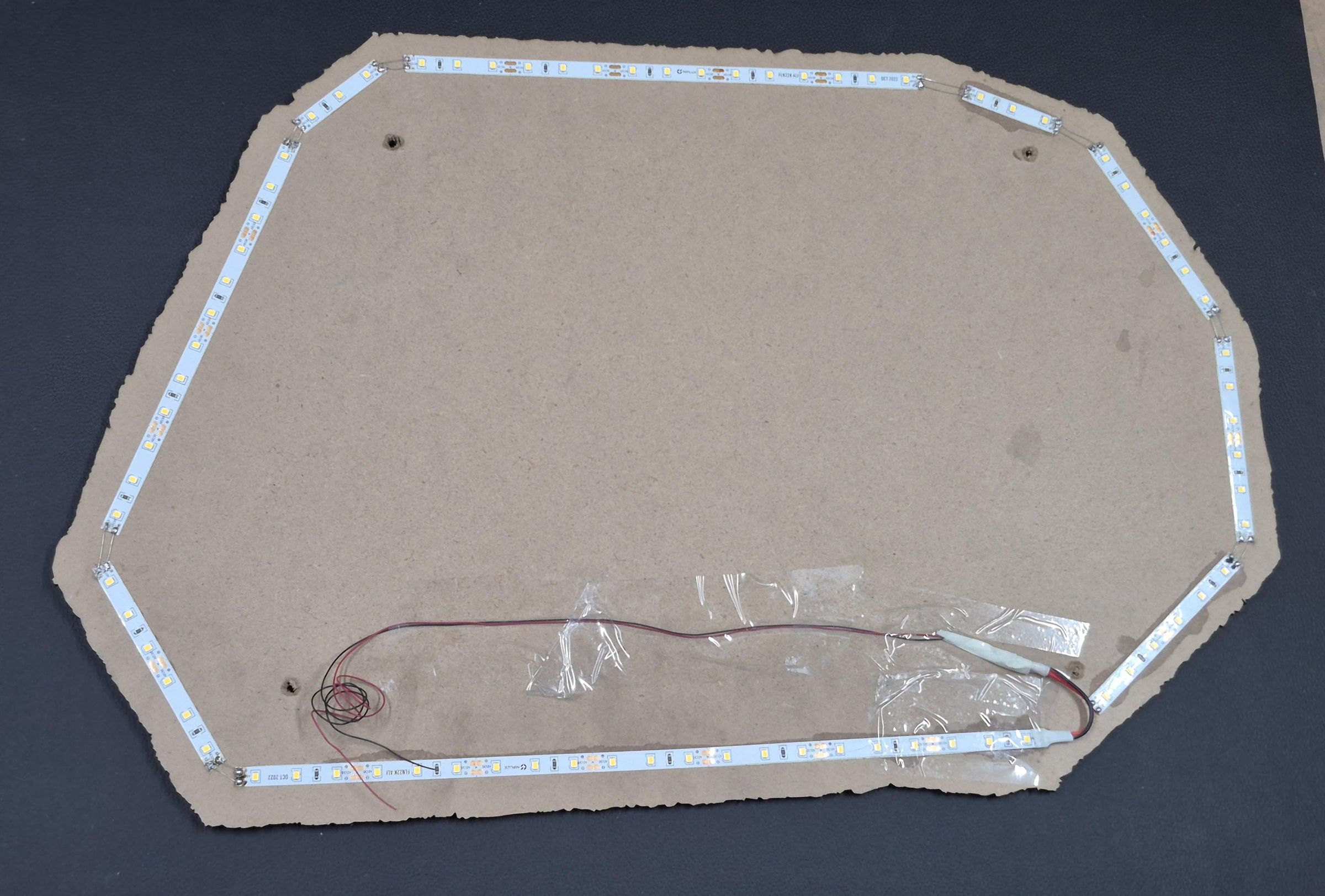
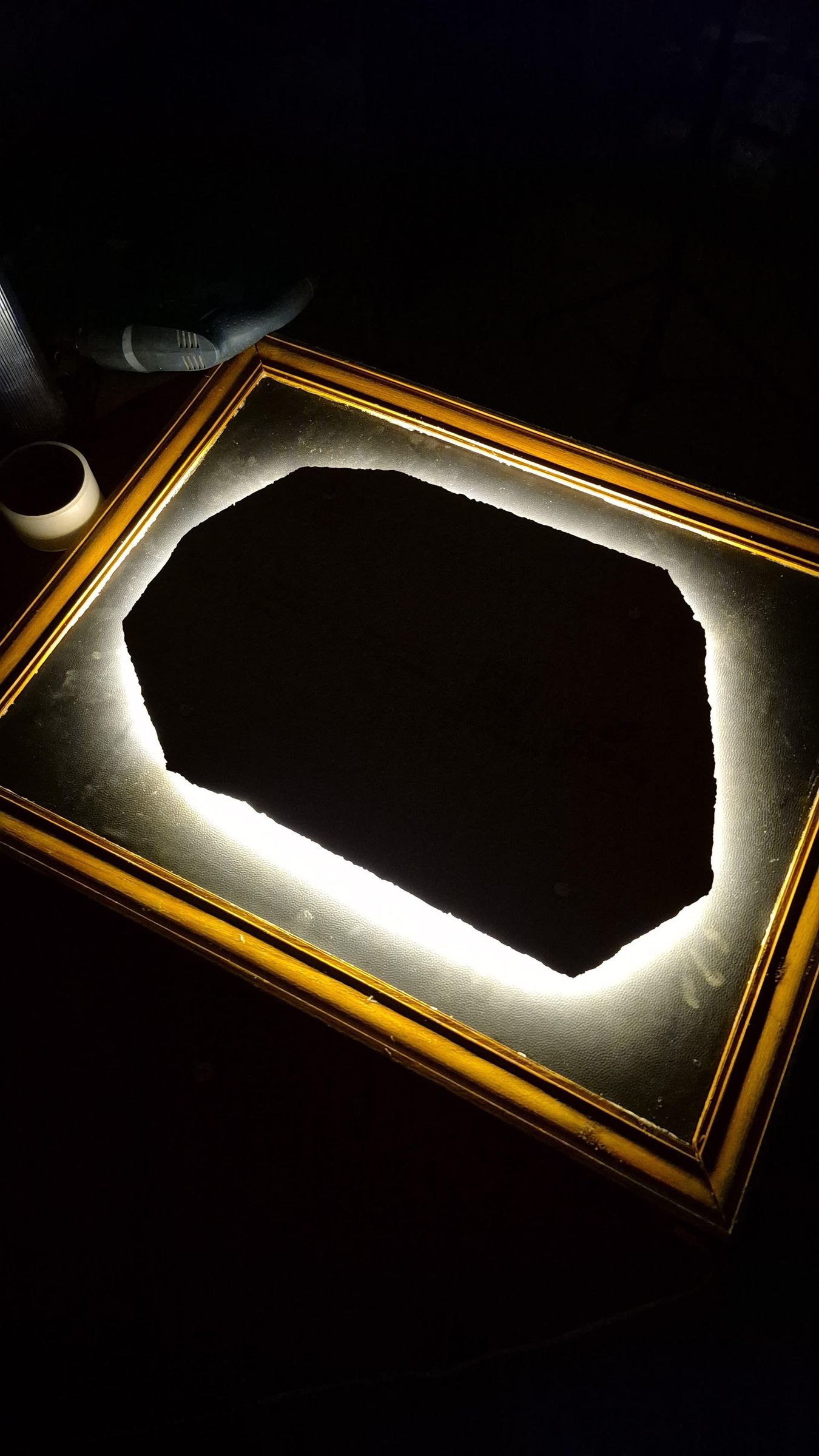
Before connecting the map platform to the frame, I wanted to install LED strips behind it. These LEDs will help light up the map at night and separate the map from the frame, giving it the floating effect and making the map pop out more.
I attached the LED strips to the back of the platform along the edges while keeping the LED spacing consistent to leave any dark spots around the map. To connect the LED sections, I soldered wire using a soldering iron and finally applied tape to secure the excess wiring.
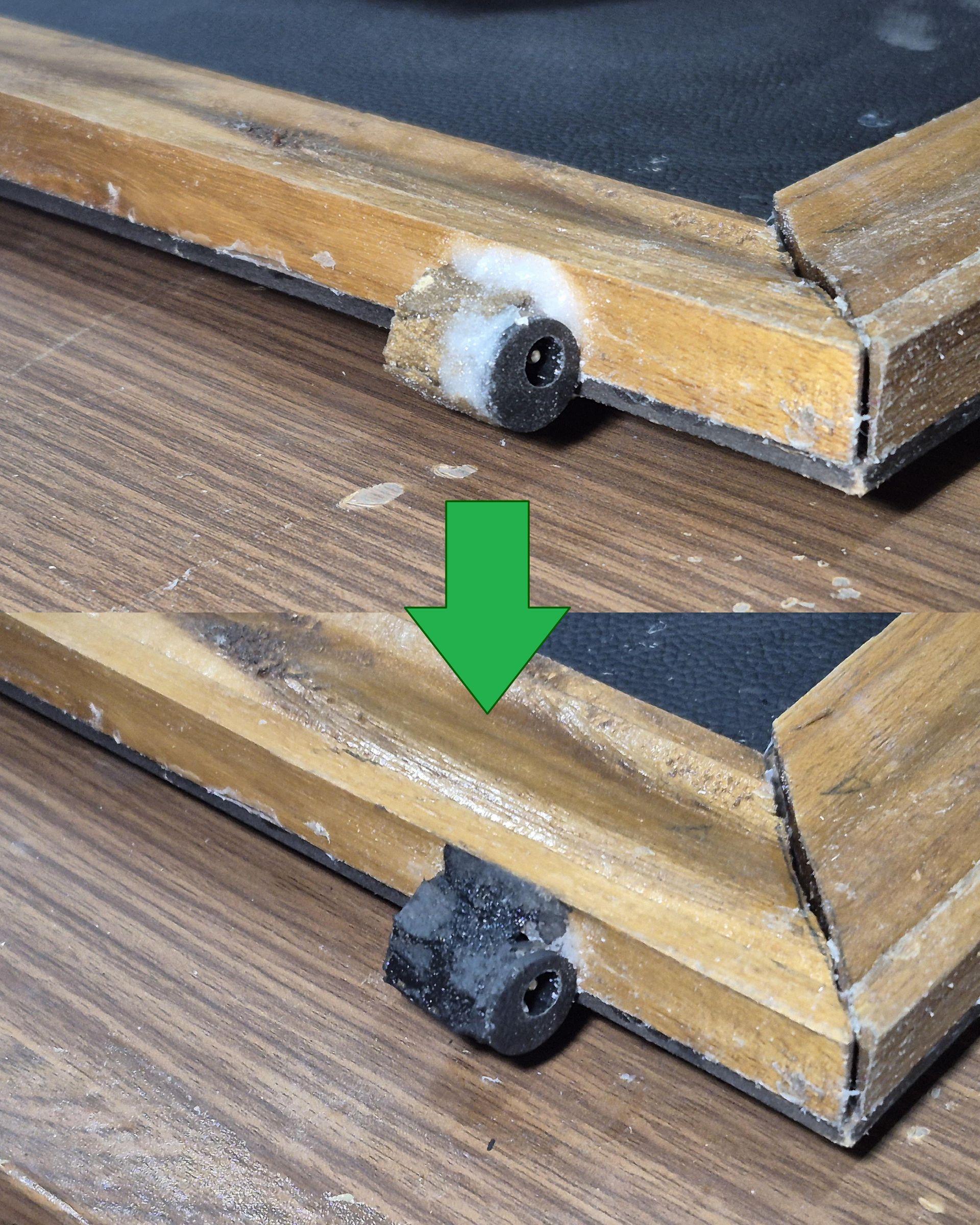
This LED strip required an adapter to be connected to it, so I glued it to the outside under the frame, securing it with superglue and baking soda to fill in the gaps, and painted it black using acrylic paint to hide it.
This concludes the electronics section, and now every part is ready for the final assembly.
Assembling the Frame and Mounting System

With all of the frame components prepared, the next step was assembling the map mounting platform.
To connect the platform to the frame, I use 1.5-inch bolts: I screwed in the bolt on the map platform board and screwed 3 nuts on the underside as spacers, then passed the wiring through the hole and finally screwed nuts on the base side of the frame to secure the platform. The last step was to connect the wiring of the LED to the adapter and secure it on the back using superglue.
With this, the frame assembly is complete, only leaving the final assembly and adding final details.
Mounting the Map and Adding the Final Details
.jpg.jpeg)

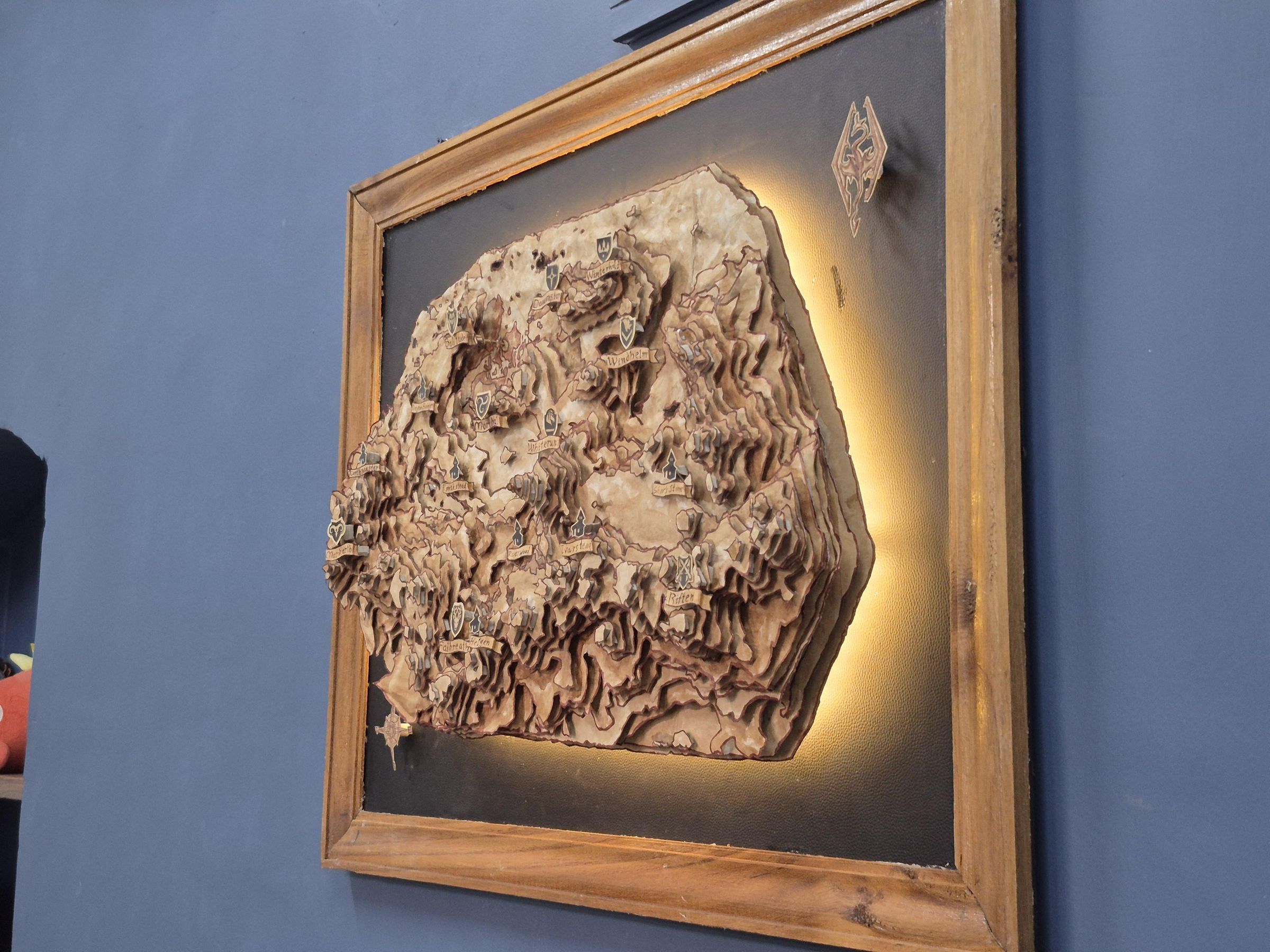
With the frame complete, it was finally time to install the map itself. To secure the map to the platform, I first used wood glue to attach most of it. The base of the map had a noticeable warp to it, making it a bit difficult to properly glue to the base, but I used super glue on the edge while holding the map in place using masking tape. Once the glue had dried, I removed the masking tape and superglued any opening.
To add additional details to the frame, I drew the Skyrim logo and Compass rose from the in-game maps found in the Jarl's quarters of any major palace. Reinforce them with thin sticks and super glue. I use rolls of paper strips to elevate them to the same level as the map.
Finally, I fixed loose pieces of the map and cleaned up any excess dried glue on the frame.
And with that, the Skyrim Topographic Map is complete; turning on the LEDs and seeing everything together was ammazing and worth all the effort.
Conclusion


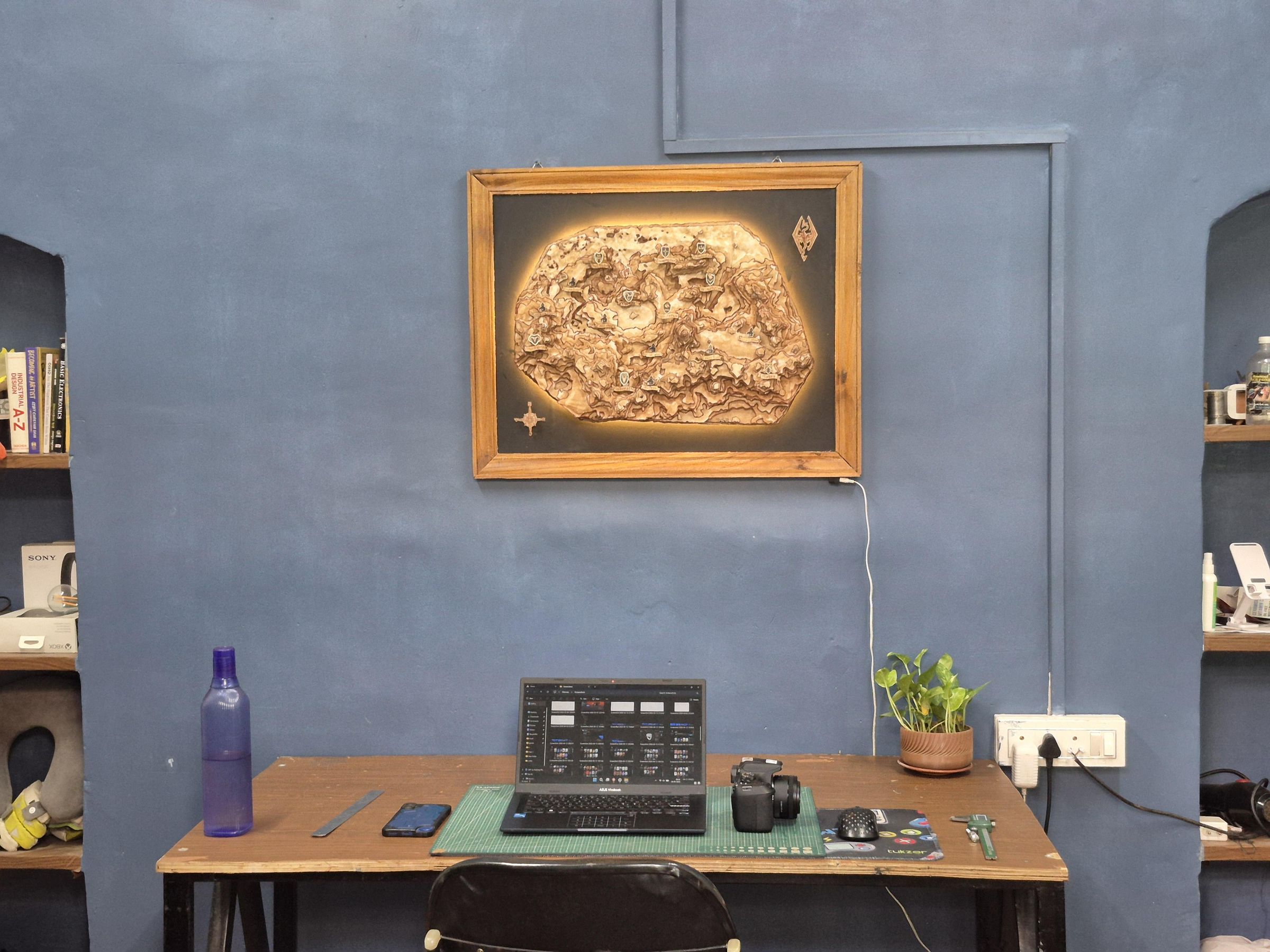
Creating this layered topological map of Skyrim was my most ambitious project yet. The project in total took 4-5 weeks to complete, with many sleepless nights and hours spent on editing the layer geometry in Blender and cutting hundreds of individual pieces to painting, assembling, framing, and installing the lighting; every stage presented its own challenges. Yet seeing the map slowly taking its shape kept me going.
This is the reason I like making projects related to the things I enjoy, because if I respect and appreciate the source material, I can spend hours on it to do the source material justice.
It started with appreciation for a game world and ended with a tangible piece of art that I can hang and enjoy on a daily basis. It’s not just a map; it’s a reminder of adventures, stories, and countless hours spent exploring the province of Skyrim. It’s the kind of project where I love to create a physical link to a world that inspired me.
I also learned new techniques to make layered art, which I would definitely use in my future projects.
I hope this Instructable blog inspires you to create your own version of this project, whether it is a map of Skyrim, another favorite game world, or an entirely original design. Make something from any media you enjoy and bring your interests to life.
Thank you for following along, and may your roads lead you to warm sands.
( ദ്ദി ˙ᗜ˙ )