Smart Music Bot


This is a smart music bot, that gives you a song which will fill your current mood perfectly! Bot takes your photo and analyze your mood(sad, happy, angry, normal), after it return you some random song.
Take a photo of yourself by pressing space -> face recognition + cropping the photo -> emotion classification of the cropped face photo -> result -> random song -> playing a song.
#Howest #CTAI #ProjectOne #SmartMusicBot
Supplies
All of the used materials provided in the file below.
Downloads
Starting and Collecting Data
1.Collect photos for the face recognition model - https://www.kaggle.com/datasets/ashwingupta3012/human-faces
2.Collect photos for the emotion classification model - https://www.kaggle.com/datasets/ananthu017/emotion-detection-fer
I was using kaggle to have have some photos and also I added some photos of me.
Annotating Photos


- Annotate photos for the face detection model(I was using auto labeling and some labeled by myself), only crop the face on the photo, of course using Roboflow.
- Annotate photos for the emotion detection, in this model I collected all of my photos by the folders(angry photos to angry folder etc) and this folders collect in one folder and send it to Roboflow. It will automatically separate your photos on the different classes
Augmentation and Preprocessing of the Photos


After I annoted all the photos in the both models, I resized them to 640x640 and added some parameters to improve the quality of the photos. When preprocessing is done, I chose some augmentation thingies, such as flip, rotate, blue and grayscale to make my datasest bigger and better for the training part. I made my photos x2 for the both models
Importing Models to Python


After all steps before I was able to export all this datasets to Python using API keys and code that roboflow provided.
Here is my 2 roboflow projects:
- Face recognition - https://app.roboflow.com/danyukezz/face_detection-y52o3/3
- Emotion classification - https://app.roboflow.com/danyukezz/ai-emotion-detection-music-bot/deploy
Training Models Using Python


Then, I trained my models at Python using ultralytics and YOLO. I trained face recognition model with 20 epochs without any augmentations and parameters, because I already added them in roboflow. It took me like 10 hours and I achieved an accuracy of 0.99.
For the emotion classifiaction model I trained it with 50 epochs and tried a lot of hyperparametes and tried to train on my home pc gpu, highest accuracy I achieved was average 0.865. But this model is doing very good.
Testing the Models
After I made a code for testing my models. First, cv2 camera opens, then take a photo of your face by pressing enter, then proceeds this photo to the face recognition model, where it founds your face and take it into bounding box, after this photo crops by the borders of the bounding box, so you only left with your face on the photo without background.
Later, this photo proceeds to the classification model, that is trained on photos like I made before, cropped and without background. It classifies your emotions and return a result like this - happy: 0.95.
Code for cv2:
import cv2
from ultralytics import YOLO


# Function to take a screenshot from the camera feed
def take_screenshot():
    # Capture a frame from the camera feed
    ret, frame = cap.read()


    if ret:
        # Save the frame as an image
        cv2.imwrite('/Users/danyukezz/Desktop/1 year 2 semester/project one/2023-2024-projectone-ctai-danyukezz/AI/AI model exam/face_recognition/screenshot.jpg', frame)
    else:
        print("Failed to capture frame from the camera feed")


# Start the camera feed
cap = cv2.VideoCapture(0)  # Change 0 to the appropriate camera index if needed


# Load your trained model
# model = YOLO("/Users/danyukezz/Desktop/1 year 2 semester/project one/2023-2024-projectone-ctai-danyukezz/AI model exam/face_recognition/runs/detect/train5/weights/best.pt")


# Listen for key presses
while True:
    # Capture a frame from the camera feed
    ret, frame = cap.read()
    if ret:
        cv2.imshow('Camera Feed', frame)


    key = cv2.waitKey(1) & 0xFF
    if key == ord(' '):  # Space key press
        take_screenshot()
        break
    elif key == ord('q'):  # Q key press
        break


# Close the camera feed and all OpenCV windows
cap.release()
cv2.destroyAllWindows()
Code for face recognition:
from roboflow import Roboflow
from ultralytics import YOLO
from PIL import Image
from PIL import Image as PILImage
import cv2
import numpy as np


# Initialize Roboflow and download the model
rf = Roboflow(api_key="")
project = rf.workspace("danyukezz").project("face_detection-y52o3")
version = project.version(2)
dataset = version.download("yolov8")

model = YOLO("/Users/danyukezz/Desktop/1 year 2 semester/project one/2023-2024-projectone-ctai-danyukezz/AI/AI model exam/face_recognition/runs/detect/train7/weights/best.pt")

path = "screenshot.jpg"
result = model.predict(path)

bounding_box = result[0].boxes[0]


x1, y1, x2, y2 = bounding_box.xyxy[0].tolist()


original_image = PILImage.open(path)


cropped_image = original_image.crop((x1, y1, x2, y2))


# cropped_image = cropped_image.resize((48,48), resample=Image.BILINEAR)


# Convert the PIL Image to a NumPy array
cropped_image_np = np.array(cropped_image)


# Convert the image from RGB to BGR (if needed)
cropped_image_np = cv2.cvtColor(cropped_image_np, cv2.COLOR_RGB2BGR)


# Convert the BGR image to grayscale
gray_image = cv2.cvtColor(cropped_image_np, cv2.COLOR_BGR2GRAY)


# Convert the grayscale image back to PIL Image
gray_image_pil = Image.fromarray(gray_image)


# Save the grayscale image
gray_image_pil.save("cropped_face.jpg")


from IPython.display import Image
Image("cropped_face.jpg")
Code for emotion prediction:
from roboflow import Roboflow  # Assuming the YOLO class is in the yolov5 module
import torch
# Initialize Roboflow client


# Get project from Roboflow workspace


project = rf.workspace().project("ai-emotion-detection-music-bot")
# model = project.version(1).model


# Define the path to the weights file
weights_path = "/Users/danyukezz/Desktop/1 year 2 semester/project one/2023-2024-projectone-ctai-danyukezz/AI/AI model exam/face_recognition/runs/classify/train9/weights/best.pt"


# Initialize YOLO model with the weights file
model = YOLO(weights_path)


# Perform inference on the image
predictions = model.predict("/Users/danyukezz/Desktop/1 year 2 semester/project one/2023-2024-projectone-ctai-danyukezz/AI/AI model exam/face_recognition/cropped_face.jpg")
print(predictions)


class_labels = ["angry", "happy", "neutral", "sad"]


# Extract the class probabilities from the predictions
prediction = predictions[0]  # Assuming a single prediction
class_probs = prediction.probs


# Find the index of the highest confidence score
top1_index = class_probs.top1
top1_confidence = class_probs.top1conf


# Map the index to the corresponding class label
predicted_emotion = class_labels[top1_index]


# Print the predicted emotion and its confidence score
print(f"Predicted Emotion: {predicted_emotion}, Confidence Score: {top1_confidence.item():.2f}")
Working With the Songs
Then I asked chat gpt to give me some songs, that is related to the emotions. He gave me 10 songs per emotion, I downloaded this songs and placed them to the folder. After this, I created csv file with the names of the songs and emotions that I divided(1- happy, 2 - neutral, 3 - sad, 4 - angry). It looks like this - 1,"Name of the song".
Later, predicted emotion is converting to the number (1,2,3,4), randomly taking 1 song name from the csv that is related to emotion, then searching in the folder .mp3 file with the same name and starting to play it.
Code for choosing random song:
import csv
import random
import time


# Load the CSV file and store the songs in a dictionary
songs_by_emotion = {1: [], 2: [], 3: [], 4: []}


with open('music.csv', mode='r') as file:
    reader = csv.DictReader(file)
    for row in reader:
        emotion = int(row['Emotion'])
        author = row['Author Name']
        song = row['Song Name']
        songs_by_emotion[emotion].append((author, song))


# Map the predicted emotion to the corresponding emotion code
if predicted_emotion == 'neutral':
    emotion_code = 1
elif predicted_emotion == 'happy':
    emotion_code = 2
elif predicted_emotion == 'sad':
    emotion_code = 3
elif predicted_emotion == 'angry':
    emotion_code = 4


# Get a random song from the list of songs corresponding to the predicted emotion
random_author, random_song = random.choice(songs_by_emotion[emotion_code])
print("Author:", random_author)
print("Song:", random_song)
Playing a song through ffmpeg:
from pydub import AudioSegment
from pydub.playback import play
import os
import subprocess
import sys


# Directory containing the MP3 files
directory = "/Users/danyukezz/Desktop/1 year 2 semester/project one/2023-2024-projectone-ctai-danyukezz/AI/AI model exam/face_recognition/songs"  # Change this to your directory


# Change this to your actual random song variable
print(random_song)


# List all files in the directory
files_in_directory = os.listdir(directory)


# Filter files that contain the song name as a substring
matching_files = [file for file in files_in_directory if random_song.lower() in file.lower()]


# Print the matching files
if matching_files:
    file_path = os.path.join(directory, matching_files[0])
    print(f"Loading file: {file_path}")
    mp3_file = file_path

    # Command for ffmpeg to convert MP3 to WAV and output to stdout
    ffmpeg_command = [
        "ffmpeg",
        "-i", mp3_file,
        "-f", "wav",
        "-"
    ]

    # Command for ffplay to read WAV audio from stdin
    ffplay_command = [
        "ffplay",
        "-nodisp",  # Suppress video display
        "-"
    ]

    try:
        # Start ffmpeg subprocess to convert MP3 to WAV and output to stdout
        ffmpeg_process = subprocess.Popen(ffmpeg_command, stdout=subprocess.PIPE, stderr=subprocess.DEVNULL)

        # Start ffplay subprocess to read WAV audio from stdin
        ffplay_process = subprocess.Popen(ffplay_command, stdin=ffmpeg_process.stdout)

        # Wait for the user to exit by pressing Enter
        print("Press Enter to stop playback...")
        input() # Wait for a single character input (Enter key)

        # Terminate ffplay process
        ffplay_process.terminate()

    except subprocess.CalledProcessError as e:
        print(f"An error occurred: {e}")
else:
print(f"No matching files found for the song: {random_song}")
Raspi Connection
Commit all the code on the PC and clone repo on the raspi. This will allow you to run this models on the raspi and add some additional code, such as button on/off, lcd display and rgb led in my case. I made additional code for the external GPIO button - when the button is LOW programm is working, when HIGH - programm in the sleep mode. For the rgb led I made color representation when the emotion is predicted(neutral - yellow, happy - green, sad - blue, angry - red). And for the lcd I made some user interface for easier understanding and better performance. It displays some commands, such as like("Press Enter to take a photo", "Predicting...", "Predicted emotion: confidence score" etc).
Raspi code:
import cv2
from ultralytics import YOLO
from PIL import Image
import csv
import random
import os
import subprocess
import numpy as np
from lcd import LCD
from RPi import GPIO
import time
import signal
from rgb import Rgb
import gradio as gr


GPIO.setmode(GPIO.BCM)
is_playing = False
button = 25
prev_button = 1
count_pressed = 0
GPIO.setup(button, GPIO.IN, pull_up_down=GPIO.PUD_UP)


# Initialize the YOLO models
model_detect = YOLO('/home/user/2023-2024-projectone-ctai-danyukezz/AI/AI model exam/face_recognition/runs/detect/train7/weights/best.pt')
model_classify = YOLO('/home/user/2023-2024-projectone-ctai-danyukezz/AI/AI model exam/face_recognition/runs/classify/train7/weights/best.pt')
cap = cv2.VideoCapture(0)


def get_spaces(spaces):
      string = ''
      for i in range(16 - spaces):
         string += ' '
      return string


# Function to take a screenshot from the camera feed
def take_screenshot():
    ret, frame = cap.read()
    if ret:
        cv2.imwrite("/home/user/2023-2024-projectone-ctai-danyukezz/AI/AI model exam/face_recognition/screenshot.jpg", frame)
        lcd.send_string("   SCREENSHOT   ", lcd.LCD_LINE_1)
        lcd.send_string("     TAKEN      ", lcd.LCD_LINE_2)
    else:
        print("Failed to capture frame from the camera feed")


def detect_and_crop_face():
    lcd.clear()
    lcd.send_string("Preprocessing   ", lcd.LCD_LINE_1)
    lcd.send_string("And predicting..", lcd.LCD_LINE_2)
    path = "/home/user/2023-2024-projectone-ctai-danyukezz/AI/AI model exam/face_recognition/screenshot.jpg"
    result = model_detect.predict(path)

    if not result:
        print("No detection results.")
        return None

    result = model_detect.predict(path)


    bounding_box = result[0].boxes[0]


    x1, y1, x2, y2 = bounding_box.xyxy[0].tolist()


    original_image = Image.open(path)


    cropped_image = original_image.crop((x1, y1, x2, y2))


    # cropped_image = cropped_image.resize((48,48), resample=Image.BILINEAR)


    # Convert the PIL Image to a NumPy array
    cropped_image_np = np.array(cropped_image)


    cropped_image_np = cv2.cvtColor(cropped_image_np, cv2.COLOR_RGB2BGR)


    # Convert the BGR image to grayscale
    gray_image = cv2.cvtColor(cropped_image_np, cv2.COLOR_BGR2GRAY)


    # Convert the grayscale image back to PIL Image
    gray_image_pil = Image.fromarray(gray_image)


    # Save the grayscale image
    gray_image_pil.save("/home/user/2023-2024-projectone-ctai-danyukezz/AI/AI model exam/face_recognition/cropped_face.jpg")


def classify_emotion():
    weights_path = "/home/user/2023-2024-projectone-ctai-danyukezz/AI/AI model exam/face_recognition/runs/classify/train7/weights/best.pt"
    model = YOLO(weights_path)


    predictions = model.predict("/home/user/2023-2024-projectone-ctai-danyukezz/AI/AI model exam/face_recognition/cropped_face.jpg")
    print(predictions)


    class_labels = ["angry", "happy", "neutral", "sad"]

    prediction = predictions[0]  # Assuming a single prediction
    class_probs = prediction.probs


    # Find the index of the highest confidence score
    top1_index = class_probs.top1
    top1_confidence = class_probs.top1conf
    lcd.clear()
    # Map the index to the corresponding class label
    predicted_emotion = class_labels[top1_index]
    top1_confidence = F"{top1_confidence.item():.2f}"
    lcd.send_string(("Emotion: " + predicted_emotion), lcd.LCD_LINE_1)
    lcd.send_string(("Confidence: " + top1_confidence), lcd.LCD_LINE_2)
    if predicted_emotion == 'neutral':
        rgb.control_rgb(248,222,0)
    elif predicted_emotion == 'happy':
        rgb.control_rgb(0,255,0)
    elif predicted_emotion == 'sad':
        rgb.control_rgb(0,0,255)
    elif predicted_emotion == 'angry':
        rgb.control_rgb(255,0,0)
    time.sleep(3)
    return predicted_emotion, top1_confidence


def get_random_song_by_emotion(predicted_emotion):
    songs_by_emotion = {1: [], 2: [], 3: [], 4: []}
    with open('/home/user/2023-2024-projectone-ctai-danyukezz/AI/AI model exam/face_recognition/music.csv', mode='r') as file:
        reader = csv.DictReader(file)
        for row in reader:
            emotion = int(row['Emotion'])
            author = row['Author Name']
            song = row['Song Name']
            songs_by_emotion[emotion].append((author, song))


    # Map the predicted emotion to the corresponding emotion code
    if predicted_emotion == 'neutral':
        emotion_code = 1
    elif predicted_emotion == 'happy':
        emotion_code = 2
    elif predicted_emotion == 'sad':
        emotion_code = 3
    elif predicted_emotion == 'angry':
        emotion_code = 4


    # Get a random song from the list of songs corresponding to the predicted emotion
    random_author, random_song = random.choice(songs_by_emotion[emotion_code])
    print("Author:", random_author)
    print("Song:", random_song)
    lcd.clear()
    lcd.send_string(random_author, lcd.LCD_LINE_1)
    lcd.send_string(random_song, lcd.LCD_LINE_2)
    time.sleep(3)
    return random_song


ffplay_process = None
ffmpeg_process = None
finished = False
stopped = False


def play_song(song_name):
    global ffplay_process, ffmpeg_process, finished, message_displayed, stopped, is_playing
    stopped = False
    lcd.clear()
    lcd.send_string("Preparing to    ", lcd.LCD_LINE_1)
    lcd.send_string("Play a song:)   ", lcd.LCD_LINE_2)
    time.sleep(3)
    lcd.clear()
    directory = "/home/user/2023-2024-projectone-ctai-danyukezz/AI/AI model exam/face_recognition/songs"  # Change this to your directory


    # List all files in the directory
    files_in_directory = os.listdir(directory)


    # Filter files that contain the song name as a substring
    matching_files = [file for file in files_in_directory if song_name.lower() in file.lower()]


    # Print the matching files
    if matching_files:
        file_path = os.path.join(directory, matching_files[0])
        print(f"Loading file: {file_path}")
        mp3_file = file_path

        # Command for ffmpeg to convert MP3 to WAV and output to stdout
        ffmpeg_command = [
            "ffmpeg",
            "-i", mp3_file,
            "-f", "wav",
            "-"
        ]

        # Command for ffplay to read WAV audio from stdin
        ffplay_command = [
            "ffplay",
            "-nodisp",
            "-autoexit",  # Automatically exit when done
            "-"
        ]

        try:
            is_playing = True
            lcd.send_string("Press Q to stop ", lcd.LCD_LINE_1)
            lcd.send_string("Button to pause ", lcd.LCD_LINE_2)
            # Start ffmpeg subprocess to convert MP3 to WAV and output to stdout
            ffmpeg_process = subprocess.Popen(ffmpeg_command, stdout=subprocess.PIPE, stderr=subprocess.DEVNULL)

            # Start ffplay subprocess to read WAV audio from stdin
            ffplay_process = subprocess.Popen(ffplay_command, stdin=ffmpeg_process.stdout, stdout=subprocess.PIPE, stderr=subprocess.PIPE)

            while True:
                key = cv2.waitKey(1) & 0xFF
                if key == ord('q') and not sleep_mode:
                    lcd.clear()
                    lcd.send_string("Song is stopped", lcd.LCD_LINE_1)
                    lcd.send_string("Starting again ", lcd.LCD_LINE_2)
                    ffplay_process.terminate()
                    ffmpeg_process.terminate()
                    finished = True
                    message_displayed = False
                    stopped = True
                    is_playing = False
                    rgb.control_rgb(0, 0, 0)
                    time.sleep(3)
                    break
                elif key == ord('q') and sleep_mode:
                    lcd.clear()
                    lcd.send_string("Song is stopped", lcd.LCD_LINE_1)
                    lcd.send_string("Button to start", lcd.LCD_LINE_2)
                    ffplay_process.terminate()
                    ffmpeg_process.terminate()
                    finished = True
                    message_displayed = False
                    is_playing = False
                    stopped = True
                    rgb.control_rgb(0, 0, 0)
                    time.sleep(3)
                    break


                elif sleep_mode and ffplay_process.poll() is None:
                    ffplay_process.send_signal(signal.SIGSTOP)


                elif not sleep_mode and ffplay_process.poll() is None:
                    ffplay_process.send_signal(signal.SIGCONT)


                if ffplay_process.poll() is not None and not sleep_mode and stopped == False:
                    lcd.clear()
                    lcd.send_string("Song is finished", lcd.LCD_LINE_1)
                    lcd.send_string("Starting again  ", lcd.LCD_LINE_2)
                    ffplay_process.terminate()
                    ffmpeg_process.terminate()
                    finished = True
                    message_displayed = False
                    is_playing = False
                    rgb.control_rgb(0, 0, 0)
                    time.sleep(3)
                    break
                elif ffplay_process.poll() is not None and sleep_mode and stopped == False:
                    lcd.clear()
                    lcd.send_string("Song is finished", lcd.LCD_LINE_1)
                    lcd.send_string("Button to start ", lcd.LCD_LINE_2)
                    ffplay_process.terminate()
                    ffmpeg_process.terminate()
                    finished = True
                    message_displayed = False
                    is_playing = False
                    rgb.control_rgb(0, 0, 0)
                    time.sleep(3)
                    break

        except subprocess.CalledProcessError as e:
            print(f"An error occurred: {e}")
    else:
        print(f"No matching files found for the song: {song_name}")


message_displayed = False
sleep_mode = True


def button1_callback(pin_number):
    global sleep_mode, message_displayed, ffplay_process
    current_button_state = GPIO.input(button)

    if current_button_state == GPIO.LOW and is_playing == False:
        lcd.clear()
        lcd.send_string(' Sleep mode OFF ', lcd.LCD_LINE_1)
        # time.sleep(3)
        sleep_mode = False
        message_displayed = False


    elif current_button_state == GPIO.LOW and is_playing == True:
        lcd.clear()
        lcd.send_string('Song is playing ', lcd.LCD_LINE_1)
        lcd.send_string('Button to pause ', lcd.LCD_LINE_2)
        sleep_mode = False
        message_displayed = False


    if current_button_state == GPIO.HIGH and is_playing == False:
        lcd.clear()
        lcd.send_string(' Sleep mode ON  ', lcd.LCD_LINE_1)
        sleep_mode = True
        rgb.control_rgb(0,0,0)
        message_displayed = False


    elif current_button_state == GPIO.HIGH and is_playing == True:
        lcd.clear()
        lcd.send_string('Song is paused! ', lcd.LCD_LINE_1)
        lcd.send_string('Button - unpause', lcd.LCD_LINE_2)
        sleep_mode = True
        message_displayed = False


GPIO.add_event_detect(button, GPIO.BOTH, callback=button1_callback, bouncetime=300)


try:
    rgb = Rgb()
    rgb.setup()
    lcd = LCD()
    lcd.lcd_init()
    lcd.send_string("Ready to start! ", lcd.LCD_LINE_1)
    lcd.send_string("Press a button ", lcd.LCD_LINE_2)

    while True:
        key = cv2.waitKey(1) & 0xFF
        if not sleep_mode:
            if not message_displayed:
                time.sleep(3)
                lcd.clear()
                lcd.send_string("Press SPACE to ", lcd.LCD_LINE_1)
                lcd.send_string("take screenshot", lcd.LCD_LINE_2)
                message_displayed = True  # Ensure message is displayed only once
            ret, frame = cap.read()
            if ret and sleep_mode == False:
                cv2.imshow('Camera Feed', frame)
            if key == ord(' '):
                if sleep_mode == False:
                    lcd.clear()
                    take_screenshot()
                    time.sleep(3)
                if sleep_mode == False:
                    detect_and_crop_face()
                    time.sleep(3)
                if sleep_mode == False:
                    predicted_emotion, confidence = classify_emotion()
                    time.sleep(3)
                if sleep_mode == False:
                    song_name = get_random_song_by_emotion(predicted_emotion)
                    time.sleep(3)
                if sleep_mode == False:
                    play_song(song_name)
        else:
            key = 1
            time.sleep(0.1)  # Shorter sleep interval for better responsiveness
except KeyboardInterrupt:
    pass
finally:
    lcd.clear()
    cap.release()
    cv2.destroyAllWindows()
    rgb.control_rgb(0, 0, 0)
Maker Part Preparation
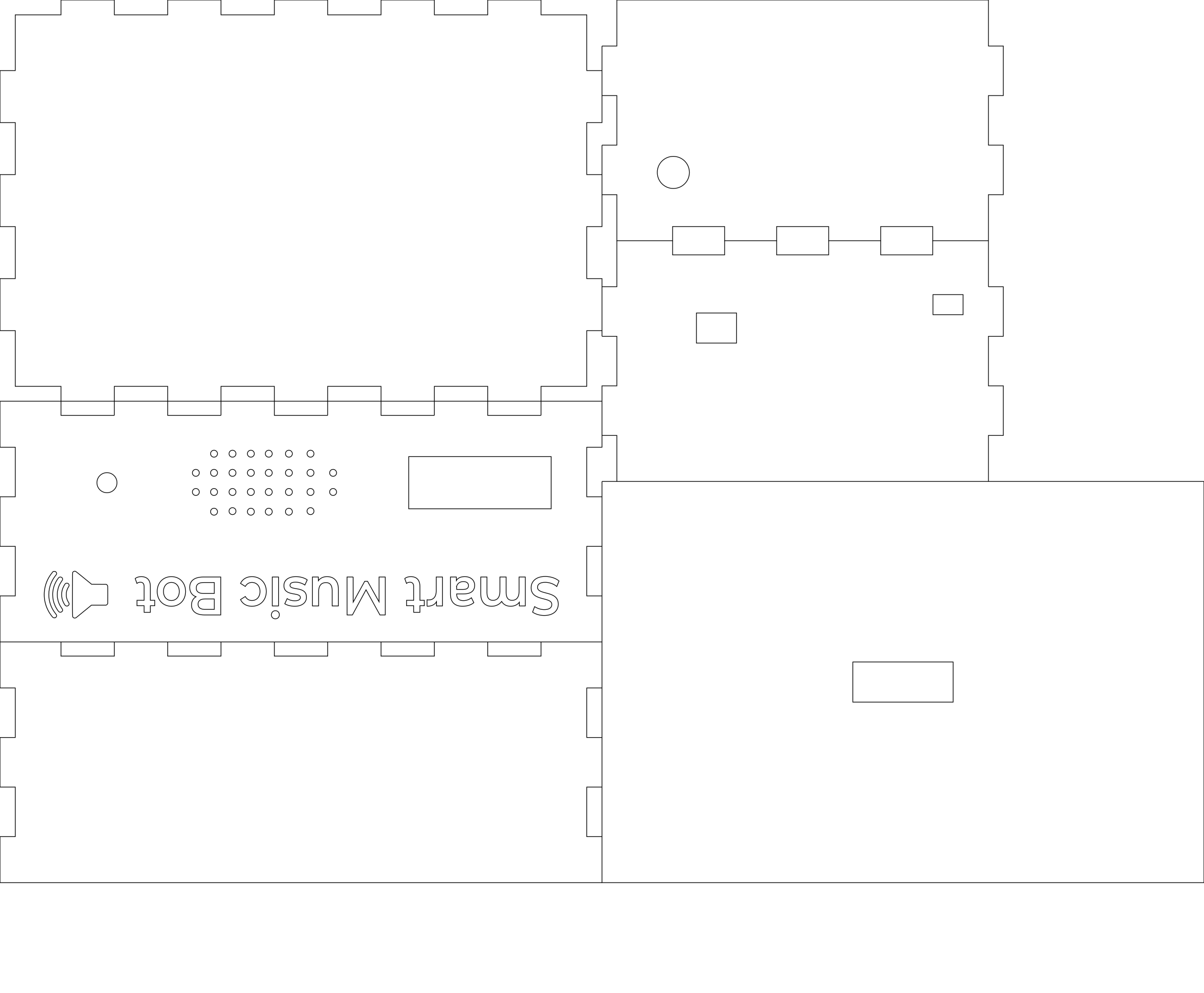
For this part I made a box from the 8mm plywood 600x450. Box parameters is 300x200x120mm. I made a box using ru.makercase.com with all the needed parameters and imported an svg file. Placed this file into Adobe Illustrator, added some holes for the lcd, speaker, button, rgb led, lan connection, charger, and camera, also I added the name of the project and tiny speaker nearby. Then, I saved this svg file as well and placed it into deepnest, that nested and fitted all sides of the boxes into a 600x450 plywood sheet, nested file a saved as .ai, so I'm ready for laser cutting.
Maker Part (Laser Cutting and Assembling)

As long as I have my final .ai file,I can start with laser cutting. Steps is easy - bought a plywood sheet, placed it into laser cutter, downloaded .ai file into laser cutter programm using external disk, chose 8mm thickness of the plywood and we are ready to start process. It took about 20 minutes to finish all of the sides.
Then I polished all the angles and sides with the p50 sandpaper and glued them up with the strong epoxy glue. After this I cutted additional 0.8mm from the top side and places 3 piano acrylic hinges, so I can easily open and close the box. Display, button and rgb fit perfectly in the holes I made, but I missed a 0.5mm height for the power supply hole, so I сut this difference using small knife.
Final Setup


After everything is tested and prepared, we can setup out project. I mounted project board and camera to the box using strong double tape. RGB and display are just mounted into holes properly. speaker is staying nearby the holes and connected via usb, the same with the camera. Assembling is finished.
Testing and Using


After all steps before, we can succesfully test and later use out Smart Music Bot. Testing gone pretty well with a couple mistakes that were fixed later. Project is finished :)