Smart Plant Disease Detection System With Raspberry and Arduino
by khoaanhnguyenvo2006 in Circuits > Arduino
202 Views, 2 Favorites, 0 Comments
Smart Plant Disease Detection System With Raspberry and Arduino
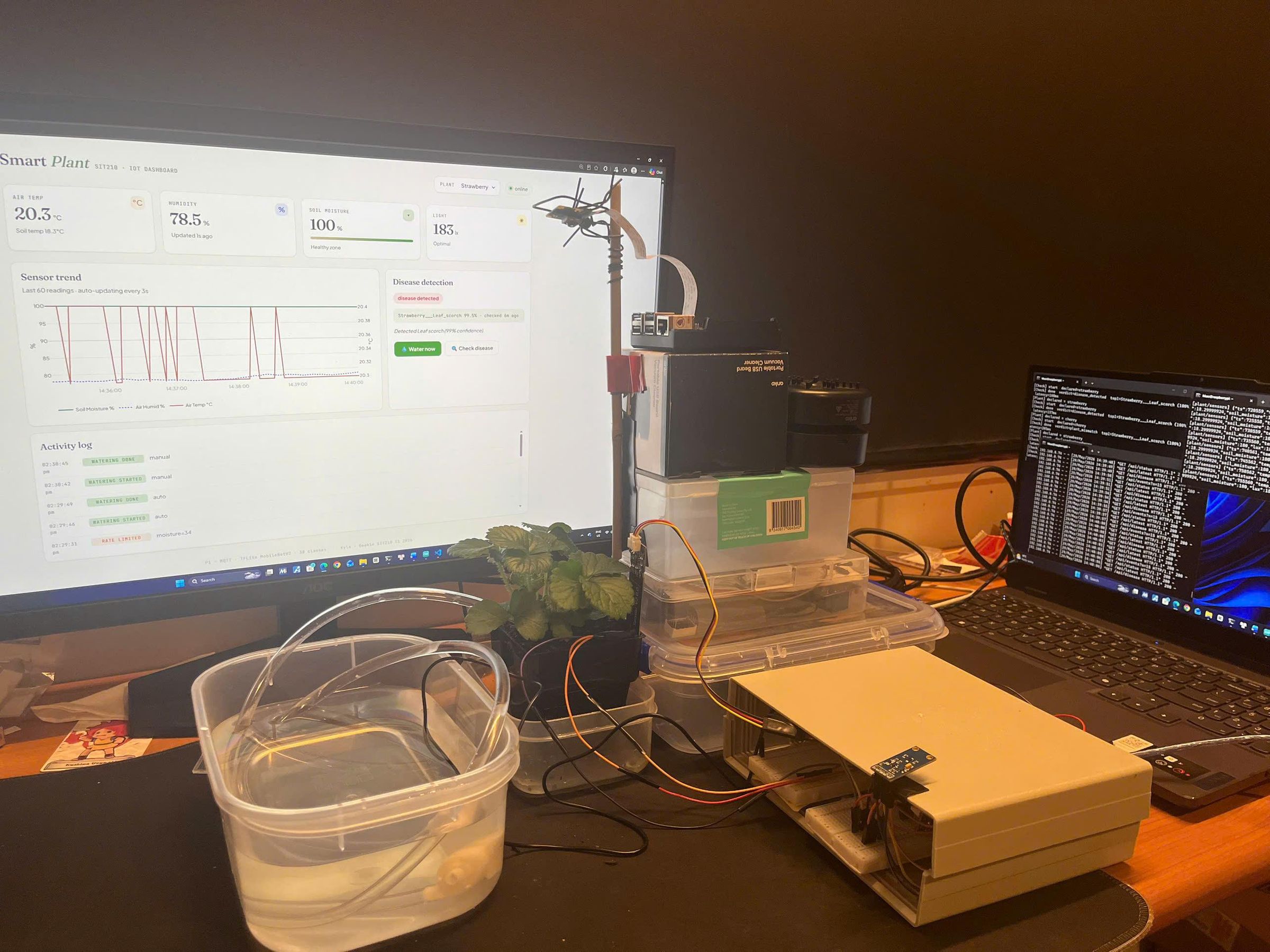
Almost every plant dies because of two simple but preventable problems. One is wrong watering; the other one is diseases widely spread on leaves without people's recognition. I wanted to build a system that can address all two problems. It will be continuously measuring plants growth conditions, and only water if necessary, and observe leaves to early detect diseases when there is still time to handle it.
The system uses two boards: Arduino Nano 33 IoT as the sensor central and the local controller, and Raspberry Pi 4 that plays an important role as the brain of the system. The Pi runs MQTT broker, an on-device TensorFlow Lite model that detects diseases, a SQLite Database to write logs, and a Flask dashboard. Every second, the system reads air temperature, humidity, light, soil moisture, and soil temperature, and the watering system happens automatically. When users want to check the health of the plant, a camera connected to the Pi will capture an image and AI will make a diagnosis, but it will just alarm and let people decide further steps.
The whole system runs as a loop. It measures the environment, send data via MQTT, decides whether to take actions or not, runs AI when requested, then alarm users.
Arduino reads four sensors every five seconds and sends to Pi via MQTT on Wi-Fi. Pi saves all measured into SQLite and directly shows them on the dashboard. When the soil moisture index is below the threshold and other safety conditions are satisfied, automatic watering will start. This part runs on Arduino, so it will remain stable even when the connection is lost. Regarding disease detection, the Pi takes a picture of a leaf when you press a button on the dashboard, then it runs the TFLite model to make diagnosis. The results appear on the dashboard along with a status depending on the model's confidence, and an alarm will sound to alert you to what needs attention.
The main idea that I wanted to express throughout this project is how I divide the work between automation and AI. the watering function is completely automatic since it is a simple logical decision. If the moisture index is below 40%, watering starts. The detection function is not automatic on purpose, because an improper handling can kill the plant. the AI only suggests and alarms, while users will make the final decisions. The important principle throughout the design is that AI assists, not replaces humans.
Supplies


Hardware:
- Raspberry Pi 4
- Arduino Nano 33 IoT
- DHT22 temperature and humidity sensor
- BH1750 light sensor; capacitive soil moisture sensor
- DS18B20 waterproof temperature sensor
- Raspberry Pi Camera Module 3
- Keyestudio XC4419 relay module (transistor buffer input, triggered by 3.3 V)
- FIT0910 DC water pump; active buzzer
- 10 kΩ resistor (pull-up for DHT22)
- 4.7 kΩ resistor (pull-up for DS18B20)
- Others: jumper wires, breadboard, microSD card; USB power supply for the Pi and a separate USB power supply for the pump; USB cable for Arduino.
Software and online services: Raspberry Pi OS; Arduino IDE; TensorFlow and TensorFlow Lite; Google Colab; Mosquitto MQTT broker; Flask; SQLite; PlantVillage Dataset dataset on Kaggle.
Tools: a computer with the Arduino IDE installed/
Wiring & Protocols
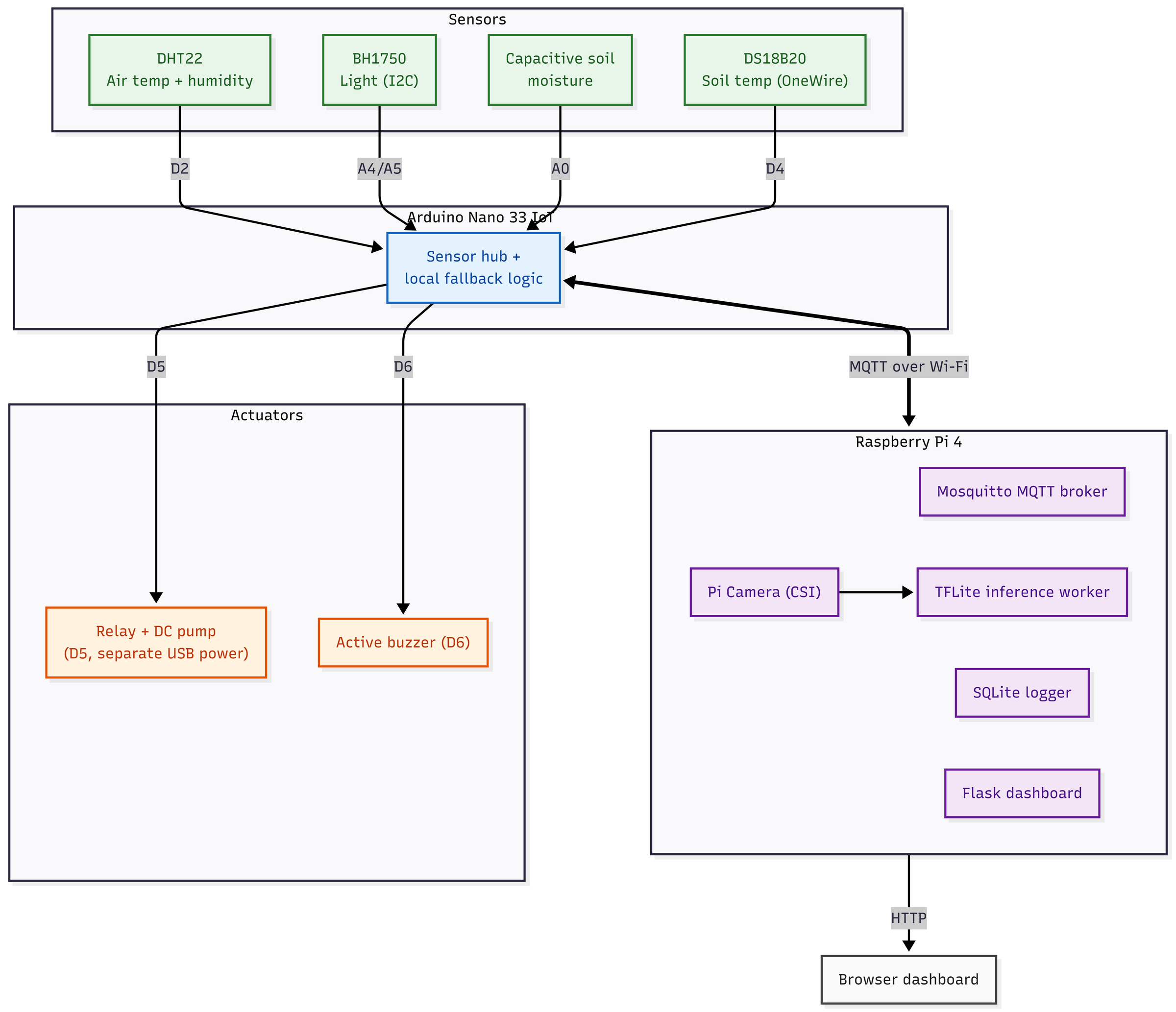
Above is a wiring diagram of the hardware components.
There are many protocols that involved in this process: I2C connects the BH1750 light sensor on a two-wire bus, OneWire connects the DS18B20 soil temperature probe on a single data wire, Analog read the capacity soil moisture sensor under raw values at pin A0, MQTT connects Arduino which is the sender to Pi who runs broker register receiving data. CSI connects Pi Camera to Pi to capture leaves, and HTTP serves the dashboard from the Flask application on the Pi to the browser.
There is a practical lesson that I inferred from the wiring process. Initially, I used a different separate 5V relay, and it wouldn't switch when receiving a signal from the Arduino. After debugging, I found the cause was a voltage imbalance. The GPIO pins of the Nano 33 IoT run at 3.3V, while the separate relay coil needs at least 3.75V to activate. Therefore, the 3.3V from the Arduino only lit the relay LED without actually closing the contacts. I fixed this by switching to a Keyestudio relay module with a transistor buffer stage at the input. This buffer stage amplifies the control signal, so the 3.3V from the Arduino is sufficient to reliably switch the relay. To avoid voltage drops that would cause the Arduino to restart, I powered the pump from a separate USB power source made from recycled old USB cables with the ends cut off, instead of directly from the Arduino, and only used the relay to switch the pump's current. There's another small lesson learned. The first time the BH1750 didn't show up during I2C scanning, it turned out to be because I had reversed the SDA and SCL wires. This is a very easy mistake to make.
Raspberry Pi Setup

- Write the Raspberry Pi OS to the memory card, boot the Pi, and run `sudo apt update && sudo apt upgrade`.
- Connect the Pi Camera to the CSI port, then run `sudo raspi-config` and enable the camera in Interface Options. Restart and test using `rpicam-hello` (or `libcamera-hello` on older OSs).
- Install the MQTT broker: `sudo apt install mosquitto mosquitto-clients`. Enable an anonymous listener on port 1883 so the Arduino can connect, then start it using `sudo systemctl enable --now mosquitto`.
- Install the Python libraries: `pip install paho-mqtt ai-edge-litert flask picamera2`. These libraries handle the MQTT part, TFLite inference, web dashboard, and camera.
- Copy the trained model file (model.tflite) and the Python scripts to the Pi.
Arduino Setup




- In the Arduino IDE, install the support board for Nano 33 IoT (Arduino SAMD Boards) and update the Wi-Fi module firmware if prompted.
- Install the following libraries from the Library Manager: WiFiNINA, PubSubClient, ArduinoJson, DHT sensor library, BH1750, OneWire, and DallasTemperature.
- Connect each sensor and actuator according to the table in Section 3. Turn on and test each sensor one by one on Serial Monitor (115200 baud) before proceeding. This is the easiest way to catch wiring errors early on.
- In the sketch, set three values to match your network: Wi-Fi SSID, Wi-Fi password, and MQTT broker address, which is the Pi's IP address. Then upload the sketch to the board.
System Lauching

- Ensure Mosquitto is running on the Pi, then launch the Python scripts: the MQTT subscriber that writes to SQLite, the TFLite inference worker, and the Flask dashboard.
- Power on the Arduino. In a few seconds it will connect to Wi-Fi and start sending sensor data.
- Open your browser and go to http://<pi-ip>:5000 to view the dashboard live. Click the diagnostic button to take a picture and run the diagnostic.
Watering Logic on Arduino

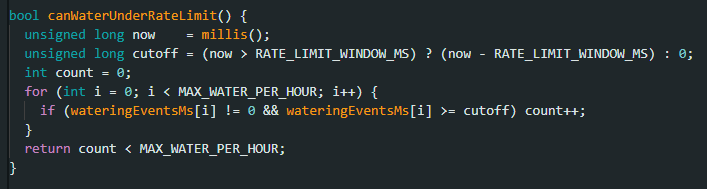

This is the core of fault tolerance. It runs completely on Arduino, so it remains stable even when the Wi-Fi connection and the Pi is lost, and all the three conditions must be satisfied before watering: the soil must be completely dry, sufficient time must have passed since the last watering, and the system should not water too many times in an hour.
This part turns the watering process into a logical and independent decision, then wrap it within safe limits. Limiting the number of waterings is crucial here. If the humidity sensor gets stuck at a low value, the plants will not die because of overwatering. Instead, the system will trigger a rate_limited event for human review.
How Disease Detection Works


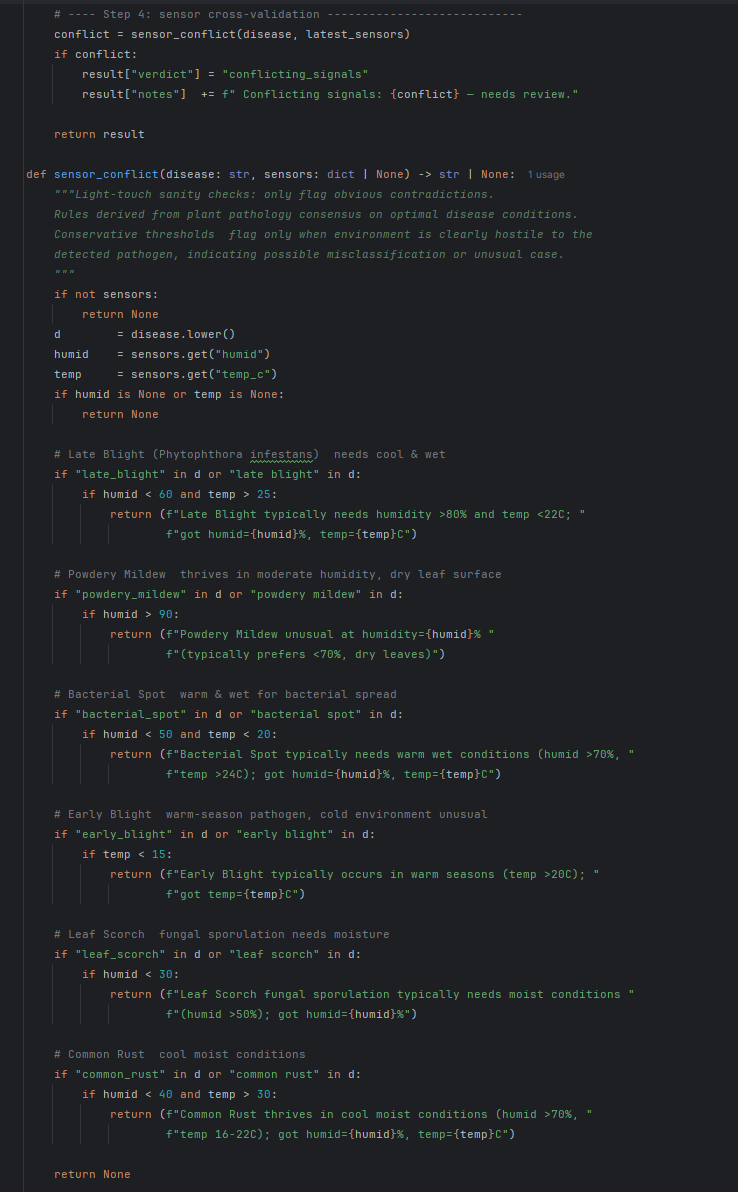
The classifier is a MobileNetV2 model that is fine-tuned across the entire PlantVillage dataset, containing over 54.000 images on 38 classes. I converted it into TensorFlow Lute and quantized it to INT8, thanks to this the model size was reduced to 2.8 MB, so it runs smoothly on Pi. I trained the model on Google Colab with GPU T4 and kept the dataset on Google Drive so that it would not be lost when the session resets.
I designed a two-layer approach: determine whether you are healthy or sick, then address the specific disease, in order to address the problem when the model only knows that many diseases in the training dataset. A 38-class model will always return one of its 38 labels, even for a leaf it has never seen. By placing the specific disease response behind a high confidence threshold and a minimal gap between the first two choices, an unfamiliar or unknown leaf still triggers the correct disease alert without causing the model to invent a specific but incorrect diagnosis. I also added a gentle plant verification step. It checks if the predicted plant family matches the plant you declare. If you say it's a tomato but the model sees it as a grape, it will request verification instead of silently misclassifying it.
The reliability handling part includes three levels. If it is below 70%, the model will return "manual check". If it is between 70 and 85 percent, only a diagnosis of health or disease is given. Above 85 percent, and with a clear difference from the second option, is a disease identified. Furthermore, the results are cross validated with direct sensor data, so a diagnosis that conflicts with the environment will be flagged as a conflict instead of being reported as fact.
Fault Tolerance
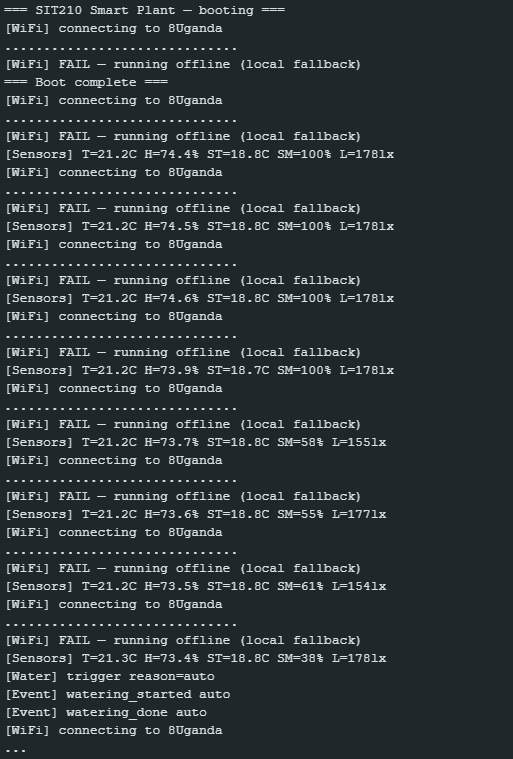
The system is created in such a way that if the internet connection is lost, it will only be slower but not broken. If Wi-Fi or MQTT broker fails, Arduino will continue reading sensors and automatically water. It uses the exact ideal moisture threshold and the same safety limits because that logic is initially independent of the Pi. MQTT runs at QoS 1 with the reconnecting mechanism, so when the internet connection is back, the data sending process will continue. Meanwhile, the Pi buffers what it can into SQLite so that the data history remains complete. In short, the actually important part is watering must remain stable when offline, internet connection is just a utility for logging and AI, not something that plants need to survive.
Results, Testing and Disclosure

After training, the model achieved 97% accuracy on the test set. On the Pi, each diagnosis took approximately 150 to 200 milliseconds. The model size is only 2.8 MB, light enough to run comfortably whenever needed.
My testing method was quite simple: I tested each part individually before assembling them.
First, I turned on each sensor to see if it read correctly. This allowed me to discover that two I2C wires were connected incorrectly, and I found the dry humidity values of 810 and wet humidity of 535 to correct.
Then I checked if the Arduino could send data to the Pi via MQTT, and if the Pi received it. Next, I disconnected the Wi-Fi while the system was running to see what happened. The result was that the Arduino still watered the plants normally using local logic, without needing the Pi.
Finally, I tested the AI part. I tested both healthy and diseased leaves and checked if the model responded correctly at different confidence levels. When encountering difficult or unclear images, the model always returns "manual verification required" instead of making a guess, which is exactly what I wanted.
This article is part of an assignment submitted to Deakin University, School of IT, Unit SIT210 - Embedded Systems Development.