Stylized 3D Topographic Display
by RichardHuberjohn in Workshop > 3D Printing
737 Views, 6 Favorites, 0 Comments
Stylized 3D Topographic Display


Many people have a location that is personal to them, whether it be a place where a memorable event took place, or a landscape that left them in awe. Creating a personalized display to commemorate the natural landscape is a unique way to decorate while keeping the memory alive.
I wanted to create a project that was visually appealing while also being tactile and dynamic. This display utilizes 3D printed layers to bring topographic data to life, all while being contained in a simple picture frame and allowing for infinite personalization/customization.
This Instructable documents each step to creating your own topographic display, from design to assembly, and I hope it inspires someone to immortalize their own cherished location(s).
Supplies

Software:
- CAD Program (Autodesk Fusion, Onshape, Solidworks)
- OrcaSlicer
- Web Browser
Tools:
- Computer
- 3D Printer
- Scissors/Knife
- Screwdriver
- Drill
- Marker
Materials:
- Filament (PLA)
- Picture Frame
- Cardstock (Multiple Colors)
- Foam Board (White)
- (2x) 18mm M3 Bolt
- (2x) M3 Washer
- Super Glue
- Tape
Design Breakdown

I initially recognized a few possibilities for how to create the 3D effect, so anyone planning on recreating this project can pick which construction method is the most suitable for them.
Option 1 - Layers are printed as singular piece. This is the simplest to create but requires either a multicolor printer or careful masking and painting in order to add color.
Option 2 - Layers are printed separately. This allows for each layer to be printed one at a time with different color filament or separately painted before assembly.
Option 3 - Layers are printed separately with card stock in-between. This utilizes intermediate layers of card stock to add color to the layers. This is the most cost effective option, as it does not require paint or special filament, so it is what will be detailed in this Instructable.
Determine Location

In order to create a customized display, start by deciding which location will be exhibited. Obviously a place of sentimental value is an ideal candidate, but also consider any interesting geographical features.
For this example, I picked a location based on topology alone, and mountains are great at displaying dynamic elevation changes on a map.
A unique and personal location could also spark further customization. For example, you could mark the path where you hiked on a 3D map of a mountain.
Find Topology Data

After selecting a location, find it on this website that visualizes the topology data using lines. Ensure you zoom in enough to get the desired amount of detail. Then take a screenshot that is slightly larger than the area you wish to recreate.
There is likely a more efficient way to achieve this effect like exporting and printing the raw topology data. However manually recreating the contours is more intuitive for most and adds personal touch along with more creative control.
Import Image Into CAD
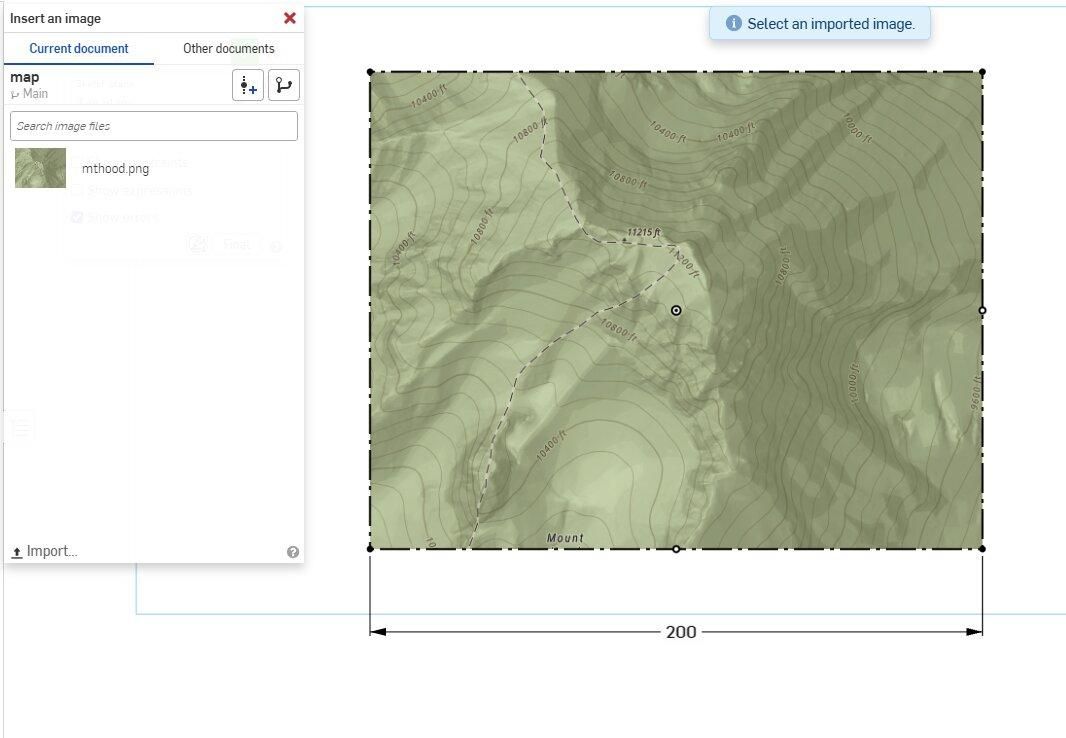
In the CAD program, create a new sketch and import the screenshot from the topology map. Then scale the image to be slightly larger than the size of the picture frame, so that the actual parts end up the correct scale.
This image will be the reference for future sketches.
Trace Topology Lines


Create a new sketch on top of the image reference and use the conic tool to trace around the topology lines.
Start at the highest section then create new sketches, working outward. I chose to skip every other line from the original image to make the display larger.
The more care put into this step increases the quality of the final result, so ensure the lines are smooth and connect nicely. However, some sharp edges can be corrected in the next step.
Extrude Layers
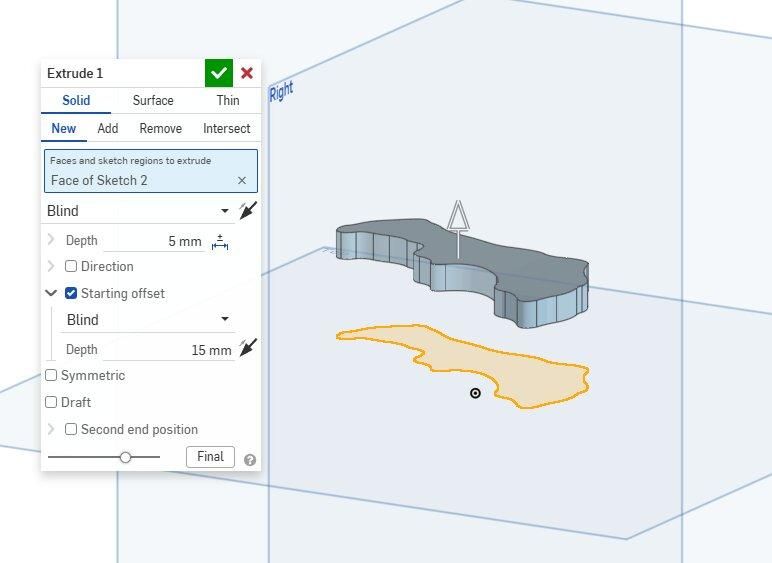
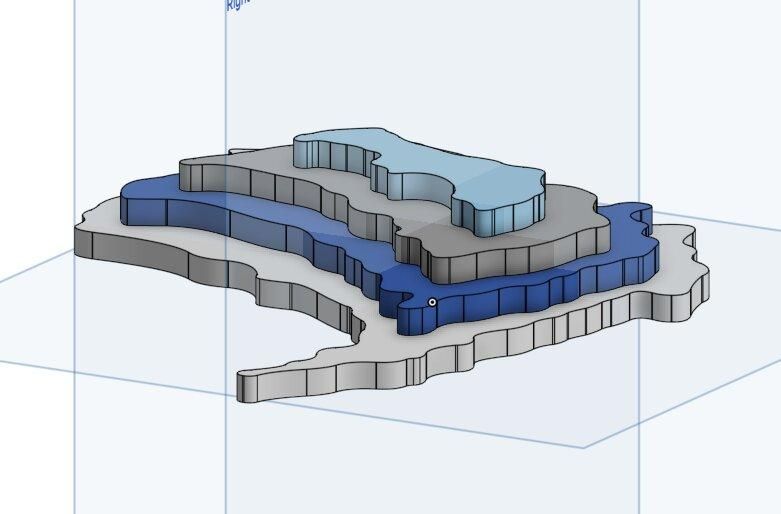
Individually extrude each layer to your desired height (In this case 5mm) and add a starting offset the height of all the layers below it.
Eventually all four layers will be stacked while still being separate parts.
If you are using Onshape, you can optionally utilize the FilletXpert featurescript to smooth out every corner on each layer.
Create Alignment Pins
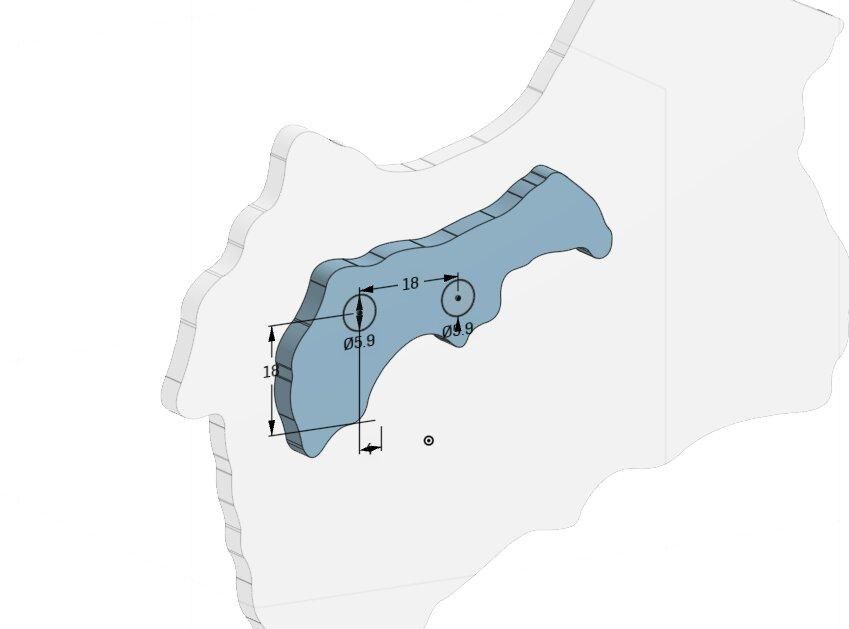
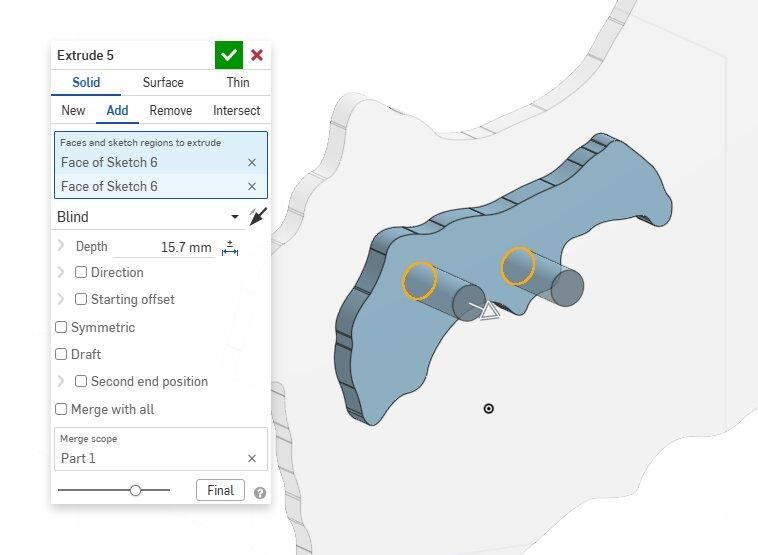
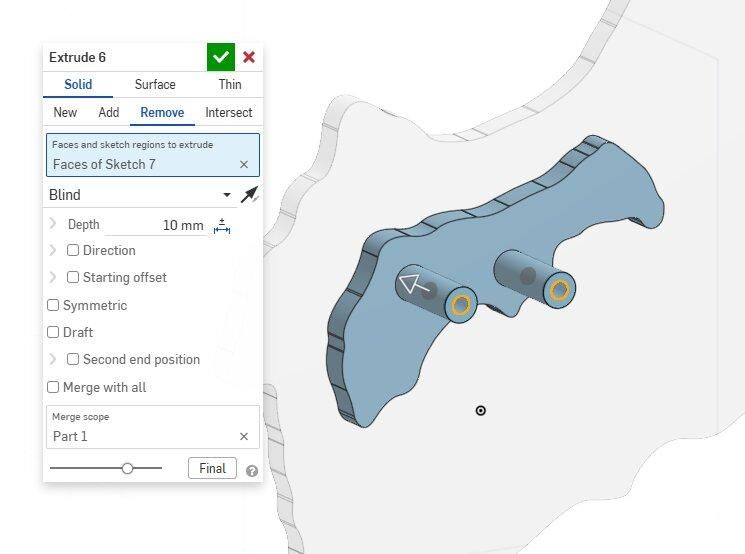
On the underside of the top layer, sketch and extrude two circles slightly smaller than 6mm to help align the layer stack. The pins should be the height of the bottom 3 layers (15mm) plus the height of 3 sheets of cardstock (0.7mm).
Then create a slightly undersized 3mm bore in both pins. This is how the M3 bolts will screw everything together.
Create Alignment Holes

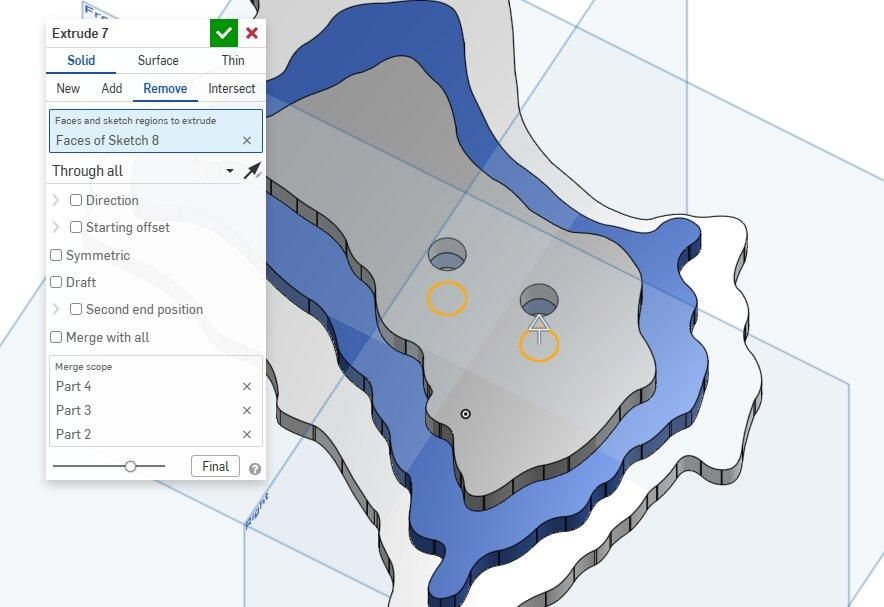
In the same locations as the alignment pins, sketch and extrude two circles slightly larger than 6mm in the 3 bottom layers. This will allow the layers to slide onto the top layer, creating a perfectly aligned stack.
Create Text


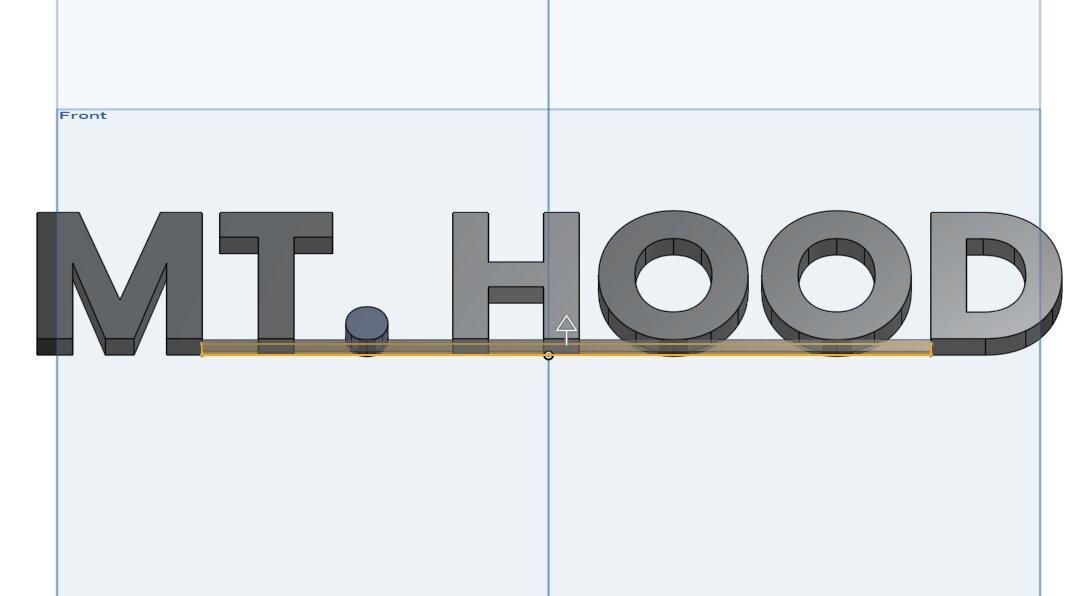
Create a sketch and utilize the built in text tool to create the label for the display. Extrude the text to the desired thickness, however this creates separate parts for each letter, which is not ideal for ease of printing and alignment.
In order to merge the letters, create a thin rectangle along the bottom of the text to group everything into a singular part.
Create Washer

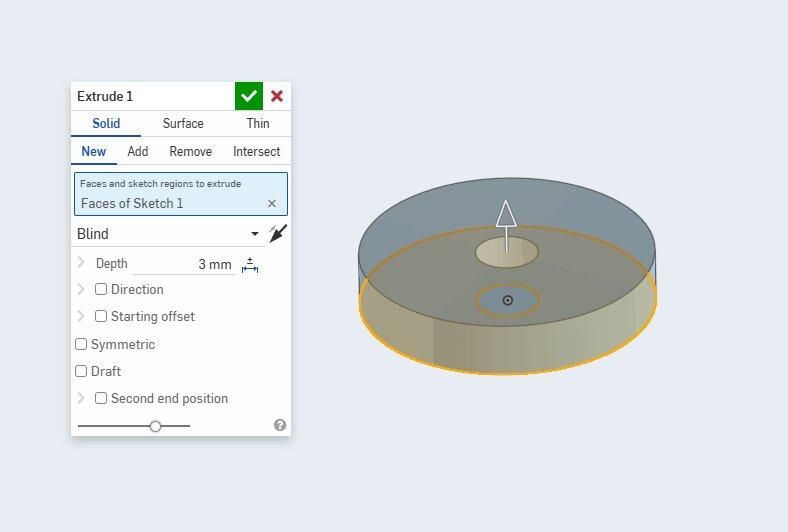
Create a simple washer by sketching a 16mm circle and a through-hole for an M3 bolt. Then extrude the washer to 3mm.
Two of these washers will be used to distribute the clamping force of the bolts on the back of the picture frame.
Print Parts
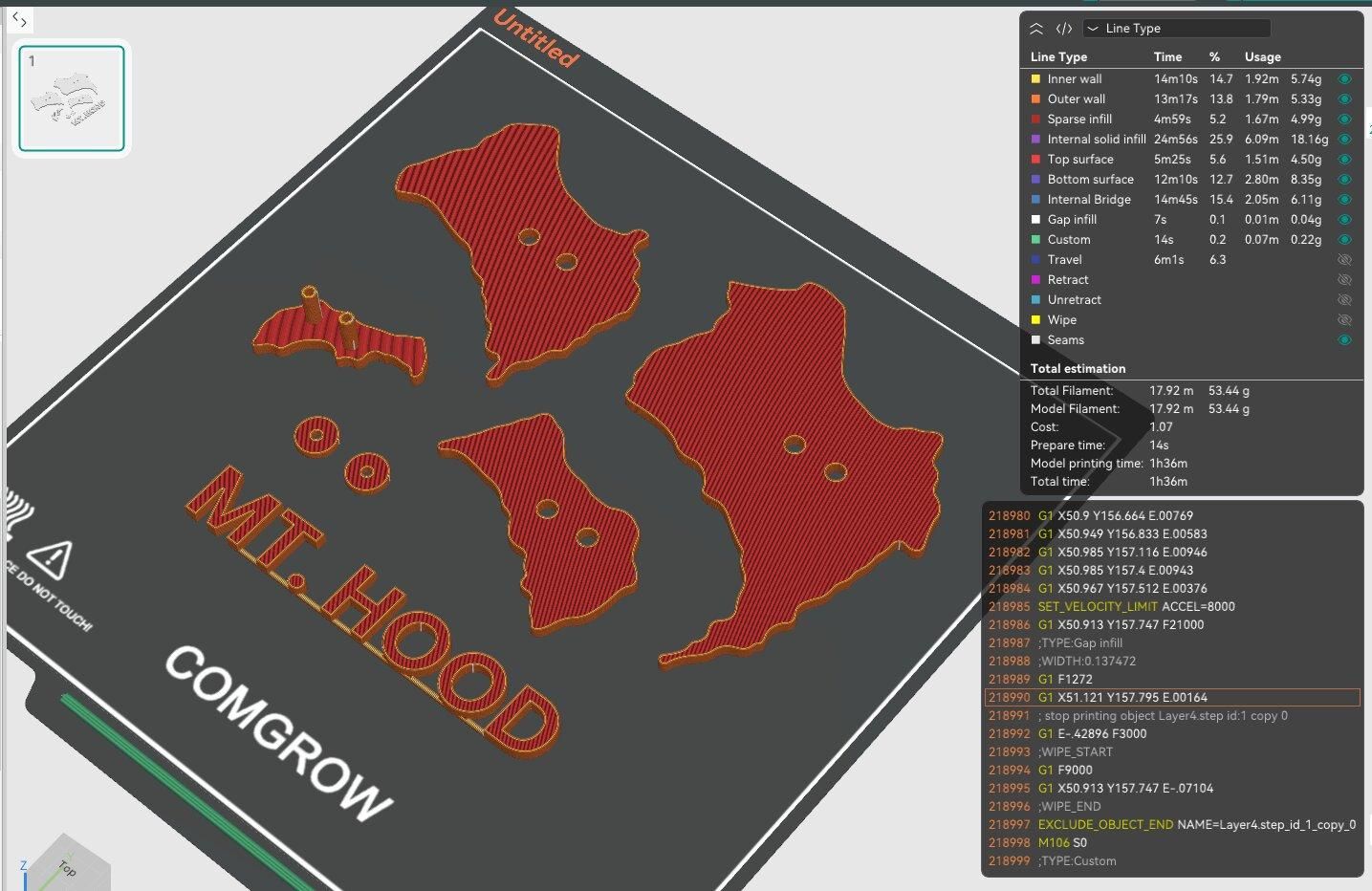

In Orcaslicer, import all of the parts, including all 4 layers, 2 washers, and text, then arrange them on the build plate. Depending on the size of your printer, multiple prints may be required.
When slicing, the top layer must be flipped 180 degrees so the alignment pins are facing upward and it can be printed without supports. This is not necessary for the other layers.
None of the parts require a lot of strength so I printed everything with PLA+ 5% infill, however regular PLA will also work fine for this application.
Below are all the STEP files for the 3D printed parts if you wish to look further into this example:
Cut Cardstock


To begin assembly, cut rectangles out of cardstock that are slightly larger than their respective layers.
This is when each color is assigned for the layers, so ensure the colors match the order you wish to achieve. A simple gradient is easy and usually looks nice, however it is entirely customizable.
Glue Top Layer
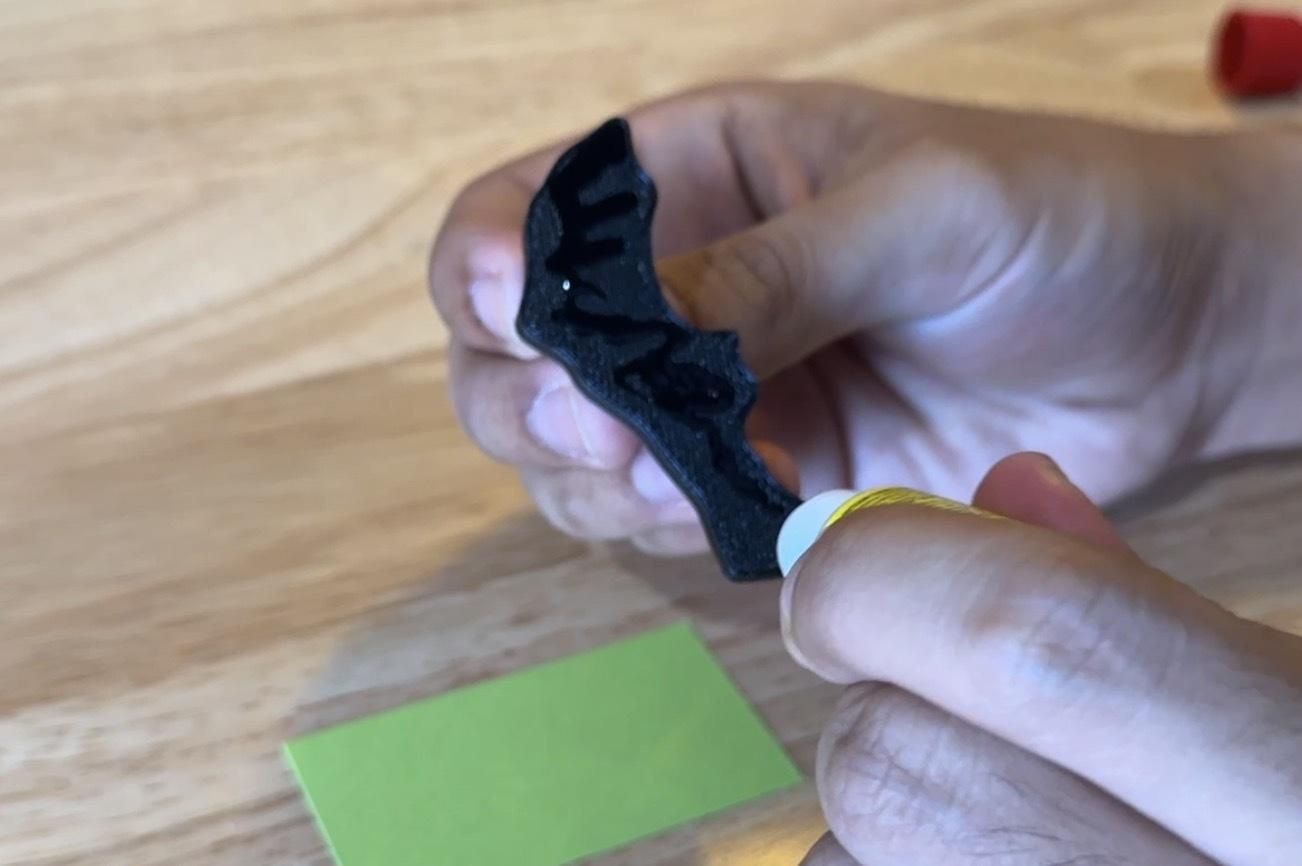


Next, locate the top layer (The one with the alignment pins) and apply a coating of super glue to the flat side.
Then use an excess strip of cardstock to spread the super glue across the surface. This helps to prevent any from bleeding through the cardstock and provides better adhesion.
After smoothing the glue, firmly press the part onto the cardstock, ensuring the cardstock entirely covers the face of the layer, then wait for the glue to cure.
Remove Excess Cardstock


Once the glue is dry, use scissors and/or a knife to remove the cardstock around the profile of the part.
I found it helped to use scissors to remove the majority of the excess materials before cutting the smaller details out with a utility knife.
After removing any small burrs or sharp edges from the perimeter, the cardstock should create a clean look on the front of the part.
Trace Other Layers


For the remaining 3 layers, simply use a pen/pencil to trace their profiles onto their pieces of cardstock.
Be sure to hold the part down firmly while tracing to avoid any slips from altering the silhouette.
Do not forget to trace the alignment holes from the layer onto the cardstock.
Cut Out Other Layers


After all the layers are traced, use scissors and/or a knife to carefully cut out the layer shapes from the cardstock.
It is important that the cuts are slightly inside the lines so they are more accurate to the original shape and the lines are not visible on the final product.
I found it was optimal to cut the outside using scissors and then remove the alignment holes with a knife. You may have to push one of the alignment pins through to ensure they are the correct size.
Flatten Cardstock
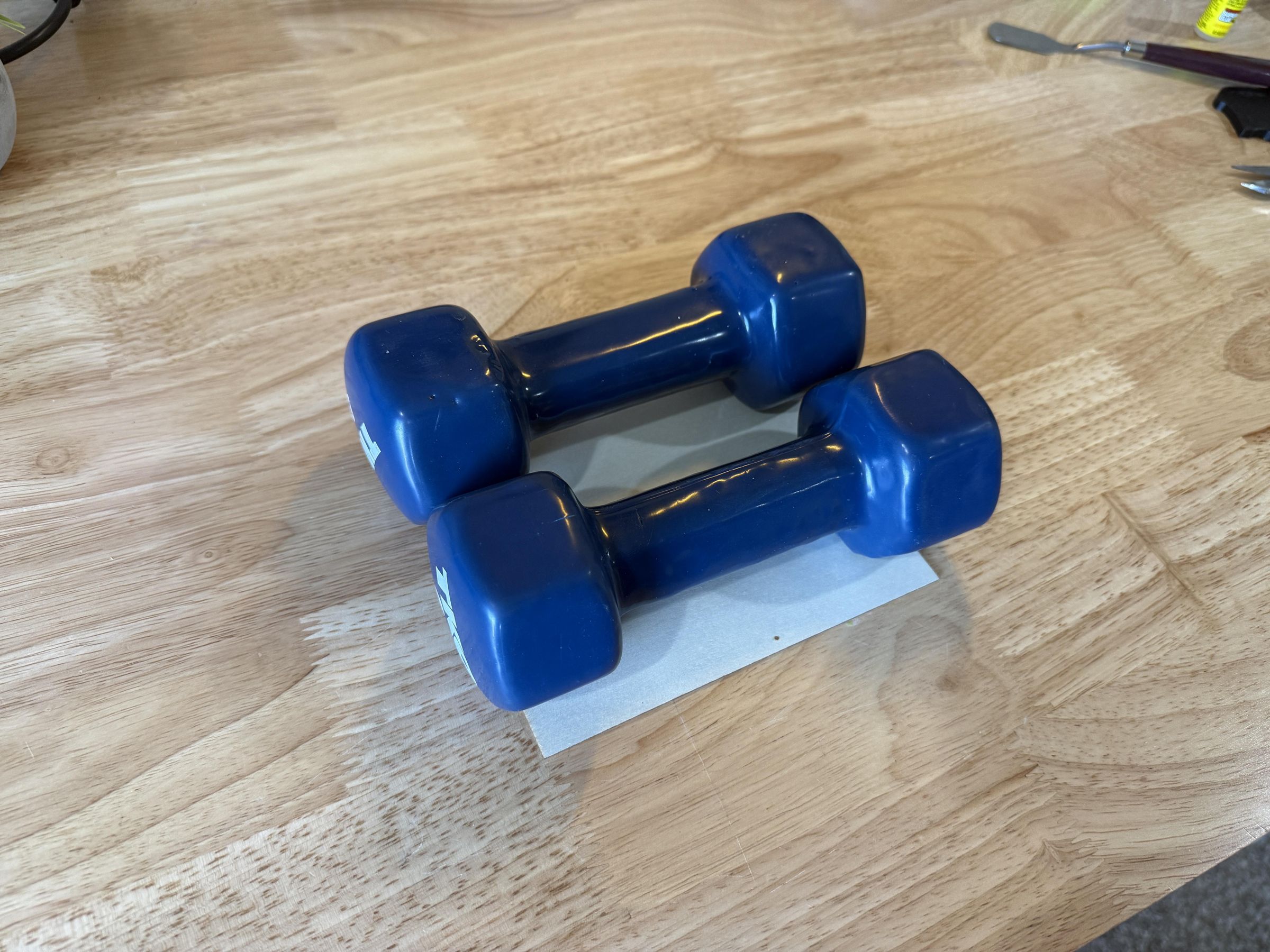
After cutting the cardstock layers, I found that it had caused some warping around the outside of the cardstock which I wanted to flatten before final assembly.
I simply placed a flat object with weights on top of the stacked cardstock which seemed to help flatten them out over time.
Stack Layers


The final layer assembly is quite simple. It starts with the top layer, then you slide the cardstock for the next layer onto the alignment pins, followed by the 3D printed part.
Repeat this process until the final 3D printed layer, which should be roughly flush with the ends of the alignment pins, and the layer stack is complete and ready for mounting.
Attach Foamboard


In order to provide a clean white background for the display, cut a sheet of white foamboard to the same dimensions as the picture frame backing.
Then affix the foamboard to the backing using 4 pieces of tape in the corners. Ensure the tape doesn't wrap too far around the front of the foamboard, so it's not visible while in the frame.
After applying all 4 pieces of tape, ensure the backing still fits in the frame and lock it into place.
Mark Mounting Holes


On the back of the layer stack, color heavily around the alignment pegs with a permanent marker.
Quickly align the layers to your desired position on the foamboard and press down firmly. This should transfer some of the ink from the marker onto the board.
The ink may be difficult to see but there should be a circular pattern of ink which you can trace around to mark both mounting holes.
Drill Mounting Holes
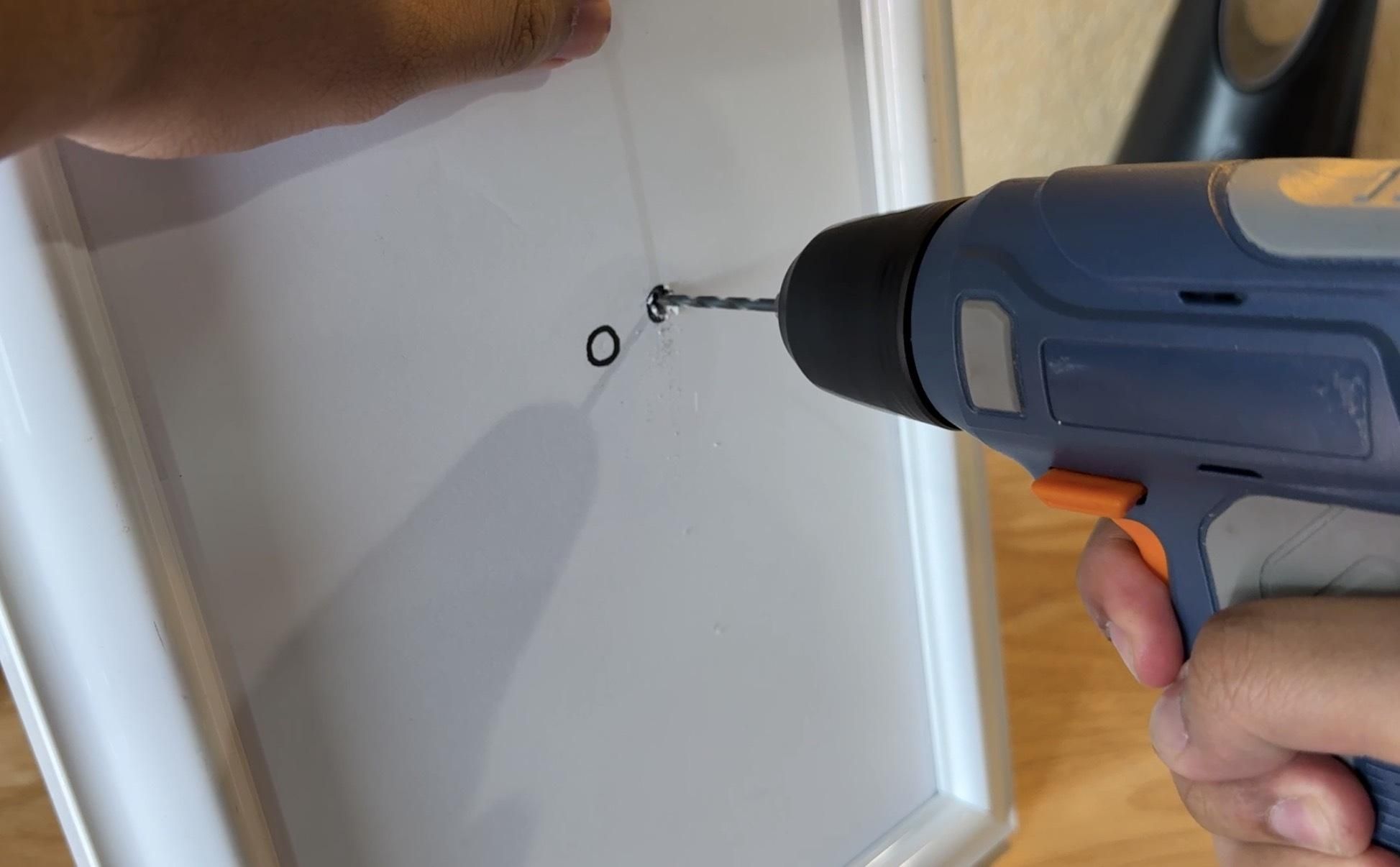


In order to create the mounting holes, drill through the center of the circled marks on the foamboard, all the way through the back of the frame. The drill bit should be slightly larger than the M3 bolts which will be used for mounting.
I had issues with the drill being disrupted by the foamboard, so for the second hole I used a small nail to create a pilot hole for the drill bit. This worked a lot cleaner and the comparison is visible in the 3rd image (1st attempt right, 2nd attempt left).
Attach Layers


Prepare the bolts to attach the layers by sliding on an M3 washer followed by the custom 3D printed washer for both bolts.
Next insert both bolts from the back of the frame and align the pins for the layers on the opposite side.
Finally use a screwdriver to screw the bolts into the undersized 3D printed holes in the alignment pins until the layers are flush with the foamboard and the bolts are tight.
Add Text


In order to aid with text alignment, I cut a strip of cardstock the width of the frame and marked the center position with a marker.
To affix the text to the foamboard, apply super glue to the back of text and press firmly into the correct position on the display, holding until the glue cures.
Afterwards, remove any alignment aid and the display is complete!
Conclusion

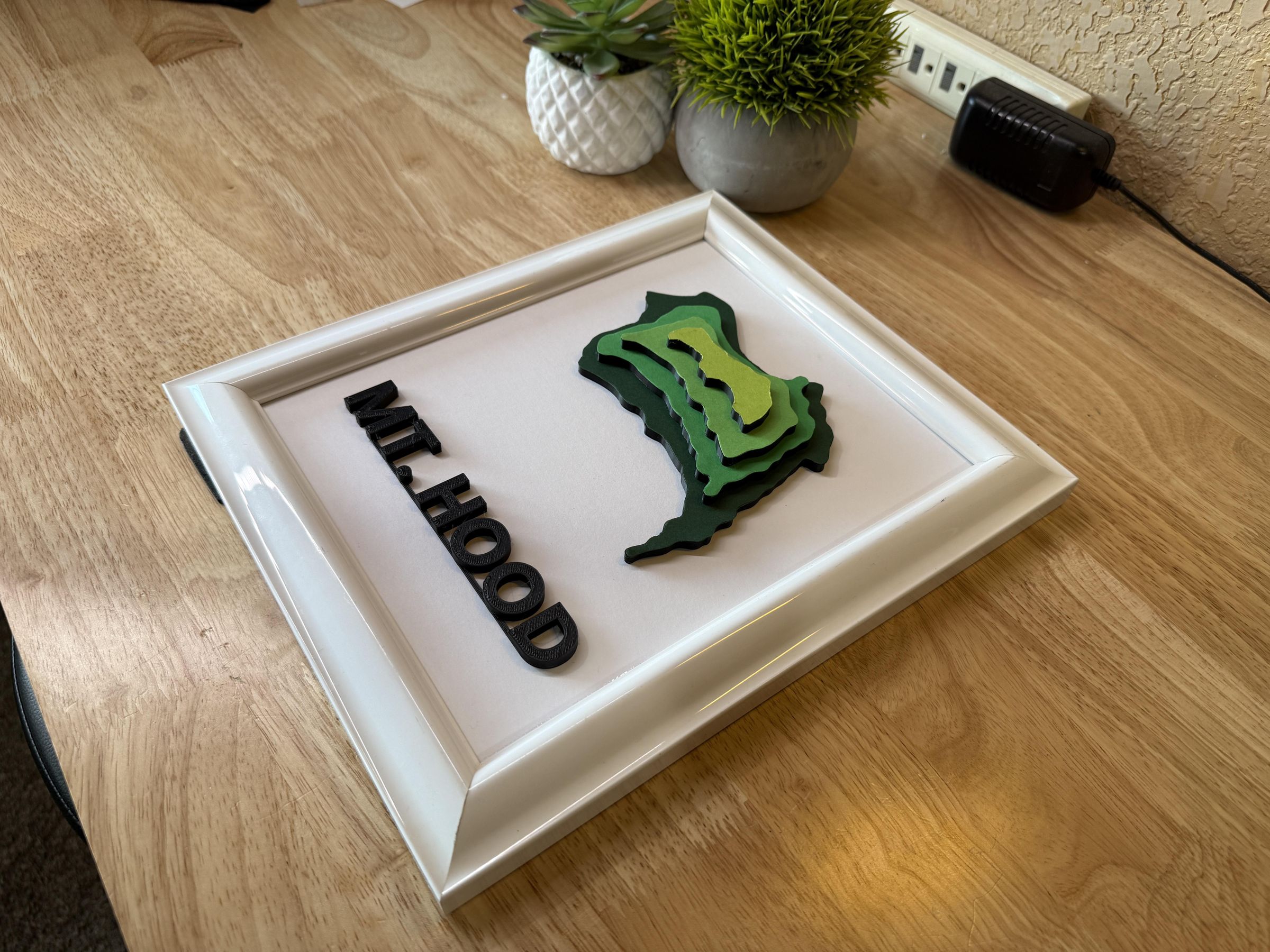

In conclusion, this artistic display is a great way to display a place that is close to your heart. The final design could fit seamlessly into many indoor spaces and can always be customized with a different frame or colors to suit any aesthetic.
The 3D aspect helps the topographical aspect feel alive and jump out of the frame, and adds appeal for anyone interested in maps or geography. I hope this project was helpful to someone, or inspired somebody to create a display of their favorite place!