TURN-OFF : a Minimal GPS Navigation System for Bicycles
by ayushmaan45 in Circuits > Microcontrollers
4512 Views, 61 Favorites, 0 Comments
TURN-OFF : a Minimal GPS Navigation System for Bicycles


Hey everyone!
I’m Ayushmaan, a B.Tech E.E.E. student, I’ve always liked building projects that feel more like actual products than just random electronics experiments. TURN-OFF honestly started the same way most of my projects do — with a very unnecessary idea that sounded cool enough to attempt anyway.
The original thought was pretty simple:
“What if I could make a tiny navigation display for my bicycle instead of mounting my entire phone on the handlebar?”
Using a phone while cycling always felt awkward to me. It’s bulky, distracting, drains battery quickly, and just makes the whole setup look messy. I wanted something smaller and cleaner that only focused on navigation, almost like a tiny futuristic bike computer.
That’s how TURN-OFF started.
TURN-OFF is a compact bicycle navigation system built around an ESP32-S3 and a 1.69” display mounted directly onto the handlebar. The idea was to create something minimal, lightweight, and actually enjoyable to use while riding.
A lot of the project ended up evolving during development. The enclosure design changed multiple times, the software architecture changed halfway through, and at one point the display I originally planned to use completely died during testing, which forced me to redesign parts of the UI again.
Even the current display didn’t survive completely unharmed. While soldering, I accidentally cracked part of the display and now there’s a permanent glitch bar visible on one side of the screen. At this point I’ve just accepted it as part of the project because replacing the display again would basically mean rebuilding a large part of the setup from scratch.
The enclosure itself was designed in Fusion 360 with a strong focus on keeping the overall form factor compact and clean enough to actually look like a real product instead of a prototype zip-tied to a bicycle.
The goal of this project was never to replace proper navigation systems or make something commercially polished. I mostly just wanted to build something fun, futuristic-looking, and technically interesting while learning a lot in the process.
And after way too much debugging, redesigning, and fighting wireless communication at 2am, it somehow ended up becoming a fully working bicycle navigation system.
Supplies
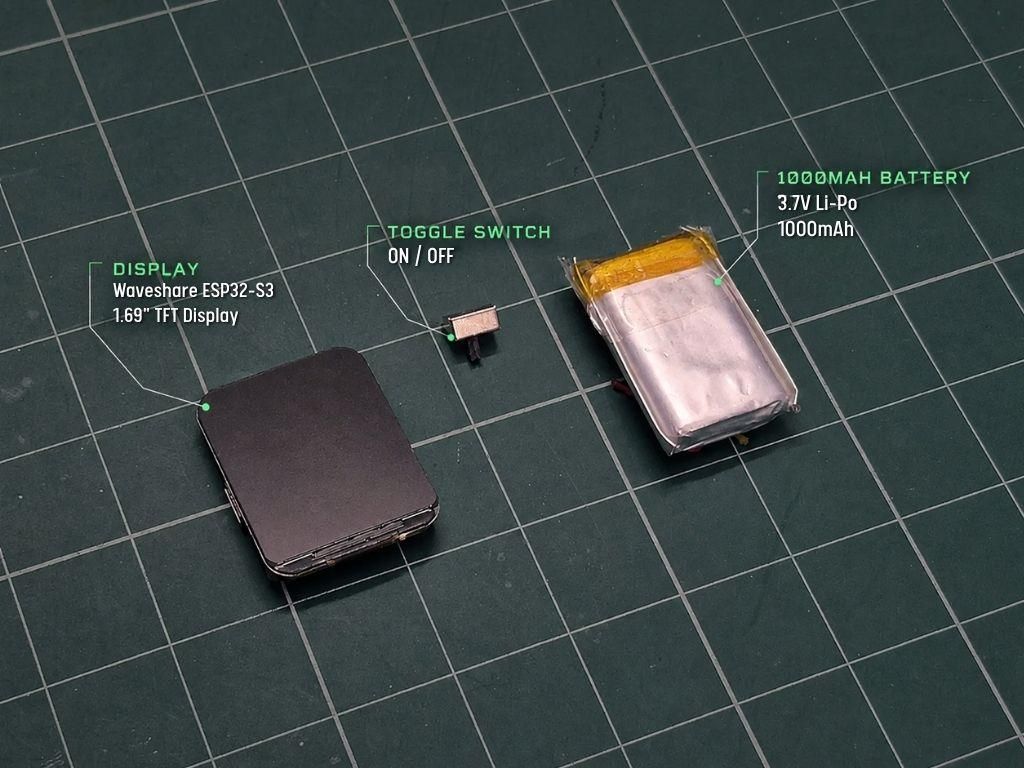
Supplies:
- Waveshare ESP32-S3 1.69" TFT Display
- 1000mAh LiPo Battery
- Sliding Power Switch
- Hyper PLA Filament
- 2× M3.5 Screws
- 3× M2 Screws
- USB Type-C cable
- Jumper wires
- Soldering iron & solder wire
Software & APIs :
- Arduino IDE
- Fusion 360
- OpenRouteService API
Most of the complexity in this project actually came from the software side. I intentionally tried to keep the hardware minimal and pushed most of the heavy work like routing, GPS handling, and navigation logic to the phone side instead.
Designing & 3D Printing the Enclosure

I wanted the device to feel compact and integrated on the bicycle instead of looking like a random development board attached to the handlebar, so most of the enclosure was designed around keeping the overall shape small and clean.
The enclosure was designed in Fusion 360 around the dimensions of the Waveshare ESP32 display. Since the board already combines the display and controller together, the final body could stay pretty compact.
The final design is made up of 5 printed parts:
- upper lid
- lower body
- two-piece handlebar mount
- switch cap
The mount is split into two sections so it can clamp directly onto the handlebar using screws. One side is attached to the main body while the second part locks it onto the bicycle.
I also added:
- a dedicated Type-C cutout
- side access for the power switch
- screw mounts directly into the body
- raised edges around the display for protection
The orange switch cap was painted separately mainly to add a small accent color and make the switch easier to spot while using the device.
Most of the dimensions were adjusted through small test prints until the overall proportions felt right on the actual bicycle. Small things like:
- viewing angle
- mount width
- body thickness
- switch placement
ended up making a pretty noticeable difference once mounted.
The parts were printed using Hyper PLA, which gave a clean finish while still being strong enough for regular outdoor use.
Downloads
Circuit & Electronics


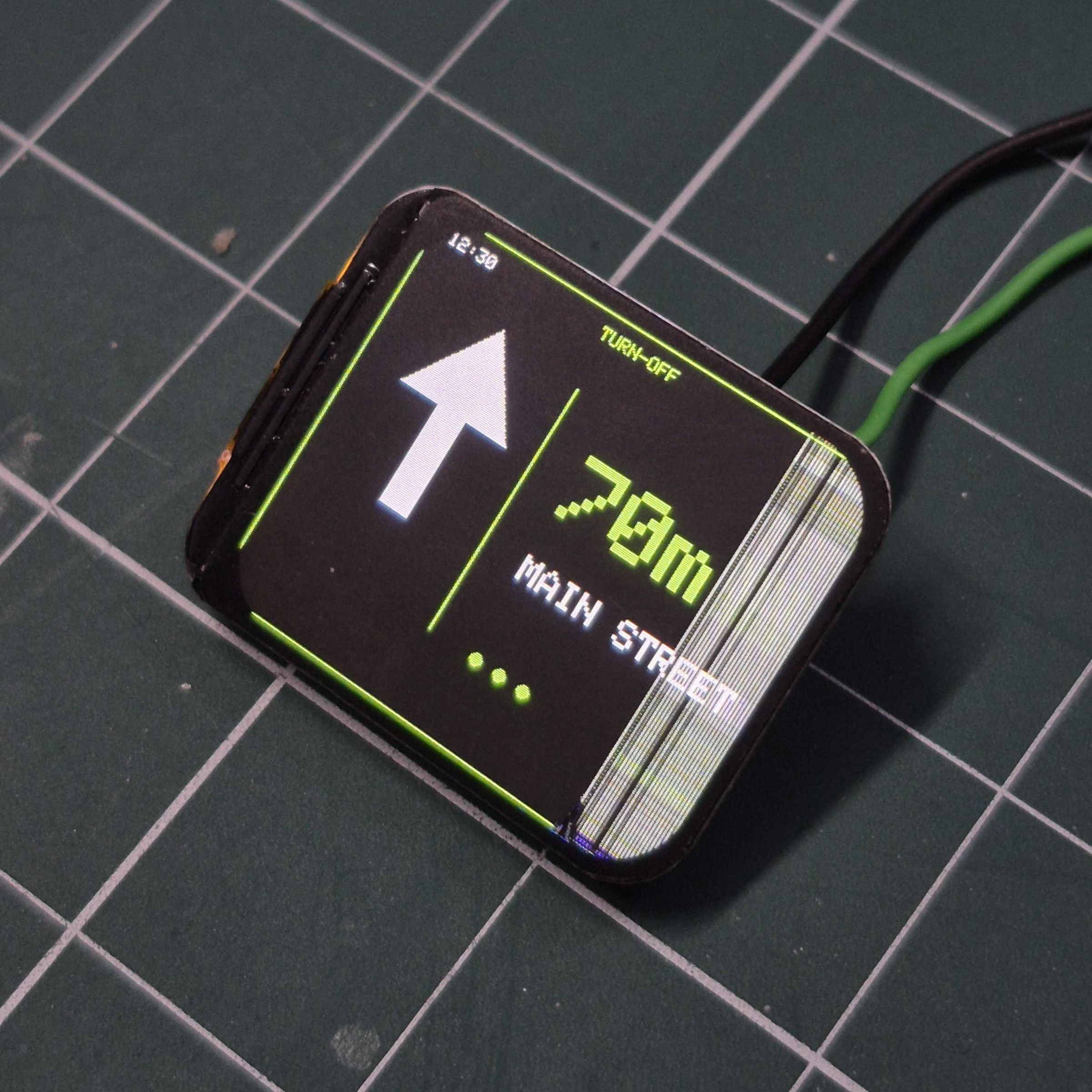
The electronics side of the project was intentionally kept pretty minimal. Since the Waveshare ESP32-S3 board already combines the ESP32 and display together, the setup only needed a few additional components.
The main hardware used here was:
- the Waveshare ESP32-S3 display board
- a 1000mAh LiPo battery
- a sliding power switch
The battery is connected directly to the battery connector on the ESP32 board, while the sliding switch is connected in series with the battery line so the device can be powered on and off externally.
Most of the work here was honestly just trying to keep the wiring compact enough to fit properly inside the enclosure without turning the inside into complete chaos.
There was also one pretty painful moment during assembly where the original power switch connector on the module broke off while I was working on it. Instead of replacing the whole board, I ended up adding a small jumper wire fix directly onto the module to get it working again.
Definitely one of those “well… I guess this is the design now” moments.
And somehow that still wasn’t the worst part of this step. During soldering, I also managed to slightly crack the display itself, which left a permanent glitch bar visible on one side of the screen. At that point I had already spent too much time assembling everything, so the damaged display officially became part of the final build.
Assembly


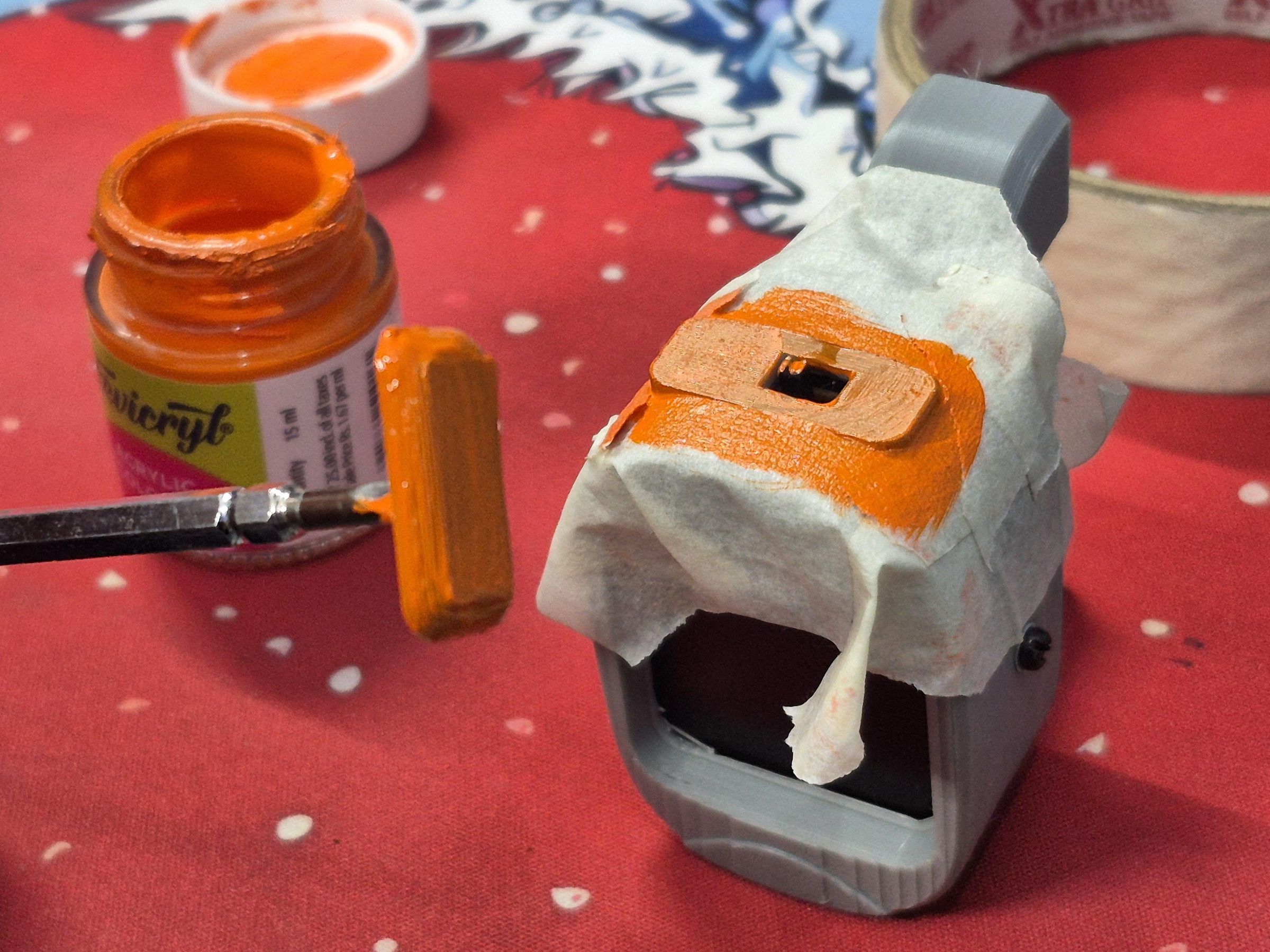
Once all the individual parts were printed and the electronics were ready, the final assembly was mostly about fitting everything together cleanly inside the enclosure.
The display is mounted directly into the upper section of the enclosure from the inside so the screen sits flush on the front surface. The sliding power switch is also mounted into its dedicated side slot, with the orange switch cap attached afterwards.
The battery is placed on the back side of the enclosure behind the main board to save space and keep the overall body thickness relatively compact.
The handlebar mount is attached directly onto the back plate using M2 screws, allowing the entire unit to clamp securely onto the bicycle once assembled.
Since the enclosure dimensions were designed specifically around the display board, the fit ended up being pretty tight internally. Most of the assembly process was honestly just careful wire management and trying not to accidentally damage something while closing the enclosure.
After everything was mounted together, the final device ended up feeling surprisingly solid and compact considering how many redesigns happened during the process.
Mounting It on the Bicycle


Once the enclosure was fully assembled, the next step was mounting it onto the bicycle and testing how usable it actually felt while riding.
The device is mounted on the center section of the handlebar using the integrated two-piece clamp design. Both mounting pieces are tightened together using M3.5 screws, which keeps the setup surprisingly stable once fully secured.
I wanted the display placement to feel natural while riding, so positioning it in the center made the navigation information easier to glance at without needing to look too far away from the road.
One thing I specifically tried avoiding was making the setup look bulky or oversized on the bicycle. Because of the compact enclosure and integrated mount design, the final device ended up feeling more like a small bicycle computer instead of a random electronics project attached to the handlebar.
After mounting it properly for the first time, seeing live navigation directions appear directly on the bike while moving honestly made the whole project finally feel real
Software Workflow & Setup
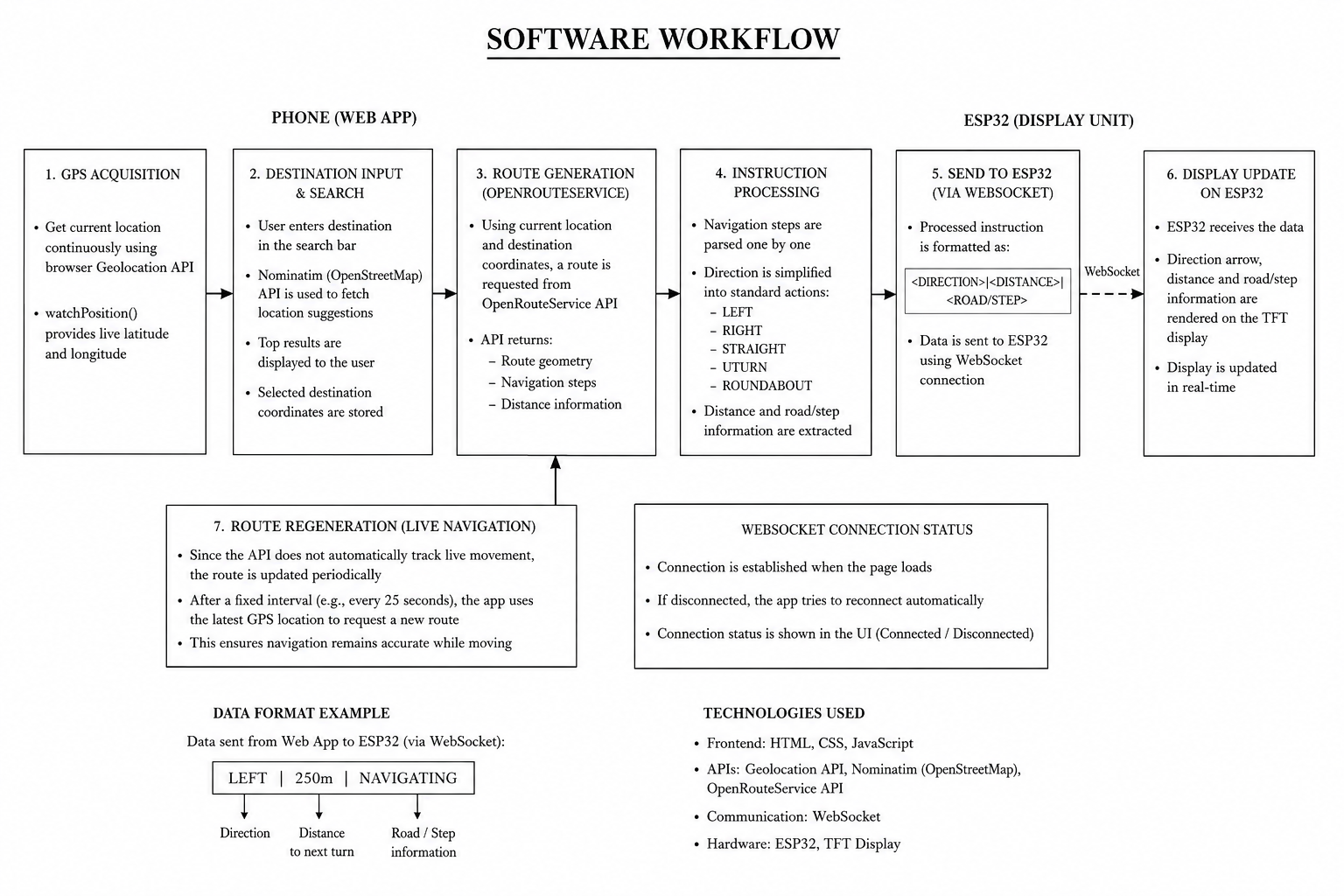
Overview:
The TURN-OFF navigation system uses a distributed architecture where the smartphone and ESP32 each handle what they do best. Rather than trying to force everything onto the microcontroller, I split the responsibilities to make the system more responsive and reliable.
The basic idea was:
- Phone = Processing
- ESP32 = Display
This approach also made the system much easier to manage and debug during development.
System Architecture:
The software is divided into two main parts:
1. Phone Web App
The phone handles:
- GPS access
- internet connectivity
- destination search
- route generation
- navigation logic
- WebSocket communication
The web app itself was built using HTML, CSS, and JavaScript.
For destination search, I used Nominatim (OpenStreetMap), while route generation is handled using the OpenRouteService API.
Once navigation starts, the phone continuously sends live navigation updates to the ESP32 wirelessly using WebSockets.
2. ESP32 Display Firmware:
The ESP32 focuses mainly on:
- display rendering
- WebSocket communication
- UI updates
- navigation display states
The firmware was written using the Arduino framework along with Adafruit GFX and Adafruit ST7789 libraries.
Instead of handling routing directly, the ESP32 only receives processed navigation data from the phone and updates the UI accordingly.
In the next steps, I’ll break down the important parts of the software individually.
Designing the Device UI
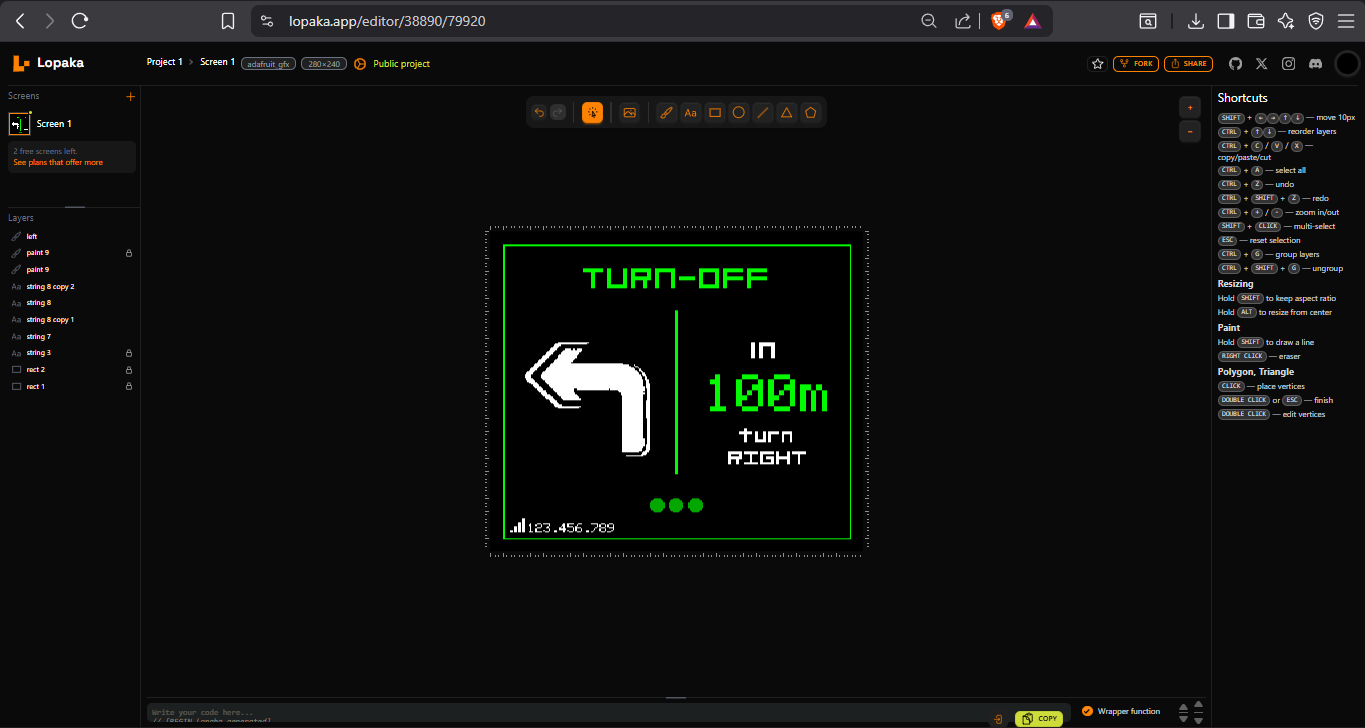

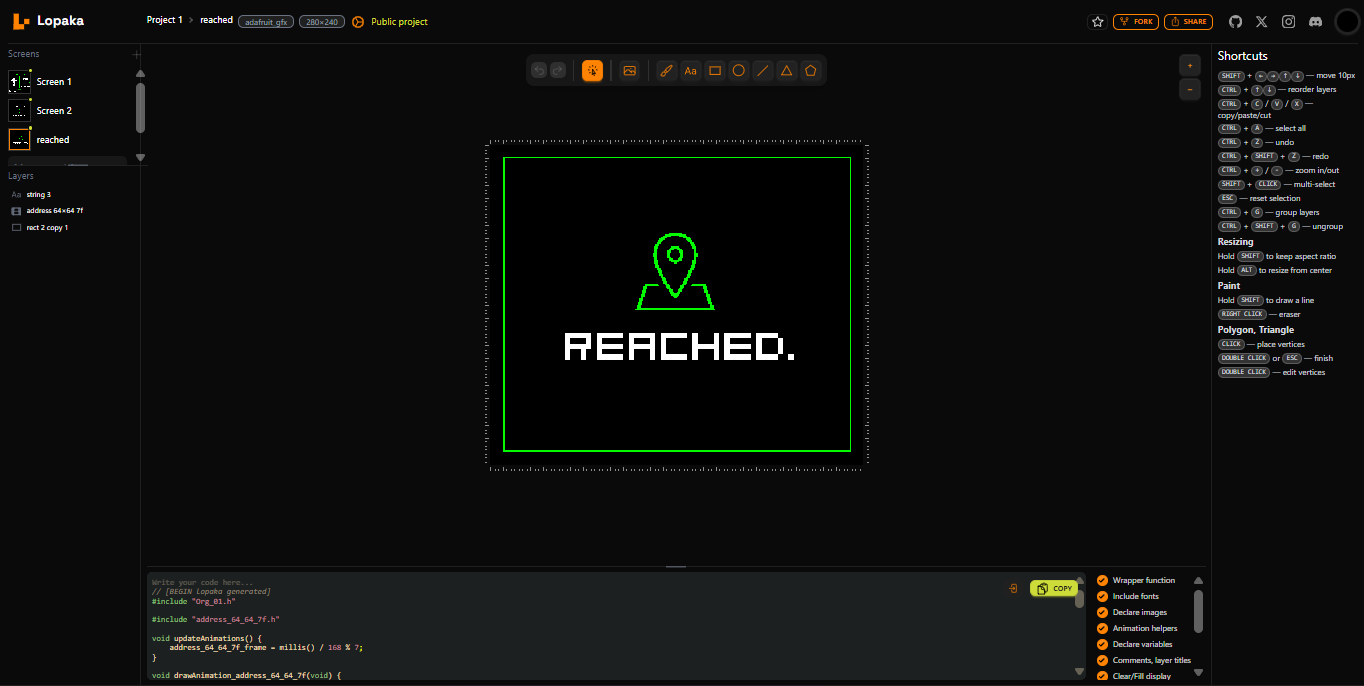
I designed the complete UI of the device in Lopaka. I started by creating a new project and selecting the 280x240 ST7789 display configuration along with the Adafruit GFX / ST7789 graphics library so the exported code would directly match the ESP32 firmware setup.
Since the display is relatively small, the main goal was to make the interface readable within a quick glance while riding. Instead of trying to display maps or excessive information, I focused on large navigation arrows and clear distance indicators.
The interface follows a black, white, and green theme to maintain high outdoor contrast while also matching the overall aesthetic of the project. I created separate screens for:
- Turn Left
- Turn Right
- Continue Straight
- U-Turn
- Navigation Starting
- Arrived
Instead of using default map-style icons, I designed custom arrow assets and imported them directly into Lopaka. This made the interface feel much cleaner and more like a dedicated navigation device instead of a small mirrored phone screen.
After designing all the layouts, I exported the generated UI code and bitmap assets from Lopaka for every screen individually. Each screen was then separated into its own header file inside the ESP32 firmware, making the overall code structure much cleaner and easier to manage.
The ESP32 works using a screen-based rendering system where it switches between these pre-designed layouts depending on the incoming navigation instruction from the phone. Since most of the interface is static, only elements like the distance text and IP address are updated dynamically during navigation. This reduced unnecessary redraws and made the UI transitions much smoother on the display
Programming the ESP32
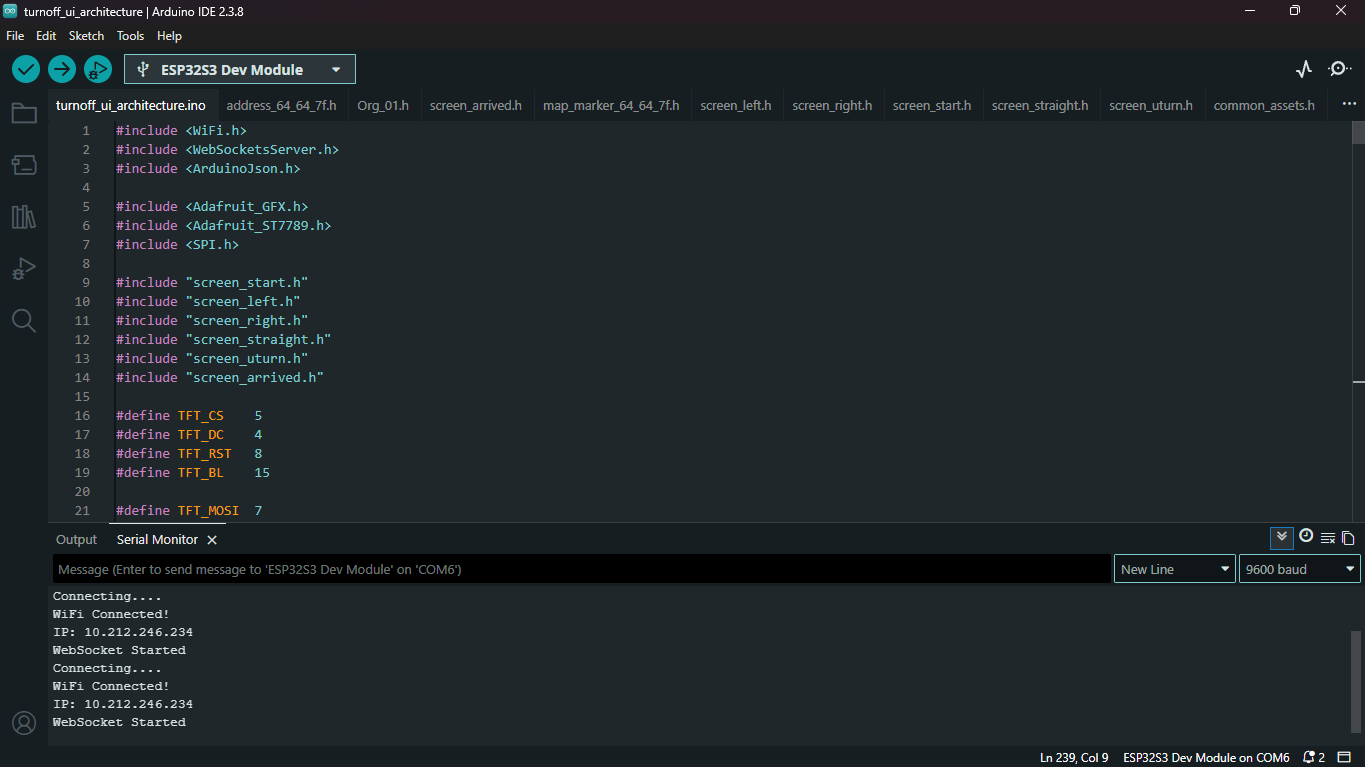
ESP32 Firmware & Navigation Logic
The ESP32 side of the project mainly handles:
- display rendering
- WiFi communication
- WebSocket communication
- UI switching
- real-time navigation updates
The firmware was written using:
- Adafruit GFX
- Adafruit ST7789
- WiFi
- WebSocketsServer
- ArduinoJson
1. Display Configuration
The display uses SPI communication with the following pin configuration:
The display object is initialized using:
Inside setup(), the display backlight is enabled and initialized:
The UI mainly uses:
- black background
- white text
- green accent elements
- large navigation arrows
to keep everything readable while riding.
2. Screen-Based UI System
Instead of keeping the entire UI inside one large file, I separated every navigation state into its own header file. This made the firmware much easier to manage while designing and testing the interface.
The project structure looked something like this:
Each screen file contains:
- exported Lopaka UI code
- bitmap assets
- rendering functions
Example screen rendering function:
The ESP32 firmware then switches between these screens depending on the incoming navigation direction.
Example:
Shared assets like network icons and bottom accent graphics were separated into a common file:
This prevented duplicate bitmap definitions and kept the project structure cleaner while working with multiple UI screens.
3. WiFi Communication
The ESP32 connects directly to the phone hotspot:
Connection logic:
Once connected, the ESP32 prints its local IP address to the Serial Monitor and also displays it on the screen itself.
4. WebSocket Communication
A WebSocket server is started on port 81:
The phone web app connects directly to the ESP32 using this IP address and continuously sends navigation updates wirelessly.
The ESP32 keeps listening for incoming updates using:
inside the main loop.
5. Receiving Navigation Data
The phone sends navigation updates in JSON format.
Example:
Incoming messages are handled using the WebSocket callback:
The incoming JSON packet is parsed using ArduinoJson:
6. Dynamic UI Updates
The firmware only updates the changing UI elements instead of redrawing the entire display repeatedly.
For example, the distance text updates separately using:
This reduced flickering significantly and made the transitions feel much smoother on the display.
7. Navigation Flow
When the ESP32 boots, it first shows the startup navigation screen instead of directly entering a fake navigation state.
The startup screen remains active until the device receives an actual navigation instruction from the phone web app.
Once a direction packet arrives, the firmware switches to the corresponding screen:
- LEFT
- RIGHT
- STRAIGHT
- UTURN
- ARRIVED
This made the whole device feel much more like a real standalone navigation system instead of a simple display demo.
8. Debugging & Development
Most debugging during firmware development was related to:
- SPI display issues
- black screen problems
- WiFi connection failures
- WebSocket disconnects
- JSON parsing issues
Serial logging was heavily used during testing:
This made it much easier to debug:
- failed hotspot connections
- incorrect IP addresses
- broken WebSocket communication
- invalid navigation packets
The complete ESP32 firmware is attached separately in the project files.
APIs Used
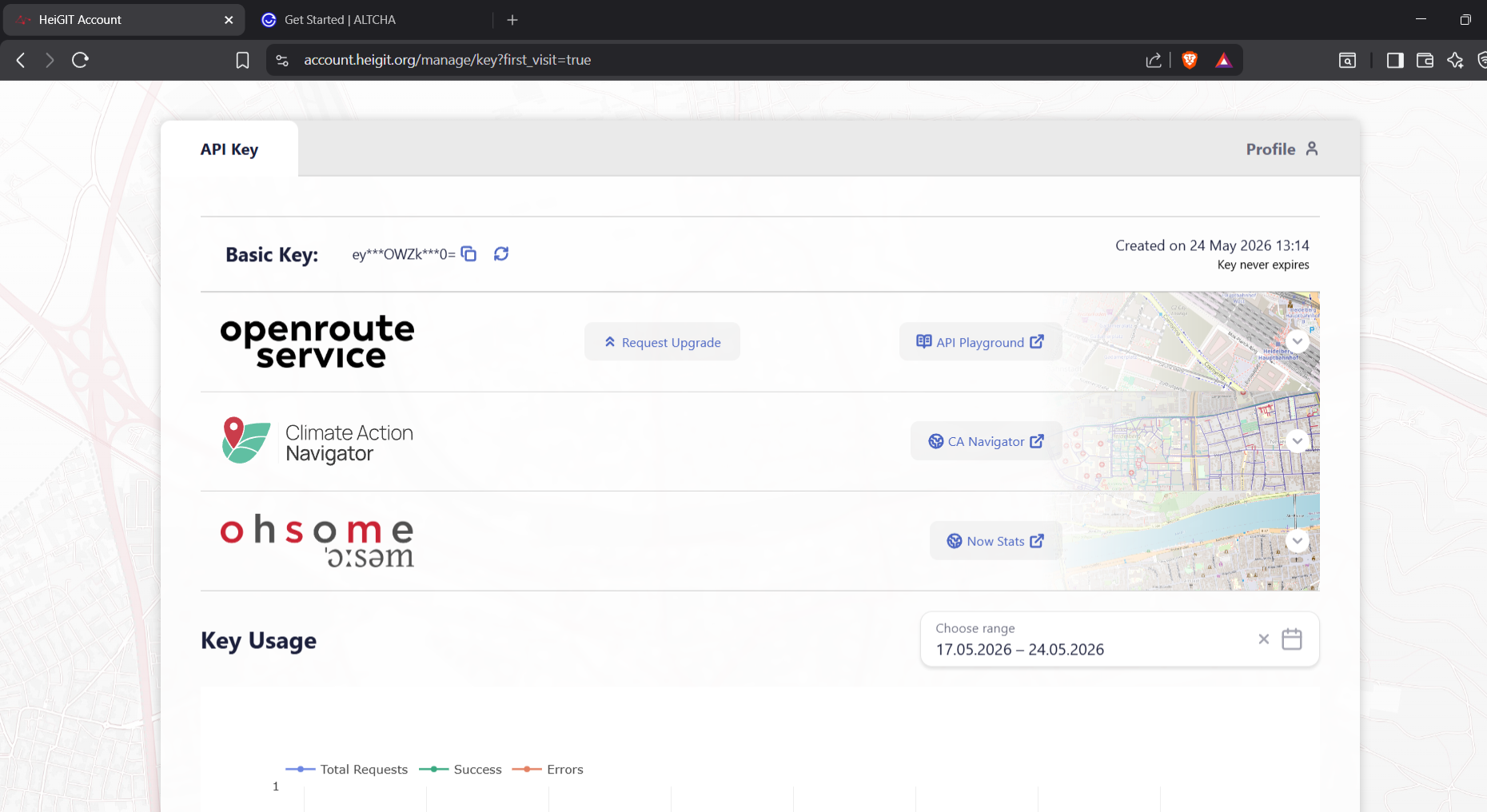
This project mainly uses two APIs:
- Nominatim OpenStreetMap API
- OpenRouteService API
The Nominatim API is used for:
- destination search
- location suggestions
- coordinate lookup
while the OpenRouteService API handles:
- route generation
- cycling navigation
- turn-by-turn directions
1. Nominatim API (Location Search)
The web app sends destination search queries to:
Example request:
The API returns:
- location name
- latitude
- longitude
- address suggestions
No API key is required for Nominatim.
2. OpenRouteService API (Navigation)
The OpenRouteService API is used for generating cycling routes and navigation instructions.
API endpoint used:
The request includes:
- current GPS coordinates
- destination coordinates
- navigation instructions
Example request structure:
The API returns:
- navigation steps
- distance
- turn instructions
- route data
3. Getting the OpenRouteService API Key
- Go to:
OpenRouteService Developer Dashboard
- Create an account
- Generate a new API key
- Copy the generated key
- Paste it into the web app:
The web app then uses this key for all routing and navigation requests.
Building the Phone Web App
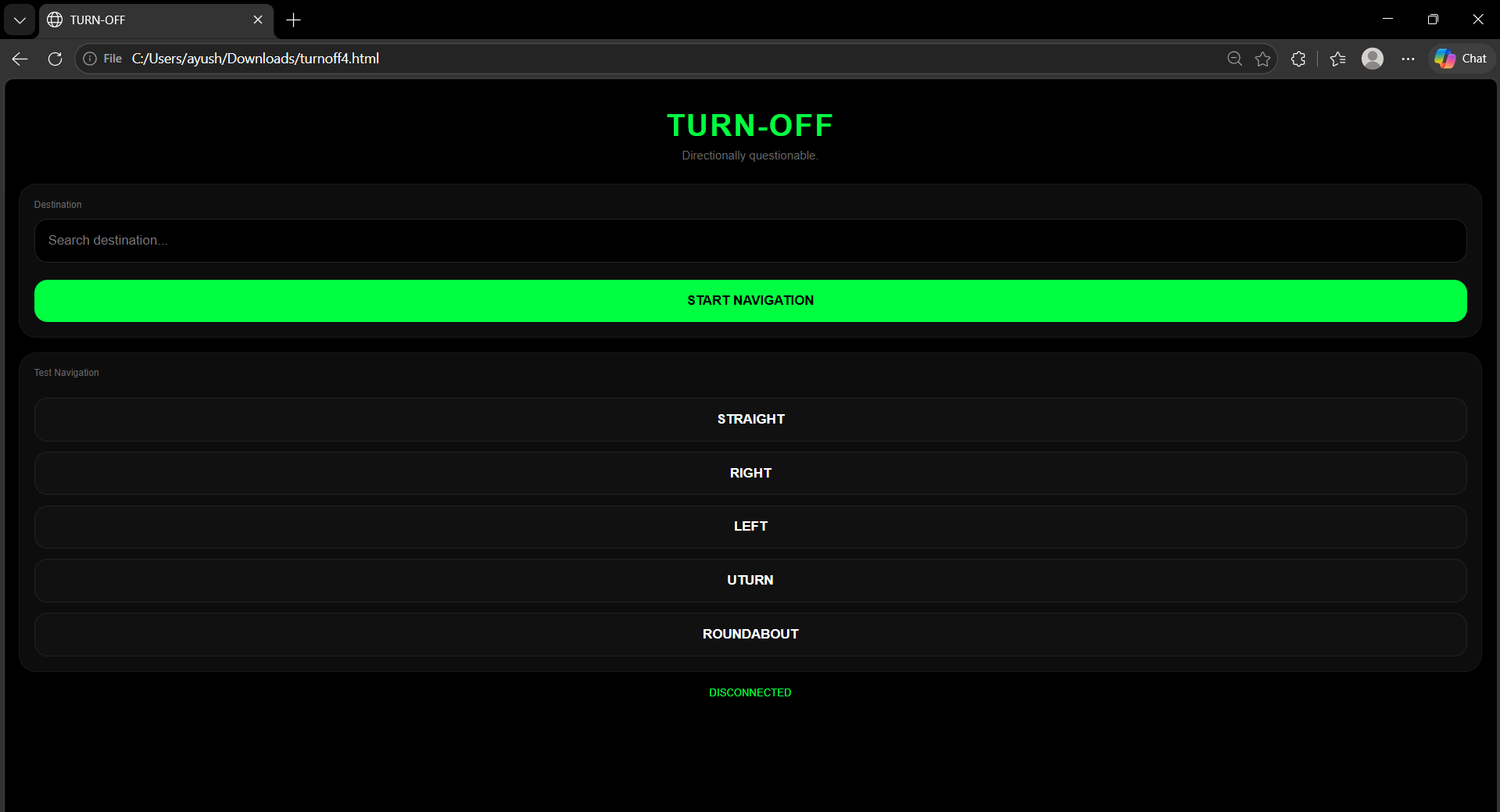
The phone web app acts as the main processing side of the project. It handles:
- GPS access
- destination search
- route generation
- navigation processing
- communication with the ESP32
The web app was built using:
- HTML
- CSS
- JavaScript
and runs directly inside the phone browser.
1. Connecting to the ESP32
The ESP32 IP address is defined inside the web app:
The phone then connects directly to the ESP32 using WebSockets:
Connection events are also handled separately:
2. WebSocket Error Handling
To debug network issues properly, I added WebSocket error logging directly into the frontend:
This helped debug:
- wrong ESP32 IP
- hotspot disconnects
- WebSocket failures
- failed ESP32 connections
The connection status is also displayed live inside the UI.
3. Destination Search
The destination search uses the Nominatim OpenStreetMap API.
Whenever the user types a destination, the app sends a request:
The returned results are displayed dynamically:
The selected destination coordinates are then stored for navigation.
4. GPS Tracking
The current phone location is accessed using:
The GPS continuously updates:
- latitude
- longitude
- live movement
while navigating.
Example:
5. Route Generation
The app generates routes using the OpenRouteService API.
Endpoint used:
The request contains:
- start coordinates
- destination coordinates
- cycling profile
- navigation instructions
Example:
The returned route data includes:
- navigation steps
- distance
- route geometry
- turn instructions
6. Parsing Navigation Instructions
After receiving the route data, the app extracts:
- current step
- direction
- distance
The navigation instructions are simplified into states like:
using parsing logic:
7. Distance Formatting
The app also converts distances into readable values:
This keeps the display easier to read while riding.
8. Live Route Regeneration
Instead of generating the route only once, the app continuously updates navigation while moving.
The route regenerates roughly every:
using the updated GPS coordinates.
Example logic:
This helps the navigation stay updated dynamically while riding.
9. Sending Data to ESP32
Once the navigation data is processed, it is sent wirelessly through WebSockets.
Example:
Example transmitted message:
The ESP32 receives this data instantly and updates the navigation UI.
10. Test Navigation Buttons
To debug the UI without using live GPS every time, I added manual test buttons directly inside the web app.
These buttons send predefined navigation states directly to the ESP32.
Example:
This made it much easier to test:
- arrows
- rendering
- WebSocket communication
- UI updates
without needing to ride the bicycle every time.
The complete web app source code is attached separately in the project files.
Problems Faced & Debugging
A surprisingly large part of this project was honestly just debugging random issues one after another until the whole system finally started behaving properly.
Since the project involves:
- hardware
- networking
- APIs
- GPS
- WebSockets
- live UI rendering
there were quite a few things that broke during development.
1. Display Library Issues
Initially, I tried using the TFT_eSPI library for the display, but the display either stayed black or behaved inconsistently during initialization.
After multiple failed configurations and SPI issues, I switched to:
- Adafruit GFX
- Adafruit ST7789
which ended up being much more stable for this display.
This fixed most of the display initialization problems.
2. Web App Showing "Disconnected"
At one point the ESP32 was properly connected to the hotspot, but the web app still kept showing:
The issue ended up being related to how the HTML file was being opened on the phone.
Opening the file normally caused WebSocket issues, so instead I started opening the web app using Acode, which fixed the connection problem.
Adding WebSocket error handling also made debugging much easier:
3. GPS Location Errors
Another issue happened when the browser kept blocking GPS access completely.
The navigation would fail with location-related errors because the browser wasn’t allowing proper GPS permissions.
This was fixed by manually enabling location access through the browser settings and opening the web app directly through the browser menu instead of launching it incorrectly.
After that:
started working properly.
4. Navigation Steps Updating Too Fast
Initially, the navigation instructions updated continuously and way too aggressively.
The display kept rapidly changing steps because the route was regenerating almost instantly after every GPS update.
This caused:
- unstable directions
- rapid UI changes
- incorrect step switching
To stabilize the navigation, I added timed route regeneration delays.
was eventually used as the route update interval.
This made the navigation feel much smoother while riding.
5. Route Updating Problems
One major issue was that the navigation API generated the route only based on the initial starting location.
So even while moving, the directions still behaved as if the bicycle was at the old position, which caused:
- incorrect step updates
- delayed turns
- repeated instructions
To fix this, I added periodic route regeneration using the updated GPS coordinates instead of relying on a single route generated at the start.
This refreshes the navigation route roughly every few seconds using the current GPS position, making the directions feel much more live and responsive while riding.
6. Broken Power Switch Connector
During assembly, the original switch connector on the module broke off while soldering.
Instead of replacing the whole board, I added a small jumper wire directly onto the module to restore the connection.
Definitely not the original plan, but it worked surprisingly well afterwards.
7. Cracked Display
And finally, probably the most painful one.
While soldering the display connections, the screen got slightly cracked which left a permanent glitch bar visible on one side of the display.
Since the display was still functional, I ended up continuing with it instead of replacing the entire setup again.
At this point the glitch bar honestly just became part of the project.
Testing & Final Product


Once the hardware, APIs, WebSockets, and navigation logic were finally working together properly, the system was mounted onto the bicycle for real-world testing.
Most of the testing focused on:
- GPS tracking stability
- live route regeneration
- WebSocket communication
- UI readability while riding
- mounting stability on the handlebar
The device was tested outdoors using the phone hotspot setup, where the phone continuously handled:
- GPS updates
- route generation
- navigation processing
while the ESP32 updated the display in real time with:
- navigation arrows
- distance information
- live direction changes
One thing I specifically tested a lot was whether the UI remained readable while moving. Since the display is relatively small, the interface had to stay:
- minimal
- high contrast
- readable at quick glance angles
The route regeneration system also made a huge difference during testing because the navigation updated dynamically while moving instead of behaving like a fixed route generated only once.
After everything was assembled and mounted properly, the final device ended up feeling much closer to a compact bicycle computer than a normal prototype project. Seeing live navigation directions appear directly on the handlebar while riding honestly made the entire project finally feel complete.
Future Improvements & Conclusion

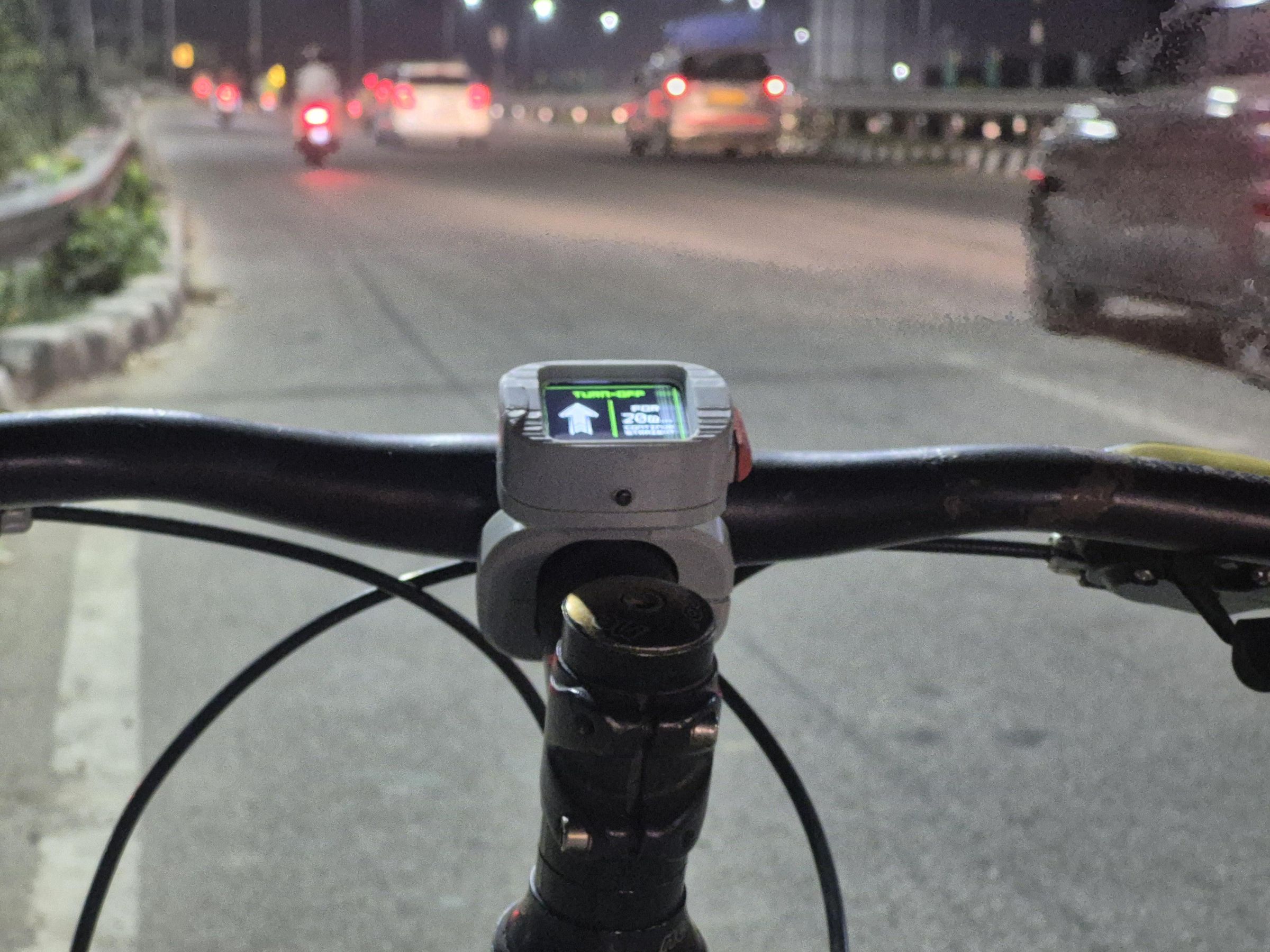
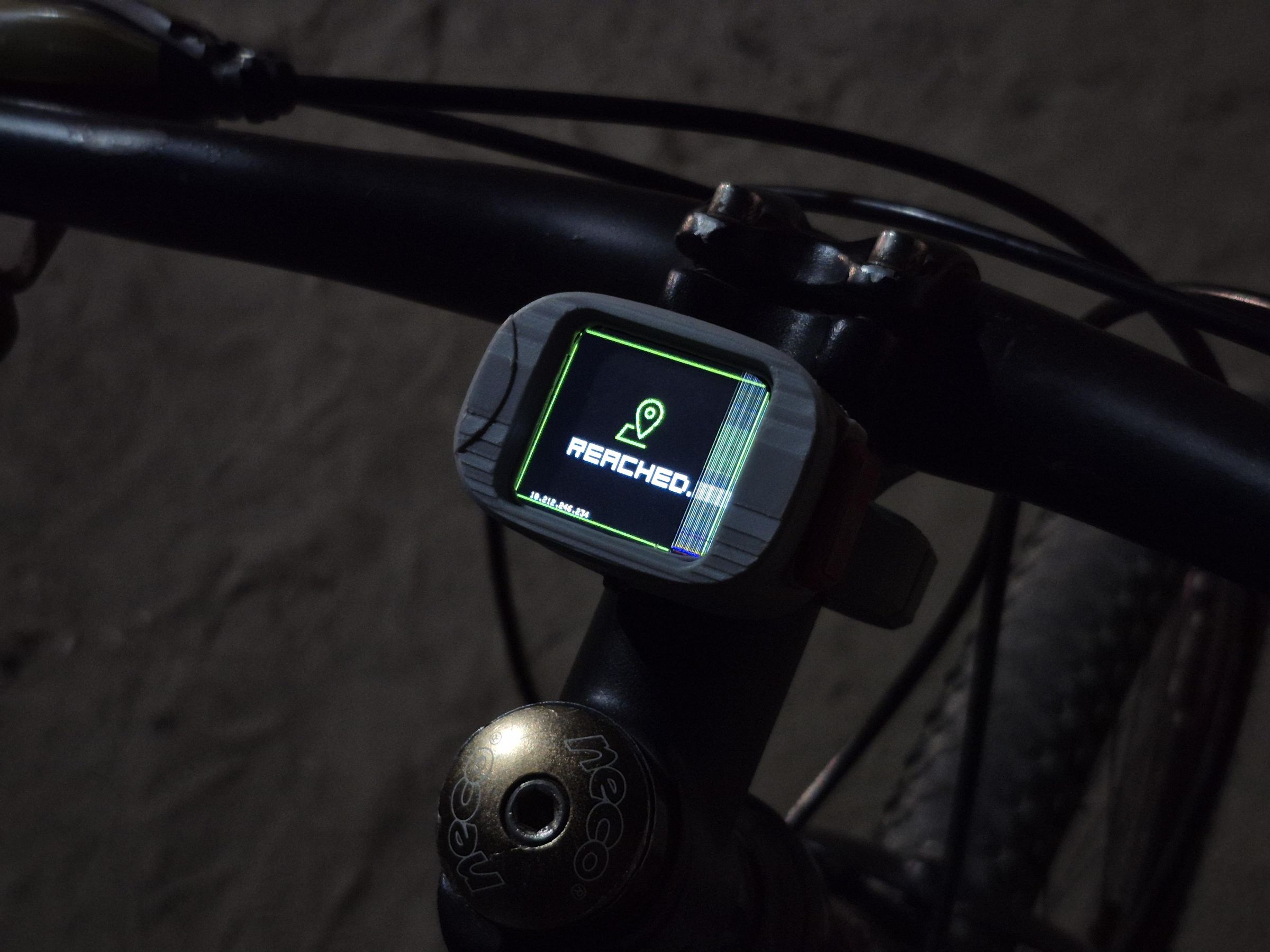

Even though the system ended up working surprisingly well, there are still quite a few things I’d improve in future versions.
Some improvements I’d like to add:
- waterproof enclosure
- custom PCB
- battery indicator
- offline routing
- voice navigation
- speedometer integration
- smoother UI animations
- automatic brightness adjustment
I’d also like to redesign parts of the internal layout to improve cable management and make assembly easier in future iterations.
Overall, this project became much bigger than I originally expected. What started as a simple idea for a small bicycle navigation display slowly evolved into a complete system involving:
- embedded programming
- UI design
- APIs
- wireless communication
- GPS processing
- real-time navigation
A lot of things broke during development, several parts had to be redesigned multiple times, and the display itself literally got cracked during assembly — but honestly that also became part of the build process.
In the end, TURN-OFF became exactly what I originally wanted it to be:
a compact, minimal GPS bicycle navigation system built completely from scratch