Tabletop Jukebox Restore and Reuse
by paulvivier in Workshop > Repair
284 Views, 3 Favorites, 0 Comments
Tabletop Jukebox Restore and Reuse

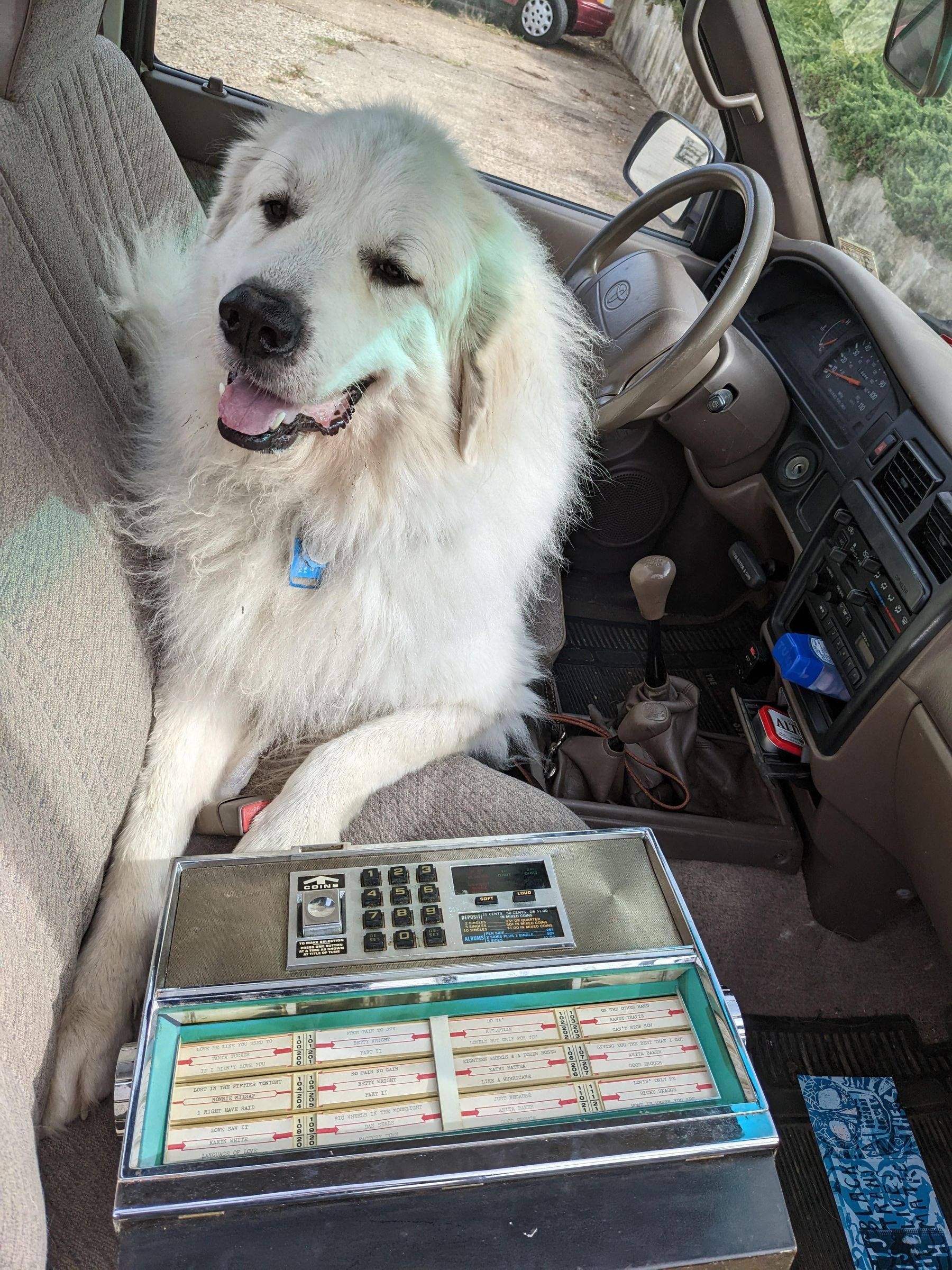
It is my belief that we have a waste problem (in the U.S.). We throw away too much. We also have a consumer problem, we buy too many things. Too much out and too much in. We also, do not know how to repair things as a society. Planned obsolescence in everything we buy is commonplace, where 50 years ago things were sold that were "meant to last". Waste is our future, if we don't change things. One of the things that I believe we need to change is to have repair be more acceptable, and more desirable, than new.
If we can "make it cool to fix things" then we can also learn how things work, educating people on basic electronics, mechanics and coding in the process. Also, Claude was heavily consulted on this project, thus showing how new can still be leveraged when re-using old.
-----
This is a Seeburg Tabletop Jukebox "remote". They used to have these in restaurants, sitting on the table against the wall. Its job was to collect money, gather your song choices in the form of three digits, then send that selection to the larger record-player jukebox. When the records would play, these would also be small remote speakers. If you're sitting at a table, you'd hear everyone's selections. There was no "off" but you could turn the volume to either "Soft" or "Loud".
My first "repair" (I gutted the wiring and most electronics) used a raspberry pi that connected to Spotify for music selections. I managed my playlist there, and matched the order to the numbers on the jukebox. However, it was fragile, the code wasn't great and I canceled my Spotify subscription.
This version connects to a local media player (Navidrome) and has a much smarter setup process. I hope you find it useful or inspiring.
Please note, I had a lot of assembly/disassembly steps when I originally made this. You may as well. Don't be disheartened if it doesn't work right away. The step order that I'm providing is to help minimize rework and disassembly. Also I recommend that you constantly test your work. With any new wiring, connection, move, or changing software, you should always test and verify things work as expected. Use a multimeter to test continuity on wiring changes, especially the keypad.
Supplies
Gut It
Gut most of the electronics, wires and lights. There's a "board" attached to the back with wiring, you won't need any of that. Remove the coin mech, unless you really want to try and get it working with money. My software doesn't have any GPIOs dedicated to the coin mech, but I think it's possible. Remove the lights. You can try to save the clips and make them work, but I also have a file for printing plastic clips.
Save the wiring harness and at least some of the wires that come from the keypad. You can connect new points, or if you really want to keep the entire wire, then save the full length of just the wires that come from the keypad harness.
Wire Up and Map Keypad


Remove the keypad from the jukebox so you have better access. If you want to keep your wires, and they're long enough to reach, that's up to you. If not, keeping the harness, cut all wires and solder+cover new wires that are the length that you need. The length will need to reach from the keypad, along the side and to the back while open. You don't need to measure to exact position of where the Pi will be yet, though, we'll add molex connectors to these before final assembly.
Number your outputs on the harness next to the keypad. You'll be referencing these later.
I disassembled the keypad so that I could look at the contacts that were made when a button was pressed. This is a tricky part, because there were a lot of springs that didn't necessarily want to easily go back together. It wasn't terrible to reassemble.
I made a diagram of each of the contact points and determined that for each press of a button, four pads were touched, completing two separate circuits. Since the Pi doesn't have unlimited GPIOs, I wanted to use as few of circuits as possible as GPIOs. Using an ohms meter (with beep!) I tested and numbered each pad and matched them with the output pads under the wire harness.
I then deduced which pad combos were triggered, when a given number would be pressed.
I THEN deduced the minimal number of "pad out" numbers were needed to minimally determine which number was pressed. I did this through brute force. Match the pad out numbers with each keypad button. Rule out pad out numbers that are used on mutiple keypad buttons. For instance, you can see in the diagram that circuit #11 was used in four numbers, so circuit #11 can be tied to ground since it's common. Then use the other pads for gpios connection. From this, I determined that I could combine 1,2,3,6,11,14,15,16 all to ground. That left me with one, or two pad that were unique combinations for each number.
You can mock this up on your own and test it. Once you've narrowed down which numbers are unique, and combine the most common circuits to ground, you can hold an ohms meter to ground and to one of the pads, and run through each number, making sure that only the ones you're expecting will trigger.
As long as you have one or two pads that uniquely trigger to each keypad button, the Raspberry Pi can determine which button was selected.
I would recommend not putting on any molex connectors just yet. I'd prefer to connect these pads that are needed to the Raspberry Pi (GPIO Screw Connector Hat) and verify before getting your wires ready.
Safety Reminder: Do not connect or disconnect GPIOs while your Pi is on. Sending a voltage spike while the Pi is on can damage it, or at least freak it out. I've personally locked my up a few times doing this. I'm not sure how many times I need to learn this lesson, so I state it here as much for myself as you.
Navidrome Playlist
You could arguably do this at anytime, but it needs to happen before you run the Setup Wizard for the Pi.
You should already have music files and a Navidrome Server running. If you don't have the server running, it's not difficult at all. I personally use a small extra desktop to run this and other "media" related servers. I guess it's possible to also run Navidrome from the Raspberry Pi, but I prefer having my music on a separate server.
Follow instructions for installation the Navidrome server.
Place music files where the Navidrome server can see them.
You'll now make a playlist. On my jukebox, the numbers go from 100 to 179 and 200 to 279, so my playlist needs 99 filler songs at the front, then the first 80 songs, then 20 filler songs, then the second 80 songs. Your jukebox may vary.
I recommend manually creating the playlist. I personally went the path of having Claude help me create the playlist, but I found a few bugs in Navidrome in the process when it comes to "Importing Playlists" and eventually had to edit the navidrome.db to get the playlists visible. It got a tad hairy. Some of these problem also arose because I had two different users managing Navidrome and logging in. Manual is tedious, but it works.
Set Up the Pi
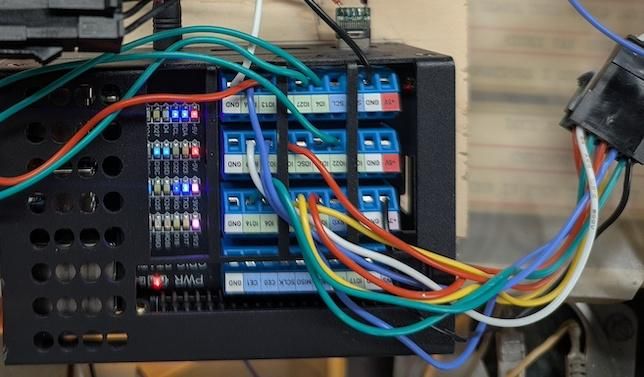
I used the Raspberry Pi 4b, but others will likely work fine. I really like having Wifi on board, it makes it easy to ssh into the board for updates and maintenance. Other versions with a Wifi USB should work just fine. The important thing is that the hat fits it and there is stereo audio out.
Install the standard PI OS following standard instructions. Remember the Admin password that you have set up for it.
Hardware:
I highly recommend using a case and a GPIO screw connector hat for your Pi. It will save time and headaches. The hat also has LEDs that light up when pins are getting voltage so you can visually verify the actions of pressing the buttons on the jukebox keypad.
For this stage, I just powered the Pi from a standard USB-C cable and power supply. Eventually, I made a custom connection to the USB-C port and power it from the buck converter.
Connect wires to the screws on the GPIO hat, and make a matching Molex connector to the wires that you ran from the Keypad. Connect the Keypad wires.
Pi Software:
Get your Pi on your network. I initially hooked it to a monitor and used the GUI to connect to my WIFI, just because I'm lazy. Then ssh to it via pi@raspbperrypi.local . Ethernet cable works great too.
Clone this repo to your pi: https://github.com/paulvivier/TabletopJukebox
Follow repo directions to install dependencies. You can skip step 2 to "create your keypad mapping" because Step 3 "Run the setup wizard" can handle it for you.
Running the setup wizard can help you test the wiring to make sure that everything is connected. You may have to go back and check your wiring if you run into problems at this step.
The setup wizard will help you:
- Connecting to your Navidrome server
- Choosing a playlist
- Pointing to your mapping.json
- Setting playback behavior (interrupt vs queue)
Plug some headphones into the audio jack when testing the interactive portion. You can run the following to test the software setup:
Add Buck Converter & Audio Amp


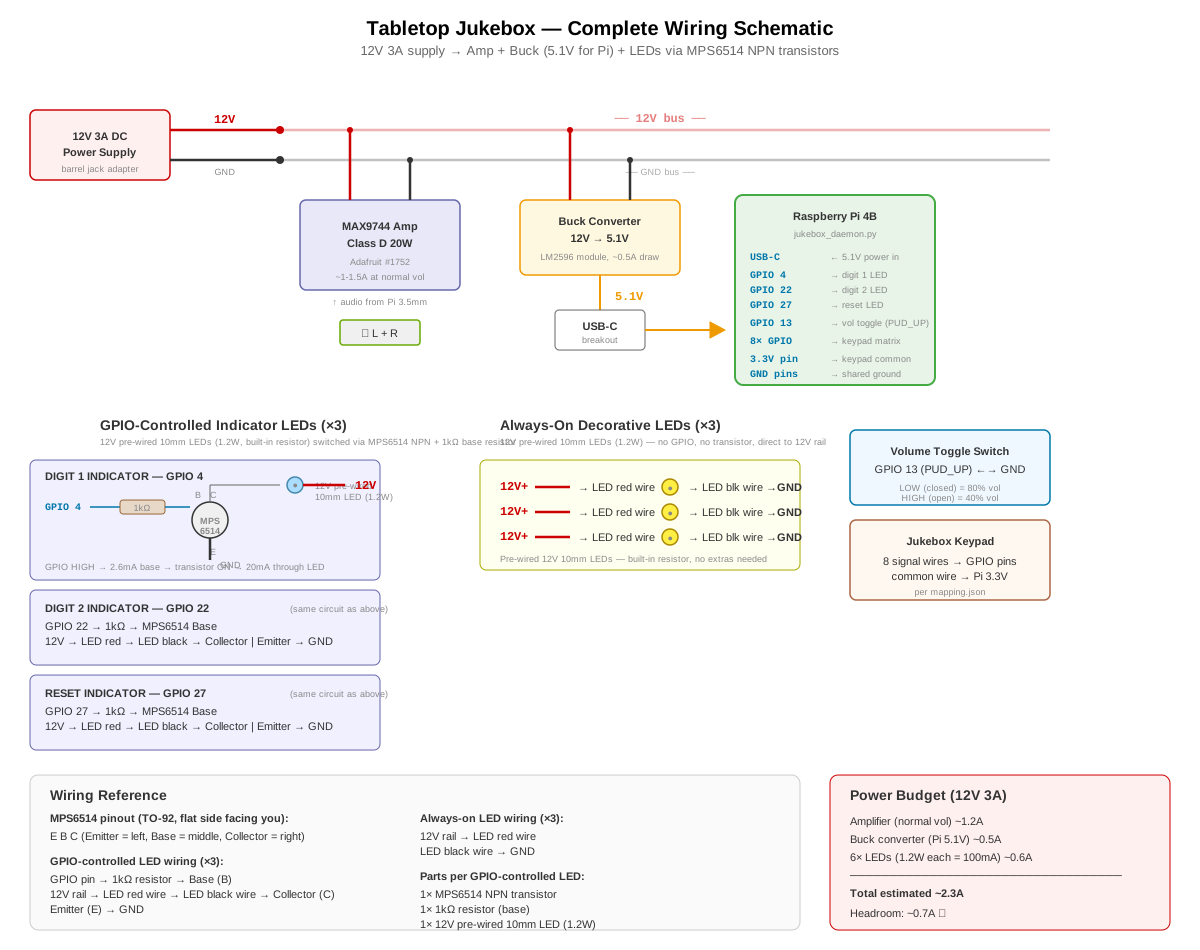
I have a rough wiring schematic: jukebox-wiring-schematic-v3.svg . This is more for illustrative purposes.
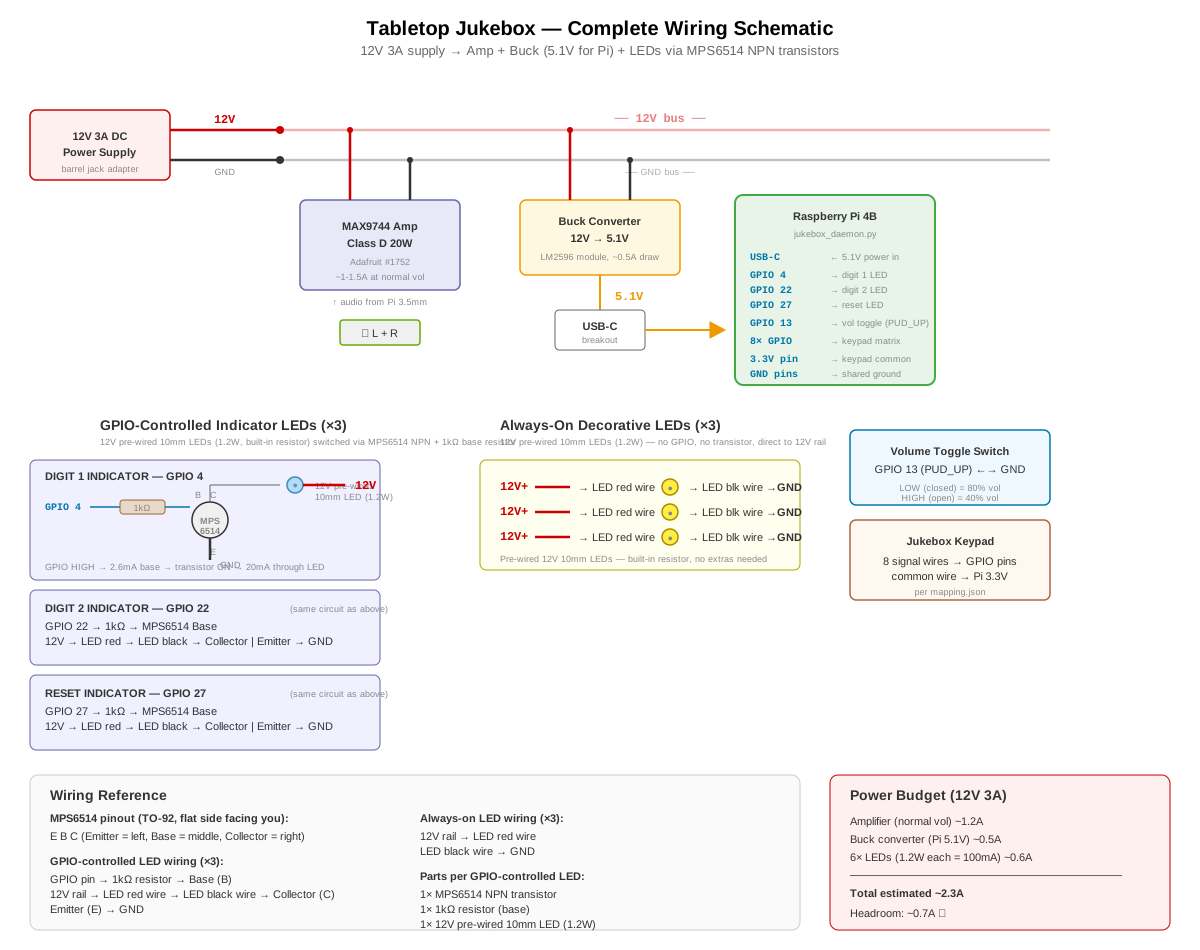
I chose a 20W audio amp that required some soldering from Adafruit, This was enough to power the small speakers in the jukebox. It also has a barrel jack connector which made it ideal for being the 'plug in point' for the 12v power supply. I then used the "alternate" power terminal block (which also came with screw connectors), and used that as my main 12v rail. The main rail powered the buck converter and my lights.
The buck converter voltage comes from that main 12v rail also. Once that was hooked up, I then adjusted the output voltage by turning the tiny brass screw head on top of the "blue box component". I actually had to turn it about 30 times to get the number to change much, once it started to move, it was small turns to adjust to 5.1v
I then hacked up the end of a USB C cable, to expose the pins. You could also use the wires of an existing cable, I wanted a beefier wire and don't care to mess with hair-thin wires that come with these cables.
Do not trust my coloring scheme for wires (or lack of them). For those familiar with a standard coloring scheme to denote +/- you will see my mistakes everywhere. I don't always follow them.
Different USB-C cables have different pinouts. The absolute easiest way that I've found to determine Voltage vs GND is to plug the head in and check it with a volt meter. Connect either end to the newly exposed outside pins, if you get a 5.1v reading, you've got the right +/- order that matches your volt meter's leads. If you get -5.1v, you've got the polarity switched. Label them if needed, or draw a diagram.
Downloads
Sound It Out
At this point, it would be nice to hear some sound, right?
Wire up the speakers. You have to figure out which is positive and which is negative. Well, you don't HAVE to, but it helps the sound quality. I ended up guessing based on how it sounded. If it sounds like you're in some kind of a tunnel, switch. Other users on the internet suggest a more scientific approach: Using a multimeter, put red on one connection, black on other. Set to read voltage. If positive voltage, red is positive. If negative voltage, black is positive.
- Wire the speakers up to the Max9744 audio amp.
- 3.5mm stereo patch cable . Now, I know what you're saying, "Why should I spend $19 on three cables, when I only need one, and that's outrageous". I hear you. Unfortunately, I happened to have these lying around, and they worked perfectly. You can also just wire your own with these and connect the bare end directly to the amp
Once speakers are wired to the amplifier, you can patch the 3.5mm stereo jack from the pi to the amp.
Run the interactive mode of the jukebox_daemon.py to test out your speakers:
My jukebox has a "loud" and "soft" button that had some complicated wiring connected to each. I didn't need any of that wiring. I did, however, connect one GPIO to one of the buttons, since the two acted as a toggle, pushing one out when you pushed the other in. With the ability to read one state of one button, that was enough to determine Loud vs Soft in the software.
Light It Up!


The lights are powered from the audio amp. Since this model has a barrel and screw terminals as options for input on the board, and they share the same circuitry, the screw terminals can be used as a kind of "voltage out +/-" . If you look at the motherboard picture (above in Step 5) the black and white wires at the top right going away from the amp are those wires.
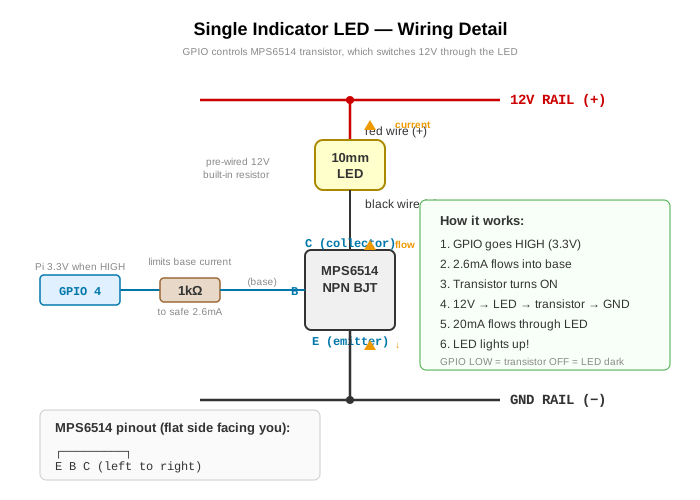
From there, I have a "12v rail" and "12v rail + Transistor" circuits. The rail is used for lights that will always be turned on, such as lighting up the song title cards. The circuit with a transistor allows the light to be controlled by the Raspberry Pi GPIOs. These are used for display indicator lights that light up for "1st Digit" and "Second Digit" when a three digit song code is being entered. You will use one transistor and one GPIO port for each light that you want to control it's on/off state from the Raspberry Pi. Many other transistors will work, it doesn't have to be the one that I have here.
For the always-on display lights, I made a model for a G4 Light Clip in Tinkercad and 3D printed it with PLA plastic. The prongs of a standard G4 light bulb will fit perfectly in the clip. The clip attaches where previous metal clips used to be, usually next to an extruded piece of clear plastic that radiated the light around the jukebox. Do not use higher than 1.2W (10w equivalent) as I did find that a 2W LED would eventually melt the printed PLA clip. G4 LED Bulb 12v 10W worked well for me.
For the display, I removed the previous lights and harness and used this basic LED Light Harness that I also made in Tinkercad. These 10mm 12v Pre-wired Ultra bright lights will fit perfectly.
I created my own basic board to house the transistors and stabilize the connections to it and the lights (above). This attached to the "mother board" as well.
Connect all cabling to lights. Once cables and light are working as expected, you will want to look at your wiring and determine where it would be most helpful to have a Molex connector. Cut the wires and add the connector.
This is the point that you'll use most of your 24 AWG wire.
Configure your config.json file to include the YOUR matching GPIOs for:
Downloads
Test, Finish Software Setup, Enjoy
Once you get to a point where you're not constantly plugging and unplugging the Pi, and all connections have been verified, you'll want to finish the software setup and get the daemon running as a service.
See the instructions starting with Step 5 to Setup the Auto-Start on Boot per the README on Github. This makes it so that every time the Pi boots up, the jukebox_daemon.py will run automatically.
Test all connections, make sure all lights are behaving as expected. I would get the three Display LEDs switched with each other. You can edit your config.json to switch those around if
Enjoy!
Get your playlist into the correct format of a spreadsheet for Mike's Arcade Jukebox Title Strip Creator.
I printed mine out at the local copy store for about $5, then cut them up with a knife and ruler.
Reminder: This software will put entries into a queue. If you enter digits while another song is playing, it will be added to the end of the queue, to be played in order they were entered.
There are two "hidden songs" which are actually commands in the Python code.
- 999 will stop any song
- 998 will continue with the entire playlist from the song that is playing when entered.