Temperature Controlled Handsfree Hairdryer
by GVersen in Circuits > Sensors
113 Views, 2 Favorites, 0 Comments
Temperature Controlled Handsfree Hairdryer


A hairdryer which you can clamp everywhere so you can dry your hair everywhere anywhere handsfree and safe.
Because our hairdryer includes sensor where you can set the max temperature for when the heater turns off and cool off
Supplies


Link Given is based on Shopee Indonesia,
- Heater : 12V DC PTC Ceramic AIR heater 40-60W, 4 A (https://shopee.co.id/product/292092948/44150266760?gads_t_sig=VTJGc2RHVmtYMTlxTFVSVVRrdENkY0tSanlKZU1BU2Y2RTJzOS9neUtnZnZnTllDZG9RNkJUNHVYazFEa2g0MzNZeGJMM29RenRJR1kyRjdTTUFjZlIrUGlMaFE0UWN4UVFGemQ3YnpwbWtnaWQydStoMDZIV21lVHBkYnFCOFJUQUFCdG10S1hMaGtpL1l5K0luNDFnPT0&gad_source=1&gad_campaignid=19804035996&gbraid=0AAAAADPpU80vqVj60nulyUa1KTpPJAM-G&gclid=EAIaIQobChMIyOSIoNSbkwMVgTaDAx2Xlx_3EAQYDSABEgIgcfD_BwE)
- FAN : 12V DC turbo brushless fan, 1.68A
- IC(Comparator): Op-AMP (LM358)
- Sensor : NTC (Thermistor)( https://shopee.co.id/product/40647041/9825179390?gads_t_sig=VTJGc2RHVmtYMTlxTFVSVVRrdENkYmtjM2ptSThtQnlIMHo4VnVHYmxTeFdZTGtGYnJ0MS9hODc3SlBEbmVlS05WZG5TelZRZ0JFNURYc25rQ1FwZU9MbGRTcUFROGtNWDE0VEhTNXFERnNqM2UzNXl6TFU5MVBzTXd5TEhQSnE)
- Resistor: 100K Ohm
- Transistor: Mosfet IRLZ44N (https://share.google/5jj5oW6NSUYCLmvq5)
- Potentiometer : B100K
- Stepdowns :
- DC-DC Stepdown Mini 560 to 12V
- DC-DC Stepdown Mini 360 to 12V
- Batteries : 4x 3.7 18650 li
- Clip Clamp: Clip Clamp (recycled from used camera clip clamp)
- Others : PCB Board, cable jumpers, Multimeter, Batteries holder (for 4 batteries), ABS for case 3D printing, Cable terminal, Male Header strip, solder, solder tin.
Step 1: Design the PCB Layout

Design your circuit using PCB software, we recommend to use EasyEDA since its free and you don't have to download. Arrange the LM741 op-amp, IRLZ44N MOSFET, thermistor, 100kΩ resistor, and B100K potentiometer neatly on the schematic you can convert it to PCB (on the top, choose the "Design" option). If you're doing the Etching method, make sure you arrange and route your PCB on Bottom layer only. And make sure the ratio is 1:1.
You should design the PCB similar to the layout shown in the picture, ensuring that:
- Power traces (VCC and GND) are thicker for handling higher current, Keep high-current paths (heater and fan) wider to prevent overheating of the PCB.
- The MOSFET and heater paths are short to reduce heat buildup
- Components are spaced properly for easier soldering
After you're done with your design, you should save it as a pdf file, and import to Word ready to be print.
(We provided the file to the Schematic and the PCB design which you can just print).
Our tip is to print more than one PCB in an A4 so you can choose the best looking one (the one with complete/connected route)
Print and Transfer the PCB Design

(skip to step 5 if you know how to etch or using another methods for your circuit)
Print your PCB design using a laser printer on glossy paper. stick it onto a copper-clad (make sure the copper side is facing you, usually orange-pink-ish coloured)board using heat (iron method) Iron your board around 3-5 minute make sure you press real hard and go from to side to side making sure all side is covered, and stop when it starts to look greyish. Follow the video as a reference to ensure your printed layout is correct before transferring. Make sure the ink/toner sticks completely to avoid broken traces.
Downloads
Etch the PCB


(make sure to use gloves because we're going to touch some chemicals)
Place the board into an etching solution, we use
A common and effective ratio for the
etching solution:
4 parts Water (H20)
2 parts Hydrogen Peroxide (H202)
2 part Hydrochloric Acid/Muriatic Acid (HCL)
to remove unwanted copper.
Since our PCB is pretty small and thin, we can just use small amount. For example, we use 20ml of HCL, 20ml of H202, and 80ml of water. Wait around 3-5 minute (until the bubble stop appearing). Tip: Gently move the board in the solution to speed up the etching process.
now you're left with just the paper covering the copper, to remove it. We can use thinner. gently scrub with your finger until you all the copper exposed.
If there's a trail/route unconnected you connect it back using permanent marker.
If you are not familiar with etching, you can skip this and use a ready-made PCB or protoboard.
Drill the PCB
Copper/pinkish orange side is facing you
Drill holes at the component pads as shown in the PCB layout image.
Drill any hole you see, be careful not to drill bigger/smaller than the hole/
Tip: Use a small drill bit and drill slowly to avoid damaging the traces.
Downloads
Soldering the Components
(if you know how to solder, you can skip the first three paragraphs)
To solder, start by choosing a short component for easy solder. Since the shorter they are the flatter your circuit would be, you can take you time adjusting since soldering can be hard and dangerous. Make sure the one with route/copper side is facing away from you. It can get confusing trying to figure out which hole is which. You can match you PCB with the PCB design from EasyEDA previously.
Turn on/plug in your solder, and wait atleast 15-30 seconds until it fully heat. Please don't touch the metal end, very hot and dangerous.
You will know it's ready to use when it starts to smell, or simply hold the end of the holder (near metal rod)you can feel it's warm.
To start, we recommend if you start with shorter components such as, step down, LM741, or resistor.
Insert the leg of the components to the hole (look at PCB hole map we attached) all the way in, until the components is the only one left on the other side of the PCB. Start with one leg, stick the end of your solder on the base of the leg for about 2-3 seconds. And then you push your solder wire/tin right on the end of the solder. It will melt and dry instantly. If you made a mistake, take a break and cooldown your components. It's better to wait.If your route somehow touches other route, you can scrap the tin of using cutter for PCB route. Though regular cutter is fine.
Solder the LM741, thermistor (NTC), 100kΩ resistor, and B100K potentiometer according to the circuit diagram shown in the picture.
Make sure all pins are correctly connected. If not, you can use solder, and solder the disconnected route. Be careful not to touch other route since it can cause damage and short circuit.
(we still recommend you to watch YouTube video on how/tips to solder so you can learn it visually)
Add the MOSFET (IRLZ44N)
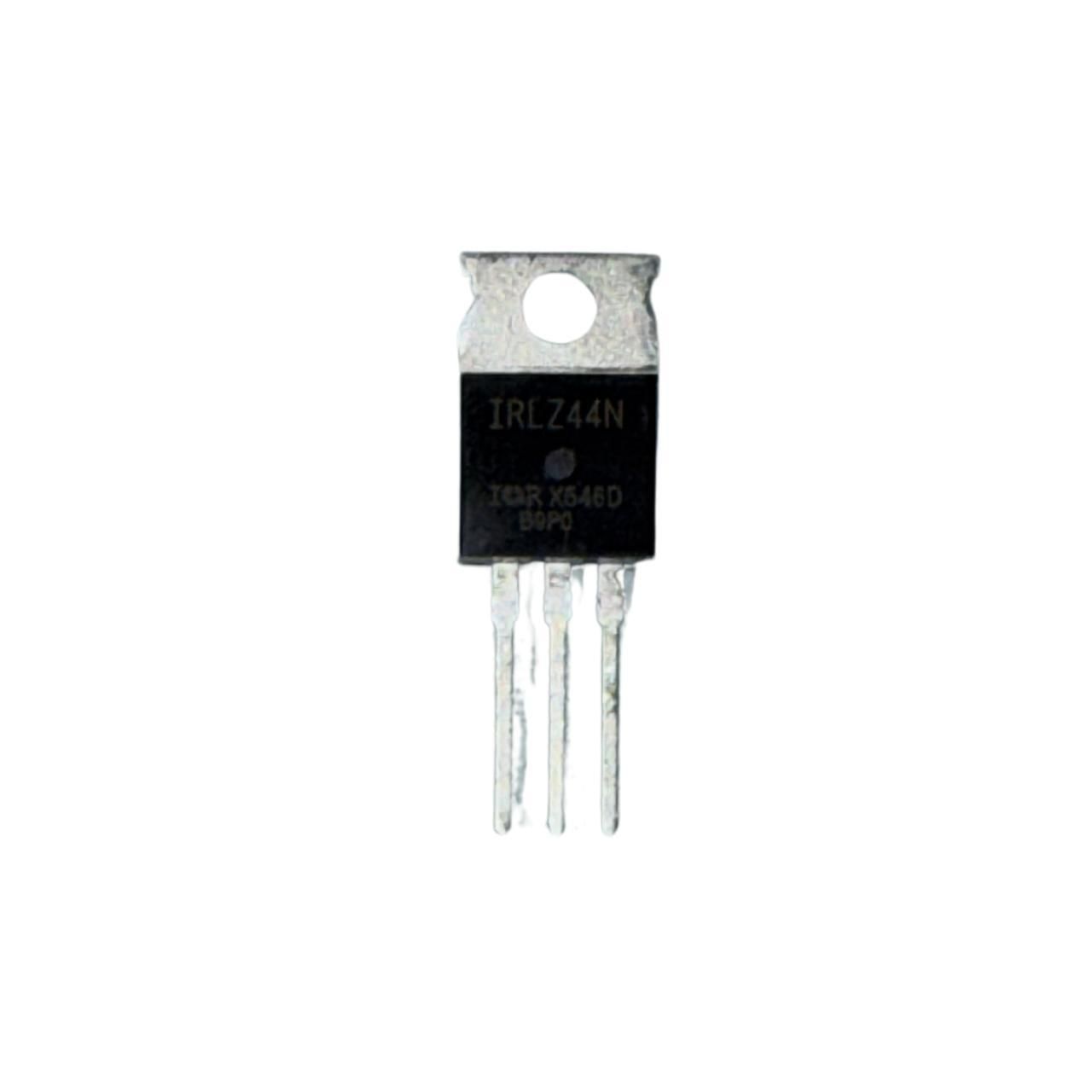

Solder the IRLZ44N MOSFET and connect it as shown in the circuit image:
* Gate → Op-amp output
* Drain → Heater
* Source → Ground
Do not overheat the MOSFET while soldering. It can ruin the MOSFET. Wait 5-15 seconds for cooldown then continue. If you fail or ruin the route, its better to wait for the MOSFET to cooldown then continue. Patience is key.
Prepare the Power System

Insert the 4x 18650 batteries into the battery holder. We arrange them in series. Which is Goes -+-+-+ or the opposite, your last negative would be your final negative, and your first positive would be your final positive. It works the opposite way too.
once your down, you can splice your final negative and positive, you can use header,terminal,or branching Y shape.
But we use Terminal since it's safer.
Use both DC-DC step-down modules:
- Mini 560 → for heater (stable 12V, higher current)
- Mini 360 → for fan (stable 12V)
Adjust both modules to 12V using a multimeter before connecting them.
Connect the Fan

Connect the 12V DC turbo brushless fan (1.68A) to the step-down output.
Follow the picture for correct wiring. Check for the negative and positive. (positive pin is on the outer)
Install the Heater

By connect then using terminal, if you have a heater than comes with a male/female header for input, You can just go ahead and plug. Be care during this process since heater can produce heat.
3D Print and Prepare the Casing

(skip this Paragraph if you know how to operate a 3D printer and print the STL we attached or design to you likings)
You can pay someone to print it for you instead of buying the whole filament.
But if you're doing it manually(this step is based on common 3D printer we use everyday, we still recommend if you read/watch/learn how to operate your 3D printer specifically on the you one you have)
, you start by saving the file .STL to a flashdrive. Plug the flashdrive to the 3D printer. The 3D printer will read the flash drive and you can find where you saved the file. Insert your filament to a (usually) roll right next to the printer. 3D printer will usually approximate how long it will take to finish, we recommend that you keep an eye on the printer make sure it didn't fail.
Print the casing using ABS material (STL file provided).
The design should include:
- Space for fan and heater airflow
- Ventilation holes
ABS is recommended because it can handle higher temperatures compared to PLA. But if your heater is lower than 120, PLA should be just fine.
Downloads
Final Assembly


Place all components into the casing:
- Secure PCB
- Mount fan and heater
- Arrange wires using cable terminals
- Attach the clip clamp for hands-free use
Testing and Calibration
Turn on the device and clip it anywhere you want. Adjust the potentiometer to temperature to you likings.
Observe the system:
- Heater turns ON when temperature is low/below the voltage reference (set by potentiometer)
- Heater turns OFF when temperature is high/temperature overpass the temperature limit you set earlier with potentiomer
Use a multimeter to check voltage stability during operation.