The Aware Bedside: an ESP8266 Weather Console & HMI Smart Clock
by pityukecske in Circuits > Sensors
381 Views, 1 Favorites, 0 Comments
The Aware Bedside: an ESP8266 Weather Console & HMI Smart Clock

This project is a bedside clock and weather console built around an ESP8266, a Nextion HMI display, an MP3 module, and a DHT11 sensor. It displays time, temperature, humidity, and live weather conditions and automatically adjusts display brightness based on ambient light. It even doubles as an alarm clock with 8MB (yeah, I know) of "onboard" audio storage.
Short backstory: a prototype I made, used but didn't publish
Before this project, I attempted a simpler version using a standard 4-digit, 7-segment white LED display. On paper, it was perfect—minimalist and modern. It was quite an interesting reverse-engineering experiment but unfortunately it was a failure as a "product".
Because the clock revolved around a high-contrast white LED 4x7 segment display which I had to scan through, it was impossible to dim it enough to fit into a bedside environment. Even at the lowest PWM settings, it acted like a tiny spotlight in the middle of the night, casting shadows across the room. I ended up never publishing that project because it simply didn't meet the standard of a functional daily tool.
Lesson learned: I realized I didn't just need a "display"; I needed a system that could sense its environment.
The new prototype
To solve the glare problem once and for all, I moved to a more sensor-driven architecture:
- Local Hardware Sensors:
- LDR (Photoresistor): the "eyes" of the device. By mapping the ambient light to a specific dimming curve, the display is bright during the day but drops to a soft, readable glow at night.
- DHT11: a dedicated climate sensor to track indoor temperature and humidity.
- Touch Panel: utilizing the HMI's tactile interface as a high-resolution input sensor.
- External Data Sources:
- Weather APIs: fetching live outdoor conditions via WiFi to provide a full environmental context.
What started as a reaction to a blinding LED clock evolved into a surprisingly overcomplicated system — and it’s now one of the most-used homemade devices from our nightstand.
Supplies
To build this project, you’ll need a mix of core components and some reliable bench tools. I’ve broken them down by category.
Core Electronics
- Microcontroller: ESP8266 (I used Lolin NodeMCU V3).
- HMI Display: Nextion 4.3" Basic Touchscreen.
- Climate Sensor: DHT11 (Temperature and Humidity).
- Light Sensor: LDR (Photoresistor) + 10k resistor for the divider.
- Audio: 8MB Flash MP3 Module (UART controlled) + 8Ohm 1W Speaker.
- Power: 5V USB Power Supply.
Prototyping & Testing Gear
Since this project involves multiple serial protocols, having the right diagnostic tools was half the battle:
- Logic Analyzer: Zeroplus Logic Cube (from eleshop.eu)
- Quick diagnostics: Diagno (self made secret weapon or as I call it, Baby Knife)
- Soldering: my Weller and my new favorite "third hands" — PCBite + a chinese soldering vise
- Bench Power: a steady Benchtop DC Power Supply, RIGOL DP832 (awesome on bench, sucks in a test rack)
Software & Libraries
- Arduino IDE (ESP8266 Core)
- InkScape (for the images)
- Nextion Editor (For the GUI design)
- Libraries: NTPClient, ArduinoJson, SoftwareSerial, and Bonezegei_DHT11.
Circuit Diagram


Before committing to the final perfboard assembly, I laid everything out on a breadboard. This is the "validation phase" where I ensured all the sensors were talking to the ESP8266 correctly.
Some Wiring Notes:
- The LDR Voltage Divider: Notice the LDR and the 10k resistor connected to the A0 (Analog) pin. This creates the variable voltage signal the ESP8266 needs to sense ambient light levels.
- The DHT11 Data Line: I used pin D1 for the DHT11. Don't forget a 10k pull-up if your DHT11 module doesn't already have one integrated. The model is slightly different from what I actually used (mine is blue) but the principle is the same.
- Serial Communication: The Nextion display and the MP3 module both communicate via UART. I used SW Serial with pins D6/D7 for the display and bit-banged a secondary serial port for the audio module . I did it like this because I wanted to keep the debug UART completely free for debug in the Arduino Serial Monitor. Note: you can't have two software serial modules in a single program for this ESP, hence the bit-banged second UART.
- Power Rail: I've shown it here with a battery pack for the diagram since Fritzing is somewhat limited, but for the final version, I swapped this for a standard USB connection. The Nextion and the ESP8266 can be power-hungry when the backlight is strong and WiFi is transmitting.
Assembly
I bent some solid-core wires and hand-soldered a pin header onto my perfboard fixed into the PCB vise. I then soldered the used pins of the ESP8266 PCB to my perfboard and routed all the signals I had to use to the pin header. Once this was done, I used standard Dupont cables to wire modules together: Lolin NodeMCU V3, DHT11, Nextion and MP3 module. The interior is a bit spaghetti but I just couldn't convince myself to route a PCB for this.
Sensor Integration
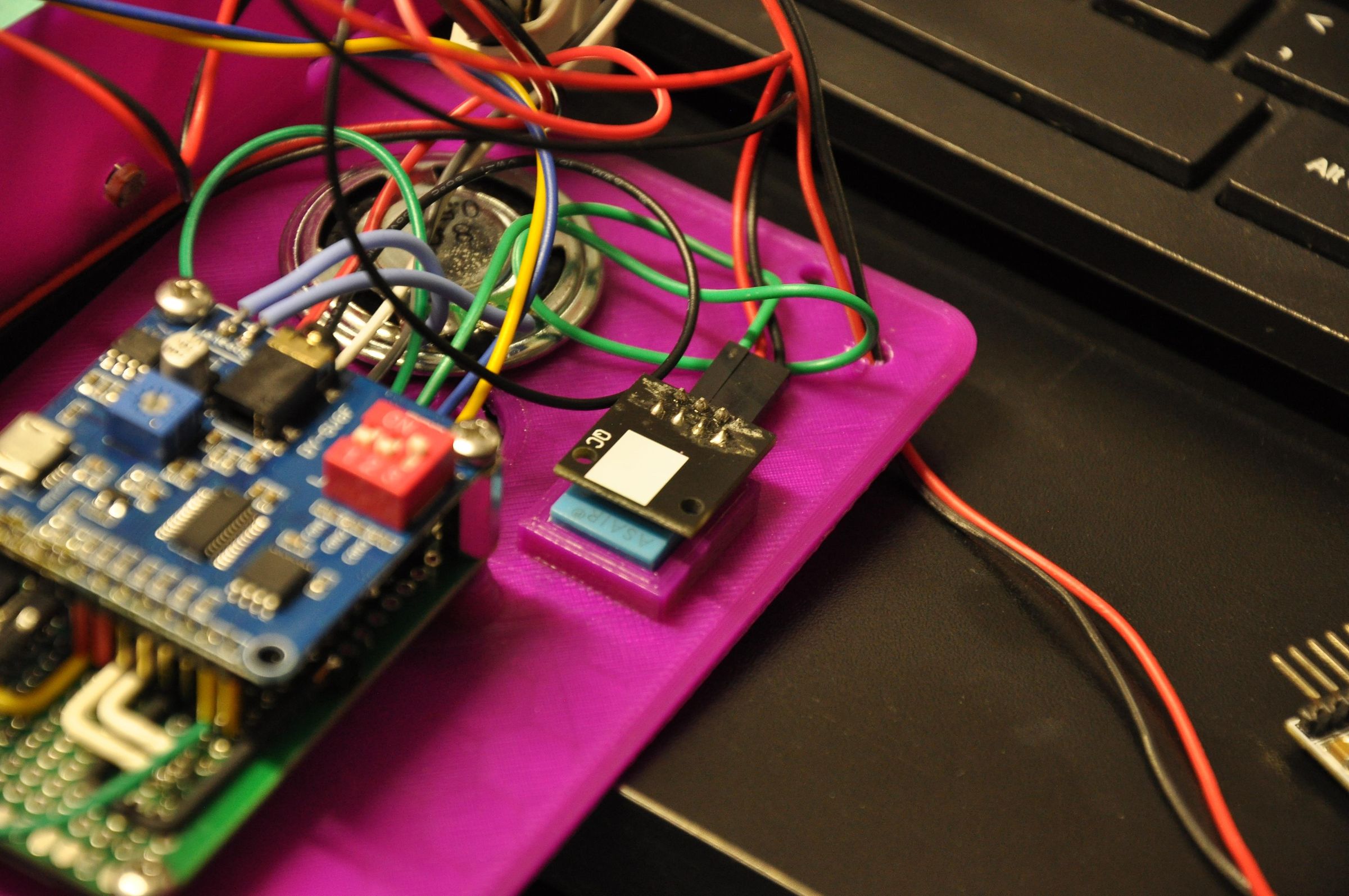


The magic of this device lies in how it interacts with its environment both with and without user input. By combining local hardware sensors with cloud data, the device creates a comprehensive "room profile."
1. Environmental Sensing (DHT11)
The DHT11 acts as the local climate monitor. Every other second, the ESP8266 requests a data packet consisting of relative humidity and temperature. This data is then parsed and sent via Serial to the Nextion display.
- Constraint: Since the DHT11 is inside the enclosure, I had to ensure there is proper ventilation (grills) so that heat from the ESP8266 doesn't skew the readings.
2. Adaptive Brightness (LDR)
One of the most important features for a bedside device is not being a "light-polluter" at night.
- The LDR is set up in a voltage divider circuit connected to the A0 (Analog) pin of the ESP8266.
- As the sun sets or the room lights go out, the resistance of the LDR increases, lowering the voltage at the analog pin.
- The code converts this 0-1023 value into a 0-100% percentage, which is sent as a dim command to the Nextion display. This ensures the screen is bright during the day but barely a glow at night.
3. Tactile Feedback (Touch Panel)
While we think of displays as outputs, the Nextion Touch Panel is technically a high-resolution coordinate sensor. When you press a hotspot to toggle alarm for a day or to set the alarm time, the display sends a touch-event hex code back to the ESP8266, which gets parsed and triggers the appropriate function (like adjusting the alarm time).
4. Cloud Data (Virtual Sensor)
The ESP8266 connects to the OpenWeatherMap API via WiFi. It fetches a JSON string containing local outdoor conditions. This allows the device to show you what it’s like outside before you even get out of bed.
The Nextion HMI Design


The Nextion HMI is a powerful display because it has its own onboard processor to handle the UI, leaving the ESP8266 free to manage the sensors and WiFi. However, if you've ever used the default Nextion "Text" or "Button" components, you know they can look a bit 1995. I have a personal vendetta against the native Nextion text boxes. They have sharp, un-antialiased edges that look like crap on a modern UI.
- the solution: I re-invented the entire interface in Inkscape. Every number, every weather icon, and every static label was exported as a .png from InkScape
- the benefit: by using images, I have total control over typography and shadows. The ESP8266 simply tells the display: for the picture item called "CLK_HT" (clock, hours, tens) show image ID #4 which not only ends up looking better but also gets transmitted much faster than a font string.
When you export from Inkscape, make sure your icons are clean. The editor will automatically convert the PNGs but if your images are too large, you’ll hit the memory limit of the basic Nextion models quickly. Keep your icons tight and cropped!
1. Placing your assets (The Image Library)
To replicate this look, you don't "draw" the UI in the Nextion Editor; you need to import nice pictures.
- open the "Picture" panel in the bottom-left corner of the Nextion Editor
- import your Inkscape-generated backgrounds and icons
- use picture components to place your UI elements on the canvas. I actually pieced my UI together in Inkscape on coordinate 0,0 in order to be able to enter exact coordinates in the Nextion Editor as well.
2. Pictures or Interactive "hotspots" (invisible buttons)
I either used pictures or hotspots as buttons. I didn't want to use buttons as they're rather clunky in the Nextion environment. The secret is to either use a "picture" or a "hotspot" component. When you tap their area, the display will send a simple hex string (like 65 00 01 01 ff ff ff) back to the ESP8266.
3. The "z-order" layering
My Nextion canvas is like a stack of papers:
- bottom layer: main background image
- middle layer: dynamic icons like the sun/moon weather symbols
- top layer: hotspots or pictures for touch interaction
4. Memory-mapped UI logic
I intentionally placed the number artwork in order at IDs 0->9 and 10->19. I did this so I can convert my variables into pictures easier - an ESP8266 variable of 32 for example, is picture #3 at the tens place and picture #2 at the ones place. It is a lot easier to construct multi-digit numbers this way. Grouped pictures like the days of the week are also placed consecutively at a given memory place, #27 and #34. Why? Because I am storing the alarm ON/OFF information in a single 8 bit variable (of which only 7 bits are actually used) and it becomes quite easy to parse each bit and map the right image on the right place. It also helps to have these picture components placed in a consecutive order:
The component IDs that are being sent when the component is touched span from #7 to #13 where #7 is Monday, #8 is Tuesday and so on. If any of this is pressed the above code executes. in temp1 I figured out the day by subtracting the ID offset from zero in order to make Monday #0, Tuesday #1 and so on. Then, I took the variable that was storing the days when alarm should be active (alarmdays) and did a bitwise XOR operation with a bit mask with a '1' on the bit position of the day picture that was pressed. So this entire process just toggles the bit of the day that got pressed then displays icons based on what the result is.
For example, "DAY_01" is the component name of Monday (H is Hétfő in Hungarian). The picture id assigned to this component is either 27 (alarm is ON on Monday) or 34 (alarm is OFF on Monday), based on how (alarmdays & 0x01) evaluates. If the result of that bitwise and is not zero, "27" will be passed, if the result is zero "34" will be passed. This statement is called ternary operator and I found it to be a lot more compact than placing "if" statements.
5. Example setup of one component of a project
I created a small example sequence in the images section of this step to show you how I placed all of my components.
- 5.1 Create project then select the Nextion display you have, press OK
- 5.2 Select orientation, press OK
- 5.3 Feast your eyes on an empty workspace then press the little "+" sign on the bottom left panel to add images
- 5.4 Select pictures (I used my big clock numbers for this example)
- 5.5 See images that were loaded, note that their content and their #ID match
- 5.6 Place an image component by clicking Picture on the top left panel
- 5.7 Click on the component and edit its properties in the bottom right panel (size & coordinates)
- 5.8 Select browse from the pic parameter and select which number you want displayed by default
- 5.9 See the picture being loaded
- 5.10 Press debug "upstairs" and click the image when it it shown, note the result in the simulated serial panel on the bottom side of the pop-up window. Those bytes are exactly what will be sent to the ESP8266 when the picture component is pressed on the actual display after you upload the project to your display using the "upload" button from the top toolbar.
Note that the "pic" property is green in the component panel - it is green because it can be changed during runtime!
I can't figure out how to attach the Nextion project without dirty tricks. Please change the file extension from .PDF to .HMI in order to view it.
Downloads
Diagnostics With the Baby Knife


One of the reasons this "bedside thingy" works reliably is that I didn't just write the code and hope for the best. I used a self-made tool to verify sensor interactions.
1. LDR thresholding
LDRs are notoriously finicky depending on the casing. Instead of guessing a good threshold for the "night mode" dimming, I decided to map the resistance change to brightness level on the Nextion display. I found the usable ADC range through trial-and-error: it is ranging from 50 to 600. I mapped this range to 1..100 using the built-in function. Examining the signal with a voltmeter, I see the range swinging between roughly 0.15 - 2V.
2. Sniffing the HMI Protocol
The Nextion HMI is a "black box" that sends hex strings. To validate that the message being sent upon a component press is valid, I used Diagno, my "baby knife". It captures the strings coming from the display, I was able to see the exact structure of the Component ID being sent. This turned the handleNextion() function debugging trivial, as I could "see" the data before the ESP8266 even touched it.
3. MP3 Command Injection
To test the alarm audio without waiting for 6:00 AM, I used the same tool to inject some UART commands directly into the MP3 module. By simulating the MCU’s 6-byte command frame at 9600 baud, I could cycle through alarm songs and verify the checksum logic in just a few minutes.
Code Logic
The code is designed to be non-blocking. This ensures the clock stays accurate to the second and the touch interface remains snappy, even when the ESP8266 is off fetching weather data from the web. Here is a breakdown of how the logic flows:
1. Dual-Layer Communication
The ESP8266 acts as a bridge between three distinct "languages":
- JSON/HTTP: to speak to the Open-Meteo API.
- Nextion Instruction Set: to update the UI via Hardware Serial at 9600 baud.
- Bit-Banged Serial: a custom mp3WriteByte function to control the audio module. I chose this approach to keep the hardware serial pins free for debugging and to put Baby Knife to test!
2. The "Tick" System (Millis vs. Delay)
To prevent the screen from "freezing" during WiFi updates, I avoided delay() functions deliberately.
- Every Tick: displayClock() and handleNextion() functions run constantly.
- Every 10 Seconds: LDR is sampled to adjust the display brightness, and the NTP time is synchronized.
- Every 60 Seconds: DHT11 reads local humidity/temp, and the ESP8266 performs an HTTP GET request to update the outdoor weather icons.
3. Smart Weather Mapping
The weatherToIcon() function is my translation layer. It takes the WMO Weather Codes (e.g., Code 61 for "Slight Rain") and maps them to the specific image IDs we pre-loaded onto the Nextion's flash memory in the previous step. It also checks an isDaytime() boolean (calculated from sunrise/sunset data) to decide whether to show a sun or a moon icon. I got the icons from the web and modified some to get all the icon types I needed.
4. Alarm and permanent memory
The alarm settings are stored in the EEPROM for reliability. If the power blinks at 3:00 AM, the ESP8266 will reboot, reconnect to WiFi, and pull your 6:30 AM alarm time back from its permanent memory automatically.
Code Itself
The code that keeps blood pumping through the veins of the system!
Downloads
The Enclosure
Since the electronics became overcomplicated, I wanted an enclosure that was clean, functional, and quick to produce. Instead of designing a chassis from scratch, I took what I call a "Digital Scissoring" approach in Tinkercad.
The Design Process: STL Kitbashing
I started by importing an existing housing design for the Nextion display. However, the original STL was way too narrow to fit my "tower of power" (the ESP8266 + MP3 module + wiring).
To fix this without a complete redesign:
- I placed several copies of the original STL on the workspace.
- I used cube-shaped holes to slice the model into three sections.
- I stretched the middle piece to make the case taller and wider.
- I joined them back up—instant custom enclosure!
Adding the Extras
- Standoffs: I added custom standoffs with center holes. I didn't want to wait for a custom PCB (nor was it justified for a one-off project) so I used M3 screws to self-tap threads into strategically placed plastic standoffs, perfectly aligned with the mounting holes of my perfboard.
- Thermal Management: since the DHT11 lives inside the case, it’s prone to "heat soak" from the MCU. I added a series of slotted holes at the rear to allow for natural convection. This ensures the sensor reads the actual room temperature, not the ESP8266's WiFi-radio heat.
- Audio & Light Ports: I added circular cutouts for the speaker and a dedicated 5mm hole at the enclosure top. I used a dab of hot glue to fix the LDR into this top port so it has a clear "view" of the ceiling lights, unobstructed by the display bezel.
The print took 7 hours to make!
Lessons Learned & Technical Iterations
Building a device that lives 20cm from your head while you sleep is a unique challenge. Through the failure of my previous white-LED prototype and the practical success of this project, I’ve gathered a few key insights:
1. The color temperature of sleep certainly isn't white.. nor blue
My first attempt with a white 7-segment LED taught me that brightness isn't the only enemy—color is. Even at 1% PWM, white LEDs emit light that feels too sharp in a dark room. Switching to a Nextion HMI allowed me to move to a backlight based display - dimmer by design. The one thing I regret (but can fix this in a V2) is that I didn't use warmer tones like amber or deep red, these would have been less disruptive to sleep.
2. Sensor isolation is a critical aspect
The DHT11 is sensitive to internal heat. I find that the ESP8266's WiFi radio generates enough ambient warmth inside the case to skew the temperature readings by even +3°C. Even though I physically offset the sensor near the intake grills I still think it is being affected by the ESP. I am just paying too much on heat for this 25°C to be true.
3. Protocol visualization saves a lot of time
The most significant lesson was moving away from guess-and-check debugging. Using a dedicated diagnostic tool (like my Diagno) to verify and send hex strings has been quite the help. I could verify tons of UART exchanges or parsers plus check/validate light dimming logic even in isolation (no PC) - this made the final integration much smoother.
Future Plans & the "V2" Roadmap
No project is ever truly finished, only "shipped." While this project is a daily driver on my nightstand, there are two major upgrades I am already planning:
1. Solving the "blue light" problem
Looking back at the UI design, I leaned heavily into a blue color palette. While it looks modern and clean during the day, blue light is notoriously disruptive to sleep patterns. The Plan:
Since the Nextion HMI supports multi-page layouts, I am designing a "Night Mode" page that will trigger automatically based on the LDR sensor. This page will swap the blue icons for deep reds and ambers, which are much easier on the eyes at 2 AM. Contrast is also better, especially with a white font.
2. Audio player for my kids
Currently, I am using an 8MB Flash-based MP3 module. It is great for a compact build, but the storage is limiting and I didn't realize I bought the wrong one until it was too late. The Plan:
I intend to swap this for a MicroSD-based variant I already used in my MP3 player instructable. This new setup will allow me to turn the device into a small audio player for my kids, letting them listen to short bedtime stories or white noise without needing a phone or tablet. Go Berry and Dolly!
Conclusion
The integration of local hardware sensing with cloud weather data provides a complete "bedside picture" that a standard phone alarm simply can't match. This project proves that with a WiFi, an ESP8266 and a bit of protocol validation, you can build a professional-grade device that rivals commercial stuff.
If you have questions about the logic, the Nextion UI, or the diagnostic workflow I used to sniff the UART traffic, feel free to drop a comment below!