The Scariest Monster in the House Is in Your Pocket!
150 Views, 0 Favorites, 0 Comments
The Scariest Monster in the House Is in Your Pocket!


As scary as it seems - as a responsible adult and a father, I needed to set boundaries! For myself...
Countless times I have found myself doom-scrolling on social media apps, looking at absolute crap. Sure, there’s a chuckle here and there, followed by the obligatory sharing with friends. But I haven’t learned anything new that benefits me; I’ve only wasted my own time and the time of others.
And to add insult to injury - Every minute i spend on my phone is a minute I don't spend with my family, and how is that setting up good examples for my kids?
And speaking of wasting time, there are countless studies like this showing the downsides for kids and adults. And if that's not scary enough, you will contribute to the doom scrolling even after you're dead. Yeah - Meta is going to have you post on their platform from the afterlife..
I decided it was time to face my fears, get out of the hamster wheel, and take back control of my life. But I didn't want to rely on something as unreliable as "self-control." No, I wanted to use technology to fight technology!
In true "go big or go home" fashion, I started by getting a dumbphone. I wanted to make it hard to use. I read alot, ALOT-ALOT—of guides. And came up with three criteria the dumb phone had to fix.
- Be hard to use in some way - being small, have a black and white interface or a T9 keyboard.
- Use the Swedish identification app BankID so i can access my accounts, pay bills and send money.
- Have a decent camera so i can continue to use my phone as primary camera.
I found the Qin F22 Pro, an Xiaomi phone under another name. It seemed perfect! But it was to bloated - so i flashed a custom ROM on it called Dumbdroid. And the camera.. Well it is kinda crappy (as expected from a phone like this).
And I had to buy a digital camera.. But not ANY digital camera, nonono! I HAD to have one that can do something similar to motion photo and a GPS - so i know where i took the photos - Oh only three cameras in the world lives up to those criterias - LET'S GET THEM ALL!
(Mini tangent - One of the 3 is a Canon SX280HS, and it have a feature wheere it stitches together live photos taken in the day, ABSOLUTLY BRILLIANT! I loved it so much that i made a similar feature on my Android, but that's an Instructable for another day)
That was my life for a good chunk of 2024 and 2025. I tried to face my fear of screen addiction by... well, picking up a different addiction: gear-hoarding. I ended up with a laggy phone, three separate digital cameras, and an e-ink tablet just for the heck of it.
It took a pile of gadgets for me to realize that buying 'dumb' tech was just a clever way to avoid the real issue. My true fear wasn't the device itself; it was the realization that I didn't trust myself with such a powerful tool. So, I stopped shopping and started hacking. I decided to face that fear by turning my smart phone into a boring one.
Supplies
I’m focusing this guide around an iPhone, since it's, belive it or not, easier to dumb down than an Android - However, i will make a guide for the Android as well in the near future (get ready for Tasker and some rooting)!
- An iPhone
- The Shortcuts app (An official Apple app)
- The right mindset - This is imortant as F since you have to want to make your phone boring!
Borification
So again, this isn’t a self-help guide that teaches you how to breathe steadily and make "better life choices." This is a technical guide on how to make your phone objectively less fun to use—and by extension, less addictive!
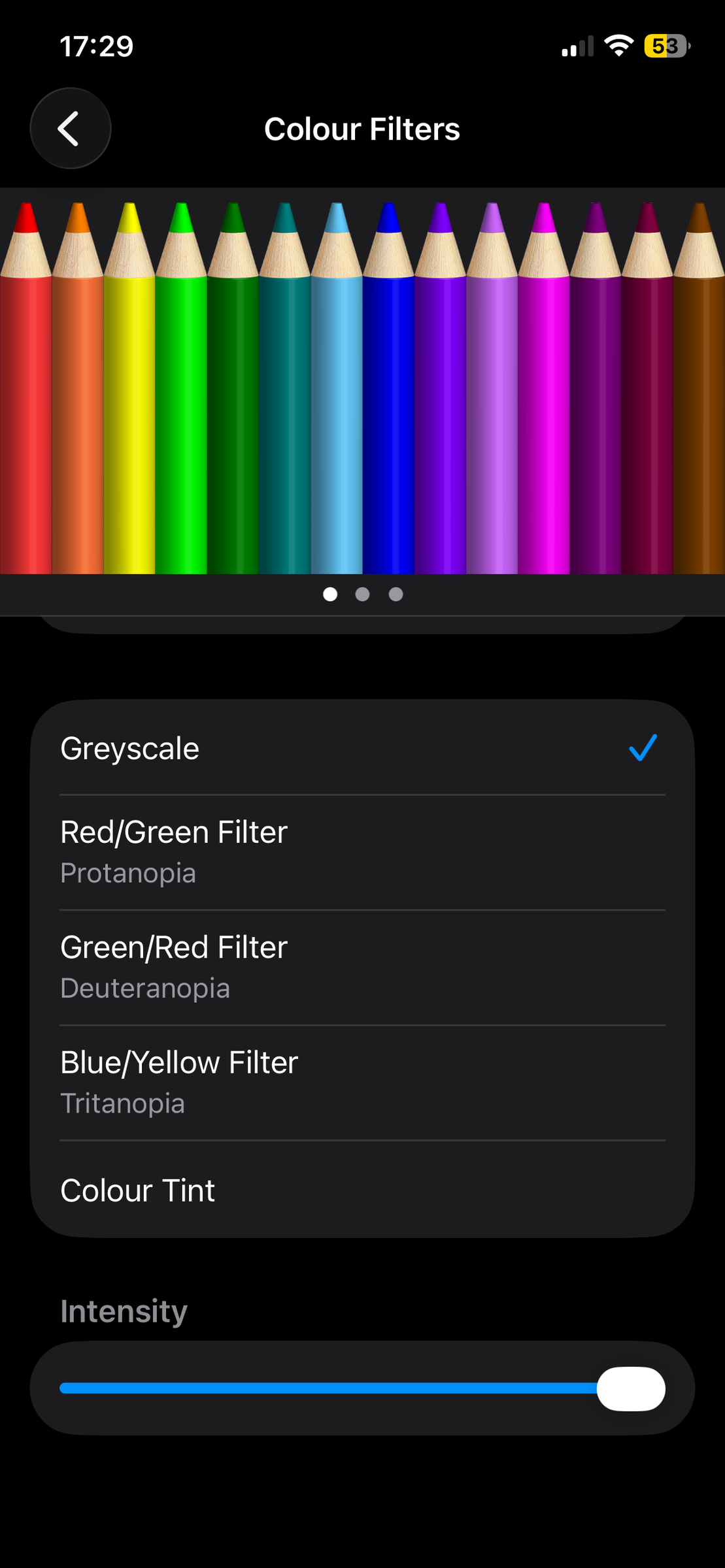
So we can all agree on the most unfun thing in the world right? That's right, greyscale - with a twist!
Making your phone colorless is quite easy, and honestly it does not really make it boring, it makes it more annoying than anything.
So the twist is to use the Shortcuts app to set up a set of rules. Your phone will remain a boring, grey PoS for social media, but the moment you open a good app - like your Camera, Maps, or Photos—the color will magically kick back in.
Setting Up Grayscale Apps With Shortcuts

Now we are going to set up som rules, fun rules, that makes the apps boring!
So let's begin!
- Open the Shortcuts app and press press the "+"-sign serch for "Set Colour Filters", choose it and press "Turn" to change it to "Toggle". If you'd like, press ▶️ at the bottom right to test it out!
- Press the back button in the top right corner to save the shortcut.
- Set your phone to Greyscale "ON" by going to Settings > Accessibility > Display & Text Size > Colour Filters > Greyscale.
- Open the Shortcuts app again and press on Automation at the bottom.
- Press the "+"-sign in the top right corner.
- Click on "Choose" in the When section, choose apps that you want to be colorful, e.g. the Camera- Maps- or Photos app. When you feel ok with the apps chosen press ✅ in the top right corner.
- Make sure that "Is Opened" is checked and that you choose to press "Run Immediatley" without toggle "Notify when run", if checked you will get annoying notifications all the time.
- Press "Next" int he top right corner and choose the shortcut we created in step 1-2, it should be named somerthing like "Set Colour Filters"
- Repeat step 5-8 but with a small change, on step 7 Press on "Is closed" instead to make the phone grey again!
So what have we just done? We have made the phone greyscale but with the twist that apps we want to see in color e.g, Photos turns on color until we close the app again, Awesome right?!
App Limits and Timers


To be honest, in my case greyscale almost got me to the finish line, but something was missing and I found the answer in the child lock thingy - We can actually set timers on apps, per use and per day!
- Go into Settings > Screen Time > App Limits and toggle it.
- Choose the apps you want to limit e.g. TikTok, Instagram or Facebook.
- Set a timer per app e.g. 30 minutes per day.
That was easy right! Now we have set an app timer for total use per day. Let's add a bonus step!
- Reopen the Shortcuts app and press press the "+"-sign, search for "Wait", choose it and set it for 60 seconds, click the hourglass symbol and press "duplicate", do that e.g. twice so you have a total "Wait" period of 3 minutes.
- Search and choose "Show Notification", write something like "The app will close in 15 seconds".
- Set another wait timer for 15 seconds.
- Search for "Go to Home Screen" and add that to the automation.
Now we have created a shortcut that waits for 3 minutes, tells us that the app we are currently using will close in 15 seconds, wait said seconds and return to the homescreen.
- Press back and "Automations" at the bottom.
- Press the "+"-sign in the top right corner.
- Click on "Choose" in the When section, choose apps that you want to set the timer for e.g. TikTok, Instagram or Facebook.
- Make sure that "Is Opened" is checked and that you choose press "Run Immediately" without toggle "Notify when run", if checked you will get annoying notifications all the time.
- Press "Next" in the top right corner and choose the shortcut we created just above it should be named something like "Go to Home Screen".
Impressive! You did not just create an App Timer but a timer that "kills" the app after a couple of minutes use!
Cliffhanger
On an Android phone we can add another feature that is not possible on iPhone yet. Detct significant motion e.g. walking or Driving. I added this automation to my Android.
Yes my primary phone is an Android, And yes, i have done the same steps as described in this Instructable but with an app called Tasker. The steps above I did on my wifes iPhone
And to clarify, I don't use my phone when driving regardless of the option added, but I did use my phone when walking - and that can be dangerous enough.
So about that cliffhanger, I think it could be a fun learning experience to build an iPhone app using the Core Motion framework and try to tie that into the Shortcuts app.
But hey, this is a community of makers so if you already know an app that does the same thing - please share in the comments!
That Wasn't That Scary, Was It?
Isn't it both awesome and frustrating at the same time? Apple, Google, and other tech giants have these features to significantly reduce screen time and fight app addiction built in - but they never talk about them. It’s almost as if they want us to keep scrolling..
I'm not here to lecture.. But read about this Horrifying, Scary and Insane stuff!
I really do hope that this Instructable shows you just how easy it can be to make your phone boring and that the time you'll save will go into more fun things like introducing a cord phone for the kids or build a payment ring!
Remember, the phone is just a tool, don't be afraid to make it boring so you can get your life back!