The Telegraph: Reinvented
by amarsico_29 in Circuits > Microcontrollers
3337 Views, 27 Favorites, 0 Comments
The Telegraph: Reinvented

Hi, I'm Anthony and I'm a 9th grade student at El Segundo High, this is my Reinvented telegraph. First, some history, the telegraph was a groundbreaking invention in the 1840s. It was one of the first inventions of its time that allowed near instant, long distance communication. This was a major milestone in communication because before the telegraph messages had to be physically carried by messengers on horseback or by ships. This would take anywhere from days to weeks depending on where the message was going.
In the early 1830s, inventors such as Samuel Morse started experimenting with electrical signals and sending them through wires to communicate. This led to the development of the first working telegraph system. To communicate, Morse and other inventors created a system called Morse code. This system assigned different sequences of dots and dashes to different letters and numbers to allow communication.
In 1844, the first long-distance telegraph message was sent from Washington, D.C. to Baltimore. The message famously read, “What hath God wrought,” marking the beginning of a new era in communication. These early versions of the telegraph worked by sending electrical signals through a wire between two telegraphs. This became more and more practical as time went on because more networks and stations were built to relay the signal over longer distances. This was done because over long distances the resistance in the electrical wire would weaken the signal, reducing how far the signal could travel.
The telegraph although being a revolutionary invention, its use sadly declined and became obsolete in the early 1900s due to the increasing popularity of other communication inventions such as the telephone invented by Alexander Graham Bell in 1876 or the radio which was invented by Guglielmo Marconi in the mid to late 1890s in Italy. Marconi is also credited with inventing the first practical wireless telegraph in 1895. However, this invention was only a culmination of the work of many inventors such as Nikola Tesla who had demonstrated wireless radios in St. Louis in 1893. Following this, later in 1943 an official ruling made by the U.S. Supreme Court reversed Marconi's patent and returned key radio patent rights back to Tesla.
Our Telegraph
The telegraph that we will be making in this instructable is a modernized version of the telegraph. As of right now it only works with WIFI because I wanted to create a telegraph that can work from across states and even countries. Other forms of communication with an ESP-32 would only go anywhere from a couple hundred feet to about a mile. Also most of these methods would be less effective at communication in a city due to big buildings and obstacles not offering a clear signal to the other telegraph. Therefore, I chose to run this telegraph with WIFI and an MQTT broker. It works as follows, So first we'll go over the electronics of the telegraph. So first it works by connecting to WiFi. It can auto save wifi networks on the board and re connect to them. But if there is no recognized WiFi the ESP-32 micro controller will make its own WiFi which you will then connect to with your phone. Once connected it will open a WiFI portal on your phone where you can then choose any network to connect to. After connecting to the network, the portal will be closed. Then on the telegraph it will display the message “WIFI connected.” You will then repeat these steps with the second telegraph. Then to send messages the two telegraphs will connect to an MQTT broker which is essentially a private online server. The two telegraphs will then connect onto the server using the server name and password stored in the code. Then, you will type out a message on telegraph 1 which is uploaded to the server. The other telegraph, telegraph 2 during this is constantly scanning the server for any new messages. Once a new message is detected, telegraph 2 receives it and displays it on the oled display. Using this server style communication theoretically allows the two telegraphs to talk from across the world. Although, this has not been tested. Just as long as the two telegraphs can connect to the internet they should be able to communicate with one another.
Credits to bowienewsonline.com for the introduction picture
Supplies
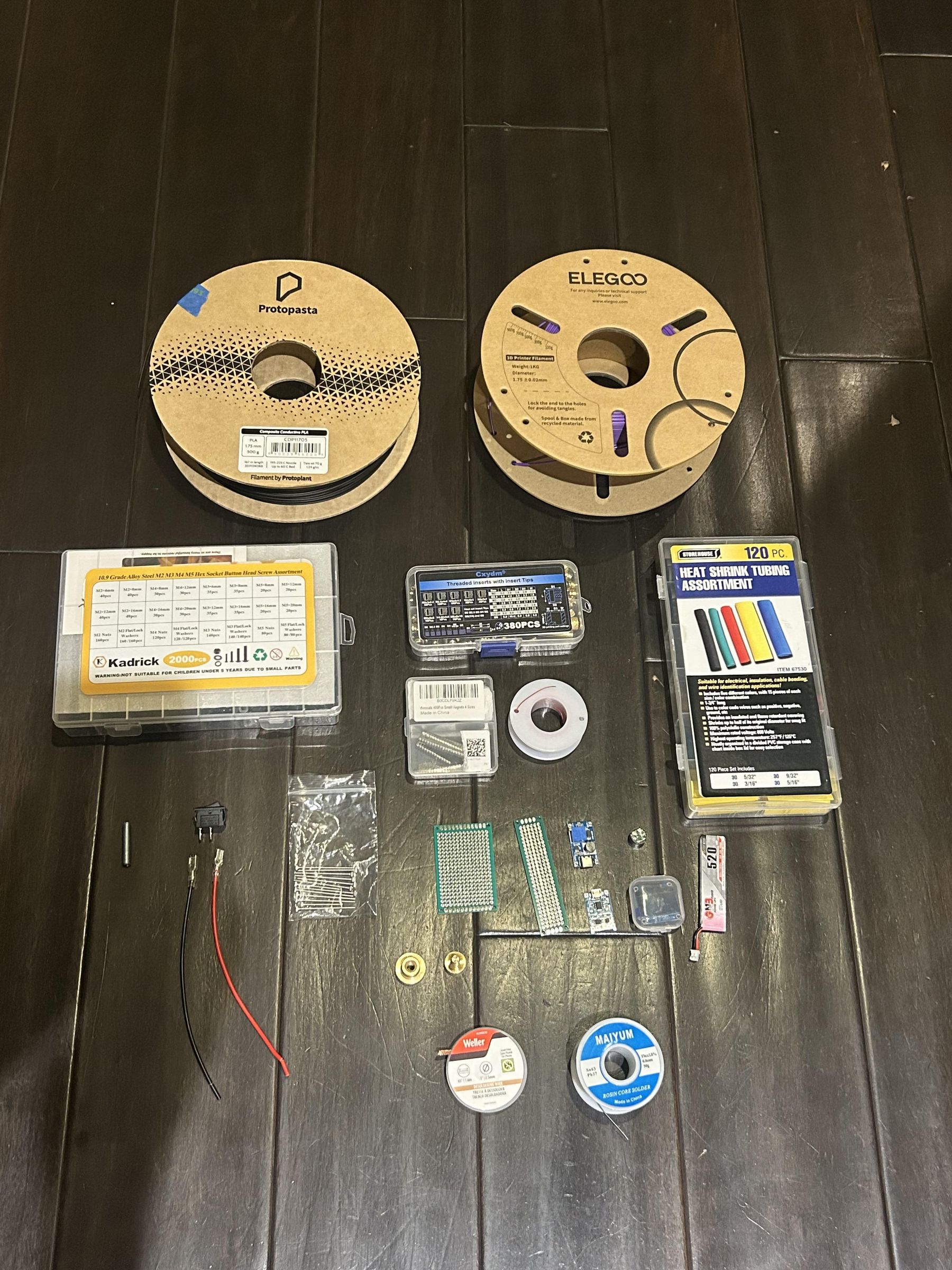


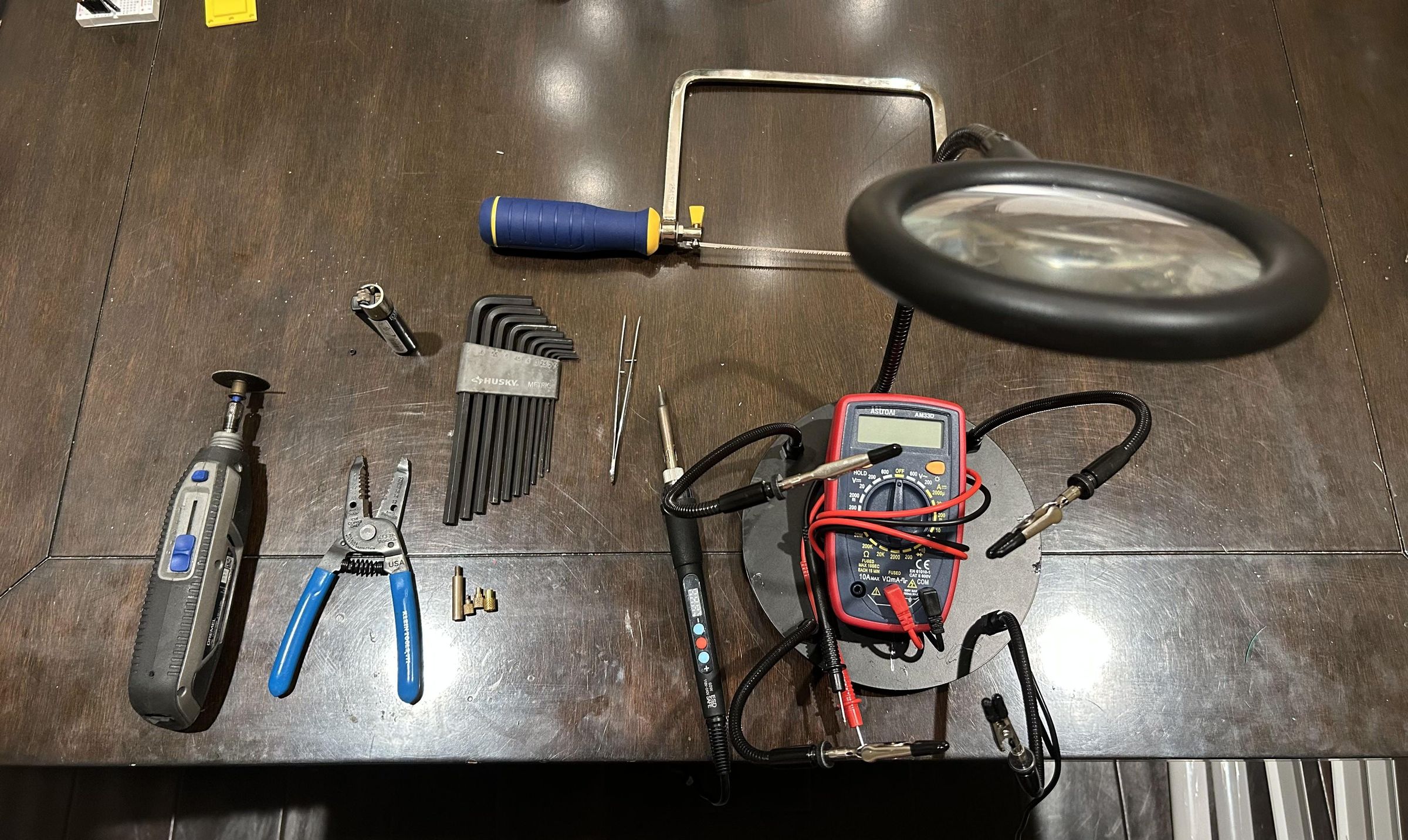
Supplies:
- 30 awg solid core copper pre-tinned wire
- Small magnets https://www.amazon.com/dp/B0CDLF9K2Z?ref_=ppx_hzsearch_conn_dt_b_fed_asin_title_2&th=1
- 2mm copper plate
- Different sized perfboard
- 1kg of 1.75mm filament (any color will work)
- Solder wire
- Proto Pasta conductive fillament
- Heat shrink tubing
- ESP-32 https://www.amazon.com/dp/B0D8T53CQ5?ref=ppx_yo2ov_dt_b_fed_asin_title
- Passive Buzzer https://www.amazon.com/dp/B0F1KFHSNK?ref=ppx_yo2ov_dt_b_fed_asin_title&th=1
- Rocker switch
- Buck/Boost converter https://www.amazon.com/dp/B0C69CKRWN?ref_=ppx_hzsearch_conn_dt_b_fed_asin_title_1&th=1
- Lipo Charge protecter https://www.amazon.com/dp/B00LTQU2RK?ref_=ppx_hzsearch_conn_dt_b_fed_asin_title_1
- Oled screen https://www.amazon.com/dp/B09T6SJBV5?ref=ppx_yo2ov_dt_b_fed_asin_title&th=1
- 1s lipo battery
- Knurled thumb nut https://www.amazon.com/dp/B0CWP94JBC?ref=ppx_yo2ov_dt_b_fed_asin_title&th=1
- m6 knurled bolt https://www.amazon.com/dp/B0CR1DMQYW?ref=ppx_yo2ov_dt_b_fed_asin_title&th=1
- Heat set inserts
Tools:
- 3d printer
- Soldering iron
- Wire strippers
- Tweezers
- Helping hands (optional but really helpful)
- Heat set insert tips for soldering iron
- Solder wick (optional but helps to remove solder if you make a mistake)
- Set of Allen keys
- Multi meter
- Coping saw
- Lighter
- Dremel rotary tool
Slice and Print Housing
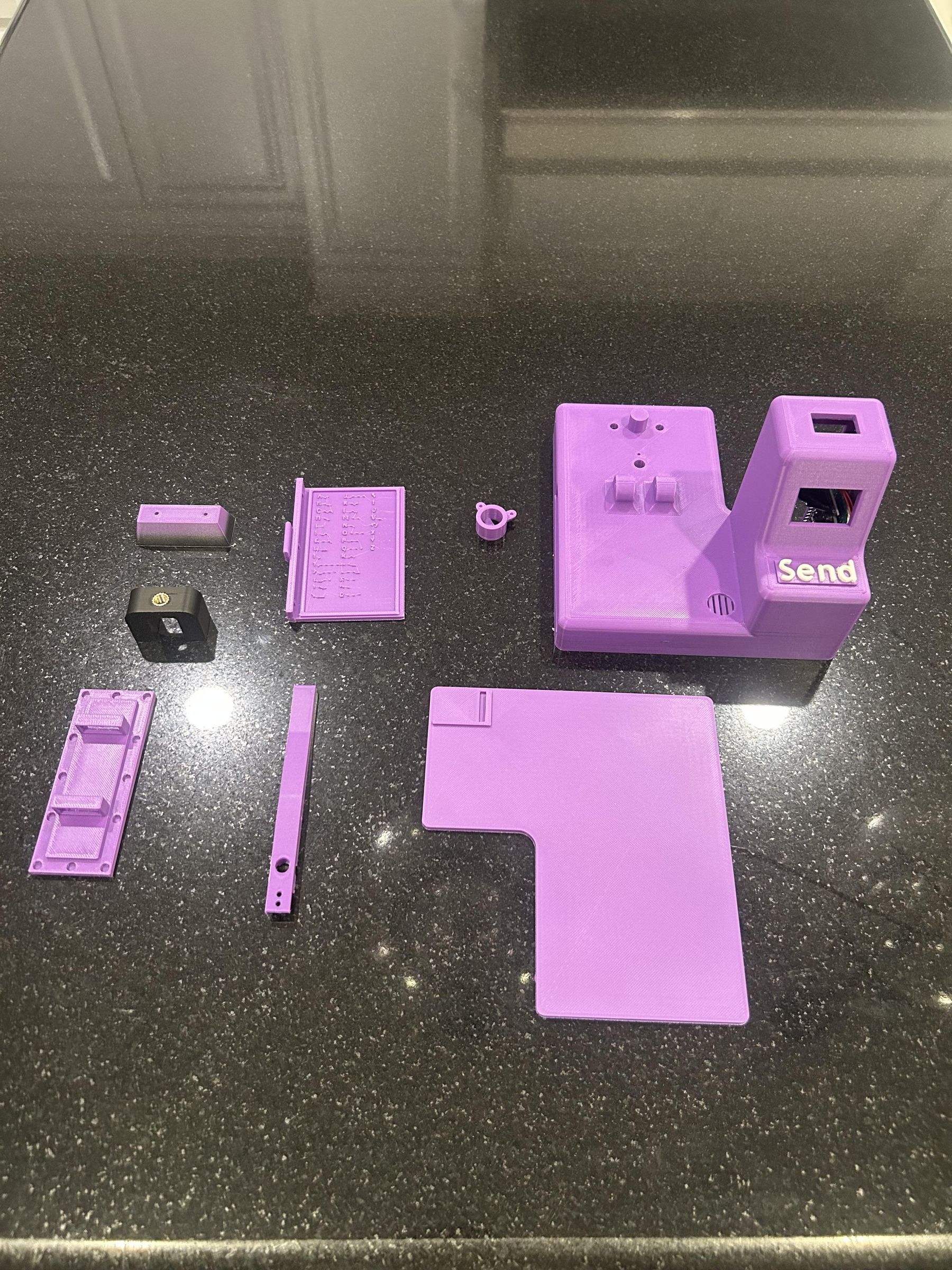
First, we want to print out our telegraph housing because printing can take about 10ish hours so while we wait for the housing to print we can work on other things. I would recommend printing the Morse code table and typing key arch both by itself because the Morse table prints best with a 0.1 nozzle and two colors whereas pretty much all the other parts are printed in a 0.2 nozzle for faster print times. Then the typing key arch is printed with Proto Pasta conductive filament. Above are my slicer settings. You will need two of each part.
The send button is already installed because I was partway into assembly when I realized I forgot to take a picture of this step.
Cut and Solder Perfboard
Next we can go ahead and cut our perfboards to size. We are starting with
Once we have the correct size perfboards we can solder our components to them to hold them in place while we solder wires on. On the ESP-32 I soldered one pin in each corner of the controller for a total of 4 pins holding the micro controller onto the board. Then, for the push button we solder two terminals that are diagonal from each other for a total of 2 terminals holding the push button to the perfboard. Do this step twice for both telegraphs.
Upload Code


Now we can take our two ESP-32s and connect them to our computer to upload the code. I am using Arduino IDE and selected ESP-32 dev board as my board in the software. You will also have to download the following libraries for this to work.
- <WiFi.h>
- <PubSubClient.h>
- <Wire.h>
- <Adafruit_GFX.h>
- <Adafruit_SSD1306.h>
- <WiFiManager.h>
After downloading these libraries, go into the sketch and find two sections. The first some should be right at the top of the sketch and it says Publish topic and Subscribe topic. On telegraph A make the publish topic telegraph/A_to_B then on the subscribe topic make it telegraph/B_to_A. Then on Telegraph B flip it. telegraph/B_to_A for the publish topic and telegraph/A_to_B for the subscribe topic. Second, scroll all the way to the bottom of the sketch where it says void connectMQTT(). Below that change ESP32Telegraph to mach each telegraph. So if you are uplading the code to telegraph A, change that to EPS32TelegraphA and vice versa for telegraph B. If this is not done your telegraphs won't be able to communicate with each other.
Solder the ESP, Charging Module, and Components

Now we can solder the entire board. I would start by soldering the ground and power pads on each side of the perfboard before starting anything else. Once this has been done solder all of the wires that are connecting to the ESP-32. Don't solder the components to the wire then to the board. It will make it a little bit harder to do and you won't be able to put the buzzer in its holder. Instead, solder each wire to its respective pin, ground, or power pads. Then once all of the wires have been soldered to the ESP you can connect the wires to the OLED display and push button. For our buzzer, slide the buzzer inside of the 3d printed buzzer holder and then solder the wires onto the buzzer once it is inserted into the holder. (don't be alarmed, the fit of the buzzer housing is extremely tight so don't be afraid to use some force to get it into the holder) Above I provided a diagram of how everything should be wired. Once every component has been soldered to their respective wire you can now slide the buzzer inside of the buzzer holder and solder on the power and ground wires. Above is a picture showing how it should be installed. Also this is not mandatory but if you would like you can plug in a battery or power the circuit from your computer and see if everything works.
Note: For the buck/boost converter in the charging circuit, make sure it is tuned to 5v. If this is not done and the circuit is turned on it could fry the ESP-32
Charging circuit
Lipo Battery
- (+) --> Lipo charge protector (B+)
- (-) --> Lipo charge protector (B-)
Lipo charge protector
- Out (+) --> Rocker switch (+)
- Rocker switch (-) --> Buck/Boost converter Vin (+)
- Out (-) --> Buck/Boost converter Vin (-)
Buck/Boost converter
- Out (+) --> Perf-board power rail
- Out (-) --> Perf-board ground rail
ESP-32 circuit Wiring
- GND pin --> Perf-board ground rail
- VN pin --> Perf-board power rail
- D14 pin --> Push button (+)
- D21 pin --> Oled display (SDA pin)
- D22 pin --> Oled display (SCL pin)
- D27 pin --> Oled display (Passive buzzer +)
- D12 pin --> Typing key wire
Pushbutton
- (-) --> Perf-board ground rail
Passive buzzer
- (-) --> Perf-board ground rail
I2C Oled display
- VCC --> Perf-board power rail
- GND --> Perf-board ground rail
Typing key
- Key --> Perf-board power rail
Heat Set Inserts
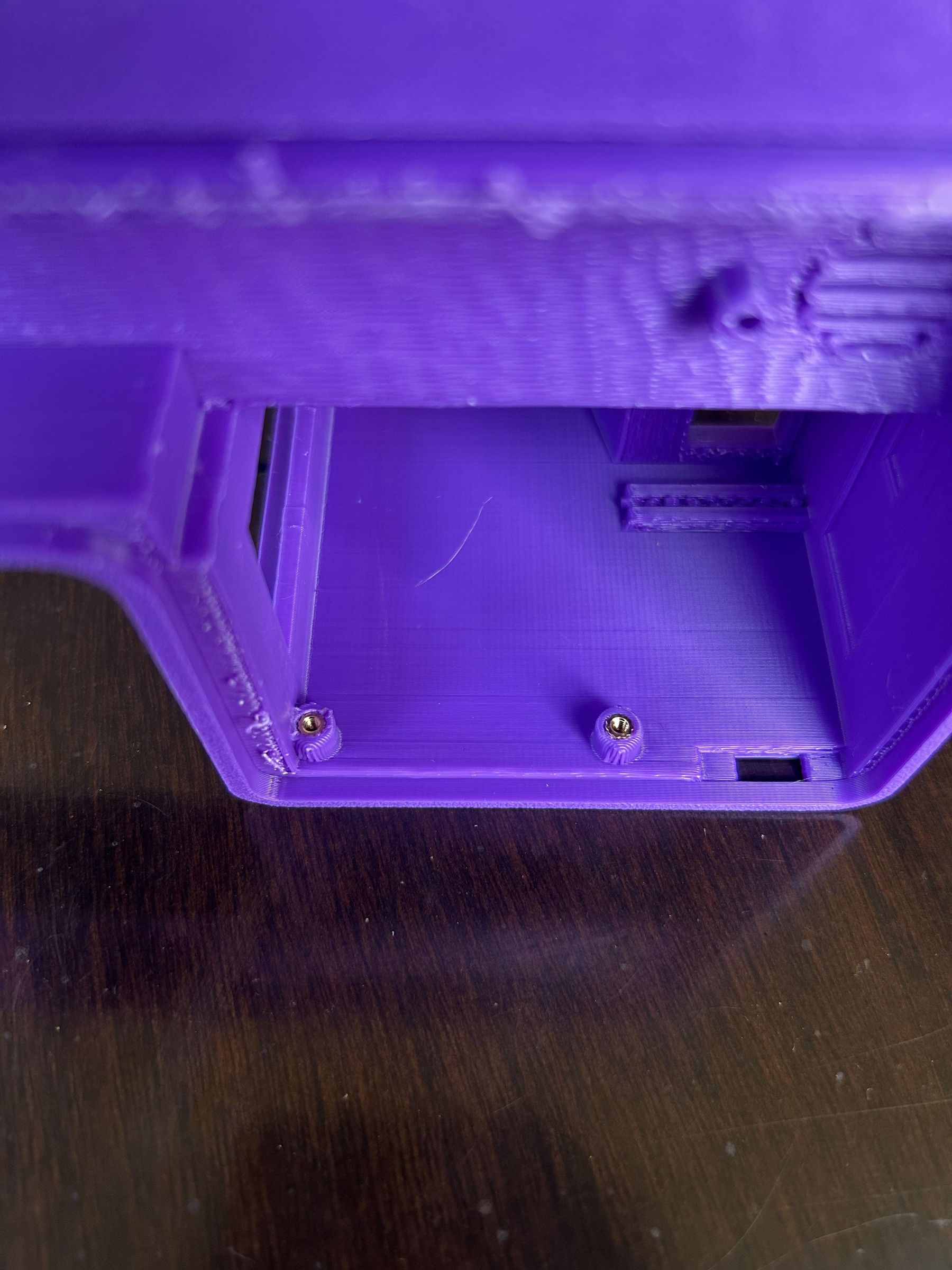
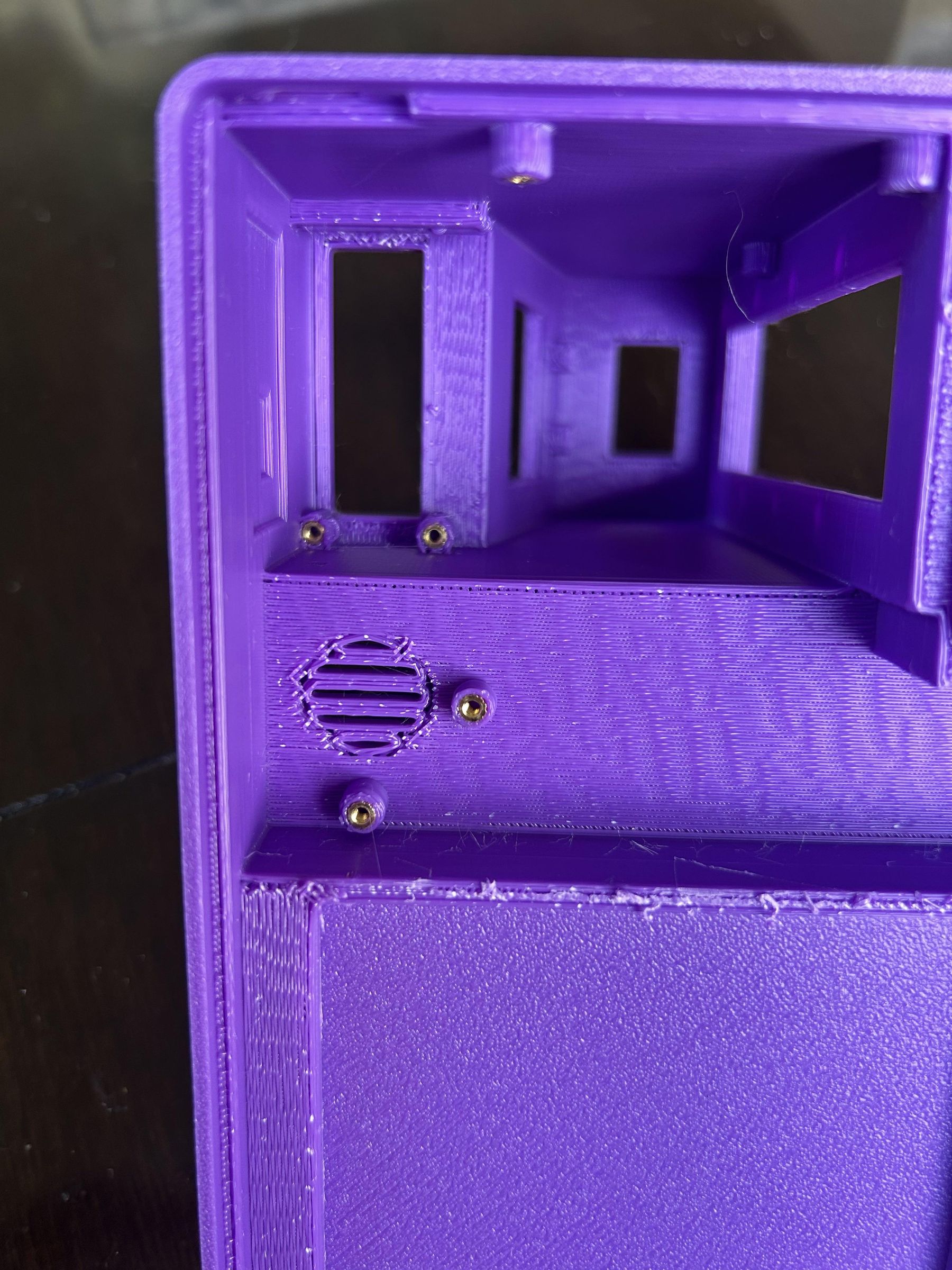
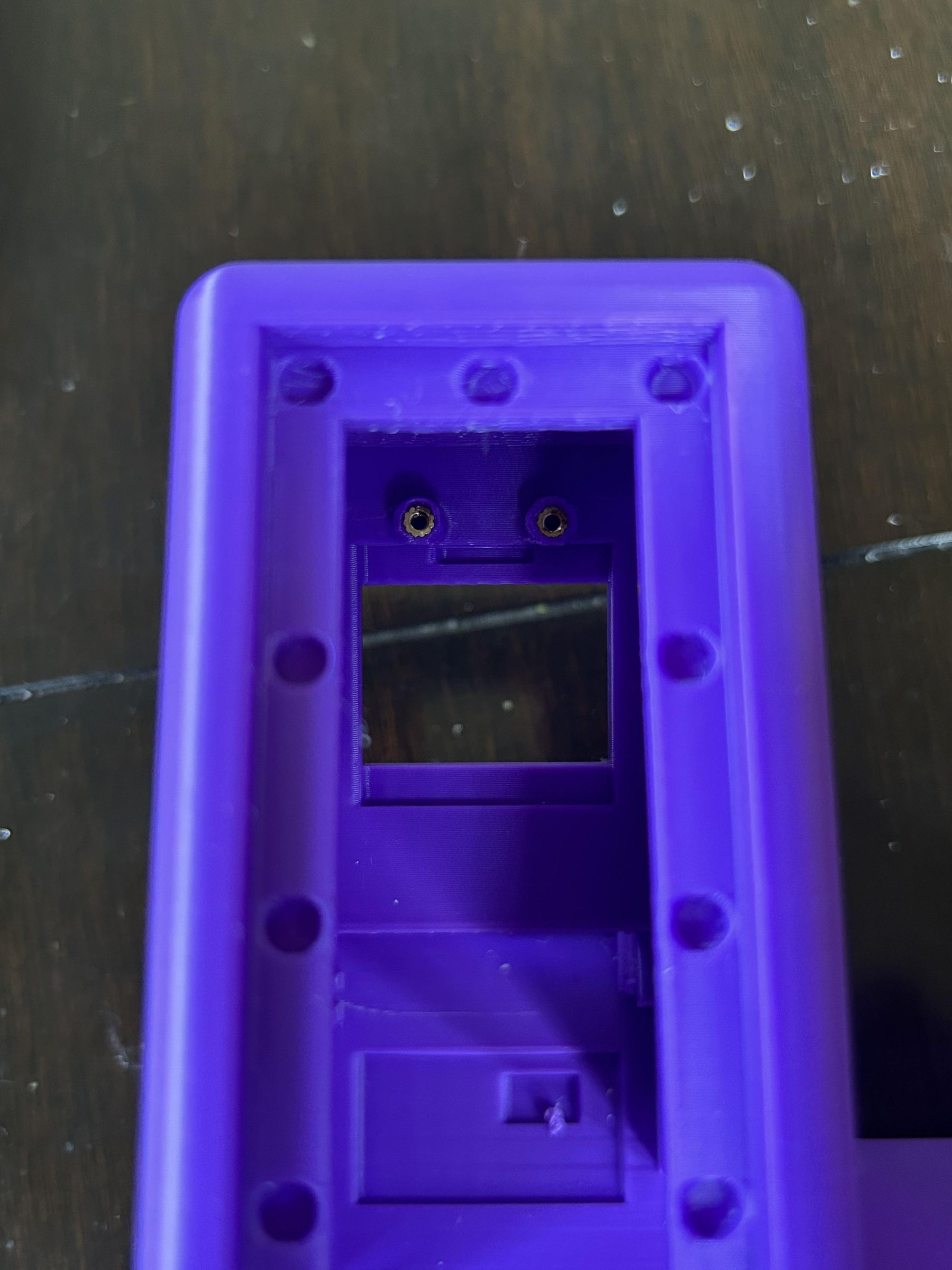


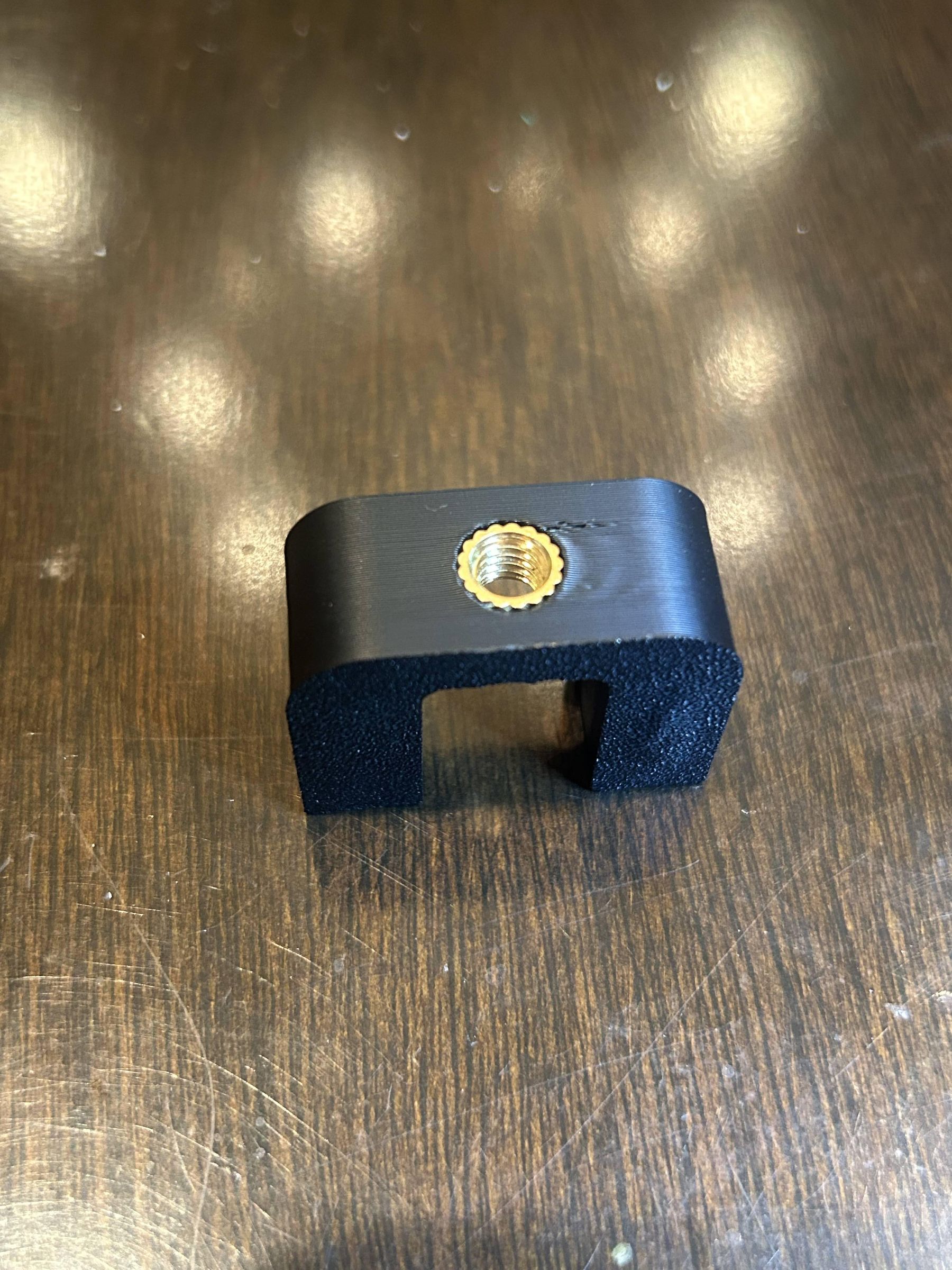
Once we have all of our components soldered together we can now grab our 3d printed parts and prep them for assembly. Ensure all support material has been removed before installing heat set inserts. Now we can take our m2 heat set inserts and place them all around our housing like in the pictures above. Then for the typing key arch (black part) we use m5 heat set inserts on the two legs then an m6 heat set insert on the top of the arch.
Note: Try to keep the inserts as straight as possible when inserting to make assembly easier. It's okay if it's not completely straight but just try your best.
Installing Components

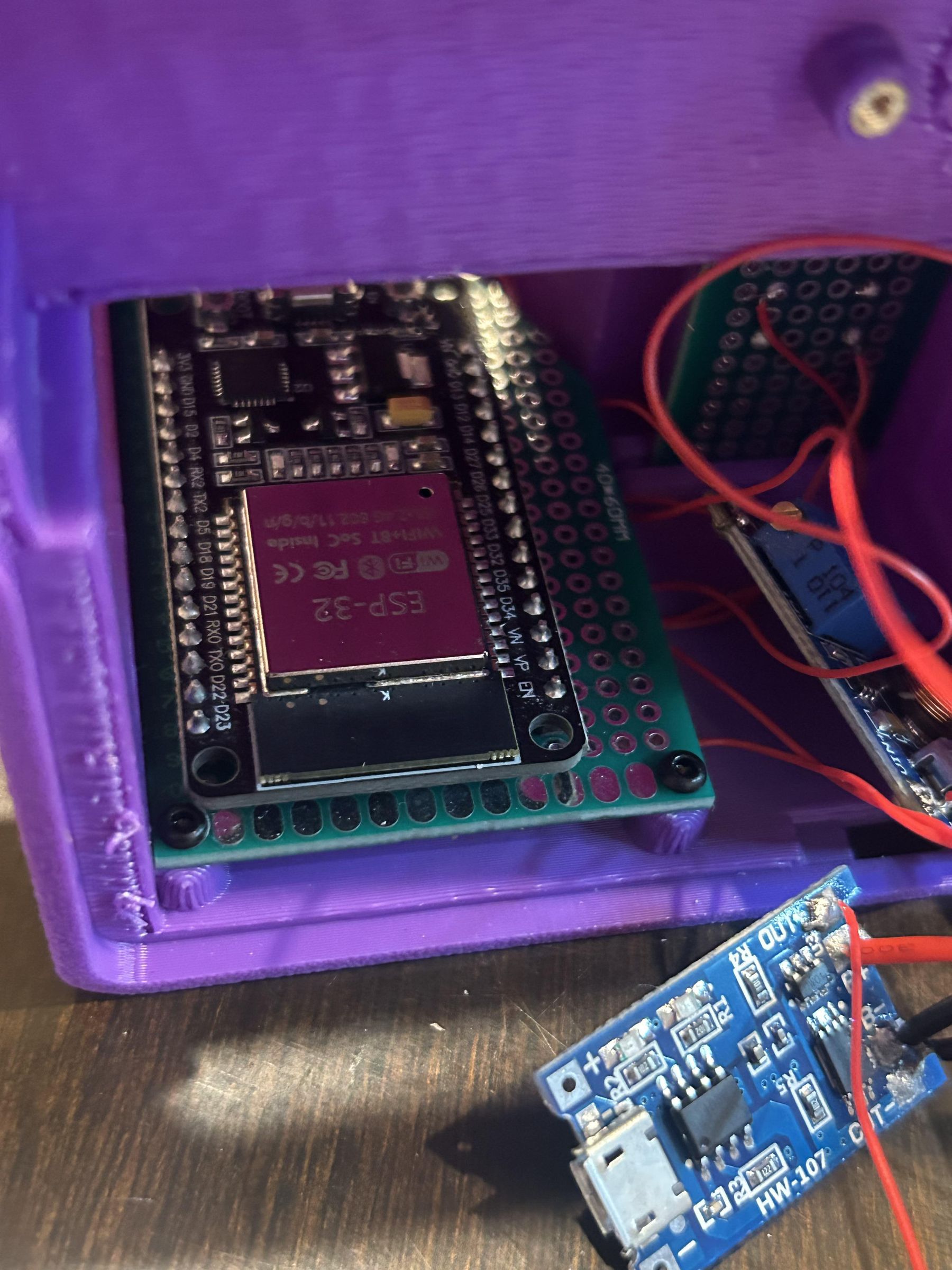
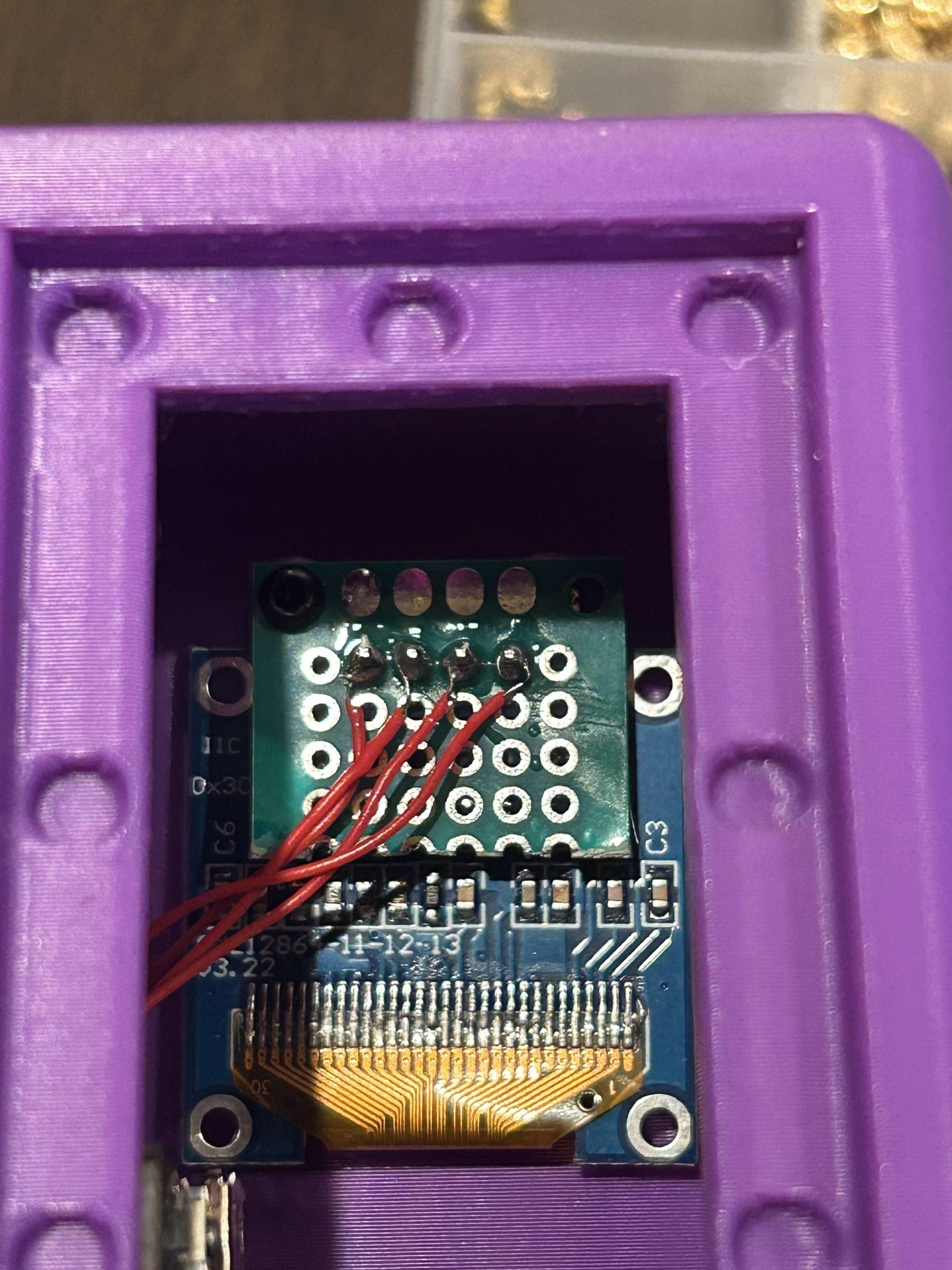

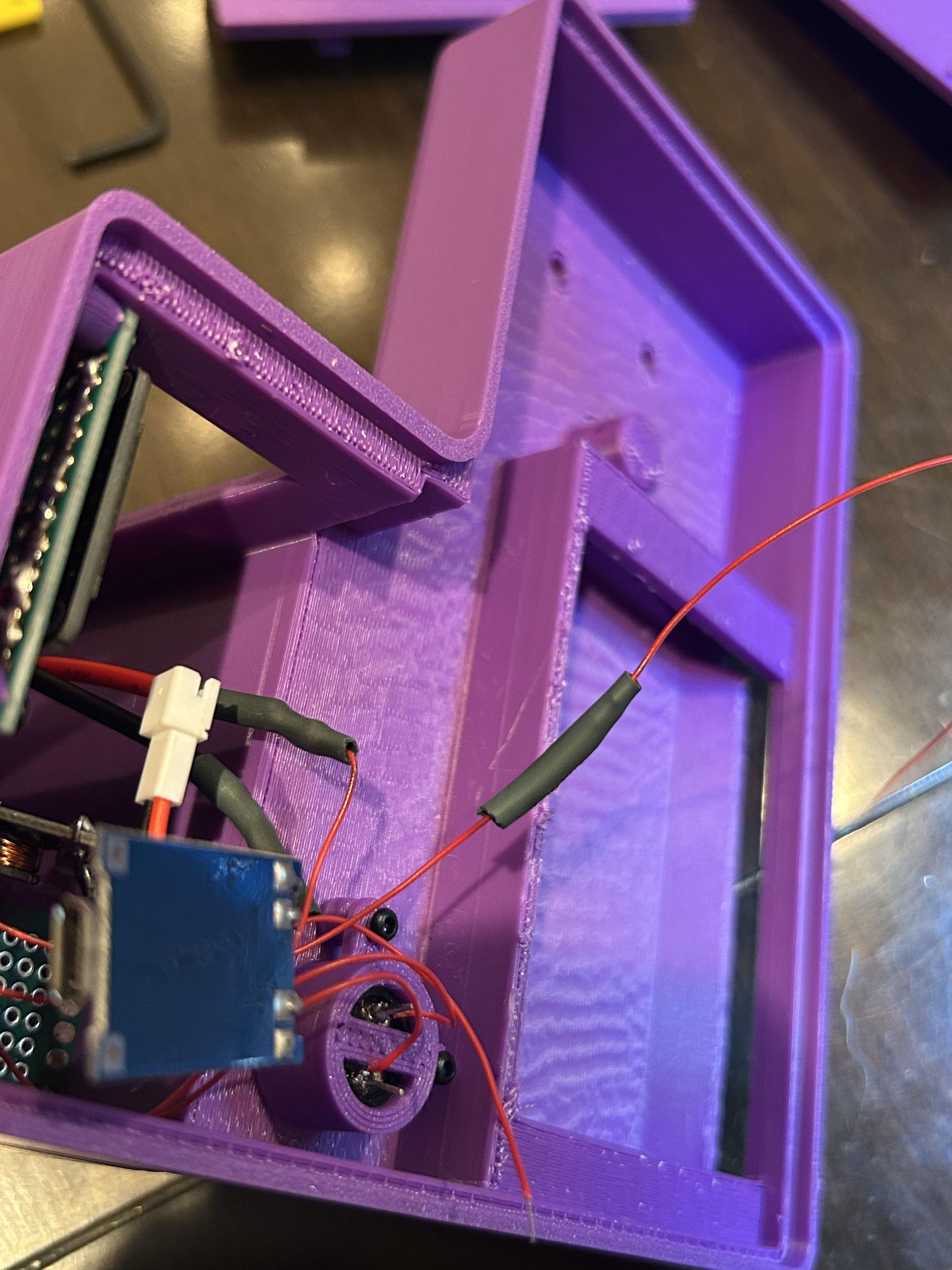
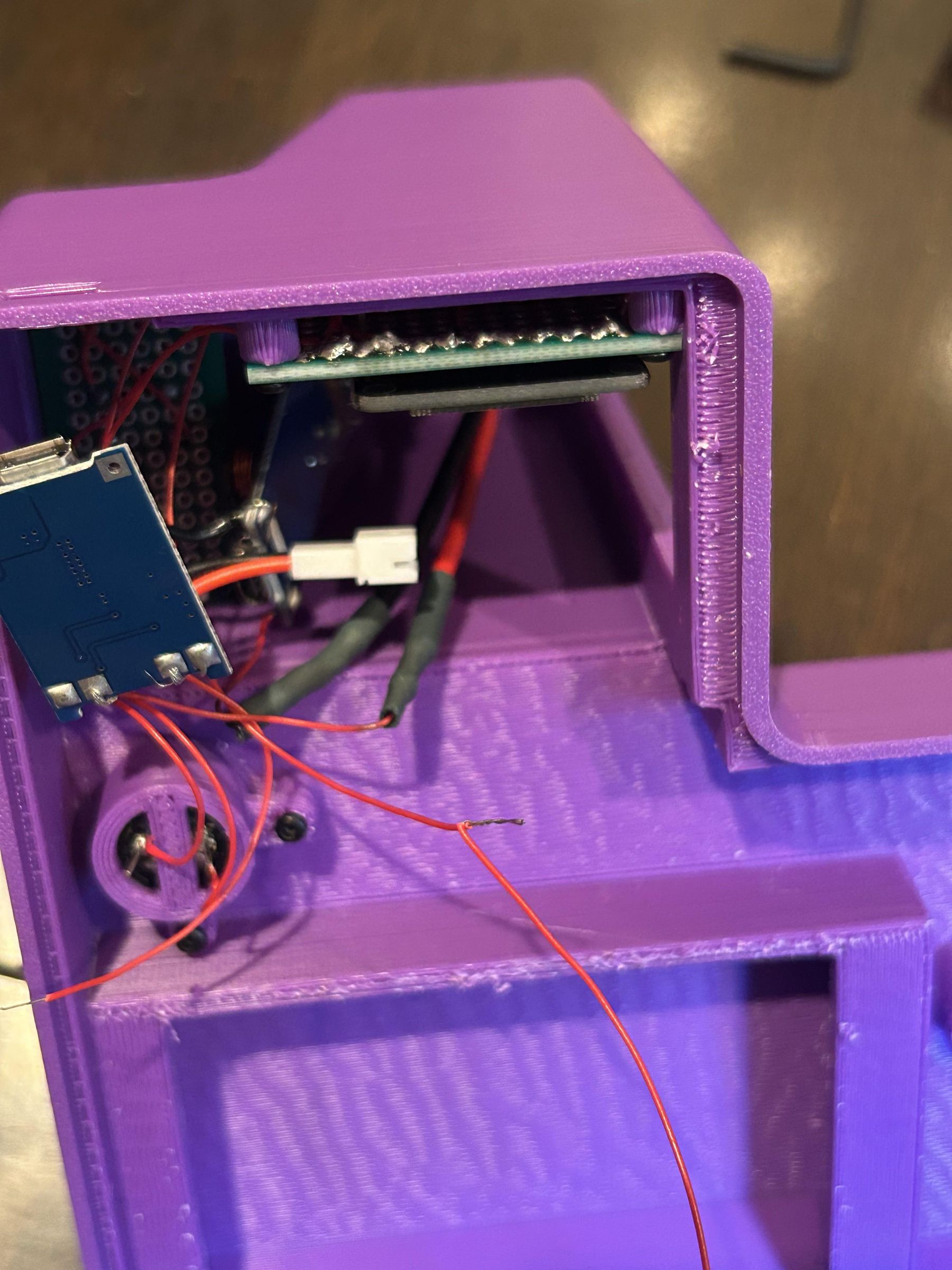
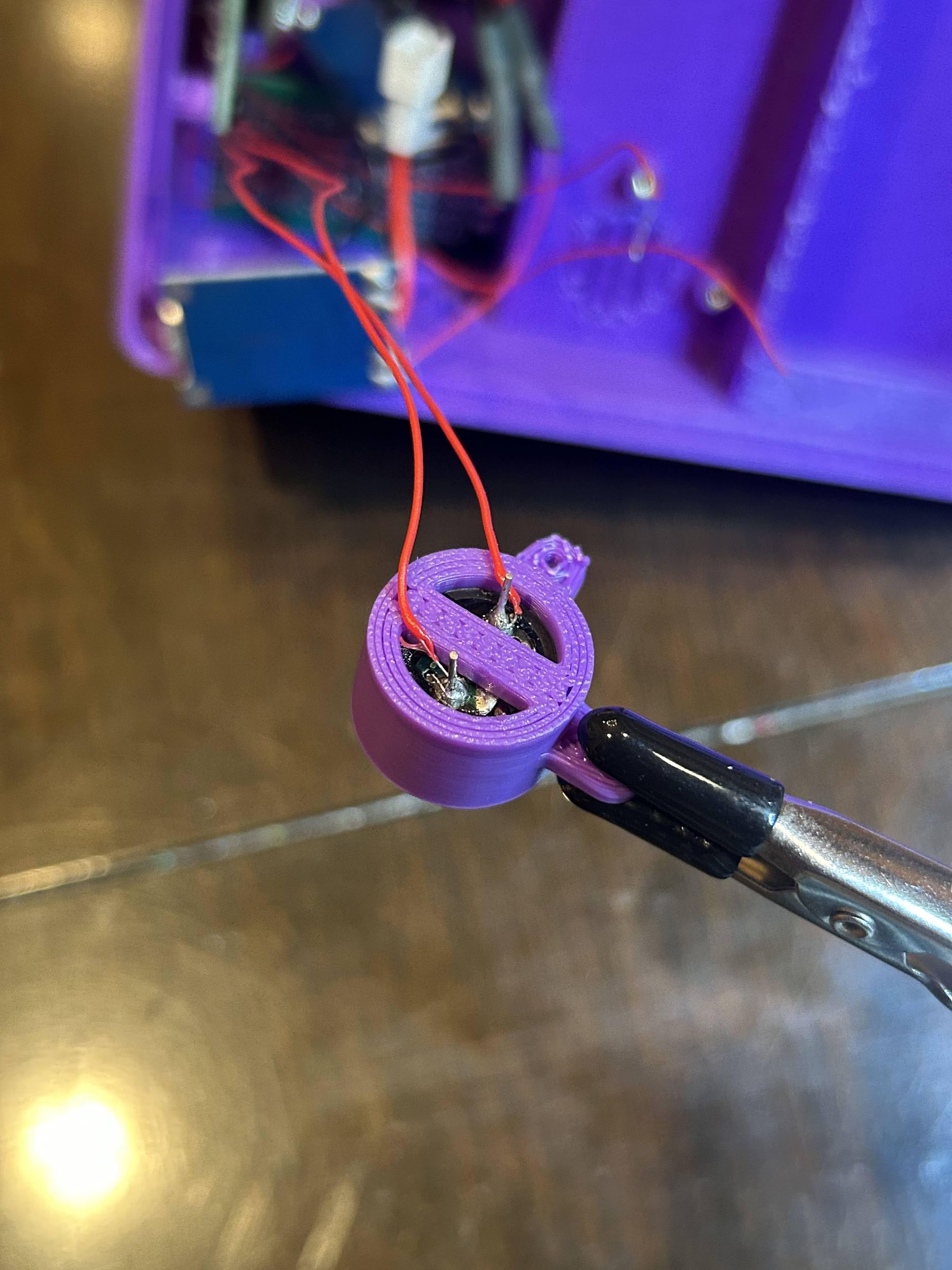
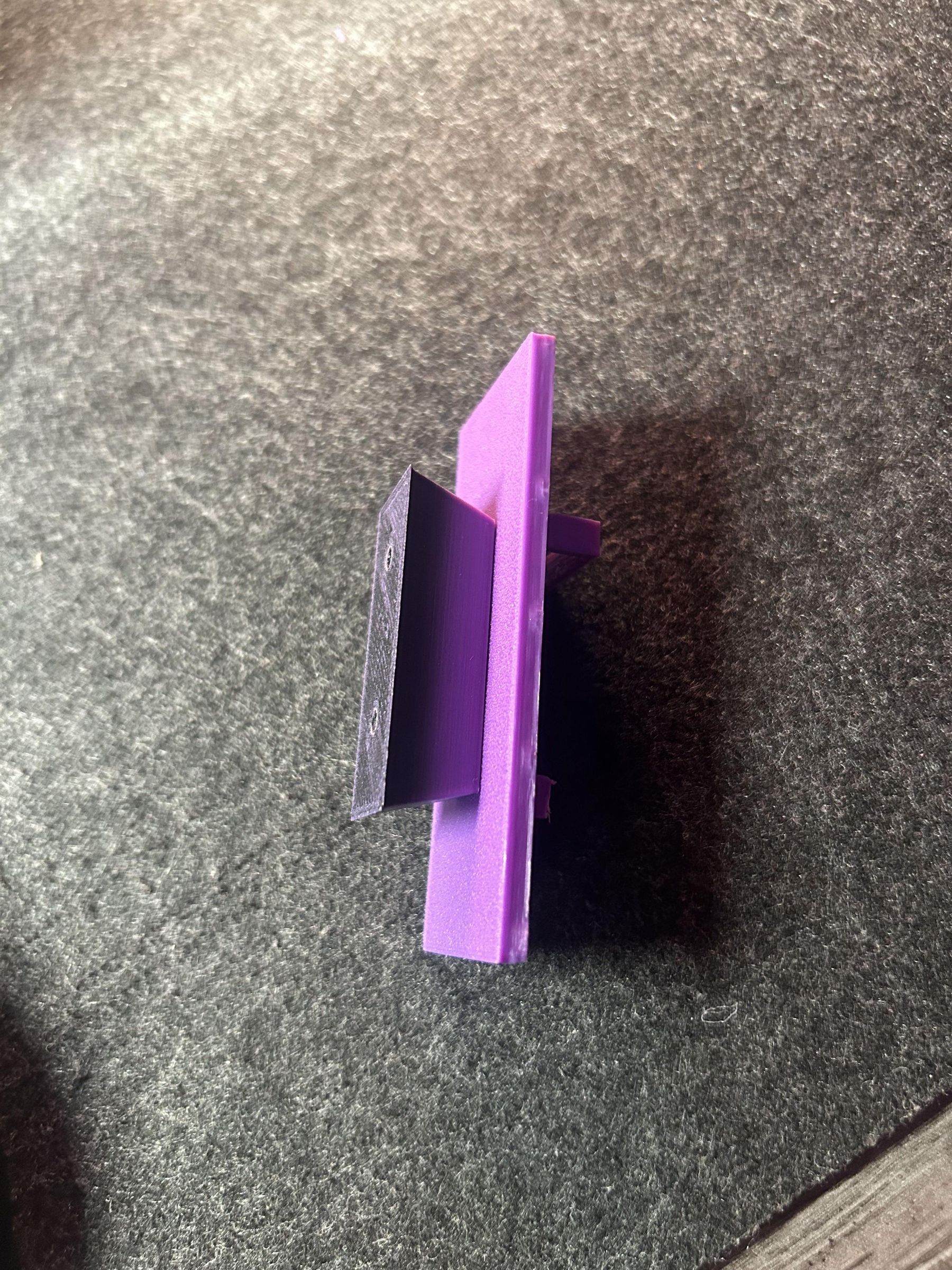
Now we can take our m2 screw and start installing our electrical components into our housing. Start with the biggest to smallest components. I would recommend installing the push button first (put the send button in first then install the push button), then the ESP-32, followed by the OLED display, buzzer, rocker switch, and the typing key wires (I used 26 awg stranded silicone copper wire for the typing key wire). After this has been done, you can take the 2mm copper plate and cut it into a rectangle approximately 11mm x 21mm with a coping saw. I used a coping saw because it's easier to cut smaller designs but almost any saw or cutter will do the job. Next, mark the bolt holes on the copper so you know where to drill your 2mm bolt holes. To install the handle for the back pannel door, cut two m2 bolts to about 15mm long to screw the handle onto the back door.
How to Install the Typing Key
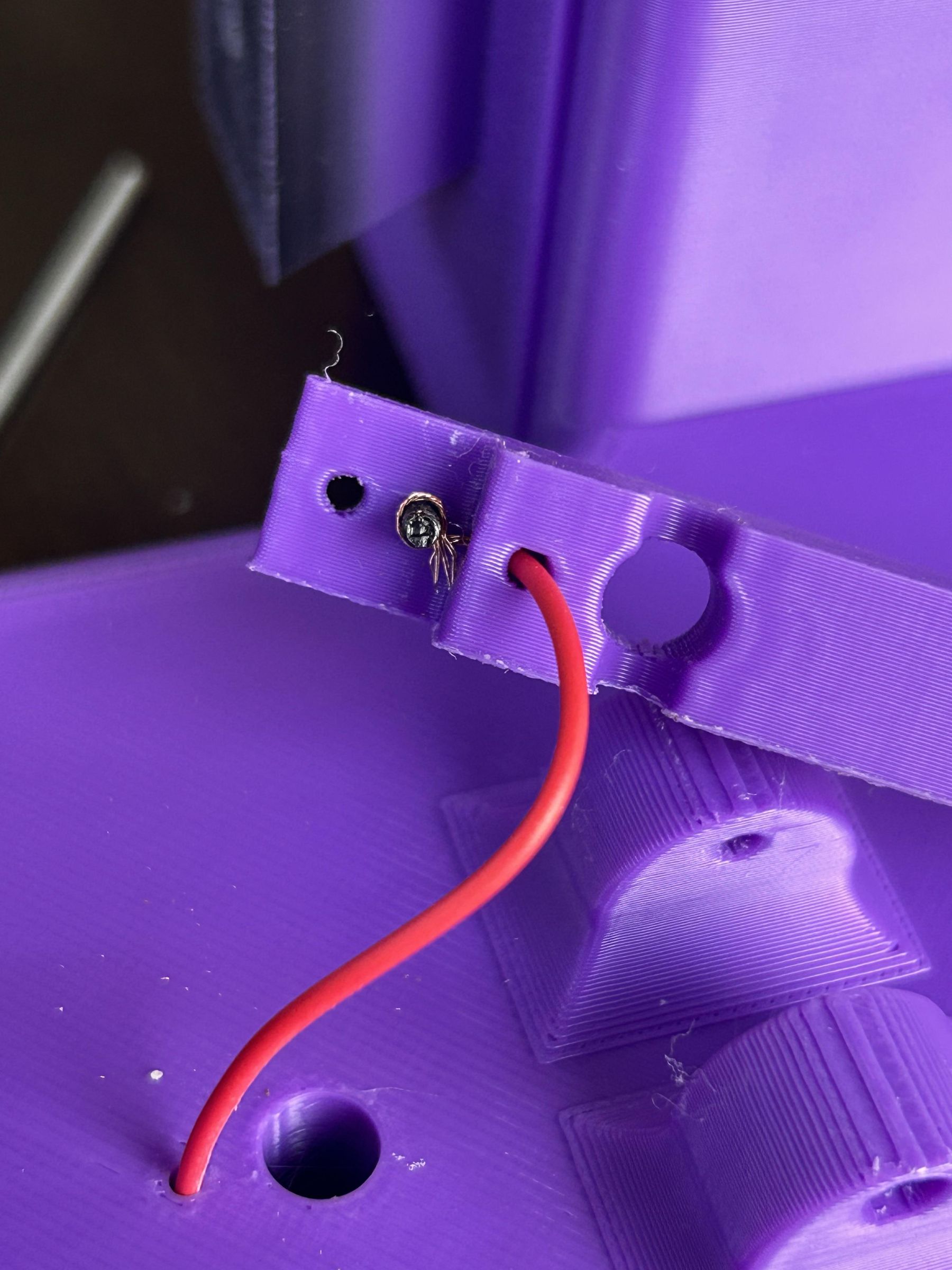
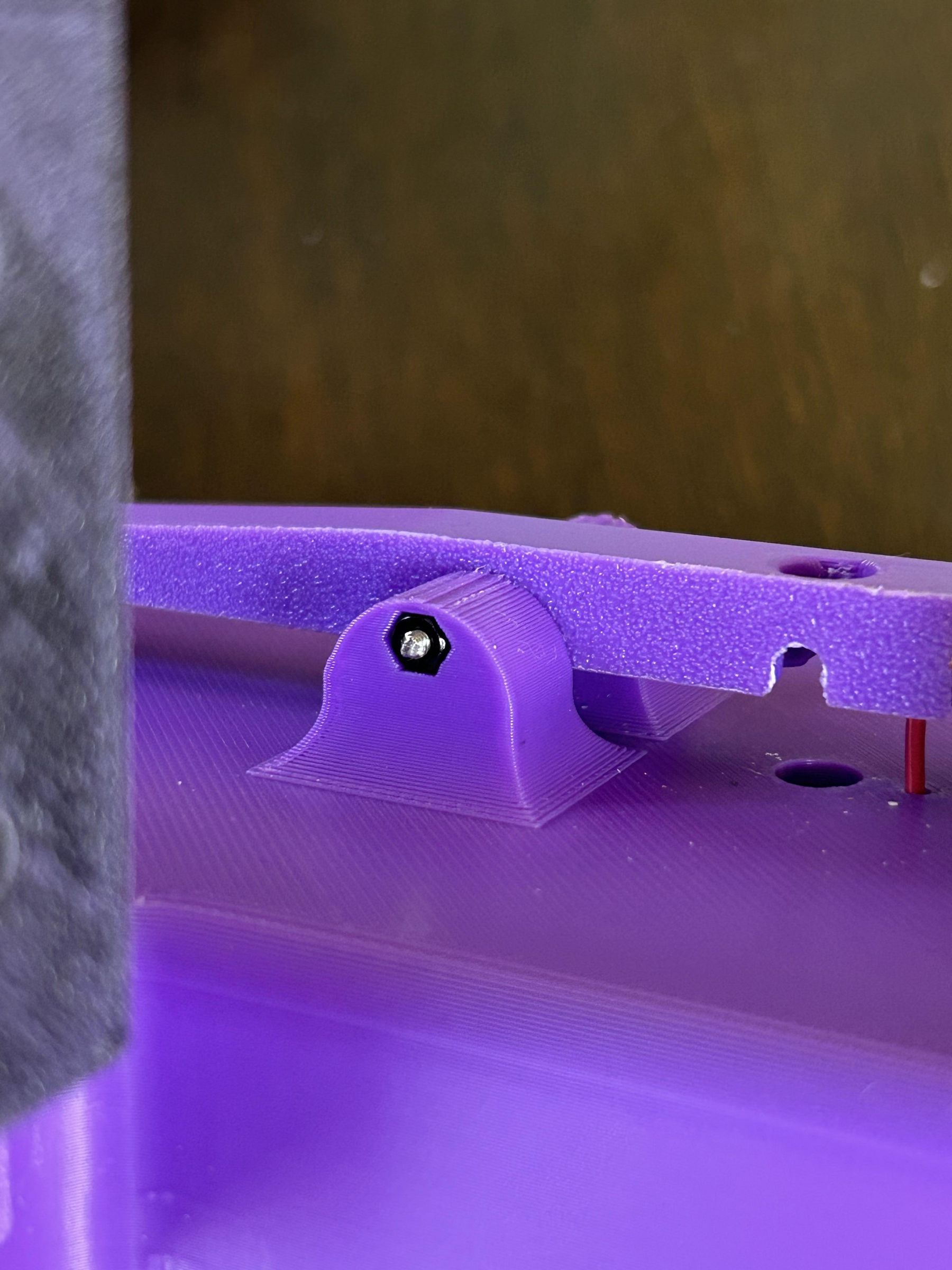

Run the wire up through the hole in the bottom of the telegraph and then through the telegraph key. The wire should sit in between the plastic typing key and the copper plate. This is done so the wire is sandwiched and has a good connection to the copper plate to transmit the electrical signal. Above is an example of what it should look like. Next is the weight. Cut the bolt head off of an m6 bolt then tread it onto one of the knurled thumb nuts. Next, slide it into the big hole on the typing key. Finally cut an m2 bolt to about 30mm long to mount the typing key to the telegraph. To secure it, use an m2 nut and screw it in on the other side like in the picture above.
Note: If the key is lose you can slide a washer in between the typing key and the typing key mount to remove some of the slop.
Installing Magnets

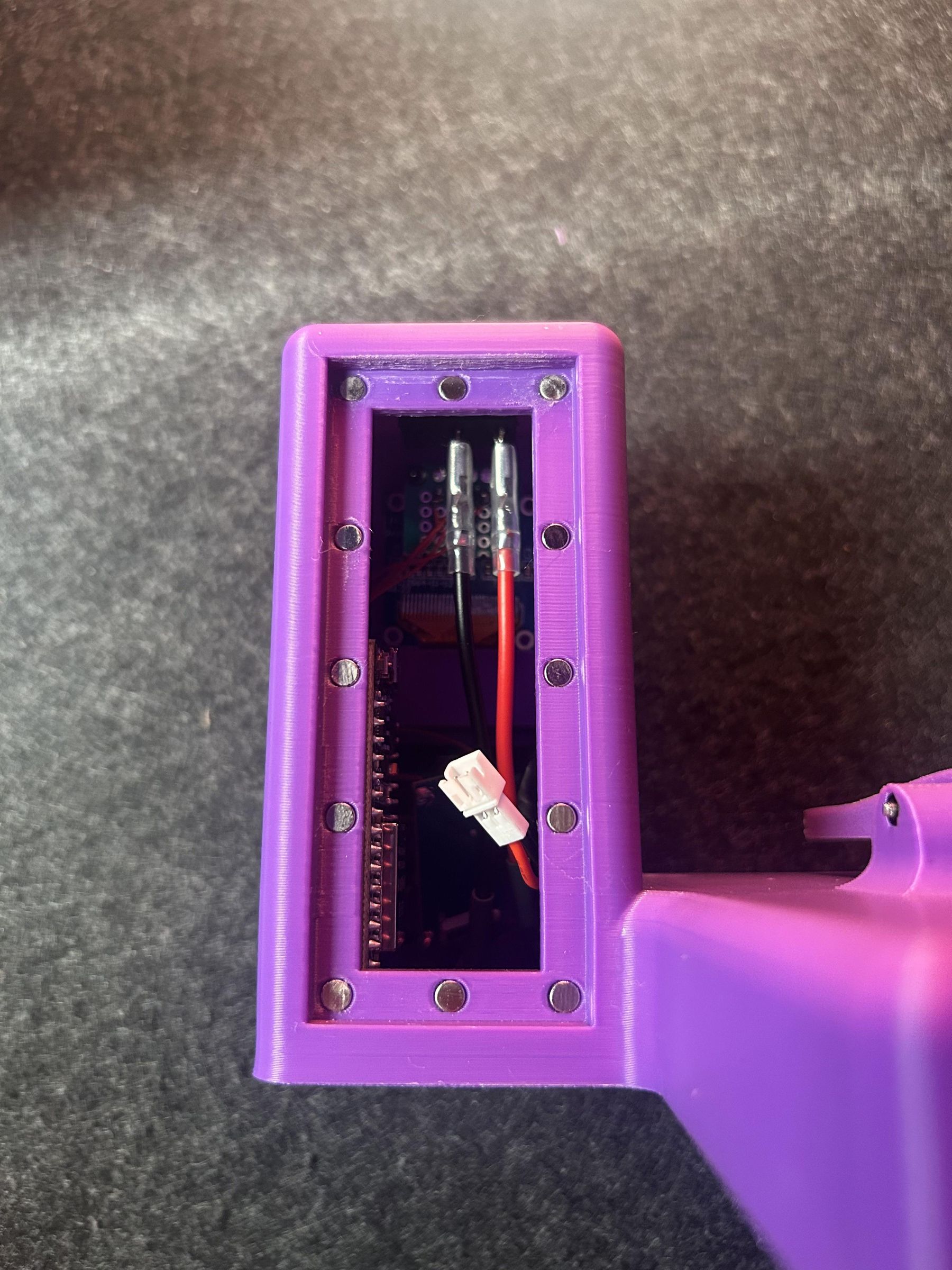

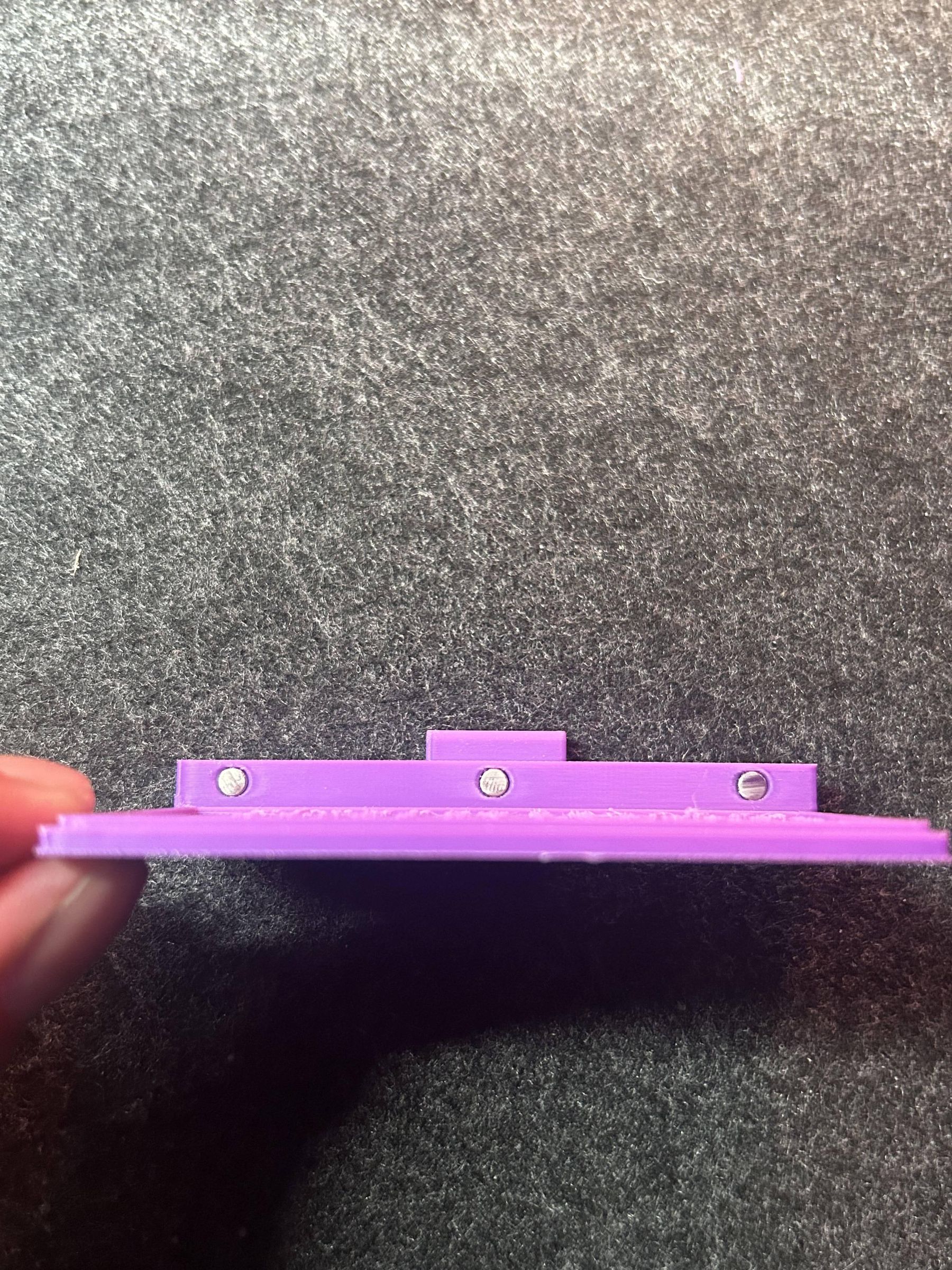
After all of the heat set inserts are added we can take our magnets and start pressing them into the magnet holes all around the telegraph housing. Above are pictures showing where every magnet should go. If needed, you can add a drop of super glue inside a magnet hole to better secure the magnet if it's too loose. Here I was using 4mm x 2mm circle magnets.
Note: The magnets will have a very tight tolerance so they don't come out. Therefore it requires a substantial amount of force to press the magnets into place.
Typing Key Arch
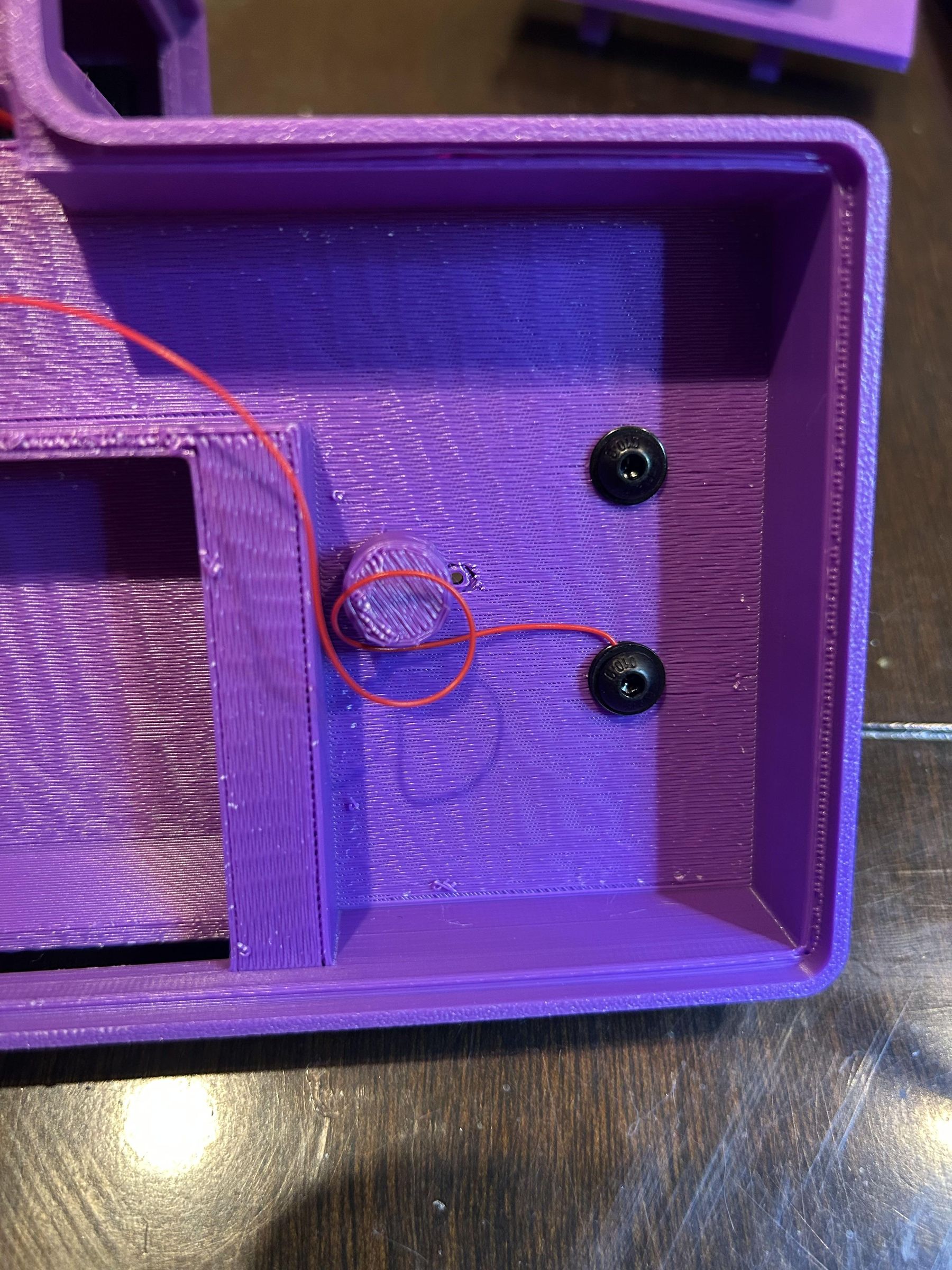
Now we can install the typing key arch. We first use an m5 bolt and one washer to secure either one of the legs down. But only one, don't do this for both. Now, on the second leg we will take an m5 bolt and two washers and wrap the second typing key wire around the bolt. Finally, tighten down the bolt with the two washers to sandwich the wire in between. The picture above shows how its done.
Test
Once both telegraphs have been assembled and a battery is connected, turn the telegraph on by flipping the toggle switches. When the screen turns on a message will show stating "telegraph starting." When this screen appears, open your phones WIFI and look for a WIFI called Telegraph Setup. Click on this WIFI and it will bring you to a portal where you can select your home WIFI and input the password. After that, the portal will automatically close and the telegraph will be connected. This needs to be done for both telegraphs. The good thing though is that the telegraph will auto save the WIFI so you wont have to do this again unless you want to connect to a different WIFI network. Congratulations! You should now have a working telegraph system.
Cool Features and How to Use.
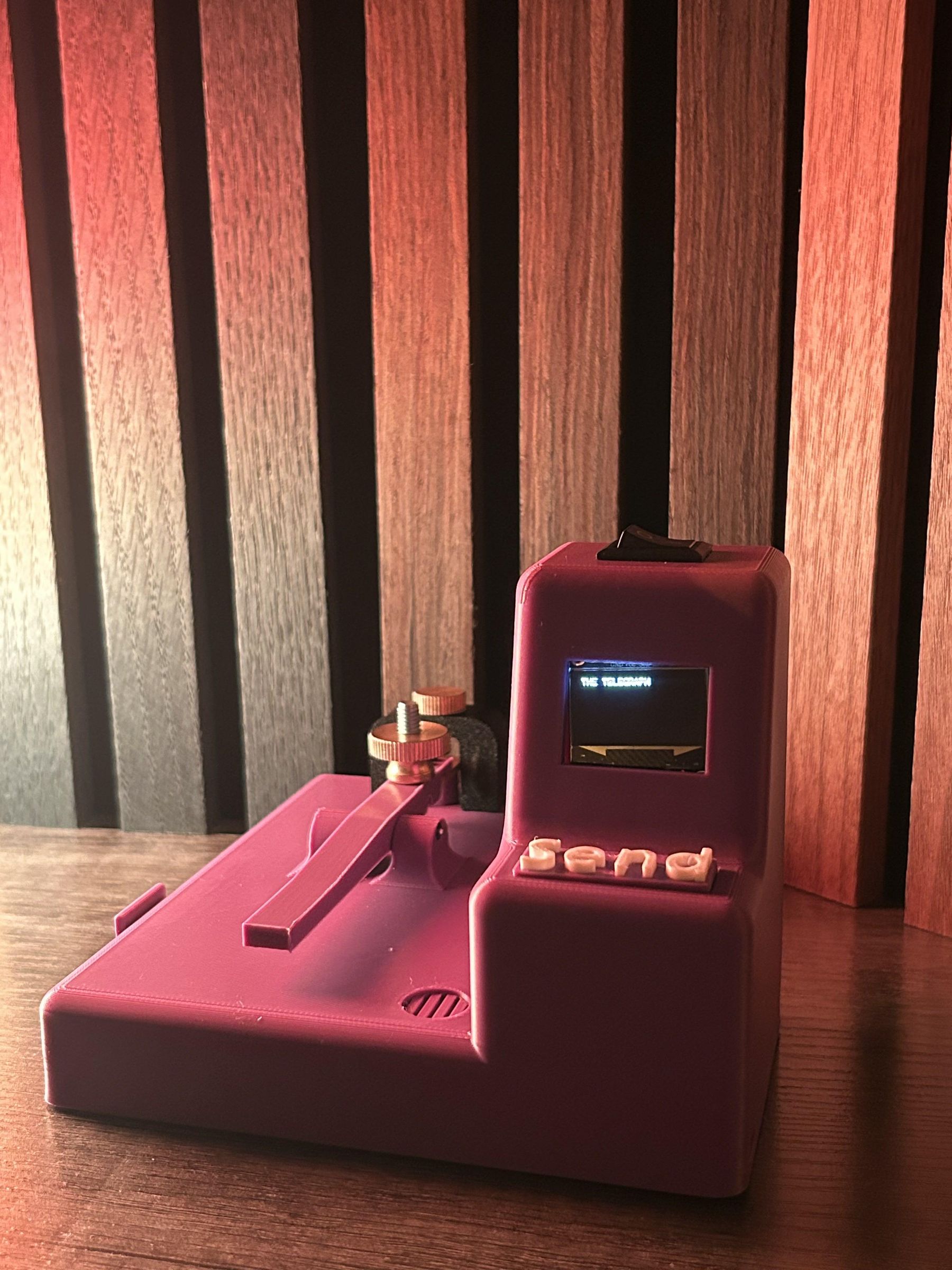
Features
- Message memory (saves the last message received when the telegraph is off)
- Auto decoding (decodes the Morse and turns it into words)
- Built in Morse table (Morse table lets you send messages without needing to remember Morse code)
How to use
First you will type out a morse sequence on the typer/long key. That message is then displayed on the screen first in morse so you can see what you're writing and then it is decoded and written in letters. Once you are done with your message, you press the send button to send the message to the server. If you mess up a message, you can double press the send button to clear the message and restart.