Tinkercad Bouncing Ball Simulation W/ Track
by 31smiller in Design > Animation
171 Views, 1 Favorites, 0 Comments
Tinkercad Bouncing Ball Simulation W/ Track

In this project, you will be making a bouncing ball in an app called Tinkercad. Unlike my last Instructables, called "Tinkercad Bouncing Ball Simulation", this one involves a short track. Tinkercad is a software that you can design 3D projects on and is a great intro to CAD. I suggest you read over the first one in case this one is worded differently in a way that doesn't make sense.
Supplies

All you need for this project is a device (preferably a computer).
Making Your Account

- First, you need to go to Tinkercad.com.
- If you have an account already, log in. If you don't have an account, click the sign up button.
- The account will need to be approved by an adult with an account if you are under the age of 13.
Getting Set Up

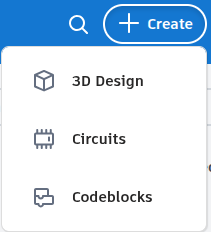

- Press the "+ Create" button at the top right corner.
- You must then select the "3d Design". It will open you to a randomly titled blank Workspace. It should look something like this (see pic. 3).
Units and Title
.png)

- Click the Settings button (that is circled). It will come up with the Workspace Settings.
- Make sure the Units are set to Imperial.
- Set the Workspace size to where you want them. I suggest maxing it out at 78.74 x 78.74 inches.
- Make sure all the other settings match.
- If you want to keep those settings for all your projects, press Make Default.
- When you are done, press the X in the top right corner of the Workspace Settings.
- Now change the title in the top left corner. You can keep it as the random title, but I suggest you change it to something you'll recognize, like "Bouncing Ball w/ Track".
Learning the Controls
This step is helpful if you are not familiar with the controls in Tinkercad. If you want to change your view in the form of rotating, press and hold the right mouse button (RMB). If you want to move your view without rotating, press and hold the center mouse button (CMB). If you want to zoom in and out, move the scroll wheel.
Understanding "My Language"

In this Instructables, you may notice that I say things like "see pic. 3". This means that it is the 3rd picture for that step. When I say the 3rd picture, that is not including videos, which automatically appear before the pictures. You may also need to press the button that says "View [number] more" which will load the rest of the pictures.
Making the Starting Port
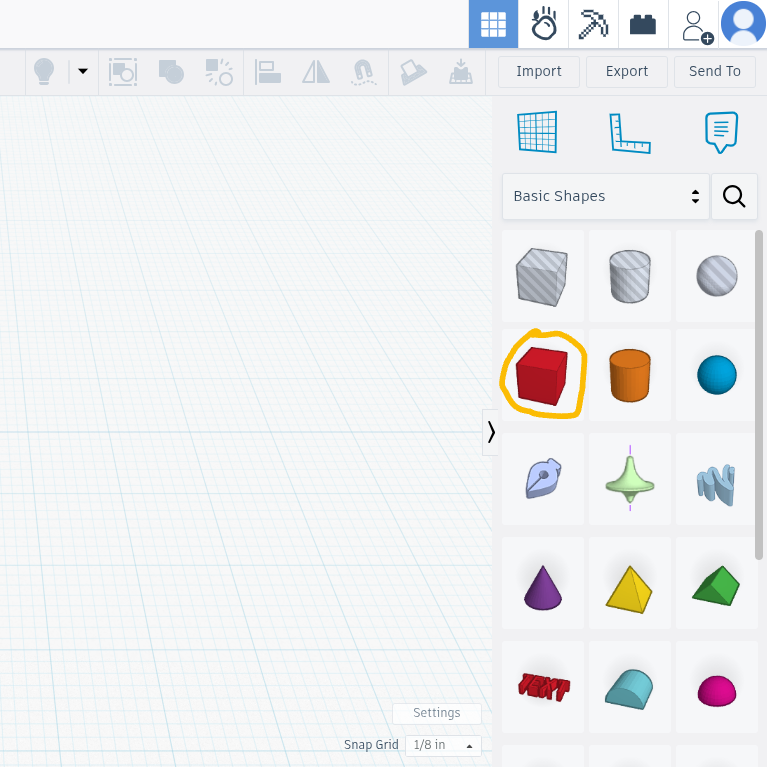
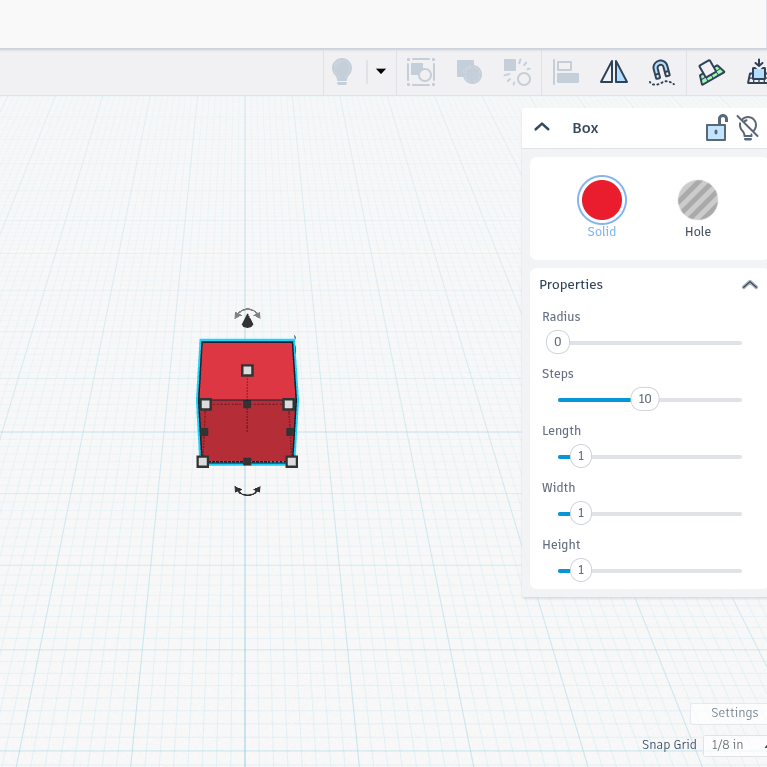
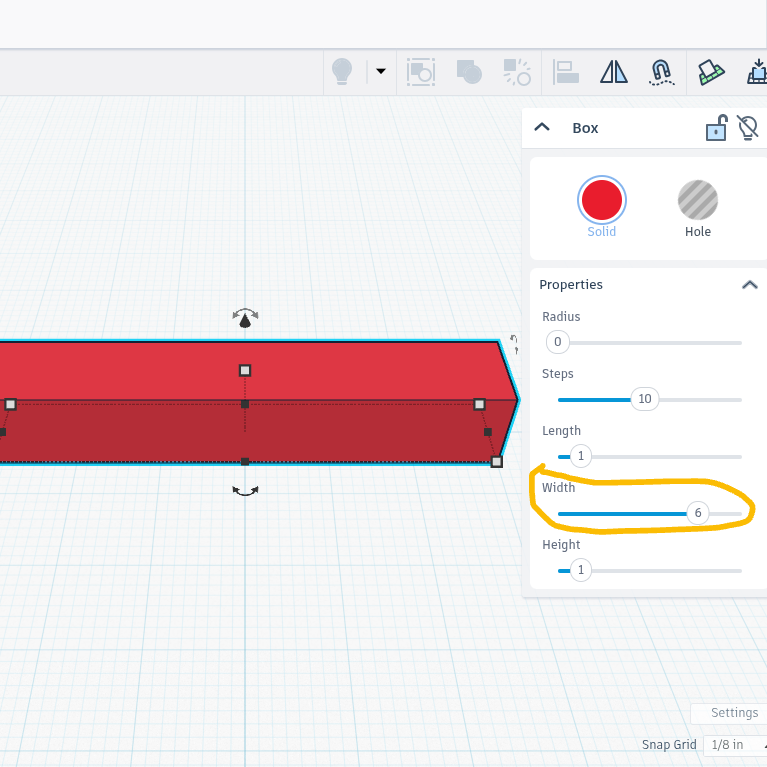


Select the Red Cube. Hold C and press it on the Workspace. Make sure you are selected on the box. If you are not, just click on the box. Under the drop-down bar that comes up, double-click the button for the width that reads 1 and change it to 6. Press enter. Now, press and hold the curved line with a an arrow at each end and tip it a positive 45 degrees (or a negative 45 degrees if you are flipped the other way). Next, select the black arrow pointing up and drag the object until its lowest point is six inches off the Workplane (you will need to go to a side view as shown in the image to make it snap cleanly).
Adding the Support

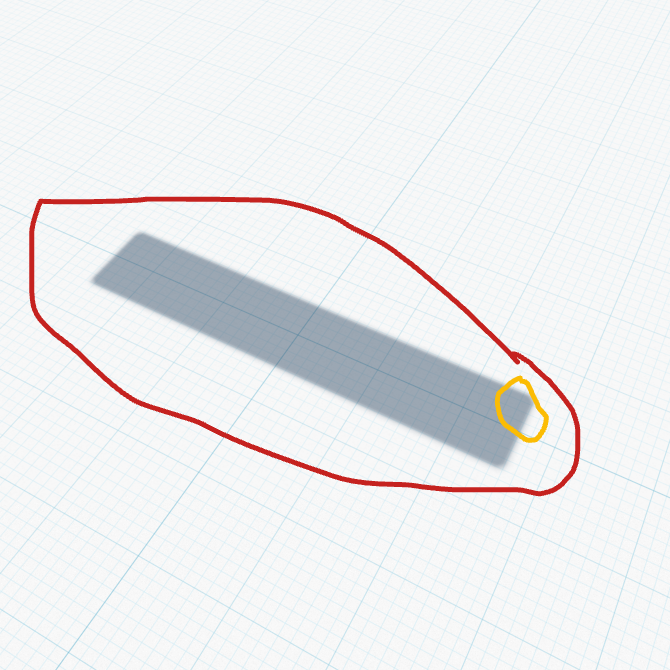
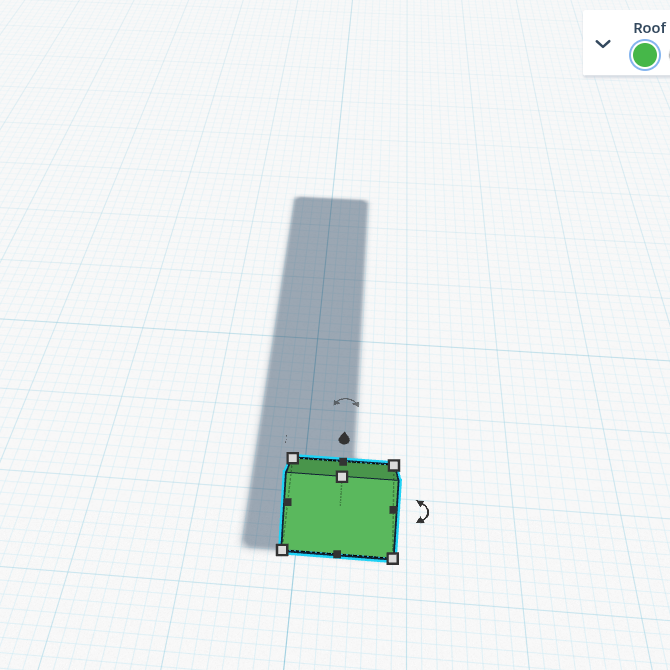

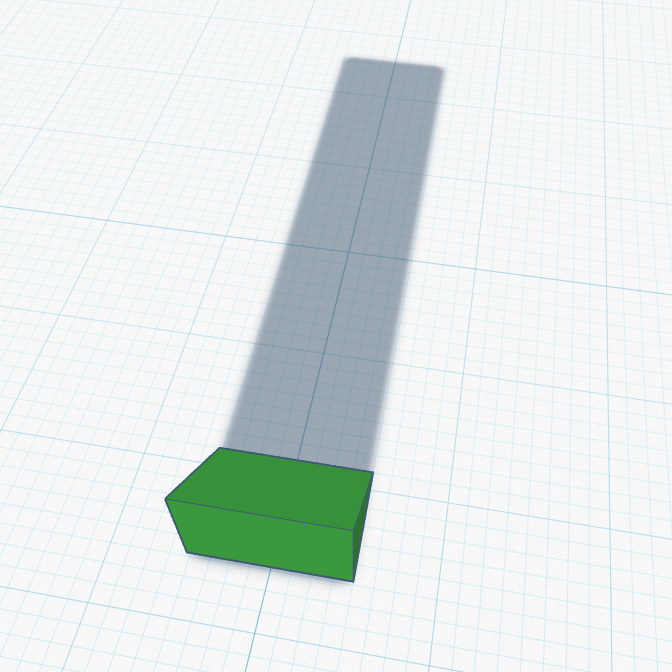

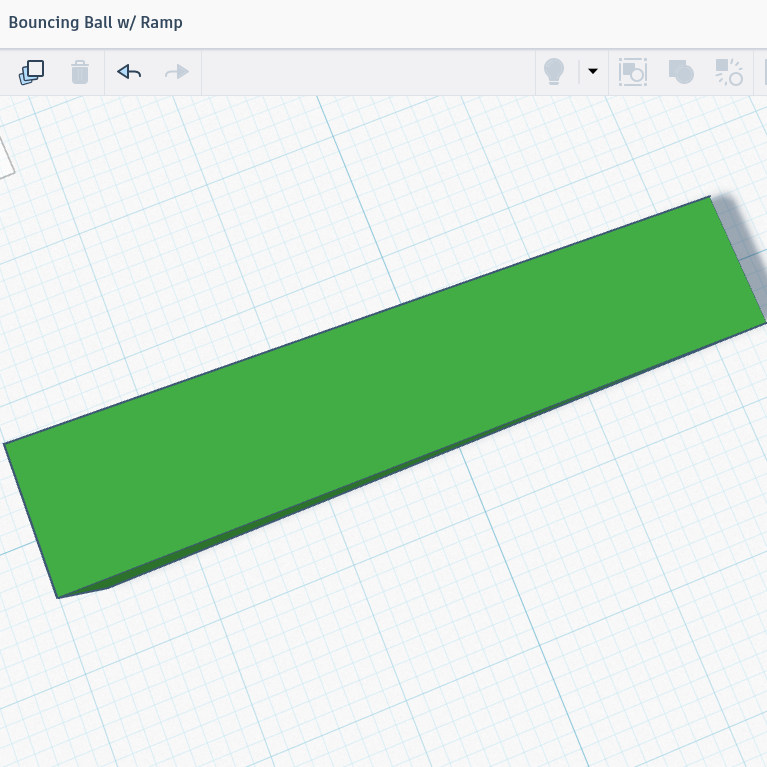


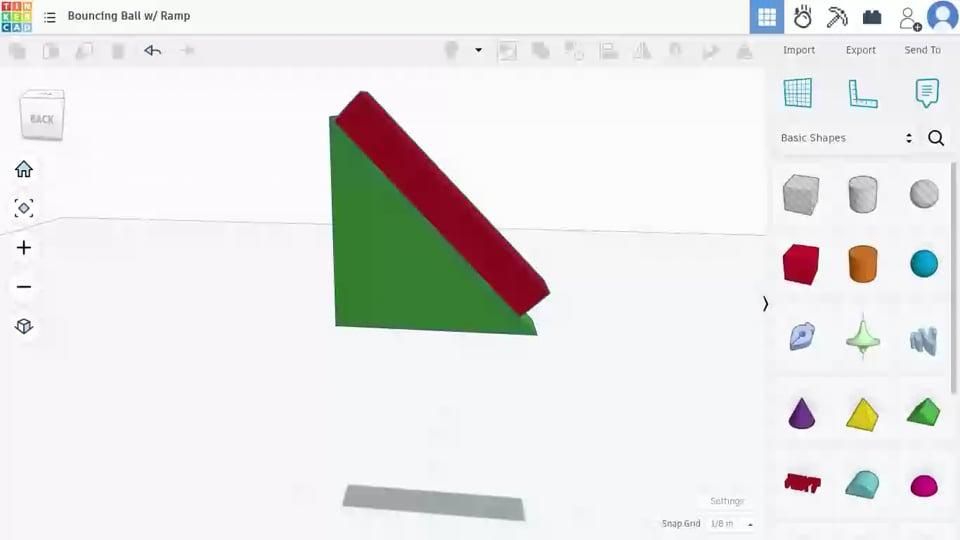
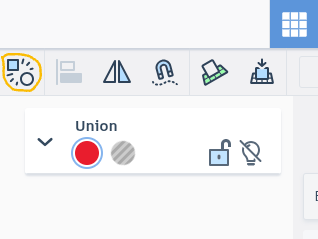
Select the Green Triangle. Keeping an eye on where the shadow is of the first block, hold C and place the triangle so it is in the shadow while being in a corner. It is fine if it is not exactly in the corner (like in the picture). Next, using the rotating point you used for the first piece, rotate it so one of the short sides is on the Workspace and the long side is pointing towards the part of the ramp that is dipping lower. This is rotating it -135 degrees (or 135 degrees if you are looking from the opposite side). Then, move it back to the corner. Hold down the black square on the shape facing the shadow in front of it and click and drag it five inches. Next, stretch the triangle upward as close to five inches as you can. Then, using the black triangle pointing up, drag the triangle until it is slightly into the first piece. Click off of the triangle, then press and hold in the "air" and drag until both shapes are selected. Then select the Union Group button.
Adding the Base
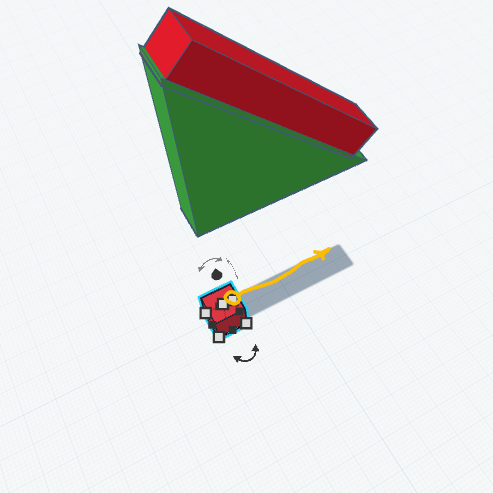
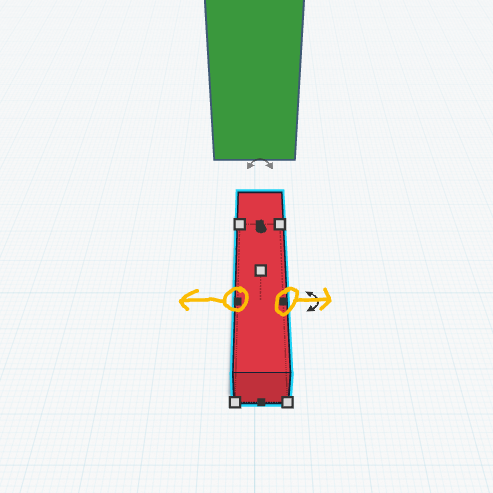


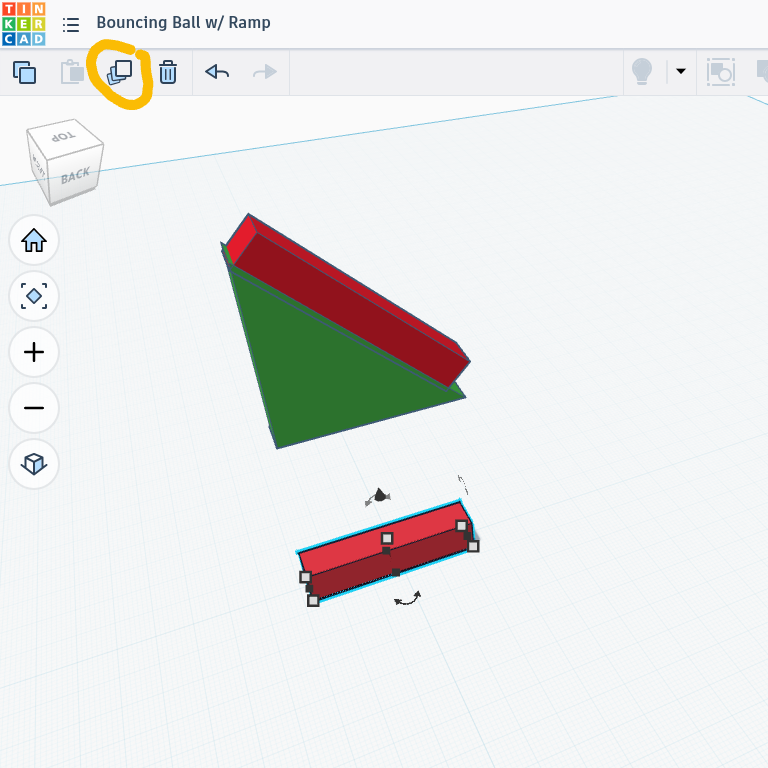

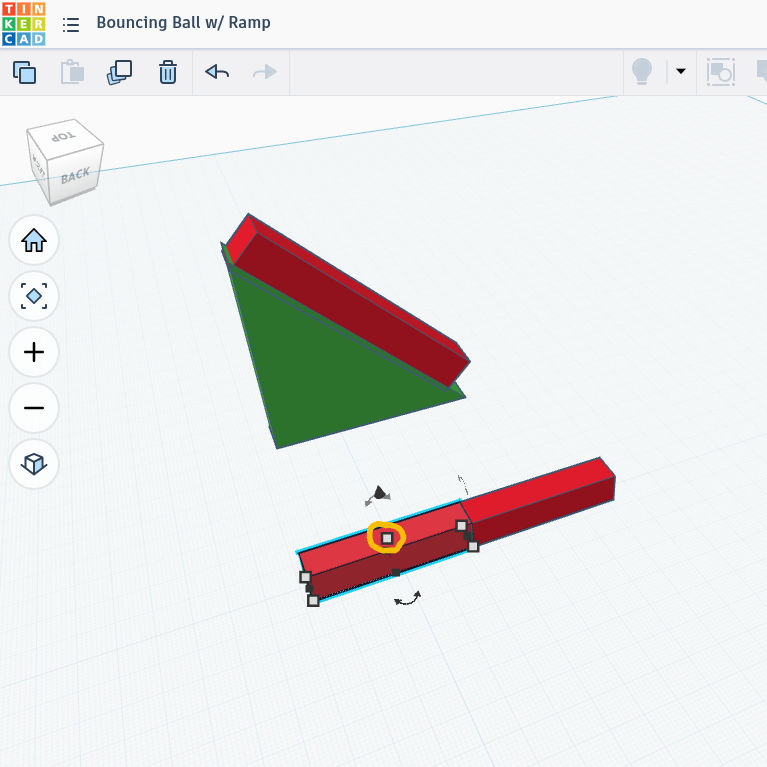
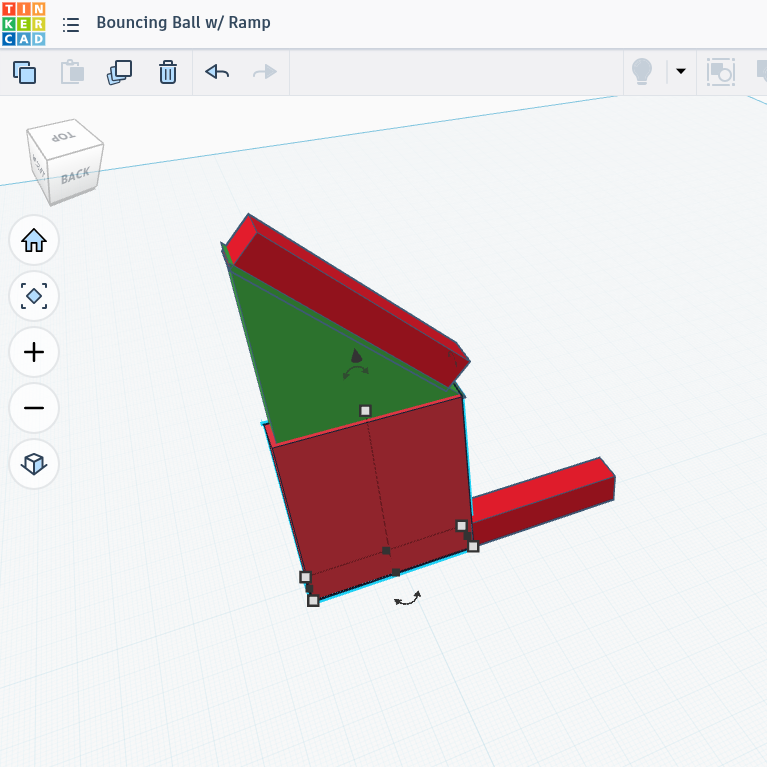
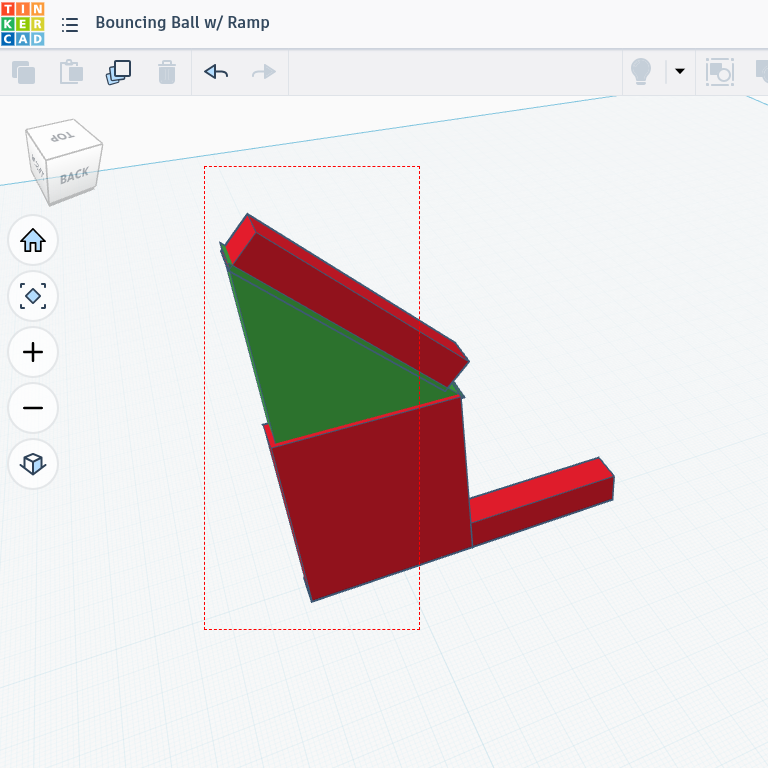

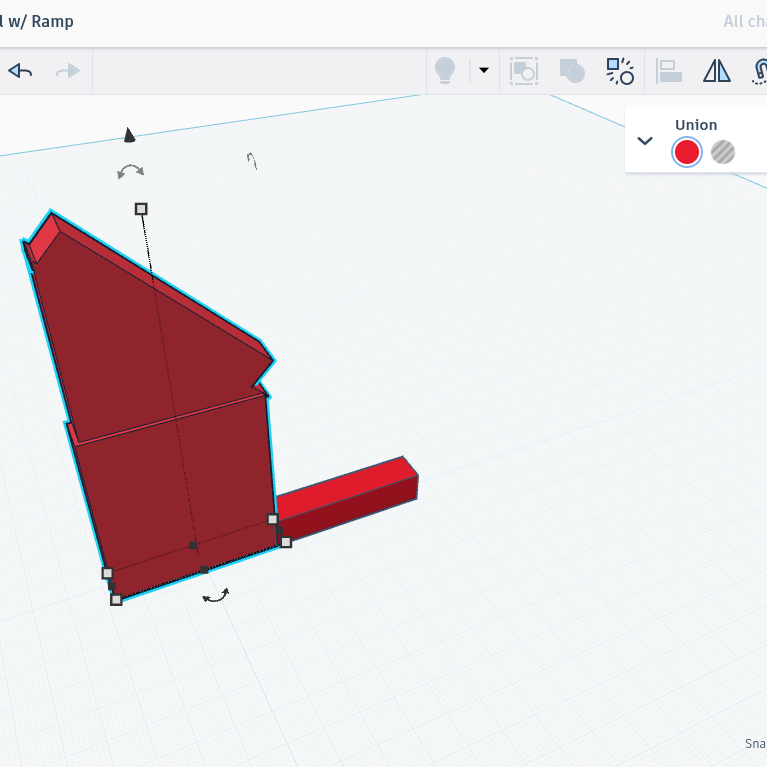
Select the Red Square. Keeping an eye on where the shadow is of the first block, hold C and place the square so it is in the shadow while being in a corner. Then stretch it five inches (the way you stretched the triangle). Select the Duplicate tool. This copies the block directly in itself. Press down on the block and drag in front of that block (see pic. 6). Now, select the original block. Use the white block symbol on top and drag it up until it is barely in the other 2 blocks. Click and drag to select the angled ramp, the triangle, and the block you just edited. Select the Union Group button. It should all turn red.
Adding the Track

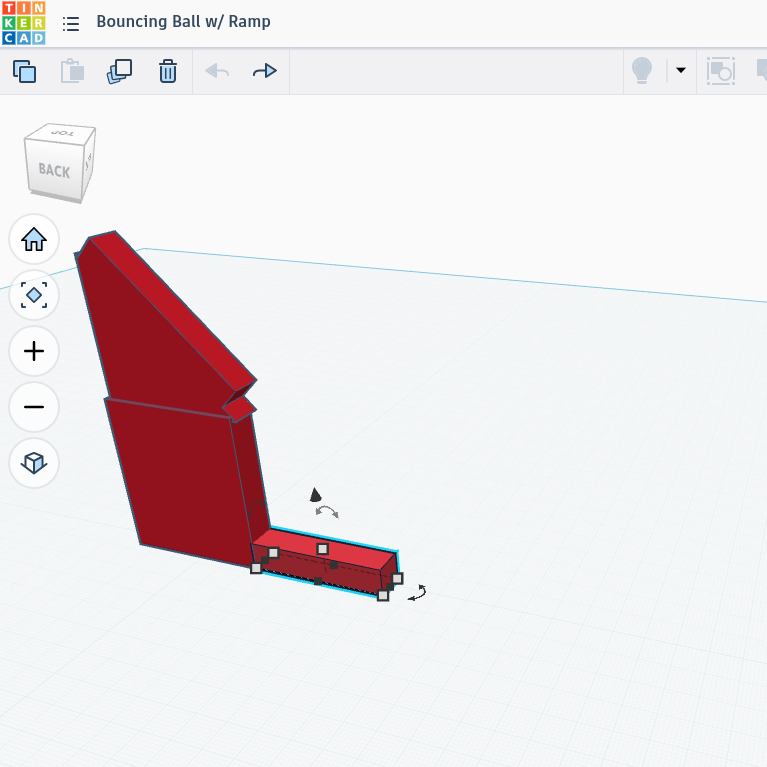


First, select the piece that you made by copying it from another piece. This will become the track. Make sure you are in a side view and zoomed out. Press and hold on the small black square facing away from the rest of the project. Drag it until it says a length of 30. Press, hold, then drag so you select all the pieces. Select the Union Group button. Click off of the whole thing.
Adding the Catcher





.png)

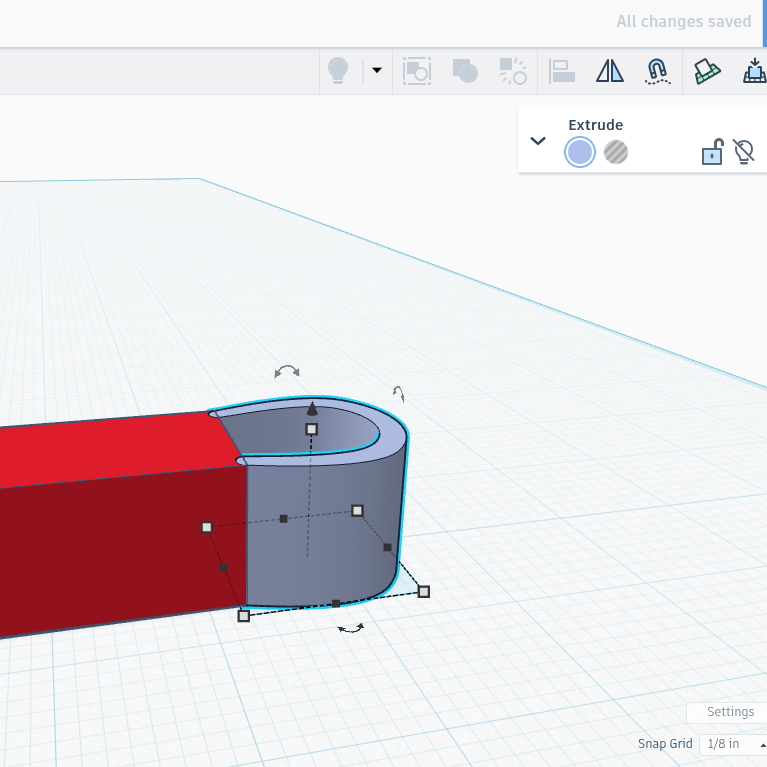


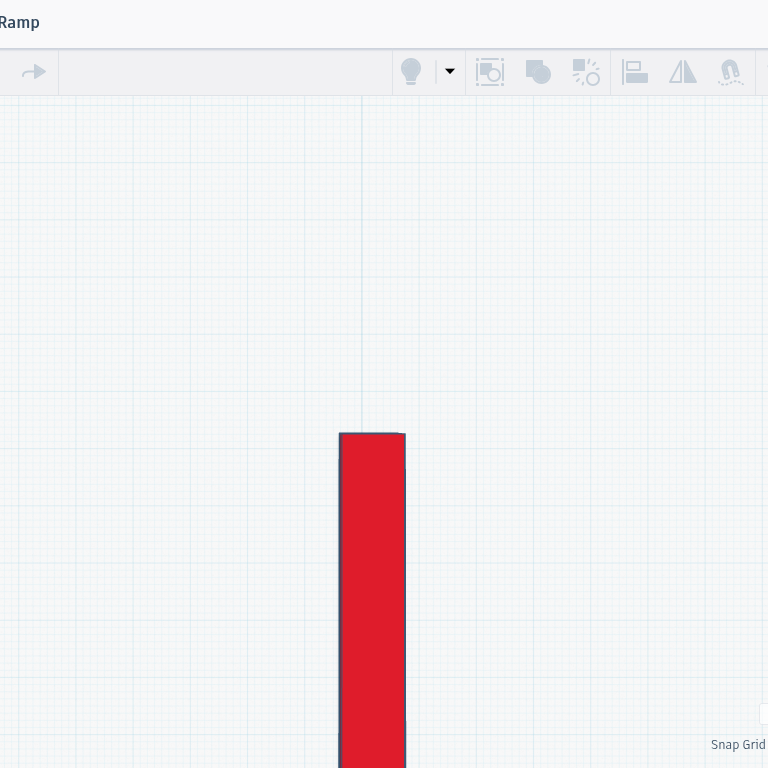
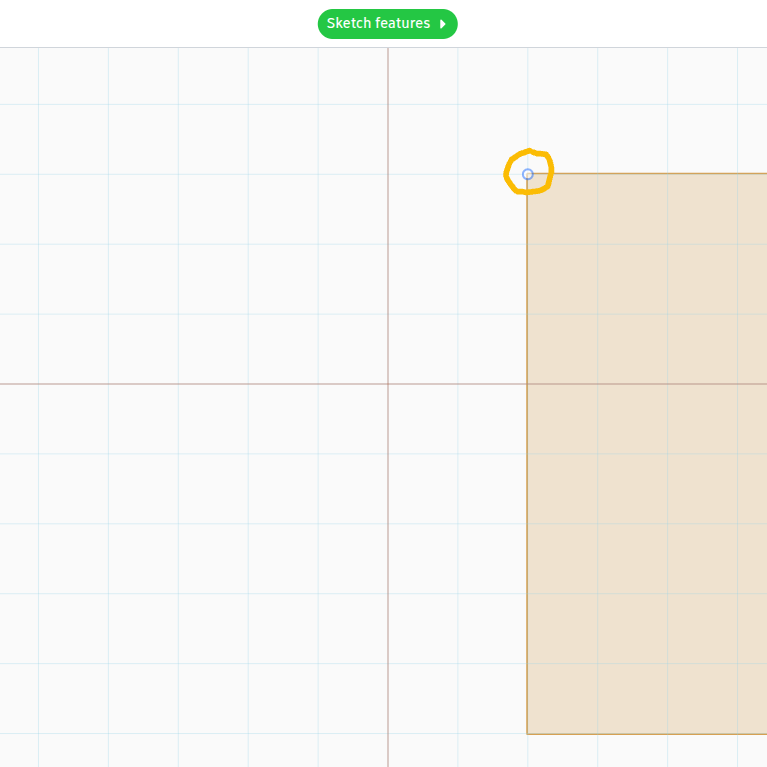
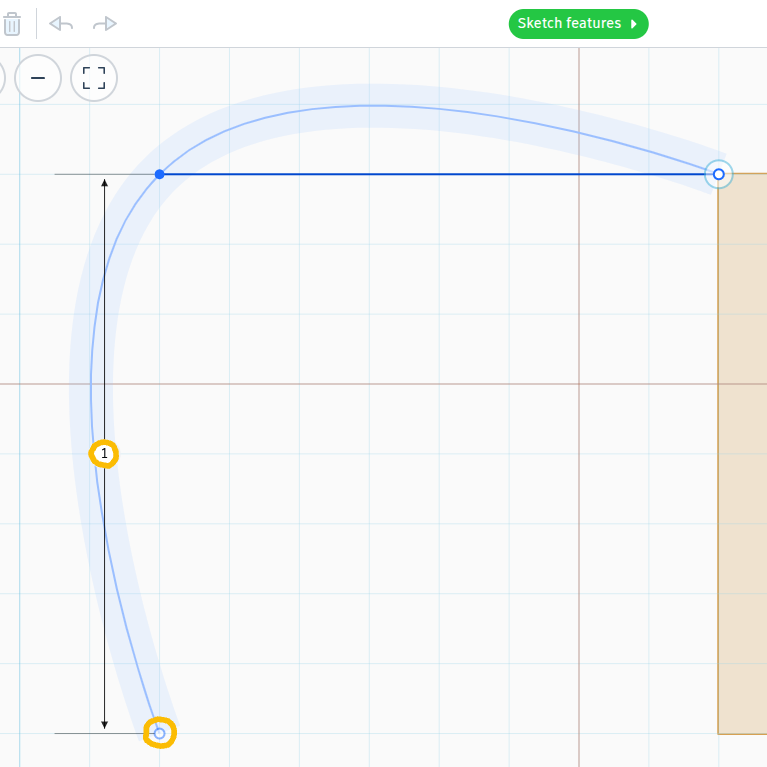
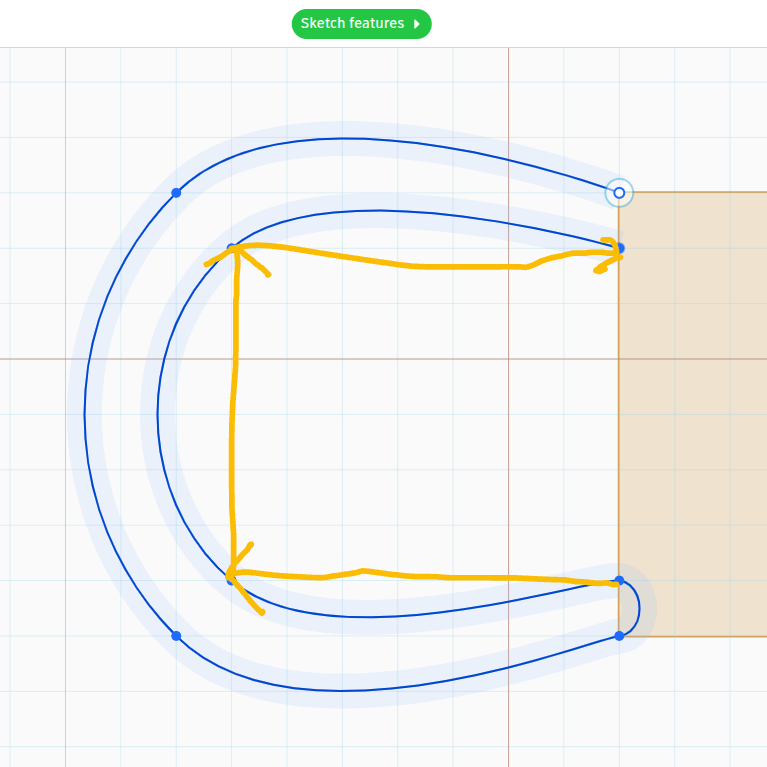
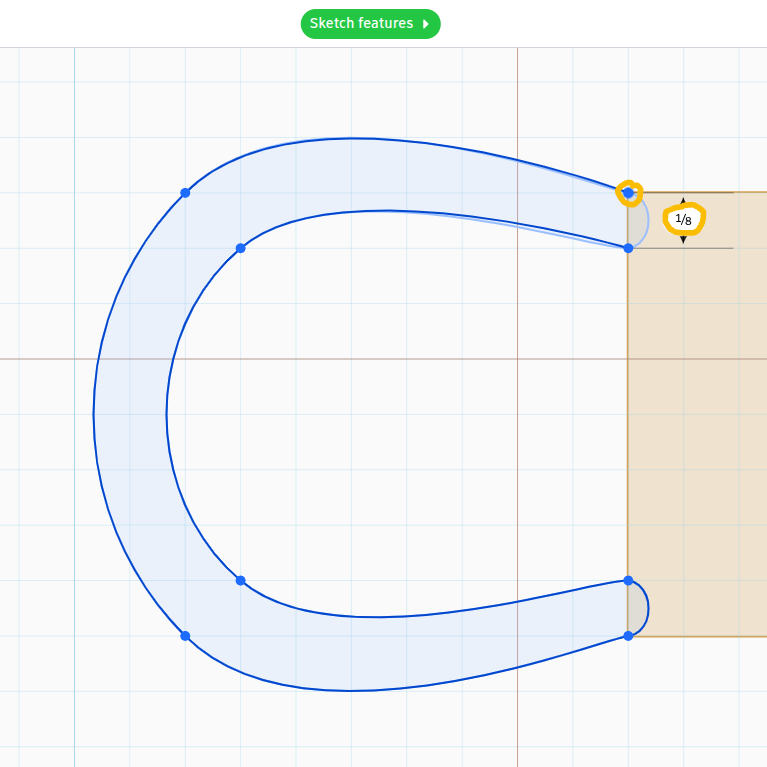
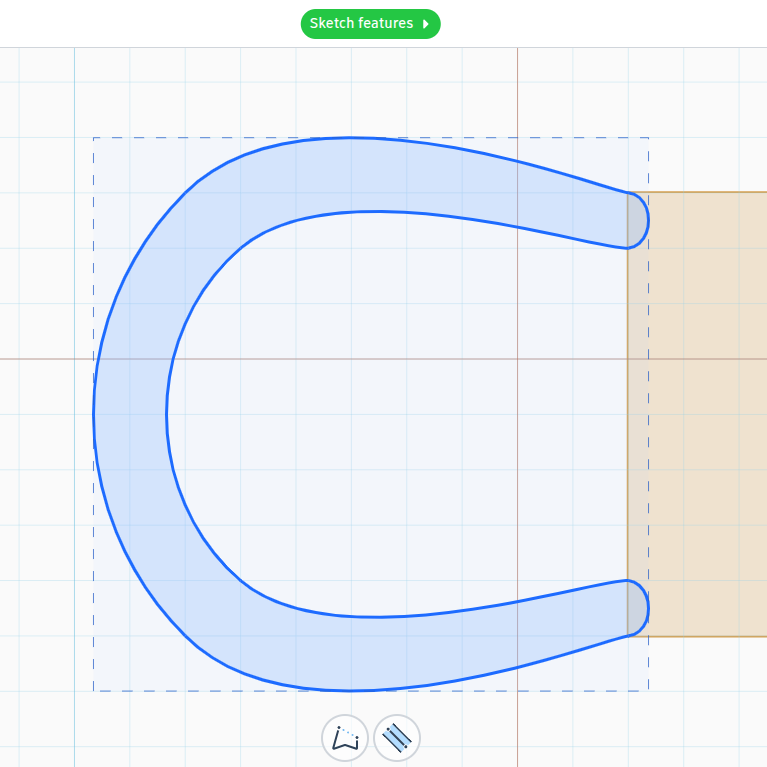
This step is tricky, so be careful. Select the Extrude Sketch button and place it at the front of the track. (If a pop-up shows up, press the X in the top right corner). Select Create Smooth Curve or press 3 on your keyboard. Click on the top corner, bring it out to the left 1 inch, down 1 inch, then over to the bottom corner of the track. To hollow it out, go up 1/8 inch, left 7/8 inch, up 3/4 inch, and right 7/8 inch. Finish by going up 1/8 inch and press ESC. Use the white square handle at the top to drag it up flush with the track. From a top view, stretch the extrusion 1/2 inch to the left, 1/2 inch to the right, then 1 inch up.
Adding the Bridge


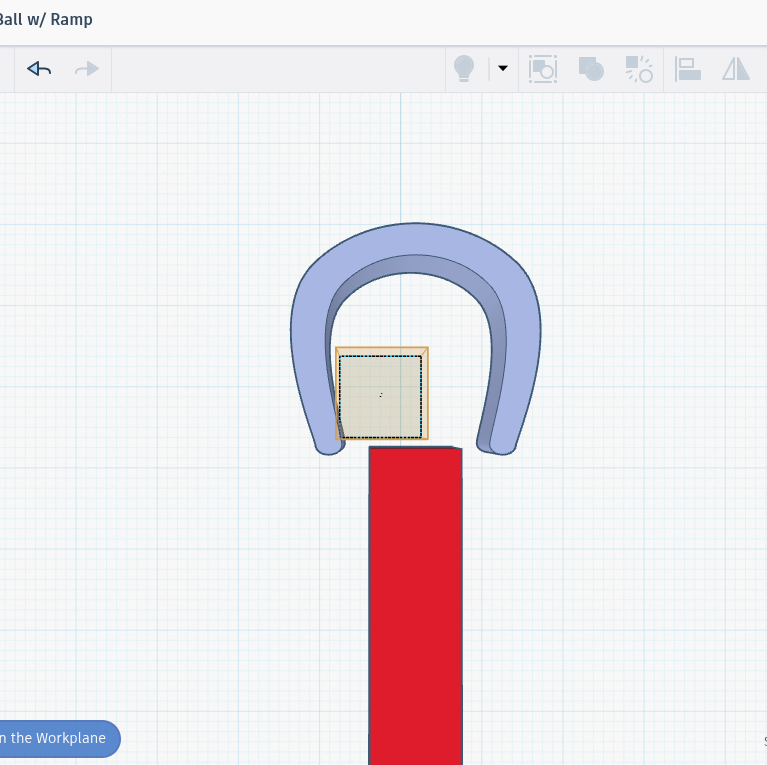


Select the Red Cube. Hold C and place it at the end of the track. Drag it 1/2 inch to the left, then the right.
Editing the Catcher

.png)

To properly catch the ball, the height of the catcher must be increased. Go to a side view, select the white square handle at the top, and drag upward to change the total height to 4 inches. Next, press and drag your cursor to select the bridge, catcher, and track all together. Select the Union Group button to merge them.
Adding the Ball

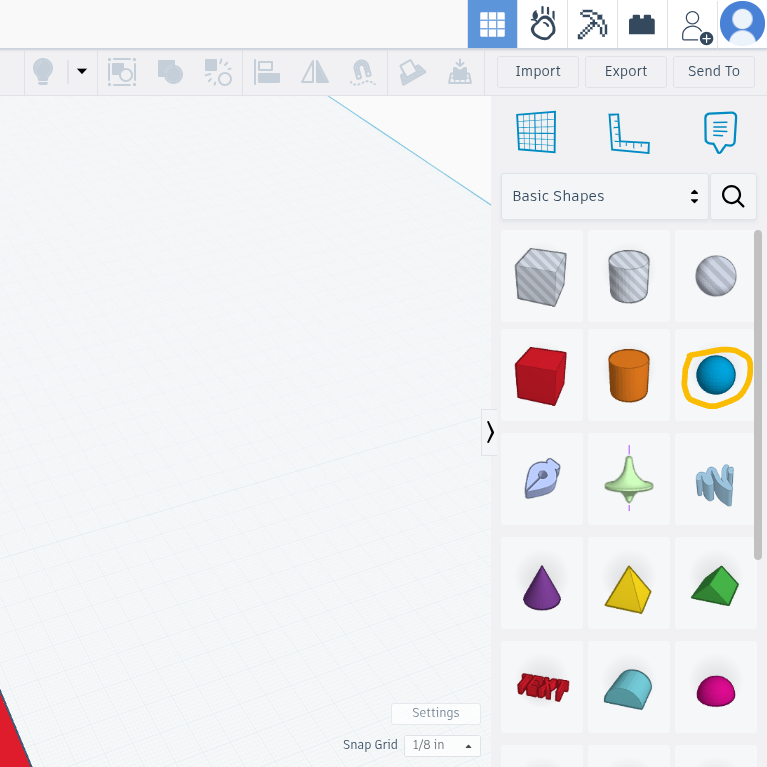


Go to the Starting Port. Select the Blue Ball. Place it at the beginning of the ramp.
Setting Up the Animation


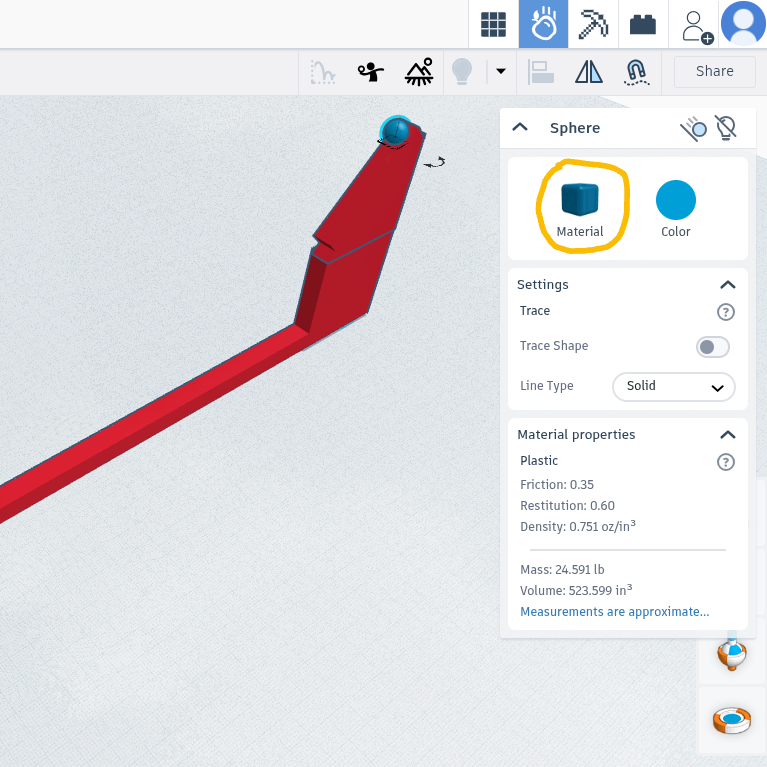
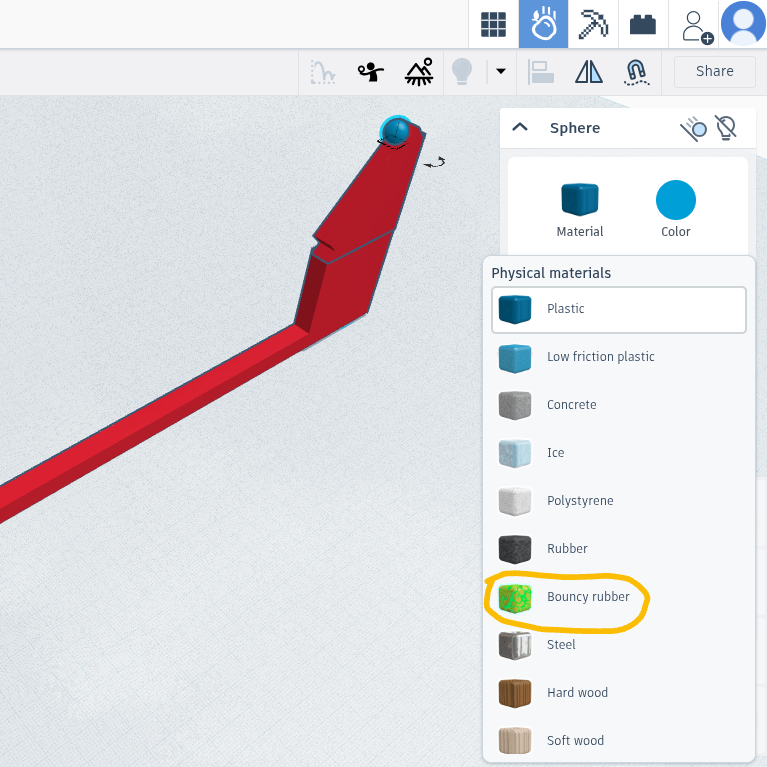
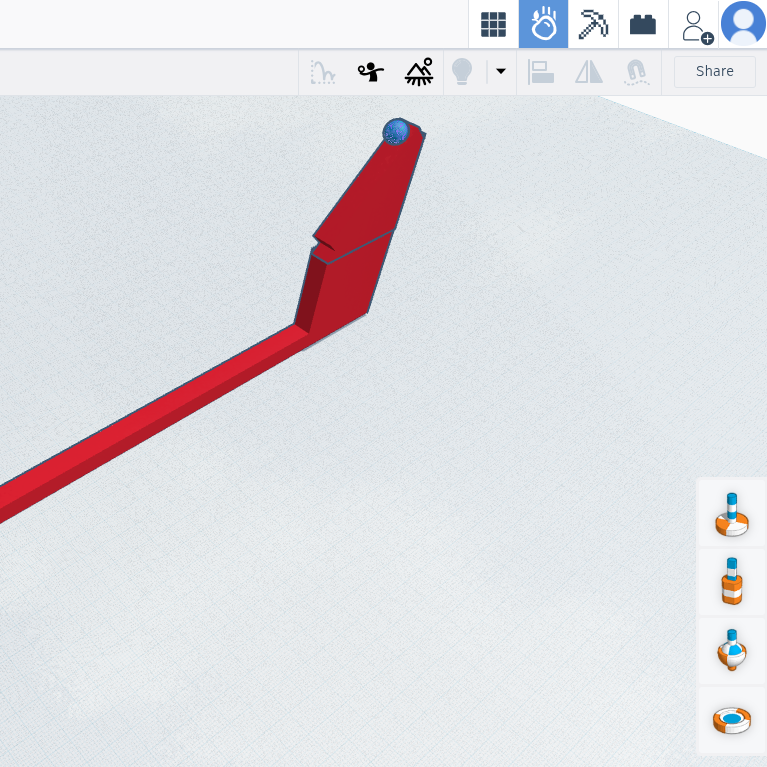


Select the Sim (Simulation) Lab button (it looks like a falling apple). Make sure you click on the Ball, select the Material button, and choose the Bouncy Rubber option (you may need to scroll down to see it). Unselect the Ball, then press and drag to select everything else. Select the Make Static button, or press Ctrl + M.
Starting the Animation
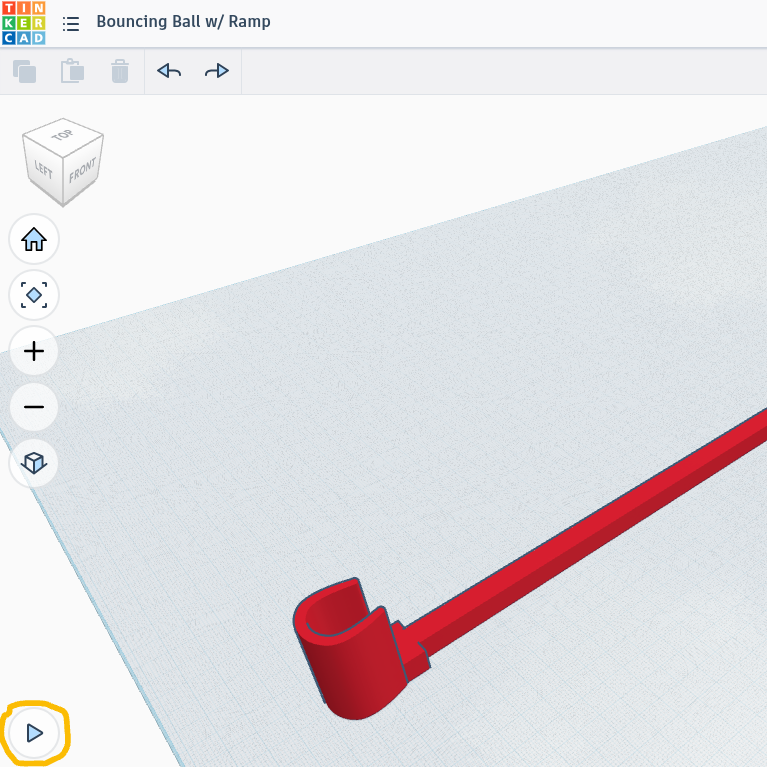

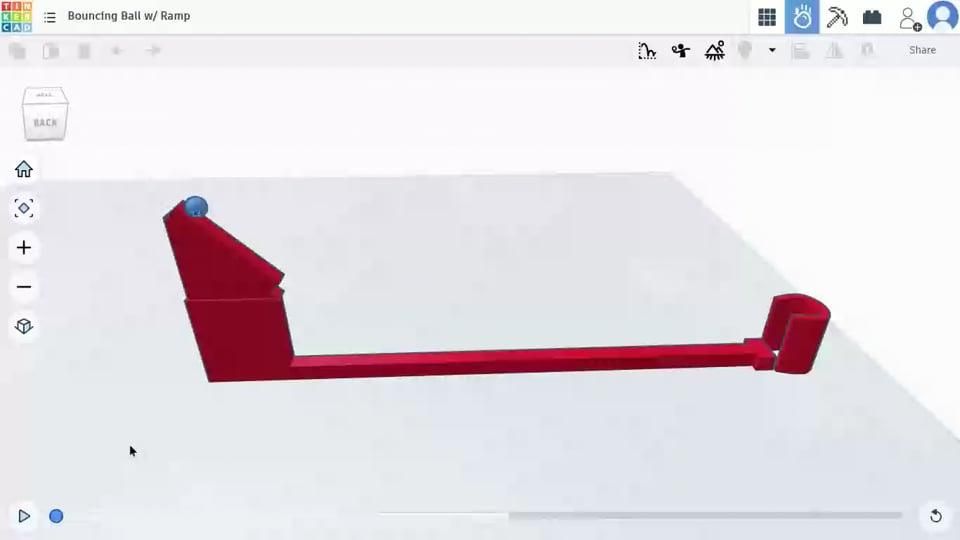
To start the Animation, press the Start button. Before you do that, though, it is good to get into a view so you can see the whole thing. When you start the animation, the ball will roll down and start bouncing towards the catcher. Press the stop button to stop the animation which is in the same spot as the start button. Press the Reset button on the opposite side of the slider to reset the scene.
Troubleshooting



You may find that the ball misses the catcher.
- To fix this, one option you have is to move the catcher by first ungrouping it from the rest of the track and dragging it away about 1/2 inch.
- You can also select the catcher and use the dragging points to change its shape.
- If needed, use the two-ended arrow to adjust its angle.
- You can also add blocks to direct the ball and stop it.
These methods can be used together to maximize how well it works.
Another thing you can find is that the shape tips over. This can be prevented with two methods.
- You can attach it to another stable block using the Union Group button.
- You can also go to Sim Lab, and change the shape to static.
- This makes the shape not able to move when you start the simulation in the Sim Lab.
Also note that even if the shape is set to static, if it is in the Workspace, as soon as you start the animation, it will jerk up out of the Workspace and then not move.
If you have any questions, post it in the comments, and I will do my best to respond.
Physics
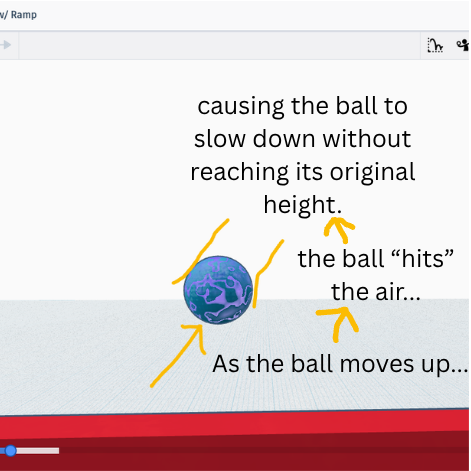
The Tinkercad Sim Lab is based on physics. That is why the ball falls and bounces. Gravity is responsible for the ball falling. The definition of gravity is "The force that attracts objects toward one another, especially the force that makes things fall to the ground" (Cambridge Dictionary). In this instance, the ball is the object and the ground is the Workspace. However, this gravity is temporarily overridden by the material of the ball, which compresses and releases the force down which pushes the ball back up. The unrealistic part of this is anything that is set to Static. This is because it is not influenced by gravity. The reason the ball does not keep bouncing back up to the drop height is because of the friction. The definition of friction is "The force that makes it difficult for one object to slide along the surface of another or to move through a liquid or gas" (Cambridge Dictionary). In this case, the air is causing it to not go back up to full height. Even though there are no adjustments for it in Tinkercad, there is technically still air.
Conclusion

I decided to make this project to add on to my original Bouncing Ball project. Check out my profile here. I encourage you to make this project yourself. If you have any questions, post them in the comments. Thank you for viewing.