VibePick: a Mood Sensing Musical Pendant That Plays Your Vibe
by Arpan Mondal in Living > Music
752 Views, 10 Favorites, 0 Comments
VibePick: a Mood Sensing Musical Pendant That Plays Your Vibe
.png)


.png)
Recently, a friend of mine needed a gift for a friend who is absolutely obsessed with playing the guitar. I wanted to create something that looked beautiful but had a hidden layer of magic. Something that would genuinely impress a musician.
So, I made VibePick. At first glance, it’s a stylish, minimalist guitar pick pendant hooked up to a necklace. But the inside is where the magic happens.
When you tap your smartphone to the pendant, it unlocks a beautiful, interactive web app. An AI music curator instantly reads your surrounding environment (the weather, the temperature, and the exact time of day), to play a beautiful piece of music that perfectly matches the vibe of that very moment.
In this Instructable, I'm going to show you exactly how I built the physical pendant, and the magical app that makes it work.
Supplies
Guitar pick Purchase link
NFC tag sticker Purchase link
Pendant chain Purchase link
Wood veneer Purchase link
Glue
Pliers
Scissors
Software:
Python
Visual Studio Code
Somewhere to host the site (Vercel in my case)
Building the Pick


To make this work, the tech needed to be completely invisible. I wanted it to look like a premium, handcrafted wooden guitar pick, with the NFC tag secretly hidden inside.
I started by taking a standard guitar pick and tracing its shape onto a thin, sturdy piece of black plastic. When tracing, I made sure to draw a small circular protrusion at the top, as we need a loop to attach the necklace chain later! I carefully cut this custom shape out using a craft knife and scissors.
Once the plastic base was cut, I took a small adhesive NFC sticker and placed it at the center of the plastic. You want to make sure it sits relatively flat so it doesn't bulge out the sides of the pendant.
Finishing


To give it that beautiful, acoustic vibe, I cut two pieces of wood-finish veneer to the exact same modified pick shape. I applied a strong adhesive and sandwiched the plastic core (and the NFC tag) directly between the two wood layers.
Once the glue dried, I took some fine-grit sandpaper and sanded down the edges. This blends the layers together so it looks and feels like one solid, beautifully crafted piece of wood, hiding the plastic and tech inside.
Attach the Chain


.png)

With the "sandwich" dry and the edges sanded smooth, it was time to turn this hi-tech pick into a wearable pendant.
I used a heated needle to carefully create a hole through that circular plastic protrusion we left at the top. Because the core is plastic, it’s durable enough to hold the weight of the pendant without snapping.
I salvaged a tiny metallic jump ring from an old necklace and looped it through the hole. This provides a professional pivot point for the chain to sit on.
Finally, I threaded a sleek necklace chain through the ring.
The physical build is now complete! From the outside, it looks like a boutique wooden accessory. No one would guess that it’s packed with circuitry ready to talk to your phone.
The App Idea
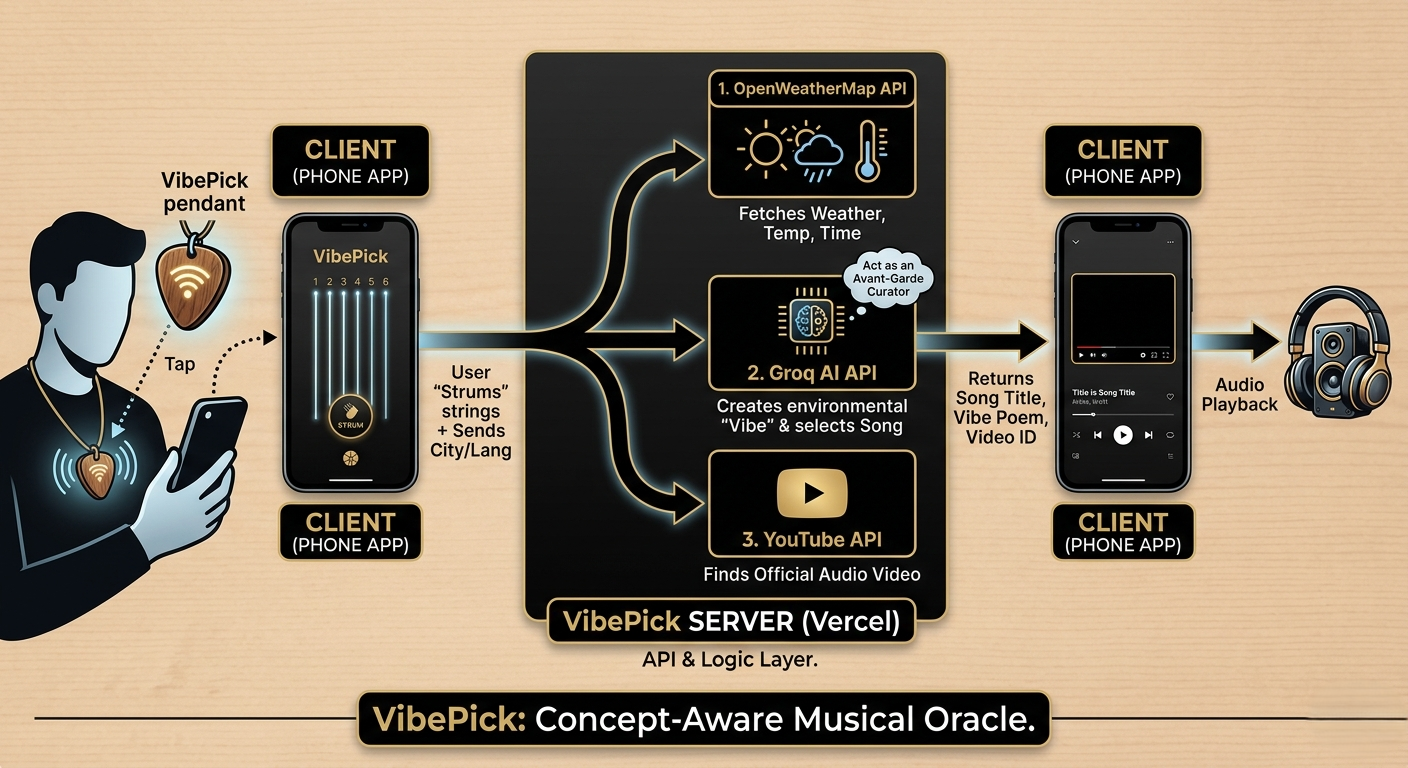
When I first started brainstorming the software, my initial thought was simple: just link the NFC tag to a curated Spotify playlist. But that felt too easy. A QR code can do that. I wanted the Pick to feel alive, as if the pendant itself was feeling the atmosphere and choosing a song specifically for that moment in time.
The goal was to move beyond a static link and create a context-aware musical system. Instead of a random shuffle, I designed the app to act as a bridge between the physical world and digital music. Here’s the conceptual breakdown of how the pick "feels" the environment:
- Environmental Awareness: Using the OpenWeatherMap API, the app detects the wearer's local conditions. Is it a rainy, melancholic afternoon in Seattle? Or a scorching, high-energy noon in Mumbai?
- The AI Curator: I integrated an AI "brain" (using the Groq API) that acts like an elite, avant-garde music critic. The app feeds the AI the current weather, temperature, and time of day.
- The Music Selection: The AI doesn't just pick a popular song, it searches for a track that matches the "vibe." If it’s late at night and chilly, it might suggest a low-fi indie track or a deep jazz piece, accompanied by a 5-word poetic reason for the choice (e.g., "Cool mist meets midnight blue").
- The Digital Strum: To make the experience tactile, the user doesn't just click "Play." They have to physically swipe across six glowing digital strings on their phone screen. This interaction also helps satisfy mobile browser autoplay rules.
Building the App


Here, I'll briefly explain the working of the app. I'll go in depth in the end for people who would like to know more.
1. The Tap & Onboarding (Frontend) When you scan the NFC tag, it opens a website hosted on Vercel. If it’s your very first time, an onboarding screen pops up asking for your City and preferred Language. This data is saved directly to your phone's local storage so you never have to enter it again.
2. The "Strum" (User Interaction) Once past the onboarding, the screen turns into a virtual guitar soundhole with six glowing strings. Swiping your finger across the strings plays a satisfying acoustic chord sound. Once you strum across at least 5 strings, it triggers the app to start thinking.
3. The Brains (The Serverless Backend) Your phone sends your saved City and Language to a backend API which performs three critical tasks in a matter of seconds:
- The Weather Check: It calls the OpenWeatherMap API to find out exactly what the weather, temperature, and time of day are in your city right now.
- The AI Curator: It sends this weather data to the Groq API (an ultra-fast AI). The AI is instructed to act as a poetic music curator, picking a song that matches the current vibe and language, along with a 5-word poetic explanation.
- The Track Finder: The backend takes the AI's song choice and pings the YouTube API to find the official audio video for that track.
4. The Magic Playback The backend sends the YouTube Video ID and the 5-word poem back to your phone. The website loads the video into a completely hidden, invisible YouTube player, cranks the volume to 100%, and fades the poetic text onto your screen while the music seemingly plays out of nowhere.
If you'd like to straight up use the website I created, feel free to do so! Here's the link. If you want to program/modify it yourself, I've attached the codes as a PDF file (since uploading zip files here doesn't work)
Downloads
Write the NFC Tag


To make the magic happen, we need to write a standard NDEF URL record onto the tag. This ensures that when any modern smartphone (Android or iPhone) taps the pendant, it automatically opens the app in the browser. No special app required for the person scanning it!
For Android (using NFC Tools)
- Open NFC Tools: Launch the app and ensure your phone's NFC is turned on in the system settings.
- Go to Write: Tap the Write tab at the top of the screen.
- Add a Record: Tap on Add a record, then select URL / URI from the list.
- Enter your Link: Paste the URL of the deployed Vercel app (feel free to use mine: https://vibepick-eight.vercel.app/). Tap OK.
- Write to Tag: Tap the Write / X Bytes button. A "Ready to Scan" prompt will appear.
- The Tap: Touch the back of your phone (usually near the top camera) to the center of your wooden pendant. You’ll get a giant green checkmark when it’s successful!
For iOS (using NFC Tools)
Note: While iPhones can read tags natively, you still need an app like NFC Tools to write to them.
- Open NFC Tools: Launch the app on your iPhone.
- Write: Tap the Write button on the main menu.
- Add a Record: Select Add a record > URL.
- Enter URL: Type in your Vercel app link and hit OK.
- Write: Tap the Write button. An iOS system dialogue will appear saying "Ready to Scan."
- The Tap: Hold the very top edge of your iPhone against the pendant. The phone will vibrate and show a "Check" icon once the link is saved.
Warnings:
- Test Before You Seal: If you are following this guide, I always recommend programming and testing the NFC sticker before you glue the wood veneers shut. It’s much easier to replace a faulty sticker before it's sandwiched in wood!
- The "Lock" Option (Optional): In the NFC Tools app, there is an option to "Lock" the tag. If you do this, the link can never be changed or erased. I recommend leaving it unlocked during your first few tests, and only locking it once you are 100% happy with your app URL.
- Case Interference: Remember that NFC doesn't work near metallic surfaces. So do not use metal to make the pendant!
How to Use It

.png)
Using the VibePick is an experience unlike simply opening a music app. Here is exactly how it works when you (or the lucky person you gifted it to) use it:
1. The Tap Make sure your smartphone is unlocked. Simply bring the top edge of your phone (where the NFC reader usually is) close to the wooden pendant. The web app will instantly pop up in your browser.
2. The First-Time Setup (Onboarding) The very first time you scan the pick, the app will greet you with an onboarding screen. It will ask for two simple things:
- Your City: (e.g., Seattle, WA or Mumbai, India) so it knows where to check the weather.
- Your Language: Choose your preferred music language from a drop-down menu (English, Spanish, Hindi, Japanese, etc.). Once you hit "Unlock," this data is securely saved on your device. You will never have to enter this again unless you clear your browser data!
3. The "Strum" After setup (or on any future scans), you are immediately greeted by a pure black screen featuring six glowing guitar strings over a virtual soundhole. Run your thumb across the screen to "strum" the strings. A crisp acoustic guitar chord will play through your phone speakers.
4. The Wait... and The Reveal Once you successfully strum across at least five of the strings, the digital strings will slowly fade away into the darkness. Behind the scenes, the AI is furiously reading the vibe (weather, time, temperature) and searching for the perfect track. Within a few seconds, the screen softly illuminates with text:
- A 5-word poetic phrase explaining why the AI chose this song for this exact moment (e.g., "Golden hour deserves gentle acoustics").
- The Title and Artist of the track.
Simultaneously, the music begins to play seamlessly in the background. Because the YouTube player is completely hidden, it feels like the VibePick just pulled a perfect song straight out of thin air!
Conclusion

.png)
What started as a simple idea for a musical gift has turned into a context aware piece of wearable tech.
The VibePick is more than just a shortcut to a song; it’s a conversation starter. It bridges the gap between the physical craftsmanship and the cutting-edge power of AI. Whether it’s a rainy morning that calls for acoustic folk or a high-energy sunset that demands some classic rock, the pendant is now an environmental oracle hanging around your neck.
Ideas for Customization: The beauty of this project is that you can make it your own:
- The Look: Try using different exotic woods like Walnut or Mahogany.
- The AI "Personality": You can tweak the system prompt in the get-song.js file to change the AI's musical taste.
- The Interaction: You could expand the frontend code to show the weather data it used to pick the song, or add a feature to save your "vibe history."
If you build your own VibePick, I’d love to see it! Please share your photos and tell me what song your environment chose for you today.
Happy Making!
Appendix: in Depth App Working
Here is a breakdown of exactly how the VibePick application works under the hood.
1. The Onboarding (First-Time Setup)
When a user scans the NFC tag on the guitar pick, their phone's browser opens the Vercel app.
- The frontend Javascript (app.js) checks the browser's localStorage to see if the user has visited before.
- If no data is found, it unhides an onboarding screen asking for their City and their preferred Language (e.g., English, Hindi, Spanish, Japanese, etc.).
- Once they click "Unlock", this information is saved locally on their device so they never have to enter it again, and the screen is hidden.
2. The Interactive Interface (The "Strum")
The main visual of the app is designed to look and act like a guitar.
- The Visuals: The Index.html and style.css files create a pure black "sound hole" behind 6 glowing strings. The strings are realistically sized, ranging from a thick Low E string (5.5px) to a thin High E string (1px). To prevent the screen from jarringly moving while the user plays with it, scrolling is disabled.
- The Action: The code listens for touch or mouse movements over these strings. When a user swipes across a string, it visually scales up and glows white.
- The Sound: The exact millisecond the very first string is swiped, a pre-loaded acoustic chord audio file (assets/chord.wav) plays to give instant auditory feedback.
- The Trigger: Once the user manages to strum at least 5 of the 6 strings, the app knows the "strum" is complete and triggers the startMagicLoop() function to fetch the music.
3. The Backend "Brain" (Vercel Serverless API)
When the strum is complete, the frontend sends the user's saved city and language to your backend serverless function (api/get-song.js). This backend does three major things:
- Step A: Read the Environment. It calls the OpenWeatherMap API using the user's city. It pulls the current temperature, the weather description, and calculates the local time of day (morning, afternoon, evening, or night) based on the city's timezone. It bundles this into a "vibe" profile.
- Step B: Ask the AI Curator. It sends this vibe profile and the user's language preference to the Groq API, instructing a language model to act as an "elite, avant-garde cinematic music curator". The AI is strictly told to avoid clichés and return a highly-regarded song in the requested language, along with a 5-word poetic reason for its choice. It returns this data in a clean JSON format.
- Step C: Find the Audio. The backend takes the AI's chosen song and artist and searches the YouTube API for the official audio. It grabs the top video's ID and exact title, and sends all of this information back to the frontend.
4. Seamless Playback
While the backend is doing all that thinking, the frontend UI fades out the guitar strings.
- A hidden YouTube player iframe sits completely out of sight on the webpage (with 0 width, 0 height, and opacity 0).
- Once the frontend receives the backend's response, it loads the YouTube video ID into this hidden player and sets the volume to 100.
- Finally, the screen text updates to display the AI's 5-word poetic vibe reason and the title of the song currently playing.
This creates the illusion that the environment itself magically conjured a song out of thin air when the strings were strummed!