Remotely Operate a Linear Actuator With an ESP32, With Feedback
by giano2002 in Circuits > Microcontrollers
233 Views, 1 Favorites, 0 Comments
Remotely Operate a Linear Actuator With an ESP32, With Feedback



Project Goal.
The goal of this project is to build a device capable of controlling the opening and closing of a door powered by a DC motor, via the web as well as locally, using standard NO buttons.
When the device receives an opening or closing command, it activates the motor (via the BTS7960 module) and keeps it running for the time set in the code (adjustable). Furthermore, it is possible to interrupt a command while it is being executed (both locally and via the web).
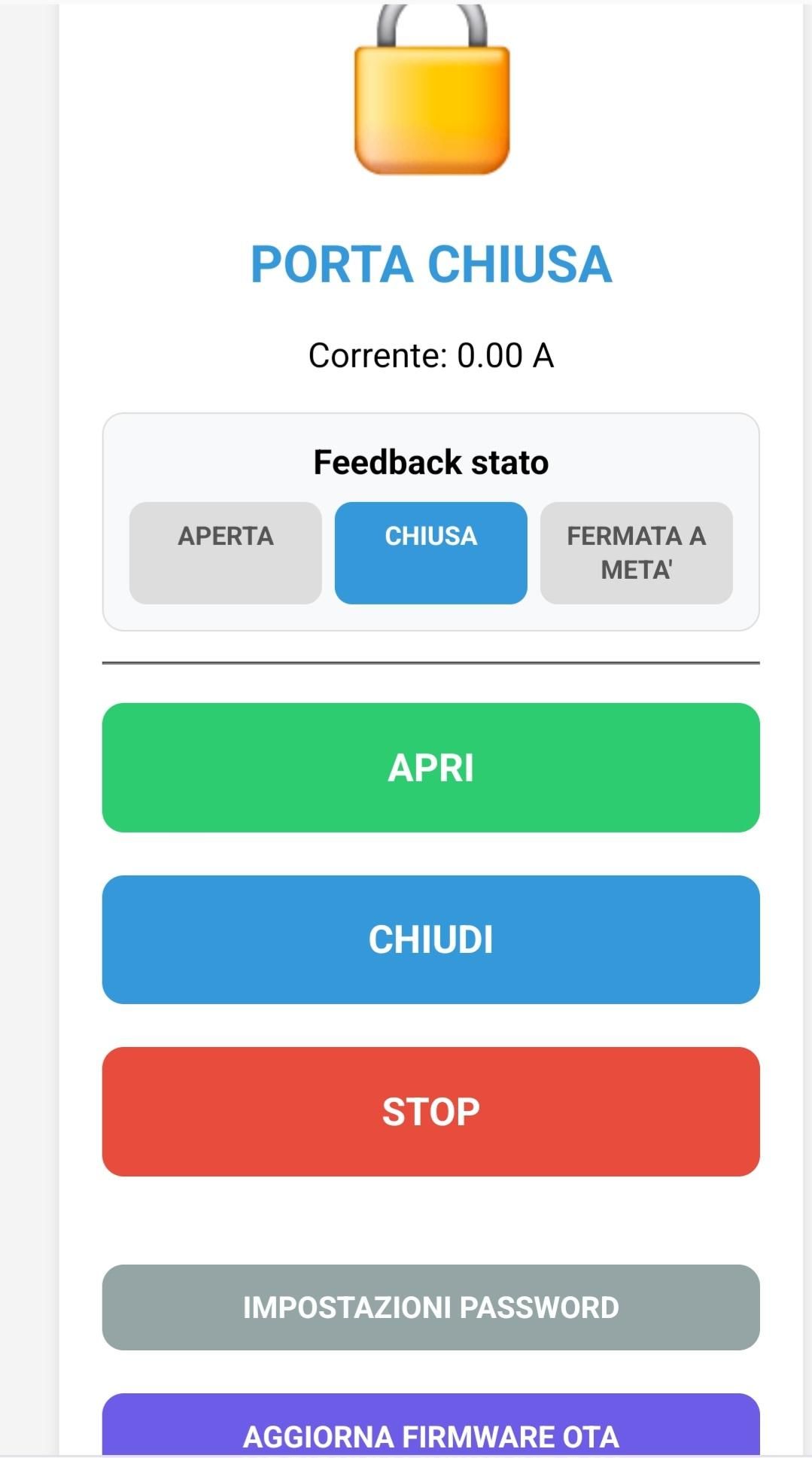
Each command given is clearly highlighted on the dedicated web page that opens on your PC or smartphone, where you can also see when the motor is running and its status after each command (Open – Closed – Interrupted).
The device also monitors that the motor is rotating normally (using the INA219 current sensor) and, if it encounters an obstacle that slows it down, it interrupts the command, to avoid damaging the motor.
This project was also created thanks to the Codex and Gemini Pro AI.
Supplies
What you need for the project.
1 ESP32
1 BTS7960 Motor Driver Module
1 INA219 Current Sensor Module (I2C)
1 12V Step-Down Module
2 N.O. Buttons
1 Pre-Drilled Board
1 12V Power Supply
1 Jack Socket
1 Enclosure
Updating the Code Via the Web
To make it easier to modify the sketch (for example, to change the motor opening and closing times, or the motor protection threshold value, etc.), without having to connect the USB cable, it is possible to do so via the Web. The EleganOTA library was used for this purpose.
Connections Between the Modules and the ESP32

To create the project, I used a pre-drilled board, onto which I attached the ESP32 using connectors and the three modules. Naturally, it would be very interesting to create a printed circuit board.
All the necessary connections are listed below.
1. ESP32 ---> BTS7960 Motor Driver
• GPIO 25 → RPWM (PWM Forward Control)
• GPIO 26 → LPWM (PWM Reverse Control)
• 5V (From Step-Down) → R_EN (Right Side Enable - Always Active)
• 5V (From Step-Down) → L_EN (Left Side Enable - Always Active)
• GND → GND (Common Ground)
• Note: The driver's VCC pins go to the 5V of the Step-Down.
2. ESP32 ---> INA219 Current Sensor (I2C)
• 3.3V (From ESP32) → VCC (Sensor Logic Power)
• GND → GND (Common Ground)
• GPIO 21 → SDA (I2C Data)
• GPIO 22 → SCL (I2C Clock)
• Note: The large Vin+ and Vin- terminals of the INA219 must be connected in series with the 12V line going to the motor or driver.
3. ESP32 ---> Physical Buttons (N.O. - Normally Open)
• GPIO 14 → Button 1 → GND (OPEN Command)
• GPIO 27 → Button 2 → GND (CLOSE Command)
4. System Power Supply
• 12V Power Supply (+) → B+ of the BTS7960 AND Step-Down Input
• 12V Power Supply (-) → B- of the BTS7960 AND Common Ground (GND)
• Step-Down Output (5V) → VIN Pin of the ESP32
• Step-Down Output (GND) → GND Pin of the ESP32
ESP32 PIN Summary Table
ESP32 PIN Connected to
VIN Step-Down (Output 5V)
GND Common Ground
3.3V VCC INA219
GPIO 21 SDA INA219
GPIO 22 SCL INA219
GPIO 25 RPWM BTS7960
GPIO 26 LPWM BTS7960
GPIO 32 Button 1
GPIO 33 Button 2
⚠️ Three golden rules for assembly:
1. Common Grounds: All points marked as GND must be electrically connected to each other (GND of the power supply, ESP32, Driver, Sensor, and Buttons).
2. Power-On Order: Always connect the USB or Step-Down first to start the logic, then apply the 12V power supply (although with the Step-Down, everything will happen at once, which is correct).
3. Heat: The BTS7960 has a large heatsink, so make sure there is some airflow if you plan on running the motor hard, although a small motor will keep it cool.
Visual Summary Diagram
Downloads
The Arduino IDE Sketch
The Arduino sketch uses the following libraries:
<WiFi.h>
<WebServer.h>
<ElegantOTA.h>
<Wire.h>
<Adafruit_INA219.h>
<Preferences.h>
<math.h>
"esp_system.h"
<esp_arduino_version.h>
The ESP32 Dev module board version is the latest available on the Arduino IDE (esp32 from Espressif Systems 3.3.8).
Downloads
How to Upload the Sketch to the ESP32 Board
The first time, the sketch must be uploaded to the ESP32 using the USB cable, selecting the port that opens automatically. Subsequent times, as mentioned, you can do so online by typing the IP address assigned to the ESP32 by the router, followed by /update. For example, if the IP address is 192.168.1.46, simply type 192.168.1.46/update and the ElegantOTA page will open, prompting you to select the xxxxx.ino.bin file (created previously). The upload will be quick, and a "successful" message will be displayed.
To obtain the .ino.bin file, from the IDE, select "Sketch," then "Export Compiled Sketch." The file, with the same name as the sketch but ending with .ino.bin, will be created in the sketch folder, "Build" subfolder, "ESP32" subfolder.
The first time you upload the sketch to the board, simply open the Serial Monitor at 115,000 baud and read the assigned IP address, tu be used for update via web. It would be a good idea to go to the router's configuration page and assign that address statically.
The Web Page

To operate the motor, in addition to locally commands, using the Normally Open buttons, you can open the web page on your smartphone or PC by simply typing the board's IP address. The page (shown below) will then open, with clear buttons to activate the motor and feedback for each command (Open, Close, Stop).
Controls
The motor can be opened or closed by pressing the appropriate N.O. buttons or by using the buttons on the web page. Once the motor is running, it can be stopped at any time by clicking Stop or by pressing any of the N.O. buttons locally.
If the motor is moving, pressing both buttons also stops it.
• If it is already stopped but in Block Alarm (for example, because it has encountered an obstacle), holding both buttons together for 2 seconds will reset the block alarm.
Overload Blockage Alarm
The sketch also includes a safety mechanism to protect the motor if it is blocked by an obstacle.
In such cases, the motor is stopped and remains blocked.
To unlock it, either press the two buttons simultaneously for two seconds, as mentioned above, or click the appropriate button on the web page on your phone or PC. In the event of a blockage, the button changes appearance, highlighting the alarm status.
Custom Settings
In the sketch, you can modify:
1) the motor run time, on the line: “const unsigned long motionDuration = 15000; //Milliseconds”;
2) the motor protection threshold, on the line: “const float BLOCK_CURRENT = 1.0; // Ampere”, to be adjusted based on the motor used;
3) the username = "admin" and the password = "123".
The password can also be easily changed from the web page by clicking on the appropriate button.