Introduction to CamScanner for Android
by hejoshuakim in Circuits > Mobile
66593 Views, 44 Favorites, 0 Comments
Introduction to CamScanner for Android
Introduction to CamScanner for Android.
Scanning and Email Using CamScanner
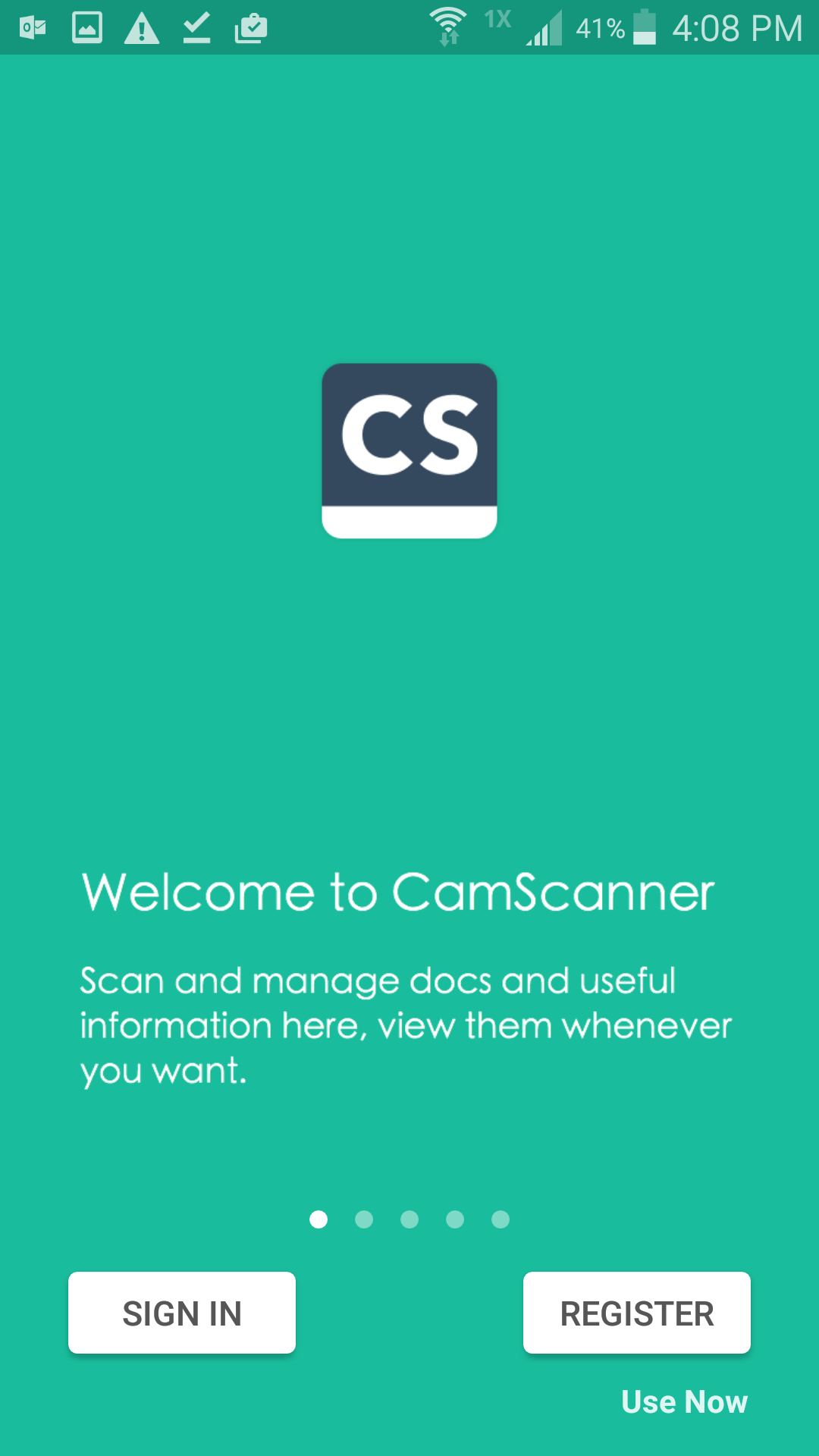
Welcome to CamScanner Splash Page.
Touch ' Use Now' on the Bottom-Right corner.
DO NOT TOUCH 'SIGN IN' OR 'REGISTER'
CamScanner Permissions
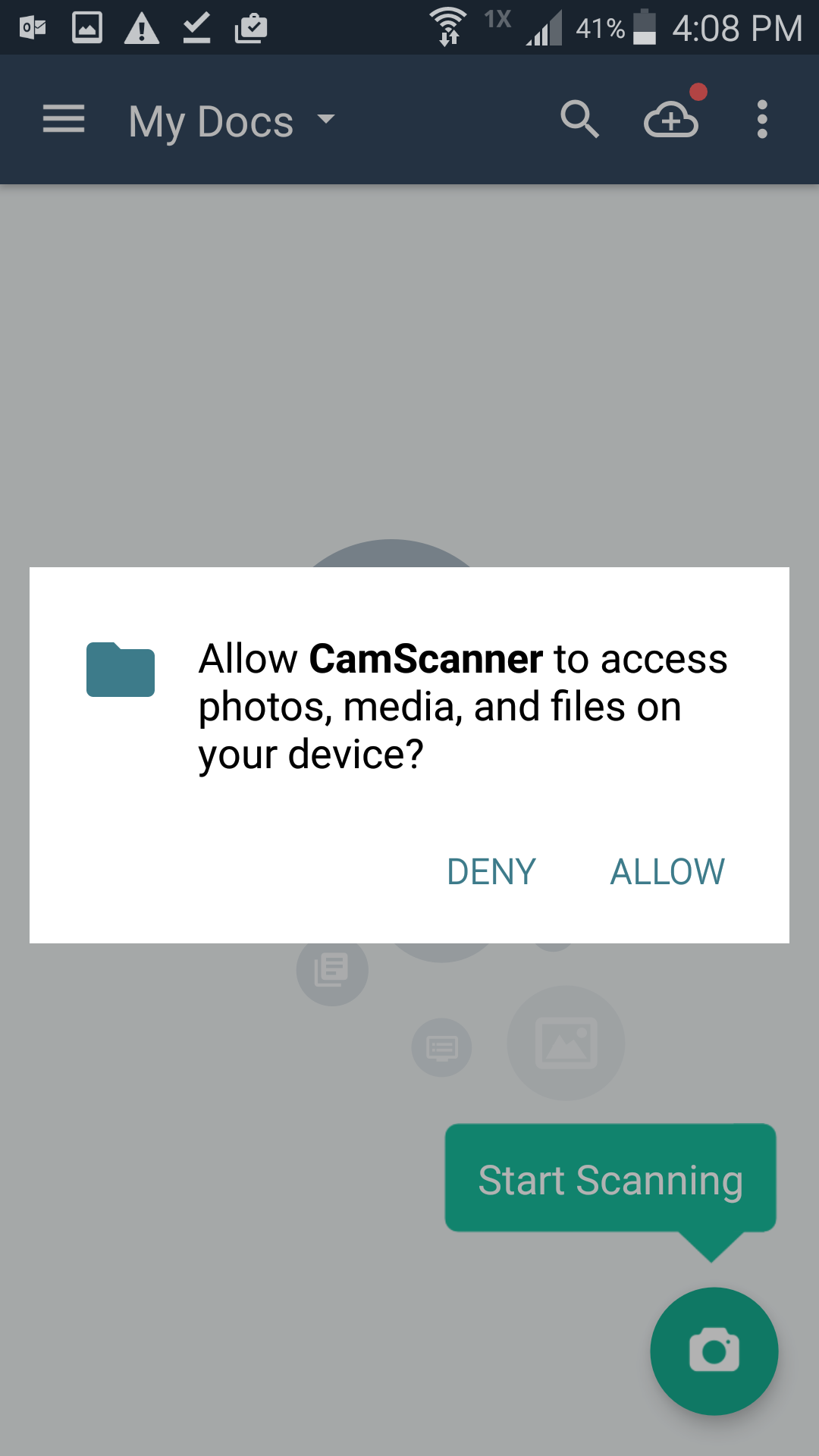
Click ALLOW to 'Allow CamScanner to access photos, media, and files on your device?'
Start Scan Button
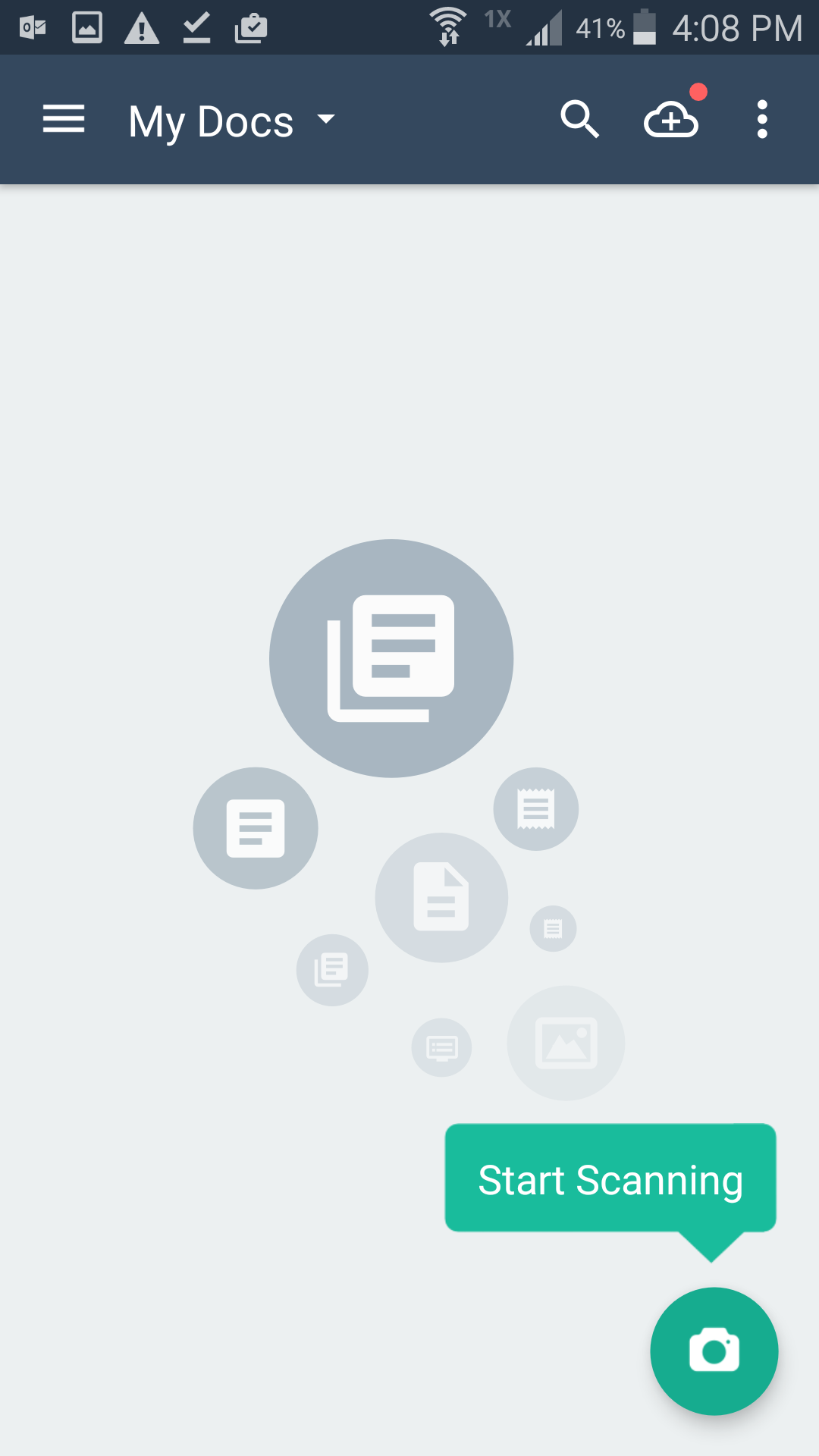
Press the Camera Scan Icon on Bottom-Right corner
CamScanner Camera Permissions
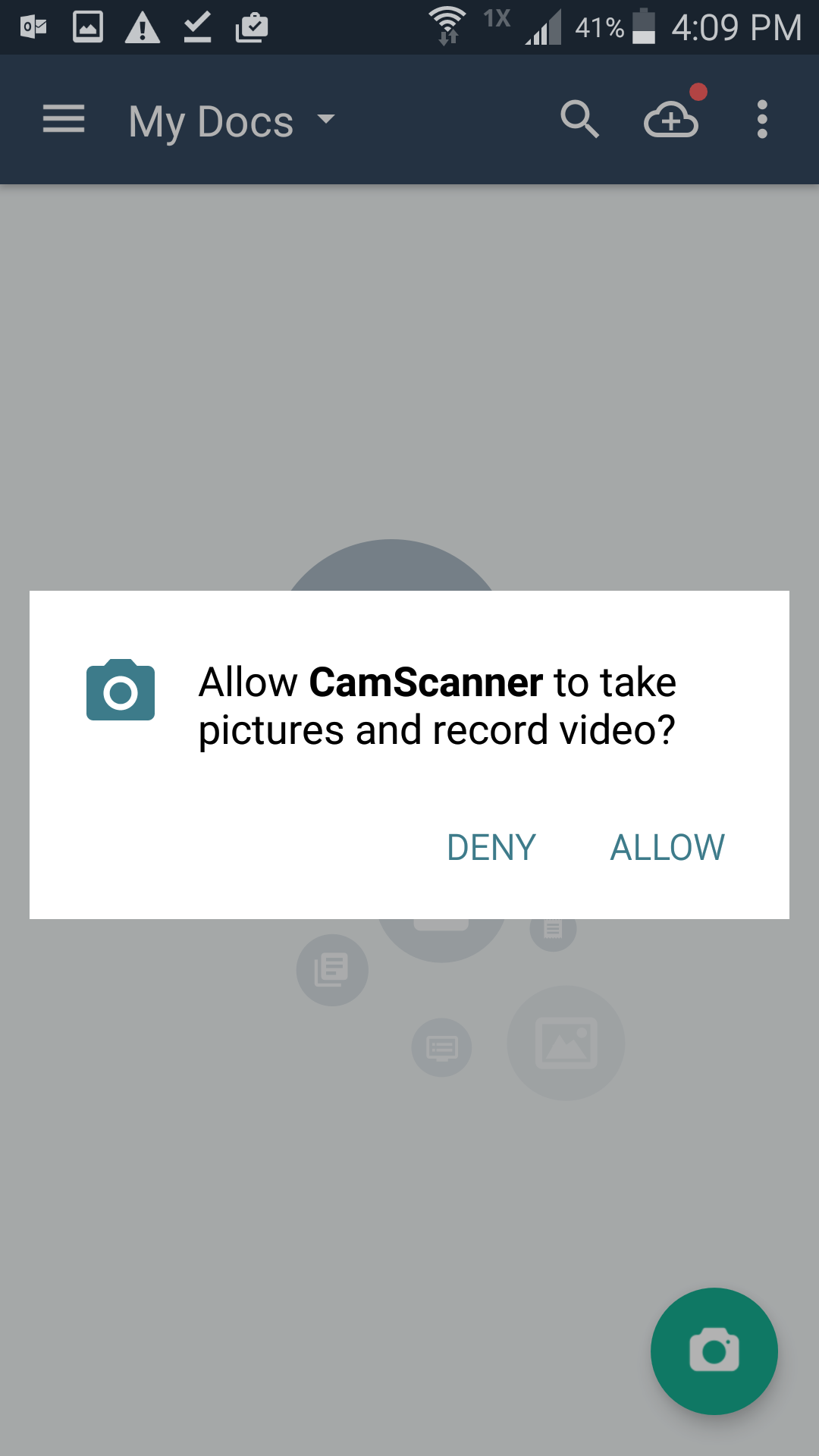
TOUCH "ALLOW"' to 'Alow CamScanner to take pictures and record video?'
Select (Single Page) or (Multiple Page) Document Scan
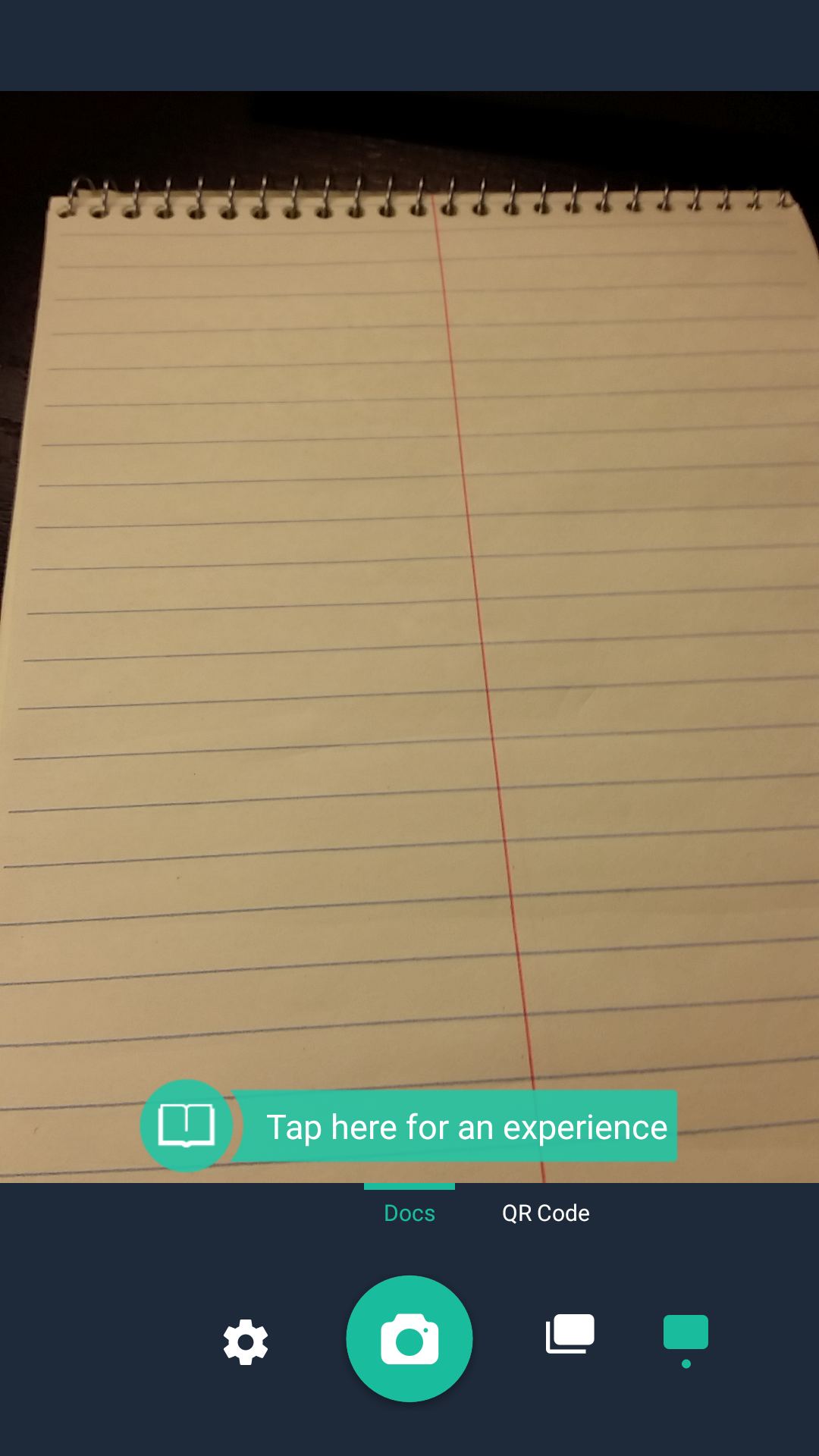
Bottom Right ->> Single Page Mode is automatically selected.
Ready, Steady, Aim!
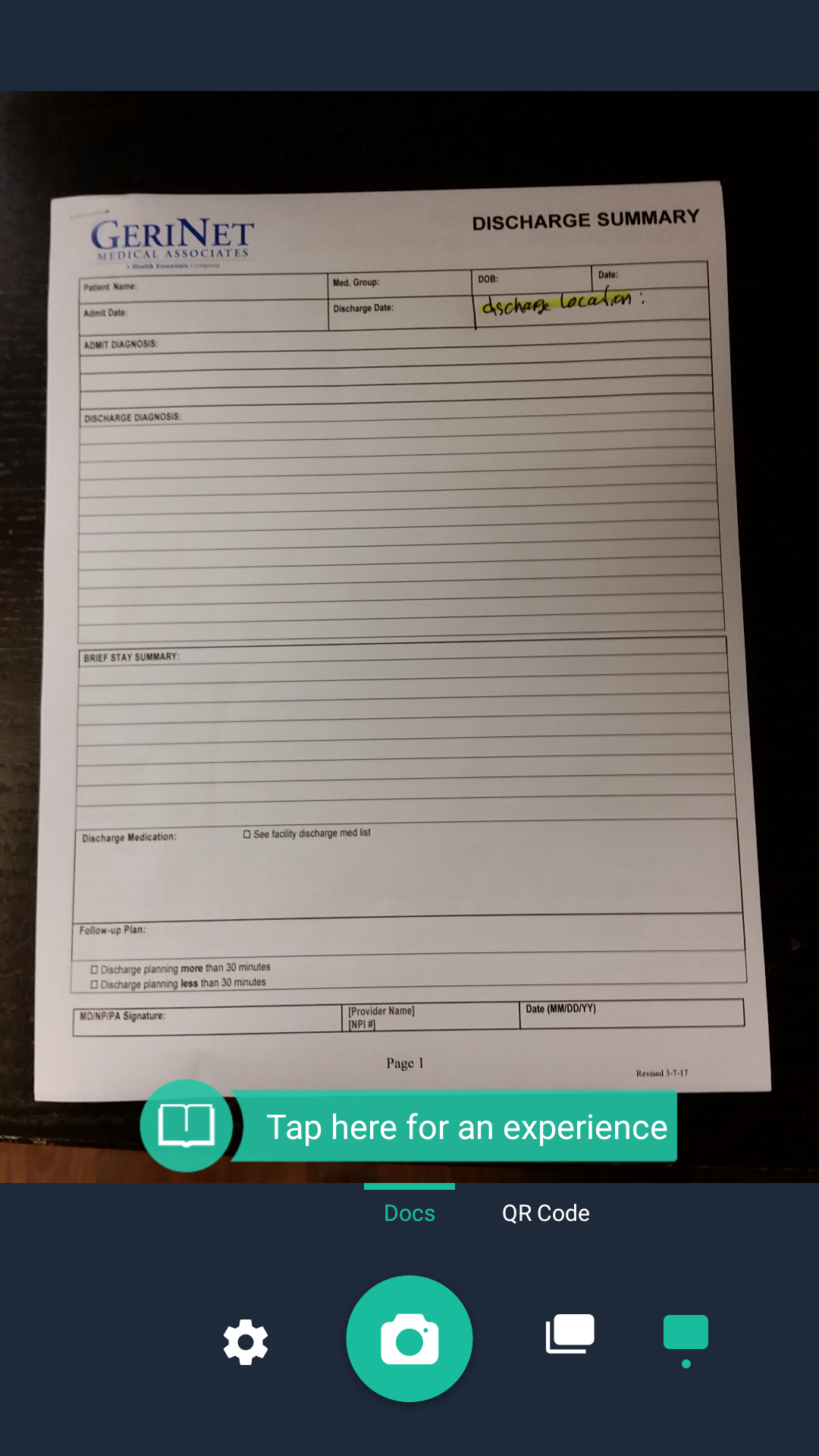
Try your best to capture the entire document under good lighting conditions.
Press the Camera Button to take a CamScan.
Document Adjustment
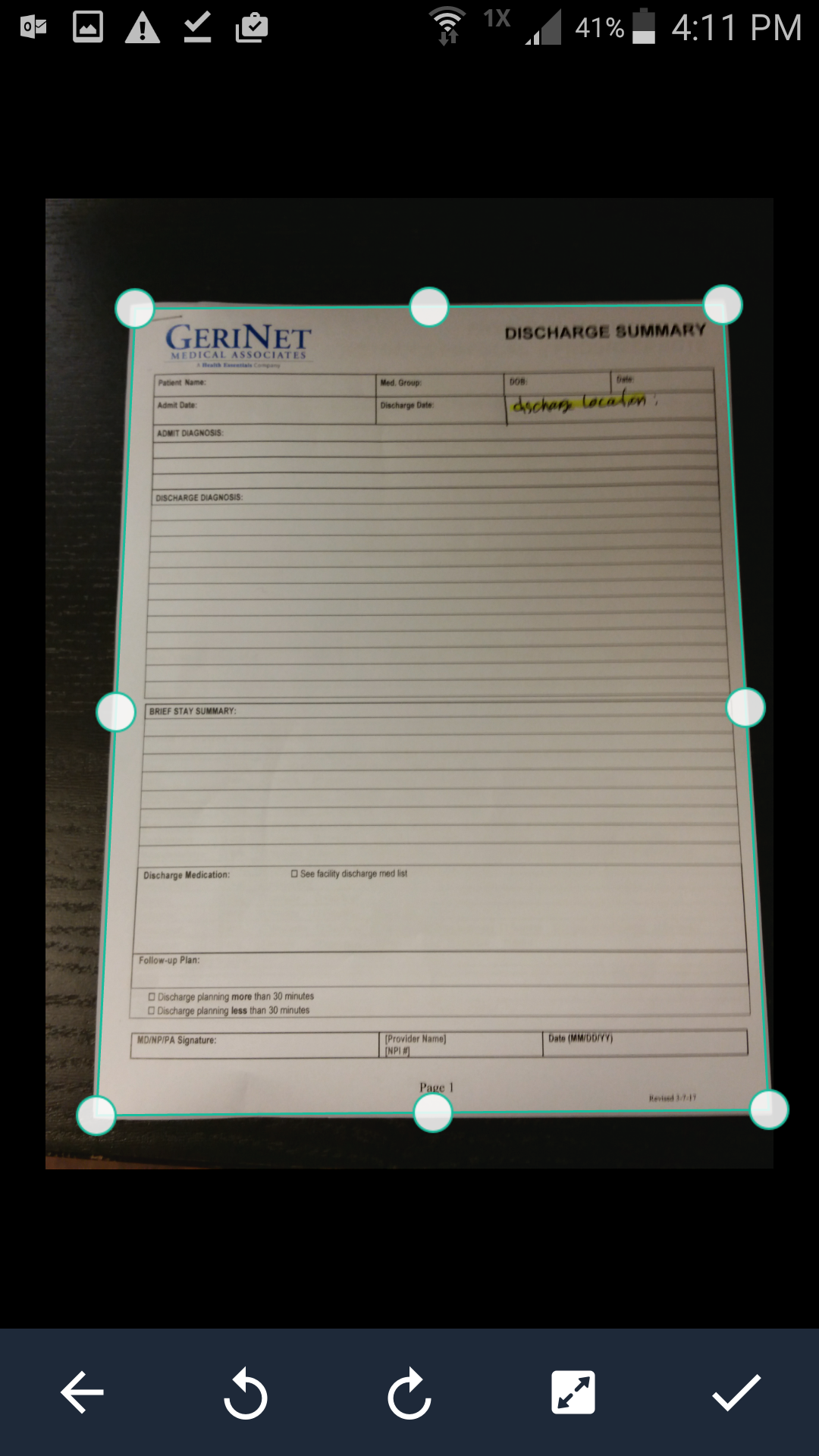
CamScanner will automatically scan the document for adjustments.
TOUCH the CHECK-MARK on the Bottom-Right to apply adjustments automatically.
Rename the Scan
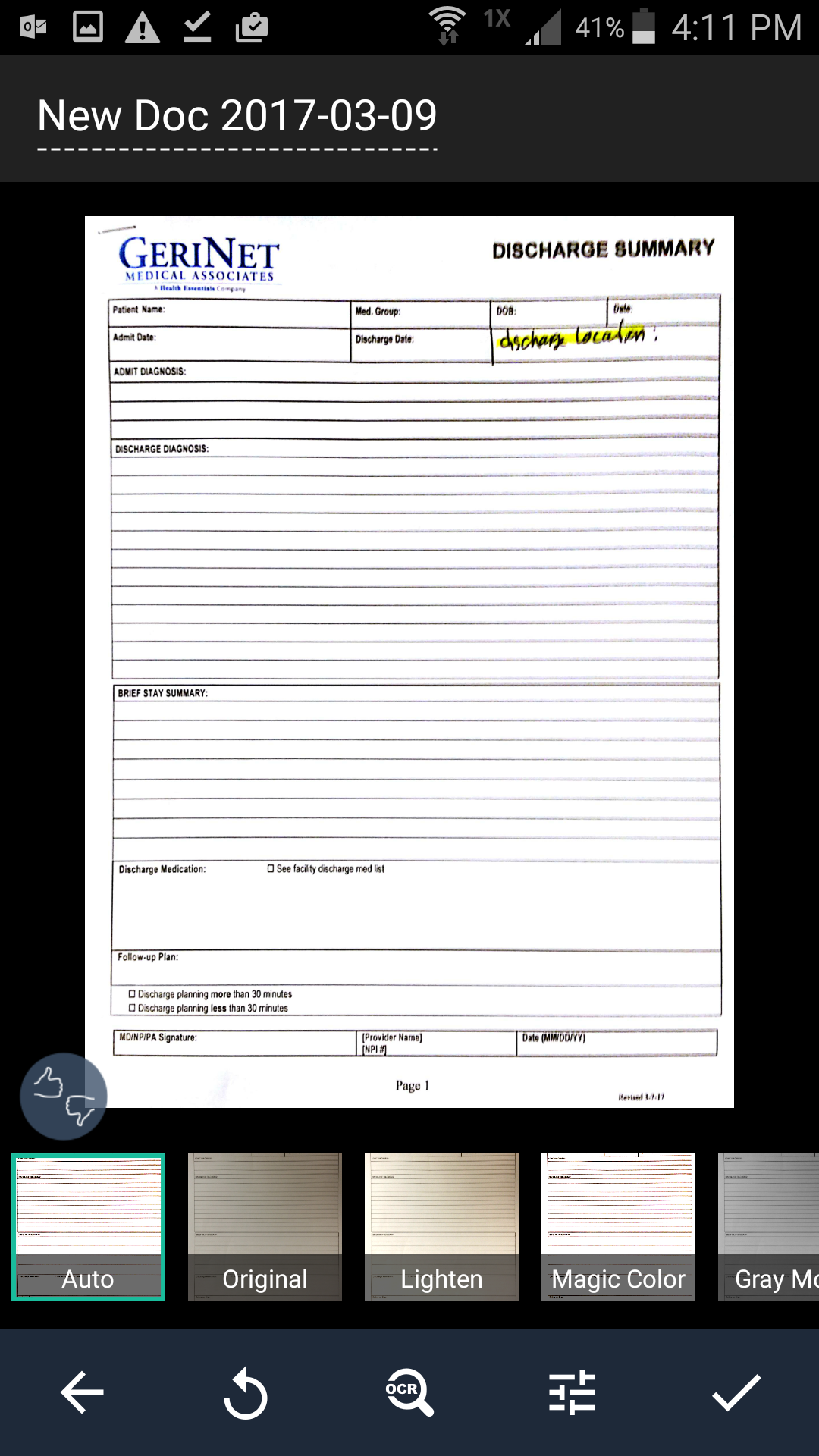
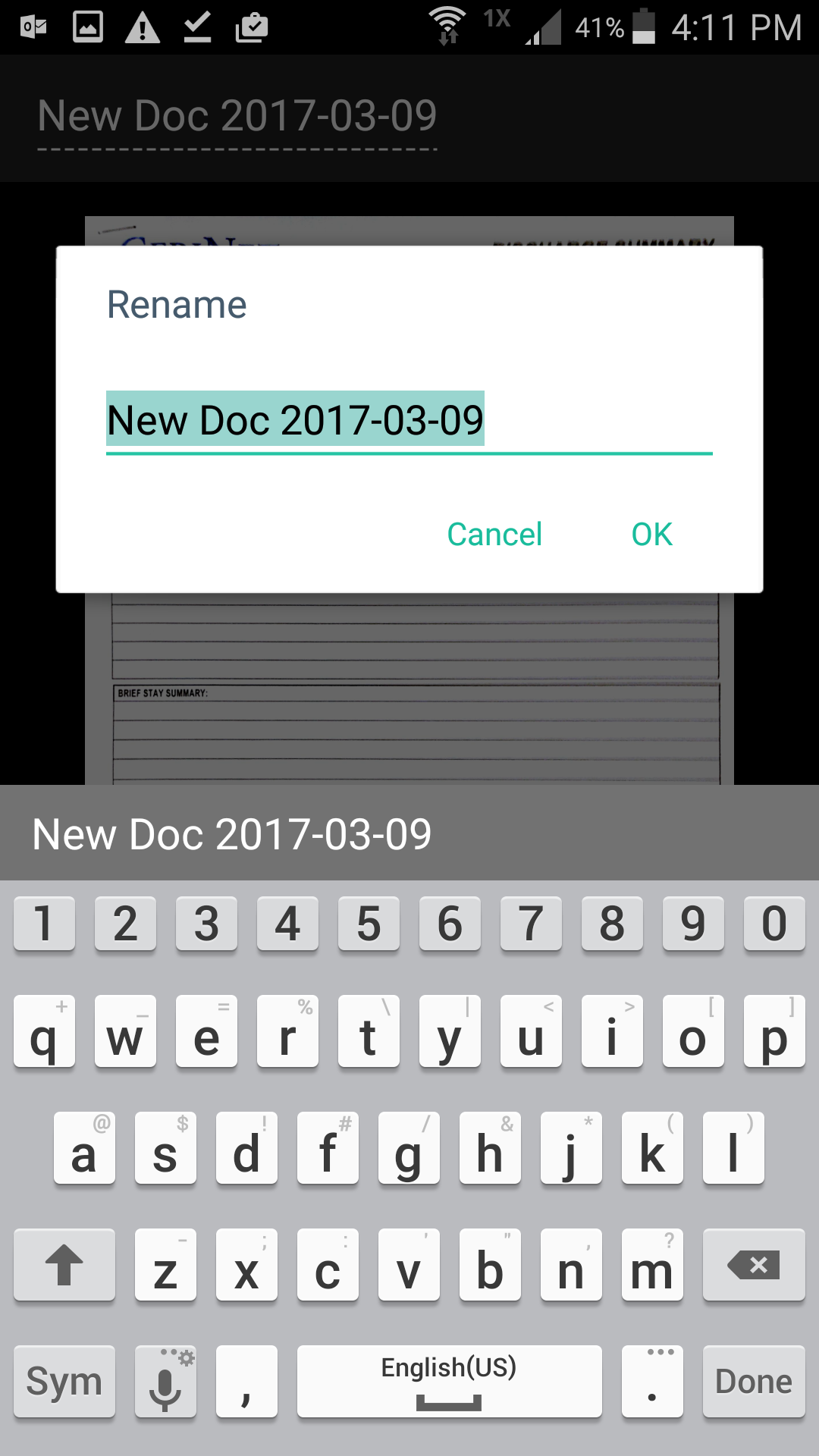
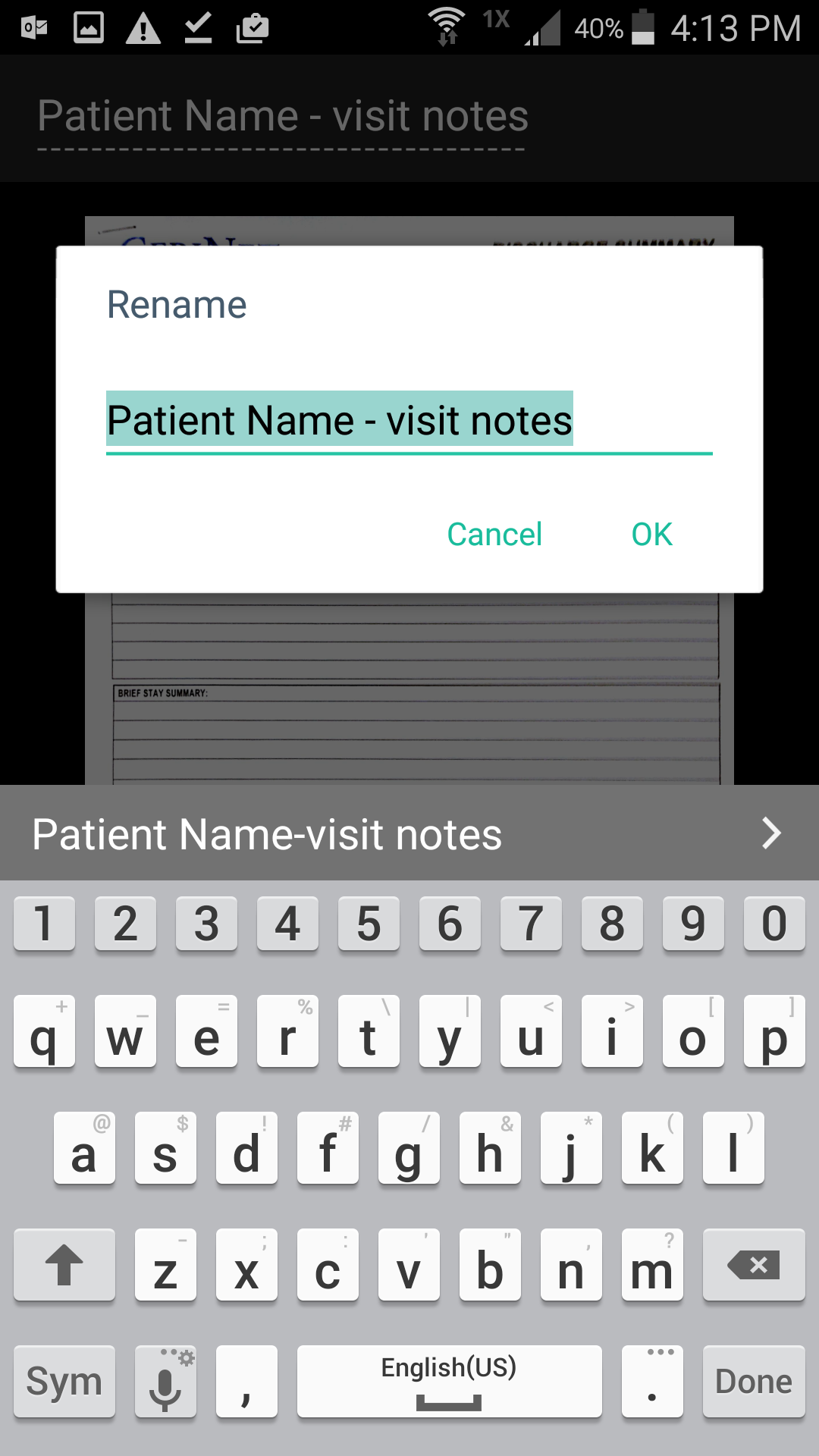
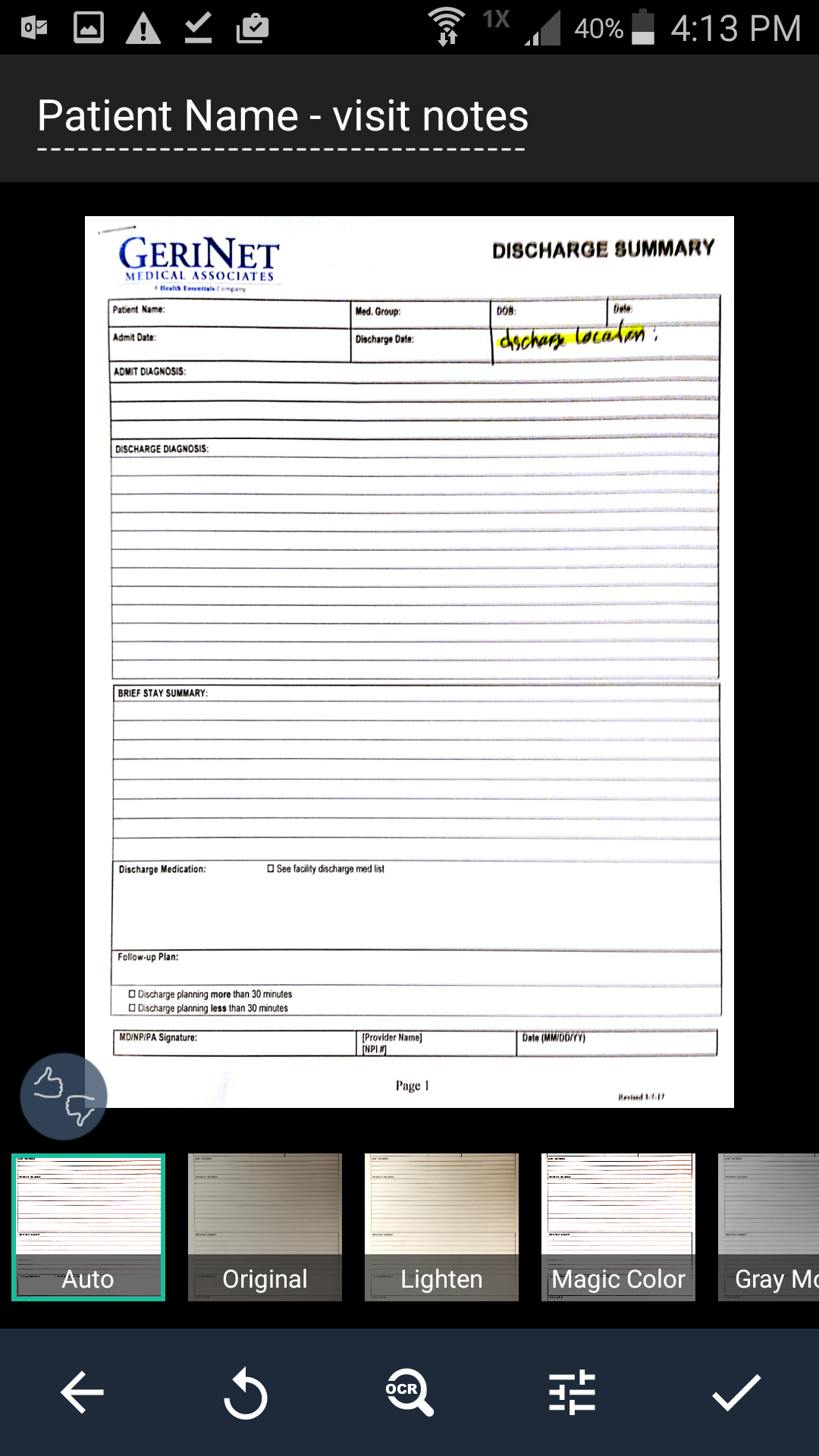
Click on the TOP-LEFT "New Doc" to rename the file.
After renaming, Touch 'OK' to rename the file.
'Auto' should be selected as a filter preset.
Click on the BOTTOM-RIGHT CHECK MARK to complete adjustments.
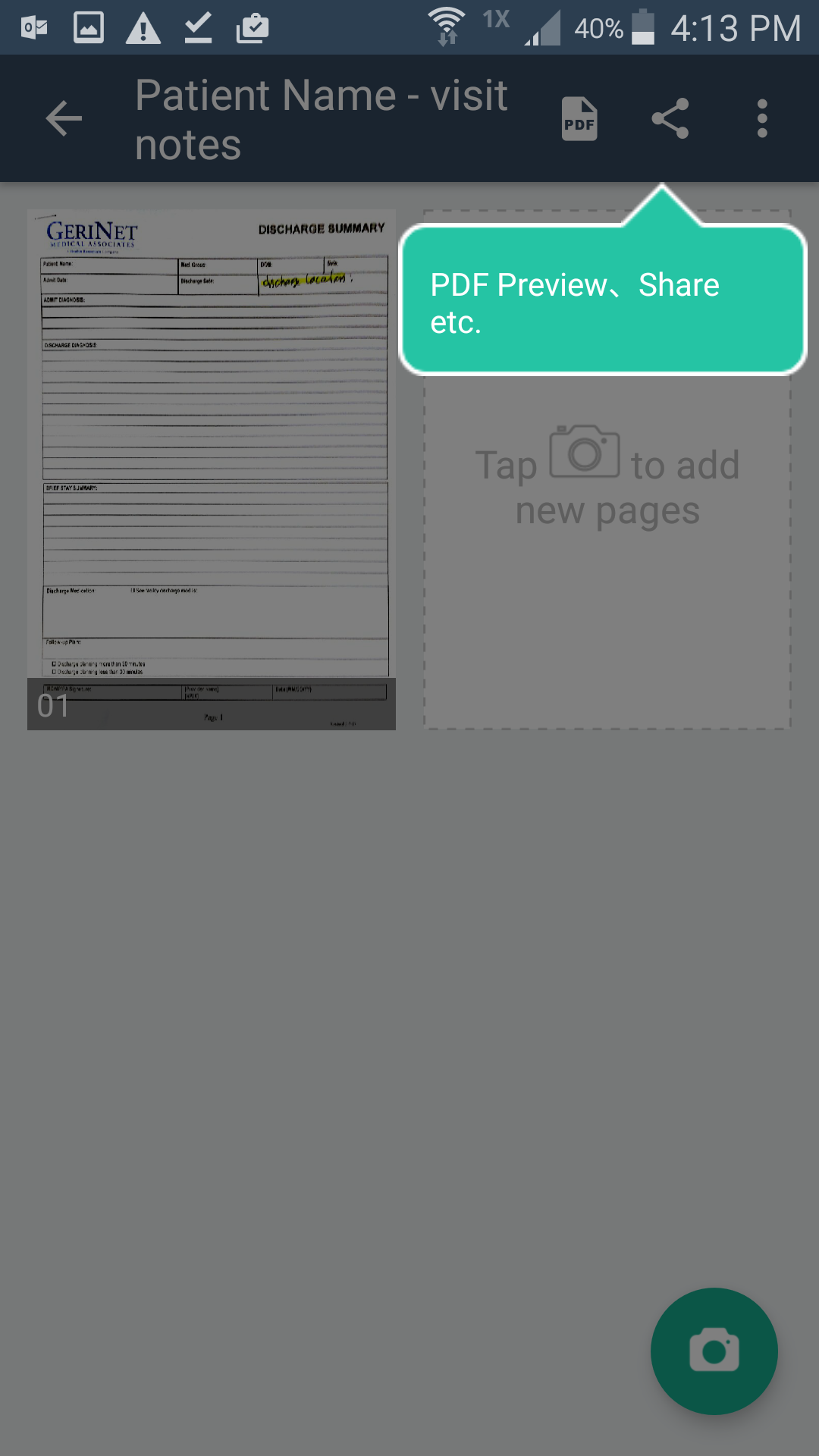
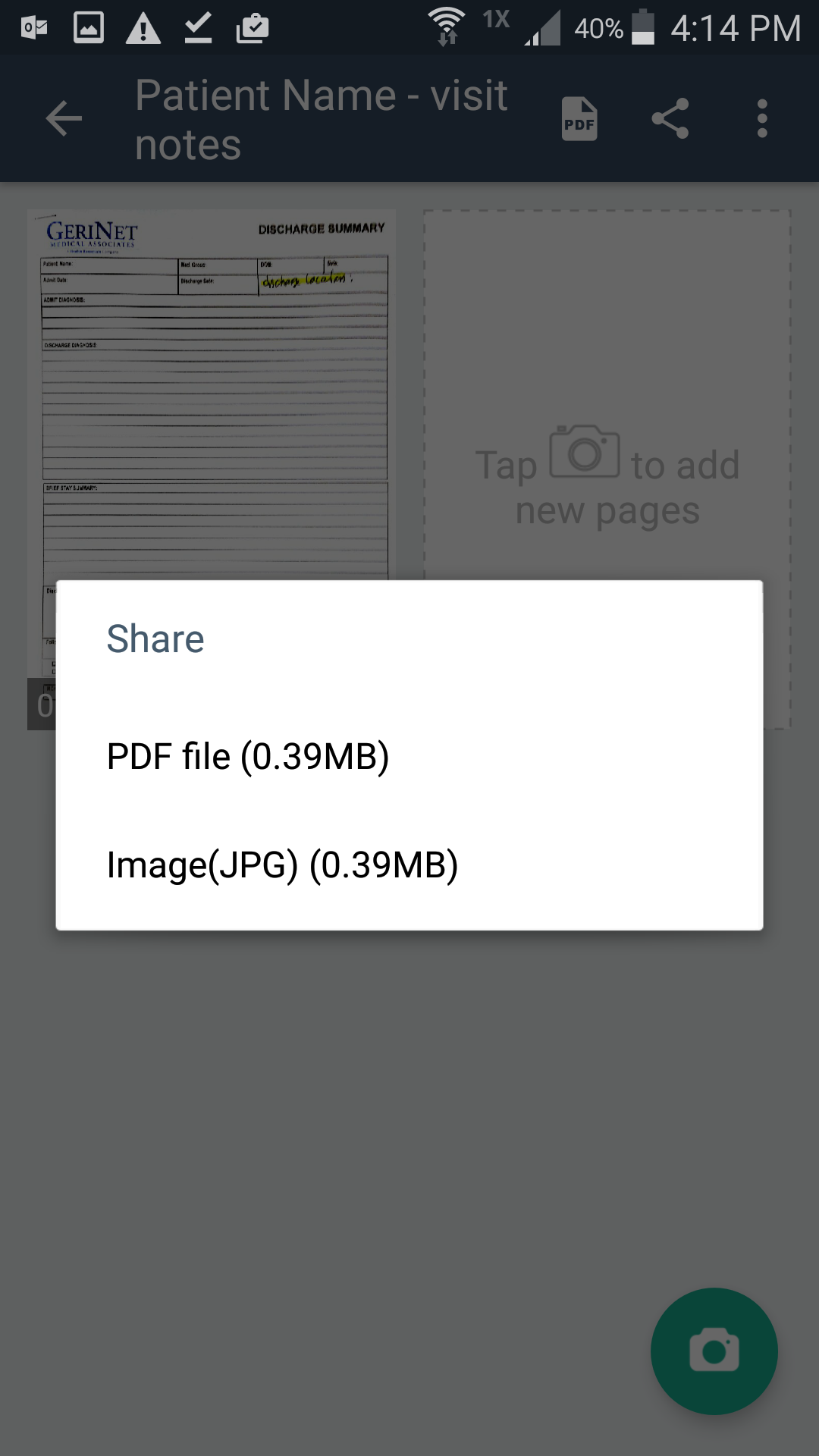
TOUCH on the PDF Preview/Share Button shown.
SELECT "PDF file (0.3MB)"
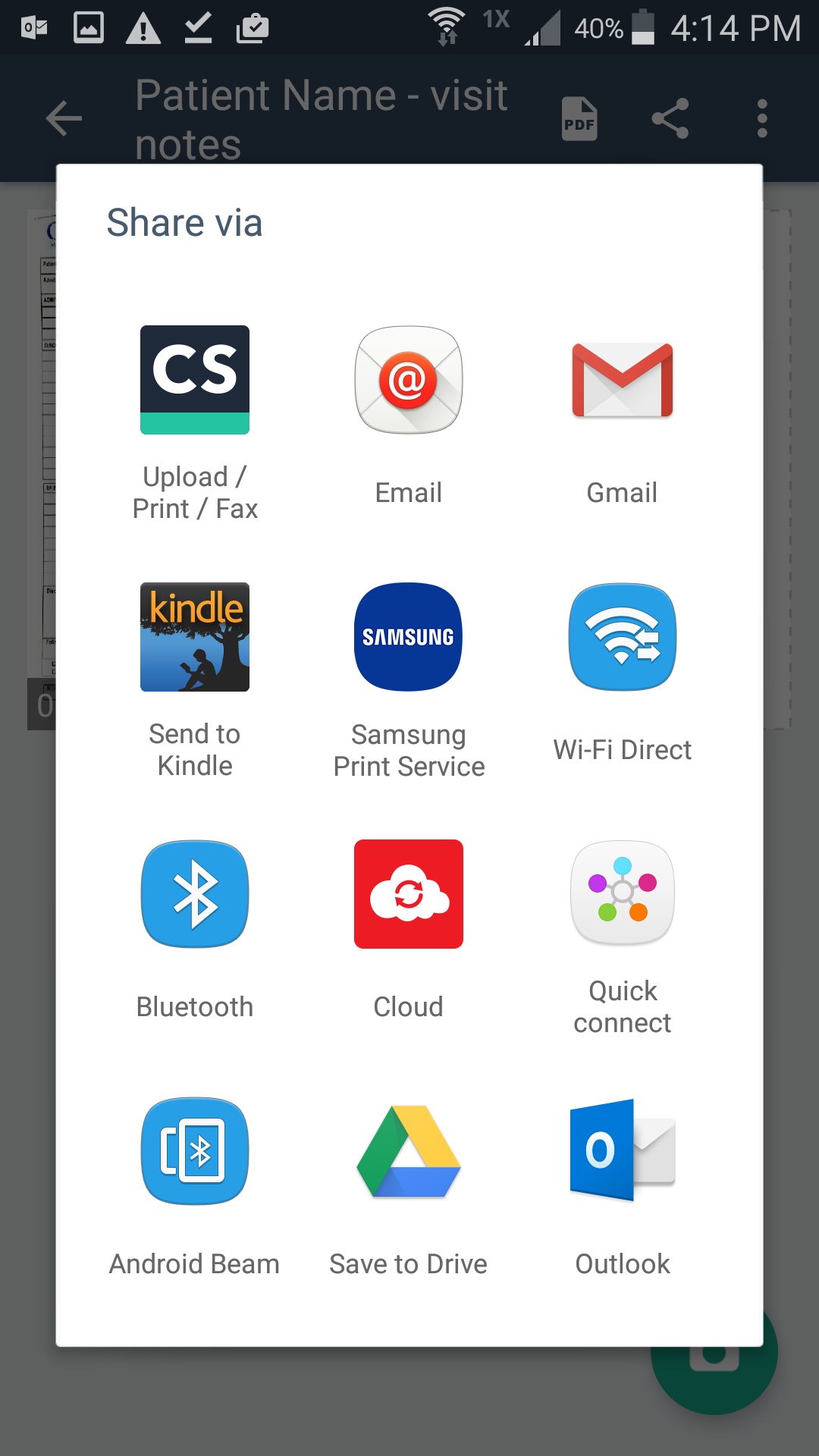
Select "Outlook" to email the document using Outlook.
Compose Email With Scanned Document Attatched
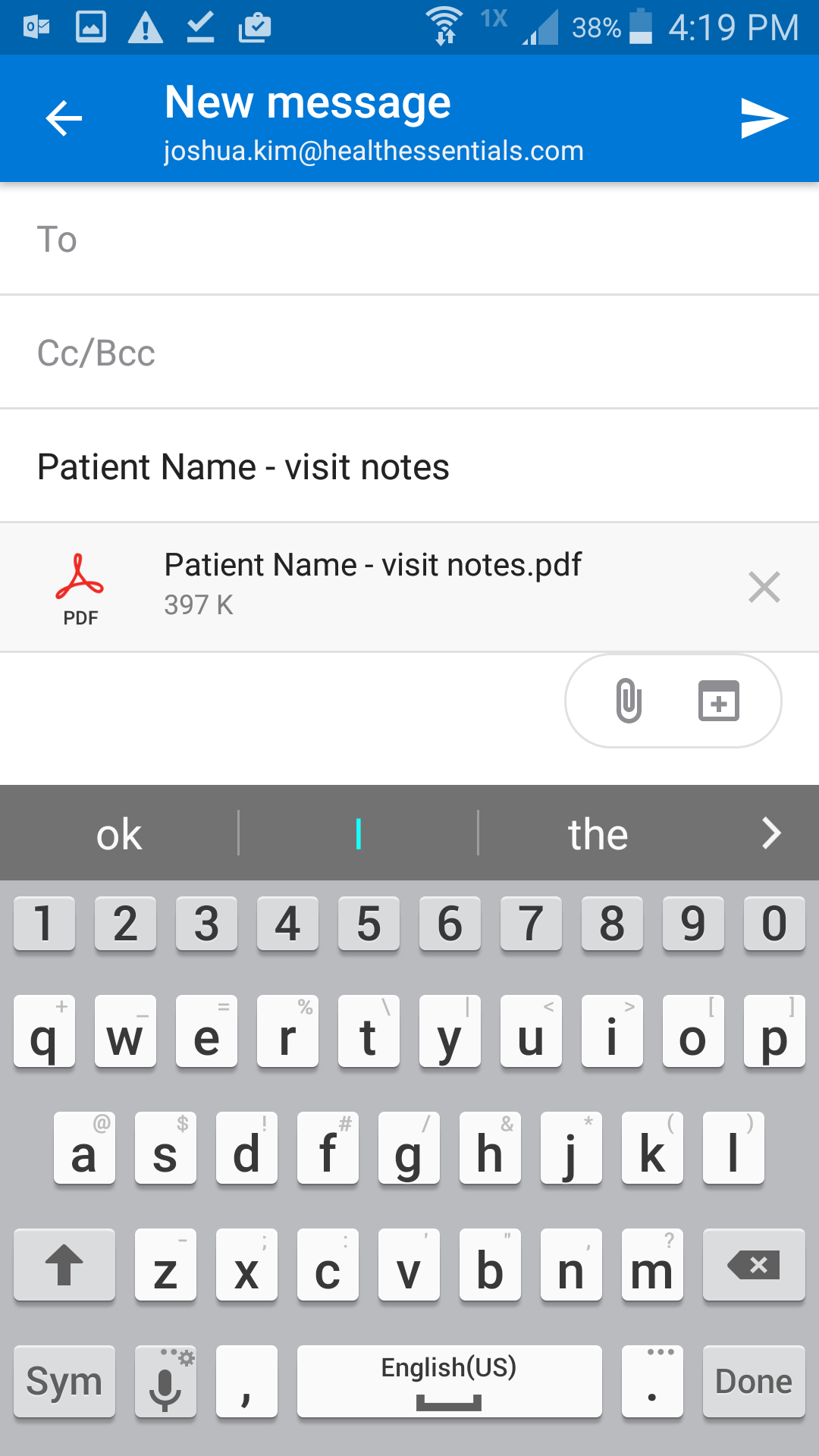
Add Destination , Subject, Message and SEND (Top Right) !
FOR IT STAFF TROUBLESHOOTING
Settings -> Applications -> Application Manager -> Outlook -> Permissions and enable the "Storage" permission
to allow attachment of files and fix the IO error when attaching files from CamScanner to Outlook.