Wireless Tilt-Controlled LED Spaceship Duel Game
by priestno in Circuits > Electronics
112 Views, 3 Favorites, 0 Comments
Wireless Tilt-Controlled LED Spaceship Duel Game

This project is a fully interactive, wireless spaceship duel game built using HUB75 LED matrix displays, CircuitPython, and tilt-based controls. Two players each control a spaceship displayed on their own LED panel, using motion (tilt) to move and shoot at each other in real time.
The hybrid controller/display units use onboard accelerometers for movement, NeoPixel strips and internally mounted speakers for lighting and sounds, and wireless communication between devices to sync gameplay. Each unit is fully self-contained, powered by two rechargeable batteries, and designed to be self-contained, handheld devices.
This project was created as part of a physical computing course and combines hardware design, embedded programming, and game logic into a cohesive interactive system.
Features:
- Real-time wireless communication between two game units
- Tilt-based spaceship movement using accelerometer input
- LED matrix rendering of ships, projectiles, and effects
- Live health and ammo tracking
- Sound background audio
- Rechargeable battery-powered system
- Expandable game logic (power-ups, scoring, etc.)
Supplies
Core Display & Control Hardware (2 Units)
- 2 × HUB75 LED Matrix Panels (64×32)
- 2 × Adafruit Matrix Portal S3 (display controller)
- 2 × LIS3DH Accelerometers (or onboard equivalent)
Lighting & Feedback Components
- 2 × NeoPixel LED Strip (health and ammo indicators)
Audio System (Optional but Recommended)
- 2 × Mini Speaker 8Ω
- 2 × PAM8302 Amplifier
Additional Control Module
- 2 × Adafruit Circuit Playground Bluefruit
- Used for continuous NeoPixel animations and background audio playback
Power System
- 4 × 3.7V LiPo Battery ~2500mAh
Mechanical & Structural Components
- 2 × Display Handle + Enclosure Sets (3D printed recommended)
- Example design: Thingiverse handle model
Tools & Assembly Materials
- Soldering iron and solder
- Hot glue gun + glue
- Superglue
- ruler
- adhesive velcro
Reference Links
You can include these at the bottom of your Instructable:
- Matrix Portal S3: https://www.adafruit.com/product/4745
- HUB75 LED Panel: https://www.adafruit.com/product/5036
- Circuit Playground Bluefruit: https://www.adafruit.com/product/764
- NeoPixel Strip: https://www.adafruit.com/product/3811
- Speaker: https://www.adafruit.com/product/3351
- PAM8302 Amplifier: https://www.adafruit.com/product/2130
- LiPo Battery: https://www.adafruit.com/product/1959
- 3D Printed Handles: https://www.thingiverse.com/thing:4604260
Build the Two Main Display Units
This game uses two separate HUB75 LED matrix display units. Each player has one display, one Matrix Portal S3, and one battery-powered setup.
Attach one Matrix Portal S3 to the back of each HUB75 LED matrix panel. Make sure the Matrix Portal is firmly connected to the HUB75 connector and aligned correctly before powering it on.
Each display unit will act as its own independent player screen.
Prepare the Matrix Portal S3 Boards


Then copy the required libraries to the lib folder on each board. These include the libraries needed for:
- HUB75 LED matrix control
- Wi-Fi communication
- DisplayIO graphics
- Built-in accelerometer input
- Any custom text-display helpers used by the game
(to simplify use the Circup extension)
Configure Wi-Fi and Board Settings
Create or edit the settings.toml file on each Matrix Portal S3.
Add the Wi-Fi network name and password:
Each board also needs its own board ID so the game can tell the two players apart:
On the second board, use:
The boards communicate using UDP over Wi-Fi, so both units need to be connected to the same network.
Upload the Main Game Code
Upload the main game code to each Matrix Portal S3 (see attached file).
This code controls:
- The HUB75 LED matrix display
- The spaceship movement
- The built-in accelerometer tilt controls
- The health bar
- Bullets and hit detection
- Powerups
- Win/loss screens
- Wireless communication between both boards
Once the code is uploaded, restart each board.
Downloads
Calibrate the Tilt Controls
When the game starts, the Matrix Portal S3 uses its built-in accelerometer to calibrate the controller.
First, hold the unit as flat and still as possible while the display says it is calibrating. This sets the neutral resting position.
Then follow the on-screen guided calibration by tilting the controller toward the corners shown on the display.
This step helps the game understand the full movement range of the player’s tilt controls.
Test Spaceship Movement
Tilt the display unit to move the ship:
- Tilt left or right to move horizontally
- Tilt forward or backward to move vertically
The code applies a deadzone and smoothing so that small hand movements do not make the ship jitter too much.
Test Wireless Communication
Power on both display units and make sure they are connected to the same Wi-Fi network.
The two boards send packets to each other during gameplay. These packets communicate bullet events, hits, successful shots, and game-over states.
If the boards are communicating correctly, bullets fired from one player’s screen will appear as incoming enemy bullets on the other player’s screen.
If issues with network connectivity persist, or one controller drops connection, simply turn off one of the batteries and then back on. This initiates a reconnection to the network, and the controllers will automatically re-connect to each other afterward.
Understand the Health System
Each player starts with full health.
The health bar appears along the bottom of the LED matrix. When a player gets hit, their health decreases.
If a player’s health reaches zero, that board displays a losing screen, while the other board receives the win signal and displays a winning screen.
After the game-over screen, the game resets and begins a new calibration sequence for the next round.
Add Powerups
The game includes powerups that randomly appear on the LED display.
Current powerups include:
- Shield: adds extra temporary health
- Rapid fire: increases bullet speed
- Big shot: increases bullet size
Players collect powerups by moving their spaceship over the powerup icon.
Powerups make the game more dynamic and give players a reason to move around the screen instead of staying in one place.
Add the Independent Sound and Light System
After the main game is working, add the separate sound and lighting system using the Circuit Playground Bluefruit.
This part runs independently from the game for simplicity.
The Circuit Playground Bluefruit controls:
- Continuous arcade-style background music
- Continuous NeoPixel light animations
Because this system is separate from the Matrix Portal S3, it does not need to communicate with the game code. It simply turns on and runs in the background during gameplay.
Wire the Speaker and NeoPixels
Connect the speaker and amplifier to the Circuit Playground Bluefruit.
For the speaker system:
- Circuit Playground Bluefruit audio/signal output → PAM8302 amplifier input
- Circuit Playground Bluefruit GND → amplifier GND
- Circuit Playground Bluefruit power/VOUT → amplifier power
- Amplifier speaker output → speaker wires
For the NeoPixel strip:
- Circuit Playground Bluefruit data pin → NeoPixel data input
- Circuit Playground Bluefruit power/VOUT → NeoPixel power
- Circuit Playground Bluefruit GND → NeoPixel GND
These connections can be made with alligator clips for testing or soldered for the final build. Soldering is recommended if possible since the display will be moved and tilted regularly during gameplay.
The audio and lighting are powered separately from the main display system to keep the game stable and avoid overloading the Matrix Portal S3.
Attach the Lights and Audio Hardware
Once the sound and light system is tested, attach the components to the sides of the display unit.
Use hot glue (or superglue for a more durable hold) to secure:
- NeoPixel strips along the side of the display
- Speaker module
- Amplifier
- Circuit Playground Bluefruit
- Battery/power supply
Make sure the wires are routed neatly and do not block the display or interfere with holding the controller.
Mount the Handles and Enclosure
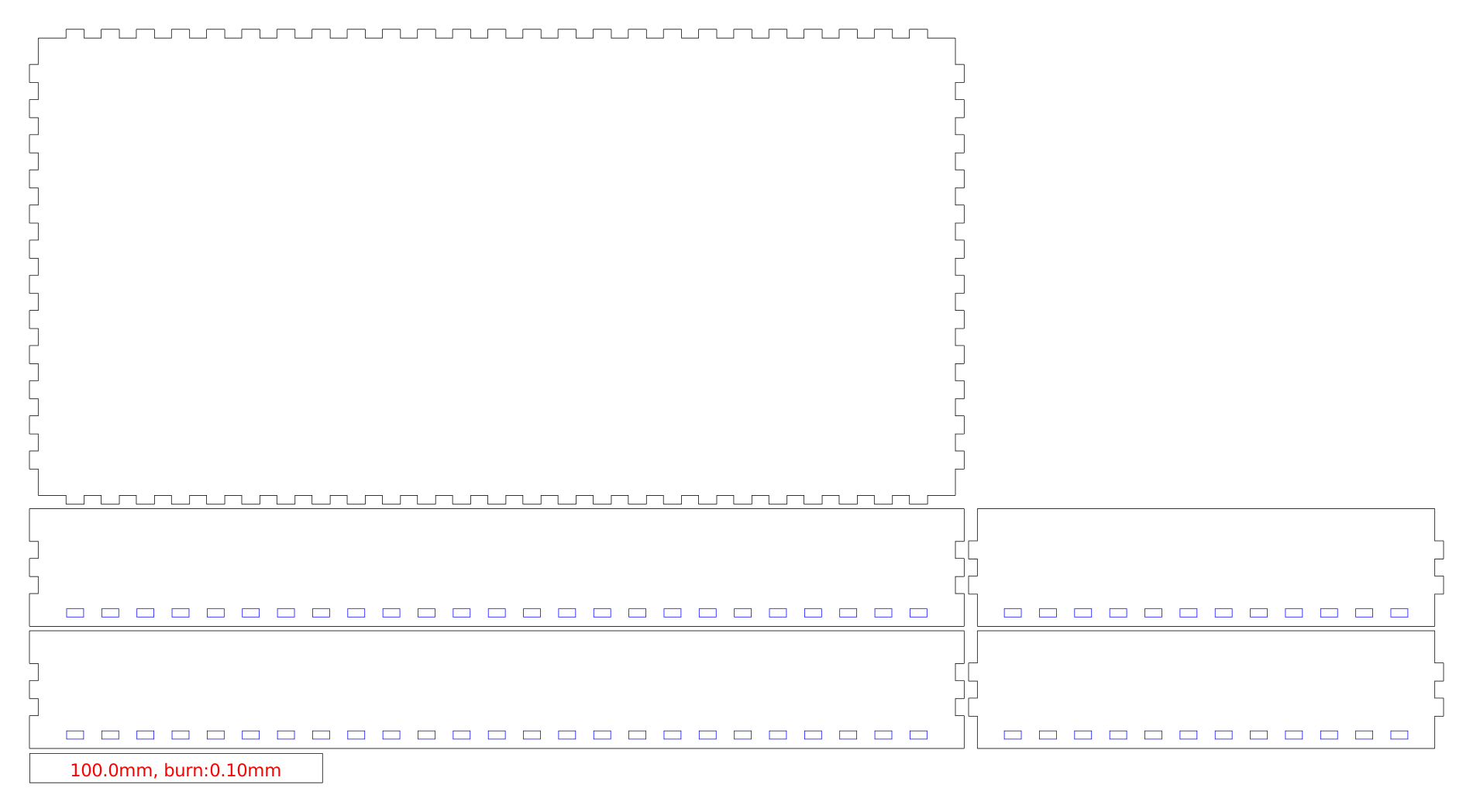
Attach the 3D printed handles and enclosure pieces to each display unit. This can be done with Hot glue or superglue.
The handles make the game easier to hold and also improve the tilt-control experience.
Make sure the enclosure leaves access to:
- Power supplies
- USB ports
- Any Battery connections (if alternate power source used)
*SEE BACKPLATE SVG FILE IN ATTACHMENTS FOR USE WITH LASER CUTTER*
Downloads
Final Testing
Before presenting the project, test both units fully.
Check that:
- Both Matrix Portal S3 boards power on
- Both displays show the game correctly
- Tilt calibration works
- Spaceships move smoothly
- Wireless bullets transfer between boards
- Hits reduce health
- Powerups can be collected
- Win/loss screens appear correctly
- Music plays continuously
- NeoPixels animate continuously
- All parts are securely attached with hot/super glue
After final testing, the game is ready to play.